Comprehensive Guide to Microsoft Autopilot v2 Deployment in Microsoft 365 Business

Microsoft’s Windows Autopilot is a cloud-based suite of technologies designed to streamline the deployment and configuration of new Windows devices for organizations[1]. This guide provides a detailed look at the latest updates to Windows Autopilot – specifically the new Autopilot v2 (officially called Windows Autopilot Device Preparation) – and offers step-by-step instructions for implementing it in a Microsoft 365 Business environment. We will cover the core concepts, new features in Autopilot v2, benefits for businesses, the implementation process (from prerequisites to deployment), troubleshooting tips, and best practices for managing devices with Autopilot v2.

1. Overview of Microsoft Autopilot and Its Purpose

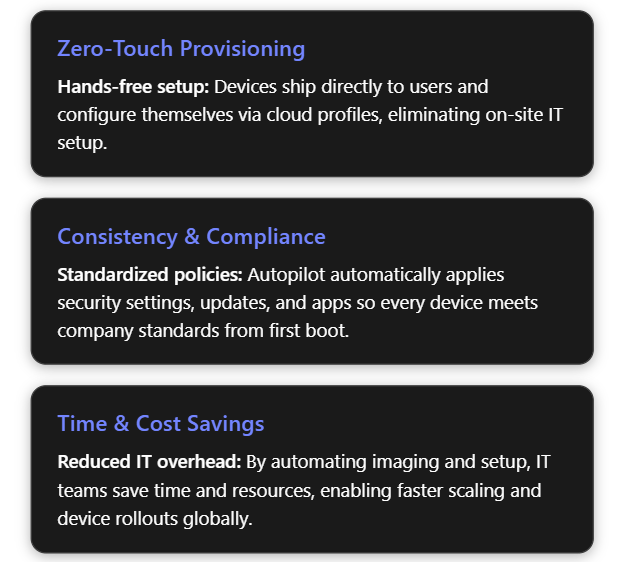
Windows Autopilot simplifies the Windows device lifecycle from initial deployment through end-of-life. It leverages cloud services (like Microsoft Intune and Microsoft Entra ID) to pre-configure devices out-of-box without traditional imaging. When a user unboxes a new Windows 10/11 device and connects to the internet, Autopilot can automatically join it to Azure/Microsoft Entra ID, enroll it in Intune (MDM), apply corporate policies, install required apps, and tailor the out-of-box experience (OOBE) to the organization[1][1]. This zero-touch deployment means IT personnel no longer need to manually image or set up each PC, drastically reducing deployment time and IT overhead[2]. In short, Autopilot’s purpose is to get new devices “business-ready” with minimal effort, offering benefits such as:

  • Reduced IT Effort – No need to maintain custom images for every model; devices use the OEM’s factory image and are configured via cloud policies[1][1].
  • Faster Deployment – Users only perform a few quick steps (like network connection and sign-in), and everything else is automated, so employees can start working sooner[1].
  • Consistency & Compliance – Ensures each device receives standard configurations, security policies, and applications, so they immediately meet organizational standards upon first use[2].
  • Lifecycle Management – Autopilot can also streamline device resets, repurposing for new users, or recovery scenarios (for example, using Autopilot Reset to wipe and redeploy a device)[1].

2. Latest Updates: Introduction of Autopilot v2 (Device Preparation)

Microsoft has recently introduced a next-generation Autopilot deployment experience called Windows Autopilot Device Preparation (commonly referred to as Autopilot v2). This new version is essentially a re-architected Autopilot aimed at simplifying and improving deployments based on customer feedback[3]. Autopilot v2 offers new capabilities and architectural changes that enhance consistency, speed, and reliability of device provisioning. Below is an overview of what’s new in Autopilot v2:

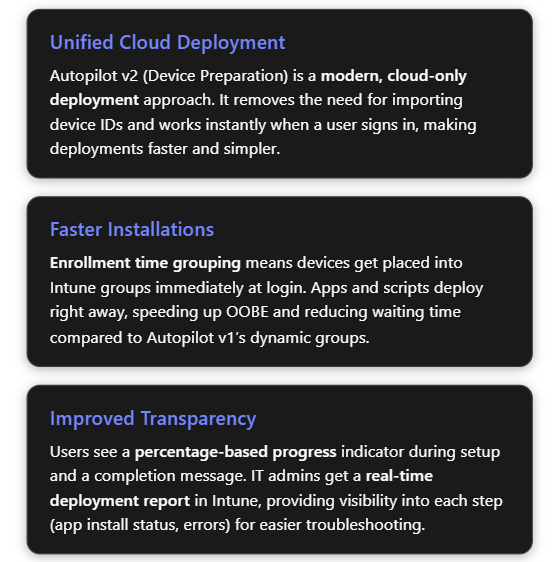
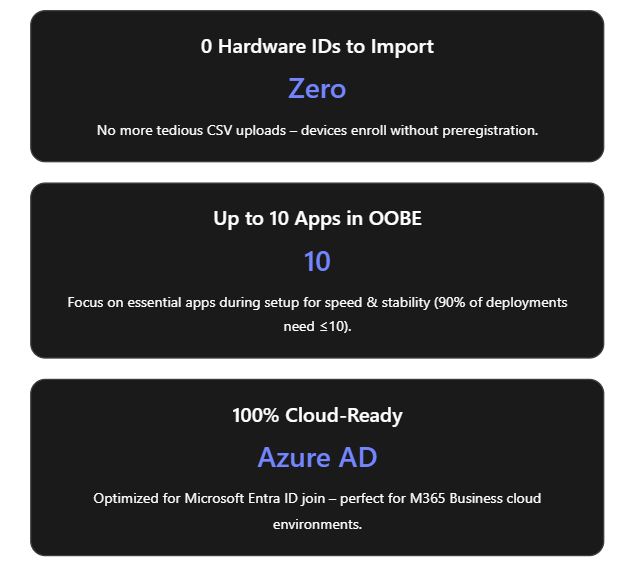
  • No Hardware Hash Import Required: Unlike the classic Autopilot (v1) which required IT admins or OEMs to register devices in Autopilot (upload device IDs/hardware hashes) beforehand, Autopilot v2 eliminates this step[4]. Devices do not need to be pre-registered in Intune; instead, enrollment can be triggered simply by the user logging in with their work account. This streamlines onboarding by removing the tedious hardware hash import process[3]. (If a device is already registered in the old Autopilot, the classic profile will take precedence – so using v2 means not importing the device beforehand[5].)
  • Cloud-Only (Entra ID) Join: Autopilot v2 currently supports Microsoft Entra ID (Azure AD) join only – it’s designed for cloud-based identity scenarios. Hybrid Azure AD Join (on-prem AD) is not supported in v2 at this time[3]. This focus on cloud join aligns with modern, cloud-first management in Microsoft 365 Business environments.
  • Single Unified Deployment Profile: The new Autopilot Device Preparation uses a single profile to define all deployment settings and OOBE customization, rather than separate “Deployment” and “ESP” profiles as in legacy Autopilot[3]. This unified profile encapsulates join type, user account type, and OOBE preferences, plus it lets you directly select which apps and scripts should install during the setup phase.
  • Enrollment Time Grouping: Autopilot v2 introduces an “Enrollment Time Grouping” mechanism. When a user signs in during OOBE, the device is automatically added to a specified Azure AD group on the fly, and any applications or configurations assigned to that group are immediately applied[5][5]. This replaces the old dependence on dynamic device groups (which could introduce delays while membership queries run). Result: faster and more predictable delivery of apps/policies during provisioning[5].
  • Selective App Installation (OOBE): With Autopilot v1, all targeted device apps would try to install during the initial device setup, possibly slowing things down. In Autopilot v2, the admin can pick up to 10 essential apps (Win32, MSI, Store apps, etc.) to install during OOBE; any apps not selected will be deferred until after the user reaches the desktop[3][6]. By limiting to 10 critical apps, Microsoft aimed to increase success rates and speed (as their telemetry showed ~90% of deployments use 10 or fewer apps initially)[6].
  • PowerShell Scripts Support in ESP: Autopilot v2 can also execute PowerShell scripts during the Enrollment Status Page (ESP) phase of setup[3]. This means custom configuration scripts can run as part of provisioning before the device is handed to the user – a capability that simplifies advanced setup tasks (like configuring registry settings, installing agent software, etc., via script).
  • Improved Progress & UX: The OOBE experience is updated – Autopilot v2 provides a simplified progress display (percentage complete) during provisioning[6]. Users can clearly see that the device is installing apps/configurations. Once the critical steps are done, it informs the user that setup is complete and they can start using the device[6][6]. (Because the device isn’t identified as Autopilot-managed until after the user sign-in, some initial Windows setup screens like EULA or privacy settings may appear in Autopilot v2 that were hidden in v1[3]. These are automatically suppressed only after the Autopilot policy arrives during login.)
  • Near Real-Time Deployment Reporting: Autopilot v2 greatly enhances monitoring. Intune now offers an Autopilot deployment report that shows status per device in near real time[6]. Administrators can see which devices have completed Autopilot, which stage they’re in, and detailed results for each selected app and script (success/failure), as well as overall deployment duration[5][5]. This granular reporting makes troubleshooting easier, as you can immediately identify if (for example) a particular app failed to install during OOBE[5][5].
  • Availability in Government Clouds: The new Device Preparation approach is available in GCC High and DoD government cloud environments[6][5], which was not possible with Autopilot previously. This broadens Autopilot use to more regulated customers and is one reason Microsoft undertook this redesign (Autopilot v2 originated as a project to meet government cloud requirements and then expanded to all customers)[7].

The table below summarizes key differences between Autopilot v1 (classic) and Autopilot v2:

Feature/CapabilityAutopilot v1 (Classic)Autopilot v2 (Device Preparation)
Device preregistration (Hardware hash upload)Required (devices must be registered in Autopilot device list before use)[4]Not required (user can enroll device directly; device should not be pre-added, or v2 profile won’t apply)[5]
Supported join typesAzure AD Join; Hybrid Azure AD Join (with Intune Connector)[3]Azure/Microsoft Entra ID Join only (no on-prem AD support yet)[3]
Self-Deploying / Pre-provisioning (White Glove)Supported (TPM attestation-based self-deploy; technician pre-provision mode available)Not supported in initial release[3] (future support is planned for these scenarios)
Deployment profilesSeparate Deployment Profile + ESP Profile (configuration split)Single Device Preparation Policy (one profile for all settings: join, account type, OOBE, app selection)[3]
App installation during OOBEInstalls all required apps targeted to device (could be many; admin chooses which are “blocking”)Installs selected apps only (up to 10) during OOBE; non-selected apps wait until after OOBE[3][6]
PowerShell scripts in OOBENot natively supported in ESP (workarounds needed)Supported – can run PowerShell scripts during provisioning (via device prep profile)[3]
Policy application in OOBESome device policies (Wi-Fi, certs, etc.) could block in ESP; user-targeted configs had limited supportDevice policies synced at OOBE (not blocking)[3]; user-targeted policies/apps install after user reaches desktop[3]
Out-of-Box experience (UI)Branding and many Windows setup screens are skipped (when profile is applied from the start of OOBE)Some Windows setup screens appear by default (since no profile until sign-in)[3]; afterwards, shows new progress bar and completion summary[6]
Reporting & MonitoringBasic tracking via Enrollment Status Page; limited real-time infoDetailed deployment report in Intune with near real-time status of apps, scripts, and device info[5]

Why these updates? The changes in Autopilot v2 address common pain points from Autopilot v1. By removing the dependency on upfront registration and dynamic groups, Microsoft has made provisioning more robust and “hands-off”. The new architecture “locks in” the admin’s intended config at enrollment time and provides better error handling and reporting[6][6]. In summary, Autopilot v2 is simpler, faster, more observable, and more reliable – the guiding principles of its design[5] – making device onboarding easier for both IT admins and end-users.

3. Benefits of Using Autopilot v2 in a Microsoft 365 Business Environment

Implementing Autopilot v2 brings significant advantages, especially for organizations using Microsoft 365 Business or Business Premium (which include Intune for device management). Here are the key benefits:

  • Ease of Deployment – Less IT Effort: Autopilot v2’s no-registration model is ideal for businesses that procure devices ad-hoc or in small batches. IT admins no longer need to collect hardware hashes or coordinate with OEMs to register devices. A user can unbox a new Windows 11 device, connect to the internet, and sign in with their work account to trigger enrollment. This self-service enrollment reduces the workload on IT staff, which is especially valuable for small IT teams.
  • Faster Device Setup: By limiting installation to essential apps during OOBE and using enrollment time grouping, Autopilot v2 gets devices ready more quickly. End-users see a shorter setup time before reaching the desktop. They can start working sooner with all critical tools in place (e.g. Office apps, security software, etc. installed during setup)[7][7]. Non-critical apps or large software can install in the background later, avoiding long waits up-front.
  • Improved Reliability and Fewer Errors: The new deployment process is designed to “fail fast” with better error details[6]. If something is going to go wrong (for example, an app that fails to install), Autopilot v2 surfaces that information quickly in the Intune report and does not leave the user guessing. The enrollment time grouping also avoids timing issues that could occur with dynamic Azure AD groups. Overall, this means higher success rates for device provisioning and less troubleshooting compared to the old Autopilot. In addition, by standardizing on cloud join only, many potential complexities (like on-prem domain connectivity during OOBE) are removed.
  • Enhanced User Experience: Autopilot v2 provides a more transparent and reassuring experience to employees receiving new devices. The OOBE progress bar with a percentage complete indicator lets users know that the device is configuring (rather than appearing to be stuck). Once the critical setup is done, Autopilot informs the user that the device is ready to go[6]. This clarity can reduce helpdesk calls from users unsure if they should wait or reboot during setup. Also, because devices are delivered pre-configured with corporate settings and apps, users can be productive on Day 1 without needing IT to personally assist.
  • Better Monitoring for IT: In Microsoft 365 Business environments, often a single admin oversees device management. The Autopilot deployment report in Intune gives that admin a real-time dashboard to monitor deployments. They can see if a new laptop issued to an employee enrolled successfully, which apps/scripts ran, and if any step failed[5][5]. For any errors, the admin can drill down immediately and troubleshoot (for instance, if an app didn’t install, they know to check that installer or assign it differently). This reduces guesswork and allows proactive support, contributing to a smoother deployment process across the organization.
  • Security and Control: Autopilot v2 includes support for corporate device identification. By uploading known device identifiers (e.g., serial numbers) into Intune and enabling enrollment restrictions, a business can ensure only company-owned devices enroll via Autopilot[4][4]. This prevents personal or unauthorized devices from accidentally being enrolled. Although this requires a bit of setup (covered below), it gives small organizations an easy way to enforce that Autopilot v2 is used only for approved hardware, adding an extra layer of security and compliance. Furthermore, Autopilot v2 automatically makes the Azure AD account a standard user by default (not local admin), which improves security on the endpoint[5].

In summary, Autopilot v2 is well-suited for Microsoft 365 Business scenarios: it’s cloud-first and user-driven, aligning with the needs of modern SMBs that may not have complex on-prem infrastructure. It lowers the barrier to deploying new devices (no imaging or device ID admin work) while improving the speed, consistency, and security of device provisioning.

4. Implementing Autopilot v2: Step-by-Step Guide

In this section, we’ll walk through how to implement Windows Autopilot Device Preparation (Autopilot v2) in your Microsoft 365 Business/Intune environment. The process involves: verifying prerequisites, configuring Intune with the new profile and required settings, and then enrolling devices. Each step is detailed below.

4.1 Prerequisites and Initial Setup

Before enabling Autopilot v2, ensure the following prerequisites are met:

  1. Windows Version Requirements: Autopilot v2 requires Windows 11. Supported versions are Windows 11 22H2 or 23H2 with the latest updates (specifically, installing KB5035942 or later)[3][5], or any later version (Windows 11 24H2+). New devices should be shipped with a compatible Windows 11 build (or be updated to one) to use Autopilot v2. Windows 10 devices cannot use Autopilot v2; they would fall back to the classic Autopilot method.
  2. Microsoft Intune: You need an Intune subscription (Microsoft Endpoint Manager) as part of your M365 Business. Intune will serve as the Mobile Device Management (MDM) service to manage Autopilot profiles and device enrollment.
  3. Azure AD/Microsoft Entra ID: Devices will be Azure AD joined. Ensure your users have Microsoft Entra ID accounts with appropriate Intune licenses (e.g., Microsoft 365 Business Premium includes Intune licensing) and that automatic MDM enrollment is enabled for Azure AD join. In Azure AD, under Mobility (MDM/MAM), Microsoft Intune should be set to Automatically enroll corporate devices for your users.
  4. No Pre-Registration of Devices: Do not import the device hardware IDs into the Intune Autopilot devices list for devices you plan to enroll with v2. If you previously obtained a hardware hash (.CSV) from your device or your hardware vendor registered the device to your tenant, you should deregister those devices to allow Autopilot v2 to take over[5]. (Autopilot v2 will not apply if an Autopilot deployment profile from v1 is already assigned to the device.)
  5. Intune Connector (If Hybrid not needed): Since Autopilot v2 doesn’t support Hybrid AD join, you do not need the Intune Connector for Active Directory for these devices. (If you have the connector running for other hybrid-join Autopilot scenarios, that’s fine; it simply won’t be used for v2 deployments.)
  6. Network and Access: New devices must have internet connectivity during OOBE (Ethernet or Wi-Fi accessible from the initial setup). Ensure that the network allows connection to Azure AD and Intune endpoints. If using Wi-Fi, users will need to join a Wi-Fi network in the first OOBE steps. (Consider using a provisioning SSID or instructing users to connect to an available network.)
  7. Plan for Device Identification (Optional but Recommended): Decide if you will restrict Autopilot enrollment to corporate-owned devices only. For better control (and to prevent personal device enrollment), it’s best practice to use Intune’s enrollment restrictions to block personal Windows enrollments and use Corporate device identifiers to flag your devices. We will cover how to set this up in the steps below. If you plan to use this, gather a list of device serial numbers (and manufacturers/models) for the PCs you intend to enroll.

4.2 Configuring the Autopilot v2 (Device Preparation) Profile in Intune

Once prerequisites are in place, the core setup work is done in Microsoft Intune. This involves creating Azure AD groups and then creating a Device Preparation profile (Autopilot v2 profile) and configuring it. Follow these steps:

1. Create Azure AD Groups for Autopilot: We need two security groups to manage Autopilot v2 deployment:

  • User Group – contains the users who will be enrolling devices via Autopilot v2.
  • Device Group – will dynamically receive devices at enrollment time and be used to assign apps/policies.

In the Azure AD or Intune portal, navigate to “Groups” and create a new group for users. For example, “Autopilot Device Preparation – Users”. Add all relevant user accounts (e.g., all employees or the subset who will use Autopilot) to this group[4]. Use Assigned membership for explicit control.

Next, create another security group for devices, e.g., “Autopilot Device Preparation – Devices”. Set this as a Dynamic Device group if possible, or Assigned (we will be adding devices automatically via the profile). An interesting detail: Intune’s Autopilot v2 mechanism uses an application identity called “Intune Provisioning Client” to add devices to this group during enrollment[4]. You can assign that as the owner of the group (though Intune may handle this automatically when the profile is used).

2. Create the Device Preparation (Autopilot v2) Profile: In the Intune admin center, go to Devices > Windows > Windows Enrollment (or Endpoint Management > Enrollment). There should be a section for “Windows Autopilot Device Preparation (Preview)” or “Device Preparation Policies”. Choose to Create a new profile/policy[4].

  • Name and Group Assignment: Give the profile a clear name (e.g., “Autopilot Device Prep Policy – Cloud PCs”). For the target group, select the Device group created in step 1 as the group to assign devices to at enrollment[4]. (In some interfaces, you might first choose the device group in the profile so the system knows where to add devices.)
  • Deployment Mode: Choose User-Driven (since user-driven Azure AD join is the scenario for M365 Business). Autopilot v2 also has an “Automatic” mode intended for Windows 365 Cloud PCs or scenarios without user interaction, but for physical devices in a business, user-driven is typical.
  • Join Type: Select Azure AD (Microsoft Entra ID) join. (This is the only option in v2 currently – Hybrid AD join is not available).
  • User Account Type: Choose whether the end user should be a standard user or local admin on the device. Best practice is to select Standard (non-admin) to enforce least privilege[5]. (In classic Autopilot, this was an option in the deployment profile as well. Autopilot v2 defaults to standard user by design, but confirm the setting if presented.)
  • Out-of-box Experience (OOBE) Settings: Configure the OOBE customization settings as desired:
    • You can typically configure Language/Region (or set to default to device’s settings), Privacy settings, End-User License Agreement (EULA) acceptance, and whether users see the option to configure for personal use vs. organization. Note: In Autopilot v2, some of these screens may not be fully suppressible as they are in v1, but set your preferences here. For instance, you might hide the privacy settings screen and accept EULA automatically to streamline user experience.
    • If the profile interface allows it, enable “Skip user enrollment if device is known corporate” or similar, to avoid the personal/work question (this ties in with using corporate identifiers).
    • Optionally, set a device naming template if available. However, Autopilot v2 may not support custom naming at this stage (and users can be given the ability to name the device during setup)[3]. Check Intune’s settings; if not present, plan to rename devices via Intune policy later if needed.
  • Applications & Scripts (Device Preparation): Select the apps and PowerShell scripts that you want to be installed during the device provisioning (OOBE) phase[4]. Intune will present a list of existing apps and scripts you’ve added to Intune. Here, pick only your critical or required applications – remember the limit is 10 apps max for the OOBE phase. Common choices are:
    • Company Portal (for user self-service and additional app access)[4].
    • Microsoft 365 Apps (Office suite)[4].
    • Endpoint protection software (antivirus/EDR agent, if not already part of Windows).
    • Any other crucial line-of-business app that the user needs immediately. Also select any PowerShell onboarding scripts you want to run (for example, a script to set a custom registry or install a specific agent that’s not packaged as an app). These selected items will be tracked in the deployment. (Make sure any app you select is assigned in Intune to the device group we created, or available for all devices – more on app assignment in the next step.)
  • Assign the Profile: Finally, assign the Device Preparation profile to the User group created in step 1[4]. This targeting means any user in that group who signs into a Windows 11 device during OOBE will trigger this Autopilot profile. (The device will get added to the specified device group, and the selected apps will install.)

Save/create the profile. At this point, Intune has the Autopilot v2 policy in place, waiting to apply at next enrollment for your user group.

3. Assign Required Applications to Device Group: Creating the profile in step 2 defines which apps should install, but Intune still needs those apps to be deployed as “Required” to the device group for them to actually push down. In Intune:

  • Go to Apps > Windows (or Apps section in MEM portal).
  • For each critical app you included in the profile (Company Portal, Office, etc.), check its Properties > Assignments. Make sure to assign the app to the Autopilot Devices group (as Required installation)[4]. For example, set Company Portal – Required for [Autopilot Device Preparation – Devices][4].
  • Repeat for Microsoft 365 Apps and any other selected application[4]. If you created a PowerShell script configuration in Intune, ensure that script is assigned to the device group as well.

Essentially, this step ensures Intune knows to push those apps to any device that appears in the devices group. Autopilot v2 will add the new device to the group during enrollment, and Intune will then immediately start installing those required apps. (Without this step, the profile alone wouldn’t install apps, since the profile itself only “flags” which apps to wait for but the apps still need to be assigned to devices.)

4. Configure Enrollment Restrictions (Optional – Corporate-only): If you want to block personal devices from enrolling (so that only corporately owned devices can use Autopilot), set up an enrollment restriction in Intune:

  • In Intune portal, navigate to Devices > Enrollment restrictions.
  • Create a new Device Type or Platform restriction policy (or edit the existing default one) for Windows. Under Personal device enrollment, set Personally owned Windows enrollment to Blocked[4].
  • Assign this restriction to All Users (or at least all users in the Autopilot user group)[4].

This means if a user tries to Azure AD join a device that Intune doesn’t recognize as corporate, the enrollment will be refused. This is a good security measure, but it requires the next step (uploading corporate identifiers) to work smoothly with Autopilot v2.

5. Upload Corporate Device Identifiers: With personal devices blocked, you must tell Intune which devices are corporate. Since we are not pre-registering the full Autopilot hardware hash, Intune can rely on manufacturer, model, and serial number to recognize a device as corporate-owned during Autopilot v2 enrollment. To upload these identifiers:

  • Gather device info: For each new device, obtain the serial number, plus the manufacturer and model strings. You can get this from order information or by running a command on the device (e.g., on an example device, run wmic csproduct get vendor,name,identifyingnumber to output vendor (manufacturer), name (model), and identifying number (serial)[4]). Many OEMs provide this info in packing lists or you can scan a barcode from the box.
  • Prepare CSV: Create a CSV file with columns for Manufacturer, Model, Serial Number. List each device’s information on a separate line[4]. For example:\ Dell Inc.,Latitude 7440,ABCDEFG1234\ Microsoft Corporation,Surface Pro 9,1234567890\ (Use the exact strings as reported by the device/OEM to avoid mismatches.)
  • Upload in Intune: In the Intune admin center, go to Devices > Enrollment > Corporate device identifiers. Choose Add then Upload CSV. Select the format “Manufacturer, model, and serial number (Windows only)”[4] and upload your CSV file. Once processed, Intune will list those identifiers as corporate.

With this in place, when a user signs in on a device, Intune checks the device’s hardware info. If it matches one of these entries, it’s flagged as corporate-owned and allowed to enroll despite the personal device block[4][4]. If it’s not in the list, the enrollment will be blocked (the user will get a message that enrolling personal devices is not allowed). Important: Until you have corporate identifiers set up, do not enable the personal device block, or Autopilot device preparation will fail for new devices[6][6]. Always upload the identifiers first or simultaneously.

At this stage, you have completed the Intune configuration for Autopilot v2. You have:

  • A user group allowed to use Autopilot.
  • A device preparation profile linking that user group to a device group, with chosen settings and apps.
  • Required apps assigned to deploy.
  • Optional restrictions in place to ensure only known devices will enroll.

4.3 Enrollment and Device Setup Process (Using Autopilot v2)

With the above configuration done, the actual device enrollment process is straightforward for the end-user. Here’s what to expect when adding a new device to your Microsoft 365 environment via Autopilot v2:

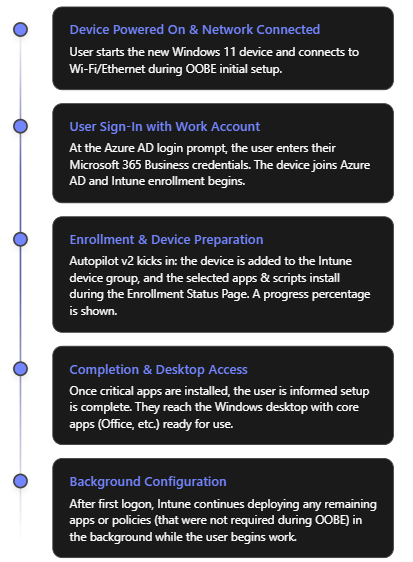
  1. Out-of-Box Experience (Initial Screens): When the device is turned on for the first time (or after a factory reset), the Windows OOBE begins. The user will select their region and keyboard (unless the profile pre-configured these). The device will prompt for a network connection. The user should connect to the internet (Ethernet or Wi-Fi). Once connected, the device might check for updates briefly, then reach the “Sign in” screen.
  2. User Sign-In (Azure AD): The user enters their work or school (Microsoft Entra ID/Azure AD) credentials – i.e., their Microsoft 365 Business account email and password. This is the trigger for Autopilot Device Preparation. Upon signing in, the device joins your organization’s Azure AD. Because the user is in the “Autopilot Users” group and an Autopilot Device Preparation profile is active, Intune will now kick off the device preparation process in the background.
  3. Device Preparation Phase (ESP): After credentials are verified, the user sees the Enrollment Status Page (ESP) which now reflects “Device preparation” steps. In Autopilot v2, the ESP will show the progress of the configuration. A key difference in v2 is the presence of a percentage progress indicator that gives a clearer idea of progress[6]. Behind the scenes, several things happen:
    • The device is automatically added to the specified Device group (“Autopilot Device Preparation – Devices”) in Azure AD[5]. The “Intune Provisioning Agent” does this within seconds of the user signing in.
    • Intune immediately starts deploying the selected applications and PowerShell scripts to the device (those that were marked for installation during OOBE). The ESP screen will typically list the device setup steps, which may include device configuration, app installation, etc. The apps you marked as required (Company Portal, Office, etc.) will download and install one by one. Their status can often be viewed on the screen (e.g., “Installing Office 365… 50%”).
    • Any device configuration policies assigned to the device group (e.g., configuration profiles or compliance policies you set to target that group) will also begin to apply. Note: Autopilot v2 does not pause for all policies to complete; it mainly ensures the selected apps and scripts complete. Policies will apply in parallel or afterwards without blocking the ESP[3].
    • If you enabled BitLocker or other encryption policies, those might kick off during this phase as well (depending on your Intune configuration for encryption on Azure AD join).
    • The user remains at the ESP screen until the critical steps finish. With the 10-app limit and no dynamic group delay, this phase should complete relatively quickly (typically a few minutes to perhaps an hour for large Office downloads on slower connections). The progress bar will reach 100%.
  4. Completion and First Desktop Launch: Once the selected apps and scripts have finished deploying, Autopilot signals that device setup is complete. The ESP will indicate it’s done, and the user will be allowed to proceed to log on to Windows (or it may automatically log them in if credentials were cached from step 2). In Autopilot v2, a final screen can notify the user that critical setup is finished and they can start using the device[6]. The user then arrives at the Windows desktop.
  5. Post-Enrolment (Background tasks): Now the device is fully Azure AD joined and enrolled in Intune as a managed device. Any remaining apps or policies that were not part of the initial device preparation will continue to install in the background. For example, if you targeted some less critical user-specific apps (say, OneDrive client or Webex) via user groups, those will download via Intune management without interrupting the user. The user can begin working, and they’ll likely see additional apps appearing or software finishing installations within the first hour of use.
  6. Verification: The IT admin can verify the device in the Intune portal. It should appear under Devices with the user assigned, and compliance/policies applying. The Autopilot deployment report in Intune will show this device’s status as successful if all selected apps/scripts succeeded, or flagged if any failures occurred[5]. The user should see applications like Office, Teams, Outlook, and the Company Portal already installed on the Start Menu[4]. If all looks good, the device is effectively ready and managed.

4.4 Troubleshooting Common Issues in Autopilot v2

While Autopilot v2 is designed to be simpler and more reliable, you may encounter some issues during setup. Here are common issues and how to address them:

  • Device is blocked as “personal” during enrollment: If you enabled the enrollment restriction to block personal devices, a new device might fail to enroll at user sign-in with a message that personal devices are not allowed. This typically means Intune did not recognize the device as corporate. Ensure you have uploaded the correct device serial, model, and manufacturer under corporate identifiers before the user attempts enrollment[4]. Typos or mismatches (e.g., “HP Inc.” vs “Hewlett-Packard”) can cause the check to fail. If an expected corporate device was blocked, double-check its identifier in Intune and re-upload if needed, then have the user try again (after a reset). If you cannot get the identifiers loaded in time, you may temporarily toggle the restriction to allow personal Windows enrollments to let the device through, then re-enable once fixed.
  • Autopilot profile not applying (device does standard Azure AD join without ESP): This can happen if the user is not in the group assigned to the Autopilot Device Prep profile, or if the device was already registered with a classic Autopilot profile. To troubleshoot:
    • Verify that the user who is signing in is indeed a member of the Autopilot Users group that you targeted. If not, add them and try again.
    • Check Intune’s Autopilot devices list. If the device’s hardware hash was previously imported and has an old deployment profile assigned, the device might be using Autopilot v1 behavior (which could skip the ESP or conflict). Solution: Remove the device from the Autopilot devices list (deregister it) so that v2 can proceed[5].
    • Also ensure the device meets OS requirements. If someone somehow tried with an out-of-date Windows 10, the new profile wouldn’t apply.
  • One of the apps failed to install during OOBE: If an app (or script) that was selected in the profile fails, the Autopilot ESP might show an error or might eventually time out. Autopilot v2 doesn’t explicitly block on policies, but it does expect the chosen apps to install. If an app installation fails (perhaps due to an MSI error or content download issue), the user may eventually be allowed to log in, but Intune’s deployment report will mark the deployment as failed for that device[5]. Use the Autopilot deployment report in Intune to see which app or step failed[5]. Then:
    • Check the Intune app assignment for that app. For instance, was the app installer file reachable and valid? Did it have correct detection rules? Remedy any packaging error.
    • If the issue was network (e.g., large app timed out), consider not deploying that app during OOBE (remove it from the profile’s selected apps so it installs later instead).
    • The user can still proceed to work after skipping the failed step (in many cases), but you’ll want to push the necessary app afterward or instruct the user to install via Company Portal if possible.
  • User sees unexpected OOBE screens (e.g., personal vs organization choice): As noted, Autopilot v2 can show some default Windows setup prompts that classic Autopilot hid. For example, early in OOBE the user might be asked “Is this a personal or work device?” If they see this, they should select Work/School (which leads to the Azure AD sign-in). Similarly, the user might have to accept the Windows 11 license agreement. To avoid confusion, prepare users with guidance that they may see a couple of extra screens and how to proceed. Once the user signs in, the rest will be automated. In future, after the device prep profile applies, those screens might not appear on subsequent resets, but on first run they can. This is expected behavior, not a failure.
  • Autopilot deployment hangs or takes too long: If the process seems stuck on the ESP for an inordinate time:
    • Check if it’s downloading a large update or app. Sometimes Windows might be applying a critical update in the background. If internet is slow, Office download (which can be ~2GB) might simply be taking time. If possible, ensure a faster connection or use Ethernet for initial setup.
    • If it’s truly hung (no progress increase for a long period), you may need to power cycle. The good news is Autopilot v2 is resilient – it has more retry logic for applying the profile[8]. On reboot, it often picks up where it left off, or attempts the step again. Frequent hanging might indicate a problematic step (again, refer to Intune’s report).
    • Ensure the device’s time and region were set correctly; incorrect time can cause Azure AD token issues. Autopilot v2 does try to sync time more reliably during ESP[8].
  • Post-enrollment policy issues: Because Autopilot v2 doesn’t wait for all policies, you might notice things like BitLocker taking place only after login, or certain configurations applying slightly later. This is normal. However, if certain device configurations never apply, verify that those policies are targeted correctly (likely to the device group). If they were user-targeted, they should apply after the user logs in. If something isn’t applying at all, treat it as a standard Intune troubleshooting case (e.g., check for scope tags, licensing, or conflicts).

Overall, many issues can be avoided by testing Autopilot v2 on a pilot device before mass rollout. Run through the deployment yourself with a test user and device to catch any application installation failures or unexpected prompts, and adjust your profile or process accordingly.

5. Best Practices for Maintaining and Managing Autopilot v2 Devices

After deploying devices with Windows Autopilot Device Preparation, your work isn’t done – you’ll want to manage and maintain those devices for the long term. Here are some best practices to ensure ongoing success:

  • Establish Clear Autopilot Processes: Because Autopilot v2 and v1 may coexist (for different use cases), document your process. For example, decide: will all new devices use Autopilot v2 going forward, or only certain ones? Communicate to your procurement and IT teams that new devices should not be registered via the old process. If you buy through an OEM with Autopilot registration service, pause that for devices you’ll enroll via v2 to avoid conflicts.
  • Keep Windows and Intune Updated: Autopilot v2 capabilities may expand with new Windows releases and Intune updates. Ensure devices get Windows quality updates regularly (this keeps the Autopilot agent up-to-date and compatible). Watch Microsoft Intune release notes for any Autopilot-related improvements or changes. For instance, if/when Microsoft enables features like self-deploying or hybrid join in Autopilot v2, it will likely come via an update[6] – staying current allows you to take advantage.
  • Limit and Optimize Apps in the Profile: Be strategic about the apps you include during the autopilot phase. The 10-app limit forces some discipline – include only truly essential software that users need immediately or that is required for security/compliance. Everything else can install later via normal Intune assignment or be made available in Company Portal. This ensures the provisioning is quick and has fewer chances to fail. Also prefer Win32 packaged apps for reliability and to avoid Windows Store dependencies during OOBE[2]. In general, simpler is better for the OOBE phase.
  • Use Device Categories/Tags if Needed: Intune supports tagging devices during enrollment (in classic Autopilot, there was “Convert all targeted devices to Autopilot” and grouping by order ID). In Autopilot v2, since devices aren’t pre-registered, you might use dynamic groups or naming conventions post-enrollment to organize devices (e.g., by department or location). Consider leveraging Azure AD group rules or Intune filters if you need to deploy different apps to different sets of devices after enrollment.
  • Monitor Deployment Reports and Logs: Take advantage of the new Autopilot deployment report in Intune for each rollout[5]. After onboarding a batch of new devices, review the report to see if any had issues (e.g., maybe one device’s Office install failed due to a network glitch). Address any failures proactively (rerun a script, push a missed app, etc.). Additionally, know that users or IT can export Autopilot logs easily from the device if needed[5] (there’s a troubleshooting option during the OOBE or via pressing certain key combos). Collecting logs can help Microsoft support or your IT team diagnose deeper issues.
  • Maintain Corporate Identifier Lists: If you’re using the corporate device identifiers method, keep your Azure AD device inventory synchronized with Intune’s list. For every new device coming in, add its identifiers. For devices being retired or sold, you might remove their identifiers. Also, coordinate this with the enrollment restriction – e.g., if a top executive wants to enroll their personal device and you have blocking enabled, you’d need to explicitly allow or bypass that (possibly by not applying the restriction to that user or by adding the device as corporate through some means). Regularly update the CSV as you purchase hardware to avoid last-minute scrambling when a user is setting up a new PC.
  • Plan for Feature Gaps: Recognize the current limitations of Autopilot v2 and plan accordingly:
    • If you require Hybrid AD Join (joining on-prem AD) for certain devices, those devices should continue using the classic Autopilot (with hardware hash and Intune Connector) for now, since v2 can’t do it[3].
    • If you utilize Autopilot Pre-Provisioning (White Glove) via IT staff or partner to pre-setup devices before handing to users (common for larger orgs or complex setups), note that Autopilot v2 doesn’t support that yet[3]. You might use Autopilot v1 for those scenarios until Microsoft adds it to v2.
    • Self-Deploying Mode (for kiosks or shared devices that enroll without user credentials) is also not in v2 presently[3]. Continue using classic Autopilot with TPM attestation for kiosk devices as needed. It’s perfectly fine to run both Autopilot methods side-by-side; just carefully target which devices or user groups use which method. Microsoft is likely to close these gaps in future updates, so keep an eye on announcements.
  • End-User Training and Communication: Even though Autopilot is automated, let your end-users know what to expect. Provide a one-page instruction with their new laptop: e.g., “1) Connect to Wi-Fi, 2) Log in with your work account, 3) Wait while we set up your device (about 15-30 minutes), 4) You’ll see a screen telling you when it’s ready.” Setting expectations helps reduce support tickets. Also inform them that the device will be managed by the company (which is standard, but transparency helps trust).
  • Device Management Post-Deployment: After Autopilot enrollment, manage the devices like any Intune-managed endpoints. Set up compliance policies (for OS version, AV status, etc.), Windows Update rings or feature update policies to keep them up-to-date, and use Intune’s Endpoint analytics or Windows Update for Business reports to track device health. Autopilot has done the job of onboarding; from then on, treat the devices as part of your standard device management lifecycle. For instance, if a device is reassigned to a new user, you can invoke Autopilot Reset via Intune to wipe user data and redo the OOBE for the new user—Autopilot v2 will once again apply (just ensure the new user is in the correct group).
  • Continuous Improvement: Gather feedback from users about the Autopilot process. If many report that a certain app wasn’t ready or some setting was missing on first login, adjust your Autopilot profile or Intune assignments. Autopilot v2’s flexibility allows you to tweak which apps/scripts are in the initial provision vs. post-login. Aim to find the right balance where devices are secure and usable as soon as possible, without overloading the provisioning. Also consider pilot testing Windows 11 feature updates early, since Autopilot behavior can change or improve with new releases (for example, a future Windows 11 update might reduce the appearance of some initial screens in Autopilot v2, etc.).

By following these best practices, you’ll ensure that your organization continues to benefit from Autopilot v2’s efficiencies long after the initial setup. The result is a modern device deployment strategy with minimal hassle, aligned to the cloud-first, zero-touch ethos of Microsoft 365.


Conclusion: Microsoft Autopilot v2 (Windows Autopilot Device Preparation) represents a significant step forward in simplifying device onboarding. By leveraging it in your Microsoft 365 Business environment, you can add new Windows 11 devices with ease – end-users take them out of the box, log in, and within minutes have a fully configured, policy-compliant workstation. The latest updates bring more reliability, insight, and speed to this process, making life easier for IT admins and employees alike. By understanding the new features, following the implementation steps, and adhering to best practices outlined in this guide, you can successfully deploy Autopilot v2 and streamline your device deployment workflow[4][5]. Happy deploying!

References

[1] Overview of Windows Autopilot | Microsoft Learn

[2] Windows Autopilot Best Practices: 2025 Updated

[3] Intune Autopilot V1 vs Intune Autopilot V2- What is changing?

[4] How to Set Up Autopilot Device Preparation in Microsoft Intune

[5] Overview of Windows Autopilot device preparation

[6] Announcing new Windows Autopilot onboarding experience for government …

[7] What’s new in Microsoft Intune: January 2025

[8] What’s new in Windows Autopilot | Microsoft Learn

Troubleshooting Microsoft Defender for Business: Step-by-Step Guide

Microsoft Defender for Business is a security solution designed for small and medium businesses to protect against cyber threats. When issues arise, a systematic troubleshooting approach helps identify root causes and resolve problems efficiently. This guide provides a step-by-step process to troubleshoot common Defender for Business issues, highlights where to find relevant logs and alerts, and suggests advanced techniques for complex situations. All steps are factual and based on Microsoft’s latest guidance as of 2025.

Table of Contents

  • common-issues-and-symptoms
  • key-locations-for-logs-and-alerts
  • step-by-step-troubleshooting-process
    1. identify-the-issue-and-gather-information
    2. check-the-microsoft-365-defender-portal-for-alerts
    3. verify-device-status-and-protection-settings
    4. examine-device-logs-event-viewer
    5. resolve-configuration-or-policy-issues
    6. verify-issue-resolution
    7. escalate-to-advanced-troubleshooting-if-needed
  • advanced-troubleshooting-techniques
  • best-practices-to-prevent-future-issues
  • additional-resources-and-support

Common Issues and Symptoms

These are some typical problems administrators encounter with Defender for Business:

  • Setup and Onboarding Failures: The initial setup or device onboarding process fails. An error like “Something went wrong, and we couldn’t complete your setup” may appear, indicating a configuration channel or integration issue (often with Intune)[1]. Devices that should be onboarded don’t show up in the portal.
  • Devices Showing As Unprotected: In the Microsoft Defender portal, you might see notifications that certain devices are not protected even though they were onboarded[1]. This often happens when real-time protection is turned off (for instance, if a non-Microsoft antivirus is running, it may disable Microsoft Defender’s real-time protection).
  • Mobile Device Onboarding Issues: Users cannot onboard their iOS or Android devices using the Microsoft Defender app. A symptom is that mobile enrollment doesn’t complete, possibly due to provisioning not finished on the backend[1]. For example, if the portal shows a message “Hang on! We’re preparing new spaces for your data…”, it means the Defender for Business service is still provisioning mobile support (which can take up to 24 hours) and devices cannot be added until provisioning is complete[1].
  • Defender App Errors on Mobile: The Microsoft Defender app on mobile devices may crash or show errors. Users report issues like app not updating threats or not connecting. (Microsoft provides separate troubleshooting guides for the mobile Defender for Endpoint app on Android/iOS in such cases[1].)
  • Policy Conflicts: If you have multiple security management tools, you might see conflicting policies. For instance, an admin who was managing devices via Intune and then enabled Defender for Business’s simplified configuration could encounter conflicts where settings in Intune and Defender for Business overlap or contradict[1]. This can result in devices flipping between policy states or compliance errors.
  • Intune Integration Errors: During the setup process, an error indicating an integration issue between Defender for Business and Microsoft Intune might occur[1]. This often requires enabling certain settings (detailed in Step 5 below) to establish a proper configuration channel.
  • Onboarding or Reporting Delays: A device appears to onboard successfully but doesn’t show up in the portal or is missing from the device list even after some time. This could indicate a communication issue where the device is not reporting in. It might be caused by connectivity problems or by an issue with the Microsoft Defender for Endpoint service (sensor) on the device.
  • Performance or Scan Issues: (Less common with Defender for Business, but possible) – Devices might experience high CPU or scans get stuck, which could indicate an issue with Defender Antivirus on the endpoint that needs further diagnosis (this overlaps with Defender for Endpoint troubleshooting).

Understanding which of these scenarios matches your situation will guide where to look first. Next, we’ll cover where to find the logs and alerts that contain clues for diagnosis.


Key Locations for Logs and Alerts

Effective troubleshooting relies on checking both cloud portal alerts and on-device logs. Microsoft Defender for Business provides information in multiple places:

Microsoft 365 Defender Portal (security.microsoft.com): This is the cloud portal where Defender for Business is managed. The Incidents & alerts section is especially important. Here you can monitor all security incidents and alerts in one place[2]. For each alert, you can click to see details in a flyout pane – including the alert title, severity, affected assets (devices or users), and timestamps[2]. The portal often provides recommended actions or one-click remediation for certain alerts[2]. It’s the first place to check if you suspect Defender is detecting threats or if something triggered an alert that correlates with the issue.

Device Logs via Windows Event Viewer: On each Windows device protected by Defender for Business, Windows keeps local event logs for Defender components. Access these by opening Event Viewer (Start > eventvwr.msc). Key logs include:

  • Microsoft-Windows-SENSE/Operational – This log records events from the Defender for Endpoint sensor (“SENSE” is the internal code name for the sensor)[3]. If a device isn’t showing up in the portal or has onboarding issues, this log is crucial. It contains events for service start/stop, onboarding success/failure, and connectivity to the cloud. For example, Event ID 6 means the service isn’t onboarded (no onboarding info found), which indicates the device failed to onboard and needs the onboarding script rerun[3]. Event ID 3 means the service failed to start entirely[3], and Event ID 5 means it couldn’t connect to the cloud (network issue)[3]. We will discuss how to interpret and act on these later.
  • Windows Defender/Operational – This is the standard Windows Defender Antivirus log under Applications and Services Logs > Microsoft > Windows > Windows Defender > Operational. It logs malware detections and actions taken on the device[4]. For troubleshooting, this log is helpful if you suspect Defender’s real-time protection or scans are causing an issue or to confirm if a threat was detected on a device. You might see events like “Malware detected” (Event ID 1116) or “Malware action taken” (Event ID 1117) which correspond to threats found and actions (like quarantine) taken[4]. This can explain, for instance, if a file was blocked and that’s impacting a user’s work.
  • Other system logs: Standard Windows logs (System, Application) might also record errors (for example, if a service fails or crashes, or if there are network connectivity issues that could affect Defender).

Alerts in Microsoft 365 Defender: Defender for Business surfaces alerts in the portal for various issues, not only malware. For example, if real-time protection is turned off on a device, the portal will flag that device as not fully protected[1]. If a device hasn’t reported in for a long time, it might show in the device inventory with a stale last-seen timestamp. Additionally, if an advanced attack is detected, multiple alerts will be correlated as an incident; an incident might be tagged with “Attack disruption” if Defender automatically contained devices to stop the spread[2] – such context can validate if an ongoing security issue is causing what you’re observing.

Intune or Endpoint Manager (if applicable): Since Defender for Business can integrate with Intune (Endpoint Manager) for device management and policy deployment, some issues (especially around onboarding and policy conflicts) may require checking Intune logs:

  • In Intune admin center, review the device’s Enrollment status and Device configuration profiles (for instance, if a security profile failed to apply, it could cause Defender settings to not take effect).
  • Intune’s Troubleshooting + support blade for a device can show error codes if a policy (like onboarding profile) failed.
  • If there’s a known integration issue (like the one mentioned earlier), ensure the Intune connection and settings are enabled as described in the next sections.

Advanced Hunting and Audit (for advanced users): If you have access to Microsoft 365 Defender’s advanced hunting (which might require an upgraded license beyond Defender for Business’s standard features), you could query logs (e.g., DeviceEvents, AlertEvents) for deeper investigation. Also, the Audit Logs in the Defender portal record configuration changes (useful to see if someone changed a policy right before issues started).

Now, with an understanding of where to get information, let’s proceed with a systematic troubleshooting process.


Step-by-Step Troubleshooting Process

The following steps outline a logical process to troubleshoot issues in Microsoft Defender for Business. Adjust the steps as needed based on the specific symptoms you are encountering.

Step 1: Identify the Issue and Gather Information

Before jumping into configuration changes, clearly define the problem. Understanding the nature of the issue will focus your investigation:

  • What are the symptoms? For example, “Device X is not appearing in the Defender portal”, “Users are getting no protection on their phones”, or “We see an alert that one device isn’t protected”, etc.
  • When did it start? Did it coincide with any changes (onboarding new devices, changing policies, installing another antivirus, etc.)?
  • Who or what is affected? A single device, multiple devices, all mobile devices, a specific user?
  • Any error messages? Note any message in the portal or on the device. For instance, an error code during setup, or the portal banner saying “some devices aren’t protected”[1]. These messages often hint at the cause.

Gathering this context will guide you on where to look first. For example, an issue with one device might mean checking that device’s status and logs, whereas a widespread issue might suggest a configuration problem affecting many devices.

Step 2: Check the Microsoft 365 Defender Portal for Alerts

Log in to the Microsoft 365 Defender portal (https://security.microsoft.com) with appropriate admin credentials. This centralized portal often surfaces the problem:

  1. Go to Incidents & alerts: In the left navigation pane, click “Incidents & alerts”, then select “Alerts” (or “Incidents” for grouped alerts)[2]. Look for any recent alerts that correspond to your issue. For example, if a device isn’t protected or hasn’t reported, there may be an alert about that device.
  2. Review alert details: If you see relevant alerts, click on one to open the details flyout. Check the alert title and description – these describe what triggered it (e.g. “Real-time protection disabled on Device123” or “Malware detected and quarantined”). Note the severity (Informational, Low, Medium, High) and the affected device or user[2]. The portal will list the device name and perhaps the user associated with it.
  3. Take recommended actions: The alert flyout often includes recommended actions or a direct link to “Open incident page” or “Take action”. For instance, for a malware alert, it may suggest running a scan or isolating the device. For a configuration alert (like real-time protection off), it might recommend turning it back on. Make note of these suggestions as they directly address the issue described[2].
  4. Check the device inventory: Still in the Defender portal, navigate to Devices (under Assets). Find the device in question. The device page can show its onboarding status, last seen time, OS, and any outstanding issues. If the device is missing entirely, that confirms an onboarding problem – skip to Step 4 to troubleshoot that.
  5. **Inspect *Incidents***: If multiple alerts have been triggered around the same time or on the same device, the portal might have grouped them into an *Incident* (visible under the Incidents tab). Open the incident to see a timeline of what happened. This can give a broader context especially if a security threat is involved (e.g. an incident might show that a malware was detected and then real-time protection was turned off – indicating the malware might have attempted to disable Defender).

Example: Suppose the portal shows an alert “Real-time protection was turned off on DeviceXYZ”. This is a clear indicator – the device is onboarded but not actively protecting in real-time[1]. The recommended action would likely be to turn real-time protection back on. Alternatively, if an alert says “New malware found on DeviceXYZ”, you’d know the issue is a threat detection, and the portal might guide you to remediate or confirm that malware was handled. In both cases, you’ve gathered an essential clue before even touching the device.

If you do not see any alert or indicator in the portal related to your problem, the issue might not be something Defender is reporting on (for example, if the problem is an onboarding failure, there may not be an alert – the device just isn’t present at all). In such cases, proceed to the next steps.

Step 3: Verify Device Status and Protection Settings

Next, ensure that the devices in question are configured correctly and not in a state that would cause issues:

  1. Confirm onboarding completion: If a device doesn’t appear in the portal’s device list, ensure that the onboarding process was done on that device. Re-run the onboarding script or package on the device if needed. (Defender for Business devices are typically onboarded via the local script, Intune, Group Policy, etc. If this step wasn’t done or failed, the device won’t show up in the portal.)
  2. Check provisioning status for mobile: If the issue is with mobile devices (Android/iOS) not onboarding, verify that Defender for Business provisioning is complete. As mentioned, the portal (under Devices) might show a message “preparing new spaces for your data” if the service setup is still ongoing[1]. Provisioning can take up to 24 hours for a new tenant. If you see that message, the best course is to wait until it disappears (i.e., until provisioning finishes) before troubleshooting further. Once provisioning is done, the portal will prompt to onboard devices, and then users should be able to add their mobile devices normally[1].
  1. Verify real-time protection setting: On any Windows device showing “not protected” in the portal, log onto that device and open Windows Security > Virus & threat protection. Check if Real-time protection is on. If it’s off and cannot be turned on, check if another antivirus is installed. By design, onboarding a device running a third-party AV can cause Defender’s real-time protection to be automatically disabled to avoid conflict[1]. In Defender for Business, Microsoft expects Defender Antivirus to be active alongside the service for best protection (“better together” scenario)[1]. If a third-party AV is present, decide if you will remove it or live with Defender in passive mode (which reduces protection and triggers those alerts). Ideally, ensure Microsoft Defender Antivirus is enabled.
  2. Policy configuration review: If you suspect a policy conflict or misconfiguration, review the policies applied:
    • In the Microsoft 365 Defender portal, go to Endpoints > Settings > Rules & policies (or in Intune’s Endpoint security if that’s used). Ensure that you haven’t defined contradictory policies in multiple places. For example, if Intune had a policy disabling something but Defender for Business’s simplified setup has another setting, prefer one system. In a known scenario, an admin had Intune policies and then used the simplified Defender for Business policies concurrently, leading to conflicts[1]. The resolution was to delete or turn off the redundant policies in Intune and let Defender for Business policies take precedence (or vice versa) to eliminate conflicts[1].
    • Also verify tamper protection status – by default, tamper protection is on (preventing unauthorized changes to Defender settings). If someone turned it off for troubleshooting and forgot to re-enable, settings could be changed without notice.
  3. Intune onboarding profile (if applicable): If devices were onboarded via Intune (which should be the case if you connected Defender for Business with Intune), check the Endpoint security > Microsoft Defender for Endpoint section in Intune. Ensure there’s an onboarding profile and that those devices show as onboarded. If a device is stuck in a pending state, you may need to re-enroll or manually onboard.

By verifying these settings, you either fix simple oversights (like turning real-time protection back on) or gather evidence of a deeper issue (for example, confirming a device is properly onboarded, yet still not visible, implying a reporting issue, or confirming there’s a policy conflict that needs resolution in the next step).

Step 4: Examine Device Logs (Event Viewer)

If the issue is not yet resolved by the above steps, or if you need more insight into why something is wrong, dive into the device’s event logs for Microsoft Defender. Perform these checks on an affected device (or a sample of affected devices if multiple):

  1. Open Event Viewer (Local logs): On the Windows device, press Win + R, type eventvwr.msc and hit Enter. Navigate to Applications and Services Logs > Microsoft > Windows and scroll through the sub-folders.
  2. Check “SENSE” Operational log: Locate Microsoft > Windows > SENSE > Operational and click it to open the Microsoft Defender for Endpoint service log[3]. Look for recent Error or Warning events in the list:
    • Event ID 3: “Microsoft Defender for Endpoint service failed to start.” This means the sensor service didn’t fully start on boot[3]. Check if the Sense service is running (in Services.msc). If not, an OS issue or missing prerequisites might be at fault.
    • Event ID 5: “Failed to connect to the server at \.” This indicates the endpoint could not reach the Defender cloud service URLs[3]. This can be a network or proxy issue – ensure the device has internet access and that security.microsoft.com and related endpoints are not blocked by firewall or proxy.
    • Event ID 6: “Service isn’t onboarded and no onboarding parameters were found.” This tells us the device never got the onboarding info – effectively it’s not onboarded in the service[3]. Possibly the onboarding script never ran successfully. Solution: rerun onboarding and ensure it completes (the event will change to ID 11 on success).
    • Event ID 7: “Service failed to read onboarding parameters”[3] – similar to ID 6, means something went wrong reading the config. Redeploy the onboarding package.
    • Other SENSE events might point to registry permission issues or feature missing (e.g., Event ID 15 could mean the SENSE service couldn’t start due to ELAM driver off or missing components – those cases are rare on modern systems, but the event description will usually suggest enabling a feature or a Windows update[5][5]).
    Each event has a description. Compare the event’s description against Microsoft’s documentation for Defender for Endpoint event IDs to get specific guidance[3][3]. Many event descriptions (like examples above) already hint at the resolution (e.g., check connectivity, redeploy scripts, etc.).
  3. Check “Windows Defender” Operational log: Next, open Microsoft > Windows > Windows Defender > Operational. Look for recent entries, especially around the time the issue occurred:
    • If the issue is related to threat detection or a failed update, you might see events in the 1000-2000 range (these correspond to malware detection events and update events).
    • For example, Event ID 1116 (MALWAREPROTECTION_STATE_MALWARE_DETECTED) means malware was detected, and ID 1117 means an action was taken on malware[4]. These confirm whether Defender actually caught something malicious, which might have triggered further issues.
    • You might also see events indicating if the user or admin turned settings off. Event ID 5001-5004 range often relates to settings changes (like if real-time protection was disabled, it might log an event).
    The Windows Defender log is more about security events than errors; if your problem is purely a configuration or onboarding issue, this log might not show anything unusual. But it’s useful to confirm if, say, Defender is working up to the point of detecting threats or if it’s completely silent (which could mean it’s not running at all on that device).
  4. Additional log locations: If troubleshooting a device connectivity or performance issue, also check the System log in Event Viewer for any relevant entries (e.g., Service Control Manager errors if the Defender service failed repeatedly). Also, the Security log might show Audit failures if, for example, Defender attempted an action.
  5. Analyze patterns: If multiple devices have issues, compare logs. Are they all failing to contact the service (Event ID 5)? That could point to a common network issue. Are they all showing not onboarded (ID 6/7)? Maybe the onboarding instruction wasn’t applied to that group of devices or a script was misconfigured.

By scrutinizing Event Viewer, you gather concrete evidence of what’s happening at the device level. For instance, you might confirm “Device A isn’t in the portal because it has been failing to reach the Defender service due to proxy errors – as Event ID 5 shows.” Or “Device B had an event indicating onboarding never completed (Event 6), explaining why it’s missing from portal – need to re-onboard.” This will directly inform the fix.

Step 5: Resolve Configuration or Policy Issues

Armed with the information from the portal (Step 2), settings review (Step 3), and device logs (Step 4), you can now take targeted actions to fix the issue.

Depending on what you found, apply the relevant resolution below:

  • If Real-Time Protection Was Off: Re-enable it. In the Defender portal, ensure that your Next-generation protection policy has Real-time protection set to On. If a third-party antivirus is present and you want Defender active, consider uninstalling the third-party AV or check if it’s possible to run them side by side. Microsoft recommends using Defender AV alongside Defender for Business for optimal protection[1]. Once real-time protection is on, the portal should update and the “not protected” alert will clear.
  • If Devices Weren’t Onboarded Successfully: Re-initiate the onboarding:
    • For devices managed by Intune, you can trigger a re-enrollment or use the onboarding package again via a script/live response.
    • If using local scripts, run the onboarding script as Administrator on the PC. After running, check Event Viewer again for Event ID 11 (“Onboarding completed”)[3].
    • For any devices still not appearing, consider running the Microsoft Defender for Endpoint Client Analyzer on those machines – it’s a diagnostic tool that can identify issues (discussed in Advanced section).
  • If Event Logs Show Connectivity Errors (ID 5, 15): Ensure the device has internet access to Defender endpoints. Make sure no firewall is blocking:
    • URLs like *.security.microsoft.com, *windows.com related to Defender cloud. Proxy settings might need to allow the Defender service through. See Microsoft’s documentation on Defender for Endpoint network connections for required URLs.
    • After adjusting network settings, force the device to check in (you can reboot the device or restart the Sense service and watch Event Viewer to see if it connects successfully).
  • If Policy Conflicts are Detected: Decide on one policy source:
    • Option 1: Use Defender for Business’s simplified configuration exclusively. This means removing or disabling parallel Intune endpoint security policies that configure AV or Firewall or Device Security, to avoid overlap[1].
    • Option 2: Use Intune (Endpoint Manager) for all device security policies and avoid using the simplified settings in Defender for Business. In this case, go to the Defender portal settings and turn off the features you are managing elsewhere.
    • In practice, if you saw conflicts, a quick remedy is to delete duplicate policies. For example, if Intune had an Antivirus policy and Defender for Business also has one, pick one to keep. Microsoft’s guidance for a situation where an admin uses both was to delete existing Intune policies to resolve conflicts[1].
    • After aligning policies, give it some time for devices to update their policy and then check if the conflict alerts disappear.
  • If Integration with Intune Failed (Setup Error): Follow Microsoft’s recommended fix which involves three steps[1][1]:
    1. In the Defender for Business portal, go to Settings > Endpoints > Advanced Features and ensure Microsoft Intune connection is toggled On[1].
    2. Still under Settings > Endpoints, find Configuration management > Enforcement scope. Make sure Windows devices are selected to be managed by Defender for Endpoint (Defender for Business)[1]. This allows Defender to actually enforce policies on Windows clients.
    3. In the Intune (Microsoft Endpoint Manager) portal, navigate to Endpoint security > Microsoft Defender for Endpoint. Enable the setting “Allow Microsoft Defender for Endpoint to enforce Endpoint Security Configurations” (set to On)[1]. This allows Intune to hand off certain security configuration enforcement to Defender for Business’s authority. These steps establish the necessary channels so that Defender for Business and Intune work in harmony. After doing this, retry the setup or onboarding that failed. The previous error message about the configuration channel should not recur.
  • If Onboarding Still Fails or Device Shows Errors: If after trying to onboard, the device still logs errors like Event 7 or 15 indicating issues, consider these:
    • Run the onboarding with local admin rights (ensure no permission issues).
    • Update the device’s Windows to latest patches (sometimes older Windows builds have known issues resolved in updates).
    • As a last resort, you can try an alternate onboarding method (e.g., if script fails, try via Group Policy or vice versa).
    • Microsoft also suggests if Security Management (the feature that allows Defender for Business to manage devices without full Intune enrollment) is causing trouble, you can temporarily manually onboard the device to the full Defender for Endpoint service using a local script as a workaround[1]. Then offboard and try again once conditions are corrected.
  • If a Threat Was Detected (Malware Incident): Ensure it’s fully remediated:
    • In the portal, check the Action Center (there is an Action center in Defender portal under “Actions & submissions”) to see if there are pending remediation actions (like undo quarantine, etc.).
    • Run a full scan on the device through the portal or locally.
    • Once threats are removed, verify if any residual impact remains (e.g., sometimes malware can turn off services – ensure the Windows Security app shows all green).

Perform the relevant fixes and monitor the outcome. Many changes (policy changes, enabling features) may take effect within minutes, but some might take an hour or more to propagate to all devices. You can speed up policy application by instructing devices to sync with Intune (if managed) or simply rebooting them.

Step 6: Verify Issue Resolution

After applying fixes, confirm that the issue is resolved:

  • Check the portal again: Go back to the Microsoft 365 Defender portal’s Incidents & alerts and Devices pages.
    • If there was an alert (e.g., device not protected), it should now clear or show as Resolved. Many alerts auto-resolve once the condition is fixed (for instance, turning real-time protection on will clear that alert after the next device check-in).
    • If you removed conflicts or fixed onboarding, any incident or alert about those should disappear. The device should now appear in the Devices list if it was missing, and its status should be healthy (no warnings).
    • If a malware incident was being shown, ensure it’s marked Remediated or Mitigated. You might need to mark it as resolved if it doesn’t automatically.
  • Confirm on the device: For device-specific issues, physically check the device:
    • Open Windows Security and verify no warning icons are present.
    • In Event Viewer, see if new events are positive. For example, Event ID 11 in SENSE log (“Onboarding completed”) confirms success[3]. Or Event ID 1122 in Windows Defender log might show a threat was removed.
    • If you restarted services or the system, ensure they stay running (the Sense service should be running and set to automatic).
  • Test functionality: Perform a quick test relevant to the issue:
    • If mobile devices couldn’t onboard, try onboarding one now that provisioning is fixed.
    • If real-time protection was off, intentionally place a test EICAR anti-malware file on the machine to see if Defender catches it (it should, if real-time protection is truly working).
    • If devices were not reporting, force a machine to check in (by running MpCmdRun -SignatureUpdate to also check connectivity).
    • These tests confirm that not only is the specific symptom gone, but the underlying protection is functioning as expected.

If everything looks good, congratulations – the immediate issue is resolved. Make sure to document what the cause was and how it was fixed, for future reference.

Step 7: Escalate to Advanced Troubleshooting if Needed

If the problem persists despite the above steps, or if logs are pointing to something unclear, it may require advanced troubleshooting:

  • Multiple attempts failed? For example, if a device still won’t onboard after trying everything, or an alert keeps returning with no obvious cause, then it’s time to dig deeper.
  • Use the Microsoft Defender Client Analyzer: Microsoft provides a Client Analyzer tool for Defender for Endpoint that collects extensive logs and configurations. In a Defender for Business context, you can run this tool via a Live Response session. Live Response is a feature that lets you run commands on a remote device from the Defender portal (available if the device is onboarded). You can upload the Client Analyzer scripts and execute them to gather a diagnostic package[6][6]. This package can highlight misconfigurations or environmental issues. For Windows, the script MDELiveAnalyzer.ps1 (and related modules like MDELiveAnalyzerAV.ps1 for AV-specific logs) will produce a zip file with results[6][6]. Review its findings for any errors (or provide it to Microsoft support).
  • Enable Troubleshooting Mode (if performance issue): If the issue is performance-related (e.g., you suspect Defender’s antivirus is causing an application to crash or high CPU), Microsoft Defender for Endpoint has a Troubleshooting mode that can temporarily relax certain protections for testing. This is more applicable to Defender for Endpoint P2, but if accessible, enabling troubleshooting mode on a device allows you to see if the problem still occurs without certain protections, thereby identifying if Defender was the culprit. Remember to turn it off afterwards.
  • Consult Microsoft Documentation: Sometimes a specific error or event ID might be documented in Microsoft’s knowledge base. For instance, Microsoft has a page listing Defender Antivirus event IDs and common error codes – check those if you have a particular code.
  • Community and Support Forums: It can be useful to see if others have hit the same issue. The Microsoft Tech Community forums or sites like Reddit (e.g., r/DefenderATP) might have threads. (For example, missing incidents/alerts were discussed on forums and might simply be a UI issue or permission issue in some cases.)
  • Open a Support Case: When all else fails, engage Microsoft Support. Defender for Business is a paid service; you can open a ticket through your Microsoft 365 admin portal. Provide them with:
    • A description of the issue and steps you’ve taken.
    • Logs (Event Viewer exports, the Client Analyzer output).
    • Tenant ID and device details, if requested. Microsoft’s support can analyze backend data and guide further. They may identify if it’s a known bug or something environment-specific.

Escalating ensures that more complex or rare issues (like a service bug, or a weird compatibility issue) are handled by those with deeper insight or patching ability.


Advanced Troubleshooting Techniques

For administrators comfortable with deeper analysis, here are a few advanced techniques and tools to troubleshoot Defender for Business issues:

Advanced Hunting: This is a query-based hunting tool available in Microsoft 365 Defender. If your tenant has it, you can run Kusto-style queries to search for events. For example, to find all devices that had real-time protection off, you could query the DeviceHealthStatus table for that signal. Or search DeviceTimeline for specific event IDs across machines. It’s powerful for finding hidden patterns (like if a certain update caused multiple devices to onboard late or if a specific error code appears on many machines).

Audit Logs: Especially useful if the issue might be due to an admin change. The audit log will show events like policy changes, onboarding package generated, settings toggled, who did it and when. It helps answer “did anything change right before this issue?” For instance, if an admin offboarded devices by mistake, the audit log would show that.

Integrations and Log Forwarding: Many enterprises use a SIEM for unified logging. While Defender for Business is a more streamlined product, its data can be integrated into solutions like Sentinel (with some licensing caveats)[7]. Even without Sentinel, you could use Windows Event Forwarding to send important Defender events to a central server. That way, you can spot if all devices are throwing error X in their logs. This is beyond immediate troubleshooting, but helps in ongoing monitoring and advanced analysis.

Deep Configuration Checks: Sometimes group policies or registry values can interfere. Ensure no Group Policy is disabling Windows Defender (check Turn off Windows Defender Antivirus policy). Verify that the device’s time and region settings are correct (an odd one, but significant time skew can cause cloud communication issues).

Use Troubleshooting Mode: Microsoft introduced a troubleshooting mode for Defender which, when enabled on a device, disables certain protections for a short window so you can, for example, install software that was being blocked or see if performance improves. After testing, it auto-resets. This is advanced and should be used carefully, but it’s another tool in the toolbox.

Using these advanced techniques can provide deeper insights or confirm whether the issue lies within Defender for Business or outside of it (for example, a network device blocking traffic). Always ensure that after advanced troubleshooting, you return the system to a fully secured state (re-enable anything you turned off, etc.).


Best Practices to Prevent Future Issues

Prevention and proper management can reduce the likelihood of Defender for Business issues:

  • Keep Defender Components Updated: Microsoft Defender AV updates its engine and intelligence regularly (multiple times a day for threat definitions). Ensure your devices are getting these updates automatically (they usually do via Windows Update or Microsoft Update service). Also, keep the OS patched so that the Defender for Endpoint agent (built into Windows 10/11) is up-to-date. New updates often fix known bugs or improve stability.
  • Use a Single Source for Policy: Avoid mixing multiple security management platforms for the same settings. If you’re using Defender for Business’s built-in policies, try not to also set those via Intune or Group Policy. Conversely, if you require the advanced control of Intune, consider using Microsoft Defender for Endpoint Plan 1 or 2 with Intune instead of Defender for Business’s simplified model. Consistency prevents conflicts.
  • Monitor the Portal Regularly: Make it a routine to check the Defender portal’s dashboard or set up email notifications for high-severity alerts. Early detection of an issue (like devices being marked unhealthy or a series of failed updates) can let you address it before it becomes a larger problem.
  • Educate Users on Defender Apps: If your users install the Defender app on mobile, ensure they know how to keep it updated and what it should do. Sometimes user confusion (like ignoring the onboarding prompt or not granting the app permissions) can look like a “technical issue”. Provide a simple guide for them if needed.
  • Test Changes in a Pilot: If you plan to change configurations (e.g., enable a new attack surface reduction rule, or integrate with a new management tool), test with a small set of devices/users first. Make sure those pilot devices don’t report new issues before rolling out more broadly.
  • Use “Better Together” Features: Microsoft often touts “better together” benefits – for example, using Defender Antivirus with Defender for Business for coordinated protection[1]. Embrace these recommendations. Features like Automatic Attack Disruption will contain devices during a detected attack[2], but only if all parts of the stack are active. Understand what features are available in your SKU and use them; missing out on a feature could mean missing a warning sign that something’s wrong.
  • Maintain Proper Licensing: Defender for Business is targeted for up to 300 users. If your org grows or needs more advanced features, consider upgrading to Microsoft Defender for Endpoint plans. This ensures you’re not hitting any platform limits and you get features like advanced hunting, threat analytics, etc., which can actually make troubleshooting easier by providing more data.
  • Document and Share Knowledge: Keep an internal wiki or document for your IT team about past issues and fixes. For example, note down “In Aug 2025, devices had conflict because both Intune and Defender portal policies were applied – resolved by turning off Intune policy X.” This way, if something similar recurs or a new team member encounters it, the solution is readily available.

By following best practices, you reduce misconfigurations and are quicker to catch problems, making the overall experience with Microsoft Defender for Business smoother and more reliable.


Additional Resources and Support

For further information and help on Microsoft Defender for Business:

  • Official Microsoft Learn Documentation: Microsoft’s docs are very useful. The page “Microsoft Defender for Business troubleshooting” on Microsoft Learn covers many of the issues we discussed (setup failures, device protection, mobile onboarding, policy conflicts) with step-by-step guidance[1][1]. The “View and manage incidents in Defender for Business” page explains how to use the portal to handle alerts and incidents[2]. These should be your first reference for any new or unclear issues.
  • Microsoft Tech Community & Forums: The Defender for Business community forum is a great place to see if others have similar questions. Microsoft MVPs and engineers often post walkthroughs and answer questions. For example, blogs like Jeffrey Appel’s have detailed guides on Defender for Endpoint/Business features and troubleshooting (common deployment mistakes, troubleshooting modes, etc.)[8].
  • Support Tickets: As mentioned, don’t hesitate to use your support contract. Through the Microsoft 365 admin center, you can start a service request. Provide detailed info and severity (e.g., if a security feature is non-functional, treat it with high importance).
  • Training and Workshops: Microsoft occasionally offers workshops or webinars on their security products. These can provide deeper insight into using the product effectively (e.g., a session on “Managing alerts and incidents” or “Endpoint protection best practices”). Keep an eye on the Microsoft Security community for such opportunities.
  • Up-to-date Security Blog: Microsoft’s Security blog and announcements (for example, on the TechCommunity) can have news of new features or known issues. A recent blog might announce a new logging improvement or a known issue being fixed in the next update – which could be directly relevant to troubleshooting.

In summary, Microsoft Defender for Business is a powerful solution, and with the step-by-step approach above, you can systematically troubleshoot issues that come up. Starting from the portal’s alerts, verifying configurations, checking device logs, and then applying fixes will resolve most common problems. And for more complex cases, Microsoft’s support and documentation ecosystem is there to assist. By understanding where to find information (both in the product and in documentation), you’ll be well-equipped to keep your business devices secure and healthy.

References

[1] Microsoft Defender for Business troubleshooting

[2] View and manage incidents in Microsoft Defender for Business

[3] Review events and errors using Event Viewer

[4] windows 10 – How to find specifics of what Defender detected in real …

[5] Troubleshoot Microsoft Defender for Endpoint onboarding issues

[6] Collect support logs in Microsoft Defender for Endpoint using live …

[7] Microsoft 365 Defender for Business logs into Microsoft Sentinel

[8] Common mistakes during Microsoft Defender for Endpoint deployments

Coexistence of Microsoft Defender for Business with Third-Party Antivirus Solutions

In today’s security landscape, it’s not uncommon for organizations to run Microsoft Defender for Business (the business-oriented version of Microsoft Defender Antivirus, part of Microsoft 365 Business Premium) alongside other third-party antivirus (AV) solutions. Below, we provide a detailed report on how Defender for Business operates when another AV is present, how to avoid conflicts between them, and why it’s important to keep Defender for Business installed on devices even if you use a second AV product.


How Defender for Business Interacts with Other Antivirus Solutions

Microsoft Defender for Business is designed to coexist with other antivirus products through an automatic role adjustment mechanism. When a non-Microsoft AV is present, Defender can detect it via the Windows Security Center and adjust its operation mode to avoid conflicts[1]. Here’s how this interaction works:

  • Active vs. Passive vs. Disabled Mode: On Windows 10 and 11 clients, Defender is enabled by default as the active antivirus unless another AV is installed[1]. If a third-party AV is installed and properly registered with Windows Security Center, Defender will automatically switch to disabled or passive mode[1][1]. In Passive Mode, Defender’s real-time protection and scheduled scans are turned off, allowing the third-party AV to be the primary active scanner[2][1]. (Defender’s services continue running in the background, and it still receives updates[2], but it won’t actively block threats in real-time so long as another AV is active.) If no other AV is present, Defender stays in Active Mode and fully protects the system by default.
    • 🔎 Note: In Windows 11, the presence of certain features like Smart App Control can cause Defender to show “Passive” even without Defender for Business, but this is a special case. Generally, passive mode is only used when the device is onboarded to Defender for Endpoint/Business and a third-party AV is present[1][1].
  • Detection of Third-Party AV: Defender relies on the Windows Security Center service (also known as the Windows Security Center (wscsvc)) to detect other antivirus products. If the Security Center service is running, it will recognize a third-party AV and signal Defender to step back[1]. If this service is disabled or broken, Defender might not realize another AV is installed and will remain active, leading to two AVs running concurrently – an undesirable situation[1]. It’s crucial that Windows Security Center remains enabled so that Defender can correctly detect the third-party AV and avoid conflict[1].
  • Passive Mode Behavior: When Defender for Business is in passive mode (device onboarded to Defender and another AV is primary), it stops performing active scans and real-time protection, handing those duties to the other AV[2]. The Defender Antivirus user interface will indicate that another provider is active, and it will grey out or prevent changes to certain settings[2]. In passive mode, Defender still loads its engine and keeps its signatures up to date, but it does not remediate threats in real-time[2]. Think of it as running quietly in the background: it collects sensor data for Defender for Business (for things like Endpoint Detection and Response), but lets the other AV handle immediate threat blocking.
  • EDR and Monitoring in Passive Mode: Even while passive, Defender for Business’s endpoint detection and response (EDR) component remains functional. The system continues to monitor behavior and can record telemetry of suspicious activity. In fact, Microsoft Defender’s EDR can operate “behind the scenes” in passive mode. If a threat slips past the primary AV, Defender’s EDR may detect it and, if EDR in block mode is enabled, can step in to block or remediate the threat post-breach[1][1]. In security alerts, you might even see Defender listed as the source that blocked a threat, even though it was in passive mode, thanks to this EDR capability[1]. This highlights how Defender for Business continues to add value even when not the primary AV.
  • On Servers: Note that on Windows Server, Defender does not automatically enter passive mode when a third-party AV is installed (unless specific registry settings are configured)[1][1]. On servers that are onboarded to Defender for Endpoint/Business, you must manually set a registry key (ForceDefenderPassiveMode=1) before onboarding if you want Defender to run passive alongside another AV[1]. Otherwise, you risk having two active AVs on a server (which can cause conflicts), or you may choose to uninstall or disable one of them. Many organizations running third-party AV on servers will either disable Defender manually or set it to passive via policy to prevent overlap[1]. The key point: on clients, the process is mostly automatic; on servers, it requires admin action to configure passive mode.

In summary, Defender for Business is smart about coexisting with other AVs. It uses Windows’ built-in security framework to detect other security products and will yield primary control to avoid contention. By entering passive mode, it ensures your third-party AV can do its job without interference, while Defender continues to run in the background (for updates, EDR, and as a backup). This design provides layered security: you get the benefits of your chosen AV solution and still retain Defender’s visibility and advanced threat detection capabilities in the Microsoft 365 Defender portal.

Common Conflicts When Running Multiple Antivirus Programs

Running two antivirus solutions concurrently without proper coordination can lead to a number of issues. If misconfigured, multiple AVs can interfere with each other and degrade system performance, undermining the security they’re meant to provide. Here are some common conflicts and problems that occur when Defender and a third-party AV operate simultaneously (both in active scanning mode):

  • High CPU and Memory Usage: Two real-time scanners running at the same time can put a heavy load on system resources. Each will try to scan files as they are accessed, often both scanning the same files. This double-scanning leads to excessive CPU usage, disk I/O, and memory consumption. Users may experience slowdowns, applications taking much longer to open, or the entire system becoming sluggish. In some cases observed in practice, running multiple AV engines caused systems to nearly freeze or become unresponsive due to the constant competition for scanning every file (each thinking the other’s file operations might be malicious)[3][4].
  • System Instability and Crashes: Beyond just slowness, having two AVs can result in software conflicts that crash one or both of them (or even crash Windows). For example, one AV might hook into the file system to intercept reads/writes, and the second AV does the same. These low-level “hooks” can conflict, potentially causing errors or blue-screen crashes. It’s not uncommon for conflicts between antivirus drivers to lead to system instability, especially if they both try to quarantine or lock a file at the same time[3]. Essentially, the products trip over each other – one might treat the other’s actions as suspicious (a kind of false positive scenario where each thinks “Why is this other process modifying files I’m scanning?”).
  • False Positives on Each Other: AV programs maintain virus signature databases and often store these in definition files or quarantine folders. A poorly configured scenario could have Defender scanning the other AV’s quarantine or signature files, mistakenly flagging those as malicious (since they contain malware code samples in isolation). Likewise, the third-party AV might scan Defender’s files and flag something benign. Without proper exclusions (discussed later), antivirus engines can identify the artifacts of another AV as threats, leading to confusing alerts or even deleting/quarantining each other’s files.
  • Competition for Remediation: If a piece of malware is detected on the system, two active AVs might both attempt to take action (delete or quarantine the file). Best case, one succeeds and the other simply reports the file missing; worst case, they lock the file and deadlock, or one restores an item the other removed (thinking it was a necessary system file). This tug-of-war can result in incomplete malware removal or error messages. Conflicting remediation attempts can potentially leave a threat on the system if neither AV completes the cleanup properly due to interference.
  • User Experience Issues: With two AVs, users might be bombarded by duplicate notifications for the same threat or update. For instance, both Defender and the third-party might pop up “Virus detected!” alerts for the same event. This can confuse end users and IT admins – which one actually handled it? Did both need to be involved? It complicates the support scenario.
  • Overall Protection Gaps: Ironically, having two AV solutions can reduce overall protection if they conflict. They might each assume the other has handled a threat, or certain features might turn off. For example, earlier versions of Windows Defender (pre-Windows 10) would completely disable if another AV was installed, leaving only the third-party active. If that third-party were misconfigured or expired, and Defender stayed off, the system could be left exposed. Even with passive mode, if something isn’t set right (say Security Center didn’t register the third-party), you could end up with one AV effectively off and the other not fully on either. Misunderstandings of each product’s state could create an unexpected gap where neither is actively protecting as intended.

In short, running two full antivirus solutions in parallel without coordination is not recommended. As one internal cybersecurity memo succinctly put it, using multiple AV programs concurrently can “severely degrade system performance and stability” and often “reduces overall protection efficacy” due to conflicts[3]. The goal should be to have a primary AV and ensure any secondary security software (like Defender for Business in passive mode) is configured in a complementary way, not competing for the same role.

Best Practices to Avoid Conflicts Between Defender and Other AVs

To safely leverage Microsoft Defender for Business alongside another antivirus, you need to configure your environment so that the two solutions cooperate rather than collide. Below are the key steps and best practices to achieve this and prevent conflicts:

  1. Allow Only One Real-Time AV – Rely on Passive Mode: Ensure that only one antivirus is actively performing real-time protection at a time. With Defender present, the simplest approach is to let the third-party AV be the active (primary) protection, and have Microsoft Defender in passive mode (if using Defender for Business/Endpoint). This happens automatically on Windows 10/11 clients when the device is onboarded to Defender for Business and a non-Microsoft AV is detected[1]. You should verify in the Windows Security settings or via PowerShell (Get-MpComputerStatus) that Defender’s status is “Passive” (or “No AV active” if third-party is seen as active in Security Center) on those devices. Do not attempt to force both to be “Active”. (On Windows 10/11, Defender will normally disable itself automatically when a third-party is active, so just let it do so. On servers, see the next step.) The bottom line: pick one AV to be the primary real-time scanner – running two concurrently is not supported or advised[1].
  2. Configure Passive Mode on Servers (or Disable One): On Windows Server systems, manually configure Defender’s mode if you plan to run another AV. Windows Server won’t auto-switch to passive mode just because another AV is installed[1]. Thus, before installing or enabling a third-party AV on a server that’s onboarded to Defender for Business, set the registry key to force passive mode:\ HKLM\SOFTWARE\Policies\Microsoft\Windows Advanced Threat Protection\ForceDefenderPassiveMode = 1 (DWORD)[1].\ Then onboard the server to Defender for Business. This ensures Defender Antivirus runs in passive mode (so it won’t actively scan) even while the other product is active. If you skip this, you might end up with Defender still active alongside the other AV on a server, which can cause conflicts. Alternatively, some admins choose to completely uninstall or disable Defender on servers when using a third-party server AV, to avoid any chance of conflict[1]. Microsoft allows Defender to be removed on Windows Server if desired (via removing the Windows Defender feature)[1], but if you do this, make sure the third-party is always running and up to date, and consider the trade-off (losing Defender’s EDR on that server). In summary, for servers: explicitly set Defender to passive or uninstall it – don’t leave it in an ambiguous state.
  3. Keep the Windows Security Center Service Enabled: As noted, the Windows Security Center (WSC) is the broker that tells Windows which antivirus is active. Never disable the Security Center service. If it’s turned off, Windows cannot correctly recognize the third-party AV, and Defender will not know to go passive – resulting in both AVs active and conflicting[1]. In a warning from Microsoft’s documentation: if WSC is disabled, Defender “can’t detect third-party AV installations and will stay Active,” leading to unsupported conflicts[1]. So, ensure group policies or scripts do not disable or tamper with wscsvc. In troubleshooting scenarios, if you find Defender and a third-party AV both active, check that the Security Center is running properly.
  4. Apply Mutual Exclusions (Whitelist Each Other): To avoid the problem of AVs scanning each other’s files or quarantines, it’s wise to set up exclusions on both sides. In your third-party AV’s settings, add the recommended exclusions for Microsoft Defender Antivirus (for example, exclude %ProgramFiles%\Windows Defender or specific Defender processes like MsMpEng.exe)[1]. This prevents the third-party from mistakenly flagging Defender’s components. Likewise, ensure Defender (when active or even during passive periodic scans) excludes the other AV’s program folders, processes, and update directories. Many enterprise AV solutions publish a list of directories/processes to exclude for compatibility. Following these guidelines will reduce unnecessary friction – each AV will essentially ignore the other. Microsoft’s guidance specifically states to “Make sure to add Microsoft Defender Antivirus and Microsoft Defender for Endpoint binaries to the exclusion list of the non-Microsoft antivirus solution”[1]. Doing so means, even if a periodic scan occurs, the AVs won’t scan each other.
  5. Disable Redundant Features to Prevent Overlap: Modern antivirus suites often include more than just file scanning – they might have their own firewall, web filtering, tamper protection, etc. Consider turning off overlapping features in one of the products to avoid confusion. For instance, if your third-party AV provides a firewall that you enable, you might keep the Windows Defender Firewall on or off based on support guidance (usually it’s fine to keep Windows Firewall on alongside, but not two third-party firewalls). Similarly, both Defender and some third-party AVs have ransomware protection (Controlled Folder Access in Defender, versus the third-party’s module). Running both ransomware protection modules might cause legitimate app blocks. Decide which product’s module to use. Coordinate things like exploit prevention or email protection – if you have Defender for Office 365 filtering email, maybe you don’t need the third-party’s Outlook plugin scanning attachments too (or vice versa). The goal is to configure a complementary setup, where each tool covers what the other does not, rather than both doing the same job twice.
  6. Keep Both Solutions Updated: Even though Defender is in passive mode, do not neglect updating it. Microsoft Defender will continue to fetch security intelligence updates (malware definitions) and engine updates via Windows Update or your management tool[2]. Ensure your systems are still getting these. The reason is twofold: (a) if Defender needs to jump in (say the other AV is removed or a new threat appears), it’s armed with current definitions; and (b) the Defender EDR sensors use the AV engine to some extent for analysis, so having the latest engine version and definitions helps it recognize malicious patterns. Similarly, of course, keep the third-party AV fully updated. In short, update both engines regularly so that no matter which one is protecting or monitoring, it’s up to date with the latest threat intelligence. This also means maintaining valid licenses/subscriptions for the third-party AV – if it expires, Defender can take over, but it’s best not to have lapse periods.
  7. Optionally Enable Periodic Scanning by Defender: Windows 10 and 11 have a feature called “Periodic scanning” (also known as Limited Periodic Scanning) where, even if another antivirus is active, Microsoft Defender will perform an occasional quick scan of the system as a second opinion. This is off by default in enterprise when another AV is registered, but an administrator can enable it via Windows Security settings or GPO. In passive mode specifically, scheduled scans are generally disabled (ignored)[1]. However, Windows has a fallback mechanism: by default, every 30 days Defender will do a quick scan if it’s installed (this is the “catch-up scan” default)[1]. If you want this added layer of assurance, you can leave that setting. If you do not want Defender doing any scanning at all (to fully avoid even periodic performance impact), you can disable these catch-up scans via policy[1]. Many organizations actually leave it as is, so that if the primary AV missed something for a while, Defender might catch it during a monthly scan. This periodic scanning is a lightweight safeguard – it shouldn’t conflict because it’s infrequent and by design it runs when the PC is idle. Just be aware of it; tune or disable it via group policy if your third-party vendor recommends turning it off.

By following the above steps, you ensure that Defender for Business and your third-party antivirus operate harmoniously: one provides active protection, the other stands by with auxiliary protection and insight. Properly configured, you won’t suffer slowdowns or weird conflicts, and you’ll still reap security benefits from both solutions.

Ensuring Continuous Protection and Real-Time Security

A major concern when using two security solutions is preserving continuous real-time protection – you want no gaps in coverage. With one AV in passive mode, how do you ensure the system is still protected at all times? Let’s clarify how Defender for Business works in tandem with a primary AV to maintain solid real-time defense:

  • Primary AV Handles Real-Time Scanning: In our scenario, the third-party AV is the primary real-time defender. It will intercept file events, scan for malware, and block threats in real-time. As long as it’s running normally, your system is actively protected by that AV. Microsoft Defender, being in passive mode, will not actively scan files or processes (it’s not duplicating the effort)[2]. This means no double-scanning overhead and no contention – the third-party product is in charge of first-line protection.
  • Microsoft Defender’s EDR Watches in the Background: Even though Defender’s anti-malware component is passive, its endpoint detection and response capabilities remain at work. Microsoft Defender for Business includes the same kind of EDR as Defender for Endpoint. This EDR works by analyzing behavioral signals on the system (for example, sequences of process executions, script behavior, registry changes that might indicate an attack in progress). Defender’s EDR operates continuously and is independent of whether Defender is the active AV or not[1][1]. So, while your primary AV might catch known malicious files, Defender’s EDR is observing patterns and can detect more subtle signs of an attack (like file-less malware or attacker techniques that don’t drop classic virus files).
  • EDR in Block Mode – Stopping What Others Miss: If you have enabled EDR in block mode (a feature in Defender for Endpoint/Business), Microsoft’s EDR will not just alert on suspicious activity – it can take action to contain the threat, even when Defender AV is passive. For example, suppose a piece of malware that wasn’t in the primary AV’s signature database executes on the machine. It starts exhibiting ransomware-like behavior (mass file modifications) or tries to inject into system processes. Defender’s EDR can detect this malicious behavior and step in to block or quarantine the offending process[1][1]. This is done using Defender’s antivirus engine in the background (“passive mode” doesn’t mean completely off – it can still kill a process via EDR). In such a case, you might see an alert in the Microsoft 365 Defender portal that says “Threat remediated by Microsoft Defender Antivirus (EDR block mode)” even though your primary AV was active. EDR in block mode essentially provides a safety net: it addresses threats that slip past traditional antivirus defenses, leveraging the behavioral sensors and cloud analysis. This ensures that real-time protection isn’t solely reliant on file signatures – advanced attacks can be stopped by Defender’s cloud-driven intelligence.
  • Automatic Fallback if Primary AV Fails: Another aspect of continuous protection is what happens if the primary AV is for some reason not running. Microsoft has designed Defender to act as a fail-safe. If the third-party AV is uninstalled or disabled (intentionally or by malware), Defender will sense the change via Security Center and can automatically switch from passive to active mode[1]. For instance, if an attacker tries to turn off your third-party antivirus, Windows will notice there’s no active AV and will re-activate Microsoft Defender Antivirus to ensure the machine isn’t left defenseless[1]. This is hugely important – it means there’s minimal gap in protection. Defender will pick up the real-time protection role almost immediately. (It’s also a reason to keep Defender updated; if it has to step in, you want it current.) So, whether due to a lapsed AV subscription, a user error, or attacker sabotage, Defender is waiting in the wings to auto-enable itself if needed.
  • Real-Time Cloud Lookups: Both your primary AV and Defender (in passive) likely use cloud-based threat intelligence for blocking brand new threats (Defender calls this Cloud-Delivered Protection or Block at First Sight). In passive mode, Defender’s cloud lookup for new files is generally off (since it’s not actively scanning)[1]. However, if EDR block mode engages or if you run a manual or periodic scan, Defender will utilize the cloud query to get the latest verdict on suspicious items. Meanwhile, your primary AV might have its own cloud lookup. Make sure that feature is enabled on the primary AV for maximum real-time efficacy. Defender’s presence doesn’t impede that.
  • Attack Surface Reduction and Other Preventive Policies: Some security features of Defender (like Attack Surface Reduction rules, controlled folder access, network protection, etc.) only function when Defender AV is active[1]. In passive mode, those specific Defender enforcement features are not active (since the assumption is that similar protections might be provided by the primary AV). To ensure you have similar real-time hardening, see if your third-party solution offers equivalents: e.g., exploit protection, web filtering, ransomware protection. If not, consider whether you actually want Defender to be the one providing those (which would require it to be active). We’ll cover these features more in the next section, but the key is: real-time protection is a combination of antivirus scanning and policy-based blocking of behaviors. With Defender passive, you rely on the third-party for those preventative controls or accept the risk of not having them active.

In essence, you maintain continuous protection by leveraging the strengths of both products: the third-party AV actively stops known threats, and Defender for Business supplies a second layer of defense through behavior-based detection and instant backup protection if the first layer falters. Done correctly, this hybrid approach can actually improve security – you have two sets of eyes (engines) on the system in different ways, without the two stepping on each other’s toes. The key is that Microsoft has built Defender for Endpoint/Business to augment third-party AV, not compete with it, thereby ensuring there’s no lapse in real-time security.

Additional Features and Benefits Defender for Business Provides (That Others Might Not)

Microsoft Defender for Business is more than just an antivirus scanner. It’s a whole platform of endpoint protection capabilities that can offer layers of defense and insight that some third-party AV solutions (especially basic or legacy ones) might lack. Even if you have another AV in place, keeping Defender for Business on your devices means you can leverage these additional features:

  • Endpoint Detection and Response (EDR): As discussed, Defender brings enterprise-grade EDR to your devices. Many traditional AVs (especially older or consumer-grade ones) focus on known malware and maybe some heuristic detection. Defender’s EDR, however, looks for anomalies and tactics often used by attackers (credential theft attempts, suspicious PowerShell usage, persistence mechanisms, etc.). It can then alert or automatically respond. This kind of capability is often missing in standalone AV products or only present in their premium enterprise editions. With Defender for Business (included in M365 Business Premium), you get EDR capabilities out-of-the-box[5], which is a big benefit for detecting advanced threats like human-operated ransomware or nation-state style attacks that evade signature-based AV.
  • Threat & Vulnerability Management (TVM): Defender for Business includes threat and vulnerability management features[5]. This means the system can assess your device’s software, configuration, and vulnerabilities and report back a risk score. For example, it might tell you that a certain machine is missing a critical patch or has an outdated application that attackers are exploiting, giving you a chance to fix that proactively. Third-party AV solutions typically do not provide this kind of IT hygiene or vulnerability mitigation guidance.
  • Attack Surface Reduction (ASR) Rules: Microsoft Defender has a set of ASR rules – special policies that block high-risk behaviors often used by malware. Examples include: blocking Office macros from creating executable content, blocking processes from injecting into others, or preventing scripts from launching downloaded content. These are powerful mitigations against zero-day or unknown threats. However, ASR rules only work when Defender Antivirus is active (or at least in audit mode)[1]. If Defender is passive, its ASR rules aren’t enforced. Some third-party security suites have analogous features (like “Exploit Guard” or behavior blockers), but not all do. By having Defender installed, you at least have the option to enable ASR rules if you decide to pivot Defender to active, or you can use Defender in a testing capacity to audit those rules. It’s worth noting that ASR rules have been very effective at blocking ransomware and script-based attacks in many cases – a capability you might be missing if you rely solely on a basic AV.
  • Cloud-Delivered Protection & ML: Defender leverages Microsoft’s cloud protection service which employs machine learning and enormous threat intelligence to make split-second decisions on new files (the Block at First Sight feature)[1]. When active, this can detect brand-new malware within seconds by analyzing it in the cloud. If your third-party AV doesn’t have a similar cloud analysis, having Defender available (even if passive) means Microsoft’s cloud brains are just a switch away. In fact, if you run a manual scan with Defender (even while it’s passive for real-time), it will use the cloud lookups to identify new threats. Microsoft’s threat researchers and AI constantly feed Defender new knowledge – by keeping it on your device, you tap into an industry-leading threat intelligence network. (Microsoft’s Defender has been a top scorer in independent AV tests for detection rates, largely thanks to this cloud intelligence.)[1]
  • Network Protection and Web Filtering: Defender for Endpoint/Business includes Network Protection, which can block outbound connections to dangerous domains or restrict scripts like JavaScript from accessing known malicious URLs[1]. It also offers Web Content Filtering categories (through Defender for Endpoint) to block certain types of web content enterprise-wide. These features require Defender’s network interception to be active; if Defender AV is fully passive, network protection won’t function[1]. But some third-party antiviruses don’t offer network-layer blocking at all. If Defender is installed, you could potentially enable web filtering for your users (note: works fully when Defender is active; in passive, you’d rely on the primary AV’s web protection, if any). Also, SmartScreen integration: Defender works with Windows SmartScreen to block phishing and malicious downloads. Keeping Defender means SmartScreen gets more signal (like reputation info) — for instance, Controlled Folder Access and network protection events can feed into central reporting when Defender is present[1].
  • Controlled Folder Access (CFA): This is Defender’s anti-ransomware file protection. It prevents untrusted applications from modifying files in protected folders (like Documents, Desktop). CFA is a last-resort shield; if ransomware slips by, it tries to stop it from encrypting your files. Like ASR, CFA only works with Defender active[1]. Many third-party AVs have their own anti-ransomware modules – if yours does, great, you have that protection. If not, know that CFA is available with Defender. Even if you run Defender passive daily, you might choose to temporarily enable Controlled Folder Access if you feel a spike in risk (or run Defender active on a subset of high-risk machines). Just having that feature on the system is a plus.
  • Integration with Microsoft 365 Ecosystem: Defender for Business integrates with other Microsoft 365 security components – like Defender for Office 365 (for email/phish protection), Azure AD Identity Protection, and Microsoft Cloud App Security. Alerts can be correlated across email, identity, and endpoint. For example, if a user opens a malicious email attachment that third-party AV didn’t flag, Defender’s sensor might detect suspicious behavior on the endpoint and the portal will tie it back to that email (if using 365). Microsoft’s security stack is designed to work together, so having at least the endpoint piece (Defender) present means you’ll get better end-to-end visibility. Third-party AVs often operate in a silo – you’d have to manually correlate an endpoint alert with an email, etc. The unified Microsoft 365 Defender portal will show incidents that combine signals from Defender for Business, making investigation and response more efficient for your IT team.
  • Centralized Logging and Audit: Defender provides rich audit logs of what it’s doing. If it’s active, it logs every detection, scan, or block in the Windows event logs and reports to the central console. Importantly, even in passive mode, it can report detection information (like if it sees a threat but doesn’t remediate, that info can still be sent to the portal, flagged as “not remediated by AV”). There’s also a note that certain audit events only get generated with Defender present[1]. For instance, tracking the status of AV signature updates on each machine – if Defender is absent, your ability to audit AV health via Microsoft tools might be limited. With Defender installed, Intune or the security portal can report on AV signature currency, regardless of third-party (assuming the third-party reports to Security Center, it may show up there too, but it’s often not as seamless). So for compliance and security ops, Defender ensures you have a baseline of telemetry and logs from the endpoint.
  • Automated Investigation and Remediation: Defender for Business (Plan 2 features) includes automated investigation capabilities. When an alert is raised (say by EDR or an AV detection), the system can automatically investigate the scope (checking for related evidence on the machine) and even remediate artifacts (like remove a file, kill processes) without waiting for admin intervention. Some third-party enterprise solutions do have automatic remediation, but if yours doesn’t, Defender’s presence means you can utilize this automation to contain threats faster. For example, if a suspicious file is found on one machine, Defender can automatically scan other machines for that file. This is part of the “XDR” (Extended Detection and Response) approach Microsoft uses. It’s an advantage of keeping Defender: you’re effectively adding an agent that can take smart actions across your environment driven by cloud intelligence.
  • Device Control (USB control): Defender allows for policies like blocking USB drives or only allowing authorized devices (through Intune endpoint security policies). It’s a capability tied into the Defender platform. If you need that kind of device control and your other AV doesn’t provide it, Defender’s agent can deliver those controls (even if the AV scanning part is passive).

In summary, Defender for Business offers a suite of advanced security features – from behavioral blocking, vulnerability management, to deep integration – that go beyond file scanning. Many third-party solutions aimed at SMBs are essentially just antivirus/anti-malware. By keeping Defender deployed, you ensure that you’re not missing out on these advanced protections. Even if you’re not using all of them while another AV is primary, you have the flexibility to turn them on as needed. And critically, if your third-party AV lacks any of these defenses, Defender can fill the gap (provided it’s allowed to operate in those areas).

It’s this breadth of capability that leads cybersecurity experts to often recommend using Defender as a primary defense. One internal analysis noted that adding a redundant third-party AV “introduces substantial security limitations by deactivating or sidelining the advanced, integrated capabilities inherent to the Microsoft 365 ecosystem”[6]. In plain terms: if a third-party AV causes Defender to go passive, you might lose out on the very features listed above (ASR, network protection, etc.). That’s one reason to carefully weigh which product you want in the driver’s seat.

Updates, Patches, and Maintenance in a Dual-AV Setup

Keeping security software up-to-date is critical, and when you have two solutions on a device, you need to maintain both. Here’s how updates and patches are handled for Defender for Business when another AV is installed, and what you should do to ensure smooth updating:

  • Defender Updates in Passive Mode: Even in passive mode, Microsoft Defender Antivirus continues to receive regular updates. This includes security intelligence (definition) updates and anti-malware engine updates[2]. These updates typically come through Windows Update or WSUS (or whatever update management you use). In the Windows Update settings, you’ll see “Microsoft Defender Antivirus Anti-malware platform updates” and “Definition updates” being applied periodically. Passive mode does not mean “not updated”. Microsoft explicitly advises to keep these updates flowing, because they keep Defender ready to jump in if needed, and also empower the EDR and passive scans with the latest info[2]. So, ensure your update policies allow Defender updates. In WSUS, for instance, don’t decline Defender definition updates thinking they’re unnecessary – they are necessary even if Defender is not the primary AV.
  • Platform Version Upgrades: Microsoft occasionally updates the Defender platform version (the core binaries). In passive mode, these will still install. They might come as part of cumulative Windows patches or separate installer via Microsoft Update. Keep an eye on them; usually there’s no issue, but just know that the Defender service on the box will occasionally upgrade itself, which could require a service restart. It shouldn’t interfere with the other AV, but it’s part of normal maintenance.
  • Third-Party AV Updates: Of course, continue to update the third-party AV just as you normally would. Most modern AVs have at least daily definition updates and regular product version updates. There is nothing special to do with Defender present – just apply updates per the vendor’s guidelines. Both Defender and the other AV can update independently without conflict. They typically update different files. If you have very tight change control, note that Defender’s daily definition updates can happen multiple times per day by default (Microsoft often pushes signature updates 2-3 times a day or more). This is usually fine and goes unnoticed, but in offline environments you might manually import them.
  • No Double-Writing to Disk: One thing to clarify: both AVs updating doesn’t mean double downloading gigabytes of data. Defender definitions are relatively small incremental packages, and third-party ones are similar. So bandwidth impact is minimal. And because one might wonder: “do they try to update at the exact same time and conflict?” – practically, no. Even if by coincidence they did, they’re updating different sets of files (each in their own directories). They aren’t locking the same files, so it’s not a problem.
  • Patch Compatibility: Generally, there are no special OS patch requirements for running in passive mode. Apply your Windows patches as normal. Microsoft Defender is a part of Windows, so OS patches can include improvements or fixes to it, but there’s no need to treat that differently because another AV is there.
  • Tamper Protection Consideration: Microsoft Defender Tamper Protection is a feature that prevents unauthorized changes to Defender settings (like disabling real-time protection, etc.). When another AV is active, Defender will be off, but Tamper Protection still guards Defender’s settings. This means even administrators or malware can’t easily re-enable Defender or change its configs unless done through proper channels. One scenario: if you wanted to manually set Defender to passive mode via registry on a device after onboarding (perhaps to troubleshoot), Tamper Protection might block the registry change[1][1]. In Windows 11, Tamper Protection is on by default. For the most part, this is a good thing (it stops malware from manipulating Defender). Just remember it exists. If you ever need to fully disable Defender or change its state and find it turning itself back on, Tamper Protection is likely why. You’d disable Tamper Protection via Intune or the security portal temporarily to make changes. Day-to-day, though, Tamper Protection doesn’t interfere with updates – it only protects settings. Both your AVs can update freely with it on.
  • Monitoring Update Status: In the Microsoft 365 Defender portal or Intune endpoint reports, you can monitor Defender’s status on each machine, including whether its definitions are up to date. If Defender is passive, it will still report its last update time. Use these tools to ensure no device is falling behind on updates. Similarly, monitor the third-party AV’s console for update compliance. It’s important that one solution being up to date isn’t considered sufficient; you want both updated so there’s never a weak link.
  • Avoiding Update Conflicts: It’s rare, but if both AV engines release an update that requires a reboot (happens maybe if a major version upgrade of the AV engine is installed), you might get two separate reboot notifications. To avoid surprise downtime, coordinate such upgrades during maintenance windows. With Defender, major engine updates are infrequent and usually included in normal Patch Tuesday. With third-party, you control those updates via its management console typically.

In summary, maintain a regular patching regimen for both Defender and the third-party AV. There’s little extra overhead in doing so, and it ensures that whichever solution needs to act at a given moment has the latest capabilities. Microsoft Defender in passive mode should be treated as an active component in terms of updates – feed it, water it, keep it healthy, even if it’s sleeping most of the time.

Known Compatibility Issues and Considerations

Microsoft Defender for Business is built to be compatible with third-party antivirus programs, but there are a few compatibility issues and considerations to be aware of:

  • Security Center Integration: The biggest “gotcha” is when a third-party antivirus does not properly register with Windows Security Center. Most well-known AV vendors integrate with Windows Security Center so that Windows knows they are installed. If your AV is obscure or not fully integrated, Windows might not recognize it as an active antivirus. In that case, Defender will stay active (since it thinks no other AV is protecting the system)[1]. This results in both running concurrently. The compatibility issue here is less about a bug and more about support: running two AVs is not supported by Microsoft or likely by the other vendor. To resolve this, ensure your AV is one that registers itself correctly. Almost all consumer and enterprise AVs do (Symantec, McAfee, Trend Micro, Sophos, Kaspersky, etc. all hook into Security Center). If you ever encounter an AV that doesn’t, consider switching to one that does, or be prepared to manually disable Defender via policy (with the downsides noted). This issue is rare nowadays.
  • Tamper Protection Confusion: As mentioned, Windows 11 enabling Tamper Protection by default caused some confusion in scenarios with third-party AV. Tamper Protection might prevent IT admins or deployment scripts from manually disabling Defender services or changing registry keys for Defender. For example, an admin might try to turn off Defender via Group Policy when deploying a third-party AV, but find that Defender keeps turning itself back on. This is because Tamper Protection is forbidding the policy change (since from Defender’s view, an unknown process is trying to turn it off). The compatibility tip here is: if you’re going to centrally disable Defender for some reason despite having Defender for Business, do it via the supported method (security center integration, or Intune “Allow Third-party” policy) rather than brute force, or deactivate Tamper Protection first. Newer versions of Defender are resilient to being turned off if Tamper Protection is on[1].
  • Double Filtering of Network Traffic: If your third-party AV includes a web filtering component (or a HTTPS scanning proxy), and you also have enabled Defender’s network protection, there could be conflicts in how web traffic is filtered. For instance, two different browser add-ons injecting into traffic might slow down or occasionally break secure connections. The compatibility solution is usually to choose one web filtering mechanism. In Intune or group policy, you might leave Defender’s network protection in audit mode if you prefer the third-party’s web filter, or vice versa. Some admins reported that with certain VPNs or proxies, having multiple network filters (one from Defender, one from another app) could cause websites not to load. In such cases, tune one off.
  • Email/Anti-Spam Overlap: Defender for Business itself doesn’t include email scanning (that’s handled by Defender for Office 365 in the cloud), but some desktop AV suites install plugins in Outlook to scan attachments. Running those alongside Defender shouldn’t conflict (Defender will see the plugin’s activity as just another program scanning files). But two different email scanners might fight (e.g., if you had two AVs, each might try to quarantine a bad attachment – similar to file conflicts). It’s best to use only one email filtering plugin. If you rely on Exchange Online with Defender for Office 365, you might not need any client-side email scanning at all.
  • Exclusion Lists Handling: One subtle compatibility note: If you or the third-party AV sets specific process exclusions, just ensure they aren’t too broad. For example, sometimes guidance says “exclude the other AV’s entire folder”. If that folder includes samples of malware (in quarantine), excluding it means Defender might ignore actual malware sitting in that folder. This is usually fine since it’s quarantined, but just something to remember. Also, when the third-party AV upgrades, verify the path/executable names in your exclusions are still correct (they rarely change, but after major version updates, just double-check the exclusions are still relevant).
  • Uninstallation/Reinstallation: If at some point you uninstall the third-party AV, Windows should automatically re-activate Defender in active mode. Occasionally, we’ve seen cases where after uninstalling one AV, Defender didn’t come back on (maybe due to a policy setting lingering that kept it off). Compatibility tip: if you remove the other AV, run a Defender “re-enable” check. You can do this by simply opening Windows Security and seeing if Defender is on, or using PowerShell Set-MpPreference -DisableRealtimeMonitoring 0 to turn it on. Or reboot – on boot, Security Center should turn Defender on within a few moments. If it doesn’t, you might have a GPO that’s disabling Defender (like “Turn off Windows Defender Antivirus” might have been set to Enabled by some old policy). Remove such policies to allow Defender to run.
  • Vendor Guidance: Some antivirus vendors in the past explicitly said to uninstall or disable Windows Defender when installing their product. This was common in Windows 7 era. With Windows 10/11, that guidance has changed for many, since Defender auto-disables itself. Nonetheless, always check the documentation of your third-party AV. If the vendor supports coexisting with Defender (most do now via passive mode), follow their best practices – they may have specific instructions or recommendations. If a vendor still insists that you must remove Defender, that’s a sign they might not support any coexistence, in which case running both even in passive might not be officially supported by them. However, since Defender is part of the OS, you really can’t fully remove it on Windows 10/11 (you can only disable it). Most vendors are fine with that.
  • Bugs and Edge Cases: In rare cases, there could be a bug where a particular version of a third-party AV and Defender have an issue. For example, a few years back there was an update that caused Defender’s passive mode to not engage properly with a specific AV, fixed by a patch later. Keeping both products up to date usually prevents hitting such bugs. If you suspect a compatibility glitch (e.g., after an update, users complain of performance issues again), check forums or support channels; you might need to update one or the other. Microsoft Learn “Defender AV compatibility” pages[1] and the third-party’s knowledge base are good resources.

In summary, the compatibility between Defender for Business and third-party AVs is generally smooth, given the design of passive mode. The main things to do are to ensure proper registration with Windows Security Center and avoid manually forcing things that the system will handle. By following the earlier best practices, most compatibility issues can be circumvented. Always treat both products as part of your security infrastructure – manage them intentionally.

Monitoring Performance and Health of Defender (with Another AV Present)

When running Microsoft Defender for Business alongside another AV, you’ll want to monitor both to ensure they’re performing well and not negatively impacting the system or each other. Here are some tips for monitoring the performance and health of Defender in this scenario:

  • Use Microsoft 365 Defender Portal and Intune: If your devices are onboarded to Defender for Business, you can see their status in the Microsoft 365 Defender security portal (security.microsoft.com) or in Microsoft Endpoint Manager (Intune) if you’re using it. Look at the Device inventory and Threat analytics. Even in passive mode, devices will show up as “onboarded” with Defender for Endpoint. The portal will indicate if the device’s primary AV is a non-Microsoft solution. It will also raise alerts if, say, the third-party AV is off or signatures out of date (Security Center feeds that info). In Intune’s Endpoint Security > Antivirus report, you might see devices listed with status like “Protected by third-party antivirus” vs “Protected by Defender” – that can help confirm things are as expected.
  • Monitor Defender’s Running Mode: You can periodically check a sample of devices to ensure Defender is indeed in the intended mode. A quick PowerShell command is:\ Get-MpComputerStatus | Select AMRunningMode\ This will return Normal, Passive, or EDR Block Mode as the current state of Defender AV[1]. In your scenario it should say “Passive” on clients (or “EDR Block Mode” if passive with block mode active). If you ever find it says “Active” when it shouldn’t, that warrants investigation (maybe the other AV isn’t being detected). If it says “Disabled”, that means Defender is turned off completely – which only happens if the device is not onboarded to Defender for Business in presence of another AV, or someone manually disabled it. Prefer passive over disabled, as disabled means no EDR.
  • Resource Usage Checks: Keep an eye on system performance counters. You can use Task Manager or Performance Monitor to watch the processes. MsMpEng.exe is the main Defender service. In passive mode, its CPU usage should normally be negligible (0% most of the time, maybe a tiny blip during definition updates or periodic scan). If you see MsMpEng.exe consuming a lot of CPU while another AV is also running, something might be off (it might have reverted to active mode, or is scanning something it shouldn’t). Also watch the third-party AV’s processes. It’s normal for one or the other to spike during a scan, but not constantly. Windows Performance Recorder or Analyzer can dig deep if there are complaints, but often just looking at Task Manager over time suffices.
  • Event Logs: Defender logs events to the Windows Event Log under Microsoft > Windows > Windows Defender/Operational. In passive mode, you might still see events like “Defender updated” or if a scan happened or if an EDR detection occurred. Review these if you suspect any issue. For example, if Defender had to jump in because it found the other AV off, you’d see an event about services starting. Also, if a user accidentally turned off the other AV and Defender turned on, it will log that it updated protection status. These logs can serve as a historical record of how often Defender had to do something.
  • Performance Baseline: It’s good to get a baseline performance measurement on a test machine with both AVs. Measure boot time, average CPU when idle, time to open common apps, etc. This gives you a reference. Ideally, having Defender passive should have minimal impact on performance beyond what the third-party AV already does. If you find boot is slower with both installed than with just one, consider if both are trying to do startup scans. Many AVs let you disable such startup scans or defragment their loading order. In practice, passive Defender is lightweight.
  • User Feedback: Don’t forget to gather anecdotal evidence. If users don’t notice any slowdowns or strange pop-ups, that’s a good sign your configuration is working. If they report “my PC seems slow and I see two antivirus icons” or something, then investigate. Ideally, only the third-party AV’s tray icon is visible (Defender doesn’t show a tray icon when a third-party is active; it will show a small Security Center shield if anything, which indicates overall security status). If users aren’t confused, you’ve likely hidden the complexity from them, which is good.
  • Regular Security Audits: Periodically, conduct a security audit. For example, simulate a threat or run a test EICAR virus file. See which AV catches it. (Note: In passive mode, Defender won’t actively block EICAR if the other AV is handling it. But if you disable the third-party momentarily, Defender should instantly catch it, proving it’s ready as a backup.) These drills can confirm Defender is functional and updated. Also check that alerts from either solution reach the IT admins (for third-party, maybe an email or console alert; for Defender, it would show in the portal).
  • Check for Conflicting Schedules: Ensure that if you do enable Defender’s periodic scan, it’s scheduled at a different time than the third-party’s full system scan (if that is scheduled). Overlapping full scans could still bog down a machine. Typically Defender’s quick scan is quick enough not to matter, but just to be safe, maybe schedule the third-party weekly full scan at say 2am Sunday, and ensure Defender’s monthly catch-up scan isn’t also Sunday 2am (the default catch-up is every 30 days from last run at any opportunistic time). You might even disable Defender’s scheduled tasks explicitly if you want only on-demand use.

Overall, monitoring a dual-AV setup is about verifying that the primary AV is active and effective, and that Defender remains healthy in the background. Microsoft provides you the tools to see Defender’s status deeply (via its logs and portal), and your third-party AV will have its own status readings. By staying vigilant, you can catch misconfigurations early (like Defender accidentally disabled, or two AVs active after an update) and ensure continued optimal performance.

Risks of Not Having Defender for Business Installed

Given all the above, one might ask: What if we just didn’t install or use Defender at all, since we have another AV? However, there are significant risks and disadvantages to not having Microsoft Defender for Business present on your devices:

  • Loss of a Backup Layer of Defense: Without Defender installed or enabled, if your primary antivirus fails for any reason, there’s no built-in fallback. Consider scenarios like the subscription for the third-party AV expires and it stops updating or functioning – the system would be left with no modern AV protection if Defender has been removed. Microsoft Defender is essentially the “last line” built into Windows; if it’s gone, an unprotected state is more likely. With Defender around, even if one product is compromised or turned off, the other can step up. If you remove Defender completely (which on Windows 10/11 requires special measures, as it’s core to OS), you are placing all your eggs in the third-party basket.
  • EDR and Advanced Detection Missing: Defender for Business can’t help you if it’s not there. You lose the entire EDR capability and rich telemetry that comes with the Defender platform. That means if an attacker evades your primary AV, you have much lower chances of detecting them through behavior. It’s like flying blind – without Defender’s sensors, those subtle breach indicators might not be collected at all. Many organizations have discovered breaches only because their EDR (like Defender) caught something unusual; without it, those incidents could run unchecked for longer. So not having Defender means giving up a critical detection mechanism that operates even when malware isn’t caught by traditional means[1][1].
  • Reduced Visibility and Central Management: If you don’t have Defender on endpoints, you cannot utilize the unified Microsoft 365 security portal for those devices. Your security team would then have to rely solely on the third-party’s console/logs, and potentially correlate with Microsoft 365 data manually. You’d lose the single pane of glass that Microsoft provides for correlating endpoint signals with identity, cloud app, and email signals. Lack of visibility can translate to slower response. For example, if a machine gets infected and it’s only running third-party AV, you might find out via a helpdesk call (“PC acting weird”) rather than an automatic alert in your central SIEM. And if the third-party AV only keeps logs locally (some simpler ones do), an attacker might disable it and erase those logs – you’d have no record, whereas Defender sends data to the cloud portal continuously (harder for an attacker to scrub that remotely stored data).
  • Missing Specialized Protections: As described before, features like ASR rules, Controlled Folder Access, etc., are not available at all if Defender isn’t installed. Many third-party AV solutions targeted at consumers or SMBs do not have equivalents to these. So if you forgo Defender, you might be forgoing entire classes of defense. For instance, without something like Controlled Folder Access, a new ransomware that slips past the AV could encrypt files freely. Without network protection, a malicious outbound connection to a C\&C server might go unblocked if the other AV isn’t inspecting that. The holistic defense posture is weaker in ways you may not immediately see.
  • Long-Term Strategic Risk: Microsoft’s security ecosystem (Defender family) is continuously evolving. By not having Defender deployed, you may find it harder in the future to adopt new Microsoft security innovations. For example, Microsoft could release a new feature that requires the Defender agent to be present to leverage hardware-based isolation or firmware scanning. If you’ve kept Defender off your machines, you’d have to scramble to deploy or enable it later to get those benefits. Keeping it on (even passive) “primes” your environment to easily toggle on new protections as they become available.
  • Compliance and Support: Some compliance standards (or cyber insurance policies) might require that all endpoints have a certain baseline of protection – and specifically, some might recognize Windows Defender as meeting an antivirus requirement. If you removed it, you have to show an alternative is present (which you do with third-party AV). But also consider Microsoft support: if you have an issue or breach, Microsoft’s support might be limited in how much they can help if their tools (Defender/EDR) weren’t present to collect data. Microsoft’s Detection and Response Team (DART) often uses Defender telemetry when investigating incidents. If not present, investigating after-the-fact becomes harder, possibly lengthening downtime or analysis in a serious incident.
  • No Quick Reaction if Primary AV is Breached: In some advanced attacks, adversaries target security software first – they might disable or bypass third-party antivirus agents (some malware specifically tries to unload common AV engines). Without Defender, once the attacker knocks out your primary AV, the system is completely naked. With Defender present, even if primary is disabled, as noted, Defender can auto-enable and at least provide some protection or alerting[1]. It forces the attacker to deal with two layers of defense, not just one. If you’ve removed it, you’ve made the attacker’s job easier – they have only one thing to circumvent.
  • Opportunity Cost: You’ve effectively already paid for Defender for Business (it’s included in your Microsoft 365 license), and it doesn’t cost performance when passive – so removing it doesn’t gain much. The risk here is giving up something that could save the day with minimal downside to keeping it. Many see that as not worth it. Using what you have is generally a good security practice – a layered approach.

In short, not having Defender for Business installed means relying solely on one line of defense. If that line is breached or fails, you have nothing behind it. Defense in depth is a core principle of cybersecurity; eliminating Defender removes one of those depths. The safer approach is to keep it around so that even if dormant, it’s ready to spring into action. The risks of not doing so are essentially the inverse of all the reasons to keep it we’ve discussed: fewer protections, fewer alerts, and greater exposure if something goes wrong.

Indeed, an internal team discussion at one organization concluded with a clear recommendation: “fully leverage the built-in Defender solution and avoid deploying redundant AV products” to maximize protection[3]. The reasoning was that adding a second AV (and thereby turning off parts of Defender) often “leaves security gaps” that the built-in solution would have covered[3].

Defender for Business and Overall Security Posture

Microsoft Defender for Business plays an important role in your overall security posture, even if you’re using a third-party antivirus. It provides enterprise-grade security enhancements that, when combined with another AV in a layered approach, can significantly strengthen your defense strategy:

  • Layered Security (“Defense in Depth”): Running Defender for Business alongside another AV embodies the principle of layered security. Different security tools have different detection algorithms and heuristics. What one misses, the other might catch. For example, your third-party AV might excel at catching known malware via signatures, whereas Defender’s cloud AI might catch a brand-new ransomware based on behavior. Together, they cover more ground. This layered approach reduces the risk of any single point of failure in your defenses[4]. It’s akin to having two independent alarm systems on a house – if one doesn’t go off, the other might.
  • Unified Security Framework: By keeping Defender in the mix, you tie your endpoints into Microsoft’s broader security framework. Microsoft 365 offers Secure Score metrics, incident management, threat analytics, and more – much of which draws on data from Defender for Endpoint. With Defender for Business on devices, you can leverage these tools to continually assess and improve your posture. For instance, Secure Score will suggest actions like “Turn on credential theft protection” (an ASR rule) – which you can only do if Defender is there to enforce it. Thus, Defender forms a backbone for implementing many best practices. It also means your endpoint security is integrated with identity protection (Azure AD), cloud app security, and Office 365 security, giving you a holistic posture instead of siloed protections.
  • Simplified Management (if used as primary): While currently you are using a third-party AV, some organizations eventually decide to consolidate to one solution. If at some point you opt to use Defender for Business as your sole AV, you can manage it through the same Microsoft 365 admin portals, reducing complexity. Even now, with a dual setup, using Intune or Group Policy to manage Defender settings is relatively straightforward. In contrast, not having Defender means deploying and managing another agent for EDR if you want those features, etc. Defender for Business lowers management overhead by being part of the existing Windows platform and Microsoft cloud management. Your security posture benefits from fewer moving parts and deeper integration.
  • Proven Protection Efficacy: Defender has matured to have protection efficacy on par with or exceeding many third-party AVs in independent tests[5]. It consistently scores high in malware detection, often 99%+ detection rates in AV-Test and AV-Comparatives evaluations. Knowing that Defender is active (even if passive mode) in your environment provides confidence that you’re not leaving protection on the table. It brings Microsoft’s massive threat intelligence (tracking 8+ trillion signals a day across Windows, Azure, etc.) to your endpoints. That contributes to your posture by ensuring you have world-class threat intel baked in. If your other AV slips, Defender likely knows about the new threat from its cloud intel.
  • Incident Response Readiness: In the event of a security incident, having Defender deployed can greatly assist in investigation and containment. Your overall posture isn’t just prevention, but also the ability to respond. With Defender for Business, you can isolate machines, collect forensic data, or run antivirus scans remotely from the portal. Many third-party AVs do have some remote actions, but they may not integrate as well with a full incident response workflow. By using Defender’s capabilities, you can respond faster and more uniformly. This is a significant posture advantage – it’s not just about lowering chances of breach, but minimizing impact if one occurs.
  • Cost Effectiveness and Coverage: From a business perspective, since Defender for Business is included in your Microsoft 365 Business Premium license (or available at low cost standalone), you are maximizing value by using it. Some companies pay considerable sums for separate EDR tools to layer on top of AV. If you use Defender, you already have an EDR. This means you can possibly streamline costs without sacrificing security, which indirectly improves your security posture by allowing budget to be spent on other areas (like user training or network security) rather than redundant AV tools. A Microsoft partner presentation noted that to get equivalent capabilities (like EDR, threat & vulnerability management, etc.) from many competitors, SMBs often have to buy more expensive enterprise products or multiple add-ons, whereas Defender for Business includes them all for one price[5]. In other words, Defender for Business offers an “enterprise-grade” security stack – as part of your suite – leveling up your posture to a big-business level at a small-business cost.
  • User and Device Trust (Zero Trust): Modern security models like Zero Trust require continuous assessment of device health. Defender for Business provides signals like “Is the device compromised? Is antivirus up to date? Are there active threats?” that can feed into conditional access policies. For example, you could enforce that only devices with Defender healthy (reporting no threats) can access certain sensitive cloud resources. Without Defender, you might not have a reliable device health attestation unless the third-party integrates with Azure AD (few do yet). Therefore, having Defender improves your posture by enabling stricter control over device-driven risk.

In conclusion, Defender for Business significantly bolsters your security posture by adding layers of detection, response, and integration. It helps transform your strategy from just “an antivirus on each PC” to “an intelligent, cloud-connected defense system.” Many businesses, especially SMBs, have found that leaning into the Microsoft Defender ecosystem gives them security capabilities they previously thought only large enterprises could afford or manage. It’s a key reason why even if you run another AV now, you’d still want Defender in play – it’s providing a safety net and broader protection context that stand-alone AV can’t match.

To quote a relevant statistic: Over 70% of small businesses now recognize that cyber threats are a serious business risk[7]. Solutions like Defender for Business, with its broad protective umbrella, directly address that concern by elevating an organization’s security posture to handle modern threats. Your posture is strongest when you are using all tools at your disposal in a coordinated way – and Defender is a crucial part of the Windows security toolkit.

Real-World Example and Case Study

Many organizations have navigated the decision of using Microsoft Defender alongside (or versus) another antivirus. One illustrative example is a small professional services firm (fictitiously, “Contoso Ltd”) which initially deployed a well-known third-party AV on all their PCs, with Microsoft Defender disabled. They later enabled Defender for Business in passive mode to see its benefits:

  • Initial Setup: Contoso had ThirdParty AV as the only active protection. They noticed occasional ransomware incidents where files on one PC got encrypted. ThirdParty AV caught some, but one incident slipped through via a new variant that the AV didn’t recognize.
  • Enabling Defender for Business: The IT team onboarded all devices to Microsoft Defender for Business (via their Microsoft 365 Business Premium subscription) while keeping ThirdParty AV as primary. Immediately, in the first month, Defender’s portal highlighted a couple of suspicious behaviors on PCs (PowerShell scripts running oddly) that ThirdParty AV did not flag. These turned out to be early-stage malware that hadn’t dropped an actual virus file yet. Defender’s EDR detected the attack in progress and alerted the team, who then intervened before damage was done. This was a turning point – it showed the value of having Defender’s second set of eyes.
  • Avoiding Conflicts: In this real-world scenario, they did encounter an issue at first: a few PCs became sluggish. On investigation, IT found that those PCs had an outdated build of ThirdParty AV that wasn’t properly registering with Windows Security Center. Defender wrongly stayed active, so both were scanning. After updating ThirdParty AV to the latest version, Defender correctly went passive and the performance issue vanished. This underscores the earlier advice about keeping software updated for compatibility.
  • Outcome: Over time, Contoso’s IT gained confidence in Defender. They appreciated the consolidated alerting and rich device timeline in the Defender portal (they could see exactly what an attacker tried to do, which ThirdParty AV’s console didn’t show). Eventually, in this case, they decided to run a pilot of using Defender as the sole AV on a subset of machines. They found performance was slightly better and the protection level equal or better (especially with ASR rules enabled). Within a year, Contoso phased out the third-party AV entirely, standardizing on Defender for Business for all endpoints – simplifying management and reducing costs, while still having top-tier protection. During that transition, they always had either one or both engines protecting devices, and never left a gap.

Another scenario to note comes from an internal IT advisory in an organization that had a mix of security tools. After reviewing incidents and system reports, the advisory concluded that running a third-party AV alongside Defender (and thus putting Defender in passive mode) was counterproductive: it “severely degraded performance” and “sidelined advanced threat protection features of Defender for Business, leaving security gaps”[3]. They provided guidance to their teams to minimize use of redundant AV and trust the integrated Defender platform[3]. The result was improved system performance and a more streamlined security posture, with fewer missed alerts.

These examples show that while you can run both, organizations often discover that fully leveraging one robust solution (like Defender for Business) is easier and just as safe, if not safer. Still, if regulatory or company policy demands a specific third-party AV, using Defender in the supportive role as we’ve described can certainly work well. Many businesses do this, especially during a transition period or to evaluate Defender.

The key takeaway from real-world experiences is that Defender for Business has proven itself capable as a full endpoint protection platform, and even in a secondary role it adds value. Companies have caught threats they would have otherwise missed by having that extra layer. And importantly – when configured correctly – running Defender and another AV together has been manageable and stable for those organizations.

Resources for Further Learning and Configuration Guidance

For IT administrators looking to dive deeper into configuring Microsoft Defender for Business alongside other antivirus solutions (or just to maximize Defender’s capabilities), here are some valuable resources and references:

  • Microsoft Learn Documentation – Defender AV Compatibility: Microsoft’s official docs have a detailed article, “Microsoft Defender Antivirus compatibility with other security products”, which we have referenced. It explains how Defender behaves with third-party AV, covering passive mode, requirements, and scenarios (client vs server) in depth[1][1]. This is a must-read for understanding the mechanics and supported configurations. (Microsoft Learn, updated June 2025).
  • Microsoft Learn – Defender for Endpoint with third-party AV: There is also content specifically about using Defender for Endpoint (which underpins Defender for Business) alongside other solutions[2][2]. It reiterates that you should keep Defender updated even when another AV is primary, and lists which features are disabled in passive mode. Search for “Antivirus compatibility Defender for Endpoint” on Microsoft Learn.
  • Microsoft Tech Community Blogs: The Microsoft Defender for Endpoint team posts blogs on the Tech Community. One particularly relevant post is “Microsoft Defender Antivirus: 12 reasons why you need it” by the Defender team[1]. It provides a lot of insight into why Microsoft believes running Defender (especially alongside EDR) is important, including scenarios where third-party AV was in place. URL: (techcommunity.microsoft.com > Microsoft Defender for Endpoint Blog). This is more narrative but very useful for justification and best practices.
  • Migration Guides: If you are considering moving from a third-party to Defender, Microsoft has a “Migrate to Microsoft Defender for Endpoint from non-Microsoft endpoint protection” guide (Microsoft Learn, updated 2025). It walks through co-existence strategies and phased migration, which is useful even if you’re not fully migrating – it shows how to run in tandem and then switch.
  • Microsoft 365 Defender Documentation: Since Defender for Business uses the same portal as Defender for Endpoint, Microsoft’s docs on how to use the Microsoft 365 Defender portal to set up policies, view incidents, and use automated investigation are very useful. Look up “Get started with Microsoft Defender for Business”[8] for guidance on deployment and initial setup, and “Use the Microsoft 365 Defender portal” for navigating incidents and alerts.
  • Vendor-Specific KBs: Check your third-party AV vendor’s knowledge base for any articles about Windows Defender or multiple antivirus. Many vendors have published articles like “Should I disable Windows Defender when using [Our Product]?” which give their official stance. For example, some enterprise AVs have guides for setting up mutual exclusions with Defender. These can save you time and ensure you follow supported steps.
  • Community and Q\&A: There are Q\&A forums on Microsoft’s Docs site (Microsoft Q\&A) and places like Reddit or Stack Exchange where IT pros discuss real experiences. Searching those for your AV name + Defender can surface specific tips (e.g., someone asking about “Defender passive mode with Symantec Endpoint Protection” might have an answer detailing required settings on Symantec).
  • Microsoft Support and DART: In the event of an incident or if you need help, Microsoft’s DART (Detection and Response Team) has publicly available guidance (some is on Microsoft Learn as well). While these are more about handling attacks, they often assume Defender is present. A resource: “Microsoft Defender for Endpoint – Investigation Tutorials” can educate you on using the toolset effectively, complementing your other AV.

In all, you have a wealth of information from Microsoft’s official documentation to community wisdom. Leverage the official docs first for configuration guidance, as they are authoritative on how Defender will behave. Then, use community forums to learn from others who have done similar deployments. Keeping knowledge up to date is important – both Defender and third-party AVs evolve, so stay tuned to their update notes and blogs (for instance, new Windows releases might tweak Defender’s behavior slightly, which Microsoft usually documents).

Lastly, as you maintain this dual setup, regularly review Microsoft’s and your AV vendor’s recommendations. Both want to keep customers secure and typically publish best practice guides that can enhance your deployment.


Conclusion: Running Microsoft Defender for Business concurrently with another antivirus solution can be achieved with careful configuration, and it offers significant security advantages by layering protections. By following best practices to avoid conflicts (one active AV at a time, using Defender’s passive mode, adding exclusions, etc.), you can enjoy a harmonious setup where your primary AV and Defender complement each other. This approach strengthens your security posture – Defender for Business brings advanced detection, response, and integration capabilities that fill gaps a standalone AV might leave[6][1], all while providing a safety net if the other solution falters[1].

In today’s threat environment, such a defense-in-depth strategy is extremely valuable. It ensures that your endpoints are not only protected by traditional signature-based methods, but also by cloud-powered intelligence and behavioral analysis. And should you ever choose to transition fully to Microsoft’s solution, you’ll be well-prepared, as Defender for Business will already be installed and familiar in your environment.

TL;DR: Use one antivirus as primary and let Microsoft Defender for Business run alongside in passive mode. Configure them not to conflict. This gives you the benefit of an extra set of eyes (and a ready backup) without the headache of dueling antiviruses. Always keep Defender installed – it’s tightly woven into Windows security and provides crucial layers of protection (like EDR, cloud analytics, and ransomware safeguards) that enhance your overall security. In the end, you’ll achieve stronger security resilience through this layered approach, which is greater than the sum of its parts.[3][1]

References

[1] Microsoft Defender Antivirus: 12 reasons why you need it

[2] Antivirus solution compatibility with Microsoft Defender for Endpoint

[3] Uncovering the Truth: Can McAfee and Windows Defender Coexist?

Blocking Emails by Region and Language in Exchange Online Anti-Spam Policies

Exchange Online’s anti-spam policies include international spam filters that let you block unwanted emails based on the sender’s region and the language of the message. By using Region Block Lists and Language Block Lists, administrators can automatically mark certain incoming emails as spam – for example, emails sent from countries your organization doesn’t do business with, or messages written in languages your users don’t speak. This helps prevent email not intended for the user (such as foreign spam or phishing attempts) from ever reaching their inbox.

Exchange Online Anti-Spam Overview

Exchange Online Protection (EOP) applies a default spam filter (also known as a Hosted Content Filter Policy) to all incoming mail[1]. Admins can customize this policy or create new ones to tighten spam filtering. Among many settings (blocking specific senders, domains, etc.), EOP provides International Spam settings to filter messages by country/region of origin and language[1][2]. These filters are optional and disabled by default – but when enabled, they instruct EOP to treat certain emails as spam purely due to their origin or language.

How it works: Exchange Online analyzes each incoming message’s metadata and content. It determines the source country (using the sender’s IP address geolocation) and attempts to detect the language the message is written in. If the message matches a blocked region or language that you’ve specified and you have turned on these filters, Exchange Online will increase the message’s spam score or outright flag it as spam[3][4]. Such messages will then be handled according to your spam policy (usually delivered to the Junk Email folder or quarantined, rather than reaching the inbox).


Why Use Region and Language Filters?

By leveraging these block lists, organizations can reduce spam and phishing that users are unlikely to find legitimate. For example, a company operating only in North America might block all emails coming from domains in far-off regions often associated with spam. Similarly, if your users only speak English and French, you might block emails written in Russian or Chinese to stop foreign-language scams. International spam filtering is a coarse filter – it’s not based on content quality but on origin characteristics – yet it can significantly cut down unwanted mail that standard content filters might miss. (Keep in mind determined attackers might evade these by using relay servers in “allowed” countries or by writing spam in your users’ languages, so these filters are one layer of defense, not a silver bullet.)

Default behavior: Out of the box, Exchange Online’s international filters are off (no regions or languages are blocked)[4]. If you enable them without specifying any entries, they won’t have effect. Once you enable a Region or Language block list and add entries to it, any incoming message matching those conditions gets stamped with a high spam confidence level (SCL). By default, EOP will send such spam to the recipient’s Junk Email folder (or quarantine it if it’s detected as high-confidence phishing)[3]. This means the user is protected from seeing it in their inbox, though they can still review junk/quarantine if needed.

Note: The Region and Language block lists simply mark messages as spam – they don’t outright reject the message. The messages will still arrive to your tenant and be deliverable to Junk Email or Quarantine based on your spam policy actions. Ensure your anti-spam policy’s actions for spam are configured (the default is to send to Junk) so that these flagged emails don’t reach the inbox.

Configuring Region and Language Block Lists via PowerShell

You can configure these international spam settings easily using Exchange Online PowerShell. Below is a step-by-step guide to enable and customize the Region and Language block lists:

Below are the detailed instructions and PowerShell commands for each step:

  1. Connect to Exchange Online PowerShell – Open a PowerShell console and connect to your Exchange Online environment. If you have the Exchange Online PowerShell module installed, run: Connect-ExchangeOnline -Credential (Get-Credential) This will prompt for your admin credentials and establish the session. (Alternatively, use the older Connect-MsolService or New-PSSession methods if not using the newer module.)
  2. View current policy settings (optional) – It’s good practice to see what the current spam filter policy is before changing it. By default, the primary policy is named “Default” (or “Default Anti-Spam Policy”). Run the following to inspect the international block list settings: Get-HostedContentFilterPolicy -Identity "Default" | Format-List Name, EnableRegionBlockList, RegionBlockList, EnableLanguageBlockList, LanguageBlockList This will show whether the region and language filters are enabled (should show False by default) and any listed codes (likely empty). For example, you might see: EnableRegionBlockList : False RegionBlockList : {} EnableLanguageBlockList : False LanguageBlockList : {} indicating the filters are currently off.
  3. Enable and configure the Region Block List – Decide which countries or regions you want to block. Use their two-letter country codes (ISO 3166-1 alpha-2 format)[3]. For instance, “CN” (China), “RU” (Russia), “IR” (Iran), “BR” (Brazil), etc. Then run the command: Set-HostedContentFilterPolicy -Identity "Default" ` -EnableRegionBlockList $true ` -RegionBlockList "CN","RU","IR" In this example, we enable the region filter and add China, Russia, and Iran to the blocked RegionBlockList. From now on, any incoming email originating from servers in those countries will be marked as spam[3]. (Use the country codes that make sense for your organization – you might include those where you do not have clients or colleagues. You can list one or dozens of codes as needed.) Tip: You can find the full list of supported country codes in Microsoft’s documentation[3] or any ISO country code list. Common examples include US (United States), GB (United Kingdom), CN (China), DE (Germany), IN (India), etc. Only use codes for countries you truly want to block – blocking major email source countries could filter out legitimate emails if, for example, a partner’s email routed through that region.
  4. Enable and configure the Language Block List – Choose the languages you want to block. Use ISO 639-1 two-letter language codes[4] (these are often the first two letters of the language name in English, but not always). For example: “ZH” (Chinese), “RU” (Russian), “AR” (Arabic), “KO” (Korean), “JA” (Japanese) are common codes. Then run: Set-HostedContentFilterPolicy -Identity "Default" ` -EnableLanguageBlockList $true ` -LanguageBlockList "ZH","RU","AR" This turns on language-based filtering and configures the list to block Chinese, Russian, and Arabic content. Now, if an inbound message’s content is detected as written in Russian, Chinese, or Arabic, it will be marked as spam[4]. Note: Ensure you include the correct codes. For instance, “EN” is English, “ES” is Spanish, “FR” is French, “DE” is German, “JA” is Japanese, “ZH” is Chinese (Mandarin). Microsoft supports a wide range of language codes – you can find the supported list in documentation[4]. Only block languages that your users do not understand or correspond with; you wouldn’t want to block a language that any legitimate communication might use. In our example, we assumed our organization doesn’t correspond in Chinese or Arabic, so blocking those will help catch spam in those scripts.
  5. Verify the new settings – Run the Get-HostedContentFilterPolicy -Identity "Default" | Format-List ... command again (from step 2) to confirm that EnableRegionBlockList and EnableLanguageBlockList now show True, and that the RegionBlockList and LanguageBlockList contain the codes you set. For example, it might now display: EnableRegionBlockList : True RegionBlockList : {CN, RU, IR} EnableLanguageBlockList : True LanguageBlockList : {ZH, RU, AR} This means your policy is active with those filters. These changes take effect quickly (usually within minutes) for new incoming emails. Monitoring: After enabling these, keep an eye on your Quarantine or users’ Junk folders to gauge impact. You could, for instance, send a test email from an account in a blocked country (or ask a contact in that country to email you) and verify it goes to Junk. In the Security & Compliance Center, the Threat Explorer/Review can show messages flagged by these rules. Each caught email’s headers will include indicators (e.g., SFV:BLK in X-Forefront-Antispam-Report for region-block, or a note of “banned language”). This helps confirm the filter is working.

Management and Tweaks: You can update the lists at any time. For example, to add or remove entries without affecting others, use the Add/Remove syntax. Suppose you want to add Nigeria (NG) to the region block list without retyping everything:

Set-HostedContentFilterPolicy -Identity "Default" -RegionBlockList @{Add="NG"}

Similarly, to remove a language, say you decide to stop blocking Arabic:

Set-HostedContentFilterPolicy -Identity "Default" -LanguageBlockList @{Remove="AR"}

Always double-check with Get-HostedContentFilterPolicy after changes. Keep your block lists maintained as your business needs evolve (for instance, if you start dealing with a new country, remove it from the blocked list!).

Finally, remember that these settings apply tenant-wide by default (since the default policy covers all recipients). If needed, you can create custom anti-spam policies with their own Region/Language settings and scope them to specific users or groups – for example, not blocking Spanish for your Latin America team but blocking it for others. This can be done by creating a new policy via PowerShell (New-HostedContentFilterPolicy and a corresponding New-HostedContentFilterRule to assign it to certain recipients)[1]. In most cases, however, a single global setting is sufficient.

Conclusion

By using Exchange Online’s region and language block lists, you add a focused layer of defense against unsolicited emails. Region-based filtering blocks emails coming from countries that you know send you no legitimate mail (often catching spam campaigns from those areas)[3]. Language-based filtering blocks emails in languages your users don’t read – which are often spam or phishing lures in practice[4]. These features are easy to turn on with a few PowerShell commands and can dramatically reduce “noise” in user mailboxes.

Do note that legitimate communication can occasionally be caught (for example, an English-language email sent via a server in a blocked country, or a multilingual email with a few words triggering language detection). Therefore, use these filters judiciously and inform your helpdesk, so they know a possible reason if an expected message doesn’t arrive. Overall, when configured thoughtfully, region and language block lists are powerful tools to prevent emails not intended for your users, keeping your organization’s inboxes more focused and secure.

References

[1] Content filtering procedures | Microsoft Learn

[2] How to Block Emails from Foreign Countries in Office 365

[3] Set-HostedContentFilterPolicy (ExchangePowerShell) | Microsoft Learn

[4] Set-HostedContentFilterPolicy (ExchangePowerShell) | Microsoft Learn

Lifecycle of a Microsoft 365 Business Premium Tenant After License Expiry

When a Microsoft 365 Business Premium subscription is not renewed, the tenant doesn’t shut down instantly. Instead, it transitions through several stages (Expired, Disabled, and Deleted) over a defined timeline. During each stage, different levels of access are available and the status of your data changes. Understanding this lifecycle is crucial for administrators to prevent data loss and plan accordingly[1][1]. This report details each stage step-by-step, who can access the tenant and its data at each point, what happens to user data (including retention and recovery options), and the timelines and best practices associated with each phase. We’ll focus on Microsoft 365 Business Premium (as a representative Microsoft 365 for Business plan), which follows the standard subscription lifecycle for most business plans.

Overview of Post-Expiration Stages

Once a Business Premium subscription reaches its end date without renewal, it goes through three stages before final shutdown[1]:

  • Expired (Grace Period) – Immediately after the subscription’s end date, a grace period begins (generally 30 days for most Business subscriptions)[1]. During this stage, services continue to operate normally for end users, and all data remains accessible as usual[1]. This is essentially a buffer period to allow for renewal or data backup before any service disruption occurs.
  • Disabled (Suspended Access) – If the subscription is not renewed by the end of the grace period, it moves into the disabled stage (typically lasts 90 days after the grace period)[1]. In this phase, user access is suspended – users can no longer log in to Microsoft 365 services or apps[2]. However, administrators retain access to content and the admin portal, allowing them to retrieve or back up data and to reactivate the subscription if desired[1][1]. The data is still preserved in Microsoft’s data centers during this stage.
  • Deleted (Tenant Deletion) – After the disabled period (~120 days after initial expiration, in total), the subscription enters the deleted state[2]. At this final stage, all customer data is permanently erased, and the Microsoft 365 tenant (including its Microsoft Entra ID/Azure AD instance) is removed (if it’s not being used for other services)[1]. At this point, no recovery is possible – the data and services are irretrievable.

Each stage comes with changes in who can access the tenant’s services and what happens to the stored data. The table below summarizes the key aspects of each stage:

AspectExpired Stage (Grace Period)Disabled Stage (Suspension)Deleted Stage (Termination)
Duration~30 days after end of term (grace period)[1]~90 days after grace period ends[1]After ~120 days total (post-Disabled)[2] (data is purged)
User AccessFull access to all services and data. Users continue to use email, OneDrive, Teams, Office apps, etc., normally.[1]No user access to Microsoft 365 services. Users are blocked from email, OneDrive, Teams, etc. Office applications enter a read-only “unlicensed” mode[1] (no editing or new content).No access – user accounts and licenses are terminated. (Users effectively no longer exist in the tenant once deleted.)
Admin AccessAdmin has full access. Administrators can use the Microsoft 365 admin center and all admin functions normally. They receive expiration warnings and can still renew/reactivate the subscription during this period[1][1].Admin access only. Administrators can log in to the admin center and view or export data (e.g. using eDiscovery or content search). However, admins cannot assign new licenses to users while in this state[1]. The admin’s ability to use services might be limited to data retrieval; user-facing apps for admins are also in reduced functionality.Limited/No admin access to data. Global admins can still sign into the admin portal to manage billing or purchase other subscriptions[1], but all customer data is permanently inaccessible. The subscription cannot be reactivated at this point[1]. If the Azure AD (Entra ID) isn’t used by other services, it is removed along with all user accounts[1].
Data StatusAll data retained. Customer data (emails, files, chat history, etc.) remains intact and fully accessible to users and admins[1]. No data deletion occurs in this stage.Data retained (read-only). All data is still stored in the tenant (Exchange mailboxes, SharePoint/OneDrive files, Teams messages). However, only admins can access this data directly[1] (e.g., an admin could export mailbox contents or files). Users cannot access their data through normal means, but the data has not yet been deleted.Data deleted. All user and organization data is permanently deleted from Microsoft’s servers[2]. This includes Exchange mailboxes, SharePoint sites, OneDrive files, Teams chat history, Planner data, etc. The data cannot be recovered once this stage is reached.
Email & CommunicationsEmail fully functional. Users can send/receive email as normal; mailboxes are active. Teams chats and calls continue normally during this stage.Email disabled. Exchange Online mailboxes remain in place but are inaccessible to users, and email delivery stops (messages may bounce since the mailbox is now inactive)[2]. Teams functionality is also suspended – users cannot login to Teams, and messages aren’t delivered. (Data in mailboxes and Teams chats is still preserved on the back-end during this time.)No email/Teams. Mailboxes are gone; inbound emails will not find the recipient (the tenant and users don’t exist). Teams data and channels are removed along with the SharePoint/OneDrive data that stored them.
Reactivation OptionsCan renew/revive. The subscription can be reactivated instantly by administrators during this entire stage with no loss of data or functionality[1]. (Microsoft continues to accept payment to restore full service during grace.)Can still renew. Administrators can reactivate the subscription during the 90-day disabled window by paying/renewing[1]. This will restore user access and no data will be lost. If not renewing, admins should use this time to back up any needed data.Cannot reactivate. Once in Deleted status, it’s too late to simply renew – the subscription is considered terminated. Recovery is not possible; a new subscription would be a fresh start without the old data[1].

Note: The timeline above (30 days grace + 90 days disabled) applies to most Microsoft 365 Business subscriptions in most regions[1]. If your subscription was obtained via certain volume licensing programs or a Cloud Solution Provider (CSP), the durations might vary slightly. For example, enterprise volume licensing agreements often have a 90-day grace period and a shorter disabled period, or vice versa[1]. However, for Microsoft 365 Business Premium (direct or CSP purchase), the 30-day grace and 90-day disabled schedule is the standard sequence.


Stage 1: Expired (Grace Period – Full Access Maintained)

When it starts: Immediately after the subscription’s end date, if you did not renew or if auto-renewal was turned off, the subscription enters the Expired status[1]. All previously assigned licenses remain in place during this stage, and the service continues uninterrupted for a limited time.

Duration: Approximately 30 days (for most Business Premium subscriptions)[1] after the license term ends. This 30-day window is often called a grace period.

Access for Users: During the expired stage, end users experience no change in service. All users can still log in and use Microsoft 365 apps and services normally, including Outlook email, Teams, SharePoint, OneDrive, Office applications, etc.[1]. Essentially, full functionality continues as if the subscription were active. Users are typically unaware that the subscription has technically expired – there are no immediate pop-ups or lockouts at this stage beyond possible subtle “license expired” notices in account settings.

Example: If your Business Premium expired yesterday, your employees can still send and receive emails, access their OneDrive files, and use Office apps today without interruption. The experience is unchanged in this grace period.

Access for Admins: Administrators retain full admin capabilities during the expired phase. You can still access the Microsoft 365 Admin Center and all admin portals (Exchange Admin, SharePoint Admin, etc.) normally[1]. In fact, Microsoft will be alerting the admins about the situation: Admins receive notifications in the admin center and via email as the expiration date approaches and passes[1]. These warnings typically inform you that the subscription has expired and remind you to act (renew or backup data) before further consequences.

  • Initial Notifications: Prior to expiration, Microsoft sends a series of warnings to the global and billing administrators of the tenant, often starting a few weeks before the due date[1]. For example, admins may get emails at intervals like 30 days, 14 days, 7 days before the subscription ends (exact timing can vary) reminding them to renew. In the Admin Center dashboard, alerts will also indicate the upcoming subscription end. This heads-up is meant to prevent accidental lapses.
  • Admin Options during Grace: During the 30-day expired stage, admins have two primary options:
    1. Renew / Reactivate the Subscription: At any point in the grace period, the admin can renew the subscription (or turn recurring billing back on) to return the status to “Active”[1]. This is a seamless process – once payment is made or the subscription is reactivated, service continues normally without any data loss or further action needed. (If auto-renew was enabled, this happens automatically and the subscription never enters expired status at all.)
    2. Let it Lapse / Prepare to Exit: If the organization intends not to continue with Microsoft 365, the admin can choose to let the subscription run its course. No immediate action is required to “cancel” at this point because turning off renewal ensures it will expire. During the grace period, it’s wise to begin data backup efforts if you plan to leave the service[3][3]. Microsoft specifically recommends backing up your data during the Expired stage if you are planning not to renew[3][3], since this is a window where everything is still fully accessible. (We will discuss data backup and export options in a later section.)

Data Status: All your data remains intact and fully accessible during Expired status. There is no deletion or removal of any data at this stage. This means:

  • Exchange Online mailboxes: All emails, calendars, contacts are retained and functional. Users can continue to send/receive mail normally.
  • SharePoint Online sites and OneDrive: All files and SharePoint site content remain unchanged. Users can add, edit, and delete files as usual; synchronization with local devices continues.
  • Teams: All chat histories, team channels, and files shared in Teams remain available. Teams meetings can be scheduled and attended normally.
  • Other services: Planner tasks, OneNote notebooks, Azure AD user accounts, etc., are all unaffected and continue to operate.

In summary, the Expired stage is a safety net – a 30-day full functionality extension past the subscription end date. It exists to ensure that a lapse in payment or decision doesn’t immediately grind business productivity to a halt, and to give administrators time to evaluate next steps (renew or plan for shutdown)[1][1]. Users have no loss of service in this period, and only admins are aware of the ticking clock via the notifications.

Administrator Tip: Use the grace period wisely. If renewal is intended, it’s best to reactivate before the 30 days are up to avoid any service disruption. If you do not intend to renew, start communicating with users and begin backing up critical data now, while everything is accessible. This might include exporting mailbox PST files, downloading files from OneDrive/SharePoint, and capturing any Teams data you need to retain.


Stage 2: Disabled (Suspended Access – Admin Only)

When it starts: If the subscription is still not renewed once the ~30-day grace period ends, the tenant status automatically changes from Expired to Disabled (sometimes also referred to as the suspended or inactive stage). For most Business Premium subscriptions, this transition happens on Day 31 after expiration (i.e., one month after the subscription’s official end date).

Duration: Typically *90 days in the Disabled state*[1] for standard Microsoft 365 business subscriptions. This 90-day disabled period starts immediately after the grace period. In many scenarios, this means from day 31 through day 120 after your subscription term ended, the tenant is in Disabled status. (Some enterprise agreements might use slightly different timings, but 90 days is the norm for Business Premium.) This 90-day window is critical: it’s the final period during which data is retained and the subscription can be reactivated before permanent deletion.

Access for Users: During the disabled stage, all end-user access is cut off:

  • User Login and Apps: Users can no longer log in to Microsoft 365 services (their licenses are now considered “inactive”). If a user tries to sign in to Outlook, Teams, or any Office 365 app, it will fail or indicate that the subscription is inactive. Office desktop apps (like Word, Excel installed via Microsoft 365) will detect the license is expired and **eventually go into a *reduced-functionality mode*[1] – essentially read-only mode. They will start showing *“Unlicensed Product” notifications*, meaning editing and creating new documents is disabled[1].
  • Email: Email functionality stops. Users cannot send or receive emails once the tenant is disabled[2]. Exchange Online will stop delivering messages to user mailboxes. External people who send email to your users may receive bounce-back errors (since the system treats the mailboxes as inactive). The emails that already exist in mailboxes remain stored, but users can’t access them.
  • OneDrive and SharePoint: Users lose access to their OneDrive and SharePoint content. If they try to access SharePoint sites or OneDrive files via web or sync clients, they will be denied. The data is still present on Microsoft’s servers, but not accessible to the user. Essentially, the SharePoint sites and OneDrive accounts are frozen in place during disabled status.
  • Teams: Teams becomes non-functional for users. They cannot log into Teams clients, join meetings, or post messages. Messages sent to them will not be delivered. The Teams data (chat history, channel conversations, etc.) remains stored (since it’s part of Exchange mailboxes and SharePoint) but is inactive.
  • Other Services: Any other Microsoft 365 services (Microsoft 365 apps, Power BI if included, Planner, etc.) will be inaccessible to users. For example, OneNote notebooks stored in SharePoint/OneDrive remain but can’t be edited by users. If a user had mobile apps logged in, they would stop syncing or show an error.

In short, regular users are effectively locked out of all Microsoft 365 resources during the Disabled stage. The tenant’s services are in a suspended state, awaiting either reactivation or deletion. For end users, the experience is that everything has stopped working – this is the stage where they will notice the lapse (if they hadn’t during the grace period).

Access for Admins: Administrators still retain access to the system in this stage, though in a more limited capacity:

  • Admin Center: Global and Billing Administrators can continue to sign in to the Microsoft 365 Admin Center and view the subscription status[1]. From here, an admin can initiate renewal/reactivation of the subscription if desired (more on that below). Admins can also navigate to the various admin portals (Exchange Admin, SharePoint Admin, etc.). However, their ability to make changes is limited because the subscription is in a suspended state.
  • Data Access for Admin: Critically, customer data is still available to admins even though users can’t access it[1]. For example:
    • An Exchange Online admin (or a global admin with eDiscovery roles) could use Content Search (eDiscovery) to export mailbox data for a user account. This allows retrieval of emails, contacts, etc., even though the user can’t log in.
    • A SharePoint admin can access SharePoint site collections (e.g., via PowerShell or admin interfaces) and could retrieve documents or site data if needed. Additionally, files in OneDrive might be accessible by SharePoint admin because OneDrive is essentially a SharePoint site under the hood.
    • If third-party backup solutions were in place, they might still be able to connect via admin credentials to pull data during this stage.
  • License Management: One notable restriction is that, in the disabled stage, admins cannot assign or add new licenses to users[1]. The subscription is essentially frozen: you can’t onboard new users under it or extend more licenses. The admin’s role here is mostly to either recover data or restore the subscription, not to operate business-as-usual changes.

Admins do not have normal end-user functionality (for example, if the global admin also had a mailbox on this tenant, they also cannot use email normally for that mailbox, since it’s unlicensed now). But through backend admin tools, they can access content and, importantly, they can still purchase/renew services.

Data Status: The good news in the disabled stage is that all your data is still being retained by Microsoft; nothing has been deleted yet. The data is essentially in stasis:

  • Exchange data: All user mailboxes and emails are preserved. Although email flow is halted, the emails and calendar items that were in the mailboxes remain stored on the server. If the subscription is reactivated, users will regain access to their full mailboxes as they were.
  • SharePoint/OneDrive data: All site contents and OneDrive files are still present in the SharePoint Online backend. Users are just blocked from viewing/editing them. No files are removed during this stage; storage remains allocated as-is.
  • Teams data: Since Teams conversations are stored in user mailboxes (for chat) and SharePoint (for channel files), that data is also intact. Meeting recordings in OneDrive/SharePoint remain as files. Teams channel chats (which are journaled into group mailboxes) remain as well.
  • Azure AD (Entra ID): Your Azure AD tenant (which contains user accounts, groups, etc.) is still intact during disabled stage. No accounts are deleted automatically at this point; all user accounts still exist (though they lack active licenses). This is why an admin can still recover data – all the identities and their associated content are present.
  • Retention Policies / Legal Hold: If you had any retention or legal hold policies applied to data (for compliance), the data is still there under hold. However, it’s worth noting that these policies do not override the ultimate deletion that will occur if the subscription isn’t renewed by the end of disabled stage. In other words, a legal hold will keep data from user-driven deletion during an active subscription, but once the tenant is shutting down, Microsoft will eventually remove that data after the retention period regardless of hold, because the entire tenant is being decommissioned. We’ll discuss compliance considerations later, but during disabled stage the data on hold is still safe (since nothing is deleted yet).

In summary, Disabled stage = data frozen, users locked out, admins in read-only mode. The business impact here is significant because users can’t work, so this stage is effectively a service suspension. It’s meant to be a final warning period; Microsoft keeps your data around for a bit longer (90 days) in case you realize the mistake or change your mind, but normal operations are halted to incentivize a resolution.

Admin Options during Disabled stage:

  • Reactivation: You can still renew or reactivate your Business Premium subscription during the disabled stage[1]. In fact, this is the last chance to do so. Reactivating during this period will immediately restore user access. As soon as you pay for a new subscription term (or otherwise renew), the tenant returns to Active status and all users can use their services again, picking up right where they left off (emails start flowing, files accessible, etc.). No data was lost, so it’s a smooth restoration. From Microsoft’s perspective, this is simply a late payment. In the admin center, a global or billing admin can select the expired subscription and proceed to “Reactivate” or renew[2]; once processed, the status goes back to Active.
  • Backup/Data Export: If you do not plan to renew, this 90-day window is your final opportunity to retrieve any remaining data. Admins should use this time to export emails, documents, and other content that the organization needs to retain. For example, export user mailboxes to PST files via eDiscovery, download SharePoint libraries, and save important OneDrive files. After the disabled stage ends, these will be gone forever, so treat this as a countdown to permanent data loss. Microsoft’s guidance is to back up your data while it’s in the Disabled state if you’re canceling the subscription[1].
  • No New Data Creation: Obviously, since the services are disabled, you generally won’t be creating new data in this stage via normal use. But be cautious: do not assume Microsoft is backing up your data for you during this time. They are simply retaining it. It’s still the admin’s responsibility to extract and safeguard any information needed.

One more nuance: Microsoft’s policy notes that any customer data left in a canceled subscription might be deleted after 90 days and will be deleted no later than 180 days after cancellation[1]. The standard is 90 days, but they leave room for some systems possibly holding data slightly longer. You should not count on the extra margin beyond 90 days; it’s best to assume 90 days is the deadline, with 180 days being an absolute upper bound in some cases. In practice, for most Business Premium scenarios, at the 91st day of disabled status the tenant moves to deleted status (next stage).

Impact on shared resources: It’s important to note how shared/company-wide data is affected in the disabled stage:

  • SharePoint Online sites (like team sites, communication sites) become read-only. Members (users) cannot access them, but an admin could access or export data. If someone from outside (a guest or external sharing link) tries to access content, it will fail because the site is effectively locked along with the tenant.
  • Shared mailboxes (if any) and public folders in Exchange are also inaccessible to users. An admin with eDiscovery could export them though.
  • Teams shared channels or group chats are inaccessible because no user accounts can sign in.
  • OneDrive for Business accounts tied to each user are inaccessible to those users. If an admin needs to, they could use a SharePoint admin take-over of a OneDrive site to retrieve files.
  • Applications and Integrations: Any third-party applications integrated via API might stop working if they rely on user credentials or active licenses. If they use app permissions and Graph API, an admin might still retrieve data via API (with app credentials) in disabled stage, since admin consented apps could read data that’s still stored.

User Communication: If you haven’t already, this is the time to let your users know what’s happening. In a planned non-renewal, you likely would have informed users that services would be cut off at a certain date. If the disabled stage comes as a surprise (e.g., an unexpected lapse), you will likely be getting many helpdesk tickets now – “I can’t access email or Teams.” The admin should be prepared to respond (either “we’re working on renewing” or “the service has been suspended and we’re transitioning off of it”).


Stage 3: Deleted (Permanent Deletion of Tenant Data)

When it starts: If no action is taken to renew/reactivate during the 90-day disabled period, the subscription will progress to the Deleted stage. In typical cases, this occurs at or shortly after day 91 of the Disabled stage – which is roughly 120 days (4 months) after the original subscription expiration date. At this point, Microsoft will fully deactivate and remove the tenant.

Duration: The Deleted stage is a terminal state – it’s not a timed phase but rather the end point. The subscription is considered fully terminated and remains in a deleted/non-recoverable state thereafter. (Microsoft does not keep the environment data beyond this in a retrievable way.)

Access for Users: No user access whatsoever. In fact, user accounts themselves are typically purged as part of the tenant deletion (unless your Azure AD is kept alive by another subscription). From the end-user perspective, the Microsoft 365 organization ceases to exist:

  • If users try to log in via the Office 365 portal or any apps, their login will fail (the account is gone or the domain is no longer recognized).
  • Emails sent to user addresses will bounce with non-delivery reports indicating the recipient was not found, since Exchange Online has removed those mailboxes.
  • OneDrive URLs or SharePoint site links will no longer function at all (they’ll likely show an error that the site can’t be found).
  • Essentially, by the time of deletion, end users should already have been off the service, as there is nothing to access anymore.

Access for Admins: Administrators have no access to user data once the tenant is deleted. However, there is a small caveat: the admin might still be able to log into the admin portal if the Azure Active Directory is still partially available (for example, if you had other Microsoft services or Azure subscriptions on the same Azure AD, the tenant’s Azure AD might not be deleted). But in terms of the Microsoft 365 subscription:

  • The subscription will show as deleted and cannot be reactivated[1].
  • Admin Center functionality is minimal: you might only be able to use the admin center to manage other subscriptions or purchase a new one. If your entire tenant was solely for Microsoft 365 and it’s deleted, even the admin portal login might not work anymore once Entra ID (Azure AD) is removed.
  • Any attempt to recover data at this stage is fruitless – Microsoft has already begun permanently removing it from their systems.

Data Status: All customer data is permanently deleted once the subscription hits the Deleted stage[2]. This is irreversible data destruction intended to free up storage and maintain compliance with data handling policies (since you’re no longer a customer, they won’t keep your data indefinitely).

Here’s what that means in concrete terms:

  • Exchange Online: Mailboxes and their contents are purged from the Exchange databases. The mailbox objects are removed from Exchange Online and the associated data is wiped. Microsoft may retain backups for a short additional buffer (for their own disaster recovery), but not in any way accessible to you. Practically, your emails are gone.
  • SharePoint/OneDrive: Site collections for SharePoint and individual OneDrive sites are deleted. The files and list data within them are destroyed. Microsoft might retain fragments or backups for a short time internally, but again, not accessible and eventually wiped as per their data retention disposal policies.
  • Teams: Teams data (chat messages, channel content) which lived in Exchange and SharePoint is gone because its underlying storage is gone. Meeting recordings that were in OneDrive/SharePoint are gone. The Teams service itself forgets your tenant.
  • Azure Active Directory (Microsoft Entra ID): The Azure AD tenant is deleted (provided it’s not used by any other active subscriptions or services)[1]. This means all user accounts, groups, and other Azure AD objects are removed. If your company had only this one Microsoft 365 subscription in that Azure AD, the directory is now gone. (If you had, say, an Azure subscription or another Microsoft 365 subscription still active on the same directory, the Azure AD remains for that, but the Microsoft 365 service data is still wiped.)
  • Backups & Redundancy: Microsoft 365 has geo-redundant backups and such during active subscription, but once the retention period is over, those too are disposed of. By policy, Microsoft will not retain your content beyond the specified period once you’re no longer paying for the service. There is no rollback from the Deleted stage.

In essence, the Deleted stage marks the end-of-life for your tenancy’s data. Think of it as Microsoft performing a complete data deletion and tenant teardown in their cloud.

Recovery Options: At this stage, recovery is not possible through conventional means. Even if you immediately buy a new subscription with the same name or details, it will be a fresh tenant with none of the old data[1]. (Microsoft explicitly notes that if a subscription is deleted, adding a new subscription of the same type does not restore the old data[1].) The only “recovery” would have been to restore from your own backups that you hopefully took during earlier stages. Microsoft Support cannot restore a fully deleted tenant’s content once it’s beyond the retention window.

There is a nuance from the partner-center information: if a partner renewed the same SKU within 90 days after cancellation, sometimes data can be automatically restored[4]. But that is essentially the same as reactivating within the disabled stage. After the ~90 days disabled, those options expire. Post deletion, even if you contact Microsoft, they will apologize that it’s gone.

Impact on shared resources: By now everything is gone:

  • SharePoint sites URLs might eventually become available for reuse by other tenants (after a certain period).
  • Exchange email addresses might become reusable by others after the domain is removed or reused.
  • The custom domain you had on Microsoft 365 (e.g., yourcompany.com for email) is freed up in the Microsoft cloud. (You could take that domain and apply it to a different tenant if you wanted, once the original tenant is deleted or once you deliberately remove it prior to deletion.)
  • Microsoft Entra ID domain (the onmicrosoft.com domain) is permanently gone.

Final state: The tenant is now closed. Microsoft will have fulfilled any contractual data retention requirements and ensured customer data is wiped. If you attempt to sign in to the account after this, it will behave as if the account does not exist.

Important: If there is any chance you need something from the tenant (a file, an email, anything) after this point, it’s too late. The only recourse would be if you had an offline backup or if perhaps some email was also stored in a user’s Outlook cache or a file was on a user’s local PC. But server-side, Microsoft has cleared it.


Data Retention and Recovery Considerations

Throughout the above stages, a key theme is data retention: Microsoft holds onto your data for a period (grace + disabled) before deletion. Let’s address specific questions about data retention and recovery:

What are the options for data recovery after the grace period?
After the initial 30-day grace (Expired stage) passes, the tenant goes into disabled. During the Disabled stage (days 31–120), you still have two recovery options:

  1. Reactivate the Subscription: This is the preferred way if you want everything back to normal. As a global or billing admin, you can simply pay for the subscription again (renew for another term) and Microsoft will restore the subscription to active status immediately[1]. All user accounts and data are still there (since they weren’t deleted yet), so this effectively “unpauses” the service.
  2. Manually Export/Backup Data: If you don’t want to continue the service, the only way to “recover” data for yourself is to manually extract it while the tenant is disabled. That means using admin tools to backup Exchange mailboxes, SharePoint data, etc., to your own storage. Microsoft provides eDiscovery and content search tools that can export data out of Exchange Online and SharePoint Online. Third-party backup solutions (if they were configured earlier) could also be utilized to pull data. But after the grace period, users themselves can’t get their data – it’s on the admin to retrieve it.

Once the disabled period ends and the data is in Deleted status, no recovery method is available via Microsoft. The phrase “subscription can’t be reactivated” at the deleted stage is crucial[1]. Microsoft will have already deleted the data at that point[2].

Is there a final stage before permanent deletion?
Effectively, the Disabled stage is the final stage before deletion. There is no additional “warning stage” beyond disabled; deleted is the point of no return. One could argue that the very end of the disabled period is the last moment. Microsoft does not always send a specific notification right before deletion (you are already warned plenty that the subscription is disabled and needs action). As an admin, you should treat the end of the disabled timeline as the deadline to save anything or renew. Some admins set personal reminders for 90 days after the subscription expired as the last-ditch date.

Can administrators recover data just before it’s permanently deleted?
During the disabled stage (before deletion), yes – admins can recover by reactivating the subscription or by exporting data. Just before deletion, an admin might attempt to call Microsoft Support and request an extension of the disabled period. Occasionally, Microsoft Support might offer a slight grace if you are only a few days past (especially for enterprise accounts). However, this is not guaranteed and not an official policy for Business subscriptions. By policy, once data is deleted, support cannot restore it, as backups are also gone or irretrievable post-180 days. The best practice is to never rely on last-minute support; instead, take proactive steps well in advance of the deletion date.

Are there differences in how different data types are handled?
All data in Microsoft 365 falls under the same overarching lifecycle when a subscription lapses (with the exception of some specialized scenarios like if you have Exchange Online Archiving standalone, etc., which is not the case for Business Premium since it’s a bundle of services). In general:

  • Exchange Online (mailboxes) – retained through grace and disabled, then# Lifecycle of a Microsoft 365 Business Premium Tenant After License Non-Renewal

When a Microsoft 365 Business Premium subscription is not renewed at the end of its term, the tenant and its data progress through several lifecycle stages before final termination. Throughout these stages, the level of access for users and admins, as well as the status of stored data, changes in defined ways. This report details each stage – Expired (Grace Period), Disabled (Suspension), and Deleted (Termination) – including who can access services, what happens to data, the timelines involved, and recommended actions for administrators at each phase. We also address special considerations such as user notifications, data recovery options, and compliance (legal holds).

Overview: Stages After a Business Premium Subscription Expires

When a Business Premium subscription ends (e.g. you reach the renewal date without payment or you turn off auto-renewal), the subscription moves through three main stages before the tenant is fully shut down[2][1]:

  • Expired (Grace Period) – Immediately after the subscription’s end date, a grace period begins (typically 30 days for direct-purchase business subscriptions)[2][1]. During this stage, services remain fully accessible to users and admins as normal, allowing a last chance to renew or backup data without disruption[1].
  • Disabled (Suspended) – If the subscription is not renewed during the grace period, it moves to a disabled state (lasting roughly 90 days for most business subscriptions)[1]. In this stage, user access is turned off – users can no longer use Microsoft 365 services or apps – but administrators still have access to the tenant’s admin portal and data for backup or reactivation purposes[1].
  • Deleted (Terminated) – Finally, if no action is taken during the Disabled period, the subscription enters the deleted state (around 120 days after expiration, i.e. after 30+90 days)[2]. At this point all customer data is permanently deleted from Microsoft’s servers and no further recovery is possible[2][1]. The Microsoft Entra ID (Azure AD tenant) is also removed (if it’s not being used by other services)[1].

Each stage brings progressively more restrictions. Table 1 below summarizes the key characteristics of each post-expiry stage in terms of duration, access, and data status:

Table 1: Subscription Lifecycle Stages and Access/Data Status

AspectExpired Stage (Grace Period)Disabled Stage (Suspension)Deleted Stage (Termination)
Approx. Duration~30 days after end-date (typical)[1]~90 days after grace period[1]Begins ~120 days post-expiry (after Disabled)[2]
User Access to ServicesFully available. Users have normal access to all Microsoft 365 apps, email, OneDrive, Teams, etc. (no immediate impact)[1][2].No user access. Users are blocked from signing in to Microsoft 365 services. Office applications will enter a read-only (“unlicensed”) mode, and users cannot send/receive email or use Teams[1][2].No access. The subscription is closed. User accounts and licenses are no longer valid in Microsoft 365; all services are inaccessible and user data is gone[2].
Administrator AccessFull admin access. Admins retain normal access to the admin center and all data. They can manage settings and initiate renewal/reactivation during this period[1].Limited admin access. Admins can still sign in to the Microsoft 365 admin center and view or export data. However, they cannot assign licenses to users (since the subscription is suspended)[1][1]. Admins can still purchase or reactivate a subscription during this stage to restore service.Admin center only (if applicable). After deletion, admins generally lose access to the tenant’s data entirely. The admin portal may only be used to manage other subscriptions or start a new subscription for the organization[1]. If the Azure AD tenant itself is deleted, even admin sign-in is no longer possible.
Data State & RetentionData intact. All customer data (emails, files, SharePoint/OneDrive content, Teams data, etc.) remains fully retained and unchanged in this stage[1]. No data is deleted while in the 30-day grace period.Data retained (admin-only). All data is still retained in the backend without deletion. Only admins have access to this data during the Disabled stage[1]. For example, SharePoint and OneDrive files remain stored and can be accessed by an admin (or exported via eDiscovery tools), but end-users cannot access them[2]. Exchange mailboxes are preserved, but emails stop flowing to users’ inboxes (messages may queue or bounce)[2].**Data **permanently deleted. All customer data stored in the Microsoft 365 tenant is irreversibly purged by Microsoft[2]. This includes Exchange mailboxes, SharePoint sites, OneDrive files, Teams chat history, and any other content. The Azure AD (Entra ID) for the tenant is also deleted (unless it’s linked to other active services)[1]. No data can be recovered once this stage is reached.
Reactivation OptionsSubscription can be reactivated by admins at any time during this stage. A global or billing administrator can renew or purchase licenses to return the subscription to Active status with no loss of data[1].Subscription can still be reactivated during this stage. Admins can pay for the subscription and restore full functionality for users. Once reactivated during the Disabled period, all users regain access and data is again fully accessible[2].Cannot be reactivated. After deletion, the subscription and its data cannot be restored by renewing. If you later re-purchase Microsoft 365, it will be a fresh tenant without the old data[1].

Table 1: The progression of a lapsed Microsoft 365 Business subscription through Expired, Disabled, and Deleted states, with access permissions and data status at each stage.[1][1]

As shown above, a Business Premium tenant that is not renewed has about 120 days (4 months) from expiration until data is permanently lost, under the typical schedule (30 days Expired + 90 days Disabled)[1]. This timeline can vary slightly based on how the subscription was purchased (for instance, enterprise volume licensing agreements may have different grace periods)[1], but for direct and cloud subscriptions of Business Premium, the 30/90 day pattern holds in most cases.

Below, we detail each stage step-by-step, including the access level for users vs. admins, what happens to data and services, and what actions should be taken during that stage. We also cover the notifications admins receive as the subscription nears expiry and discuss special considerations (like legal compliance holds and data recovery).


Stage 0: Before Expiration – Warnings and Renewal Options

Before diving into the post-expiration stages, it’s important to note what happens leading up to the subscription’s end-date. Admins are not caught by surprise when a Business Premium subscription is about to expire:

  • Advance Notifications: Microsoft sends multiple warnings to administrators as the renewal date approaches[1]. These notifications appear in the Microsoft 365 admin center and are sent via email to billing administrators. They typically start some weeks before expiration and increase in frequency as the date nears. (For example, an admin might see reminders a month out, then 1-2 weeks out, and a final reminder a few days before expiry, ensuring they are aware of the pending license lapse.)
  • Admin Center Alerts: In the Microsoft 365 Admin Center dashboard, alerts will indicate an upcoming subscription renewal deadline. Global and billing administrators are informed that the Business Premium subscription will expire on a given date if no action is taken.
  • End-User Notices: Generally, end-users do not receive expiration notices at this stage. The warnings are directed to admins. Users continue to work normally and will only see impact if the subscription actually lapses. (End-users might eventually see “Your license has expired” messages in Office applications after the grace period, but not before that point[1].)

Administrators have options before expiration:

  1. Renew or Extend – The admin can renew the subscription (manually or via auto-renewal if enabled) before the expiration date to avoid any service interruption[1]. This could involve confirming payment for the next term or increasing seat counts if needed. If auto-renew was turned off intentionally (perhaps to allow it to lapse), the admin can still re-enable recurring billing prior to expiry to keep the tenant active[1].
  2. Let it Expire – If the organization decides not to continue with Microsoft 365, the admin can simply let the subscription run its course. Turning off recurring billing ensures it ends on the expiration date and does not charge again[1]. In this case, the stages described below will begin once the term expires. (Microsoft recommends performing data backups of critical information before the subscription ends if you plan not to renew[1].)

Once the expiration date arrives without renewal, the tenant immediately enters the Expired (grace period) stage. The sections below describe each subsequent phase in detail.


Stage 1: Expired (Grace Period – Days 1 to ~30 after Expiry)

Description: The Expired stage is a grace period of approximately 30 days that begins immediately after the subscription’s end date (Day 0 of non-renewal)[1]. During this time, the service is still essentially “up” and running normally. Microsoft provides this grace period to allow organizations a final opportunity to correct a lapsed payment or decide on renewal without cutting off access right away[1].

Duration: For Business Premium (and most Microsoft 365 business plans), the Expired status lasts 30 days from the expiration date[2]. (Some enterprise agreements might have a longer grace by contract, but 30 days is standard for cloud subscriptions[1].)

Access for Users: During the Expired stage, **end users *experience no change* in service[1]. All users can continue to log in and use Microsoft 365 apps and services as if nothing happened:

  • Users can send and receive emails via Exchange Online, and their Outlook continues to function normally[2].
  • OneDrive and SharePoint Online files remain accessible; users can view, edit, upload, and share documents during this period.
  • Teams chat, calls, and meetings continue to work as usual.
  • Desktop Office applications (Word, Excel, etc.) remain fully functional – no “unlicensed” warnings yet.
  • Any other services included in Business Premium (such as Microsoft Defender for Office 365, Intune, etc.) remain operational during grace.

In short, the grace period means business continuity: your staff likely won’t even realize the subscription has formally expired, provided the admin resolves it before the grace ends.

Access for Admins: Administrators still have full administrative control during the Expired stage:

  • Admins can sign in to the Microsoft 365 admin center and use all admin functionalities normally[1].
  • Admins can add or remove users, though (since the subscription is technically expired) they should not remove any licenses that are in use – but they can still manage settings and view all data.
  • However, no new licenses can be assigned beyond what was already there at expiry[1]. (If an admin tries to assign a license to a new user in an expired subscription, it won’t let them since the plan isn’t active for additional seats.)
  • Importantly, admins are the ones who can take action to end the Expired stage: by reactivating the subscription (i.e., processing payment). We cover this under “Actions” below.

Data Status: All customer data remains intact and fully accessible during the Expired stage[1]. Microsoft does not delete or restrict any data at this point, because the assumption is that you may renew and continue using the service. Key points:

  • Exchange Online mailboxes: All email messages, contacts, calendars, etc., are retained with no loss. Users can continue to use mail normally. New emails are delivered and nothing is queued or bounced at this stage.
  • SharePoint Online sites and OneDrive: All files and site contents remain exactly as they were. Users can add new files or modifications, which are saved normally within the tenant.
  • Teams data: Chat history, team channel content, calendars, etc., remain available and continue accumulating normally.
  • Azure AD (Entra ID): The directory of user accounts remains fully in place. User accounts are still active and tied to their licenses as before. No accounts are deleted during grace.

No special data retention policy kicks in yet – effectively, the tenant is in a state of full functionality, just with a clock ticking in the background. If the admin renews within this 30-day window, the subscription returns to Active status and everything continues uninterrupted, with no data loss or changes needed[2].

Administrator Notifications and Actions in Expired stage:

  • Ongoing Warnings: The admin center will display alerts like “Your subscription has expired – reactivate to avoid suspension” (or similar wording). Microsoft will continue sending emails to admins during the grace period as reminders that the subscription needs attention.
  • Reactivation: Admins can reactivate/renew the subscription at any point in the Expired stage by initiating payment (turning the subscription back to Active)[1]. This is typically done in the Billing section of the admin portal by selecting the expired Business Premium subscription and paying the renewal invoice or re-enabling a payment method. Once reactivated, the “Expired” status is lifted immediately – no data or access was lost, and users experience no downtime[2].
  • Backup Plans: If the organization decides not to renew (i.e. intends to let the subscription lapse permanently), the Expired stage is a good time to begin data backup and transition efforts. Microsoft specifically recommends backing up your data before it gets deleted if you plan to leave the service[1][1]. During the 30-day grace, since everything is accessible, admins can use content export tools (like the eDiscovery Center to export mailboxes to PST, or SharePoint’s SharePoint Migration Tool or manual download to save libraries) to capture important information. Third-party backup utilities can also be run at this stage to archive data while all accounts are active.
  • No Immediate User Impact: Because users have full access, an admin might choose to notify users (internally) that the subscription will not be renewed and advise them to save any personal files from OneDrive if needed. However, from a service perspective, users won’t see any difference during these 30 days.

Summary: The Expired (grace) stage is essentially a safety net period. All functionality is retained for ~30 days after a Business Premium subscription lapses[2]. This stage exists to prevent accidental loss of service due to a missed payment or oversight. Administrators should use this period to either renew the subscription or prepare for the next stage (suspension) by backing up data or informing users, depending on whether the plan is to continue or discontinue the service.


Stage 2: Disabled (Suspension Period – ~Day 31 to Day 120)

If no renewal action is taken during the 30-day grace, the grace period ends and the subscription status automatically changes from Expired to Disabled. This marks the beginning of the service suspension phase, where user access is cut off but data is still held for a limited time.

Description: The Disabled stage is a period of service suspension that lasts for up to 90 days after the end of the grace period[1]. In this stage, the subscription is not active, and thus normal functionality stops for end users. However, the tenant’s data is not yet deleted – Microsoft keeps it in storage for this period, giving a final window for recovery or renewal.

Duration: Approximately 90 days (three months) after the Expired stage. For most Business subscriptions, the Disabled status extends from day 31 through day 120 after subscription expiry[1]. (In total, Expired + Disabled ~ equals 120 days post-expiration. Some Microsoft documents refer to the full 90-day retention here.) In practice, Microsoft assures at least 90 days of Disabled status for data retention; in some cases data might be kept slightly longer (up to 180 days maximum after cancellation, per policy) but 90 days is the standard to count on[1].

Access for Users: During the Disabled stage, end users lose access to all Microsoft 365 services under that subscription:

  • User Login and Apps: Users who try to sign in to any Microsoft 365 service (Outlook, Teams, SharePoint, etc.) will no longer be able to authenticate under this tenant’s credentials, because their licenses are now in a suspended state. Essentially, the licenses are not valid during Disabled status, so users are blocked from using cloud services.
  • Office Applications: If users have the Office desktop apps installed (via their Business Premium license), those apps will detect the subscription is expired/disabled. They will eventually go into “reduced functionality mode,” which means view-only or read-only access. In Office, a banner may appear saying “Unlicensed Product”[1]. Users can still open and read documents, but editing or creating new documents is disabled while the product is unlicensed.
  • Exchange Email: Email services become inactive. Users will not be able to send or receive emails with their Exchange Online accounts once disabled. If someone emails a user, the message may not be delivered (likely the sender will receive a bounce/backscatter indicating the mailbox is unavailable). The user cannot log into Outlook or OWA at this stage. The email data (existing mailbox contents) still exists on the server, but it’s inaccessible to the user and essentially “frozen” in place until potential reactivation.
  • SharePoint and OneDrive: Users cannot access SharePoint sites or their OneDrive files via the usual interfaces. If they attempt to visit SharePoint or OneDrive links, they will likely get an access denied or a notice that the account is inactive. In effect, SharePoint Online sites and OneDrive accounts are inaccessible to the users, though the content still exists in the backend.
  • Teams: Microsoft Teams functionality is also disabled for users. They cannot log into Teams app or join meetings with their M365 account. Messages sent to them in Teams chats during this period will not reach them (the account is inactive). Any scheduled meetings created by that user might fail or appear orphaned.
  • Other Services: Any service that required an active user license (e.g., Microsoft Intune device management, or Office mobile apps tied to account) will not be usable by the user during the Disabled stage.

In summary, from the user perspective the account is effectively “locked out”. They have no access to emails, files, or any Office 365 app. It’s as if their license was removed entirely. This typically causes immediate impact in the organization – for example, employees will notice they can’t log in one morning, which likely prompts urgent action if it was unintentional.

Access for Admins: Even though end users are locked out, administrators still have limited access to the environment during the Disabled stage:

  • Admin Center Access: Global and Billing Admins can continue to log in to the Microsoft 365 Admin Center and view the tenant’s settings[1]. The Admin Center will clearly indicate the subscription is disabled due to non-payment. Admins can navigate the interface to gather information or perform certain tasks (with some restrictions).
  • Data Access for Admins: Crucially, admins can still access or extract data during this stage, even though users cannot. The Microsoft documentation states “data is accessible to admins only” in the Disabled state[1]. This means:
    • An admin can use content search/eDiscovery tools to open mailbox content and export emails. For instance, a compliance admin could search the user’s mailbox and export items to a PST file. (Admins might not be able to simply log in to the user’s mailbox via Outlook, since the user license is off, but using admin tools or converting the mailbox to a shared mailbox temporarily could allow access. Additionally, third-party backup tools with admin credentials can retrieve the data.)
    • For SharePoint/OneDrive, a SharePoint administrator can likely still access SharePoint Online Admin Center and use features like the SharePoint Management Shell or OneDrive admin retention tools to recover files. Also, files might be accessible if the admin assigns themselves as site collection admin to the user’s OneDrive site and then downloads content.
    • Any data in Microsoft Teams (which actually stores channel files in SharePoint and chat in Exchange mailboxes) can be retrieved via those underlying storage mechanisms if needed by an admin.
  • License Management: In the admin portal, the subscription will show as disabled. Admins cannot assign any of the Business Premium licenses to users during this period[1] (the system won’t allow changes because the subscription isn’t active). The admin also cannot add new users with that license. Essentially, capacity to manage user licensing is frozen.
  • Other Admin Functions: Admins can still perform tasks not related to that subscription’s licenses. For example, if the tenant had other active subscriptions (like perhaps Azure services or a different M365 subscription), they can still manage those. They can also manage domain settings, view reports, or use the admin center for things that don’t require modifying the disabled subscription.

It’s important to note that while admins have access to data, this doesn’t mean they can use the services in a traditional sense. For example, an admin’s own mailbox (if their user account was also under the now-disabled subscription) would also be inaccessible via normal means. The admin may need to use specialized admin tools to extract their own mailbox data too. The admin advantage is that they can go into the backend and get data, not that they can fully use the apps.

Data Status: All customer data remains preserved during the Disabled stage; however, it is in a read-only, dormant state:

  • No Data Deletion Yet: Microsoft does not delete anything during the Disabled period. Your users’ emails, files, and other content are all still stored safely in the cloud. The difference is just that users can’t reach it. Think of it as the data being in a vault that only admins can unlock at this point.
  • OneDrive/SharePoint Content: All documents and sites remain in place. If an admin were to reactive the subscription, users would find their OneDrive and SharePoint files exactly as they left them. If the organization is not renewing, admins should take this time to extract any files needed. For example, the admin could manually access each user’s OneDrive (with admin privileges) and copy data to a local storage or alternate account. Similarly, SharePoint sites can have their contents exported (via SharePoint Migration Tool or via saving libraries to disk).
  • Exchange Online Mailboxes: Mailboxes remain stored with all their email and calendar content. New incoming emails during Disabled stage may not be delivered to these mailboxes (senders might get an NDR message after a certain time). However, the content up to the point of entering Disabled stage is still there. Admins can use eDiscovery or content search to get the mailbox data. If the plan is to migrate away from M365, this stage is the time to export user mailboxes to PST files or another mail system. (If a mailbox was placed on Litigation Hold or had a retention policy, its data is still preserved here as well – more on compliance later.)
  • Teams Data: Teams chats and channel messages from before the Disabled stage remain stored (in user mailboxes or group mailboxes for channels). While users can’t use Teams now, an admin could retrieve chat content via Compliance Content Search if needed. Files shared in Teams are either in SharePoint (still accessible to admin) or OneDrive (accessible via admin).
  • Public Folders / Other Services: If any other data (like public folders in Exchange, or Planner tasks, etc.) existed, they also remain intact in the backend but inaccessible to users.

In essence, the Disabled period is your “last chance” to either restore service or save your data. Microsoft has put a hold on deleting anything, but the clock is ticking.

Administrator Options and Actions in Disabled stage:

  • Reactivating the Subscription: The most straightforward way to exit the Disabled stage is to reactivate the subscription by renewing payment within this 90-day window[1]. The global admin or billing admin can go into the Admin Center’s billing section and pay for the Business Premium subscription (or purchase a new subscription of equal or greater value and assign licenses to users). Once the payment is processed and the subscription returns to Active, all user access is restored immediately. Users will be able to log in again, emails will resume delivery, and the “unlicensed” notices on Office apps will disappear. Essentially, it will be as if the lapse never happened – no data was lost and everything resumes from where it left off[2]. This is the ideal outcome if the lapse was unintended or circumstances changed to allow renewal.
    • Note: Reactivating after a lapse may require paying for the period that was missed or starting a new term. Microsoft allows reactivation in-place during Disabled stage, so you generally keep the same tenant and just resume billing going forward.
  • Backing Up Data: If the decision is to not renew at all, the Disabled stage is the final opportunity to back up any remaining data from the Microsoft 365 tenant:
    • Admins should ensure they have exported all user mailboxes (using eDiscovery PST export, or a third-party backup tool). As a best practice, do this early in the Disabled phase rather than waiting till the last minute, to avoid any accidental data loss or issues.
    • All SharePoint sites and OneDrives that contain needed files should be backed up (download documents, or use a script to fetch all files).
    • If specialized data exists (like Project data, forms, or Power BI content), those should also be retrieved via available export options.
    • Microsoft’s notice is that any customer data left after the Disabled period “might be deleted after 90 days and will be deleted no later than 180 days” following the subscription cancellation[1]. So administrators should act under the assumption that once the standard 90 days are up, data could be purged at any time. Waiting beyond this point is extremely risky.
  • User Communication: If not renewing, it’s likely users are already aware (since they lost access). Admins should communicate with users that the service has been suspended. If the org is transitioning to another platform (like a different email system), this is when users need instructions on how to proceed (for example, accessing a new email account elsewhere). If the loss of service was unintentional, admins would by now be working to get it reactivated – and users should be informed that IT is addressing the downtime.
  • Grace in Disabled? It’s worth noting that while we say ~90 days, admins should not rely on any extra hidden grace beyond that. Microsoft’s policy is clear that data will be deleted after the Disabled period, and sometimes they cite 90 days explicitly, other times “no later than 180 days” to cover edge cases[1]. The safest interpretation: assume 90 days exactly. In many cases, tenants have reported data still being there up to 120 or even 150 days after expiration, but this is not guaranteed. The only guarantee is within 90 days.

In summary, the Disabled stage means the tenant is effectively offline for users but the data is frozen in place. Administrators can either renew the subscription to immediately restore functionality or finalize their data extraction and migration plans. If neither is done by the end of this stage, the tenant will move to the final stage and data will be permanently lost. This stage is critical for admins to manage carefully: it is the last buffer preventing permanent data loss.


Stage 3: Deleted (Final Tenant Deletion – After ~120 Days)

The final stage in the lifecycle is the Deleted stage, which the subscription enters after the Disabled period runs its course with no reactivation. Once this stage is reached, the subscription and all associated data are considered fully terminated by Microsoft.

Description: The Deleted stage represents the point at which Microsoft 365 has permanently turned off the subscription and purged customer data. In other words, the tenant is deprovisioned from Microsoft’s services. This typically happens automatically at the end of the 90-day Disabled window (for Business Premium, roughly 120 days after the initial expiration, as depicted in the timeline)[2].

Duration: Deleted is a terminal state, not a time-limited stage. Once in the Deleted status, the subscription doesn’t transition further – the tenant remains off. At this point the subscription is considered “non-recoverable”[4]. There is no additional grace; the data is gone and the service will not come back unless starting from scratch.

Access for Users: There is no user access at all in the Deleted stage:

  • All user accounts from the former tenant no longer have any Microsoft 365 service tied to them. In fact, if the Azure Active Directory (Entra ID) for the tenant is deleted (as it typically is if no other services were using it), the user accounts themselves are deleted too[1].
  • If a user tries to log in, their account won’t be found. Their email addresses are no longer recognized by Microsoft 365. Essentially, from the cloud service perspective, those users do not exist anymore in that context.
  • Any attempt to access data (SharePoint sites, OneDrive URLs, etc.) will fail because those resources are no longer available in Microsoft’s cloud.

Access for Admins: Administrator access is also extremely limited:

  • Admin Center: In general, the deleted subscription will no longer appear in the Admin Center for that tenant. If the entire tenant (Azure AD) is deleted, the global admin account used for that tenant is also gone, so even the admin cannot sign in to that tenant’s portal anymore[1].
  • If the Azure AD is not deleted (for example, if the organization had other separate subscriptions like an Azure subscription or a different Microsoft 365 subscription still using that same directory), then the admin can still log in to the Azure AD and see that the Business Premium subscription object is in a deleted state. But none of the data from the subscription is accessible – the Exchange, SharePoint, etc. data has been wiped.
  • Essentially, admins can only use the admin center to manage other active subscriptions or to purchase a new subscription if they want to start over[1]. They cannot recover anything related to the deleted subscription. Microsoft’s documentation states that once deleted, the subscription cannot be reactivated or restored[1].

Data Status: All customer data is permanently deleted at this stage:

  • Microsoft purge operations will have been executed to remove Exchange mailboxes, SharePoint site collections, OneDrive content, Teams chat data, and any other stored information for the tenant[2]. The data is no longer available on Microsoft’s servers. It is irrecoverable by any means.
  • Additionally, the Microsoft Entra ID (Azure Active Directory) for the tenant is removed (if that directory isn’t being used by another subscription)[1]. This means the actual tenant identification is gone – all user objects, groups, and any Azure AD-integrated applications in that directory are deleted.
    • Note: If the Azure AD was shared with another service (like if you had an Azure subscription without M365, or if you activated some separate service on the same tenant), Microsoft might not delete the directory itself. Instead, they would just remove all Microsoft 365 service data and leave the bare directory. In that scenario, the global admin account might still exist as a user in Azure AD, but with no licenses. However, all data (mail, files) is still wiped.
  • Backups: Microsoft generally does not retain backups once a tenant is deleted beyond what might exist for disaster recovery on their side (and those are not accessible to customers). So effectively, anything not already saved by the admin before deletion is lost. Even support cannot bring back a tenant that has passed this point.
  • Domain Names: If the organization was using a custom domain with Microsoft 365 (e.g., companyname.com for email addresses), after deletion, that domain will eventually be released from the old tenant. Typically, within a few days of tenant deletion, the domain becomes free to use on another tenant. This could be relevant if you plan to set up a new M365 tenant and reuse the same email domain.

Administrator Actions at Deleted stage: Ideally, you do not want to reach this stage without preparation. Once in Deleted status, options are extremely limited:

  • New Subscription: The only path forward, if you want to use Microsoft 365 again, is to start a new subscription/tenant. This would be essentially starting from scratch – you’d get a new tenant ID (or possibly register the old domain if it’s freed up) and manually import any data you saved. Microsoft explicitly notes

ntally allowed a lapse has no recourse beyond this point.


Additional Considerations

Notifications and Pre-Expiration Warnings (Admin Perspective)

Administrators will receive several notifications as the renewal date approaches. In the Microsoft 365 admin center, warnings typically start appearing as the subscription nears its end. According to Microsoft, admins receive a series of email and in-portal notifications prior to expiration[1]. These might include messages like “Your subscription will expire on \. Please renew to avoid interruption.” While the exact cadence isn’t specified publicly, many admins report getting notices roughly 30 days out, 7 days out, and at expiration, among others. It’s crucial for admins to ensure their contact info is up to date in the tenant, so these notices are received.

End users, on the other hand, do not typically get an “expiration” notification from Microsoft (unless an admin communicates it or if their Office apps show a small warning). Microsoft’s notifications about subscription status are directed to admins, not end-users. The first time an end-user might see an automated notice is if their Office apps go unlicensed in the Disabled stage, which results in a banner prompting for login/renewal. Therefore, it is the admin’s responsibility to communicate with users if a lapse is expected.

Impact on Different Services and Data Types

As outlined earlier, all major services are affected, but here’s a quick recap of how various data types/services behave through the stages:

  • Exchange Email: During Expired (grace), email is fully functional[2]. During Disabled, mailboxes are inaccessible to users and email flow is halted (messages to/from users will not be delivered)[2]. The data in the mailbox remains stored though, until deletion. At Deleted stage, mailbox data is gone permanently. If there were any special mail archiving or journaling in place, those too are gone unless handled externally.
  • OneDrive and SharePoint files: During Expired, all files and SharePoint content can be accessed and edited normally by users. During Disabled, the content is read-only and only accessible to admins (users can’t access their OneDrives or SharePoint sites at all)[2]. No data deletion happens until the final stage; then at Deleted, all files and site content are purged from SharePoint/OneDrive storage.
  • Microsoft Teams: Teams relies on other services (Exchange for chat storage, SharePoint for files). In Expired, Teams chats, calls, and filesharing work normally. In Disabled, Teams is non-functional for users – they cannot login to the Teams app or attend meetings via their account. Messages sent to them will fail. The data (chat history, Team sites) is retained in the backend but nobody can use Teams in the organization. By Deleted, all Teams data is removed (any Team sites are SharePoint sites, which are deleted; chat data in mailboxes is deleted).
  • Other Office apps (Word, Excel, PowerPoint, etc.): In Expired, the desktop apps continue to work normally (since the user’s license is technically still considered valid during grace). In Disabled, if a user tries to use an Office desktop app, it will detect an inactive license and switch to read-only mode[1] (documents can be opened or printed, but not edited or saved). Web versions of Office apps won’t be usable at all because login is blocked. At Deleted, of course, the apps can’t be used through that account (the user would have to sign in with a different active license or use another means).
  • SharePoint Online site functionality: If your Business Premium tenant had any SharePoint Online intranet or site pages, those follow the same rule: accessible in Expired, no access in Disabled (effectively offline, though admins could pull data out via SharePoint admin), and deleted at the end. If external users had access to any content (via sharing links), those links would stop working once Disabled hits because the content is locked down, and obviously cease completely after deletion.
  • Azure AD data: While not “user content”, it’s worth noting the status of your Azure AD. In Expired and Disabled, the Azure AD (user accounts, groups) still exists. You could even perform some Azure AD tasks (like resetting passwords or adding guest users) in Disabled, but they won’t have effect on usage until a renewal. At deletion, if your Azure AD is not used by any other subscription, it gets deleted along with all the user accounts[1]. If your Azure AD was linked to other active services (like an Azure subscription, or if you had multiple Microsoft 365 subscriptions and only one expired), then the Azure AD itself may remain, but the accounts’ ties to the expired subscription are removed. In a pure single-subscription scenario, Azure AD goes away with the tenant deletion.
  • Licenses and add-ons: Any additional licenses (like add-on licenses or other service subscriptions attached to users) will also expire or become non-functional in line with the main subscription. For example, if you had a premium third-party app in Teams or an Azure Marketplace app that relies on the tenant, those would also cease when the main tenant is disabled/deleted.

There are generally no differences in the process for different data types – all customer data is treated the same in the retention and deletion timeline[5]. The key difference is just in how the user experiences the loss of access for each service. But ultimately, whether it’s an email or a file or a chat message, it will be preserved through the Disabled stage and wiped at the Deleted stage.

Best Practices for Administrators at Each Stage

Managing a subscription that’s expiring requires planning. Here are best practices and action items for admins:

  • Before Expiration (Active stage):
    • Keep an eye on renewal dates. Mark your calendar well in advance of your renewal deadline, especially if you have recurring billing off.
    • Enable auto-renewal if appropriate, to avoid accidental lapses[2]. If you intentionally don’t want to renew, plan for that decision rather than letting it catch you off guard.
    • Notify finance or decision-makers in your organization as the date approaches so that the renewal can be approved or alternative plans made.
    • If you know you will not renew, formulate a data migration plan ahead of time (e.g., moving to another platform or archiving data).
  • Expired Stage (0–30 days after end):
    • Renew promptly if you intend to continue. There’s no benefit to waiting, and renewing will remove the “expired” status and keep users from ever seeing any disruption[1].
    • If not renewing, begin data backup tasks immediately (don’t wait until day 29). Copy critical files, export mailboxes, etc., while everything is easily accessible. This 30-day window is the most convenient time to get data out.
    • Monitor the grace period timeline. Know when that 30 days is up. Microsoft may show a countdown in the admin center. You don’t want to accidentally slip into Disabled if you didn’t mean to.
    • Inform key staff: if not renewing, leadership and IT staff should know the exact date when users will lose access (day 30). You might hold off telling all end-users until closer to the Disabled date to avoid confusion, but your IT helpdesk should be prepared.
  • Disabled Stage (30–120 days after):
    • If you haven’t yet renewed but still want to, this is the last chancereactivate the subscription as soon as possible to restore service[1].
    • If you’re in this stage intentionally (to finish migration or because of finances), accelerate your backup/export efforts. You have up to 90 days, but it’s wise to complete backups well before the final deadline in case of any issues or large data volumes to export.
    • Manage communications: At the start of the Disabled stage, you should communicate with end-users that the service is now suspended. Likely they will already be alerting you since they can’t access email or Teams. Provide them guidance if they need any data (though they themselves can’t access it now, you might fulfill requests by retrieving data for them).
    • Security consideration: Even though users can’t access, their accounts still exist in Azure AD. It might be prudent to ensure MFA is enabled or accounts are protected in case someone tries to misuse the situation. Generally, though, since login won’t grant access to data, this is a minor concern.
    • Consider alternate solutions: If your organization only needs some parts of M365, consider whether you can purchase a smaller plan to maintain minimal access. For example, if email data retention is legally required, buying a few Exchange Online Plan 1 licenses for key mailboxes and reactivating the tenant under that could be a strategy. This must be done before deletion.
  • Approaching Deletion (~120 days):
    • Double-check that all required data is backed up. Ensure you have downloaded everything vital – you won’t get another chance.
    • If you are on the fence about needing something, it’s better to back it up now. Even if it’s large (like a SharePoint document library), export it.
    • Verify backups: Open some PST files, try restoring a document from backup to make sure your backups are not corrupted.
    • Remind decision-makers that the drop-dead date is coming. Sometimes seeing “your data will be unrecoverable after X date” motivates a final decision to either renew or accept the loss.
  • Post-Deletion:
    • If you’ve moved away from Microsoft 365, ensure you have a secure storage for the data you exported (since it may contain sensitive emails, etc., outside of Microsoft’s protected cloud).
    • If you are starting a new platform, begin importing that data as needed.
    • Clean up any decommissioning tasks (like uninstalling Office software from devices if you’re no longer licensed, etc.)
    • Reflect on the process and ensure any future critical cloud subscriptions are tracked so that expirations are handled more smoothly.

In general, the best practice is to avoid reaching the Disabled/Deleted stages unintentionally. If you plan to keep using Microsoft 365, renewing before day 30 is ideal to prevent any user impact. If you plan to leave, use the provided time to cleanly extract your data. Communication and planning are key to avoid panic when users lose access.

Compliance and Legal Hold Considerations

One might wonder: What if our organization has placed certain mailboxes or data on Litigation Hold or uses retention policies? Will that data still be deleted after the 120 days? The answer is yes – the subscription lifecycle overrides individual data holds. Once the tenant is deleted, any and all data in it is gone, regardless of legal hold. Legal hold and retention settings keep data from user deletion during an active subscription, but they do not keep data indefinitely if the entire subscription is terminated. Microsoft’s policy for subscription termination is that after the retention period, all customer content is deleted from the cloud[5]. There is no built-in mechanism to extend that on a per-tenant basis for hold reasons without a valid subscription.

Therefore, if you have compliance obligations (e.g., emails that must be retained for X years), you must plan for that before the subscription is lost. Options include:

  • Maintain at least an Exchange Online subscription for those mailboxes (i.e., don’t let the tenant fully expire; keep a minimal plan active so that holds remain in effect).
  • Export and archive data externally according to your compliance requirements. For example, if you must keep certain emails for 7 years, you should export those mailboxes to a secure archive (on-premises or another service) before Microsoft deletes them.
  • Use a third-party backup or archive service that can take ownership of the data. Some companies will, for example, export all Office 365 data to an eDiscovery archive or to an offline backup appliance prior to letting a subscription lapse.

It’s also wise to document the chain of custody for data if legal compliance is involved. Microsoft provides audit logs and reports that could show when data was deleted (which would indicate the subscription deletion date). You might save those reports to demonstrate that data was held for the required period and then deleted as part of system decommissioning.

Finally, be mindful of any user personal data (GDPR considerations, etc.). If an employee asks for their data or wants to ensure it’s deleted, the lifecycle will indeed delete it, but before deletion you still have control to fulfil data subject requests by exporting or removing content. Once it’s deleted by Microsoft, you can consider that a final deletion event.


Conclusion

A Microsoft 365 Business Premium tenant that isn’t renewed goes through a structured wind-down process over roughly 120 days, giving administrators opportunities to save the subscription or salvage the data. In summary:

  • Expiration Day 0: The subscription enters Expired (grace period) for 30 days. Everything remains fully functional for users and admins during this time[1]. Admins should use this time to renew or plan next steps.
  • Day 30: If not renewed, it moves to Disabled. The next 90 days involve suspended service – users lose all access, but data is still held intact in the backend[2]. Only admins can access the environment (for recovery or reactivation)[1]. This is the final window to act: either renew the subscription to promptly restore functionality, or export all necessary data if the decision is to discontinue the service[1].
  • Around Day 120: The tenant enters Deleted status. Microsoft permanently deletes all data in the tenant and releases the associated Azure AD domain[2][1]. At this point, nothing can be recovered and the subscription cannot be brought back.

Throughout these stages, Microsoft provides clear warnings to admins and maintains data for a reasonable period, but it is ultimately the administrator’s responsibility to take action to avoid data loss. By understanding the stages and proactively managing each step – whether that means timely renewal, data backup, or communications – an organization can handle a subscription non-renewal in a controlled, safe manner without unexpected surprises.

Remember: if you ever find yourself unsure, refer to Microsoft’s documentation and reach out to Microsoft Support during the grace or disabled period. Once the data is deleted, even Microsoft cannot assist in recovery[1]. Planning and prompt action are your best tools to protect your digital assets when a Business Premium subscription lapses.

References

[1] What happens to my data and access when my Microsoft 365 for business …

[2] What happens if my subscription to Microsoft 365 Business Standard expires?

[3] Here’s What Happens When Your Office 365 Subscription Expires – SysTools

[4] Subscription Lifecycle States – Partner Center | Microsoft Learn

[5] Data retention, deletion, and destruction in Microsoft 365

Analysis of Intune Android Compliance Policy Settings for Strong Security

This report reviews each setting in the provided Android Intune Compliance Policy JSON and evaluates whether it aligns with best practices for strong device security. For each setting, we explain its purpose, available configuration options, and why the chosen value is configured to maximize security. Overall, the policy enforces a defense-in-depth approach – requiring a strong unlock password, up-to-date system software, device encryption, and other controls – which closely follows industry security benchmarks[1]. The analysis below confirms that every configured setting reflects accepted best practices to protect Android devices and the sensitive data on them.

Password Security Requirements

Requiring a strong device PIN/password is fundamental to mobile security. This policy’s System Security section mandates a lock screen password with specific complexity rules. These settings are all considered best practice, as they greatly reduce the risk of unauthorized device access[2][3]:

  • Require Password to Unlock DeviceEnabled (Require). This forces users to set a lock screen PIN/password. It is a baseline security best practice so that no device can be accessed without authentication[2]. Purpose: Ensures the device isn’t left unprotected. Options: “Not configured” (no requirement) or “Require” a password. Rationale: Marking this as “Require” is essential – devices must be password-protected to be considered compliant[2], which prevents unauthorized access to corporate data.
  • Required Password TypeAlphanumeric. This setting specifies the complexity of the password. Options range from numeric PINs to alphanumeric with symbols[4][5]. Requiring alphanumeric means the password must include letters (and usually numbers), not just digits, which significantly increases its strength[3]. Purpose: Enforce a complex password (as opposed to a simple PIN). Options: Numeric (digits only), Numeric complex (no simple patterns like 1234), Alphabetic (letters only), Alphanumeric (letters + numbers), or Alphanumeric with symbols[4]. Rationale: Alphanumeric passwords are far harder to crack than 4-digit PINs. Best practice from security audits is to require at least alphanumeric complexity[3], which this policy does. This ensures the device lock is not easily guessable.
  • Minimum Password Length6 characters. This sets the shortest allowed length for the PIN/password. Longer passwords are more secure. Intune allows 4–16; industry guidance recommends at least 5 or more characters[6]. The policy’s value of 6 exceeds the minimum recommendation, which is good for security (e.g. a 6-digit PIN has 1 million combinations versus 10,000 for 4-digit). Purpose: Prevent very short, trivial PINs. Options: 4–16. Rationale: A minimum length of 6 is aligned with best practices (Tenable recommends 5 or more for compliance)[6]. This length increases resistance to brute-force guessing while still being reasonable for users to remember.
  • Maximum Minutes of Inactivity Before Password is Required5 minutes. This setting (often called device auto-lock timeout) controls how quickly the device locks itself when idle. A low value means the device will require re-authentication sooner. Here it’s set to 5 minutes, which is in line with strict security guidelines (Tenable suggests 5 minutes or less)[7]. Purpose: Limit how long an unattended device stays unlocked. Options: Various minute values (1, 5, 15, etc.) or not configured. Rationale: 5 minutes of inactivity before auto-lock is a best practice balance between security and usability[7]. It ensures a lost or idle device will secure itself quickly, minimizing the window for an attacker to pick it up and access data. Short timeouts greatly reduce risk if a user forgets to lock their phone.
  • Password Expiration (Days)90 days. This defines how often the user must change their device password. The policy requires a password change after 90 days (about 3 months). Regular rotation of passwords is a traditional security practice to limit exposure from any one credential. Purpose: Prevent use of the same password indefinitely. Options: 1–255 days, or not configured. Rationale: 90 days is a commonly recommended maximum password age in many security standards[8]. Tenable’s best-practice audit recommends 90 days or fewer for mobile devices[8]. For strong security, forcing periodic changes can mitigate the impact if a password was unknowingly compromised – the window of misuse is limited. (Note: Some modern guidelines put less emphasis on frequent expiration in favor of complexity, but 90-day expiry is still widely used in compliance policies and thus is reasonable here.)
  • Password History (Prevent Reuse)Last 5 passwords. This ensures the user cannot cycle back to recently used passwords when changing it. The policy likely prevents reuse of at least the previous 5 passwords (meaning the user must come up with 6 unique passwords before an old one can be used again). Purpose: Enforce password uniqueness across changes. Options: 1–24 previous passwords remembered (Intune allows up to 24). Rationale: Reusing old passwords defeats the purpose of expiration. Requiring a history of 5 or more past passwords not to be reused is recommended so users don’t just alternate between two favorites[4]. This policy’s setting aligns with that guidance. It forces truly new passwords at each reset, maintaining effective security over time.

Together, these password policies ensure the device has a robust lock screen defense: a nontrivial PIN/passcode that must be changed regularly and cannot be easily bypassed or guessed. This complies with industry best practices (for example, CIS Benchmarks and security auditors require a device lock PIN of sufficient length and complexity and short idle lock time)[1]. Enforcing these settings makes it far less likely for an unauthorized person to unlock a lost or stolen device and thereby protects the enterprise data on it.

Device Encryption

Requiring encryption of the device storage is another cornerstone of mobile security. This policy mandates encryption, meaning the data on the phone cannot be read without the device being unlocked. This is unequivocally a best practice for strong security:

  • Encryption of Data Storage on DeviceRequire. The compliance rule is set so that the device must be encrypted (usually, Android devices automatically encrypt when a PIN/password is set, so this goes hand-in-hand with the password requirement). Purpose: Protect data at rest by encryption, so that even if the device is stolen and its storage is removed, the data remains scrambled without the encryption key. Options: “Require” or “Not configured”. Rationale: Marking encryption as Required is considered an essential security baseline. Tenable’s audit specifies that “Encryption of data storage on device” should be set to Require[9]. This ensures that all sensitive information on the phone (emails, files, app data) is encrypted by the OS. In practice, this means an attacker can’t simply connect the device to a computer or remove its SD card to extract data – they would need the user’s passcode to decrypt it. Requiring encryption is a standard best practice and is enabled by default in this policy[9].

In summary, the policy’s encryption setting ensures data confidentiality even if physical device security fails. It aligns with strong security principles and most regulatory requirements (many frameworks mandate full-device encryption for mobile devices).

Device Security Settings (App Sources and Debugging)

The policy includes additional system security rules to prevent risky device configurations. These settings block the user from enabling sources or modes that could introduce malware or vulnerabilities, which is consistent with best practices for hardening Android devices:

  • Block Apps from Unknown SourcesBlock (Enabled). This compliance check likely verifies that the device is not allowing app installations from outside the official app store. In other words, the user must not turn on the Android setting that permits installs from unknown sources. Purpose: Ensure only vetted apps (from Google Play or the managed Play Store) can be installed, reducing the risk of malware. Options: Not configured, or Block. Rationale: Blocking unknown sources is strongly recommended by security experts[10]. Sideloading apps (installing APK files from random websites or USB) bypasses app vetting and can lead to malware infections. The policy marks a device non-compliant if that setting is enabled, thus users are forced to keep it off (which is the secure state)[10]. This aligns with best practice to allow installs only from trusted app stores.
  • Block USB Debugging (Developer Mode)Block (Enabled). This setting ensures that the device is not in Developer mode with USB debugging enabled. USB debugging is a developer feature that could be exploited to bypass certain security controls or install apps via USB. Purpose: Prevent the device from running in a state that is meant for development/testing, which could expose it to abuse. Options: Not configured, or Block. Rationale: **Blocking USB debugging is a known best

References

[1] Tenable Best Practices for Microsoft Intune Android v1.0

[2] Android Compliance Policy – Require a password to unlock mobil …

[3] Android Compliance Policy – Required password type – Tenable

[4] Android Compliance Policy – Number of previous passwords to pr …

[5] IntuneDeviceCompliancePolicyAndroidDeviceOwner – Microsoft365DSC

[6] Android Compliance Policy – Minimum password length – Tenable

[7] Android Compliance Policy – Maximum minutes of inactivity befo …

[8] Android Compliance Policy – Password expiration (days)

[9] Android Compliance Policy – Encryption of data storage on device

[10] Android Compliance Policy – Block apps from unknown sources

Analysis of iOS Intune Compliance Policy for Strong Security

Modern enterprises use Intune compliance policies to enforce best practice security settings on iPhones and iPads. The provided JSON defines an iOS compliance policy intended to ensure devices meet strong security standards. Below, we evaluate each setting in this policy, explain its purpose and options, and verify that it aligns with best practices for maximum security. We also discuss how these settings map to industry guidelines (like CIS benchmarks and Microsoft’s Zero Trust model) and the implications of deviating from them. Finally, we consider integration with other security measures and recommendations for maintaining the policy over time.

Key Security Controls in the Compliance Policy

The following sections break down each policy setting in detail, describing what it does, the available options, and why its configured value is considered a security best practice.

1. Managed Email Profile Requirement

Setting: Require managed email profile on the device.\ Policy Value: Required (Not Not Configured).\ Purpose & Options: This setting ensures that only an Intune-managed email account/profile is present on the device. If set to “Require”, the device is noncompliant unless the email account is deployed via Intune’s managed configuration[1]. The default Not configured option means any email setup is allowed (no compliance enforcement)[1]. By requiring a managed email profile, Intune can verify the corporate email account is set up with the proper security (enforced encryption, sync settings, etc.) and not tampered with by the user. If a user already added the email account manually, they must remove it and let Intune deploy it; otherwise the device is marked noncompliant[1].

Why it’s a Best Practice: Requiring a managed email profile protects corporate email data on the device. It prevents scenarios where a user might have a work email account configured outside of Intune’s control (which could bypass policies for encryption or remote wipe). With this requirement, IT can ensure the email account uses approved settings and can be wiped if the device is lost or compromised[1]. In short, it enforces secure configuration of the email app in line with company policy. Not using this setting (allowing unmanaged email) could lead to insecure email storage or difficulty revoking access in a breach. Making it required aligns with strong security practices, especially if email contains sensitive data.

Trade-offs: One consideration is user experience: if a user sets up email on their own before enrollment, Intune will flag the device until that profile is removed[1]. IT should educate users to let Intune handle email setup. In BYOD scenarios where employees prefer using native Mail app with personal settings, this requirement might seem intrusive. However, for maximum security of corporate email, this best practice is recommended. It follows the Zero Trust principle of only permitting managed, compliant apps for corporate data.

2. Device Health: Jailbreak Detection

Setting: Mark jailbroken (rooted) devices as compliant or not.\ Policy Value: Block (mark as not compliant if device is jailbroken)[1].\ Purpose & Options: This control checks if the iOS device is jailbroken (i.e., has been modified to remove Apple’s security restrictions). Options are Not configured (ignore jailbreak status) or Block (flag jailbroken devices as noncompliant)[1]. By blocking, Intune will consider any jailbroken device as noncompliant, preventing it from accessing company resources through Conditional Access. There’s no “allow” option – the default is simply not to evaluate, but best practice is to evaluate and block.

Why it’s a Best Practice: Jailbroken devices are high risk and should never be allowed in a secure environment[2]. Jailbreaking bypasses many of Apple’s built-in security controls (code signing, sandboxing, etc.), making the device more vulnerable to malware, data theft, and unauthorized access[2][2]. An attacker or the user could install apps from outside the App Store, escalate privileges, or disable security features on a jailbroken phone. By marking these devices noncompliant, Intune enforces a zero-tolerance policy for compromised devices – aligning with Zero Trust (“assume breach”) by treating them as untrusted[2]. Microsoft explicitly notes that jailbroken iOS devices “bypass built-in security controls, making them more vulnerable”[2]. This setting is easy to implement and has low user impact (legitimate users typically don’t jailbreak), but provides a big security payoff[2].

Allowing jailbroken devices (by not blocking) would be contrary to security best practices. Many security frameworks (CIS, NIST) recommend disallowing rooted/jailbroken devices on corporate networks. For example, the Microsoft 365 Government guidance includes ensuring no jailbroken devices can connect. In our policy, “Block” is absolutely a best practice, as it ensures compliance = device integrity. Any device that is detected as jailbroken will be stopped from accessing company data, protecting against threats that target weakened devices.

Additional Note: Intune’s detection is not foolproof against the latest jailbreak methods, but it catches common indicators. To improve detection (especially in iOS 16+), Location Services may be required (as noted by Microsoft Intune experts) – Intune can use location data to enhance jailbreak detection reliability. As part of maintaining this policy, ensure users have not disabled any phone settings that would hinder jailbreak checks (an Intune advisory suggests keeping certain system settings enabled for detection, though Intune prompts the user if needed).

3. Device Health: Threat Level (Mobile Threat Defense)

Setting: Maximum allowed device threat level, as evaluated by a Mobile Threat Defense (MTD) service.\ Policy Value: Secured (No threats allowed) – if an MTD integration is in use.\ Purpose & Options: This setting works in conjunction with a Mobile Threat Defense solution (like Microsoft Defender for Endpoint on iOS, or third-party MTD apps such as Lookout, MobileIron Threat Defense, etc.). It lets you choose the highest acceptable risk level reported by that threat detection service for the device to still be compliant[1]. The options typically are: Secured (no threats), Low, Medium, High, or Not configured[1]. For example, “Low” means the device can have only low-severity threats (as determined by MTD) and still be compliant, but anything medium or high would make it noncompliant[1]. “Secured” is the most stringent – it means any threat at all triggers noncompliance[1]. Not configured would ignore MTD signals entirely.

In the context of a strong security policy, setting this to Secured means even minor threats (low severity malware, suspicious apps, etc.) cause the device to be blocked[1]. This is indeed what our policy does, assuming an MTD is in place. (If no MTD service is connected to Intune, this setting wouldn’t apply; but the JSON likely has it set anticipating integration with something like Defender.)

Why it’s a Best Practice: Mobile Threat Defense adds dynamic security posture info that pure device settings can’t cover. By requiring a Secured threat level, the policy ensures that only devices with a completely clean bill of health (no detected threats) can access corporate data[1]. This is aligned with a high-security or “Level 3” compliance approach[3]. Microsoft’s High Security baseline for iOS specifically recommends requiring the device to be at the highest security threat level (Secured) if you have an MTD solution[3][3]. The rationale is that even “low” threats can represent footholds or unresolved issues that, in a highly targeted environment, could be exploited. For example, a sideloaded app flagged as low-risk adware might be harmless – or it might be a beachhead for a later attack. A Secured-only stance means any threat is unacceptable until remediated.

This stringent setting makes sense for organizations that prioritize security over convenience, especially those facing sophisticated threats. Users with malicious apps or malware must clean their device (usually the MTD app will instruct them to remove the threat) before they regain access. It’s a preventative control against mobile malware, man-in-the-middle attacks, OS exploits, etc., as identified by the MTD tool.

Options and Balance: Some organizations without an MTD solution leave this Not configured, which effectively ignores device threat level. While simpler, that misses an opportunity to enforce malware scanning compliance. Others might set it to Low or Medium to allow minor issues without disruption. However, for maximum security, “Secured” is ideal – it is explicitly called out in Microsoft’s level 3 (high security) recommendations[3]. It’s worth noting that using this setting requires deploying an MTD app on the devices (such as the Microsoft Defender app for Endpoint on iOS or a partner app). For our strong security baseline, it’s implied that such a solution is in place or planned, which is why Secured is chosen.

If not implemented: If your organization does not use any MTD/Defender for mobile, this setting would typically be left not configured in the policy (since there’s no data to evaluate). In that case, you rely on the other controls (like jailbreak detection, OS version, etc.) alone. But to truly maximize security, incorporating threat defense is recommended. Should you decide to integrate it later, this policy value can be enforced to immediately leverage it.

4. Device Properties: Minimum OS Version

Setting: Minimum iOS operating system version allowed.\ Policy Value: iOS 16.0 (for example) – i.e., devices must be on iOS 16.0 or above.\ Purpose & Options: This compliance rule sets the oldest OS version that is considered compliant. Any device running an iOS version lower than this minimum will be flagged as noncompliant[1]. The admin specifies a version string (e.g. “16.0”). Available options: you provide a version – or leave Not configured to not enforce a minimum[1][1]. When enforced, if a device is below the required version, Intune will prompt the user with instructions to update iOS and will block corporate access until they do[1]. This ensures devices aren’t running outdated iOS releases that may lack important security fixes.

Why it’s a Best Practice: Requiring a minimum OS version is crucial because older iOS versions can have known vulnerabilities. Apple regularly releases security updates for iOS; attackers often target issues that have been patched in newer releases. By setting (and updating) a minimum version, the organization essentially says “we don’t allow devices that haven’t applied critical updates from the last X months/year.” This particular policy uses iOS 16.0 as the baseline (assuming iOS 17 is current, this corresponds to “N-1”, one major version behind the latest)[3]. Microsoft’s guidance is to match the minimum to the earliest supported iOS version for Microsoft 365 apps, typically the last major version minus one[3]. For example, if iOS 17 is current, Microsoft 365 apps might support iOS 16 and above – so requiring at least 16.x is sensible[3]. In the JSON provided, the exact version might differ depending on when it was authored (e.g., if created when iOS 15 was current, it might require >= iOS 14). The principle remains: enforce updates.

This is absolutely a best practice for strong security. It’s reflected in frameworks like the CIS iOS Benchmark, which suggests devices should run the latest iOS or within one version of it (and definitely not run deprecated versions). By enforcing a minimum OS, devices with obsolete software (and thus unpatched vulnerabilities) are barred from corporate access. Users will have to upgrade their OS, which improves overall security posture across all devices.

Management Considerations: The admin should periodically raise this minimum as new iOS versions come out and older ones reach end-of-support or become insecure. For instance, if currently set to 16.0, once iOS 18 is released and proven stable, one might bump minimum to 17.0. Microsoft recommends tracking Apple’s security updates and adjusting the compliance rule accordingly[3][3]. Not doing so could eventually allow devices that are far behind on patches.

One challenge: older devices that cannot update to newer iOS will fall out of compliance. This is intended – such devices likely shouldn’t access sensitive data if they can’t be updated. However, it may require exceptions or phased enforcement if, say, some users have hardware stuck on an older version. In a maximum security mindset, those devices would ideally be replaced or not allowed for corporate use.

Maximum OS Version (Not Used): The policy JSON might also have fields for a Maximum OS Version, but in best-practice compliance this is often Not configured (or left empty) unless there’s a specific need to block newer versions. Maximum OS version is usually used to prevent devices from updating beyond a tested version—often for app compatibility reasons, not for security. It’s generally not a security best practice to block newer OS outright, since newer OS releases tend to improve security (except perhaps temporarily until your IT tests them). So likely, the JSON leaves osMaximumVersion unset (or uses it only in special scenarios). Our focus for strong security is on minimum version – ensuring updates are applied.

5. Device Properties: Minimum OS Build (Rapid Security Response)

Setting: Minimum allowed OS build number.\ Policy Value: Possibly set to enforce Rapid Security Response patches (or Not Configured).\ Purpose & Options: This lesser-used setting specifies the minimum iOS build number a device must have[1]. Apple’s Rapid Security Response (RSR) updates increment the build without changing the major/minor iOS version (for example, iOS 16.5 with RSR might have a build like 20F74). By setting a minimum build, an organization can require that RSR (or other minor security patches) are applied. If a device’s build is lower (meaning it’s missing some security patch), it will be noncompliant[1]. Options are to set a specific build string or leave Not configured. The JSON may include a build requirement if it aims to enforce RSR updates.

Why it’s a Best Practice: Apple now provides critical security patches through RSR updates that don’t change the iOS version. For example, in iOS 16 and 17, RSR patches address urgent vulnerabilities. If your compliance policy only checks the iOS version (e.g., 16.0) and not the build, a device could technically be on 16.0 but missing many patches (if Apple released 16.0.1, 16.0.2, etc. or RSR patches). By specifying a minimum build that corresponds to the latest security patch, you tighten the update requirement further. This is definitely a security best practice for organizations that want to be extremely proactive on patching. Microsoft’s documentation suggests using this feature to ensure devices have applied supplemental security updates[1].

In practice, not all organizations use this, since it requires tracking the exact build numbers of patches. But since our scenario is “strong security”, if the JSON included a minimum build, it indicates they want to enforce even minor patches. For example, if Apple released an RSR to fix a WebKit zero-day, the policy could set the minimum build to the version after that patch. This would block devices that hadn’t applied the RSR (even if their iOS “version” number is technically compliant). This is above and beyond baseline – it aligns with high-security environments (perhaps those concerned with zero-day exploits).

Configuration: If the policy JSON doesn’t explicitly set this, that suggests using the OS version alone. But given best practices, we would recommend configuring it when feasible. The policy author might update it whenever a critical patch is out. By doing so, they compel users to install not just major iOS updates but also the latest security patches that Apple provides, achieving maximum security coverage.

Maximum OS Build: Similarly, an admin could set a maximum build if they wanted to freeze at a certain patch level, but again, that’s not common for security – more for controlling rollouts. Most likely, osMaximumBuildVersion is not set in a best-practice policy (unless temporarily used to delay adoption of a problematic update).

6. Microsoft Defender for Endpoint – Device Risk Score

Setting: Maximum allowed machine risk score (Defender for Endpoint integration).\ Policy Value: Clear (only “Clear” risk is acceptable; anything higher is noncompliant).\ Purpose & Options: This setting is similar in spirit to the MTD threat level, but specifically for organizations using Microsoft Defender for Endpoint (MDE) on iOS. MDE can assess a device’s security risk based on factors like OS vulnerabilities, compliance, and any detected threats (MDE on mobile can flag malicious websites, phishing attempts, or device vulnerabilities). The risk scores are typically Clear, Low, Medium, High (Clear meaning no known risks). In Intune, you can require the device’s MDE-reported risk to be at or below a certain level for compliance[1]. Our policy sets this to Clear, the strictest option, meaning the device must have zero risk findings by Defender to be compliant[3]. If Defender finds anything that raises the risk to Low, Medium, or High, the device will be marked noncompliant. The alternative options would be allowing Low or Medium risk, or Not configured (ignoring Defender’s risk signal).

Why it’s a Best Practice: Requiring a “Clear” risk score from MDE is indeed a high-security best practice, consistent with a zero-tolerance approach to potential threats. It ensures that any device with even a minor security issue flagged by Defender (perhaps an outdated OS, or a known vulnerable app, or malware) is not allowed until that issue is resolved. Microsoft’s Level 3 (High Security) guidance for iOS explicitly adds this requirement on top of the baseline Level 2 settings[3]. They note that this setting should be used if you have Defender for Endpoint, to enforce the highest device risk standard[3].

Defender for Endpoint might mark risk as Medium for something like “OS version is two updates behind” or “phishing site access attempt detected” – with this compliance policy, those events would push the device out of compliance immediately. This is a very security-conscious stance: it leverages Microsoft’s threat intelligence on the device’s state in real time. It’s analogous to having an agent that can say “this phone might be compromised or misconfigured” and acting on that instantly.

Combining MDE risk with the earlier MTD setting might sound redundant, but some organizations use one or the other, or even both for layered security. (Defender for Endpoint can serve as an MTD on iOS in many ways, though iOS’s version of MDE is somewhat limited compared to on Windows – it primarily focuses on network/phishing protection and compliance, since iOS sandboxing limits AV-style scanning.)

In summary, this policy’s choice of Clear means only perfectly healthy devices (as judged by Defender) pass the bar. This is the most secure option and is considered best practice when maximum security is the goal and Defender for Endpoint is part of the toolset[3]. Not configuring it or allowing higher risk might be chosen in lower-tier security configurations to reduce friction, but those introduce more risk.

Note: If an organization doesn’t use Defender for Endpoint on iOS, this setting would be not configured (similar to the MTD case). But since this is a best practice profile, it likely assumes the use of Defender (or some MTD). Microsoft even states that you don’t have to deploy both an MTD and Defender – either can provide the signal[3]. In our context, either “Device Threat Level: Secured” (MTD) or “MDE risk: Clear” (Defender) or both could be in play. Both being set is belt-and-suspenders (and requires both agents), but would indeed ensure no stone unturned for device threats.

7. System Security: Require a Device Passcode

Setting: Device must have a password/PIN to unlock.\ Policy Value: Require (device must be protected by a passcode)[1].\ Purpose & Options: This fundamental setting mandates that the user has set a lock screen passcode (which can be a PIN, password, or biometric with fallback to PIN). Options are Require or Not configured (which effectively means no compliance check on passcode)[1]. By requiring a password, Intune ensures the device is not left unlocked or protected only by swipe (no security). On iOS, any device with a passcode automatically has full-device encryption enabled in hardware[1], so this setting also ensures device encryption is active (since iOS ties encryption to having a PIN/password). If a user had no passcode, Intune will continuously prompt them to set one until they do (the docs note users are prompted every 15 minutes to create a PIN after this policy applies)[1].

Why it’s a Best Practice: It’s hard to overstate – requiring a device passcode is one of the most basic and critical security practices for any mobile device. Without a PIN/Password, if a device is lost or stolen, an attacker has immediate access to all data on it. With our policy, a device lacking a passcode is noncompliant and will be blocked from company resources; plus Intune will nag the user to secure their device[1]. This aligns with essentially every security framework (CIS, NIST, etc.): devices must use authentication for unlock. For instance, the CIS Apple iOS Benchmark requires a passcode be set and complex[4], and the first step in Zero Trust device security is to ensure devices are not openly accessible.

By enforcing this, the policy also leverages iOS’s data encryption. Apple hardware encryption kicks in once a PIN is set, meaning data at rest on the phone is protected by strong encryption tied to the PIN (or biometric)[1]. Our policy thereby guarantees that any device with company data has that data encrypted (which might be an explicit compliance requirement under regulations like GDPR, etc., met implicitly through this control). Microsoft notes this in their docs: “iOS devices that use a password are encrypted”[1] – so requiring the password achieves encryption without a separate setting.

No Password = Not Allowed: The default without this enforcement would be to allow devices even if they had no lock. That is definitely not acceptable for strong security. Thus “Require” is absolutely best practice. This is reflected in Microsoft’s baseline (they configure “Require” for password in even the moderate level)[3]. An Intune compliance policy without this would be considered dangerously lax.

User Impact: Users will be forced to set a PIN if they didn’t have one, which is a minimal ask and now common practice. Some might wonder if Face ID/Touch ID counts – actually, biometrics on iOS still require a PIN as backup, so as long as a PIN is set (which it must be to enable Face/Touch ID), this compliance is satisfied. Therefore biometric users are fine – they won’t have to enter PIN often, but the device is still secure. There’s essentially no drawback, except perhaps initial setup inconvenience. Given the stakes (device access control), this is non-negotiable for any security-conscious org.

8. System Security: Disallow Simple Passcodes

Setting: Block the use of simple passcodes (like repeating or sequential numbers).\ Policy Value: Block (simple passwords are not allowed)[1].\ Purpose & Options: When this compliance rule is Blocked, Intune will treat the device as noncompliant if the user sets an overly simple passcode. “Simple” in iOS typically means patterns like 1111, 1234, 0000, 1212, or other trivial sequences/repeats[5]. If Not configured (the default), the user could potentially use such easy PINs[1]. By blocking simple values, the user must choose a more complex PIN that is not a common pattern. iOS itself has a concept of “Simple Passcode” in configuration profiles – disabling simple means iOS will enforce that complexity when the user creates a PIN.

Why it’s a Best Practice: Simple PINs are easily guessable – they drastically reduce the security of the device. For example, an attacker who steals a phone can easily try “0000” or “1234” first. Many users unfortunately choose these because they’re easy to remember. According to CIS benchmarks, repeating or sequential characters should be disallowed for device PINs[5]. The rationale: “Simple passcodes include repeating, ascending, or descending sequences that are more easily guessed.”[5]. Our policy adheres to that guidance by blocking them.

This restriction significantly increases the effective strength of a 6-digit PIN. There are 1 million possible 6-digit combinations (000000–999999). If simple patterns were allowed, a large portion of users might use one of perhaps 20 very common patterns, which an attacker would certainly attempt first. Blocking those forces diversity. Apple’s own configuration documentation encourages disabling simple values for stronger security in managed deployments.

From a best-practice standpoint, this setting complements the minimum length: it’s not enough to require a PIN, you also require it to have some complexity. It aligns with the principle of using hard-to-guess passwords. In Microsoft’s recommended configuration, they set “simple passwords: Block” even at the enhanced (Level 2) security tier[3]. It’s essentially a baseline requirement when enforcing passcode policies.

User Impact: If a user attempts to set a passcode like 123456, the device (with Intune policy applied) will not accept it. They’ll be required to choose a more complex PIN (e.g., 865309 or some non-pattern). Generally this is a minor inconvenience for a major gain in security. Over time, users typically adapt and choose something memorable yet not straight-line. Admins might provide guidance or passcode creation rules as part of user education.

Bottom line: Blocking simple passcodes is definitely best practice for strong security, eliminating the weakest PIN choices and significantly improving resistance to brute-force guessing[5].

9. System Security: Minimum Passcode Length

Setting: The minimum number of characters/digits in the device passcode.\ Policy Value: 6 characters (minimum).\ Purpose & Options: This sets how long the PIN/password must be at minimum. Intune allows configuring any length, but common values are 4 (very weak), 6 (moderate), or higher for actual passwords. Microsoft supports 4 and up for PIN, but 6 is the recommended minimum for modern iOS devices[3]. The policy here uses 6, meaning a 4-digit PIN would be noncompliant – the user must use six or more digits/characters. Options: an admin could set 8, 10, etc., depending on desired security, or leave Not configured (no minimum beyond iOS’s default, which is 4). By enforcing 6, we go beyond the default low bar.

Why it’s a Best Practice: Historically, iPhones allowed a 4-digit PIN. But security research and standards (like CIS) have since moved to 6 as a minimum to provide better security against guessing. A 4-digit PIN has only 10,000 combinations; a 6-digit PIN has 1,000,000 – that’s a two-order-of-magnitude increase in security. Per the CIS iOS benchmark: “Ensure minimum passcode length is at least 6 or greater”[4]. Their rationale: six characters provides reasonable assurance against passcode attacks[4]. Many organizations choose 6 because it strikes a balance between security and usability on a mobile device. Our policy’s value of 6 is aligned with both CIS and Microsoft’s guidance (the Level 2 baseline uses 6 as a default example)[3].

For even stronger security, some high-security environments might require 8 or more (especially if using alphanumeric passcodes). But requiring more than 6 digits on a phone can significantly hurt usability—users might start writing down passcodes if they’re too long/complex. Six is considered a sweet spot: it’s the default for modern iPhones now (when you set a PIN on a new iPhone, Apple asks for 6 by default, indicating Apple’s own move toward better security). Attackers faced with a 6-digit PIN and 10-attempt limit (with device wipe after 10, if enabled by MDM separately) have virtually no chance to brute force offline, and online (on-device) guessing is rate-limited.

Thus, setting 6 as minimum is best practice. It ensures no one can set a 4-digit code (which is too weak by today’s standards)[4]. Some orgs might even consider this the bare minimum and opt for more, but 6 is widely accepted as a baseline for strong mobile security.

Note: The policy says “Organizations should update this setting to match their password policy” in Microsoft’s template[3]. If an org’s policy says 8, they should use 8. But for most, 6 is likely the standard for mobile. The key is: we have a defined minimum > 0. Not setting a minimum (or setting it to 4) would not be best practice. Our profile doing 6 shows it’s aiming for solid security but also keeping user convenience somewhat in mind (since they didn’t jump to, say, 8).

User Impact: Users with a 4-digit PIN (if any exist nowadays) would be forced to change to 6 digits. Most users likely already use 6 due to OS nudges. If they use an alphanumeric password, it must be at least 6 characters. Generally acceptable for users – 6-digit PINs are now common and quick to enter (especially since many use Face ID/Touch ID primarily and only enter the PIN occasionally).

In summary, min length = 6 is a best practice baseline for strong security on iOS, aligning with known guidelines[4].

10. System Security: Required Passcode Type

Setting: Type/complexity of passcode required (numeric, alphanumeric, etc.).\ Policy Value: Numeric (PIN can be purely numeric digits)[3].\ Purpose & Options: Intune allows specifying what kind of characters the device password must contain. The typical options are Numeric (numbers only), Alphanumeric (must include both letters and numbers), or ** device default/Not configured**[1]. If set to Alphanumeric, the user must create a passcode that has at least one letter and one number (and they can include symbols if they want). If Numeric (as our policy), the user can just use digits (no letter required)[1]. Apple’s default on iPhones is actually a 6-digit numeric PIN unless changed to a custom alphanumeric code by the user. So our policy’s Numeric requirement means “we will accept the standard PIN format” – we’re not forcing letters. We are however also blocking simple patterns and requiring length 6, so it’s a complex numeric PIN effectively.

Why it’s configured this way: You might wonder, wouldn’t Alphanumeric be more secure? In pure theory, yes – an alphanumeric password of the same length is stronger than numeric. However, forcing alphanumeric on mobile can impact usability significantly. Typing a complex alphanumeric password every unlock (or even occasionally) is burdensome for users, especially if Face/Touch ID fails or after reboots. Many organizations compromise by allowing a strong numeric PIN, which still provides good security given the other controls (length and device auto-wipe on excessive attempts, etc.). Microsoft’s Level 2 (enhanced) security guidance actually shows Numeric as the recommended setting, with a note “orgs should match their policy”[3]. At Level 3 (high security), Microsoft did not explicitly change it to Alphanumeric in the example (they kept focus on expiration)[3], which implies even high-security profiles might stick to numeric but compensate by other means (like requiring very long numeric or frequent changes).

Is Numeric a best practice? It is a reasonable best practice for most cases: a 6-digit random numeric PIN, especially with the simple sequence restriction and limited attempts, is quite secure. Consider that iOS will erase or lockout after 10 failed tries (if that’s enabled via a separate device configuration profile, which often accompanies compliance). That means an attacker can’t even brute force all 1,000,000 possibilities – they get at most 10 guesses, which is a 0.001% chance if the PIN is random. In contrast, forcing an alphanumeric password might encourage users to use something shorter but with a letter, or they might write it down, etc. The policy likely chose Numeric 6 to maximize adoption and compliance while still being strong. This is consistent with many corporate mobile security policies and the CIS benchmarks (which do not require alphanumeric for mobile, just a strong PIN).

However, for maximum security, an organization might opt for Alphanumeric with a higher minimum length (e.g., 8 or more). That would make unlocking even harder to brute force (though again, iOS has built-in brute force mitigations). Our analysis is that the provided policy is striking a balance: it’s implementing strong security that users will realistically follow. Numeric is called best practice in many guides because trying to impose full computer-style passwords on phones can backfire (users might not comply or might resort to insecure behaviors to cope).

Conclusion on Type: The chosen value Numeric with other constraints is a best practice for most secure deployments. It definitely improves on a scenario where you let device default (which might allow 4-digit numeric or weak patterns if not otherwise blocked). It also reflects real-world use: most users are used to a PIN on phones. For a security-maximal stance, one could argue Alphanumeric is better, but given that our policy already covers length, complexity, and other factors, numeric is justified. So yes, this setting as configured is consistent with a best-practice approach (and one endorsed by Microsoft’s own templates)[3].

If an organization’s policy says “all device passwords must have letters and numbers”, Intune can enforce that by switching this to Alphanumeric. That would be even stricter. But one must weigh usability. If after deployment it’s found that numeric PINs are being compromised (which is unlikely if other controls are in place), then revisiting this could be an enhancement. For now, our strong security policy uses numeric and relies on sufficient length and non-sequence to ensure strength.

11. System Security: Minimum Special Characters

Setting: Minimum number of non-alphanumeric characters required in the passcode.\ Policy Value: 0 (since the policy only requires numeric, this isn’t applicable).\ Purpose & Options: This setting only matters if Alphanumeric passwords are required. It lets you enforce that a certain number of characters like ! @ # $ % (symbols) be included[1]. For example, you could require at least 1 special character to avoid passwords that are just letters and numbers. In our policy, because passcode type is Numeric, any value here would be moot – a numeric PIN won’t have symbols or letters at all. It’s likely left at 0 or not configured. If the JSON has it, it’s probably 0. We mention it for completeness.

Why it’s configured this way: In a maximum security scenario with alphanumeric passwords, one might set this to 1 or more for complexity. But since the policy chose Numeric, there’s no expectation of symbols. Setting it to 0 simply means no additional symbol requirement (the default). That’s appropriate here.

If the organization later decided to move to alphanumeric passcodes, increasing this to 1 would then make sense (to avoid users picking simple alphabetic words or just letters+numbers without any symbol). But as things stand, this setting isn’t contributing to security in the numeric-PIN context, and it doesn’t detract either—it’s effectively neutral.

In summary, 0 is fine given numeric PINs. If Alphanumeric were enforced, best practice would be at least 1 special char to ensure complexity (especially if minimum length is not very high). But since we are not requiring letters at all, this is not a factor.

(It’s worth noting iOS on its own does not require special chars in PINs by default; this is purely an extra hardening option available through MDM for password-type codes.)

12. System Security: Maximum Inactivity Time (Auto-Lock)

Setting: Maximum minutes of inactivity before the device screen locks.\ Policy Value: 5 minutes.\ Purpose & Options: This compliance rule ensures that the device is set to auto-lock after no more than X minutes of user inactivity[1]. The policy value of 5 minutes means the user’s Auto-Lock (in iOS Settings) must be 5 minutes or less. If a user tried to set “Never” or something longer than 5, Intune would mark the device noncompliant. Options range from “Immediately” (which is essentially 0 minutes) up through various durations (1, 2, 3, 4, 5, 15 minutes, etc.)[1]. Not configured would not enforce any particular lock timeout.

Why it’s a Best Practice: Limiting the auto-lock timer reduces the window of opportunity for an unauthorized person to snatch an unlocked device or for someone to access it if the user leaves it unattended. 5 minutes of inactivity is a common security recommendation for maximum idle time on mobile devices. Many security standards suggest 5 minutes or less; some high-security environments even use 2 or 3 minutes. Microsoft’s enhanced security example uses 5 minutes for iOS[3]. This strikes a balance between security and usability: the phone will lock fairly quickly when not in use, but not so instantly that it frustrates the user while actively reading something. Without this, a user might set their phone to never lock or to a very long timeout (some users do this for convenience), which is risky because it means the phone could be picked up and used without any authentication if the user leaves it on a desk, etc.

By enforcing 5 minutes, the policy ensures devices lock themselves in a timely manner. That way, even if a user forgets to lock their screen, it won’t sit accessible for more than 5 minutes. Combined with requiring a passcode immediately on unlock (next setting), this means after those 5 minutes, the device will demand the PIN again. This is definitely best practice: both NIST and CIS guidelines emphasize automatic locking. For instance, older U.S. DoD STIGs for mobile mandated a 15-minute or shorter lock; many organizations choose 5 to be safer. It aligns with the concept of least privilege and time-based access — you only stay unlocked as long as needed, then secure the device.

User Impact: Users might notice their screen going black quicker. But 5 minutes is usually not too intrusive; many users have that as default. (In fact, iOS itself often limits how long you can set auto-lock: on some devices, if certain features like managed email or Exchange policies are present, “Never” is not an option. Often the max is 5 minutes unless on power or such. This is partly an OS limitation for security.) So, in practice, this likely doesn’t bother most. If someone had it set to 10 or “Never” before, Intune compliance will force it down to 5.

From security perspective, 5 minutes or even less is recommended. One could tighten to 1 or 2 minutes if ultra-secure, but that might annoy users who have to constantly wake their phone. So 5 is a solid compromise that’s considered a best practice in many mobile security benchmarks (some regulatory templates use 5 as a standard).

13. System Security: Grace Period to Require Passcode

Setting: Maximum time after screen lock before the password is required again.\ Policy Value: 5 minutes (set equal to the auto-lock time).\ Purpose & Options: This setting (often called “Require Password after X minutes”) defines if the device was just locked, how soon it requires the PIN to unlock again[1]. iOS has a feature where you can set “require passcode immediately” or after a short delay (like if you lock the phone and then wake it again within, say, 1 minute, you might not need to re-enter the PIN). Security policies often mandate that the passcode be required immediately or very shortly after lock. In our policy, they set 5 minutes. That likely means if the device locks (say due to inactivity or user pressing power button), and the user comes back within 4 minutes, they might not need to re-enter PIN (depending on iOS setting). But beyond 5 minutes, it will always ask. Options range from Immediately up to several minutes or hours[1]. The default not configured would allow whatever the user sets (which could be 15 minutes grace, for example).

Why it’s a Best Practice: Ideally, you want the device to require the passcode as soon as it’s locked or very soon after, to prevent someone from quickly waking it and bypassing PIN if the lock was recent. By setting 5 minutes, the policy still gives a small usability convenience window (the user who locks and unlocks within 5 min might not need to re-enter PIN) but otherwise will always prompt. Many security pros recommend “Immediately” for maximum security, which means always enter PIN on unlock (except when using biometric, which counts as entering it). Our policy uses 5 minutes, likely to align with the auto-lock setting. In effect, this combination means: if the device auto-locks after 5 minutes of idle, and this setting is 5, then effectively whenever the auto-lock kicks in, the PIN will be needed (because by the time 5 min of inactivity passed and it locked, the grace period equals that, so PIN required). If the user manually locks the device and hands it to someone within less than 5 minutes, theoretically they could open it without PIN—unless the device was set by the user to require immediately. Often, MDM policies when set equal like this cause the device to default to immediate requirement (need to double-check iOS behavior, but generally the shorter of the two times rules the actual experience).

In high-security configurations, it’s common to set this to Immediately[1]. If I recall, the CIS benchmark for iOS suggests require passcode immediately or very short delay. But 5 minutes is still within a reasonable security range. The key is, they did not leave it open-ended. They explicitly capped it. This ensures a uniform security posture: you won’t have some devices where user set “require passcode after 15 minutes” (which is the max Apple allows for grace) quietly lurking.

Because our policy aligns these 5-minute values, the practical effect is close to immediate requirement after idle timeout. This is a best practice given usability considerations. It means if a device was locked due to inactivity, it always needs a PIN to get back in (no free unlock). Only in the edge case of manual lock/unlock within 5 min would it not prompt. One might tighten this to 1 minute or Immediately for more security, at cost of convenience.

Conclusion: Having any requirement (not “Not configured”) is the main best practice. 5 minutes is a reasonable secure choice, matching common guidance (for instance, U.K. NCSC guidance suggests short lock times with immediate PIN on resume). For an ultra-secure mode, immediate would be even better – but what’s chosen here is still within best practice range. It certainly is far superior to letting a device sit unlocked or accessible without PIN for long periods. So it checks the box of strong security.

14. System Security: Password Expiration

Setting: Days until the device passcode must be changed.\ Policy Value: 365 days (1 year).\ Purpose & Options: This compliance setting forces the user to change their device PIN/password after a certain number of days[1]. In our policy, it’s set to 365, meaning roughly once a year the user will be required to pick a new passcode. Options can range from as low as 30 days to as high as e.g. 730 days, or Not configured (no forced change). If configured, when the passcode age reaches that threshold, Intune will mark the device noncompliant until the user updates their passcode to a new one they haven’t used recently. iOS doesn’t natively expire device PINs on its own, but Intune’s compliance checking can detect the age based on last set time (which on managed devices it can query).

Why it’s a Best Practice: Password (or PIN) rotation requirements have long been part of security policies to mitigate the risk of compromised credentials. For mobile device PINs, it’s somewhat less common to enforce changes compared to network passwords, but in high-security contexts it is done. Microsoft’s Level 3 high-security recommendation for iOS adds a 365-day expiration whereas the lower level didn’t have any expiration[3]. This suggests that in Microsoft’s view, annual PIN change is a reasonable step for the highest security tier. The thinking is: if somehow a PIN was compromised or observed by someone, forcing a change periodically limits how long that knowledge is useful. It also ensures that users are not using the same device PIN indefinitely for many years (which could become stale or known to ex-employees, etc.).

Modern security guidance (like NIST SP 800-63 and others) has moved away from frequent password changes for user accounts, unless there’s evidence of compromise. However, device PINs are a slightly different story – they are shorter and could be considered less robust than an account password. Requiring a yearly change is a light-touch expiration policy (some orgs might do 90 days for devices, but that’s fairly aggressive). One year balances security and user burden. It’s essentially saying “refresh your device key annually”. That is considered acceptable in strong security environments, and not too onerous for users (once a year).

Why not more often? Changing too frequently (like every 30 or 90 days) might degrade security because users could choose weaker or very similar PINs when forced often. Once a year is enough that it could thwart an attacker who learned an old PIN, while not making users circumvent policies. Our policy’s 365-day expiry thus fits a best practice approach that’s also reflected in the high-security baseline by Microsoft[3].

Trade-offs: Some argue that if a PIN is strong and not compromised, forcing a change isn’t necessary and can even be counterproductive by encouraging patterns (like PIN ending in year, etc.). But given this is for maximum security, the conservative choice is to require changes periodically. The user impact is minimal (entering a new PIN once a year and remembering it). Intune will alert the user when their PIN is “expired” by compliance rules, guiding them to update it.

Conclusion: While not every company enforces device PIN expiration, as a strong security best practice it does add an extra layer. Our profile’s inclusion of 365-day expiration is consistent with an environment that doesn’t want any credential (even a device unlock code) to remain static forever[3]. It’s a best practice in the context of high security, and we agree with its use here.

15. System Security: Prevent Reuse of Previous Passcodes

Setting: Number of recent passcodes disallowed when setting a new one.\ Policy Value: 5 (cannot reuse any of the last 5 passcodes).\ Purpose & Options: This goes hand-in-hand with the expiration policy. It specifies how many of the user’s most recent passcodes are remembered and blocked from being reused[1]. With a value of 5, when the user is forced to change their PIN, they cannot cycle back to any of their last 5 previously used PINs. Options are any number, typically 1–24, or Not configured (no memory of old PINs, meaning user could alternate between two PINs). Our policy chooses 5, which is a common default for preventing trivial reuse.

Why it’s a Best Practice: If you require password changes, you must also prevent immediate reuse of the same password, otherwise users might just swap between two favorites (like “111111” to “222222” and back to “111111”). By remembering 5, the policy ensures the user can’t just flip between a small set of PINs[1]. They will have to come up with new ones for at least 5 cycles. This promotes better security because it increases the chance that an old compromised PIN isn’t reused. It also encourages users to not just recycle – hopefully each time they choose something unique (at least in a series of 6 or more unique PINs).

The number “5” is somewhat arbitrary but is a standard in many policies (Active Directory password policy often uses 5 or 24). Microsoft’s high-security iOS example uses 365 days expiry but did not explicitly list the history count – likely they do set something, and 5 is often a baseline. CIS benchmarks for mobile device management also suggest preventing at least last 5 passcodes on reuse to avoid alternating patterns.

In short, since our policy does expiration, having a history requirement is necessary to fulfill the intent of expiration. 5 is a reasonable balance (some might choose 3 or 5; some stricter orgs might say 10). Using 5 is consistent with best practices to ensure credential freshness.

User Impact: Minimal – it only matters when changing the PIN. The user just has to pick something they haven’t used recently. Given a year has passed between changes, many might not even remember their 5 PINs ago. If they try something too similar or the same as last time, Intune/iOS will reject it and they’ll choose another. It’s a minor inconvenience but an important piece of enforcing genuine password updates.

Therefore, this setting, as configured, is indeed part of the best practice approach to maintain passcode integrity over time. Without it, the expiration policy would be weaker (users could rotate among two favorites endlessly).

16. Device Security: Restricted Apps

Setting: Block compliance if certain apps are installed (by bundle ID).\ Policy Value: Not configured (no specific restricted apps listed in baseline).\ Purpose & Options: This feature lets admins name particular iOS apps (by their unique bundle identifier) that are not allowed on devices. If a device has any of those apps installed, it’s marked noncompliant[1]. Typically, organizations use this to block known risky apps (e.g., apps that violate policy, known malware apps if any, or maybe unsanctioned third-party app stores, etc.). The JSON policy can include a list of bundle IDs under “restrictedApps”. In a general best-practice baseline, it’s often left empty because the choice of apps is very organization-specific.

Why it’s (not) configured here: Our policy is designed for broad strong security, and doesn’t enumerate any banned apps by default. This makes sense – there isn’t a one-size-fits-all list of iOS apps to block for compliance. However, an organization may decide to add apps to this list over time. For instance, if a certain VPN app or remote-control app is considered insecure, they might add its bundle ID. Or if an app is known to be a root/jailbreak tool, they could list it (though if the device was jailbroken the other control already catches it).

Is this a best practice? The best practice approach is to use this setting judiciously to mitigate specific risks. It’s not a required element of every compliance policy. Many high-security orgs do add a few disallowed apps (for example, maybe banning “Tor Browser” or “Cydia” store which only appears on jailbroken devices) as an extra safety net. In our evaluation, since none are listed, we assume default. That’s fine – it’s better to have no blanket restrictions than to accidentally restrict benign apps. We consider it neutral in terms of the policy’s strength.

However, we mention it because as an additional enhancement (Sub-question 10), an organization could identify and restrict certain apps for even stronger security. For example, if you deem that users should not have any unmanaged cloud storage apps or unapproved messaging apps that could leak data, you could list them here. Each added app tightens security but at the cost of user freedom. Best practice is to ban only those apps that pose a clear security threat or violate compliance (e.g., an antivirus app that conflicts with corporate one, or a known malicious app). Given the evolving threat landscape, administrators should review if any emerging malicious apps on iOS should be flagged.

Conclusion on apps: No specific app restrictions are in the base policy, which is fine as a starting point. It’s something to keep in mind as a customizable part of compliance. The policy as provided is still best practice without any entries here, since all other critical areas are covered.

If not used, this setting doesn’t affect compliance. If used, it can enhance security by targeting specific risks. In a max security regime, you might see it used to enforce that only managed apps are present or that certain blacklisted apps never exist. That would be an additional layer on top of our current policy.


Comparison to Industry Best Practices and Additional Considerations

All the settings above align well with known industry standards for mobile security. Many of them map directly to controls in the CIS (Center for Internet Security) Apple iOS Benchmark or government mobility guidelines, as noted. For example, CIS iOS guidance calls for a mandatory passcode with minimum length 6 and no simple sequences[4][5], exactly what we see in this policy. The Australian Cyber Security Centre and others similarly advise requiring device PIN and up-to-date OS for BYOD scenarios – again reflected here.

Critically, these compliance rules implement the device-side of a Zero Trust model: only devices that are fully trusted (secured, managed, up-to-date) can access corporate data. They work in tandem with Conditional Access policies which would, for instance, block noncompliant devices from email or SharePoint. The combination ensures that even if a user’s credentials are stolen, an attacker still couldn’t use an old, insecure phone to get in, because the device would fail compliance checks.

Potential Drawbacks or Limitations: There are few downsides to these strong settings, but an organization should be aware of user impact and operational factors:

  • User Experience: Some users might initially face more prompts (e.g., to update iOS or change their PIN). Proper communication and IT support can mitigate frustration. Over time, users generally accept these as standard policy, especially as mobile security awareness grows.
  • Device Exclusions: Very strict OS version rules might exclude older devices. For instance, an employee with an iPhone that cannot upgrade to iOS 16 will be locked out. This is intentional for security, but the organization should have a plan (perhaps providing updated devices or carving out a temporary exception group if absolutely needed for certain users – though exceptions weaken security).
  • Biometric vs PIN: Our policy doesn’t explicitly mention biometrics; Intune doesn’t control whether Face ID/Touch ID is used – it just cares that a PIN is set. Some security frameworks require biometrics be enabled or disabled. Here we implicitly allow them (since iOS uses them as convenience on top of PIN). This is usually fine and even preferable (biometrics add another factor, though not explicitly checked by compliance). If an organization wanted to disallow Touch/Face ID (some high-security orgs do, fearing spoofing/legal issues), that would be a device configuration profile setting, not a compliance setting. As is, allowing biometrics is generally acceptable and helps usability without hurting security.
  • Reliance on Additional Tools: Two of our settings (device threat level, MDE risk) rely on having additional security apps (MTD/Defender) deployed. If those aren’t actually present, those settings do nothing (or we’d not configure them). If they are present, great – we get that extra protection. Organizations need the licensing (Defender for Endpoint or third-party) and deployment in place. For Business Premium (which the repository name hints at), Microsoft Defender for Endpoint is included, so it makes sense to use it. Without it, one could drop those settings and still have a solid compliance core.
  • Maintenance Effort: As mentioned, minimum OS version and build must be kept updated. This policy is not “set and forget” – admins should bump the minimum OS every so often. For example, when iOS 18 comes and is tested, require at least 17.0. And if major vulnerabilities hit, possibly use the build number rule to enforce rapid patch adoption. This requires tracking Apple’s release cycle and possibly editing the JSON or using Intune UI periodically. That is the price of staying secure: complacency can make a “best practice” policy become outdated. A device compliance policy from 2 years ago that still only requires iOS 14 would be behind the times now. So, regular reviews are needed (Recommendation: review quarterly or with each iOS release).
  • Conditional Access dependency: The compliance policy by itself just marks devices. To actually block access, one must have Azure AD Conditional Access policies that require device to be compliant for certain apps/data. It sounds like context, but worth noting: to realize the “best practice” outcome (no insecure device gets in), you must pair this with CA. That is presumably in place if they’re talking about Intune compliance (since that’s how it enforces). If not properly configured, a noncompliant device might still access data – so ensure CA policies are set (e.g., “Require compliant device” for all cloud apps or at least email/O365 apps).
  • Monitoring and Response: IT should watch compliance reports. For example, if a device shows as noncompliant due to, say, “Jailbroken = true,” that’s a serious red flag – follow up with the user, as it could indicate a compromise or at least a policy violation. Similarly, devices not updating OS should be followed up on – perhaps the user clicked “later” on updates; a gentle nudge or help might be needed. The compliance policy can even be set to send a notification after X days of noncompliance (e.g., email user if after 1 week they still aren’t updated). Those actions for noncompliance are configured in Intune (outside the JSON’s main rule set) and are part of maintaining compliance. Best practice is to at least immediately mark noncompliant[3] (which we do) and possibly notify and eventually retire the device if prolonged.

Other Additional Security Settings (if we wanted to enhance further):

  • Device Encryption: On iOS, as noted, encryption is automatic with a passcode. So we don’t need a separate compliance check for “encryption enabled” (unlike on Android, where that’s a setting). This is covered by requiring a PIN.
  • Device must be corporate-owned or supervised: Intune compliance policies don’t directly enforce device ownership type. But some orgs might only allow “Corporate” devices to enroll. Not applicable as a JSON setting here, but worth noting as a broader practice: supervised (DEP) iOS devices have more control. If this policy were for corporate-managed iPhones, they likely are supervised, which allows even stricter config (but that’s beyond compliance realm). For BYOD, this policy is about as good as you can do without going to app protection only.
  • Screen capture or backup restrictions: Those are more Mobile Device Configuration policies (not compliance). For example, one might disallow iCloud backups or require Managed Open-In to control data flow. Those are implemented via Configuration Profiles, not via compliance. So they’re out of scope for this JSON, but they would complement security. Our compliance policy is focusing on device health and basics.
  • Jailbreak enhanced detection: Ensure Intune’s device settings (like location services) are correctly set if needed, as mentioned, to improve jailbreak detection. Possibly communicate to users that for security, they shouldn’t disable certain settings.

Default iOS vs This Policy: By default, an iPhone imposes very few of these restrictions on its own. Out of the box: a passcode is optional (though encouraged), simple PINs are allowed (and even default to 6-digit but could be 111111), auto-lock could be set to Never, and obviously no concept of compliance. So compared to that, this Intune policy greatly elevates the security of any enrolled device. It essentially brings an unmanaged iPhone up to enterprise-grade security standards:

  • If a user never set a PIN, now they must.
  • If they chose a weak PIN, now they must strengthen it.
  • If they ignore OS updates, now they have to update.
  • If they somehow tampered (jailbroke) the device, now it gets quarantined.
  • All these improvements happen without significantly hindering normal use of the phone for legitimate tasks – it mostly works in the background or at setup time.

Recent Updates or Changes in Best Practices: The mobile threat landscape evolves, but as of the current date, these settings remain the gold standard fundamentals. One new element in iOS security is the Rapid Security Response updates, which we’ve covered by possibly using the build version check. Also, the emergence of advanced phishing on mobile has made tools like Defender for Endpoint on mobile more important – hence integrating compliance with device risk (which our policy does) is a newer best practice (a few years ago, not many enforced MTD risk in compliance, now it’s recommended for higher security). The policy reflects up-to-2025 thinking (for instance, including Defender integration[3], which is relatively new).

Apple iOS 17 and 18 haven’t introduced new compliance settings, but one might keep an eye on things like Lockdown Mode (extreme security mode in iOS) – not an Intune compliance check currently, but in the future perhaps there could be compliance checks for that for highest-risk users. For now, our policy covers the known critical areas.

Integration with Other Security Measures: Lastly, it’s worth noting how this compliance policy fits into the overall security puzzle:

  • It should be used alongside App Protection Policies (MAM) for scenarios where devices aren’t enrolled or to add additional protection inside managed apps (especially for BYOD, where you might want to protect data even if a compliance gap occurs).
  • It complements Conditional Access as discussed.
  • It relies on Intune device enrollment – which itself requires user buy-in (users must enroll their device in Intune Company Portal). Communicating the why (“we have these policies to keep company data safe and keep your device safe too”) can help with user acceptance.
  • These compliance settings also generate a posture that can be fed into a Zero Trust dashboard or risk-based access solutions.

Maintaining and Updating Over Time:\ To ensure these settings remain effective, an organization should:

  • Update OS requirements regularly: As mentioned, keep track of iOS releases and set a schedule to bump the minimum version after verifying app compatibility. A good practice is to lag one major version behind current (N-1)[3], and possibly enforce minor updates within that via build numbers after major security fixes.
  • Monitor compliance reports: Use Intune’s reporting to identify devices frequently falling out of compliance. If a particular setting is commonly an issue (say many devices show as noncompliant due to pending OS update), consider if users need more time or if you need to adjust communication. But don’t drop the setting; rather, help users meet it.
  • Adjust to new threats: If new types of threats emerge, consider employing additional controls. For example, if a certain malicious app trend appears, use the Restricted Apps setting to block those by ID. Or if SIM swapping/ESIM vulnerabilities become a concern, maybe integrate carrier checks if available.
  • Train users: Make sure users know how to maintain compliance: e.g., how to update iOS, how to reset their PIN if they forget the new one after change, etc. Empower them to do these proactively.
  • Review password policy alignment: Ensure the mobile PIN requirements align with your overall corporate password policy framework. If the company moves to passwordless or other auth, device PIN is separate but analogous – keep it strong.
  • Consider feedback: If users have issues (for instance, some older device struggling after OS update), have a process for exceptions or support. Security is the priority, but occasionally a justified exception might be temporarily granted (with maybe extra monitoring). Intune allows scoping policies to groups, so you could have a separate compliance policy for a small group of legacy devices with slightly lower requirements, if absolutely needed, rather than weakening it for all.

In conclusion, each setting in the iOS Intune compliance JSON is indeed aligned with best practices for strong security on mobile devices. Together, they create a layered defense: device integrity, OS integrity, and user authentication security are all enforced. This significantly lowers the risk of data breaches via lost or compromised iPhones/iPads. By understanding and following these settings, the organization ensures that only secure, healthy devices are trusted – a cornerstone of modern enterprise security. [2][3]

References

[1] iOS/iPadOS device compliance settings in Microsoft Intune

[2] Jailbroken/Rooted Devices | Microsoft Zero Trust Workshop

[3] iOS/iPadOS device compliance security configurations – Microsoft Intune

[4] 2.4.3 Ensure ‘Minimum passcode length’ is set to a value of ‘6… – Tenable

[5] 2.4.1 Ensure ‘Allow simple value’ is set to ‘Disabled’ | Tenable®

Need to Know podcast–Episode 348

Welcome to Episode 348 of the CIAOPS Need to Know podcast — your regular dose of insights, updates, and practical guidance on Microsoft technologies, cybersecurity, and the evolving digital workplace with a special focus on what’s best for SMB.

Brought to you by www.ciaopspatron.com

you can listen directly to this episode at:

https://ciaops.podbean.com/e/episode-348-email-my-agent/

Subscribe via iTunes at:

https://itunes.apple.com/au/podcast/ciaops-need-to-know-podcasts/id406891445?mt=2

or Spotify:

https://open.spotify.com/show/7ejj00cOuw8977GnnE2lPb

Don’t forget to give the show a rating as well as send me any feedback or suggestions you may have for the show.

Resources

@directorcia

Join my shared channel

CIAOPS merch store

Become a CIAOPS Patron

CIAOPS Blog

CIAOPS Brief

CIAOPSLabs

Support CIAOPS

Resources

CIAOPS Need to Know podcast – CIAOPS – Need to Know podcasts | CIAOPS

X – https://www.twitter.com/directorcia

Join my Teams shared channel – Join my Teams Shared Channel – CIAOPS

CIAOPS Merch store – CIAOPS

Become a CIAOPS Patron – CIAOPS Patron

CIAOPS Blog – CIAOPS – Information about SharePoint, Microsoft 365, Azure, Mobility and Productivity from the Computer Information Agency

CIAOPS Brief – CIA Brief – CIAOPS

CIAOPS Labs – CIAOPS Labs – The Special Activities Division of the CIAOPS

Support CIAOPS – https://ko-fi.com/ciaops

Microsoft Defender & Security
Microsoft 365 & Copilot
AI & Innovation
Identity & Access
Governance & Policy
Thought Leadership

Get your M365 questions answered via email