Microsoft 365 Android configuration mappings

The great thing about Microsoft 365 Business is that it gives you control over the devices that are connected to your Office 365 environment. Many of these will be running Windows 10, which I have covered in previous posts:

Microsoft 365 Windows 10 device configuration mappings

and

Microsoft 365 Application management for Windows 10 mappings

These days, of course, there are additional, non-Microsoft devices, that also need to be connected to Office 365. One of these is Android. What I’m going to cover here is the Application Management for Android in Microsoft 365 Business.
image

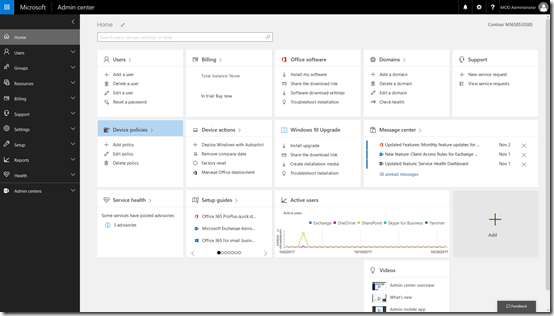
Start by navigating to the Admin center in your Microsoft 365 Business tenant.
image

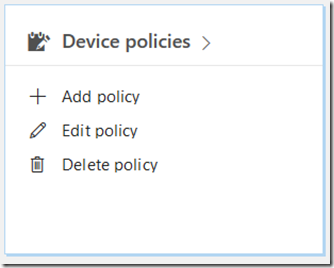
Locate the Device policies tile and select it.

image

You may see a number of policies but one should be named Application Management for Android. Select this.

image

image

image

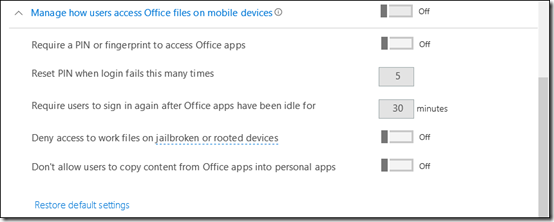
If the policy doesn’t exist you can create a new one. When you do you will see the above settings.

If you expand the display for each option you should see a list of all the options and their status as shown above.

The question now is, how do these map to settings in Intune under the covers?

To view the settings in Intune you’ll need to login to the Azure portal for that tenant and then navigate to the Intune option. Remember, you get access to an Azure management portal when you sign up for Office 365 free. I covered off how you can access it here:

Enabling your Office 365 Azure AD access
image

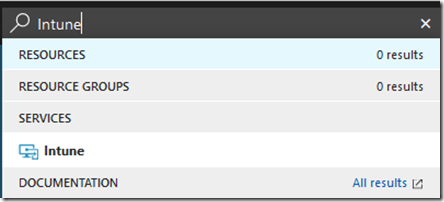
The easiest way to find the Intune settings is to do a search in the top right and then select Intune from the results.
image

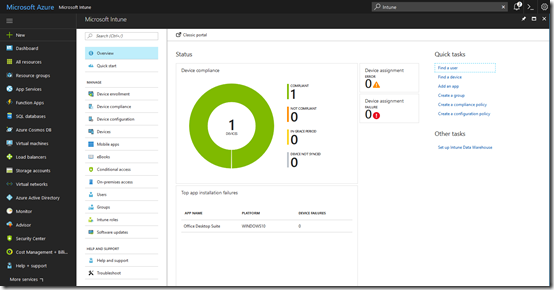
You should see the Intune console displayed as shown above.
image

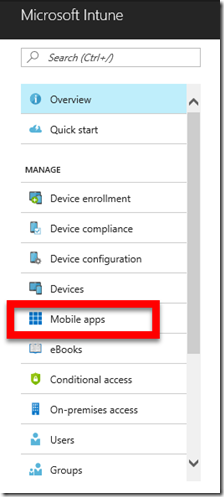
From the menu, under the Manage section, select Mobile apps

image

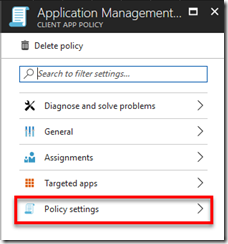
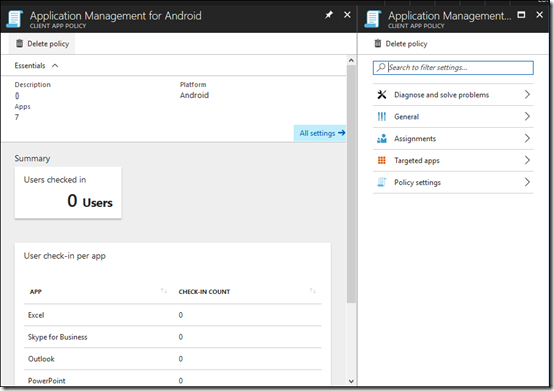
From here select the App protection policies option under the Manage section. This should display a policy on the right that matches the one you have in the Microsoft 365 Business console (here Application Management for Android). Select the policy name to continue.
image

The first setting in the policy in Microsoft 365 Business under the heading Protect work files when devices are lost or stolen is:

image

In Intune select Policy Settings

image

Here you will find:

image

The next option in the Microsoft 365 Business policy for Android is:

image

In the same policy area in Intune this maps to the setting:
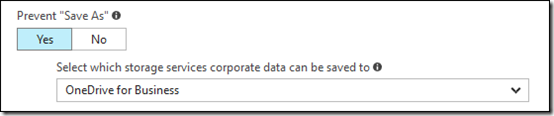
image

Next in Microsoft 365 Business is:

image

which maps to, also in Policy settings in Intune:

image

In Microsoft 365 Business, under the heading – Manage how users access Office files on mobile devices is:

image

This can be found once again in the Policy settings area of Intune and the options are:

image

Next is:

image

which maps to:

image

Next in the Microsoft 365 Business policy is:

image

which again can be found in the Policy Settings area:

image

Finally, in this section for Microsoft 365 Business is:

image

which corresponds to:

image

The managed apps are basically those at the bottom of the policy in Microsoft 365 Business, typically apps like Excel, Outlook, Word, etc.

image

If you go out of Policy settings in Intune you should see:
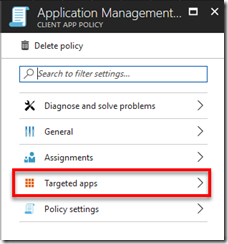
image

Select Targeted apps.

image

image

Here you will see the same list of apps that you find in Microsoft 365 Business.

Remember, this policy is for Android devices and there is one for Windows 10 and iOS as well. Also remember that you can’t go and make changes to the in Intune, I have just shown you the mappings here. if you want to change the policy for any of your devices it needs to be done in Microsoft 365 Business.

You can of course delete the existing policy in Microsoft 365 Business or create different device policies and apply them to different security groups in your environment. Thus, you can have separate policies for floor staff and management if desired.

Microsoft 365 Business makes it easy to manage your devices by putting the policies right in the Office 365 Admin console. These map to policies in Intune under the covers but are only designed to be set inside the Microsoft 365 Business Admin console.


November Azure Webinar resources

Slides from my November Azure webinar are now available at:

https://www.slideshare.net/directorcia/ciaops-need-to-know-azure-webinar-november-2017-83115219

The recording is also available at:

http://www.ciaopsacademy.com.au/p/need-to-know-azure-webinars

which CIAOPS patrons get free access to as part of their subscription.

This webinar set the ground work for upcoming monthly webinars that will go deeper into Azure features and abilities.

So make sure you sign up for next month’s webinar.

Bitcoin isn’t the only game in town

It is easy, with all the hype around, to believe that digital currency is only about Bitcoin. That however, could not be further from the truth. There are in fact hundreds of other digital currencies that fail to get main stream media focus. This is understandable given the overwhelming status Bitcoin has in the market, as well as its first mover advantage. It would however be foolish to dismiss these alternate currencies (known collectively as alt coins), now or in the future.

Although Bitcoin was the first, it is by no means the last when it comes to working in the digital currency space. Just have a look at:

https://coinmarketcap.com/

SNAGHTML1eb3d3c8

1332 cryptocurrencies / 6975 markets

For a list of the most popular digital currencies and their market capitalisation. The second most common digital currency is something known as Ethereum and is in many ways very different from Bitcoin. Ethereum does not have a limited number of available coins like Bitcoin does and it is can be used in more ways than Bitcoin. Ethereum, for example, can be used to enact smart contracts on the blockchain.

To understand the basic differences between Bitcoin and Ethereum take a look at this video:

Imagine that instead of money you wanted to exchange ownership contracts on a parcel of property. The traditional method currently involved working with paper document and third parties for verification. Imagine if all of that could be replaced by a simple digital transfer of the property title, done on the public blockchain for free? All titles could then not only be easily transferred but also verified and maintained over the ages.

Think about a loyalty points system, like those offered by airlines. If you consider these as a type of currency, imagine how easily they could be implemented using the blockchain. After each trip, you’d automatically get additional frequent flyers ‘currency’ that would be recorded in the blockchain. You could then easy cash these in for rewards or use them for additional benefits. All transactions would be recorded on the blockchain and remove the need for a centralised ledger. Given that many reward programs extend the accumulation of points to other purchase, such as refuelling. Imagine immediately after paying for your fuel your rewards program is automatically credited with the appropriate amount of rewards points from the airline. No longer would you have to wait to month end to accumulate points. No longer would you have to wait till your printed rewards statement appears in the mail.

There are really so many applications for blockchain technology, currency is simply one of these. Because everything is software and typically open source, this means anyone can take the code and potentially create their own currency. At the moment, the majority of blockchain technologies are being used like currencies and typically for storing value but as acceptance increases expect to see more and more currencies appears, especially from major players.

If you wish to invest in digital currency you can do that via a wide variety of offerings. Each has different characteristics and support so you need to understand what you are investing in. There are also variations of original coins as well that implement the blockchain differently from their parent. Bitcoin itself has a number of variations (or forks) as they known. These include Bitcoin Cash, Bitcoin Gold and a rumoured Bitcoin Diamond. Each have slight technical variations in the way they implement the algorithm from the original Bitcoin.

Such variants still need the support of purchasers, merchants and miners to be successful. This is were things get interesting and to an extend why Bitcoin as the first mover has had the advantage. The reason Bitcoin cash was created for example was to reduce the transaction verification time and cost when compared to the original Bitcoin. Has it succeeded? It is certainly becoming more widely supported and many ardent supports believe it will take over the mantle of begin the ‘true’ Bitcoin.

Until then, there is going to be a lot of speculation and fluctuation in the price and that is what makes the future so exiting. What will be supported by the majority of users is yet to be determined and is probably a few years off but there is little doubt that digital currency built on the blockchain is here to stay and will fundamentally change many of our interactions. The future looks like it won’t simple be a place of single global currency as some would imagine. It will in fact be a place full of various ‘currencies’ each performing specific roles for specific demographics. Being digital means that working in this world will be far simpler than it is today and that is a good thing.

Scratch your own itch

pexels-photo-145985

The length and breadth of cloud services like Azure and Office 365 continue to grow. This size can be very intimidating for those starting their journey with these tools. A very common question I get is, “where do I start?”.

Many people’s first attempt at learning these technologies is simply too general. Just wanting to “learn Office 365” for example has too many entry points. I would suggest that your best option is to bring a specific project or need to your learning process.

For me, this was the need to create a process for migrating SharePoint on premises to Office 365 which I detailed here:

I finally get Microsoft Azure

I’ve seen others do things like move their accounting system into Azure or a third party service running on Windows or Linux. What about using Microsoft Flow to automate a manual process in your business? Even if the project you want to tackle has nothing to actually do with something in your business, bringing a very specific challenge to cloud services that you need to solve will accelerate your learning.

Of course, this learning process is going to result in many failures and frustrations. I can’t tell you the number of times that I’ve had to redo something because I ‘stuffed up’ or the amount of time I have invested in solving something that in fact, turned out to have a very simple resolution. All of that is simply part of the learning process and something you’ll need to accept will happen.

As they say, in the process of learning there is never really any failures. It is all simply knowledge accumulation and if nothing else it shows you want not to do next time. Once you embrace this, wrong steps remain frustrating but actually give you a renewed energy to find the right solution.

However, it is too easy to become dishearten if you don’t have a specific goal you want to achieve. Having no or ill defined goals doesn’t provide the focus when you want to give up as it gets ‘tough’ in my experience. So, from the start, set out to solve something specific and I thing you’ll be pleasantly surprised by the result.

Deploying Microsoft 365

Here’s an overview of the administration options that are available for you in Microsoft 365 Business.

You’ll see how to add Microsoft 365 Business licenses as well as what each contains. You learn about the device and application policies that you can configure in Microsoft 365 Business as well as see the back end deployment inside Azure.

If you need to manage Microsoft 365 Business or are wonder how it all works in the back end then take a look at this tutorial.

Need to Know podcast–Episode 169

I’m joined by newly minted MVP Kirsty McGrath to talk about Office 365 adoption. We talk about the Office 365 product wheel Kirsty created and how it helps users understand the full breadth of what Office 365 has to offer. We also cover off the importance of implementing an adoption strategy and having a long term vision when it comes to getting the most from Office 365 in any business.

There is of course the usual cloud updates on Office 365 and Azure from Marc and myself as well as reflection on the recent Microsoft Summit in Sydney.

Take a listen and let us know what you think –feedback@needtoknow.cloud

You can listen directly to this episode at:

https://ciaops.podbean.com/e/episode-169-kirsty-mcgrath/


Resources

@kirstymcgrath13

@marckean

@directorcia

Onpoint solutions

Kirsty McGarth on Linked in

Kirsty’s Office 365 product wheel

Sydney Office 365 Business User Group

Azure new from Marc

Microsoft 365 Business now available worldwide

Write your best resume in Word with help from Linkedin

Microsoft Flow integration with OneDrive for Business

Planner Ignite review and roadmap

Compliance Manager Preview

Microsoft 365 Application Management for Windows 10 mappings

I wrote a previous article that showed the mapping from the Microsoft 365 Business Windows 10 Device Configuration settings to those in the Intune console in Azure. You can read that article here:

Microsoft 365 Windows 10 Device Management settings

What I am now going to cover is the Application Management for Windows 10 policy. That is the software and information that resides on Windows 10 devices.

image

Start by navigating to the Admin center in your Microsoft 365 Business tenant.

image

Locate the Device policies tile and select it.

image

You may see a number of policies here but one should be named Application Management for Windows 10 as shown above. Select this.

clip_image001
clip_image001[5]

If the policy doesn’t exist you can create a new one. When you do you will see the above settings.

If you expand the display for each option you should see a list of all the options and their status as shown above.

The question now is, how do these map to settings in Intune?

To view the settings in Intune you’ll need to login to the Azure portal for that tenant and then navigate to the Intune option.

image

The easiest way to find the Intune settings is to do a search in the top right and then select Intune from the results.

image

You should see the Intune console displayed as shown above.

image

From the menu, under the Manage section, select Mobile apps.

image

From here select the App protection policies option under the Manage section. This should display a policy on the right that matches the one you have in the Microsoft 365 Business console (here Application Management for Windows 10). Select the policy name to continue.

image

You will notice that when you create a new Application Management for Windows 10 policy that you have the option to set Encrypt work files to be on or off.

image

However, after you set it to on and save the policy you can’t change it to off as shown above. Thus, once Encrypt work files is set to on, it stays and can’t be changed.

image

This setting maps to the Windows Information protection mode in the Required settings of the Application Management policy in Intune as shown above.

image

When Encrypt work files is set to on, the option in Intune is set to Block. This basically prevents Office 365 data from being used in non Office 365 applications on Windows 10. Thus, you can’t save an Office 365 file to a consume storage platform like Google Drive.

clip_image001[9]

When Encrypt work files is set to off, the option in Intune is also set to off as shown above. Thus, Office 365 files can be shared with any application.

image

If the option to Prevent users from copying company data to personal files and force them to save work files to OneDrive for Business is set to on, then I can ‘t see how this is enforced by the policy as there doesn’t appear to be any settings for this like there is with iOS and Android policies. I’ll need to investigate this one further.

clip_image001[11]

The next setting is Manage how users access Office files on mobile devices.

image

image

If the Require a PIN or fingerprint to access Office apps is set to on, the use Windows Hello for Business as a method of signing into Windows in the Access section of the Advanced Settings of the policy is also set to on as shown above.

image

image

The Microsoft 365 Business policy options Reset PIN when login fails this many times and Require users to sign in again after Office apps have been idle for settings are located at the bottom of this same policy as shown above.

image

The next option Recover data on Windows devices appears to map to the Data protection area of the Intune policy.

image

I haven’t quite worked this setting out yet. I’m unsure whether you need to upload your certificate BEFORE you apply the policy to machines or you can do it at any time AFTER the policy has been applied. One would think that you need to do it BEFORE and retain the certificate to decrypt files later. However, I need to dig deeper here and do a follow up article.

clip_image001[13]

image

The Protect additional network and cloud locations in Microsoft 365 Business option maps to the following areas in Intune policy.

image

The final option, Files used by these apps are protected

image

map to

image

image

the Protected Apps area of the policy as shown above.

Remember, there is a similar policy for both iOS and Android that I’ll cover soon. There are also a few things here I need to do more research on but you should now have a better idea of how the Microsoft 365 Business settings map to Intune.

Also, as I understand it, you can’t make changes to the policies in Intune, they all need to be done via the Microsoft 365 Business console.

So, when you create a Application management for Windows 10 policy in Microsoft 365 Business, these are the mapping that occur to Intune under the covers.