
Category: Uncategorized
CIAOPS Need to Know Azure Webinar–April 2018

Azure can do a lot of things including host website using a variety of methods. This month I’ll show you the different ways that you can host web sites in Azure and some best practices. There’ll also be news, updates and Q and A. I hope to see you there.
April Azure Webinar Registrations
The details are:
CIAOPS Need to Know Azure Webinar – April 2018
Tuesday 24th of April 2017
2pm – 3pm Sydney Time
All sessions are recorded and posted to the CIAOPS Academy.
There of course will also be open Q and A so make sure you bring your questions for me and I’ll do my best to answer them.
The CIAOPS Need to Know Webinars are free to attend but if you want to receive the recording of the session you need to sign up as a CIAOPS patron which you can do here:
or purchase them individually at:
Also feel free at any stage to email me directly via director@ciaops.com with your webinar topic suggestions.
I’d also appreciate you sharing information about this webinar with anyone you feel may benefit from the session.
CIAOPS Need to Know Office 365 Webinar–April

For this month’s webinar we are going to take a look at the key skills required to be effective with Office 365. I’ll show you what these skills are and how to use them effectively to make the most of Office 365. Of course, I’ll also bring you up to speed with all the latest news and updates in the world of Office 365 and Microsoft 365.
You can register for free at:
The details are:
CIAOPS Need to Know Webinar – April 2018
Tuesday 24th of April 2018
11am – 12am Sydney Time
All sessions are recorded and posted to the CIAOPS Academy.
There of course will also be open Q and A so make sure you bring your questions for me and I’ll do my best to answer them.
The CIAOPS Need to Know Webinars are free to attend but if you want to receive the recording of the session you need to sign up as a CIAOPS patron which you can do here:
or purchase them individually at:
Also feel free at any stage to email me directly via director@ciaops.com with your webinar topic suggestions.
I’d also appreciate you sharing information about this webinar with anyone you feel may benefit from the session.
Recalling message options in Office 365 OWA
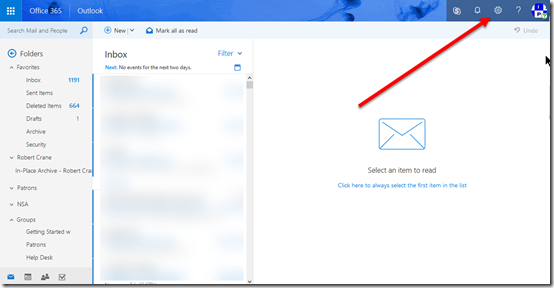
There are many times when you want to recall a message you have sent in Outlook or Outlook Web Access (OWA). Generally, you should reconcile yourself to the fact that you won’t be able to achieve this but there is an option in OWA that you can set to allow you to ‘Undo’ you send.
To enable ‘Undo send’ in OWA navigate to OWA in your browser and select the Cog in the top right as shown above.
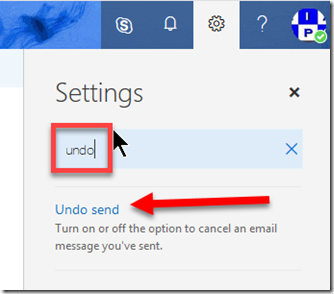
In the search box that appears type ‘undo’ and this should display the Undo send option as shown. Click on this result to navigate to the setting.
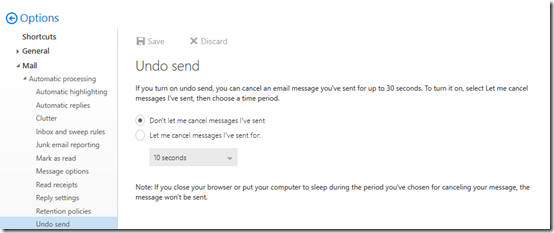
In most cases the Undo send option will be disabled as shown above. To enable simple select the Let me cancel messages I’ve sent for option.
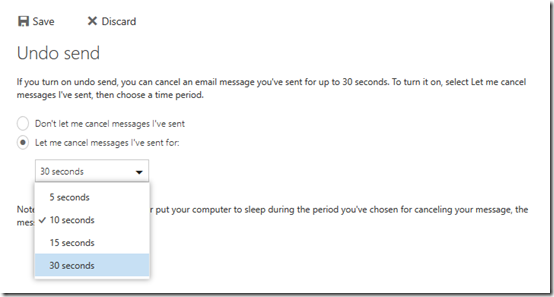
By default, the time you have to undo the send is only 10 seconds so you may want to extend this to the maximum of 30 seconds by selecting that option from the pull down.
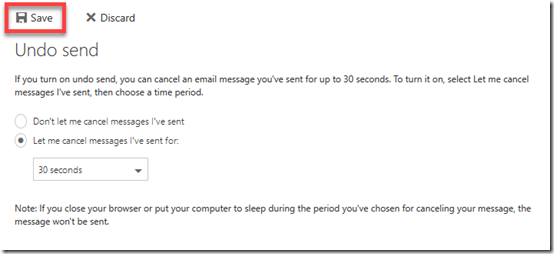
After you have made these changes make sure you select the Save button at the top to update your preferences.
With this option now configured at least you might have the ability to undo a sent email before it goes out. Again, this may not always work but at least now you have an option.
Using Office 365 PowerShell with MFA enabled
Enabling multi factor authentication (MFA) in Office 365 is best practice, especially for global administrators. However, doing so can raise some challenges when it comes to working with PowerShell command line and the ISE.
The above video tutorial takes you through the process of accessing your Office 365 tenant when you have MFA enabled. The commands that you need to also do this via the PowerShell ISE are here:
Import-Module $((Get-ChildItem -Path $($env:LOCALAPPDATA+”\Apps\2.0\”) -Filter Microsoft.Exchange.Management.ExoPowershellModule.dll -Recurse ).FullName|?{$_ -notmatch “_none_”}|select -First 1)
$EXOSession = New-ExoPSSession
Import-PSSession $EXOSession
Now you can still have MFA enabled on your accounts while using PowerShell. Yes, there is more work to enable this but if it is harder then generally you know it is more secure!
Need to Know Podcast–Episode 177

Brenton and I give you an update on all the latest news from the Microsoft Cloud, and there has been plenty. Across Office 365 and Azure there is plenty of updates for you to be aware of. So have a listen and take a look at the show notes to get more information.
Take a listen and let us know what you think –feedback@needtoknow.cloud
You can listen directly to this episode at
https://ciaops.podbean.com/e/episode-177-cloud-news/
Subscribe via iTunes at:
https://itunes.apple.com/au/podcast/ciaops-need-to-know-podcasts/id406891445?mt=2
The podcast is also available on Stitcher at:
http://www.stitcher.com/podcast/ciaops/need-to-know-podcast?refid=stpr
Don’t forget to give the show a rating as well as send us any feedback or suggestions you may have for the show.
Resources
Azure private DNS zones now in preview
Azure Virtual Machine serial console access
General availability of Azure File snapshot
The Microsoft AI Landscape and what to use when
External access coming to Planner
Deploy Office 365 and Azure together
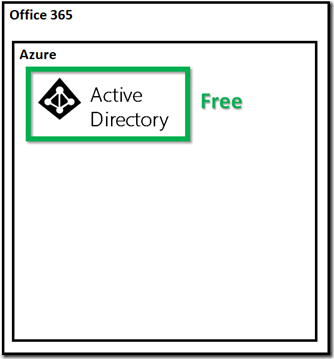
When you get an Office 365 license you also receive a free Azure tenant. This Azure tenant only generally has a single service enabled. That service is Azure Active Directory.
You do not pay for this, it is included with your Office 365 subscription and here’s how you are able to view it:
Enabling your Office 365 Azure AD access
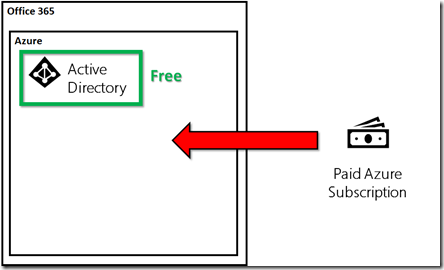
The Azure tenant that you get with Office 365 won’t unfortunately provide you with access to other Azure services (such as Virtual Machines) out of the box but it can. The way that you enable this existing Azure tenant for other Azure workloads is that you now add a paid Azure subscription.
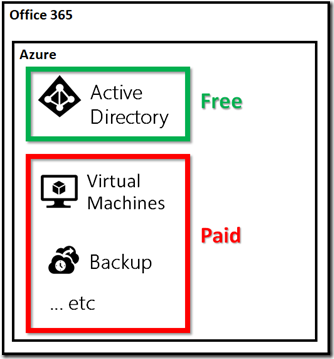
Thus, when you add a paid Azure subscription into an Azure tenant created by Office 365 you now get the ability to access all the Azure services (like Virtual Machines, Backups, etc.).
What I suggest is that when enable an Office 365 tenant you should also immediately add a paid Azure subscription. The reason I say that is that Azure billing is handled differently to Office 365.
Office 365 is a flat fee per month based on the user count in the tenant. Azure however is a consumption based pricing model generally. This means, you don’t pay for Azure services until you start using them. Thus, enabling a paid Azure subscription into you Office 365 subscription is not going to cost you anything until you start actually using Azure services.
Adding a paid Azure subscription immediately gives you the flexibility to spin up Azure services immediately when you need them instead of having to wait for the subscription to be provisioned. It means if you need a temporary server or some cloud backup then you can configure and start using that service immediately, no waiting as the tenant and services are ready to go.
So with an Office 365 tenant created and a paid Azure subscription in place what are most likely first Azure services you should consider? I’d be looking at Azure DNS to host the name server records for Office 365, a site to site VPN back to on premises infrastructure, Azure SMB Files and then probably Azure Backup and Site Recovery. The choice is yours and with the paid Azure subscription in place you can run these up whenever you need and feel assured that you’ll only be billed when you actually start using them.
In short, think of Office 365 and Azure together. This means they should be deployed together as there is no financial reason not to in my books. With both deployed you’ll be in a far better place to respond to whatever the needs of the business are.
The layers of Office 365 collaboration
One of the misconceptions that many have about Office 365 is that SharePoint Team Sites is the only place that you have files. My response to that is that SharePoint Teams Sites is not the hammer to every request for an Intranet. You need to case your gaze wider. You need to consider all the options that Office 365 provides. You need to think collaboration not just storage. You need to shift your thinking from the way it has been to the way it could be.
Now having lots of options for collaboration can make choice harder, I get it. The solution is knowledge. Know what each service does well and then determine if it is a good fit. If, after consideration of all the options, a stand alone SharePoint Team Site makes sense, then great, but in my experience that is rarely the case.
Here’s an Office 365 collaboration framework that I present people to help them understand how to better use the collaboration tools that Office 365 provides them.
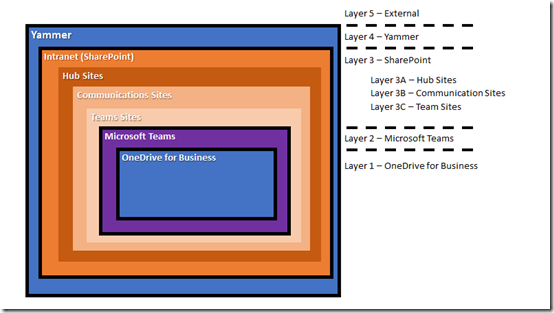
The simple structure I start with is shown above. There are 5 layers, each embedded within each other.
The inner most layer, layer 1, is a personal OneDrive for Business. Next is layer 2 being Microsoft Teams. Layer 3 is good old SharePoint. Layer 4 is Yammer and the outside layer is everything outside Office 365.
The SharePoint layer, layer 3, has three sub layers that are still SharePoint features but should be considered independently. These sub layers are: layer 3A being Hub sites, layer 3B being Communication sites and finally layer 3C being the traditional stand alone SharePoint Team Site.
Layer 3C is where many seem to think is the only place available to them when it comes to document collaboration. Each layer provides its own unique abilities and should be utilised in its own unique way. Let me explain further.
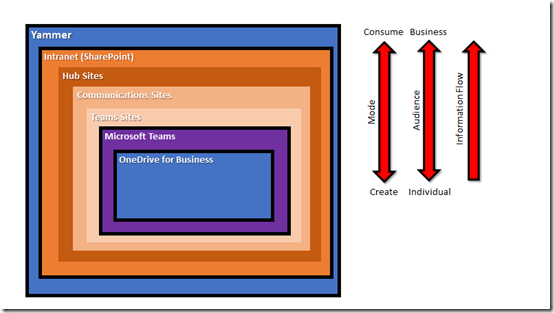
As you move from layer 1 (OneDrive for Business) to layer 5 (external) there is a move away from creation of information to a consumption of information. For example, most people start working on document in their own private space (layer 1 = OneDrive for Business), when they are ready they push these into a shared space for their team (layer 2 = Microsoft Teams). Here they are worked on by more people and seen more people. From here they are then pushed to the next layer (layer 3 = SharePoint) where they are seen by even more people but now few people are actually making changes to the document. Finally, the document is pushed to layer 4 where it is announced with everyone in the business. This garners the most eyeballs most of whom are merely going to consume or view the work.
Think of this analogy. A single user creates a new HR policy document in their OneDrive for Business. When they are ready they push that into the HR Microsoft Team to get further input from others in HR. Once that process is complete the completed HR policy document is pushed to the Intranet (SharePoint) where everyone else in the company can view it. Once the document is pushed to the Intranet it is announced publically on the Yammer network were it is now available for all to consume, use and comment on it.
Just as the creation process changes from creation to consumption as it moves through the layers, likewise the audience grows, from the individual to the team and then to the whole business and potentially those outside the business. Thus, information generally flows from layer 1 through to layer 5.
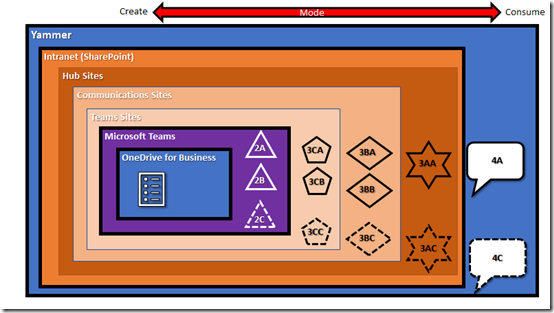
Let’s break this down some more. A user creates a new document in the OneDrive for Business. At this point the document is undergoing 100% creation.
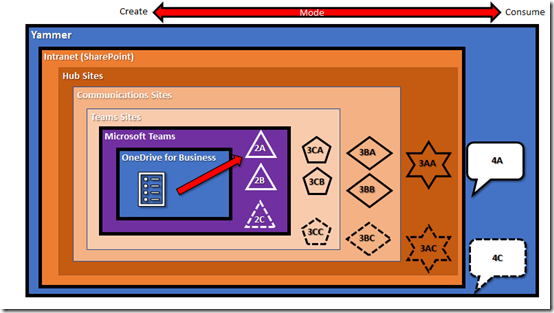
When the user is ready they move the document into the appropriate Microsoft Team. Now the user may belong to some Microsoft Teams in the structure (2A and 2B) and not to others (2C).
At this point the document is probably undergoing 75% creation and 25% consumption.
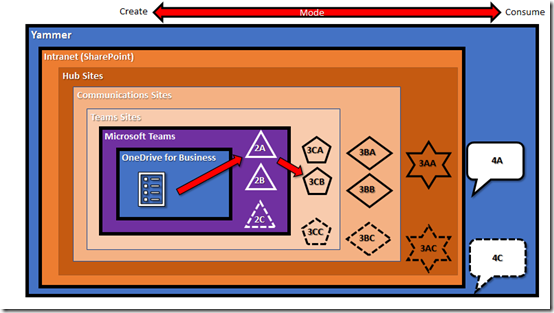
From here the document is pushed to a traditional Team Site. There can be many different Team Sites if required, that people may or may not have access to. In this case it is being pushed to Team Site 3CB.
The ratio of creation to consumption here probably falls below 50% i.e. more people are reading it than editing it.
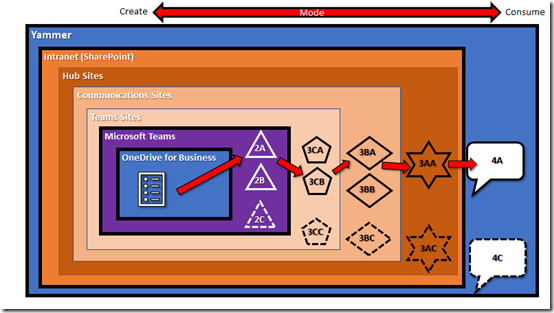
I think you get the picture. The document continues its journey through the various layers with different, but increasing audiences, having access to the document. However, the further through the layers it gets, the less the document is edited but the more it is viewed.
The reality here is that layers 3A (Hub sites) and 4 (Yammer) are really just providing navigation to the completed document which probably actually physically lives in either a traditional SharePoint Team Site or a Communication Site inside layer 3. However, the consumers of the information don’t care where it is actually stored, they simply want to know how to get to it.
At each layer I can only see and access information that is relevant to me. If I am part of the Microsoft Teams that works on the document then I can contribute. If I am not, then that document won’t be visible to me until it is pushed to a location further along that I have access to.
This means that the working for the final product can remain hidden from those not involved. So, think of the Microsoft Teams area as the traditional location where groups of people “create” and “work” on the information. This should be the location where most files from a file server are migrated, they should not be ‘dumped’ into a single location at layer 3 (SharePoint). They should be ‘placed’ into an appropriate work area for that team.
So, you should build your collaboration framework on layers. The above is just a simplified model but it is a good place to start I believe. The next point to consider with collaboration is information flow. Chances are, information is going to need to flow through to different places i.e. even though the finance department works on budgets, at some point they need to be shared with others in the business. Collaboration is about creation AND sharing of information. Simply creating information doesn’t serve any real purpose or benefit the larger cause without actually sharing it.
In most cases, your layers are going to mimic what your business already looks like structurally i.e. you’ll have a financial team, a HR team, a management team, etc. Each of these groups needs to create and publish information, thus they make logical Microsoft Teams in your collaboration structure. You may of course not need or want all these layers but I urge you to consider using them as a ‘standard’ no matter how large or small your business as each layer bring unique features and functionality to the table.
In all of this, you will notice that the concept of an ‘Intranet’ is really at the extremity of collaboration creation. To me an Intranet is about 20% creation and 80% consumption. It is not really the place you go to do work. It is however, the place you go to find stuff from others in your business. Think of the Intranet like a bookcase at reception, into which each department places the end result of their work i.e. when the finance team is done with the budgets they place them in the finance folder in this bookcase for anyone else in the business to reference. Once they have done that, they go back to their Microsoft Team to start creating the next round of budgets they’ll publish.
This framework also couples well with my recommended adoption framework detailed here:
Focus on the ‘Me’ services first
In that I suggest you implement Yammer first (layer 4) and then OneDrive for Business (layer 1). Once that is successful you move to Microsoft Teams (layer 2) and finally the Intranet (layer 3). In short, you win the adoption battle by adopting a two prone attack at the outside layers and then proceed inwards. In my books, that is a more certain way to victory.
Office 365 is a toolbox with lots of options for you to work with. Hopefully, this framework makes it bit easier for you to look at a way to conquer collaboration rather than simply abdicate for storage when it comes to your information in Office 365.
 CIAOPS