
As you may well know I have written a number of books that are available on my site or from places like Amazon. One of these is:
Getting Started with SkyDrive Pro for Office 365.
I recently received a very poor review from PL1 Pgrmr that reads:
Not what it purports to be: I found this book to be totally corporate oriented. When I bought it, my thought was to understand Skydrive and how it works better. This book fails on all counts. After skimming it, I was sorry I even bought it. Stay away unless you are in a corporate environment.
Now my first reaction, especially to the review title, has annoyance as I certainly believed that both the title and the description were valid. However, upon reflection I can see where the problem lies.
Office 365 has a Home Edition that also includes SkyDrive but the consumer version NOT the Pro version. So this person would seem to have Office 365 Home Edition and was looking for information about SkyDrive, bought my book and was disappointed because my book only covers the business versions of Office 365.
So here we have a great example of how inconsistency in products confuses end users:
1. Office 365 Home is NOTHING like Office 365 for business
2. SkyDrive Pro is NOTHING like consumer SkyDrive
Now I do understand that Microsoft is trying to unify its products and brand all under one cloud banner but it is still very confusing for end users. Even I had to stop and look at this from the point of view of someone who has purchase Office 365 Home and wants information on SkyDrive and how easily it would be to confuse my book on Office 365 Business and SkyDrive Pro.
It is so easy as technology people who understand the differences between products like SkyDrive and SkyDrive Pro to overlook the fact that the vast majority of end users struggle to differentiate the products. It also highlights how you have to really, really specific with these cloud offering to ensure you are targeting exactly the right audience.
No one is at fault here, it is just confusion around the product editions. I have now updated the description on Amazon to indicate my book doesn’t talk to the Office 365 Home edition and I have left a comment for the reviewer indicating what I believe is where the confusion lies.
My book NEVER attempted to cover consumer SkyDrive and in the first few pages (which I am sure you can view via a preview it does say:
It is important not to confuse the consumer edition of SkyDrive and SkyDrive Pro
and
This means it covers material that is applicable for Enterprise Office 365 Plans and well as for the Small Business and Professionals Plans. It will not cover the consumer version of SkyDrive.
However, I do understand how someone using the Office 365 Home edition could still be confused, yet I think the title of the review is a little harsh but I accept that is what happens when you publish publically.
So what’s the point of this post? I suppose it is to say always ensure that you avoid confusion in the minds of consumers when it comes to your products. If there is confusion there will be frustration like that experienced by the reviewer and myself as an author both expecting different content from a product of the same name, that being Office 365. That frustration results in negative sentiment when in fact each product provides a great solution for home users and for business. It is unfortunate that they are so dissimilar but share a common name.
Oh well, I need to update that SkyDrive Pro book anyway.
Category: Uncategorized
Review – Spigen SGP Neo Hybrid for Google Nexus 5
Full disclosure – the review unit was supplied by Mobilezap. You can find this device and others at the Mobilezap category page at:
http://www.mobilezap.com.au/34604/google/nexus-5/cases.htm
This is a pretty handy cover for the Nexus 5 in my books. It basically comes in two pieces as you can see above. This first is the case which the phone fits into snuggly. The second is a band that fit around the border to hold it in place, which is easy to attach. The case even has rails to ensure the band fits correctly and stays in place.
It is hard to even notice the cover when it is place. It adds very little bulk or weight to the phone and protects it very well. All the guide holes align perfectly and the surface makes the phone nice and grippy.
I like simple covers like these because they protect the phone while not making any more cumbersome to use. Certainly would recommend this case to all Nexus 5 users.
Last chance for Cloud Business Blueprint discount

A few weeks back I let you know about signing up to my new project www.cloudbusinessblueprint.com. We opened the doors on the private members site on Friday night and by Saturday all the Foundation spots where taken.
Many people contacted us saying that this was the ONLY weekend that they didn’t check their emails and they were very disappointed to miss out. Thus, after discussions with my business partner Nigel Moore, we have decided to make a similar once off offer.
Until Wednesday 5pm Australian eastern standard time (GMT+11) you can get membership for AUD $37 per month (plus GST for AU people), if you use the code:
CBB-LAUNCH-EXTRAS
Right now in the community, you already have access to a half dozen training courses along with some templates and eBooks and that’s growing rapidly.
|
|
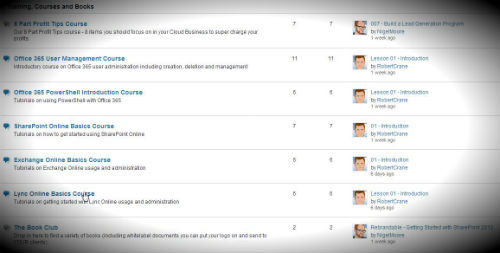
So, if you’re keen to jump on board, head on over now to www.cloudbusinessblueprint.com/members-sign-up – the coupon code for the $37 pricing is CBB-LAUNCH-EXTRAS
Just to make sure you don’t miss out on this one (as we definitely won’t be offering any more discounts on membership).
After that membership will be locked and staying at $47 for the time being.
Cloud Business Podcast–Episode 4

http://www.cloudbusinessblueprint.com/podcast/episode-004-white-label-cloud/
iTunes – https://itunes.apple.com/au/podcast/cloud-business-podcast-opportunity/id742109989
This podcast discussed the benefits and challenges of white labelling cloud offerings. It looks at the challenges of incorporating public and private cloud offerings in an effort to generate profit and develop a long term strategy. We however also cover the huge opportunities in niches that are not currently adequately covered by resellers and why focusing on commissions is a losing game. Some of these opportunities come from businesses like:
- Office 365 = www.office365.com
- Google Apps = http://www.google.com/intx/en_au/enterprise/apps/business/
- Intermedia = http://www.intermedia.net
- My Hosted Solution = http://www.myhostedsolution.com
As well as some nice solutions like:
- Saleforce = http://www.salesforce.com
- 37signals = http://www.37signals.com
- Sassu – http://www.sassu.com
- Xero = http://www.xero.com.au
- Windows Azure = http://www.windowsazure.com/en-us/
We answer the question about how to make product offerings easier for clients as well as wrap up some of the latest goings on at Cloud Business Blueprint
We’d love to hear feedback, so please leave your comments below and don’t forget to rate us on iTunes. This will help us grow our listener base which will encourage us to add more value and help us to bring on some fantastic guests.
Meet the New Windows
It is very unfortunate that Windows 8 has received a lot of negative press, mainly from those who have never used it! Yep, it works better on a touch device which are not that common yet but if you simply press the Windows Key you end up at the desktop. How hard is that?
Windows 8 is certainly a major departure in terms of interface from what most people are used to but anyone who has ever used a tablet or a smart phone should be able to adapt pretty quickly, so I can’t see why some people moan so much?? Are they not using a smart phone? I doubt it. Most of the negativity seems to be coming from those ‘old school’ users who don’t want to learn anything new. However, any new interface always elicits cries of angst. What happened to the day when we couldn’t wait for something new? Have people really become that staid now days?
The secret to success with Windows 8 is to spend some time acclimatizing yourself to the new stuff. It doesn’t take long, 10 – 15 minutes is enough for most people to get up to speed and be more productive than they were with previous operating systems. It would have been great if Windows 8 did include its own usage tutorial but it doesn’t and that has counted against it when it comes to adoption.
A little bit of digging around the Microsoft site reveals a wonderful training document on Windows 8.
Windows 8 End User Training brochure
I’d recommend that any Windows 8 user download and work their way through the document as it covers a huge amount of the new features in Windows 8. In many cases, once you become familiar with these features you’ll really appreciate how much better than can make your technology experience.
Even if you aren’t currently using Windows 8 it is probably worthwhile downloading and going through the document or at least keeping it handy as chances are, one day you’ll be using Windows 8!
Before you write Windows 8 off and consign yourself back to your 1980’s machine, go through the Windows 8 End User Training brochure and then use Windows 8 for yourself. I’m pretty sure you’ll find a whole new world with a bit of knowledge under your belt.
CIAOPS December Virtual Tech Meeting–Resources
Thanks to Boon Tee for his presentation at the meeting. Here is a recording of that presentation for anyone who missed it.
Here also is the list of resources mentioned in the news section:
Amazon workspaces – https://aws.amazon.com/workspaces/
Office 365 admin app – http://www.windowsphone.com/en-au/store/app/office-365-admin/76f9b288-37bc-4d75-8164-16d1df0447a2
Ingress – http://www.ingress.com
Office 365 Power BI – https://blog.ciaops.com/2013/11/office-365-power-bi.html
Office 365 message encryption – http://blogs.office.com/b/office365tech/archive/2013/11/21/introducing-office-365-message-encryption-send-encrypted-emails-to-anyone.aspx
Cloud Business Blueprint – http://www.cloudbusinessblueprint.com/
I hope you can join us at our next planned meeting in February. Keep an eye out for registration details here in the coming weeks.
CIAOPS Virtual Technology Meeting–December
The final CIAOPS Virtual Technology meeting 2013 will be held on Wednesday December the 4th at 4pm Sydney time. You can register for free now at:
https://ciaops1213.eventbrite.com.au
This meeting will feature a presentation by Windows Server MVP Boon Tee focused on connecting on premise servers to Office 365. Here, in broad strokes is what Boon will be covering:
1. Integrating Office 365 into the network.
a. WS2012E R2 features
b. How it fits together
c. Using ProPlus
d. Migration
– i. From SBS
– ii. From POP3/iMAP
– iii. MigrationWiz
2. Bug check
a. Essentials only DC or integration will break.
b. Unscheduled Server Backup after reboot
c. GPO setup
d. Licensing
The meeting will the usual swag of news, information and discussion so I hope that you’ll come along and join with us for this last meeting before Christmas and let me know what you’d like to see in the coming year.
I hope to see you there.
Enable Yammer integration in Office 365
A while back Microsoft bought Yammer and since then has been working hard to integrate it into Office 365. If you have an Enterprise Office 365 plan you should now have the ability to enable this integration.
Here’s a brief outline of how to complete this integration.

Login to your Office 365 portal as an administrator. At the bottom of the second column on this page you should see Included services. Select this.

That will now display the above option to the right. Select the link – Yes, activate Yammer Enterprise for my network.

You’ll then be taken to a screen where you can select which domain you wish to activate that on from the pull down list at the top of the screen.
Then select the Activate Yammer Enterprise button below.

The configuration will now commence. As noted this process could take 1 to 30 minutes to complete.
Look out for future post of the Yammer integration with Office 365 as I think this is another HUGE opportunity with the product.


