CIAOPS Need to Know Microsoft 365 Webinar – September

laptop-eyes-technology-computer

Join me for the free monthly CIAOPS Need to Know webinar. Along with all the Microsoft Cloud news we’ll be taking a look at the newly announced Windows 365 and how it plays into the modern workplace.

Shortly after registering you should receive an automated email from Microsoft Teams confirming your registration, including all the event details as well as a calendar invite! Yeah Teams webinars.

You can register for the regular monthly webinar here:

September Webinar Registrations

The details are:

CIAOPS Need to Know Webinar – September 2021
Thursday 30th of September 2021
11.00am – 12.00am Sydney Time

All sessions are recorded and posted to the CIAOPS Academy.

The CIAOPS Need to Know Webinars are free to attend but if you want to receive the recording of the session you need to sign up as a CIAOPS patron which you can do here:

http://www.ciaopspatron.com

or purchase them individually at:

http://www.ciaopsacademy.com/

Also feel free at any stage to email me directly via director@ciaops.com with your webinar topic suggestions.

I’d also appreciate you sharing information about this webinar with anyone you feel may benefit from the session and I look forward to seeing you there.

Power Platform Community September webinar

After recently

Announcing the CIAOPS Patron Power Platform community – CIAOPS

I’m pleased to say that we have also kicked off the first of our monthly webinars. The recording is available here:

Patron Power Platform Community September Webinar – YouTube

and the slides are here:

https://www.slideshare.net/directorcia/patron-power-platfom-community-september-2021-webinar

Let us know what you think and watch out for our new webinar in October.

Verify Endpoint Manager Service release

image

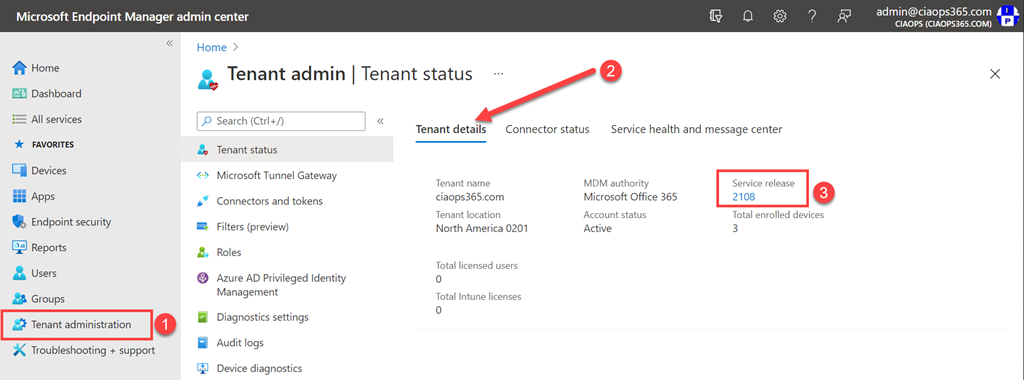
To verify the release you are on with your Microsoft Endpoint Manager environment, navigate to:

https://endpoint.microsoft.com

1. Select, Tenant administration from the menu on the left.

2. Ensure that Tenant details is selected as shown above.

3. Look for the Service release heading on the right as shown above.

The version number here is also linked to:

What’s new in Microsoft Intune

which provides more granular information about what capabilities have been added to the environment.

Remember, these service updates occur regularly, so ensure you check the updates regularly.

Power Platform Community Monthly Webinar – September 2021

image

Join us for our first Power Platform Community webinar. The idea behind these is to share the latest news and event about the Microsoft Power Platform as well as share some of the things that we have learned recently in the hope that it can help others.

There’ll be 3 major presenters:

Andrew Gallagher

Bill Mallet

Yeoman Yu

who’ll share their knowledge, answer any questions you may have and then provide a tutorial into using Microsoft Forms as a trigger for Power Automate.

Come and join us by registering here:

https://bit.ly/ppc0921

If you wish to join our community and be part of the regular discussion and participation on the Microsoft Power Platform you can join via:

CIAOPS Patron

(look for the Power Platform option here to join us).

We look forward to seeing you on the webinar.

Need to Know podcast–Episode 272

In this episode MVP Kirsty McGrath shares her best practices and tips and tricks around delivering successful online learning. Note, we did have some technical issues with this episode, so it might sound a little different from what it normally does but don’t let that stop you from listening along to all the great material. I also give a quick update at head of the show, for everything happening with the Microsoft Cloud.

This episode was recorded using Microsoft Teams and produced with Camtasia 2020.

Brought to you by www.ciaopspatron.com

ake a listen and let us know what you think – feedback@needtoknow.cloud

You can listen directly to this episode at:

https://ciaops.podbean.com/e/episode-272-kirsty-mcgrath/

Subscribe via iTunes at:

https://itunes.apple.com/au/podcast/ciaops-need-to-know-podcasts/id406891445?mt=2

The podcast is also available on Stitcher at:

http://www.stitcher.com/podcast/ciaops/need-to-know-podcast?refid=stpr

Don’t forget to give the show a rating as well as send us any feedback or suggestions you may have for the show.

Resources

Kirsty McGrath – MVP, Twitter, Linkedin, Web, Sydney UG, Melbourne UG, Instagram

New pricing for Microsoft 365

Securing your Windows 365 Cloud PCs

Get started with Universal Print and Windows 365 Cloud PC

Welcome to the brand new Windows 365 Community!

Get Ready to Do More with Teams Meeting Recordings in Microsoft 365!

Microsoft Security Technical Content Library

Super Duper Secure Mode

Whitepaper-Transitioning-Asia-to-a-New-Normal-of-Work.pdf (microsoft.com)

Adapting workplace learning in the time of coronavirus (mckinsey.com)

https://www.howspace.com/resources/hybrid-learning-model

https://news.griffith.edu.au/2020/10/28/hybrid-remote-learning-models-still-needed-post-pandemic/

Richard E. Mayer – Wikipedia

https://www.youtube.com/watch?v=VD4oJGAgoMQ

https://www.wgu.edu/blog/what-is-cognitive-learning2003.html#close

Why Webinar Attendees Leave Early – a 1080 Group, LLC survey brief (thevirtualpresenter.com)

Hybrid Learning Transition Approaches | Microsoft Education

Live Online Learning Facilitator – The LPI

Troubleshoot Windows 365 Business Cloud PC setup issues

image

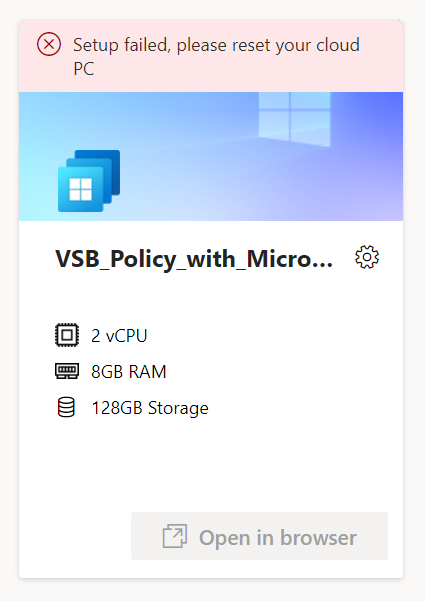
This, unfortunately, was the error that keep greeting me whenever I tried to set up a Windows 365 Business Cloud PC:

Setup failed, please reset your cloud PC

I repeated the reset process over and over but still no luck. I then came across the following article from Microsoft:

Troubleshoot Windows 365 Business Cloud PC setup issues

which helped me greatly and I recommend you follow through that article and suggestions it makes. I therefore thought I’d share my process in troubleshooting this issue, because there are some things the article doesn’t specifically call out that I’ll mention to help you.

The first learning was that the Windows Business Cloud PC creating process creates a new account called

CloudPCBPRT

the user principal name for this appears like:

package_<GUID>@domain.com

i.e.

package_62531965-0931-10d5-9adef-0e4a7179b539e@domain.com

so, you need to ensure this exists in your active Directory.

The next learning from that article was:

Make sure there are no MFA conditional access policies for that first user. MFA must remain turned off during any setup attempts. After all Cloud PCs are successfully set up across your organization, you may turn on MFA for this user.

In essence, during the very first set up of your Windows Business Cloud PC environment you’ll need to do this using an account that doesn’t have MFA enabled. After that, accounts can have MFA enable, but it’s important that the very first account you use with Windows Business Cloud PC doesn’t have MFA enabled.

Remember, there are various ways to enforce MFA inside a tenant, directly, via Security Defaults and also using Conditional Access. Check that your initial user has all these options disabled. I’d suggest it is also a good idea to ensure the account CloudPCBPRT does not have any MFA enforcement either.

Now, the thing that I found the Microsoft article didn’t cover off was:

1. Checking that any Conditional Access policies are not blocking the join process. In my case, I have policies that prevent users adding devices via Conditional Access unless they are joining compliant devices. Ensure that these policies are not being applied to that initial user during set up. Again, double check that CloudPCBPRT is also excluded from such policies.

2. It turns out that even though I have an Australian Microsoft 365 subscription, the virtual machines where provisions for Windows Business Cloud PC from the Microsoft datacenters in Singapore. Thus, I needed to further adjust my Conditional Access policies to allow logins from this region as I generally restrict all logins to tenant to be from Australia only. As before, ensure CloudPCBPRT, can login to your tenant from the region where the VMs are provisioned.

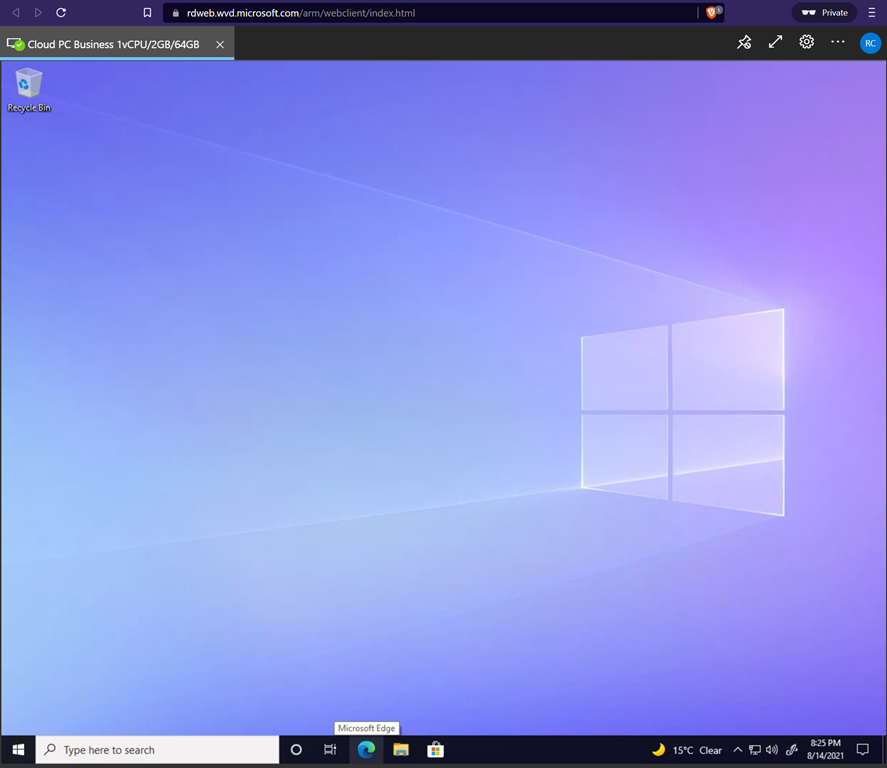
Once I had made all those changes I could create the initial Windows Business Cloud PC and then go on and create another Windows Cloud PC for my ‘normal’ production account. And as you can see, I’m now one of the cool kids:

image

In summary then, your troubleshooting for Windows Business Cloud PC should start with the Microsoft article and if you are still having issues, check and adjust your Conditional Access policies to allow that first account to get set up. I’d also make sure that the account CloudPCBPRT is generally excluded from things like MFA and strict Conditional Access policies. Once I’d done all that I could do everything I needed.

All the Guards–Part 1

A while back I wrote an article about all the Defender products Microsoft has:

All the Defenders

Turns out that Microsoft also has a range of “Guard” products as well. In general, you can think of Microsoft Guard products as interfacing and working in combination with the physical device to enhance the security of your environment.

You’ll also find that there is plenty of cross over between Defender and Guard products, for example, Windows Defender Application Guard (WDAG).

What I’m going to try and do here is look specifically at all the products that have the name ‘guard’ in them and show how they help improve the security of your environment. I will readily admit, that because of the integration of hardware and software here, getting definitive answers on many questions has proved extremely challenging. Thus, I’ll do my best here to share what I have learned but I’m sure there is still more to uncover.

To commence this journey we need to examine the actual Windows 10 boot process, which is nicely covered in this article from Microsoft:

Secure the Windows 10 boot process

and from which I’ll quote:

Secure Boot

When the PC starts, the firmware checks the signature of each piece of boot software, including UEFI firmware drivers (also known as Option ROMs), EFI applications, and the operating system. If the signatures are valid, the PC boots, and the firmware gives control to the operating system.


When a PC equipped with UEFI starts, the PC first verifies that the firmware is digitally signed, reducing the risk of firmware rootkits. If Secure Boot is enabled, the firmware examines the bootloader’s digital signature to verify that it hasn’t been modified. If the bootloader is intact, the firmware starts the bootloader only if one of the following conditions is true:


– The bootloader was signed using a trusted certificate. In the case of PCs certified for Windows 10, the Microsoft® certificate is trusted.
– The user has manually approved the bootloader’s digital signature. This allows the user to load non-Microsoft operating systems.

The first step you’ll need to take is to ensure that your UEFI boot is enabled on your device. You can follow this article:

Enable Secure Boot on your device

To verify you have Secure Boot enabled you can:
image

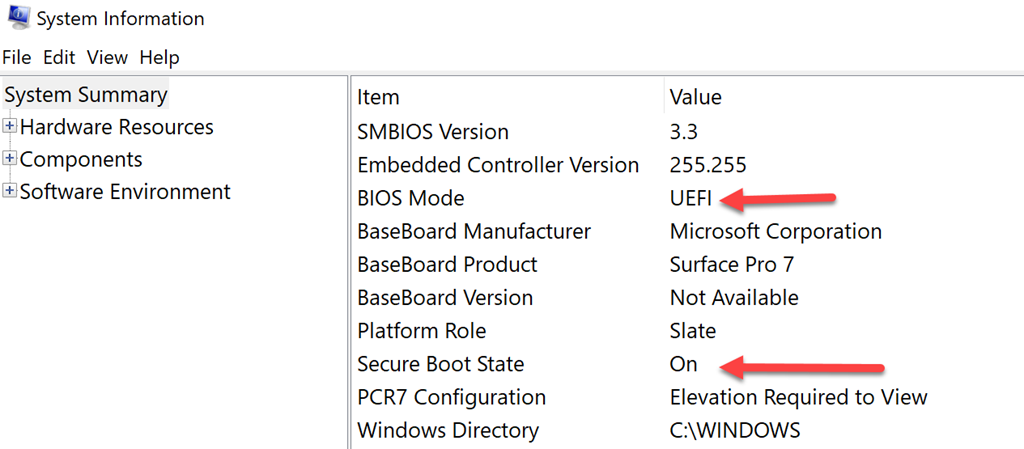
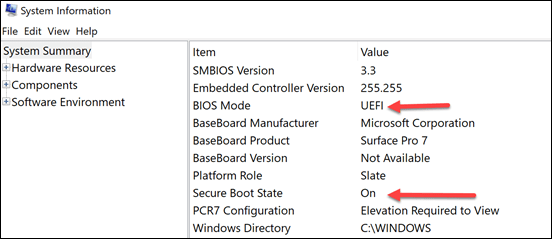
Run the system configuration utility (Start | MSINFO) which should show you something like:
image

Here you should find both the BIOS mode set to UEFI and the Secure Boot State set to ON.

image

You can also run the PowerShell command:

confirm-securebootuefi

as an administrator as shown above, which should return as True.
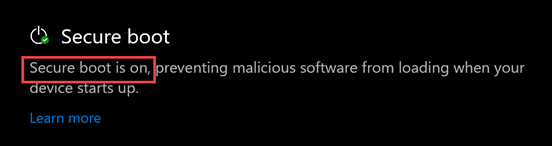
image

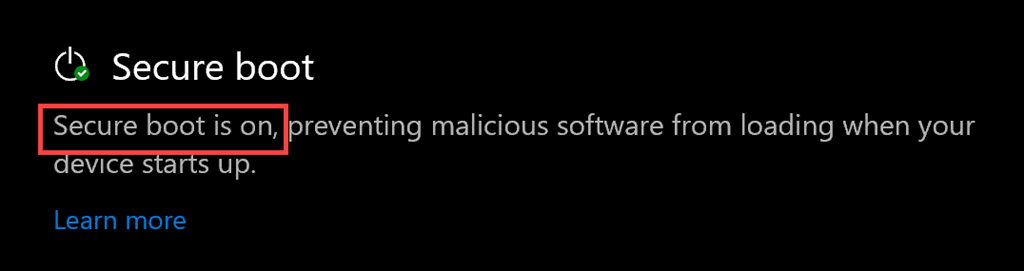
 Finally, you can also open Windows Defender on your device, select Device Security and under the Secure boot option, shown above, you should see Secure boot is ON.

Windows 10 startup process

The above, from the Secure the Windows 10 boot process gives you a good idea of how the boot sequence proceeds. To again quote the article:

Trusted Boot

Trusted Boot takes over where Secure Boot leaves off. The bootloader verifies the digital signature of the Windows 10 kernel before loading it. The Windows 10 kernel, in turn, verifies every other component of the Windows startup process, including the boot drivers, startup files, and ELAM. If a file has been modified, the bootloader detects the problem and refuses to load the corrupted component. Often, Windows 10 can automatically repair the corrupted component, restoring the integrity of Windows and allowing the PC to start normally.

Measured Boot

Working with the TPM and non-Microsoft software, Measured Boot in Windows 10 allows a trusted server on the network to verify the integrity of the Windows startup process. Measured Boot uses the following process:


    1. The PC’s UEFI firmware stores in the TPM a hash of the firmware, bootloader, boot drivers, and everything that will be loaded before the anti-malware app.
     2. At the end of the startup process, Windows starts the non-Microsoft remote attestation client. The trusted attestation server sends the client a unique key.
     3. The TPM uses the unique key to digitally sign the log recorded by the UEFI.
     4. The client sends the log to the server, possibly with other security information.


Depending on the implementation and configuration, the server can now determine whether the client is healthy and grant the client access to either a limited quarantine network or to the full network.

Windows 10 includes the application programming interfaces to support Measured Boot, but you’ll need non-Microsoft tools to implement a remote attestation client and trusted attestation server to take advantage of it.

Now that the boot process is complete and secure, thanks to Secure Boot, we can move onto the next phase in protection with Windows 10 Guards,

Next – Virtualization Based Security