Adding Copilot button to desktop applications

Microsoft has just made Copilot for Microsoft 365 available for SMB customers:

Bringing the full power of Copilot to more people and businesses

So I went and signed up to get a look. Bottom line at the moment is that, yes you can buy a single license for a tenant with Business Premium but you need to pay for 12 months up front. Here in Australia than means around $600 inc GST upfront for a minimum 12 months. I have no doubt that I will get value but as yet there is no month by month option.

image

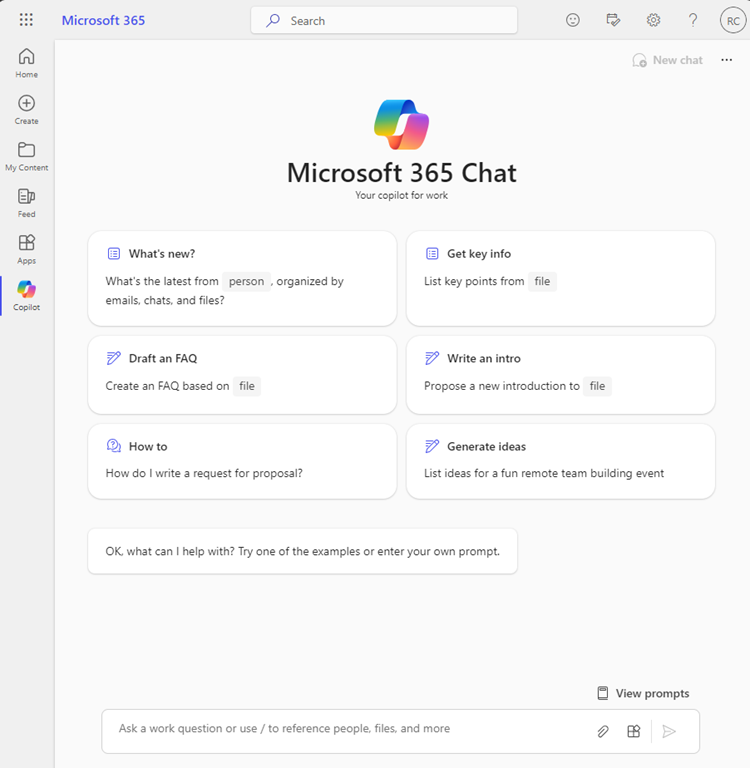
When I open my Microsoft 365 portal now I see a new Copilot icon as shown on the left.
image

When I select that icon, I am taken to a ChatGPT like screen as shown above that allows me to interact with my data in Microsoft 365 as expected.

image

If I open Word, Excel, Powerpoint, etc on the web I see a Copilot button in the ribbon as shown above.

image

However, I can’t see the expected Copilot button in any of desktop applications, like Word shown above.

This video from MVP Shane Young:

https://www.youtube.com/watch?v=KROOEdZXvoY

provided all the answers.

To see the Copilot button in Word, Excel, PowerPoint, OneNote (but not Outlook or Teams) you need to

image

go into each application individually (yes all of them one by one at this stage). Select File from the menu.
image

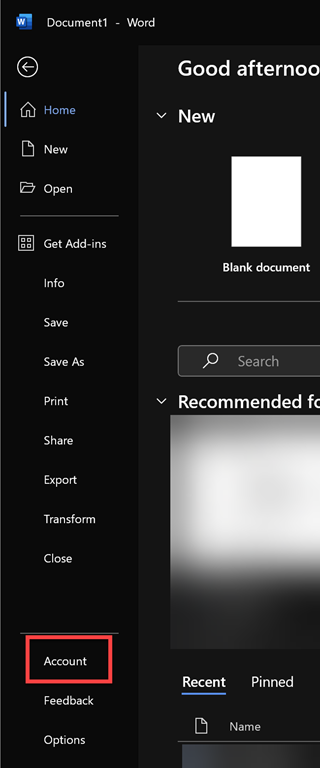
Then select Account from the option on the left.
image

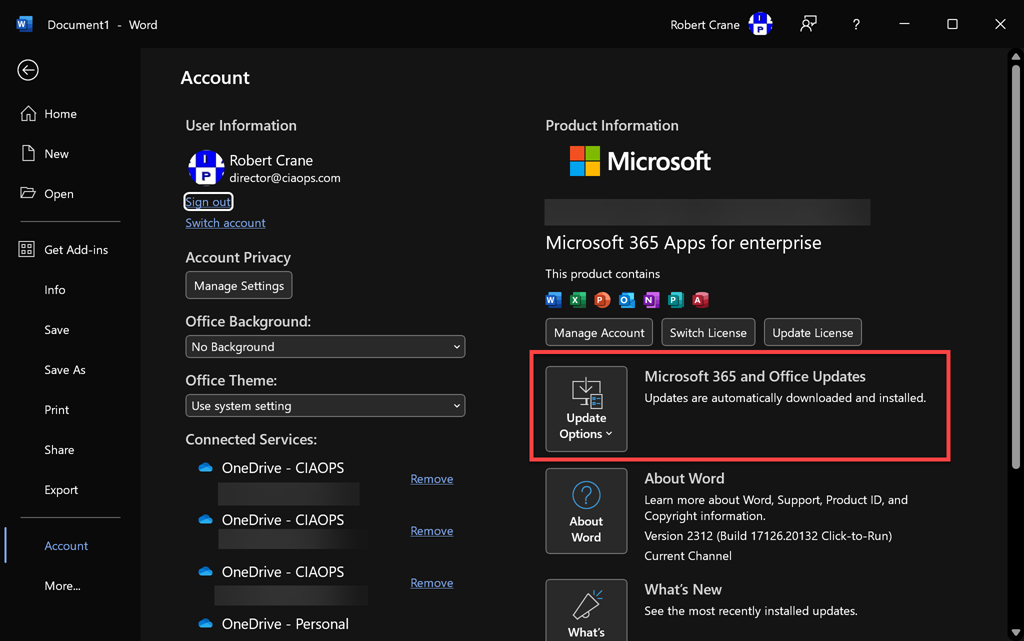
On the right, I’d suggest that ensure your application is up to date first by selecting the Update Options button as shown above.
image

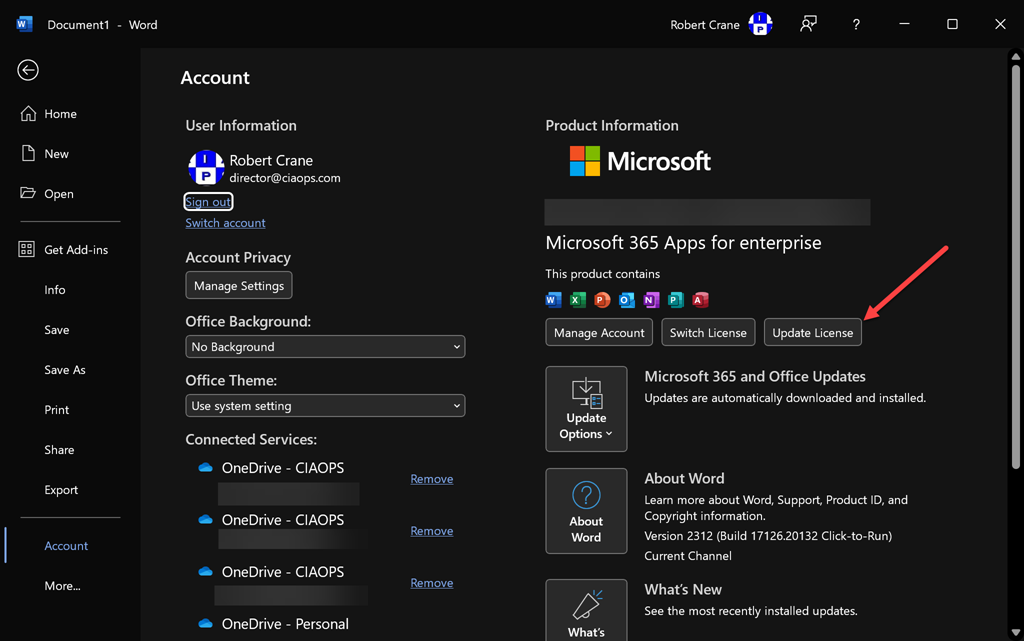
Now select the the Update License button as shown.
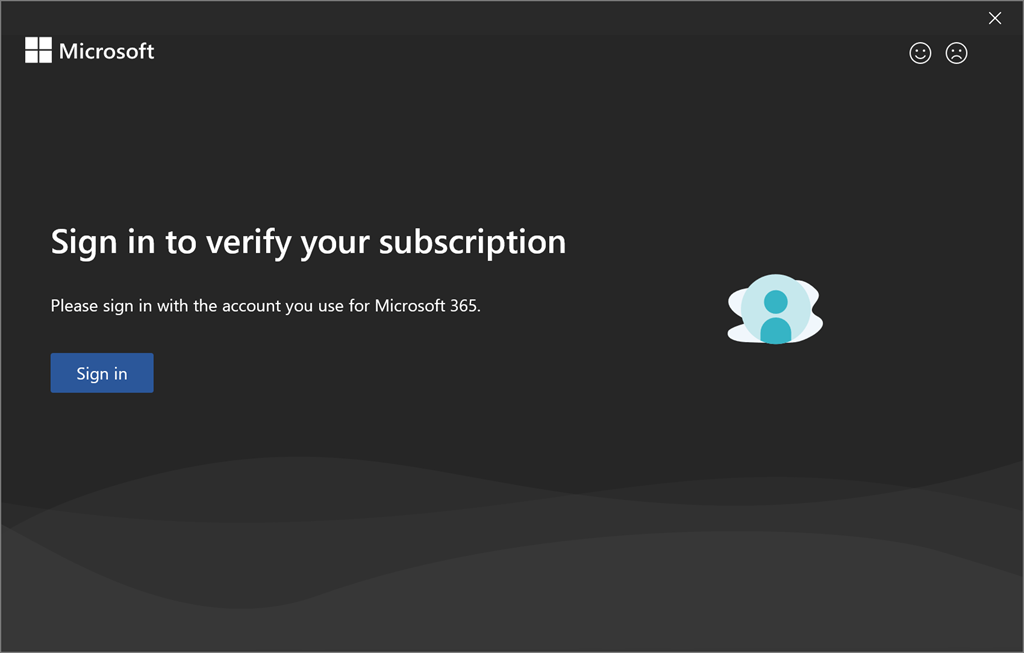
image

You’ll see the above dialog appear. Select Sign in and sign in using the account that has been assigned a Copilot for Microsoft 365 License.
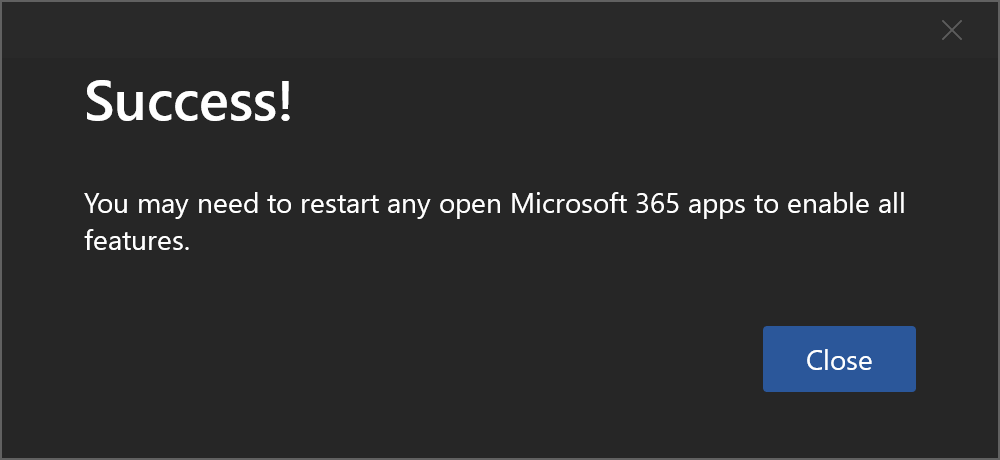
image

You should see the above message indicating the process is complete. Select Close.

Now, Close and re-open the application.

image

Now the Copilot button should be visible and because this is Word you will also see the Draft with Copilot dialog as shown above confirming everything is enabled.

Remember, you’ll need to do this individually for each desktop application: Word, Excel, PowerPoint, OneNote following the same process.

Things are bit different for Outlook and Teams.
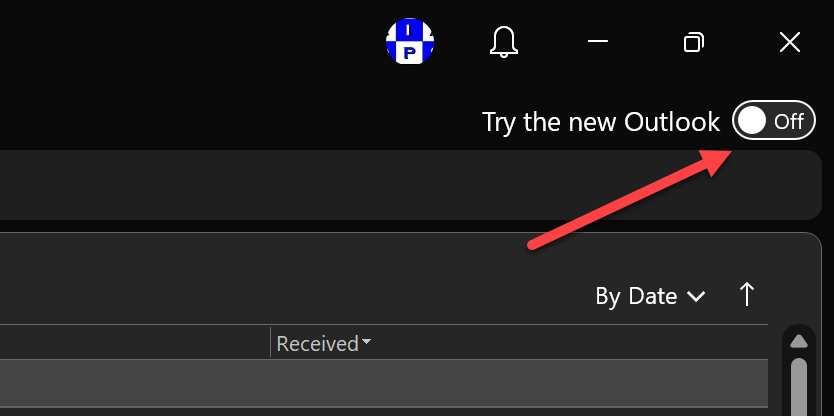
image

For Outlook you’ll need to switch over to the New Outlook by toggling the option in the top right corner of Outlook on the desktop as shown above.
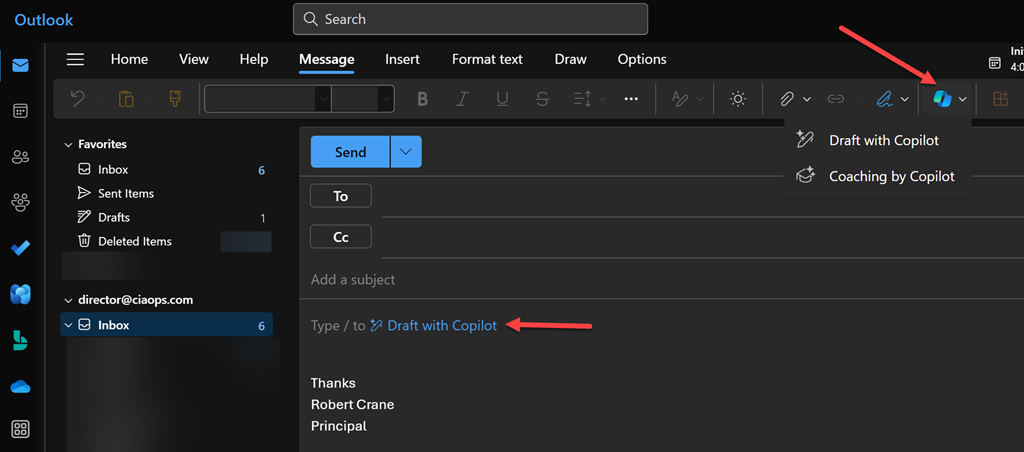
image

As for Teams, you’ll just need to Sign Out and then Sign in with the account that has Copilot assigned.
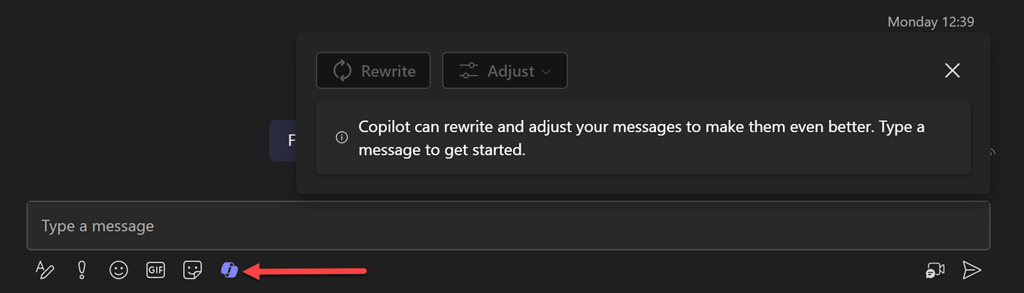
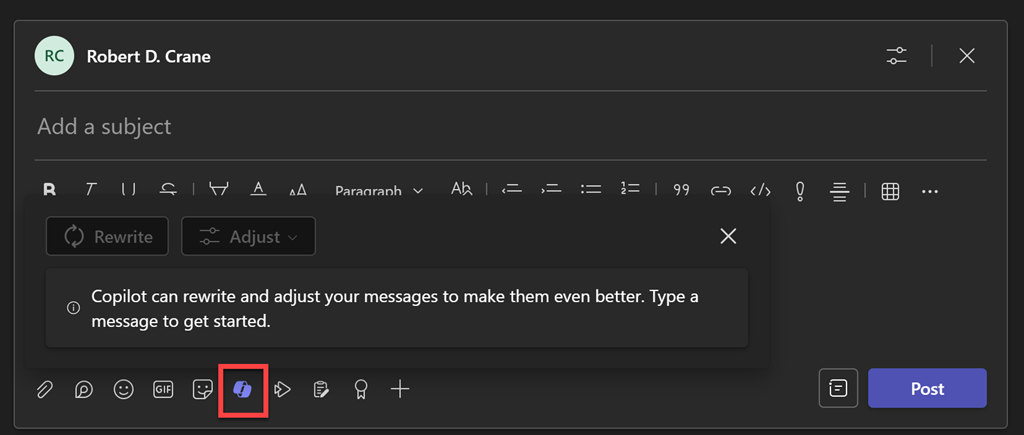
image

image

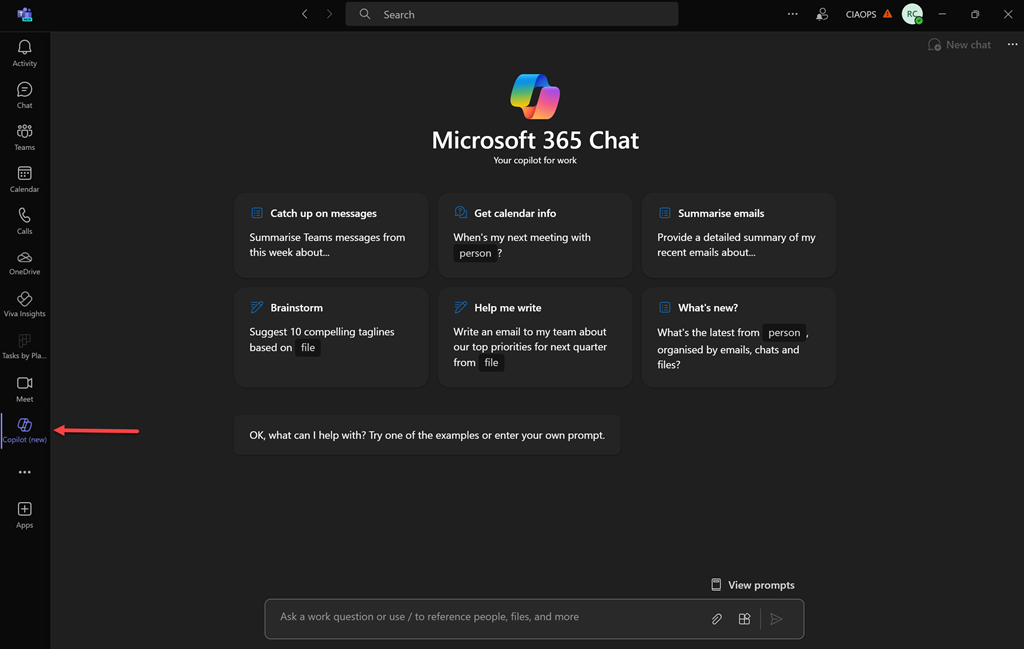
you can also add the Copilot app on the left menu bar.

image

which will allow you access to the original ChatGPT style interface:
image

Don’t forget you can pin this ‘app’ to menu bar as well by right clicking on it.

All this an it is only day one with Copilot for Microsoft 365. Much to come. Stay tuned.

CIA Brief 240113

image

Intune iOS/iPadOS Management In a Nutshell –

https://techcommunity.microsoft.com/t5/core-infrastructure-and-security/intune-ios-ipados-management-in-a-nutshell/ba-p/4015363

Introducing SharePoint Premium for IT Admins –

https://www.youtube.com/watch?v=HnqZYx_7tZA

Make any space a smart workplace with Microsoft Teams –

https://www.youtube.com/watch?v=Io4jXTtW5B4

Introducing Automatic File and URL (Detonation) Analysis –

https://techcommunity.microsoft.com/t5/microsoft-defender-threat/introducing-automatic-file-and-url-detonation-analysis/ba-p/4000489

Microsoft is named a Leader in the 2023 Gartner® Magic Quadrant™ for Endpoint Protection Platforms –

https://www.microsoft.com/en-us/security/blog/2024/01/12/microsoft-is-named-a-leader-in-the-2023-gartner-magic-quadrant-for-endpoint-protection-platforms/

Welcome to Business Assist –

https://www.youtube.com/watch?v=IFC0TTGMaRk

Microsoft Teams, the smart workplace for your frontline workers –

https://www.youtube.com/watch?v=YdWn5ShOqo8

Microsoft briefly overtakes Apple as world’s most valuable company –

https://www.reuters.com/technology/microsoft-overtakes-apple-worlds-most-valuable-company-2024-01-11/

New Windows 365 Boot and Switch features in public preview –

https://techcommunity.microsoft.com/t5/windows-it-pro-blog/new-windows-365-boot-and-switch-features-in-public-preview/ba-p/4027398

Experience Defender Experts above the fold –

https://techcommunity.microsoft.com/t5/microsoft-security-experts-blog/experience-defender-experts-above-the-fold/ba-p/4026320

Monthly news – January 2024 –

https://techcommunity.microsoft.com/t5/microsoft-defender-xdr-blog/monthly-news-january-2024/ba-p/4025630

SharePoint Premium and Content Management: 2023 in Review and What’s Next in 2024 –

https://techcommunity.microsoft.com/t5/sharepoint-premium-blog/sharepoint-premium-and-content-management-2023-in-review-and/ba-p/4024391

Microsoft 365 Admin Monthly Digest – Jan 2024 –

https://techcommunity.microsoft.com/t5/microsoft-365-blog/microsoft-365-admin-monthly-digest-jan-2024/ba-p/4024956

Become a Microsoft Unified SOC Platform Ninja –

https://techcommunity.microsoft.com/t5/microsoft-sentinel-blog/become-a-microsoft-unified-soc-platform-ninja/ba-p/4014565

Microsoft, Palo Alto and other security leaders make 2024 AI security predictions –

https://www.sdxcentral.com/articles/feature/microsoft-palo-alto-and-other-security-leaders-make-2024-ai-security-predictions/2024/01/

How Microsoft Copilot for Microsoft 365 works –

https://www.youtube.com/watch?v=XJsf0Tpz0ho&list=PLXtHYVsvn_b_t2dNsM86jUHpzlL0RlCF8

Onboarding Intune Managed iOS User Enrollment Devices to Microsoft Defender for Endpoint –

https://techcommunity.microsoft.com/t5/core-infrastructure-and-security/onboarding-intune-managed-ios-user-enrollment-devices-to/ba-p/4020858

Build customer relationships with Microsoft 365 for business –

https://www.youtube.com/watch?v=UtZ5hOxU3Z8

Stand out from the competition with Microsoft 365 for business –

https://www.youtube.com/watch?v=EaL1YUUQIUs

After hours

My kinda Copilot –

https://www.youtube.com/watch?v=NI_BCS-Wisk

Editorial

If you found this valuable, the I’d appreciate a ‘like’ or perhaps a donation at https://ko-fi.com/ciaops. This helps me know that people enjoy what I have created and provides resources to allow me to create more content. If you have any feedback or suggestions around this, I’m all ears. You can also find me via email director@ciaops.com and on X (Twitter) at https://www.twitter.com/directorcia.

If you want to be part of a dedicated Microsoft Cloud community with information and interactions daily, then consider becoming a CIAOPS Patron – www.ciaopspatron.com.

Watch out for the next CIA Brief next week.

Defender for Office 365 Anti-phishing policies can protect externals as well!

image

My experience with most Microsoft 365 environments I see is that they fail to make use of all the features that are provided. None more so when it comes to security. For example, most people don’t seem to appreciate that the Defender for Office 365 (which is part of Business Premium) provides impersonation protection for internal AND external email addresses!  It just needs to be configured. The details are here:

Impersonation settings in anti-phishing policies in Microsoft Defender for Office 365

and as it says there:

You can use protected users to add internal and external sender email addresses to protect from impersonation.

but it is important to note:

User impersonation protection does not work if the sender and recipient have previously communicated via email. If the sender and recipient have never communicated via email, the message can be identified as an impersonation attempt.

This means, you want to get the configuration of important external email addresses in place as soon as possible so any impersonation against those users can be evaluated. It is too late to do after an internal user is communicating with a scam (impersonated) domain.

You will also see that you can also configure protection for external domains, rather than just specific email addresses, for impersonation evaluation.This means that if the users inside the tenant deal with an important business that has its own email email, that is NOT part of that tenant, you can enter that domain in here. Makes a lot sense when you are working with a business regularly that is doing stuff like invoicing, e-commerce or the like (honestly anything at all really).

Let’s say that I work with a business who’s domain is ciaops.com. By enabling this impersonation protection early, if users in the tenant receive email from c1aops.com then it is far more likely to be detected because the system is looking of for spoofing of that custom external domain I entered in the policy.

Thus, if you have Microsoft Defender for Office 365 in your environment (and you do if you have Microsoft 365 Business Premium), then you can provide an extra level of protection by configuring the Anti-Phishing policy for impersonation settings for both your important internal AND external usera and domains (i.e. people and businesses you work with regularly). You should do that as early as possible to provide the maximum protection the policy can provide. They key is that someone has to add in the unique email addresses or domains into the policy, they are not added automatically, even internal email address. They ALL have to be added to the policy.

image

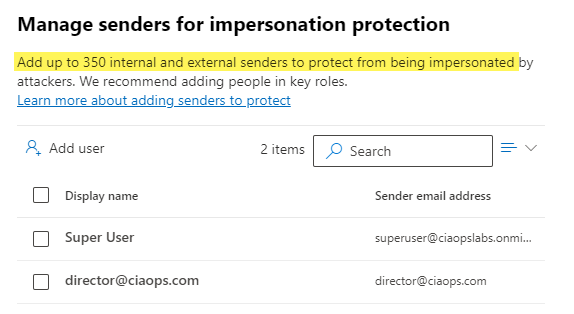
You can protect up to 350 unique email addresses and 50 unique domains, which is probably more that enough to cover everything a smaller business would need for internal and external users. Unfortunately, I rarely see this great capability enabled. It’s available if you have Microsoft Defender for Office 365 so go configure it and reduce the risk to the users in the tenant. Easy!

Issues with Microsoft Defender on iOS

I’m having issues with Microsoft Defender for iOS that I’m sharing here in case this may benefit others.

I think the root cause of the issue is that I have an EntraID account (production) and a Microsoft account (consumer) that are identical. One suggested solution is simply to rename the consumer account but I’d prefer not to do that if it can be avoided.

Here’s what typically happens:

image

My iOS device has Intune Company Portal App installed and I install Microsoft Defender manually from the iOS store. When I run Microsoft Defender I’m greeted by the screen above, which in this case only shows my consumer account.

image

The only option available is to sign up for a trial. This indicates that it doesn’t accept my production account which includes a license of Defender for Endpoint.

In other cases, I’ve see both my production and consumer account listed but it never seems to accept my production account when my consumer account is also present.

Interestingly, I get different results depending on whether I use an iPad or a iPhone.

On my iPad, I noted that I had both my production and consumer credentials in the Microsoft Authenticator app. I removed all the credentials so there was none. I reboot device, added ONLY my production credentials to the Microsoft Authenticator and then I was able to login to Microsoft Defender with my production account. Interestingly, this worked for a few days and then I had to repeat the process to get Microsoft Defender on my iPad logged back into my production credentials again.

The story is a little different on my iPhone. I didn’t want to remove my Microsoft Authenticator app but I did remove my consumer credentials from the Authenticator app, leaving just my production credential there. Even after a few reboots, I still wasn’t able to login to Microsoft Defender with my production account. Instead I logged into Microsoft Defender using a demo M365 E5 account I had. That allowed access and Defender was working.

A few days later, on my iPhone, Defender was asking for a login. I was now able to login with my production account and enable Defender correctly. However, I do notice that when I run Defender on the iPhone I see it switch out to Microsoft Authenticator and then switch back, as though it is checking my account. Since I have just managed to get Defender logged in on my iPhone with my production account I’ll need to see whether it ‘sticks’ or whether it prompts me to login again in the future.

In summary, as I said initially, the root of these issue come down to the fact that I have the same consumer and production identity and it seems Defender on iOS can’t differentiate. It also seems that Defender on iOS also interacts with Microsoft Authenticator in some way, also in different ways on an iPhone and iPad.

I’ll post more when I have done further testing.

CIA Brief 240106

image

Rerun queries in query history

Microsoft Datacenter Tour: Virtual Experience

SharePoint Roadmap Pitstop: December 2023

Enabling Microsoft Syntex PAYG

Experience AI-enhanced meetings in every Teams Room

Introducing a new Copilot key to kick off the year of AI-powered Windows PCs

What’s New in Microsoft Teams | December 2023

Get organized at work with Microsoft Loop

Copilot app for iOS

Copilot app for Android

Financially motivated threat actors misusing App Installer

Overview of multi factor authentication

After hours

GoPro: Best of 2023 –

https://www.youtube.com/watch?v=Yb2cX8qwCho

Editorial

If you found this valuable, the I’d appreciate a ‘like’. This helps me know that people enjoy what I have created. If you have any feedback or suggestions around this, I’m all ears. You can also find me via email director@ciaops.com and on X (Twitter) at https://www.twitter.com/directorcia.

If you want to be part of a dedicated Microsoft Cloud community with information and interactions daily, then consider becoming a CIAOPS Patron – www.ciaopspatron.com.

Watch out for the next CIA Brief next week.

Need to Know podcast–Episode 312

Welcome to 2024! A few pieces of interesting news and updates from Microsoft especially around the PAYG offering with Syntex. I’m hanging out for the remaining items in the Intune suite to drop, especially third party patching so stay tuned for more information when that becomes available. Until then here’ s the latest in the Microsoft Cloud.

You can listen directly to this episode at:

https://ciaops.podbean.com/e/episode-312-hny/

Subscribe via iTunes at:

https://itunes.apple.com/au/podcast/ciaops-need-to-know-podcasts/id406891445?mt=2

Don’t forget to give the show a rating as well as send me any feedback or suggestions you may have for the show.

Brought to you by www.ciaopspatron.com

Resources

@directorcia

Join my shared channel

CIAOPS merch store

Become a CIAOPS Patron

CIAOPS Blog

CIAOPS Brief

Rerun queries in query history

Microsoft Datacenter Tour: Virtual Experience

SharePoint Roadmap Pitstop: December 2023

Enabling Microsoft Syntex PAYG

Experience AI-enhanced meetings in every Teams Room

Introducing a new Copilot key to kick off the year of AI-powered Windows PCs

What’s New in Microsoft Teams | December 2023

Get organized at work with Microsoft Loop

Copilot app for iOS

Copilot app for Android

Financially motivated threat actors misusing App Installer

Overview of multi factor authentication

Enabling Microsoft Syntex PAYG

There are lots of great new features coming to Microsoft Syntex (or SharePoint Premium) and many of these can be used in a PAYG manner tied to an Azure subscription. This is much like the Power Platform PAYG configuration I have detailed previously.

Before you configure anything in Microsoft 365, you’ll need an Azure subscription to bill against that is in the same tenant as Microsoft 365. I would also suggest you create a new unique Resource Group which you can target for Syntex PAYG services. This will make it much easier to determine the costs of the Syntex services that you consume. I’m not going to cover how to add a resource group to Azure here, but make sure you have the subscription in place before proceeding.

image

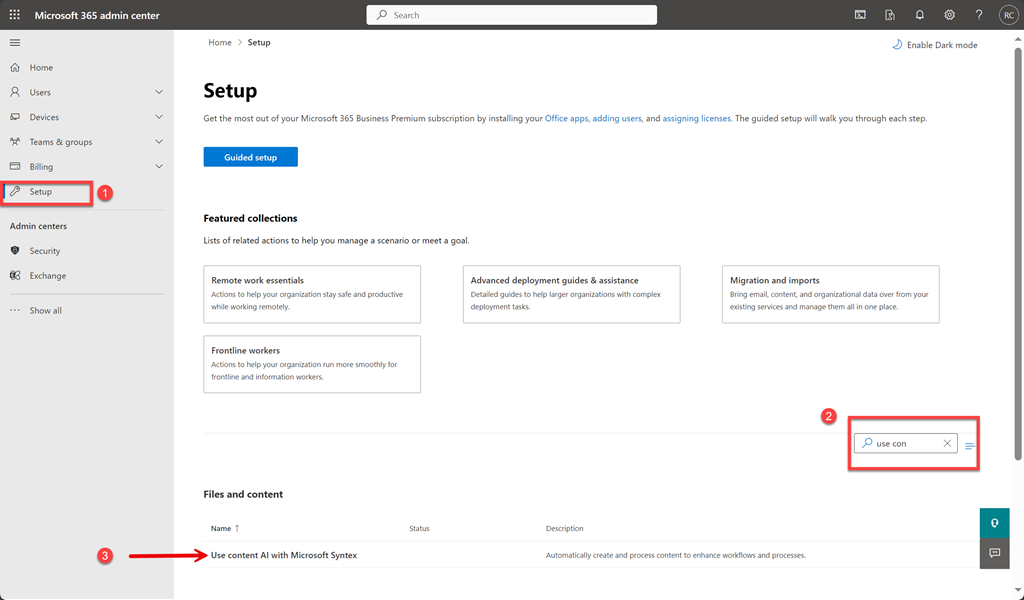
To enable Syntex PAYG you need to login to the Microsoft 365 portal as an administrator and navigate to the Admin center as shown above. Select Setup from the menu on the left. On the right enter “use con” into the search box as shown in step two above. This will filter out all the other options except the one you want which is:

Use content AI with Microsoft Syntex

as shown in step 3 above. Select this.

image

You should see the screen shown above. If you have not yet configured the PAYG billing for Syntex the only option available will be the Set up billing option on the left, as shown, which you should select.

image

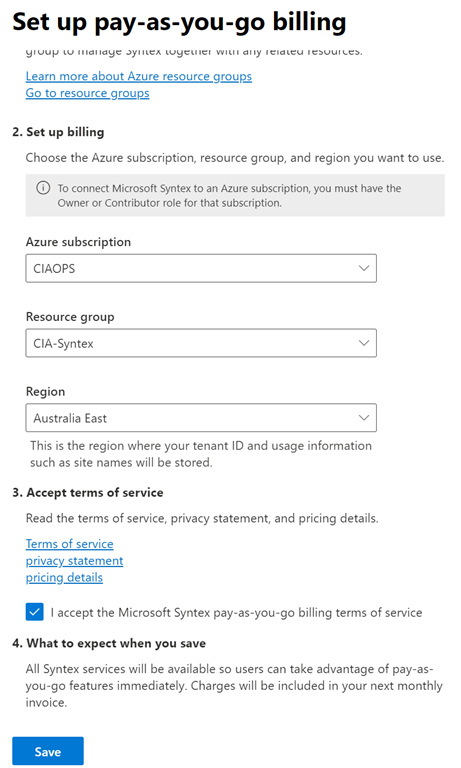
A dialog will appear from the right hand side with a number of options as shown above. Here you’ll need to select your Azure information from the drop down menus presented.

image

When you have completed all the fields (including the Resource Group which I suggest you create just for this purpose), select the I accept Microsoft pay-as-you-go billing terms of service. Finally, select the Save button at the bottom of the dialog.

image

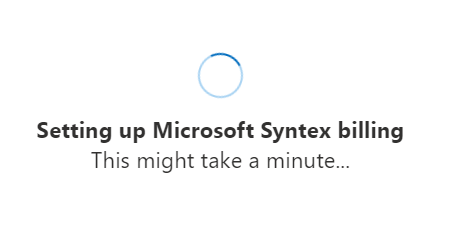
The system will then display the above screen for a few minutes (be patient, it takes a little while to fully configure).

image

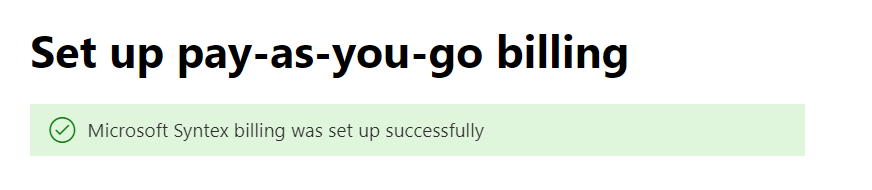
All going well, you should receive a confirmation of success at the top of the page as shown above. You can now close this dialog.

image

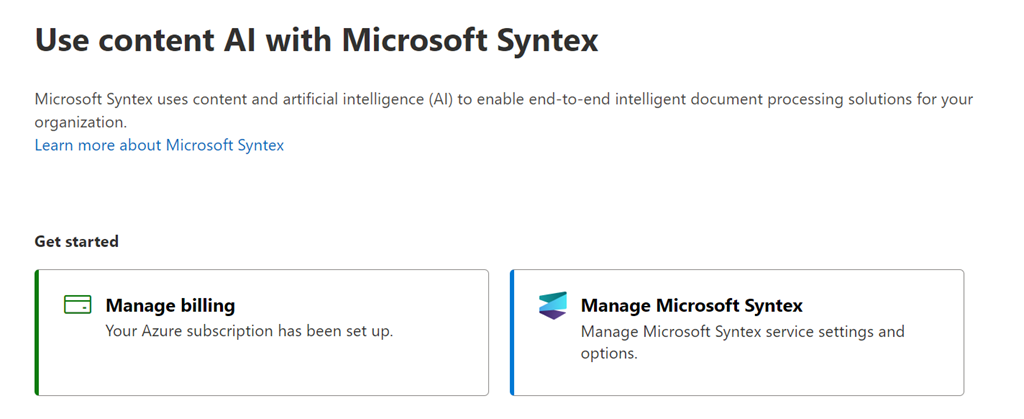
With the billing complete you should now be able to select the Manage Microsoft Syntex option on the right as shown above.

image

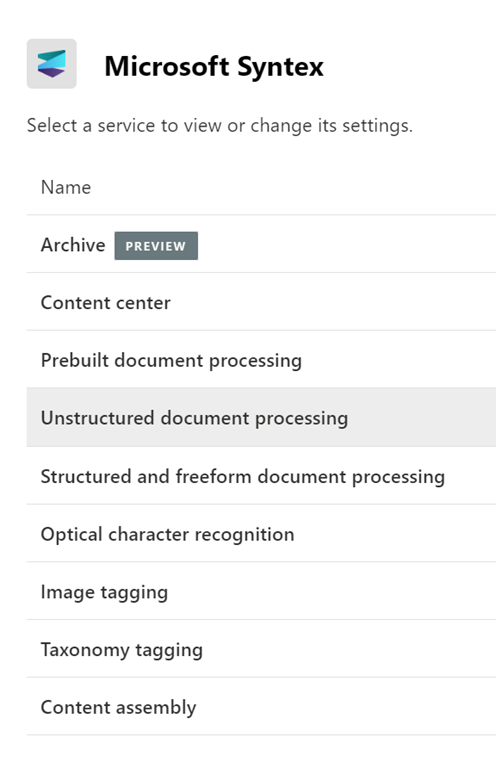
You should now see the current list of services that can be utilised with Syntex PAYG. More will be added over time, so don’t forget to check back regularly. To configure any of these simply select that service.

image

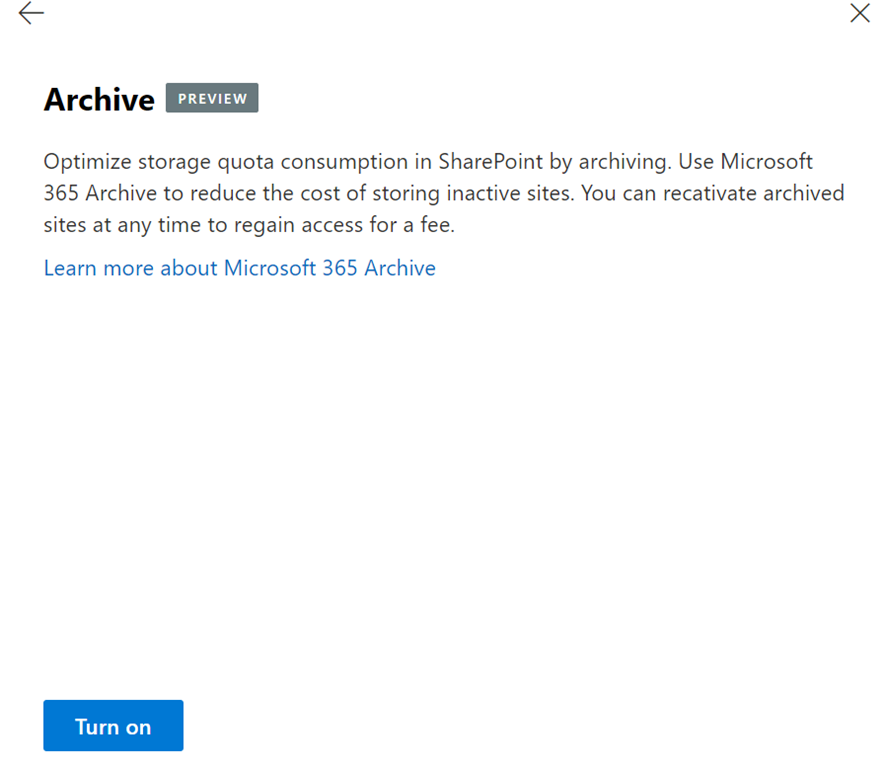
In this case, the Archive option was selected and you can see the Turn on button on the bottom of the dialog you would need to select to enable SharePoint Site archiving in your Microsoft 365 tenant. There are more configuration steps required to enable the service and all this really does is bill the service in a PAYG manner to your Azure subscription.

You can now close out of all these windows and leave everything turned off for now, ready for when you do want to start using those capabilities. There will be no costs until you actually start using these services (i.e. PAYG. Don’t use, don’t pay!)

It is really good that these advanced options are being made available in a PAYG manner, allowing greater access to such capabilities, without necessarily having to pay high monthly fees with a lock in contract. A very SMB friendly option in my opinion!

I look forward to seeing more services appear here for Syntex which I can star using, including eSignatures which is coming real soon. Stay tuned.

Using PowerShell to get Secure Score history

image

I’ve created a new PowerShell script that is available in my Github repo:

https://github.com/directorcia/Office365/blob/master/mggraph-sscore-get.ps1

that when run, will use the Microsoft Graph (via the mggraph SDK) to return the history of the tenant you login to.

If you do not already have the Microsoft Graph permissions to allow this access you’ll need to allow these once. The scope is securityevents.readwrite.all. You’ll also need to have the Microsoft Graph PowerShell module installed, which can be found here:

https://www.powershellgallery.com/packages/Microsoft.Graph/

Given that connection to the Microsoft Graph can be persistent at times, I’ve also created this simple Graph disconnect script:

https://github.com/directorcia/Office365/blob/master/mggraph-disconnect.ps1

that will also close down any Graph sessions that exist. This is handy when you want to use the Microsoft Graph with other tenants.

I have a few more script ideas for the information you get using this method. More about those soon.