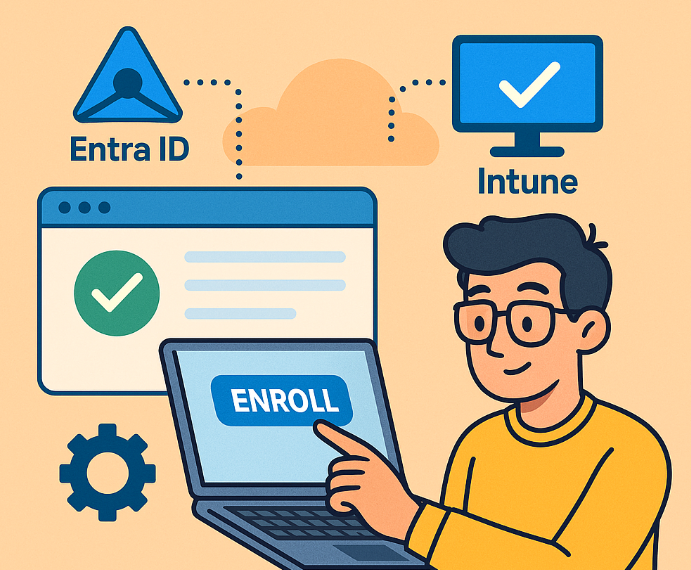
How to enrol a device in Intune that has previously been joined to Entra id

Screenshot 2025-05-09 091912

When a device is Entra ID joined *before* the user has an Intune license or before automatic MDM enrollment is configured for that user/group, it won’t automatically enroll in Intune.

Here’s how to get it enrolled without needing to unjoin and rejoin Entra ID (which is the more disruptive option):

Method 1: Trigger Enrollment via Settings (Easiest & Preferred)

This is often the simplest way if automatic enrollment is now correctly configured for the user.

  1. Ensure Prerequisites:

    • Intune License: Confirm the user logging into the Windows device has an active Intune license assigned (e.g., part of Microsoft 365 E3/E5/F3, EMS E3/E5, or a standalone Intune license).

    • MDM User Scope: In the Microsoft Entra admin center (entra.microsoft.com):

      • Navigate to Devices > Enrollment > Windows enrollment.

      • Click on Automatic Enrollment.

      • Ensure the MDM user scope is set to All or a group that the licensed user is a member of. (The MAM user scope is for a different purpose, usually BYOD).
    • CNAME Records: While Entra ID join worked, it’s good to ensure your DNS CNAME records for EnterpriseRegistration and EnterpriseEnrollment are correctly pointing to Microsoft’s services. This is usually fine if Entra join worked, but it’s a foundational piece for MDM enrollment.
  2. On the Windows Device:

    • Log in as the user who has the Intune license.

    • Go to Settings > Accounts > Access work or school.

    • You should see “Connected to ‘s Microsoft Entra ID”.

    • Click on this connection, then click the Info button.

    • Look for a Sync button. Click it.

      • This action forces the device to re-evaluate its MDM enrollment status with Entra ID. If the user is now in scope and licensed, it should trigger the Intune enrollment process.
    • Wait: Enrollment can take a few minutes. You might see a notification, or you can check the Intune portal (Microsoft Intune admin center) under Devices > Windows to see if the device appears and its compliance status.

    • Reboot: Sometimes a reboot helps kickstart the process after clicking “Sync.”

Method 2: Enroll via Company Portal App

  1. Ensure Prerequisites: Same as Method 1 (License and MDM User Scope).

  2. On the Windows Device:
    • Install the Company Portal app from the Microsoft Store.

    • Open the Company Portal app.

    • Sign in with the Entra ID credentials of the licensed user.

    • The Company Portal app will typically detect that the device isn’t yet managed by Intune and will guide the user through the enrollment process. Follow the on-screen prompts.

Method 3: Enroll Only in Device Management (Less Common for this scenario but an option)

This method is typically for devices that are not Entra ID joined but you want to enroll them into Intune. However, it can sometimes nudge an already Entra ID joined device.

  1. Ensure Prerequisites: Same as Method 1.

  2. On the Windows Device:
    • Go to Settings > Accounts > Access work or school.

    • Click Connect.

    • Crucially, on the “Set up a work or school account” screen, look for a link that says something like “Enroll only in device management” or similar phrasing. Do not just type the email address in the main box, as that will try to Entra ID join it (which it already is).

    • Enter the user’s Entra ID email address and follow the prompts.

Troubleshooting & Verification:

  • Check Intune Portal: After attempting enrollment, go to the Microsoft Intune admin center (intune.microsoft.com) > Devices > Windows. Search for the device. It might take 5-30 minutes (sometimes longer) to appear or update its status.

  • Event Viewer on the Device:
    • Open Event Viewer.

    • Navigate to Applications and Services Logs > Microsoft > Windows > DeviceManagement-Enterprise-Diagnostics-Provider > Admin.

    • Look for events related to MDM enrollment (Event ID 75 or 76 often indicate successful enrollment). Errors here can give clues.
  • Check MDM URLs in Registry (Advanced):
    • Open Registry Editor (regedit).

    • Navigate to HKEY_LOCAL_MACHINE\SOFTWARE\Microsoft\Enrollments.

    • Look for a subkey with a GUID. Inside, you should find values like DiscoveryServiceFullUrl, EnrollmentServiceFullUrl, PolicyServiceFullUrl pointing to Intune services (e.g., https://enrollment.manage.microsoft.com/...). If these are present, enrollment likely succeeded or is in progress.
  • Patience: Sometimes it just takes a little while for all the syncs to happen.

Last Resort (If the above fails and you’re sure licensing/scoping is correct):

  1. Disconnect from Entra ID and Rejoin:
    • Backup important local data if any.
    • Go to Settings > Accounts > Access work or school.

    • Click the “Connected to ‘s Microsoft Entra ID” account and click Disconnect. Confirm the disconnection.

    • Reboot the device.

    • After rebooting, go back to Settings > Accounts > Access work or school.

    • Click Connect.

    • Choose to Join this device to Microsoft Entra ID and sign in with the licensed user’s credentials.

    • This fresh join process should trigger the Intune enrollment immediately, assuming automatic enrollment is configured.

Start with Method 1 (Sync button) as it’s the least invasive. Method 2 (Company Portal) is also very reliable.


Benefits of using KQL to improve the security

Screenshot 2025-05-08 091712

What is KQL?

KQL is a powerful, read-only query language designed to explore data and discover patterns. It’s used across various Microsoft services, most notably for our discussion:

  1. Microsoft Sentinel: A cloud-native SIEM (Security Information and Event Management) and SOAR (Security Orchestration, Automation, and Response) solution.

  2. Microsoft 365 Defender: An XDR (Extended Detection and Response) platform that provides integrated threat protection, detection, and response across endpoints, identities, email, and cloud apps. Its “Advanced Hunting” feature uses KQL.

Essentially, KQL allows you to “talk” to the vast amounts of security log data generated by your M365 services.

Benefits of Using KQL to Improve M365 Tenant Security:

  1. Proactive Threat Hunting:

    • Beyond Built-in Detections: While Microsoft provides many out-of-the-box detections, KQL allows you to hunt for specific, emerging threats, anomalous behaviors, or indicators of compromise (IOCs) that might not trigger a standard alert.

    • Hypothesis-Driven Investigation: You can form a hypothesis (e.g., “Are there any unusual external email forwarding rules set up?”) and use KQL to validate it against your logs.
  2. Deep Incident Investigation & Root Cause Analysis:

    • Contextual Understanding: When an alert fires, KQL lets you dive deep into the raw logs (Azure AD sign-ins, Exchange mail flow, SharePoint activity, Defender alerts, etc.) to understand the full scope, timeline, and impact of an incident.

    • Connecting the Dots: You can join data from different sources (e.g., correlate a suspicious sign-in with subsequent file access or email activity) to build a complete picture.
  3. Custom Detection Rule Creation:

    • Tailored Alerts: If you identify a pattern of malicious activity specific to your environment or a new threat vector, you can write KQL queries and turn them into custom analytic rules in Microsoft Sentinel or custom detection rules in M365 Defender. This automates the detection of future occurrences.

    • Reduced False Positives: By crafting precise KQL queries, you can fine-tune detection logic to minimize false positives and focus on genuine threats.
  4. Enhanced Visibility & Reporting:

    • Custom Dashboards & Workbooks: KQL queries can power custom dashboards and workbooks in Sentinel, providing tailored views of your security posture, trends, and key metrics (e.g., risky sign-ins by location, malware detections over time).

    • Compliance & Auditing: Extract specific data needed for compliance reporting or internal audits, such as administrator activity logs or access to sensitive data.
  5. Understanding Your Environment:

    • Baseline Activity: Use KQL to understand normal patterns of behavior in your tenant. This makes it easier to spot deviations that could indicate a security issue.

    • Configuration Audits: Query configurations (e.g., MFA status, conditional access policies, sharing settings) to ensure they align with security best practices.
  6. Speed and Scalability:

    • KQL is optimized for querying massive datasets very quickly, which is essential when dealing with the volume of telemetry generated by M365 services.

How to Get Started Using KQL for M365 Security:

  1. Access the Right Portals:

    • Microsoft 365 Defender Portal (security.microsoft.com):
      • Navigate to Hunting > Advanced Hunting. This is where you’ll query data from Defender for Endpoint, Defender for Office 365, Defender for Identity, Defender for Cloud Apps, and Azure AD Identity Protection.
    • Microsoft Sentinel (via Azure Portal portal.azure.com):
      • Navigate to your Log Analytics Workspace connected to Sentinel, then select Logs. This is where you’ll query data ingested into Sentinel, which can include M365 logs, Azure activity, third-party logs, etc.
  2. Ensure Data Ingestion (Prerequisite):

    • For Microsoft 365 Defender Advanced Hunting: Most data from the Defender suite is automatically available.

    • For Microsoft Sentinel: You need to set up Data Connectors for the M365 services you want to query (e.g., Azure Active Directory, Office 365, Microsoft Defender for Cloud Apps).
  3. Learn Basic KQL Syntax:

    • KQL queries are a sequence of data transformation steps piped (|) together.

    • TableName: Start by specifying the table you want to query (e.g., SigninLogs, EmailEvents, DeviceEvents).

      • In Advanced Hunting, the schema is usually pre-loaded on the left.

      • In Sentinel (Logs), you can see available tables in the schema pane.
    • | where Condition: Filters rows based on a condition (e.g., | where ResultType == "50126" for failed logins due to MFA).

    • | project Column1, Column2: Selects specific columns.

    • | summarize Aggregation by GroupingColumn: Aggregates data (e.g., | summarize count() by UserPrincipalName).

    • | top N by Column [desc/asc]: Shows the top N results.

    • | extend NewColumn = Calculation: Creates a new column.

    • | join kind=inner (OtherTable) on CommonColumn: Combines rows from two tables.

    • Time Range: Use the time picker in the UI or specify in the query (e.g., | where TimeGenerated > ago(1d)).
  4. Explore Schemas and Tables:

    • In both Advanced Hunting and Sentinel Logs, there’s a schema explorer. Familiarize yourself with the available tables and their columns. Common tables include:

      • M365 Defender: IdentityLogonEvents, EmailEvents, UrlClickEvents, DeviceProcessEvents, CloudAppEvents.

      • Sentinel (often from Azure AD): SigninLogs, AuditLogs, OfficeActivity, SecurityAlert.
  5. Start with Simple Queries and Build Up:

    • Example: See the last 10 sign-ins.
      SigninLogs // Or IdentityLogonEvents in M365 Defender
      | top 10 by TimeGenerated desc
      
    • Example: Count failed sign-ins by user in the last day.
      SigninLogs
      | where TimeGenerated > ago(1d)
      | where ResultType != 0 and ResultType != 50140 // Filter for various failure codes, 0 and 50140 are common success/interrupts
      | summarize FailureCount = count() by UserPrincipalName
      | top 10 by FailureCount desc
      
  6. Use IntelliSense and Built-in Help:

    • The query editors in both portals have IntelliSense to help you with table names, column names, and operators.

    • Look for example queries or templates provided by Microsoft.
  7. Leverage Microsoft’s Learning Resources:

    • Microsoft Learn KQL Path: Search for “KQL” on Microsoft Learn. There are excellent modules.

    • Microsoft Sentinel Documentation: Full of KQL examples for security scenarios.

    • Microsoft 365 Defender Advanced Hunting Documentation: Similar to Sentinel docs but focused on Defender data.

    • GitHub Repositories: Microsoft and the community share many KQL queries for Sentinel and M365 Defender on GitHub.
  8. Practice, Practice, Practice:

    • Take an existing alert and try to find the related raw logs.

    • Think of a security question (e.g., “Has anyone downloaded an unusual number of files from SharePoint recently?”) and try to answer it with KQL.

Example KQL Queries for M365 Security:

  • Suspicious Sign-in Locations (Sentinel – SigninLogs):

    SigninLogs
    | where TimeGenerated > ago(7d)
    | where Location != "YourExpectedCountry" // Be more specific with IPs or city if possible
    | summarize count() by UserPrincipalName, Location, IPAddress
    | sort by count_ desc
    
  • New Email Inbox Forwarding Rule (M365 Defender – CloudAppEvents):

    CloudAppEvents
    | where TimeGenerated > ago(1d)
    | where Application == "Microsoft Exchange Online"
    | where ActionType == "New-InboxRule"
    | where RawEventData has "ForwardTo" or RawEventData has "RedirectTo"
    | project Timestamp, AccountObjectId, UserAgent, RawEventData
    
  • Potentially Malicious File Downloads by a User (M365 Defender – CloudAppEvents for SharePoint/OneDrive):

    CloudAppEvents
    | where TimeGenerated > ago(1d)
    | where ActionType == "FileDownloaded"
    | where Application in ("Microsoft SharePoint Online", "Microsoft OneDrive for Business")
    // Optional: add filters for specific file types if known (e.g., | where FileName endswith ".exe" or FileName endswith ".ps1")
    | summarize FilesDownloaded = dcount(FileName), TotalSize = sum(tolong(RawEventData.FileSize)) by Actor = UserPrincipalName, bin(TimeGenerated, 1h)
    | where FilesDownloaded > 10 // Example threshold
    

Key Takeaway:

KQL is an indispensable skill for modern security operations in the Microsoft ecosystem. It empowers you to move from reactive alert chasing to proactive threat hunting and deep investigation, significantly improving your M365 tenant’s security posture. Start simple, leverage the available resources, and gradually build your expertise.

How effective is enabling Windows Attack Surface Reduction in preventing a Windows device from Malware?

image

Enabling Windows Attack Surface Reduction (ASR) rules is **highly effective** in preventing a Windows device from many common types of malware and attack techniques. It’s a crucial component of a defense-in-depth strategy.

However, it’s not a silver bullet and its effectiveness depends on several factors.

Here’s a breakdown of its effectiveness:

How ASR Works and Why It’s Effective:

  1. Targets Common Attack Vectors: ASR rules are specifically designed to block behaviors commonly used by malware to infect machines and execute malicious code. This includes:

    • Office Application Abuse: Blocking Office apps from creating executable content, injecting into other processes, creating child processes, or running macros deemed malicious.

    • Script-Based Attacks: Blocking obfuscated scripts (JavaScript, VBScript, PowerShell), or scripts that download/run payloads.

    • Email-Based Threats: Blocking executable content from email clients and webmail.

    • Exploitation Techniques: Preventing credential stealing (e.g., from LSASS), process hollowing, or unsigned/untrusted executables from running from USB drives.

    • Ransomware Behaviors: Some rules can help mitigate common ransomware tactics.
  2. Pre-Execution and Early-Execution Prevention: Many ASR rules intervene before malware fully executes or early in its execution chain, stopping the attack before significant damage occurs. This is more proactive than relying solely on detection of already-running malware.

  3. Reduces Reliance on Signatures: While traditional AV relies heavily on signatures for known malware, ASR focuses on behaviors. This makes it more effective against new or polymorphic malware that might not have a signature yet.

  4. Complements Antivirus: ASR works alongside Microsoft Defender Antivirus (or other AV solutions) and Endpoint Detection and Response (EDR) solutions like Microsoft Defender for Endpoint. It adds an extra layer of proactive defense.

Factors Influencing Effectiveness:

  1. Which Rules Are Enabled: There are many ASR rules. Not all may be suitable for every environment. Enabling more relevant rules increases protection. Some key high-impact rules include:

    • Block Office applications from creating child processes.

    • Block Adobe Reader from creating child processes.

    • Block execution of potentially obfuscated scripts.

    • Block credential stealing from the Windows local security authority subsystem (lsass.exe).

    • Block executable content from email client and webmail.
  2. Mode of Operation (Audit vs. Block):

    • Audit Mode: Logs what would have been blocked. Essential for testing and identifying potential legitimate application conflicts (false positives) before enabling block mode. Provides visibility but no active prevention.

    • Block Mode: Actively prevents the flagged behaviors. This is where the true preventative power lies.
  3. Exclusions: Properly configured exclusions are necessary for legitimate applications that might otherwise trigger ASR rules. Overly broad exclusions can reduce effectiveness.

  4. Configuration and Management: Consistent deployment and management (e.g., via Group Policy, Intune, MEMCM) ensure all devices are protected.

  5. Attacker Sophistication: While ASR stops many common TTPs (Tactics, Techniques, and Procedures), highly sophisticated attackers might find novel ways to bypass specific rules or use techniques not covered by ASR.

  6. Keeping Systems Updated: Microsoft continually updates ASR rules and the underlying Defender platform to address new threats and improve detection logic.

Limitations:

  • False Positives: The primary challenge. Some legitimate applications, especially older or custom-developed ones, might exhibit behaviors that trigger ASR rules. Thorough testing in audit mode is crucial.

  • Not a Complete Solution: ASR doesn’t cover every conceivable attack vector. It won’t stop zero-day exploits against unpatched vulnerabilities if the exploit doesn’t trigger a specific ASR rule behavior.

  • User Experience: If not carefully tuned, blocking legitimate actions can frustrate users.

Conclusion:

Enabling Windows Attack Surface Reduction rules is a very effective proactive measure to significantly reduce the likelihood of malware infection from common attack vectors. It raises the bar for attackers, forcing them to use less common or more sophisticated techniques.

For maximum effectiveness:

  • Start in Audit Mode: Understand the impact on your environment.

  • Gradually Enable Rules in Block Mode: Prioritize rules that block high-risk behaviors with low potential for false positives first.

  • Monitor and Tune: Continuously review ASR logs and adjust exclusions as needed.

  • Use in Conjunction with Other Security Layers: ASR should be part of a comprehensive security strategy that includes antivirus, EDR, firewalls, patching, and user education.

When implemented thoughtfully, ASR is a powerful, built-in tool that provides a substantial boost to Windows endpoint security.

Getting started with the Microsoft Power Platform

image

The goal is to empower you (and your colleagues) to build solutions *without* necessarily needing deep coding expertise, focusing on productivity boosts and automating those repetitive tasks.

What is the Power Platform?

Think of it as a suite of low-code/no-code tools that work seamlessly with Microsoft 365 (and many other services) to:

  1. Power Apps: Build custom applications (mobile or web) for specific tasks or processes.

  2. Power Automate: Automate workflows and repetitive tasks between different apps and services.

  3. Power BI: Analyze data and create interactive dashboards and reports (often used alongside the others, but slightly different focus).

  4. Power Virtual Agents: Build intelligent chatbots without code.

  5. (Underlying) Dataverse: A secure, scalable data platform to store and manage data used by your Power Platform solutions (think of it as a sophisticated database optimized for business apps).

For quick and easy productivity gains and automation, we’ll primarily focus on Power Apps and Power Automate.

Prerequisites & Access

  1. Microsoft 365 License: Most standard Microsoft 365 Business or Enterprise licenses (like E3, E5, Business Standard, Business Premium) include foundational Power Platform capabilities. This typically covers:

    • Running apps.

    • Creating flows with Standard connectors (like SharePoint, Outlook, Teams, OneDrive, Forms, Excel Online).

    • Limited Dataverse usage.

    • Important Note: Using Premium connectors (like SQL Server, Salesforce, custom APIs), AI Builder features, RPA (Robotic Process Automation), or extensive Dataverse capacity often requires additional standalone Power Apps or Power Automate licenses. Start with what’s included first!
  2. Accessing the Tools:
    • Go to Office.com and sign in with your work account.

    • Click the App Launcher (the “waffle” icon, 9 dots) in the top-left corner.

    • You should see icons for Power Apps and Power Automate. If not, click “All apps”.

    • Alternatively, go directly to:

Getting Started: The Strategy

The key is to start small and focus on a specific pain point. Don’t try to boil the ocean.

  1. Identify a Bottleneck or Repetitive Task: What’s something you or your team does regularly that is manual, time-consuming, or prone to errors?

    • Examples: Manually copying data from an email into a spreadsheet, chasing people for approvals, collecting information via long email chains, tracking simple requests on paper or a shared doc.
  2. Choose the Right Tool (Initially):
    • Need to automate a process that runs in the background? (e.g., save email attachments, notify a team when a file is updated, request approval) -> Power Automate is likely your best bet.

    • Need a user interface to interact with data or kick off a process? (e.g., a simple form to submit requests, a way to view and update items in a list, a checklist app) -> Power Apps is probably the way to go. Often, Power Apps and Power Automate work together.
  3. Leverage Templates: This is the ABSOLUTE EASIEST way to start. Both Power Apps and Power Automate have extensive template galleries based on common scenarios.

  4. Connect Your M365 Services: The real power comes from connecting the tools you already use (Outlook, Teams, SharePoint, OneDrive, Forms, Planner, etc.).

  5. Build, Test, Iterate: Your first attempt won’t be perfect. Build something simple, test it, get feedback, and refine it.

Detailed Steps with Examples:

Scenario 1: Automating Email Attachments to OneDrive (Using Power Automate)

  • Pain Point: You receive regular reports via email from a specific sender and have to manually save the attachments to a designated OneDrive folder.

  • Tool: Power Automate

  • Steps:

    1. Go to make.powerautomate.com.

    2. On the left menu, click Templates.

    3. Search for “Save email attachments to OneDrive”. You’ll find several variations. Select one like “Save Office 365 email attachments to a specified OneDrive for Business folder”.

    4. Review the flow description and the connections it needs (Office 365 Outlook, OneDrive for Business).

    5. Click Continue. Power Automate will check if you’re already signed into these services or prompt you to sign in.

    6. Configure the Trigger: The template likely starts with the “When a new email arrives (V3)” trigger. You need to customize it:

      • Folder: Usually Inbox.

      • From: Enter the specific email address of the sender.

      • Include Attachments: Set to Yes.

      • Subject Filter: (Optional but recommended) Enter keywords from the subject line to be more specific (e.g., “Weekly Report”).
    7. Configure the Action(s): The template will have actions like “Apply to each” (to handle multiple attachments) and “Create file” (for OneDrive).

      • In the “Create file” action:

        • Folder Path: Click the folder icon and navigate to the exact OneDrive folder where you want to save the files.

        • File Name: The template usually pre-fills this with Attachments Name (dynamic content from the trigger). This is good.

        • File Content: The template usually pre-fills this with Attachments Content. This is also good.
    8. Save the flow.

    9. Test the flow. You can use the “Test” button in the top-right. Choose “Manually” and then trigger the flow by having an email sent that matches your criteria (or use a recent email if available via automatic testing).

    10. Turn it On: Once saved, the flow is active and will run automatically whenever a new email matching your criteria arrives.
  • Productivity Gain: Saves you minutes every time that email arrives, reduces the chance of forgetting, and keeps files organized automatically.

Scenario 2: Creating a Simple Request Form/Tracker (Using Power Apps & SharePoint)

  • Pain Point: Your team uses email or chat to request small IT support items, making them hard to track and manage.

  • Tools: SharePoint (for data storage), Power Apps (for the user interface)

  • Steps:

    1. Create a SharePoint List:
      • Go to your team’s SharePoint site (or create a new one).

      • Click + New > List.

      • Choose Blank list. Name it something like “IT Support Requests”.

      • Add columns relevant to the request:

        • Title (Rename to “Short Description” – required by default)

        • Requester (Person or Group column, default to current user)

        • RequestDetails (Multiple lines of text)

        • Urgency (Choice column: High, Medium, Low)

        • Status (Choice column: New, In Progress, Completed, Cancelled – default to ‘New’)

        • AssignedTo (Person or Group column – optional initially)

        • CompletionDate (Date and Time column – optional)
    2. Create the Power App:
      • Go to make.powerapps.com.

      • Click Create > SharePoint.

      • It will ask you to select or enter a SharePoint site URL. Find your site.

      • Select the “IT Support Requests” list you just created.

      • Click Create.
    3. Automatic App Generation: Power Apps will automatically generate a basic 3-screen app (Browse, View Details, Edit/Create New) based on your SharePoint list columns!

    4. Customize (Optional but Recommended):
      • Browse Screen: Select the gallery (the list of items). In the right-hand pane (or top formula bar), you can change which fields are displayed. Maybe show Title, Requester, and Status.

      • Edit/New Screen: Select the form. In the right-hand pane, click “Edit fields”. You can reorder fields, change control types (e.g., make RequestDetails bigger), or remove fields you don’t want users filling in (like AssignedTo if only IT assigns). Set the default value for Status to “New”.

      • Theme/Colors: Use the “Theme” option on the Home tab to quickly change the look and feel.
    5. Save the app (give it a meaningful name like “IT Request App”).

    6. Publish the app.

    7. Share the app:

      • Click Share (top right or from the app list).

      • Enter the names or email addresses of the colleagues who need to submit requests.

      • Crucially: Make sure they also have permission to access the underlying SharePoint list! Grant them “Contribute” access to the list itself in SharePoint.

      • Decide if you want to send an email invitation.
    8. Accessing the App: Users can access the app via the Power Apps mobile client, directly from the web link you share, or you can even embed it within a SharePoint page or Microsoft Teams tab for easier access.
  • Productivity Gain: Centralized request tracking, standardized information collection, clear status visibility, replaces messy email/chat trails.

Further Steps & Learning:

  1. Explore More Templates: Both Power Apps and Power Automate have hundreds. Browse them for inspiration.

  2. Learn about Connectors: Understand the difference between Standard (included with M365) and Premium (require extra licenses). Explore the vast list of available connectors.

  3. Combine Power Apps and Power Automate:
    • Trigger a Power Automate flow from a Power App button (e.g., when a new IT request is submitted in the app, trigger a flow to post a notification in a Teams channel).

    • Use Power Automate to update data that your Power App displays.
  4. Microsoft Learn: This is your BEST resource for structured learning. Search for Power Apps and Power Automate paths and modules – many are beginner-focused. (learn.microsoft.com)

  5. Power Platform Community: Ask questions, see what others are building. (powerusers.microsoft.com)

  6. Experiment: The best way to learn is by doing. Pick another small task and try to build a solution! Don’t be afraid to try things out in the editor.

Key Mindset:

  • Low-Code, Not No-Effort: While you don’t need traditional coding, you do need to think logically about process steps (for Automate) and user interface design (for Apps).

  • Iterative Improvement: Your first version is just the start. Use it, get feedback, and make it better over time.

  • Focus on Value: Prioritize automating tasks or building apps that provide the most significant time savings or process improvements first.

By starting small, using templates, and focusing on your existing M365 tools, you can quickly begin leveraging the Power Platform to make a real difference in your daily productivity and reduce manual work. Good luck!

Need to Know podcast–Episode 345

Join me for the latest news an updates from the Microsoft Cloud just on eve of Microsoft Build. Microsoft 365 Copilot Wave 2 is upon u and I provide some thoughts and information on what to expect as well as some thoughts around why data is the important thing to consider with AI rather than which model might currently be better. Listen along and let me know your thoughts.

Brought to you by www.ciaopspatron.com

you can listen directly to this episode at:

https://ciaops.podbean.com/e/episode-345-its-all-about-the-data/

Subscribe via iTunes at:

https://itunes.apple.com/au/podcast/ciaops-need-to-know-podcasts/id406891445?mt=2

or Spotify:

https://open.spotify.com/show/7ejj00cOuw8977GnnE2lPb

Don’t forget to give the show a rating as well as send me any feedback or suggestions you may have for the show.

Resources

@directorcia

Join my shared channel

CIAOPS merch store

Become a CIAOPS Patron

CIAOPS Blog

CIAOPS Brief

CIAOPSLabs

Support CIAOPS

Microsoft 365 Copilot Wave 2 Spring updates

Microsoft 365 Copilot: Built for the era of human–agent collaboration

2025 release wave 1 brings hundreds of updates to Microsoft Dynamics 365 and Power Platform

What’s new in Copilot Studio: April 2025

Researcher agent in Microsoft 365 Copilot

Analyst agent in Microsoft 365 Copilot

What’s new in the Microsoft 365 Copilot app – April 2025

Announcing Public Preview of DLP for M365 Copilot in Word, Excel, and PowerPoint

Explore practical best practices to secure your data with Microsoft Purview​​

Project Manager in Planner Demo

What’s new in Microsoft Intune: April 2025

Introducing ActorInfoString: A New Era of Audit Log Accuracy in Exchange Online

Advanced deployment guide for Conditional Access Policy templates

Enforce device compliance and app protection policies on BYOD with M365 Business premium

image

M365 Business Premium is well-suited for this because it includes key components like:

  • Microsoft Intune (Part of Microsoft Endpoint Manager): For Mobile Device Management (MDM) and Mobile Application Management (MAM).

  • Azure Active Directory (Azure AD) Premium P1: Provides Conditional Access policies, which are crucial for enforcement.

  • Information Protection Features: For data security.

Here’s a step-by-step approach, focusing on the least intrusive but effective methods for BYOD:

Core Strategy: Prioritize App Protection Policies (MAM) without Full Device Enrollment (MDM)

This is often the preferred approach for BYOD because it protects corporate data within specific apps without taking full control over the user’s personal device. It respects user privacy while securing business information.

Steps:

  1. Configure App Protection Policies (APP / MAM Policies):

    • Go to the Microsoft Endpoint Manager admin center: (endpoint.microsoft.com)

    • Navigate: Apps > App protection policies.

    • Create Policy: Click “+ Create policy” and select the platform (iOS/iPadOS or Android).

    • Basics: Give the policy a descriptive name (e.g., “BYOD App Protection – Android”).

    • Apps:
      • Target policy to: Select “All Public Apps” or “Selected Apps”. For BYOD, often start with core Microsoft apps (Outlook, Teams, OneDrive, Edge, Office apps). You can add other MAM-enabled apps later.

      • Important: This policy only applies to apps that support Intune App Protection.
    • Data Protection: This is the core. Configure settings like:

      • Prevent backup: Block backing up work data to personal cloud storage (iCloud/Google Cloud).

      • Restrict cut, copy, paste: Control data movement between managed (work) apps and unmanaged (personal) apps. Often set to “Policy managed apps”.

      • Encryption: Ensure app data is encrypted. (Usually enabled by default).

      • Screen capture: Block screen capture for Android (iOS requires device management).

      • Save copies of org data: Prevent saving work files to local/personal storage. Allow saving only to managed locations like OneDrive for Business or SharePoint.

      • Receive data from other apps: Control if managed apps can receive data from unmanaged apps.

      • Open data in Org documents: Control which apps can open work documents.
    • Access Requirements: Define how users access the protected apps:

      • PIN for access: Require a separate PIN (or biometrics) to open the work apps. Configure PIN complexity and timeout.

      • Work or school account credentials for access: Force re-authentication after a period of inactivity.
    • Conditional Launch: Set conditions that must be met for the app to launch (e.g., block rooted/jailbroken devices, minimum OS version, app version).

    • Assignments:
      • Target: Assign the policy to specific Azure AD user groups containing your BYOD users. Do not assign to device groups for MAM-without-enrollment.
    • Review + Create: Finalize and create the policy.
  2. Configure Conditional Access Policies in Azure AD:

    • This is how you enforce the use of protected apps and check device state (even without full enrollment).

    • Go to the Microsoft Endpoint Manager admin center or Azure AD portal: (portal.azure.com)

    • Navigate: Endpoint Security > Conditional Access (in MEM) or Azure Active Directory > Security > Conditional Access (in Azure Portal).

    • Create New Policy:
      • Name: Give it a clear name (e.g., “CA – Require App Protection for Mobile Access”).

      • Assignments > Users and groups: Target the same user groups as your App Protection Policy.

      • Assignments > Cloud apps or actions: Select the specific M365 services you want to protect (e.g., Exchange Online, SharePoint Online, Teams). Start with “Office 365” (which covers multiple services).

      • Assignments > Conditions > Device platforms: Configure this policy to apply only to iOS and Android.

      • Assignments > Conditions > Client apps: Configure this to apply to “Mobile apps and desktop clients” > “Modern authentication clients” > Select “Mobile apps”.

      • Access Controls > Grant:
        • Select “Grant access”.

        • Choose “Require app protection policy”.

        • Optional but Recommended: Also choose “Require approved client app”. This ensures users are using MAM-capable apps (like Outlook Mobile instead of native mail clients).

        • For “Multiple controls”: Select “Require all the selected controls”.
      • Enable policy: Set to “On”.

      • Create: Save the policy.

User Experience with this Approach:

  1. The user installs a managed app (e.g., Outlook) from the public app store.

  2. They sign in with their work (Azure AD) account.

  3. Conditional Access checks if access is allowed. The policy requires an app protection policy.

  4. The user is prompted that their organization protects data in the app. They may be prompted to install the Microsoft Authenticator (on Android) or the Company Portal app (on iOS/Android). Crucially, they do NOT need to fully enroll their device via the Company Portal. The Company Portal app simply needs to be present to receive and report the APP status.

  5. The App Protection Policy settings are applied to the app (e.g., PIN required, copy/paste restrictions).

  6. The user can now securely access work data within that managed app. Their personal apps and data remain untouched and unmanaged.


Alternative/Additional Strategy: Device Compliance (Requires Enrollment – MDM)

If you need stronger device-level controls (e.g., enforcing screen lock complexity on the device itself, checking for device encryption, ensuring minimum OS), you need users to enroll their devices into Intune (MDM). This is more intrusive for BYOD and users might resist.

Steps (If Choosing Enrollment):

  1. Configure Enrollment Restrictions: (MEM Admin Center > Devices > Enroll devices > Enrollment device platform restrictions) Ensure personal iOS/Android devices are allowed to enroll if you intend to support this.

  2. Create Device Compliance Policies: (MEM Admin Center > Devices > Compliance policies)

    • Create separate policies for iOS and Android.

    • Configure settings like: Minimum/Maximum OS Version, Require PIN/Password, Require Encryption, Device Threat Level (if using Defender for Endpoint), Block rooted/jailbroken devices.

    • Assign these policies to user groups.
  3. Modify/Create Conditional Access Policies:
    • Instead of (or in addition to) “Require app protection policy,” add the grant control “Require device to be marked as compliant”.

    • You can combine these: Require a compliant device AND require app protection policy for maximum security on enrolled BYOD devices.

User Experience with Enrollment:

  1. User installs the Company Portal app.

  2. User signs in and follows the prompts to enroll their device. This grants Intune management capabilities over the device.

  3. Intune checks the device against the assigned Compliance Policy.

  4. If compliant, the device is marked as such in Azure AD.

  5. Conditional Access policies check for this compliance status before granting access to corporate resources.

  6. App Protection Policies can still be applied for layered data security within apps, even on enrolled devices.

Summary & Recommendation:

  • For BYOD, start with App Protection Policies (MAM) without enrollment, enforced by Conditional Access requiring App Protection and Approved Client Apps. This provides strong data security within work apps with minimal impact on the user’s personal device.

  • Use Device Compliance Policies (MDM) requiring enrollment only if you have specific, strong requirements for device-level settings and your users consent to this level of management on their personal devices.

  • Always communicate clearly with users about what is being managed and why, especially with BYOD.

  • Test thoroughly with pilot groups before rolling out broadly.

By leveraging App Protection Policies and Conditional Access, Microsoft 365 Business Premium offers a powerful and flexible way to secure corporate data on BYOD smartphones while respecting user privacy.

Storage limits for Microsoft 365 Business Premium and Microsoft 365 Enterprise E5

storage

The main differences lie in OneDrive per-user storage potential and Exchange Online mailbox/archive sizes and capabilities. SharePoint storage calculation is generally the same, but E5 often caters to larger organizations, potentially leading to more overall pooled storage.

Here’s a comparison table:

Feature/Service Microsoft 365 Business Premium Microsoft 365 Enterprise E5 Key Difference
OneDrive for Business
(Per-User File Storage)
1 TB per user (default)
Can often be increased by admin to 5 TB, sometimes 25 TB under specific conditions.
Starts at 1 TB per user
Admin can increase to 5 TB, then 25 TB. For plans with 5+ users, can request unlimited (initially provisioned as 25 TB, then 25 TB SharePoint site collections per user).
Business Premium maxes out (typically 5TB/25TB), E5 can go beyond with admin steps.
SharePoint Online
(Tenant Pooled Storage)
1 TB base tenant storage + 10 GB per licensed user
Storage is pooled across all sites.
1 TB base tenant storage + 10 GB per licensed user
Storage is pooled across all sites.
No difference in calculation. Total pooled storage depends on user count.
E5 tenants might have more total storage due to higher user counts typically.
Exchange Online
(Primary Mailbox)
50 GB Primary Mailbox
(Comes with Exchange Online Plan 1)
100 GB Primary Mailbox
(Comes with Exchange Online Plan 2)
E5 has double the primary mailbox size (due to Exchange Online Plan 2 vs Plan 1).
Exchange Online
(Archive Mailbox)
50 GB Archive Mailbox
(Standard, separate archive)
1.5 TB Archive Mailbox (Initially 100GB)
Auto-Expanding Archiving enabled by default.
Business Premium has a fixed 50 GB archive. E5’s archive can grow massively.
Microsoft Teams
(File Storage)
Files stored in SharePoint/OneDrive.
Subject to those respective limits.
Files stored in SharePoint/OneDrive.
Subject to those respective limits.
No direct difference. Storage limits are dictated by SharePoint/OneDrive.
Stream (on SharePoint)
(Video Storage)
Videos stored in SharePoint/OneDrive.
Subject to those respective limits.
Videos stored in SharePoint/OneDrive.
Subject to those respective limits.
No direct difference. Storage counts against SharePoint/OneDrive pooled storage.

Key Takeaways & Nuances:

  1. OneDrive: The biggest potential difference. While both start at 1 TB, E5 offers a path to effectively unlimited storage per user (requires admin configuration and meeting criteria like having 5+ E5 licenses). Business Premium has clearer upper limits (usually 5 TB or potentially 25 TB with admin intervention).

  2. Exchange Mailbox: E5 provides significantly larger primary mailboxes (100 GB vs 50 GB).

  3. Exchange Archive: This is a major E5 advantage. Business Premium has a standard 50 GB archive. E5 includes Auto-Expanding Archiving, which starts larger (100 GB) and can automatically grow up to 1.5 TB, removing significant storage headaches for long-term email retention.

  4. SharePoint: The calculation for pooled tenant storage is identical (1 TB base + 10 GB per user). An organization with E5 licenses might have more total SharePoint storage simply because they have more users, but the formula per user is the same.

  5. Admin Action: Increasing OneDrive storage beyond the initial 1 TB (in either plan) usually requires administrator configuration. The “unlimited” OneDrive in E5 requires specific admin steps and meeting license count prerequisites.

  6. Add-on Storage: Both plans allow for purchasing additional SharePoint storage if the pooled limit is reached.

In summary, Microsoft 365 E5 offers substantially more generous storage limits and capabilities, particularly for individual user file storage (OneDrive potential) and email archiving (Exchange Online Auto-Expanding Archive). Business Premium provides ample storage for many small-to-medium businesses but has stricter upper bounds compared to E5’s potential.

CIA Brief 20250503

image

What’s new in Copilot Studio: April 2025 –

https://www.microsoft.com/en-us/microsoft-copilot/blog/copilot-studio/whats-new-in-copilot-studio-april-2025/

2025 release wave 1 brings hundreds of updates to Microsoft Dynamics 365 and Power Platform –

https://www.microsoft.com/en-us/dynamics-365/blog/business-leader/2025/04/30/2025-release-wave-1-brings-hundreds-of-updates-to-microsoft-dynamics-365-and-power-platform/

McGees Property secures its future after ransomware attack –

https://www.youtube.com/watch?v=T6RaAuPXrcQ

Microsoft 365 Copilot Wave 2 Spring updates –

https://www.youtube.com/watch?v=Y-taqarhCao

aster, more personalized service begins at the frontline with Microsoft Intune –

https://www.microsoft.com/en-us/security/blog/2025/04/28/faster-more-personalized-service-begins-at-the-frontline-with-microsoft-intune/

Enhancing Cybersecurity for Nonprofits with Microsoft Defender –

https://techcommunity.microsoft.com/blog/nonprofittechies/enhancing-cybersecurity-for-nonprofits-with-microsoft-defender/4383058

What’s new in Microsoft Intune: April 2025 –

https://techcommunity.microsoft.com/blog/microsoftintuneblog/whats-new-in-microsoft-intune-april-2025/4408094

Announcing General Availability: Microsoft Sentinel Solution for Microsoft Business Applications –

https://techcommunity.microsoft.com/blog/microsoftsentinelblog/announcing-general-availability-microsoft-sentinel-solution-for-microsoft-busine/4406758

How agentic AI is driving AI-first business transformation for customers to achieve more –

https://blogs.microsoft.com/blog/2025/04/28/how-agentic-ai-is-driving-ai-first-business-transformation-for-customers-to-achieve-more/

Project Manager in Planner Demo –

https://www.youtube.com/watch?v=WpQpjey1L3Q

Introducing more control over Direct Send in Exchange Online –

https://techcommunity.microsoft.com/blog/exchange/introducing-more-control-over-direct-send-in-exchange-online/4408790

The Crucial Role of Data Security Posture Management in the AI Era –

https://techcommunity.microsoft.com/blog/microsoft-security-blog/the-crucial-role-of-data-security-posture-management-in-the-ai-era/4408308

After hours

The Rise of AI in Factories – https://www.youtube.com/watch?v=Yx1UEdDii5s

Editorial

If you found this valuable, the I’d appreciate a ‘like’ or perhaps a donation at https://ko-fi.com/ciaops. This helps me know that people enjoy what I have created and provides resources to allow me to create more content. If you have any feedback or suggestions around this, I’m all ears. You can also find me via email director@ciaops.com and on X (Twitter) at https://www.twitter.com/directorcia.

If you want to be part of a dedicated Microsoft Cloud community with information and interactions daily, then consider becoming a CIAOPS Patron – www.ciaopspatron.com.

Watch out for the next CIA Brief next week