Updated Windows for Endpoint Security Baseline

image

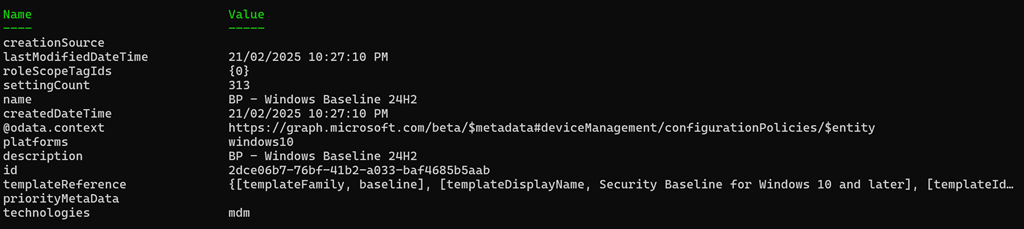
Microsoft has updated the Windows Security Baseline for Endpoint Security in Intune to 24H2 as shown above. Baselines are an easy way to set a vast array of best practice settings across your Windows devices in a single policy, already pre-configured by Microsoft.

I have extracted the policy to a JSON file and made it available at:

https://github.com/directorcia/bp/blob/main/Intune/Policies/Endpoint/Baselines/win.json

and the previous one is here:

https://github.com/directorcia/bp/blob/main/Intune/Policies/Endpoint/Baselines/Archive/win.json

You can now simply import that directly into your environment programmatically using something like PowerShell.

I will note that when I initially exported the templated and tried to import it back I got the error:

Invalid Reference id found in Policy

after a lot of troubleshooting (and I mean a LOT) I tracked down the issue to be related to id 241:

{
   “id”: “241”,
   “settingInstance”: {
     “choiceSettingValue”: {
       “value”: “device_vendor_msft_policy_config_deviceguard_machineidentityisolation_0”,
       “children”: [],
       “settingValueTemplateReference”: {
         “useTemplateDefault”: false,
         “settingValueTemplateId”: “6a208e4b-0e34-4d12-a821-3173e99f3ce0”
       }
     },
     “@odata.type”: “#microsoft.graph.deviceManagementConfigurationChoiceSettingInstance”,
     “settingDefinitionId”: “device_vendor_msft_policy_config_deviceguard_machineidentityisolation”,
     “settingInstanceTemplateReference”: {
       “settingInstanceTemplateId”: “1fa97457-2a1f-4e33-b3c2-9a4c8930510d”
     }
   }
}

removing that from teh template allowed the rest of the template to import. I’ll have to spend some more time working out the exact settings and hopefully by then Microsoft fixes the issue and I’ll update the JSON in my Best Practices repository. However, for now the JSON at the URL can be imported.

image

Updated Defender for Endpoint Security Baseline

image

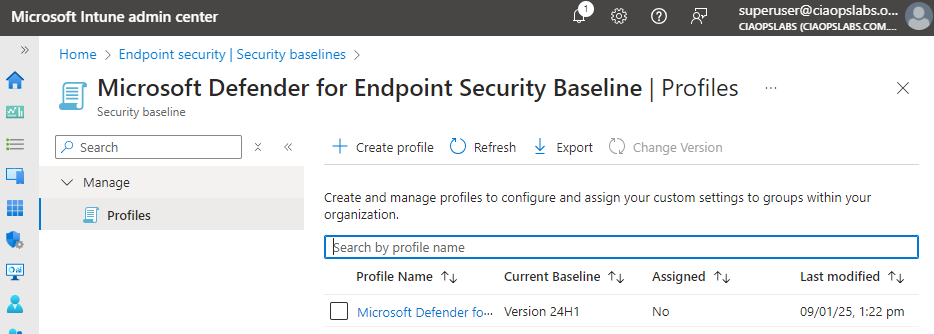
Microsoft has updated the Defender for Endpoint Security Baseline policy in Intune to Version 24H1 as shown above.

I have managed to extract my own best practice JSON configuration file for this policy and make it available at:

https://github.com/directorcia/bp/blob/main/Intune/Policies/Endpoint/Baselines/dep.json

which means you can import this directly into your environment programmatically (I used PowerShell to do exactly this).

The updates to this policy are huge! The previous version config file was about 350 lines, this new 24H1 version is now about 2,300 lines long! This indicated to me that Microsoft is moving more and more settings into theses baselines.

Staged Defender updates with Intune

The direct URL is:https://www.youtube.com/watch?v=K6zMtbbHCjM

In this video I cover how to create an Endpoint Security Antivirus policy that controls updates for Defender Engine, Platform and Security Intelligence components. This is not the only way to create a staged roll out of Defender updates and I would recommend the following document from Microsoft for more information:

Manage the gradual rollout process for Microsoft Defender updates – Microsoft Defender for Endpoint | Microsoft Learn

Reading from the CIAOPS Best Practices repo

I’ve recently upload a new JSON configuration file to my Best Practices repo on Github that you can deploy to Intune using PowerShell. You can find it here:

https://github.com/directorcia/bp/blob/main/Intune/Policies/ConfigurationProfiles/SettingsCatalog/odfb.json

The first thing to realise if you want to read this directly in from the repo is that you’ll need to use the raw version of that file which you can find here:

https://raw.githubusercontent.com/directorcia/bp/main/Intune/Policies/ConfigurationProfiles/SettingsCatalog/odfb.json

You will then need to use the command:

$query = invoke-webrequest -method GET -ContentType “application/json” -uri $url -UseBasicParsing

which will store the result in a variable called $query. Of course, you will need to assign the raw URL to the variable $url also.

Once executed if you look at $query.content you should then find a copy of JSON file you can then use to create a policy with PowerShell in Intune.

You can read all of the JSON files in my Best Practices repo in this way and use them to easily deploy to your environment.

Need to Know podcast–Episode 321

Lots of news an updates after being a few weeks since last episode. Fear not however, they are all linked below. Plenty of really detailed and helpful articles from Microsoft of late, especially around security. All of which I highly recommend you spend time working through and implementing the recommendations. Also plenty of new features and products to cover so dive in and take a look.

You can listen directly to this episode at:

https://ciaops.podbean.com/e/episode-321-initiatives/

Subscribe via iTunes at:

https://itunes.apple.com/au/podcast/ciaops-need-to-know-podcasts/id406891445?mt=2

Don’t forget to give the show a rating as well as send me any feedback or suggestions you may have for the show.

Brought to you by www.ciaopspatron.com

Resources

@directorcia

Join my shared channel

CIAOPS merch store

Become a CIAOPS Patron

CIAOPS Blog

CIAOPS Brief

CIAOPSLabs

Support CIAOPS

Granular RBAC permissions for endpoint security workloads

How to break the token theft cyber-attack chain

Microsoft Incident Response lessons on preventing cloud identity compromise

How Copilot for Microsoft 365 Works

From pixels to presence: new features coming to Microsoft Mesh

How to unlock new experiences on your Copilot+ PC

Introduction to Cross-Tenant Mailbox Migrations

Copilot is now available in classic Outlook for Windows

Microsoft Incident Response tips for managing a mass password reset

Set default organization version limits for new document libraries and OneDrive accounts (Preview)

The guide to Microsoft Intune resources

Email Protection Basics in Microsoft 365: Bulk Email

Data security in Microsoft Copilot for Microsoft 365

Moving from AI experimentation to business breakthrough

Update on the Recall preview feature for Copilot+ PCs

Secure your business: Four ways Microsoft 365 for Business can help

The new Microsoft Planner is here! Streamline the planning, management, and execution of work

Announcing new Windows Autopilot onboarding experience for government and commercial customers

AI jailbreaks: What they are and how they can be mitigated

How Russia is trying to disrupt the 2024 Paris Olympic Games

Microsoft is again named the overall leader in the Forrester Wave for XDR

What’s New in Copilot | May 2024

Exploring Copilot for Security to Automate Incident Triage

Demystifying Microsoft Entra ID, Tenants and Azure Subscriptions

Moonstone Sleet emerges as new North Korean threat actor with new bag of tricks

Automatic attack disruption in Microsoft Defender XDR

Introducing Team Copilot

Missing devices in Windows Update for Business reports?

New Endpoint Security Windows Baseline


image

Microsoft have released an updated Endpoint Security Baseline for Windows 10 and later.

image

I have updated my Best Practices repository to include the new template JSON file here:

https://github.com/directorcia/bp/blob/main/Intune/Policies/Endpoint/Baselines/win.json

and the older JSON file here:

https://github.com/directorcia/bp/blob/main/Intune/Policies/Endpoint/Baselines/Archive/win.json

I have also found that the Graph endpoint to which these two policies are applied is also different.

The new Security Baseline for Windows 10 now has an enormous area under Administrative templates. It also has a LAPs setting.

You can’t upgrade the older policy to the newer one, you need to create a completely new Security Baseline using the new policy.

This is going to take some time to work through all the new options that have been added, and there are many!

image

Luckily, I can put Copilot for Security to work to help me!

Intune Enterprise App Management

One of the exciting features of the new Intune Suite is Enterprise App Management. This makes deploying and managing applications on devices via Intune a breeze.
image

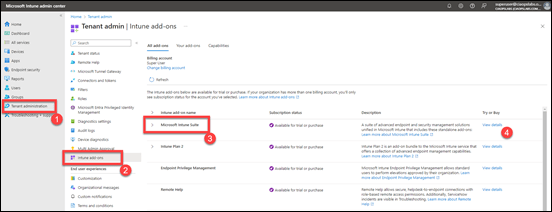
You’ll firstly need to go and add the Intune Suite (or a stand alone version of the Enterprise App Management option) to your environment. You can do this via a number of different methods but I’d suggest you go via the Intune management portal to see all your options.

Inside the Intune Management portal select Tenant administration, then Intune add-ons, then Microsoft Intune suit and finally the View details link as shown above.
image

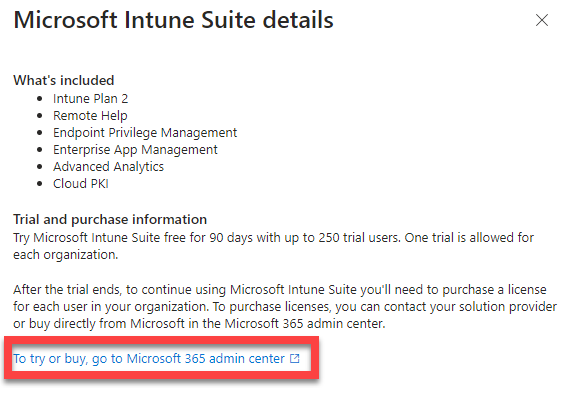
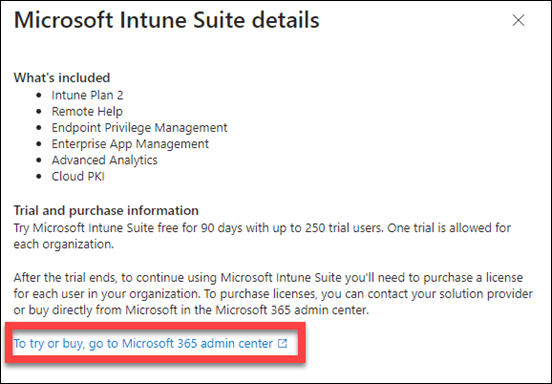
From the dialog that appears select the link at the bottom, as shown above, that will navigate you to the Microsoft 365 Administration portal where you can purchase (or sign up for a trial) of the Intune Suite.

After you have purchased the Intune Suite, don’t forget to assign Intune Suite licenses to you users!
image

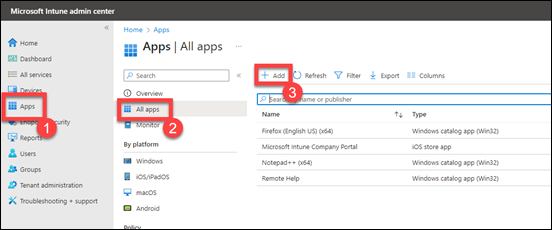
With licenses assigned, head back to the Intune Management portal and select Apps, then All apps and finally Add as shown above.
image

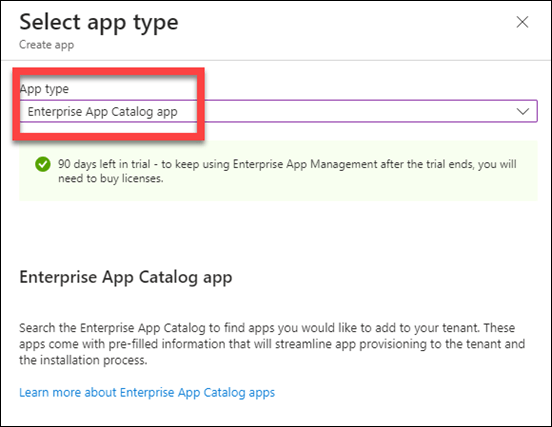
From the App type list select Enterprise App Catalog app, as shown above, and press Select at the bottom of the dialog.
image

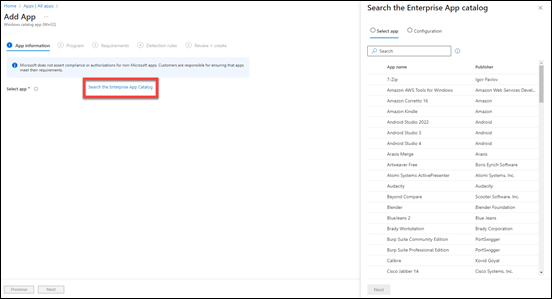
At the next screen select the hyperlink Search the Enterprise App Catalog. A dialog will appear on the right that allows you to select an app from a list.

You can only select one app at a time and more items will be added to this list over time.
image

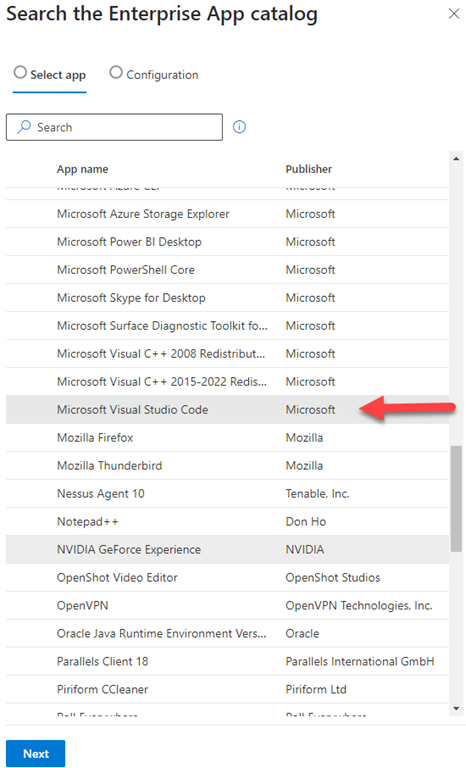
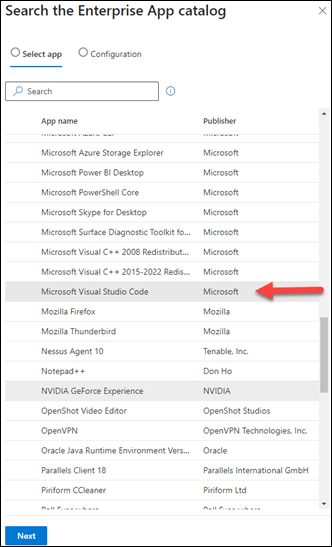
Here I’ve select Microsoft Visual Studio Code as shown above.

Select the Next button at the bottom of the dialog to continue.
image

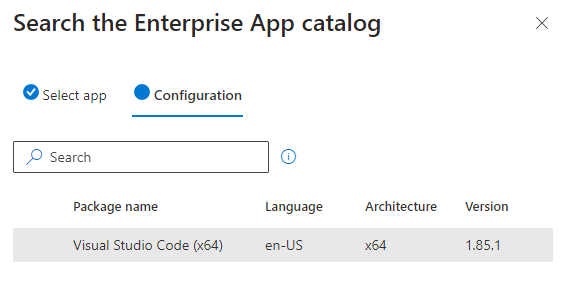
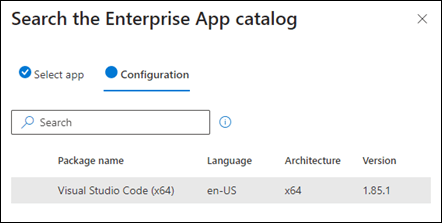
Select the app to configure and press the Select button at the bottom of the dialog.
image

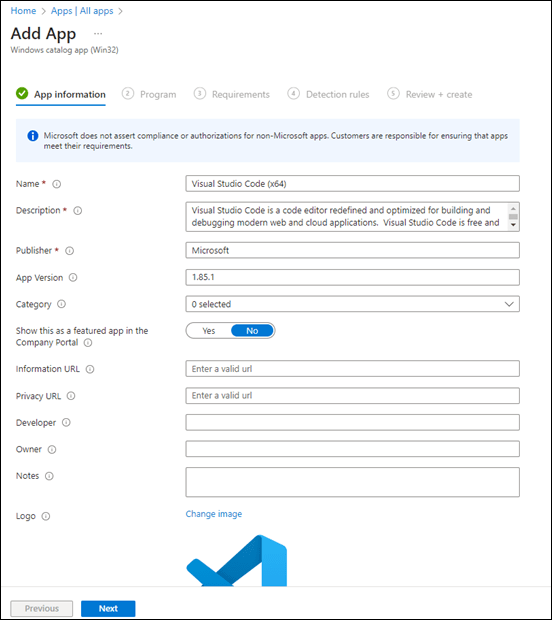
At the next screen, you find most of the application details already complete as shown above. You can edit or add to these if desired. Press Next to continue.
image

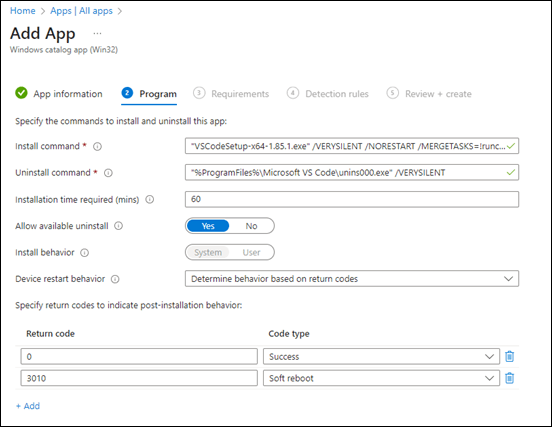
You should now see all the details for installing the application as shown above on the Program page. You can again edit or add to these if desired. Select Next to continue.
image

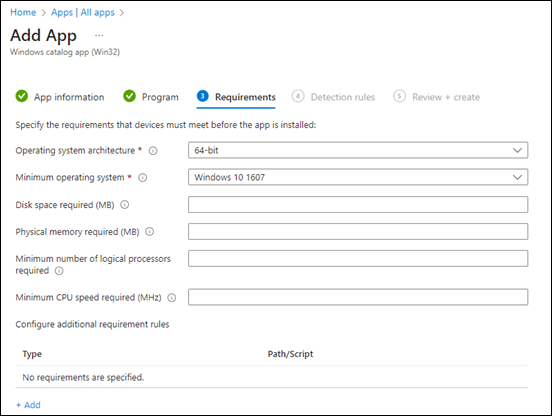
You should now see the Requirements page as shown above. Here you can set any minimum specifications for the application if required. Select Next to continue.
image

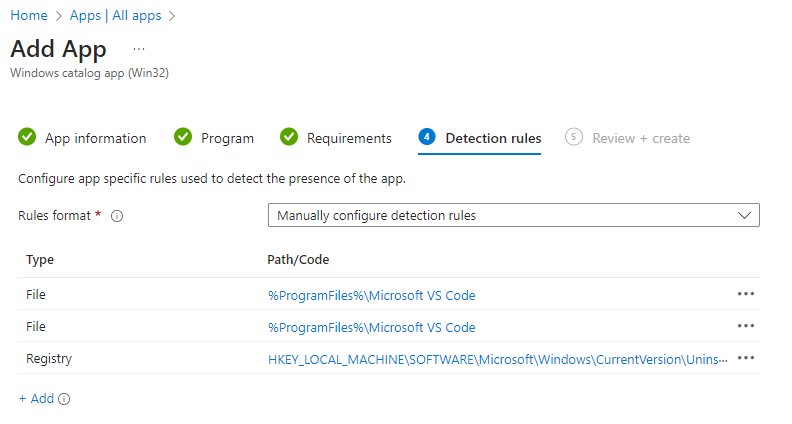
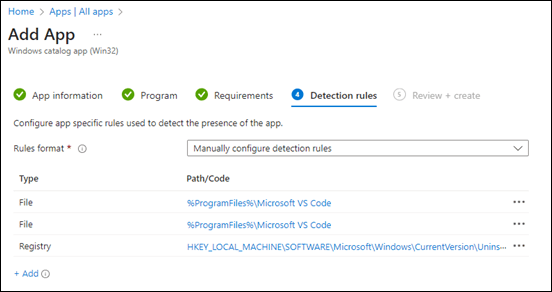
You should now see the Detection rules screen as shown above. These are the parameters to determine if, and when, the application is installed on the device. You’ll note that all these settings are already configured for you, but you can make changes if you want. Select Next to continue.
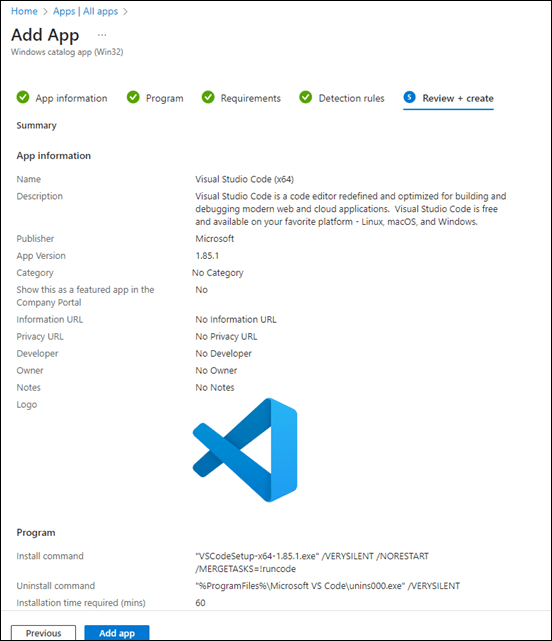
image

The final screen provides a summary of your settings. Select Add app at the bottom of the screen to complete the process.
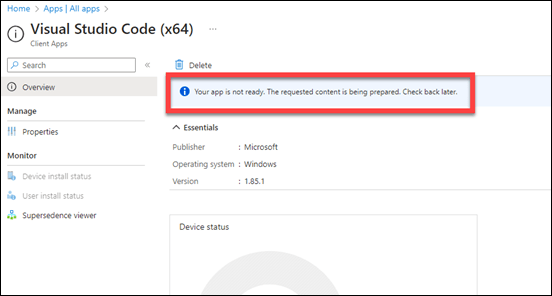
image

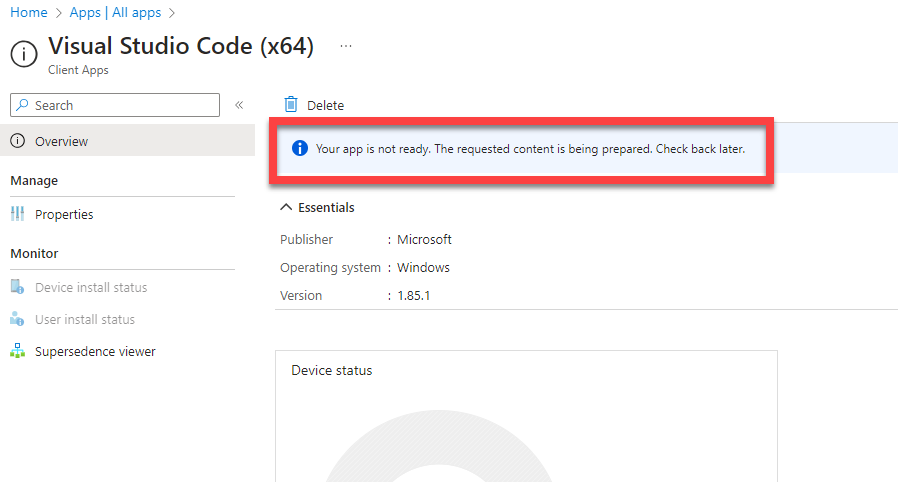
You’ll now see the configuration page for the app as shown above, but you will note that it is still being prepared as shown. You need to wait a few minutes for this process to complete before you can actually assign the app to devices and/or users.
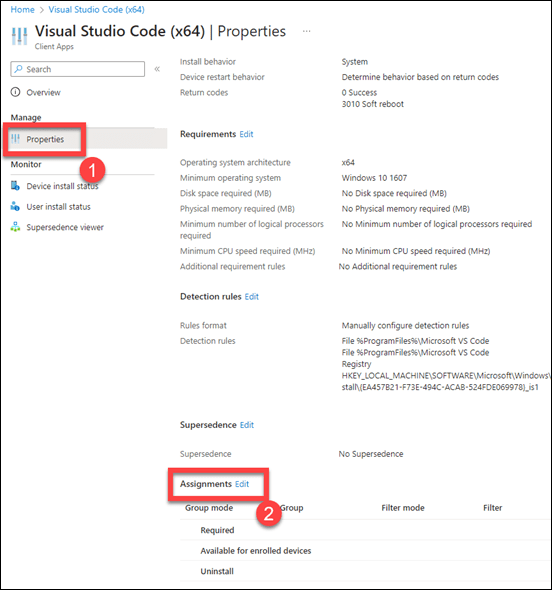
image

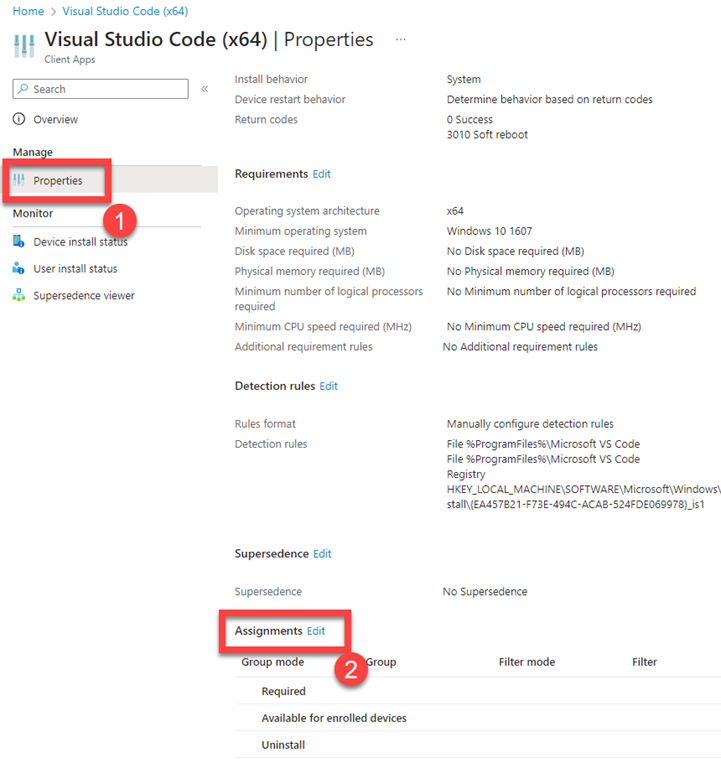
When the app is ready, select Properties, scroll down to Assignments and select the Edit link as shown above.

image

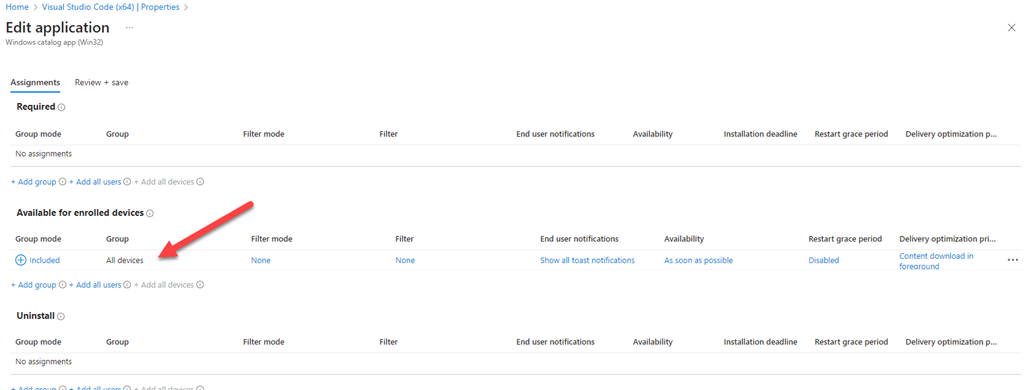
You can now select how you wish to assign this app. In this case I have elected to just make it available to all devices rather than making required or uninstalling it. Select Review + save to continue.
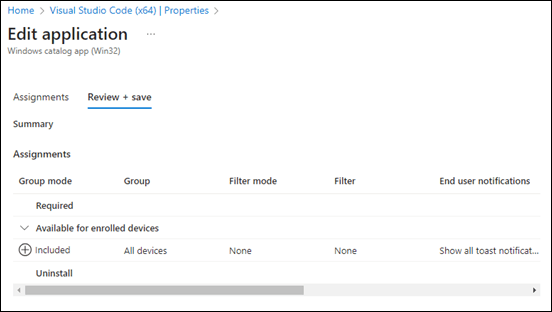
image

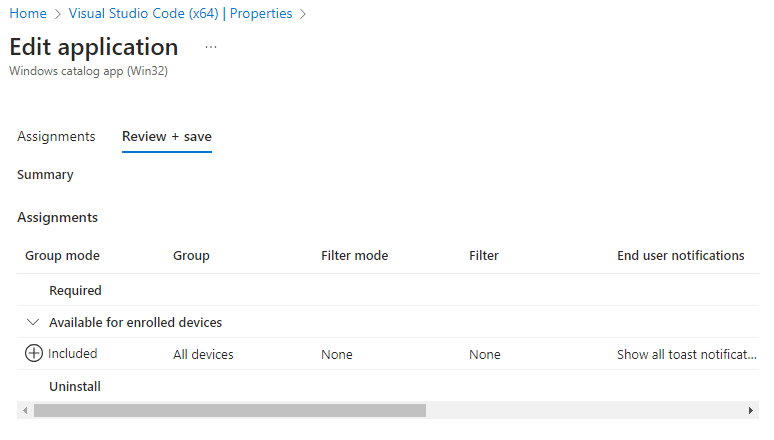
On the summary page, review your configuration and then select Save to complete the assignment process.
image

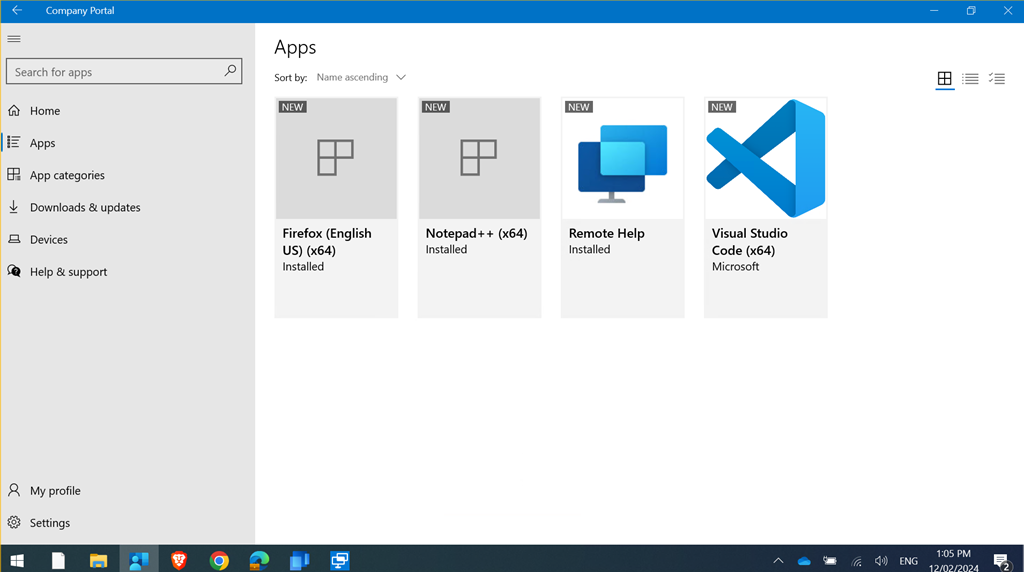
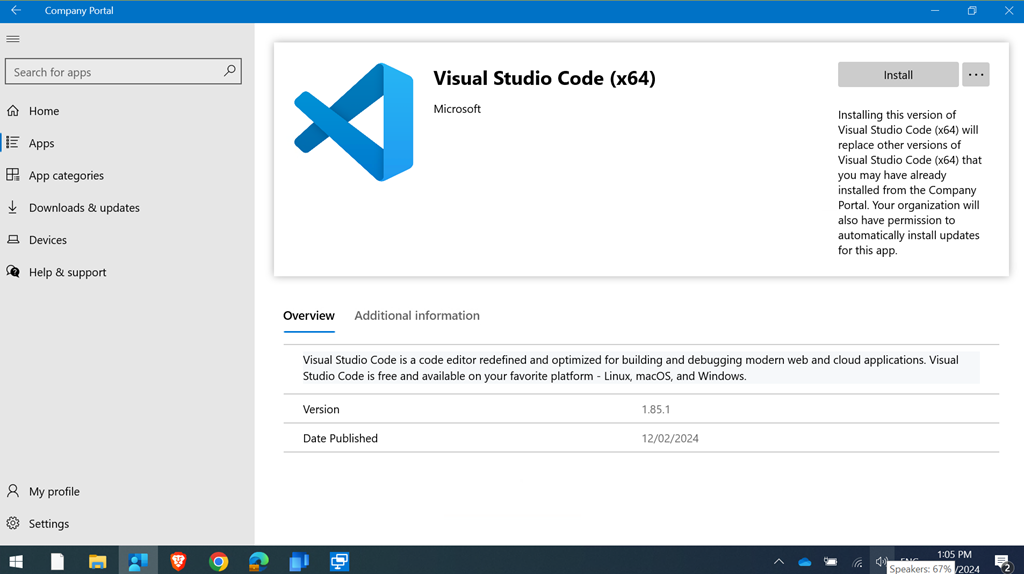
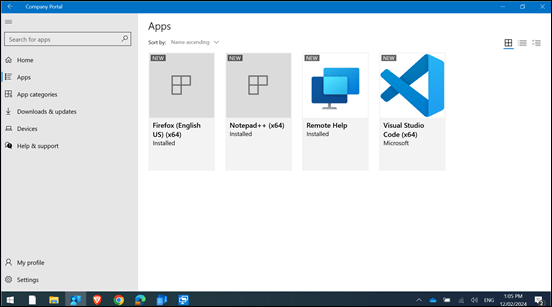
In this case, if the user navigates to the Company Portal App on their device they will see the newly deployed application as shown above in the Apps area.
image

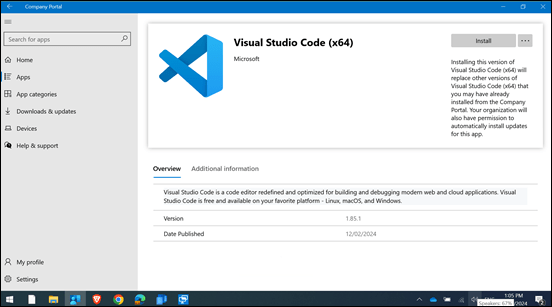
They simply need to select the desired app to install and then select the Install button in the top right to deploy.
image

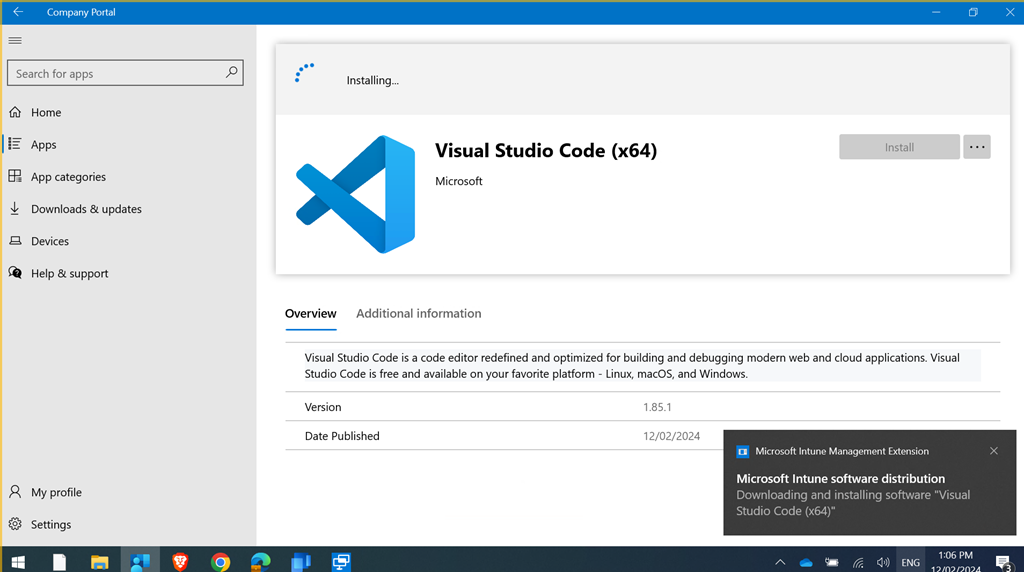
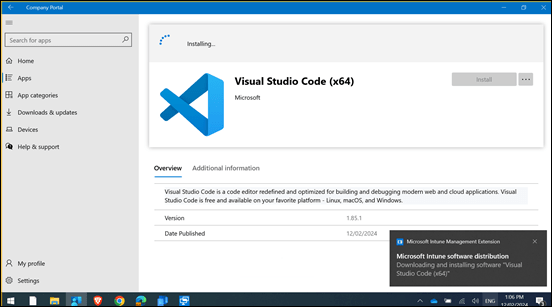
The app will deployed as shown and if a notification was selected in the app deployment, that too will be displayed as seen above.
image

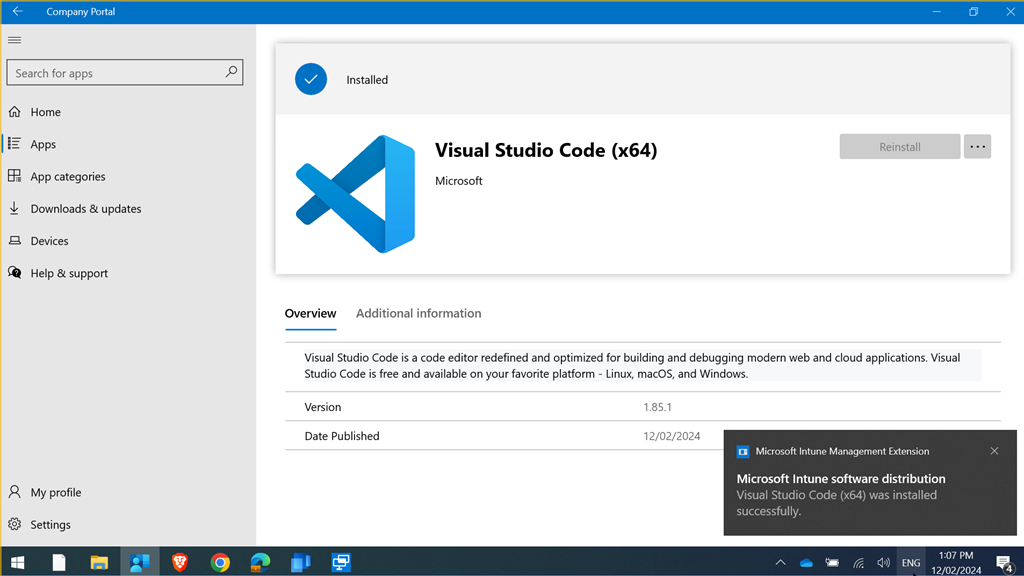
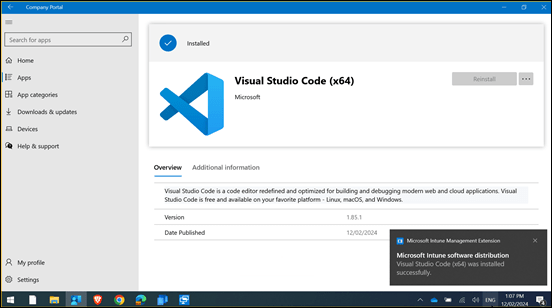
Notification will also be received when the app deployment has completed as shown above.
image

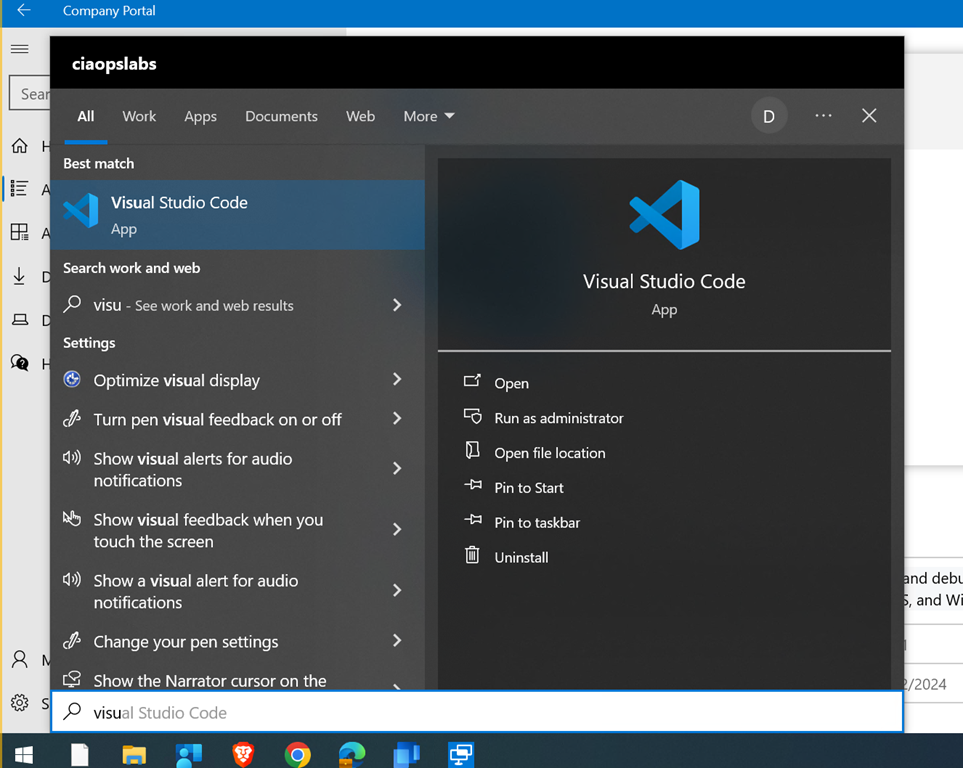
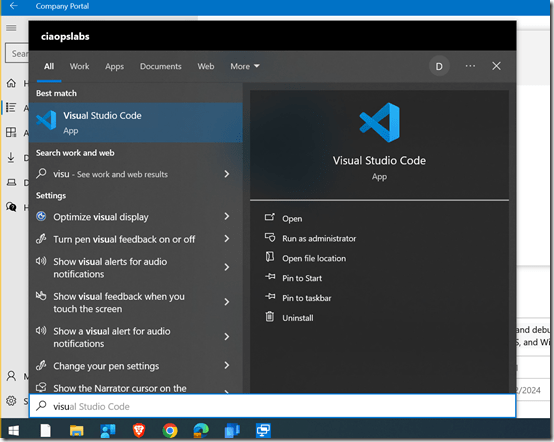
The app will then be on the device

image

and can be run as shown. Overall a very straight forward deployment without the need to enter custom settings. That’s the big benefit of using the app catalog. All that work is already done for you.
image

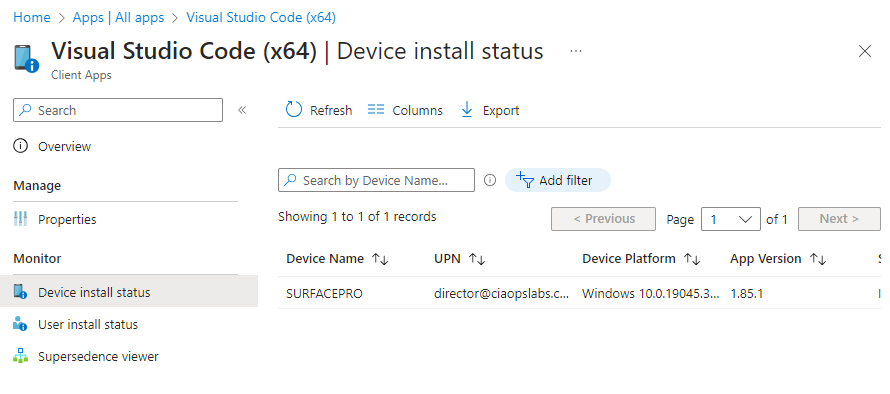
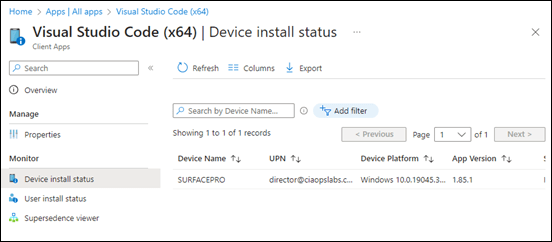
If you then look back at the Intune management console for that app it reports as installed on the device in question, as shown above.

Overall, the Intune Suite Enterprise App Management feature is pretty slick. Simple and straight forward to use. At the moment the catalog doesn’t have a whole lot of apps but I know many, many more are coming so stay tuned but if you want to manage applications on Windows devices (and Mac I believe, with others coming soon), then this is certainly the way to do it.

More on the Intune Suite coming soon.

Joined devices not appearing in Intune

image

If you have correctly joined your devices to EntraID and you have an Intune license, then these devices should appear in the Intune Management console, as shown above.

image

If they don’t, then go into the Azure Portal and select EntraID. Select the Mobility (MDM and WIP) as shown above. Then select Microsoft Intune.

image

Ensure that both settings are set to All. If they have been set to None, then this will be the issue as EntraID is not handing off device management to Intune.

Once you have set both of these settings to All as shown, ensure you save these settings before exiting the page.

Any device that is now joined to the tenant should appear in Intune, however existing devices that were added prior to this update being made won’t automatically enrol in Intune. They will need to be unjoined and re-joined to EntraID or re-enrolled via a script.