Copilot for Security – The low down for SMB

image

The bottom line is that Copilot for Security is a very beneficial tool for SMB. The approach, as always with SMB, is going to be that it needs to used in a specific manner to unlock the best ROI for smaller businesses.

I want to make it clear that I have no special inside information about Copilot for Security in any way. Everything here my own experience, summation and projection of how Copilot for Security can work for SMB customers.

Copilot for Security is going to give SMB customers access to expertise, in an on demand capacity, that most would simply not be able to afford otherwise. It is also going to be able to provide this expertise when and where is required, without the need of employing additional skilled specialised staff. Thus, the best way to think of Copilot for Security is that, it is an on demand experienced and skilled cyber security specialist consultant that can be employed when required for around $4 per hour. I however would suggest that probably a better way to budget for Copilot in Security is to allocate around $100 per month for the capabilities that Copilot for Security can provide in an ongoing basis. At $100 per month for what can be done to improve your cybersecurity environment is a worthwhile investment for an SMB serious about security.

Importantly, you need to understand that Copilot for Security is not a stand alone service. It is a service from which you only get the most from if you already have appropriate security services and signals enabled in your environment. It is this data that feeds Copilot for Security and produces the quality analysis you desire. In short, a lack of signals will mean a lacks of results with Copilot for Security. So the starting point, before you invest a penny in Copilot for Security is to ensure you have everything turned on and enabled in your environment that can help Copilot for Security do its job.

You are also going to be get more from Copilot for Security the more Microsoft security services you have. I feel that Microsoft 365 Business Premium is the minimum license SMB should have if they are serious about cybersecurity. This is because Microsoft 365 Business Premium is going to give you important tools like Intune and EntraID P1 that help Copilot for Security really shine. However, I suggest you need to go beyond just Microsoft 365 Business Premium and look at additional services like Sentinel and Defender EASM to provide even greater benefit and more signals for Copilot for Security to work with.

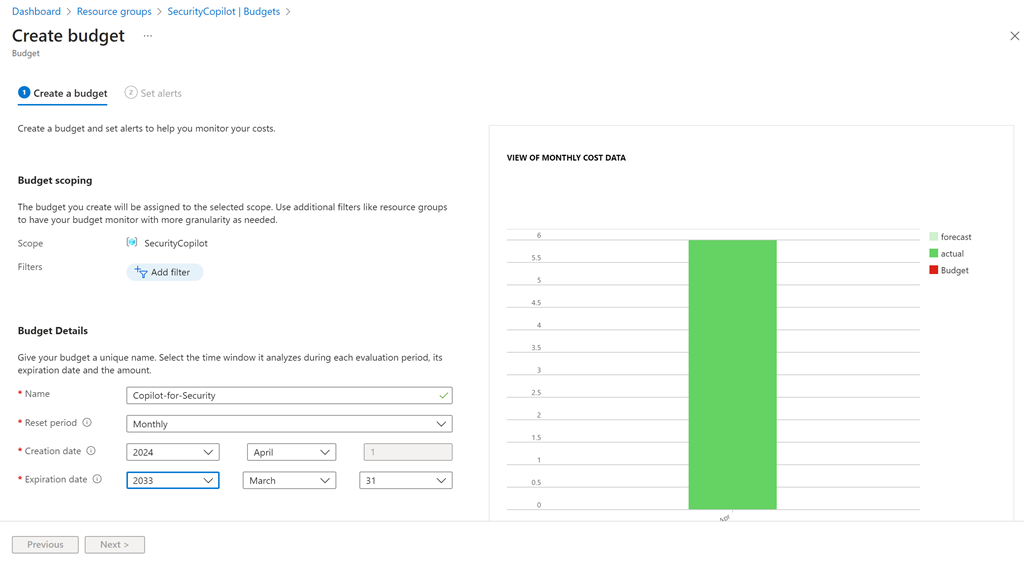
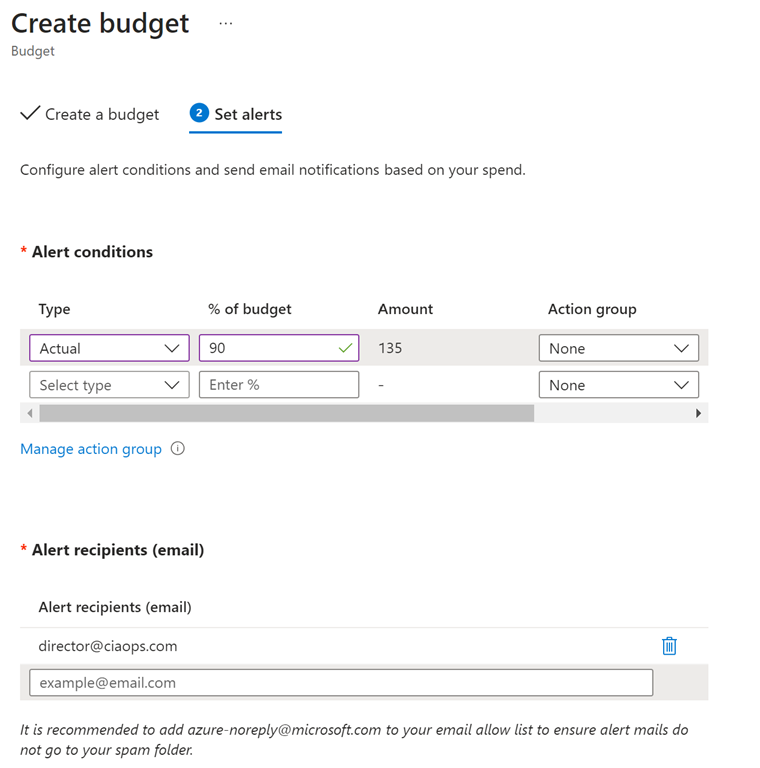
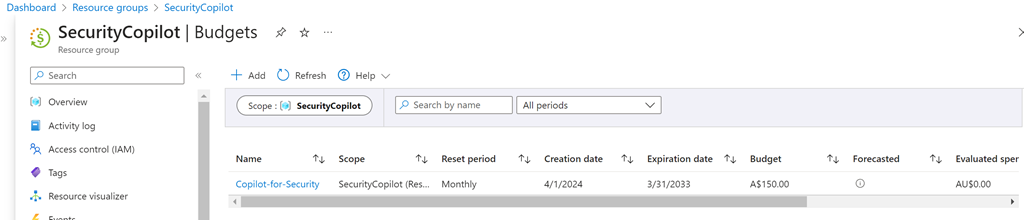
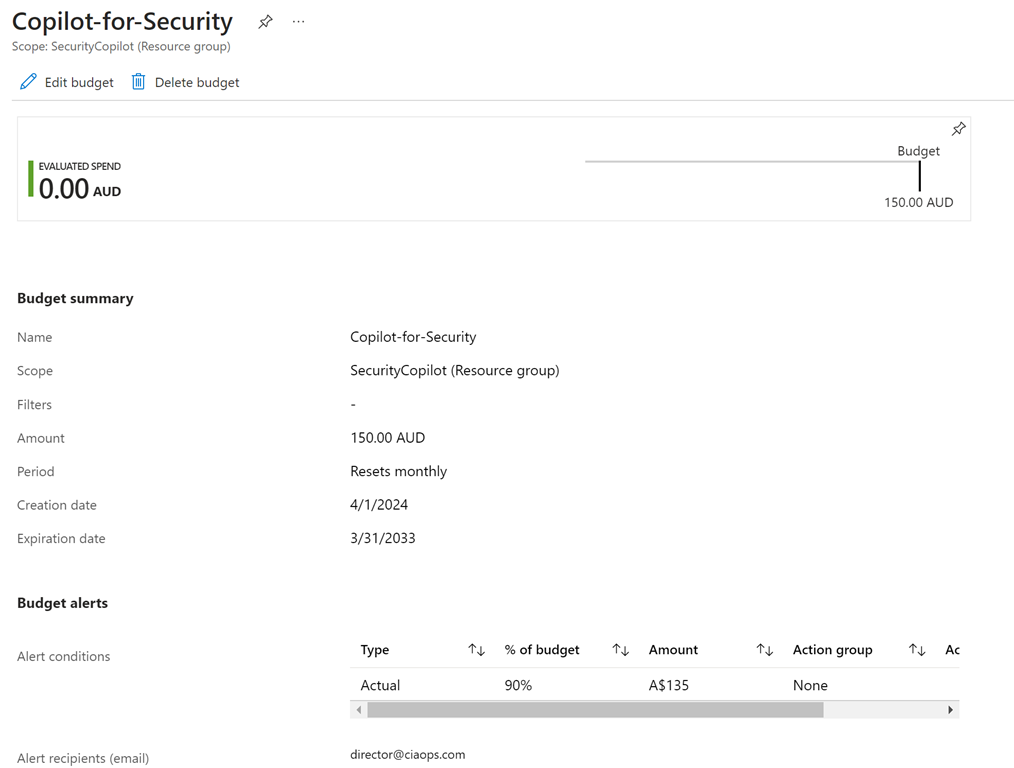
The next step to implementing Copilot for Security is to ensure you have an Azure subscription enabled in your environment, because this is how Copilot for Security will be billed. Another important asset needed is a familiarity and comfort using the pricing tools that Azure provides, like budgets and assigning resources. These Azure skills are going to help ensure costs are monitored and you don’t end up with bill shock. Just adding an Azure subscription without knowing how to manage an Azure environment effectively will result in spending much more money that is necessary.

Copilot for Security works best out of the box with the Microsoft Security stack. Integrating with things like Defender for Endpoint (Business), Intune, Sentinel and the like are quite straight forward assuming they have been enabled prior to on boarding Copilot for Security. Also, given the on-demand approach that should be taken with SMB, it means the integrations with Microsoft Security services will largely automatically light up when the service is re-enabled as required. Yes, you can and will be able to integrate third party security services but these will typically require some reconfiguration after re-enabling the service, while the Microsoft stuff will typically just be enabled. This means less to do after re-enabling Copilot for Security when you need it.

Unfortunately, Copilot for Security in SMB will not be a set and forget proposition. Doing so will rack up enterprise size charges that are unsustainable for SMB. This means Copilot for Security in SMB will be a service that needs to be turned on and off as required. At the moment , there is no simple way to achieve this but there will be. I have already seen solutions with Azure Logic Apps Azure Functions, PowerShell, etc that automate this on demand process already. However, none yet are a simple button press. This means that, for the time being, some manual intervention is required every time that Copilot for Security is enabled or disabled. Yes, there is a cost to this manual switching approach but it is a small price to pay when compared to the cost of leaving Copilot for Security running 24/7.

Another important point to appreciate on billing is that the fact that even though you would only configure the smallest SCU of 1 initially, this scales on the demand placed on Copilot for Security. In my testing, when I have been placing load on Copilot for Security, say for investigating an incident, I have seen the SCU in use jump up as high as 4. This means you are actually paying 4 SCUs x $4 = $16 per hour with Copilot for Security. Now, if you are in the middle of major investigation I feel that sort of investment is more than justified but it is important to remember, in all aspects, Copilot for Security is a service based on consumption. That is, you pay for what you use, per hour. This is very different from the flat fee per month billing that Microsoft 365 uses.

The way that I see Copilot for Security being used effectively will be that it is enabled and set up in the tenant and then de-provisioned. Then once a week someone will come in, re-provision Copilot for Security, run some checks, ask some questions, for an hour or so and the de-provision the service. Where Copilot for Security will really shine for SMB will be by bringing security information from all the services together in one place and generating report and ‘plain english’ emails and communications for the management of a business. If you asks for a summary, Copilot for Security will generate one for you in a matter of moments which you can copy and paste and send on. Doing that alone will save hours when it comes to effectively monitoring a Microsoft 365 security environment.
image

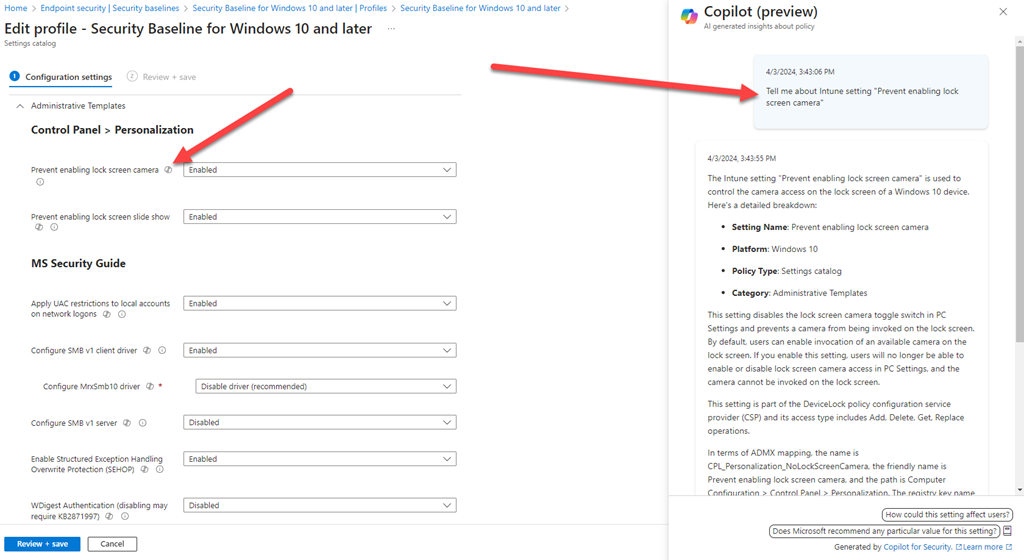
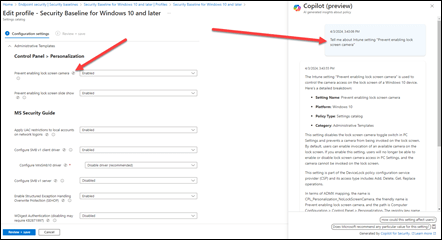
The other place that I see Copilot for Security providing the business benefit in SMB will be in device management, that is, in Intune. I have been working to understand all the new settings in the updated Windows 10 Security Baseline policy and the integration with Copilot for Security has been magic. It allows me to quickly query individual settings to understand what they do rather than having to dig through granular documentation. This is a huge time saver and really helps expose the value that Intune provides because Copilot for Security can analyse, report and summarise policies as well as provide a wealth of information at your finger tips. As with most AI, the biggest benefit will come from its use with people who know the least about the service it integrates with. Intune is a great case in point here. Most IT Professionals I know have very low experience and understanding with Intune and what it can do. They are intimidated by the interface and all the settings. Copilot for Security helps overcome this and makes even a unskilled Intune operator far more effective and efficient with it. That in a nutshell is the bottom line about how SMB should look at ANY AI. It is not yet something that removes the need to do the work, it does however mean you can complete the work required without needing high levels of skill and experience with the service much faster than without it.

Another other typical place I see Copilot for Security coming into its own is during a security incident. Unfortunately, most SMBs are not prepared or experienced in dealing with a cybersecurity incident. Luckily, Copilot for Security can be called on, as needed, to provide skilled cybersecurity services. Again, Copilot for Security will not resolve or investigate the issue automatically for you, however its capabilities are going to provide the business with the skills they need to solve the issue rather than having to deploy additional human resources. Thus, when an incident is detected, Copilot for Security is provisioned to assist with the investigation. At the end of the shift, it is de-provisoned to either be used tomorrow or the next time there is an incident. Of course, the usage costs of Copilot for Security will escalate with any type of intense usage, but again having access to the capabilities of Copilot for Security in a time or need for SMB will be priceless. Most importantly, these skills can be deployed almost immediately to help resolve the issue.

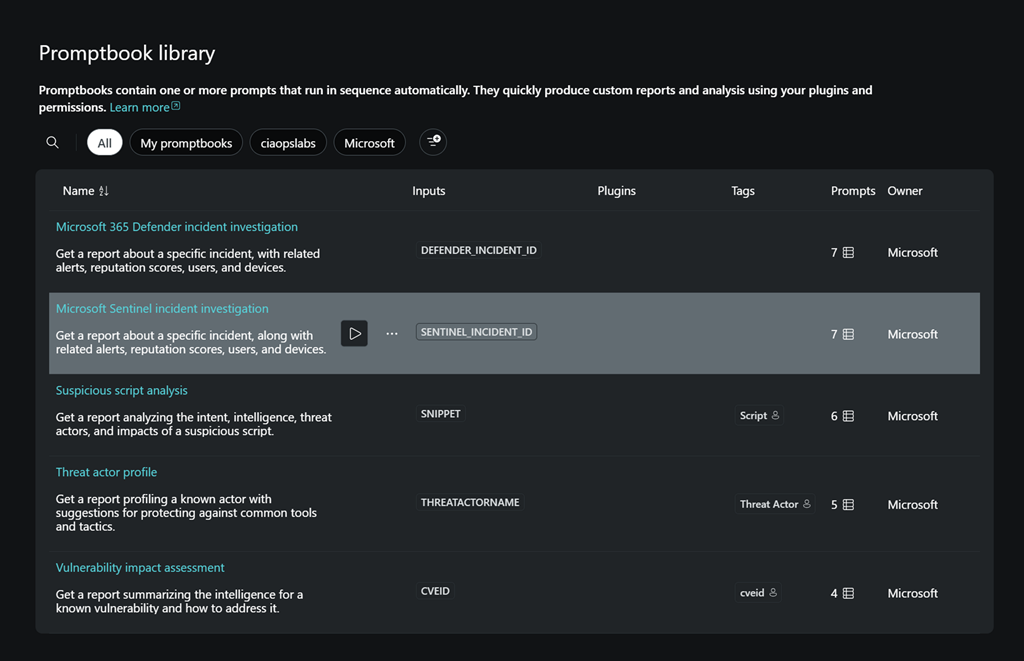
We need to remember that it is still early days for Copilot for Security. That means the service will continue to improve over time. This is great for SMB because it means even while the service is de-provisioned it is improving for the next time that it is needed. Another significant different is the shift from scripts to playbooks. Without AI you largely need to use PowerShell to achieve detailed incident investigations. However, with Copilot for Security you simply ask it a number of standard questions in English to get the same result. When these standard questions are combined together you get a playbook. Thus, there will be a playbook for ransomware attack, one for business email compromise and so on. This frees the responder from having to be a PowerShell expert and have access to the right PowerShell scripts to simply running and playbook inside Copilot for Security. Many of these playbooks already exist inside Copilot for Security now and they will just keep growing. A whole community will emerge providing playbooks for Copilot for Security. Many will be incorporated directly in the product. Best of all you’ll be able to add your own based on previous situation and interactions with Copilot for Security. SMB has the most to benefit from not re-inventing the wheel and simply providing what others provide already largely for free.

There is nothing Copilot for Security does that can’t already be achieved by a skilled operator. The challenge in SMB is having access to such skilled operators and having access pretty much immediately when required. I see Copilot for Security becoming more and more integrated with the security settings we see in the Microsoft 365 security admin console. Imagine when Copilot for Security is integrated with Exchange Online threat policies and can actually adjust these automatically to make your environment more secure. I can see a day when Copilot for Security can configure a complete environment to any security framework of your choice by simply (say Essential 8) using an inbuilt playbook. The possibilities are endless and should be very exciting for those in SMB since, rarely, are their jobs to be skilled cybersecurity anaylsis and operators. Copilot for Security brings those skills down to being applied on demand, for what I would suggest is a very small investment.

In summary then, is Copilot for Security a benefit to SMB? Yes, without doubt. Does Copilot for Security need to be implemented differently in SMB? Yes, without doubt. It is all about using the tools effectively for the job and from what I see. Copilot for Security is a highly effective tool when used correctly. However, as I have talked about before, Copilot for Security has pre-requisites to make it an effective tool. The greatest of these is ensuring that signals are already in place for Copilot for Security to use. You really shouldn’t be thinking about using Copilot for Security anywhere until all that is in place purely and simply because that is what feeds Copilot for Security. Poor input leads to poor output and this Copilot for Security should not be seen as a stand alone saviour of the lack of cybersecurity skills in SMB. It should be seen as the icing on the cake of what is already a amazing stack of services from Microsoft to protect the SMB customer.

Copilot for Security–The day after

Having set up Copilot for Security yesterday,

A day with Copilot for Security

and having an initial look around I decided to de-provision it after I was done for the day.

image

I returned the following day and set it all back up again using the same process as before. No issues.

image

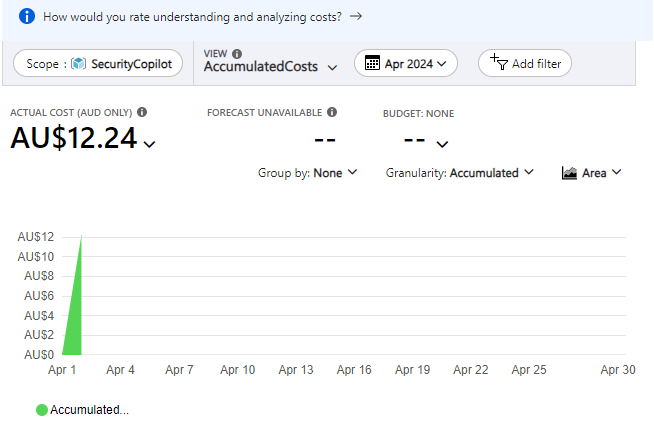
I had a quick look at the billing in my Azure portal and noticed that some charges had appeared as shown above. They seem to however lag actual usage by at least 24 hours or more, so keep that in mind if you are trying to track costs closely

image

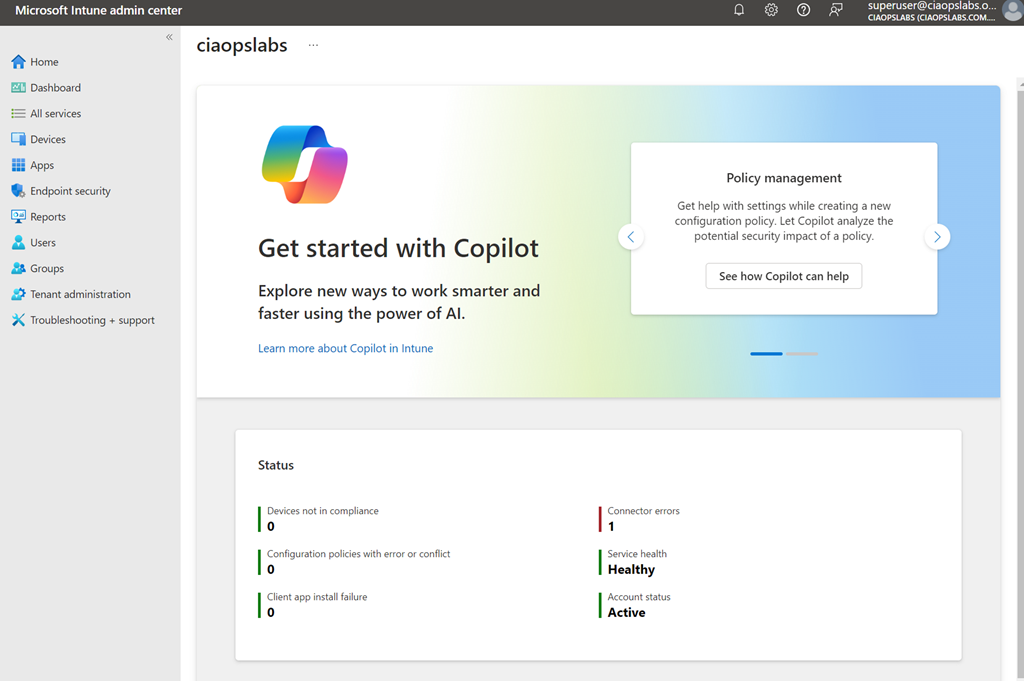
Because I also have Intune in the environment I took a look at where Copilot for Security is surfaced there. As you can see you get a big message in the homepage of the Intune portal when you navigate there reminding you that Copilot for Intune is available to you as part of Copilot for Security.

image

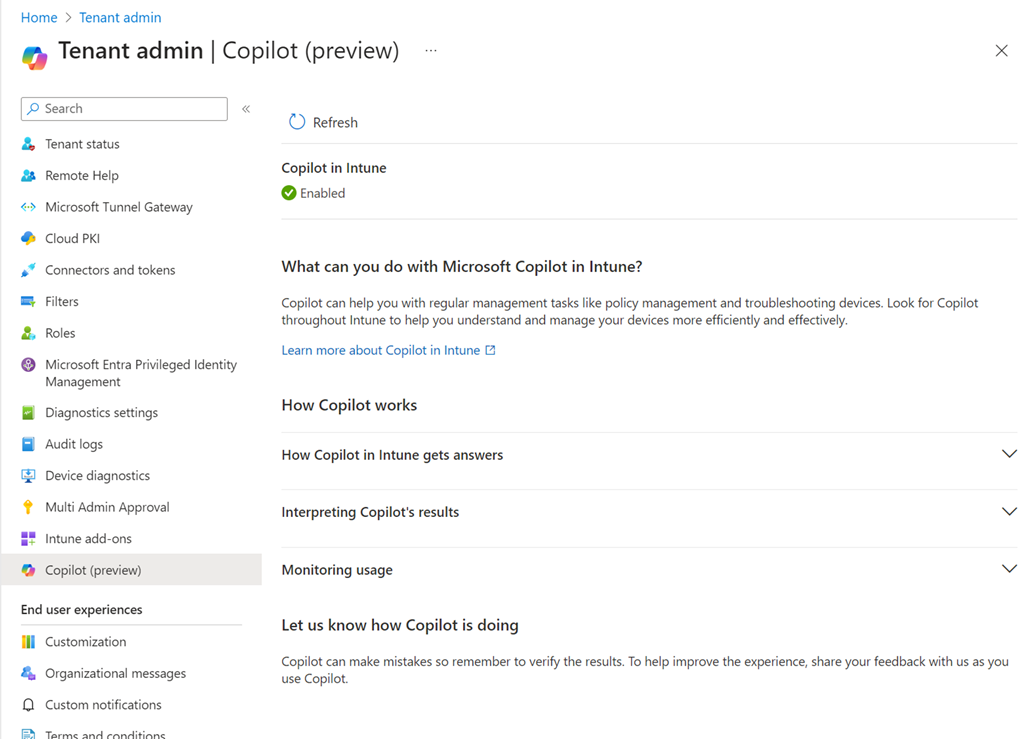
If you visit the Intune Tenant Admin area you’ll find a Copilot area as shown above. My check icon was green so I knew everything was working as expected.

image

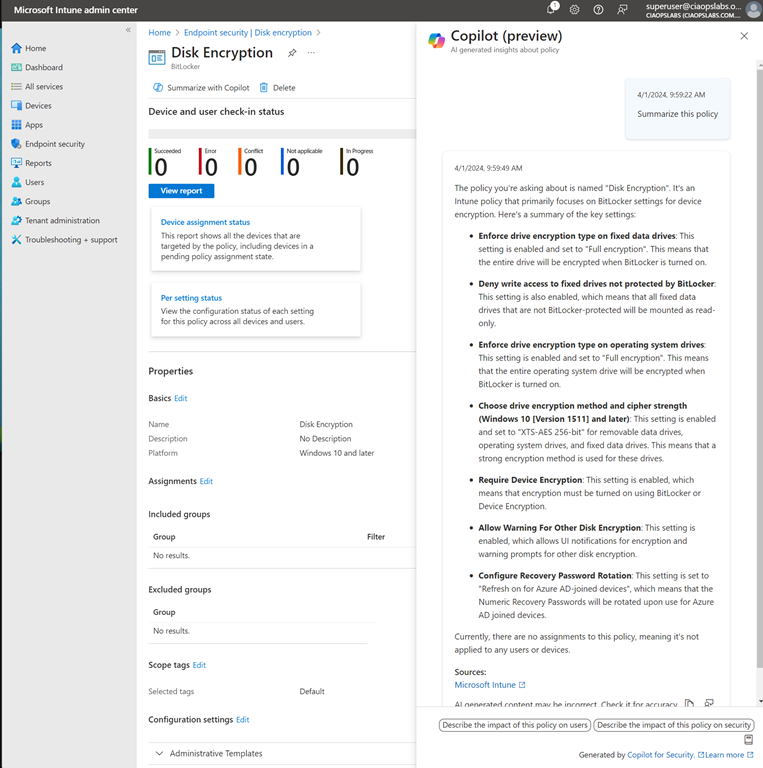
I then opened a policy and found a Summarize with Copilot button which I used to generate the summary you see on the right hand side of the policy. Very handy.

image

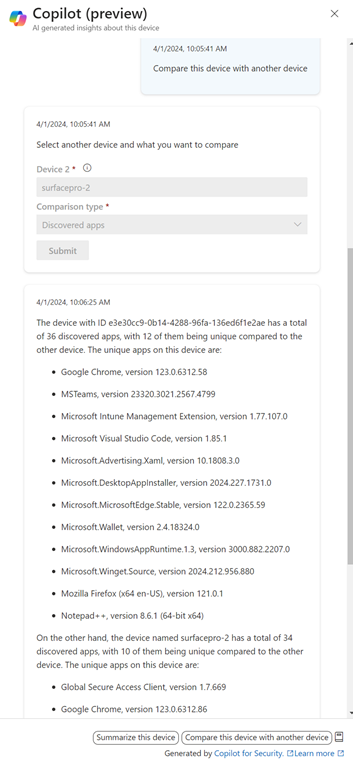
I also found a Copilot button when I looked at individual devices. As you can see above, I can use Copilot to give me a comparison between the apps installed on devices. Nice.

image

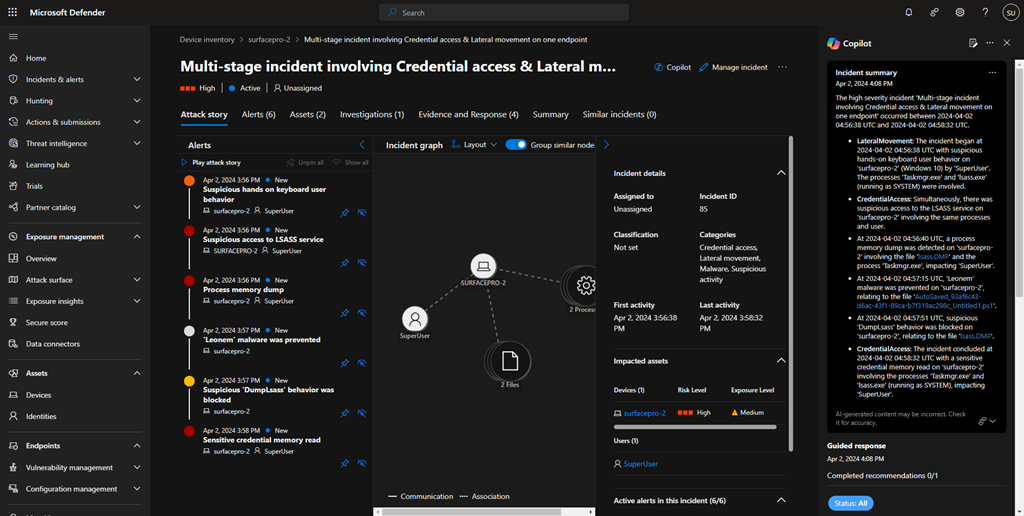
I then generated some security ‘incidents’ on a device and checked the device in the Microsoft Security portal to see how Copilot would be surfaced. You’ll see it appears as a pane on the right, as shown above.

image

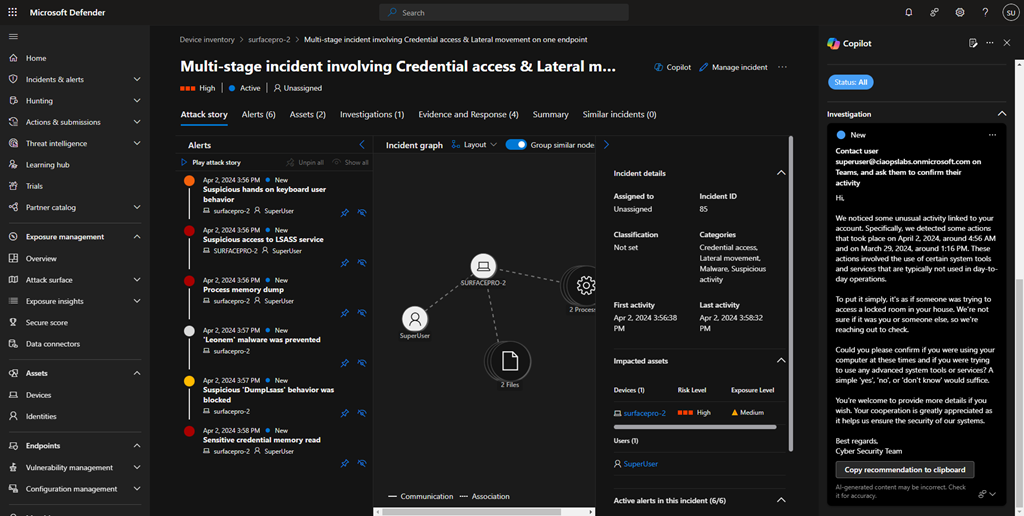
You’ll see in the above screen shot, I got Copilot to draft and email to send to the user of the problem machine. Very handy.

image

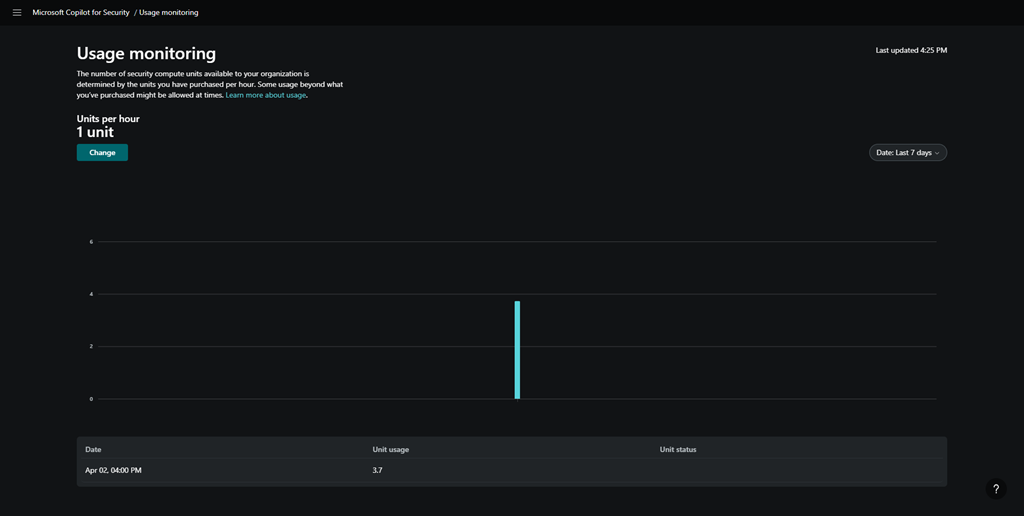
After playing around some more I went and looked at the Copilot for Security usage and you can see above, my unit usage was significantly higher than I initially provisioned. I assume I will be billed for those 3.7 units at US$4ph x the time I was actually playing around (about 1 hour). Let’s see when the costing make their way into the Azure portal.

image

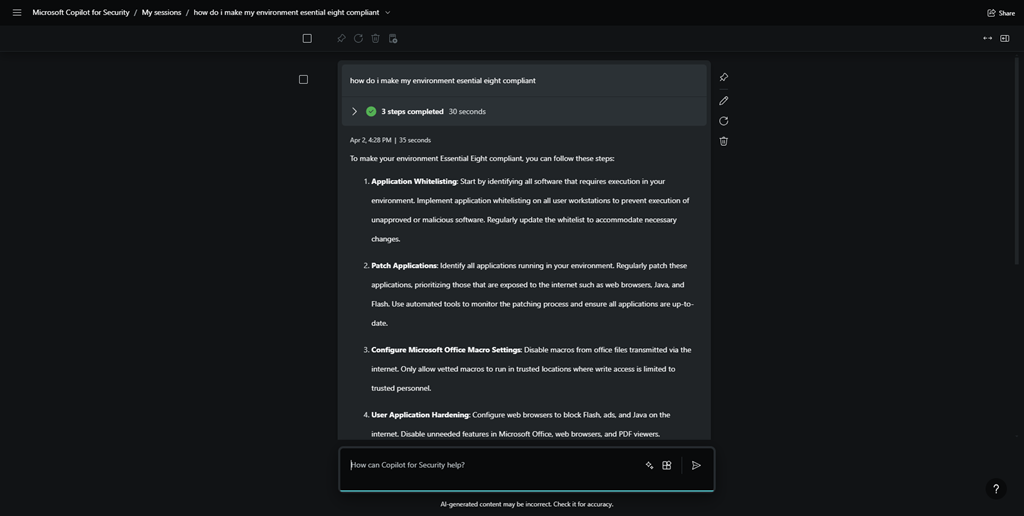
I then went off and asked Copilot for Security about how to make my environment Essential 8 compliant, and you can see the response above.

image

I also found where you can upload you own company files to the environment to give it even more information you can use in your investigations.

image

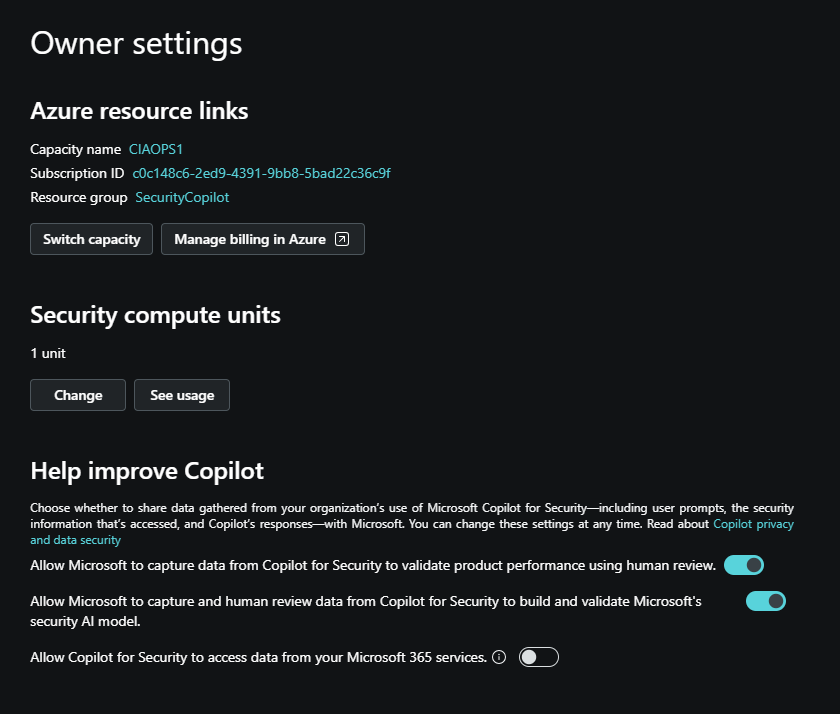
I found an area where there was an option to allow Copilot for Security to access my Microsoft 365 data, shown above.

image

However, for whatever reason, it did not allow me enable this option as you can see from the error above. I’ll try that again during my next session.

So today’s session has shown me that you can de-commission and re-commission Copilot for Security on demand. At the moment that is a manual process via the GUI, but I expect that I’ll be able to script that with something PowerShell soon enough.

Without Copilot for Security being re-enabled I found that most Copilot menu items in places like Intune remained but failed to operate, not unexpectantly. However, when I re-provisioned Copilot for Security again on the second day, all those options worked again. Some took and little while to ‘refresh’, but they all started working again as on the first day.

I also noticed that all my previous chat sessions where all still available and accessible. This is thanks to retention that is part of Copilot for Security. I just need to find out how long that retention is.

So the main thing I learnt from day 2 with Copilot for Security is that you can utilise it on demand. It doesn’t seem that you actually need to have it running 24/7, which is great new for smaller businesses on a budget. I’m sure you get more out of it if you do indeed leave an SCU running 24/7 but seems to me, so far, that you don’t lose much just enabling it as you need.

I also learned that the cost reporting seems to take at least 24 hours to start appearing which can make budgeting a little butt clenching until the actual cost figure appear in the Azure portal. I also learned that after you enable Copilot for Security the menu option remain in the various portals, even after your de-provision the service. Now, these may indeed disappear after a period time if you don’t re-provision but I’d find any of the disable menu items presented any errors, they just didn’t do anything any more. Which is understandable.

In short, I think Copilot for Security will work in an SMB environment but currently, you’ll need to a bit of manual labour to enable and disable the service but I expect that can be improved with automation down the track.

I’ll be playing with Copilot for Security for another day and I’ll then share my overall thoughts and feedback on what I’ve seen and the ROI it provides. However, I will certainly be implementing this, in an on demand capacity, in my production environment.

More updates soon from day 3.

A day with Copilot for Security

Given that Copilot for Security has just been released, I thought I’d spin it up in my tenant and see what it looks like.

To get the most from Copilot for Security you’ll first need to have an Azure subscription. You’ll get more out of the service if you also have Intune and Sentinel as well as aggregation of your logs, but an Azure subscription is all you need to get started.

image

The easiest way to commence the set up process is to visit:

https://securitycopilot.microsoft.com

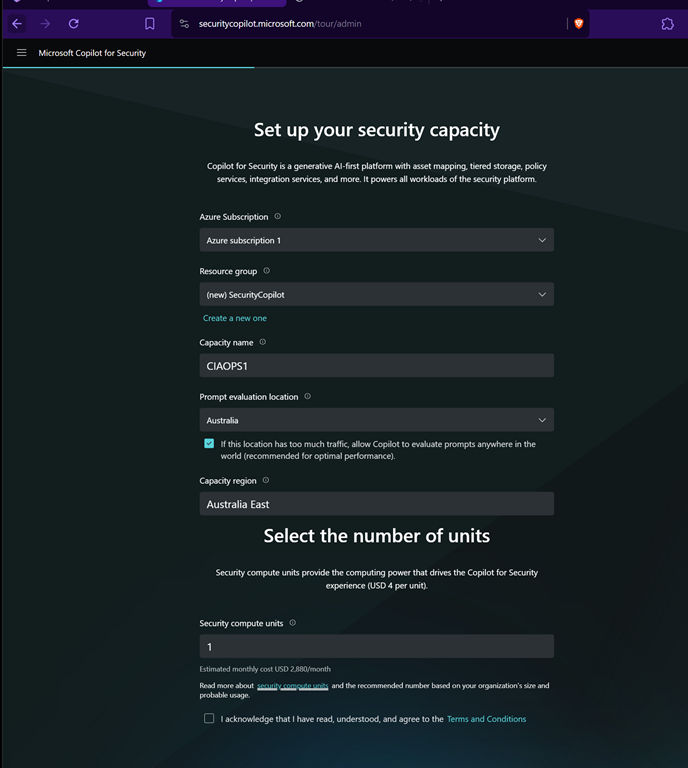
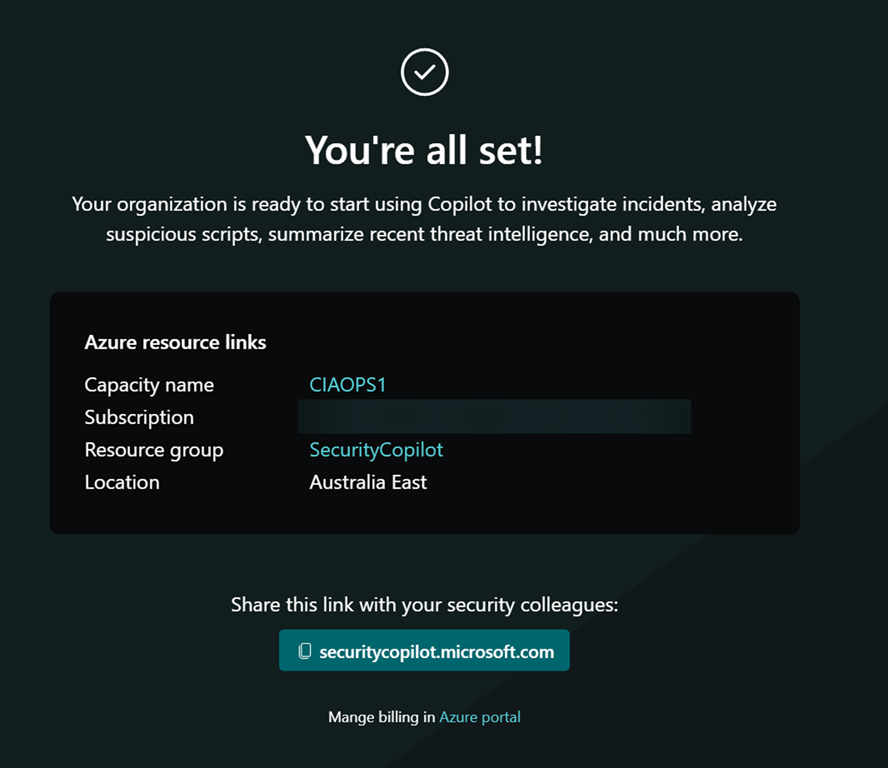
where you’ll be greeted with the set up wizard shown above.

Prior to setting up Copilot for Security, as I mentioned, you need an Azure subscription and I’d also recommend setting up a dedicated Azure Resource Group to help monitor and manage costs.

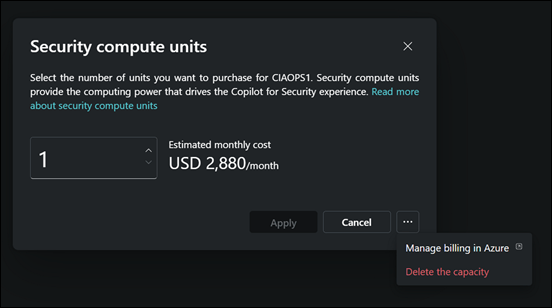
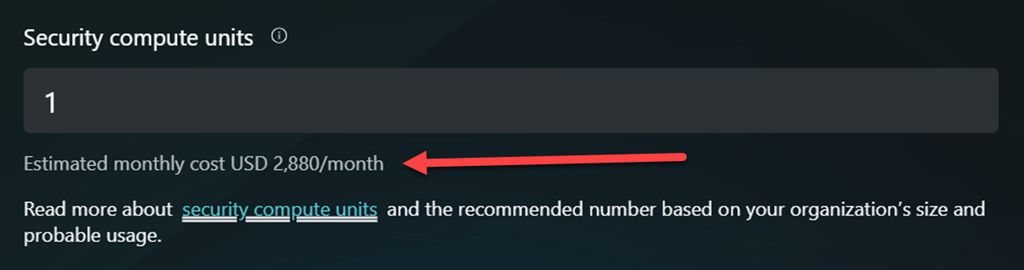
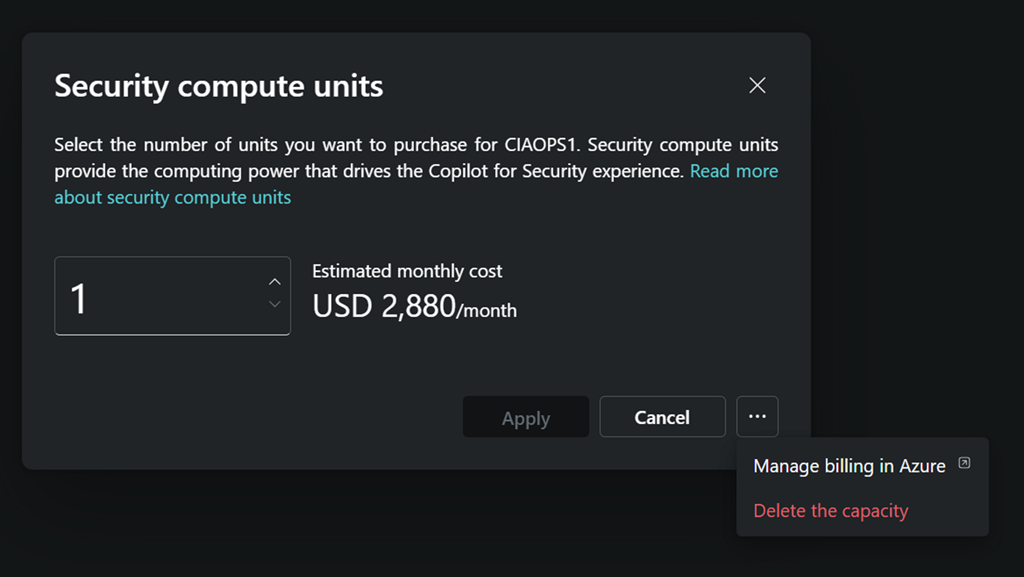
It is important to under what this will cost you in the default configuration. That is detailed on this page:

image

Yup, you read right $2,880 per month is the minimum! That is basically $4 per hour over 730 hours in a month. So, ensure you turn all this OFF once you have finished testing!

Once you complete all the listed fields you can continue.

image

You’ll need to wait a moment or two as the service is set up.

image

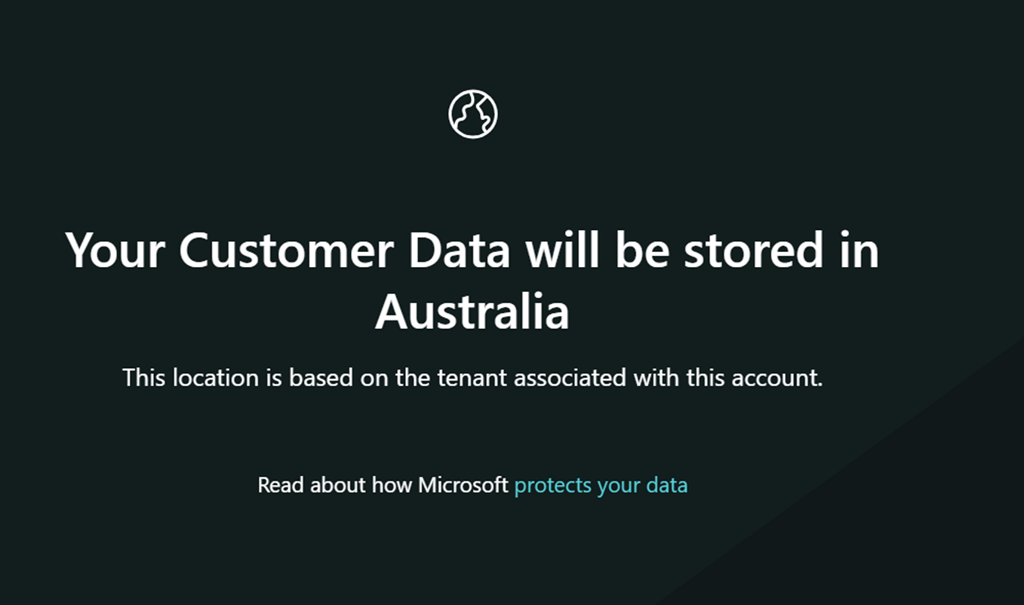
Since the Azure Resource Group into which I’m placing Copilot for Security is in Australia, my data will also be in Australia.

image

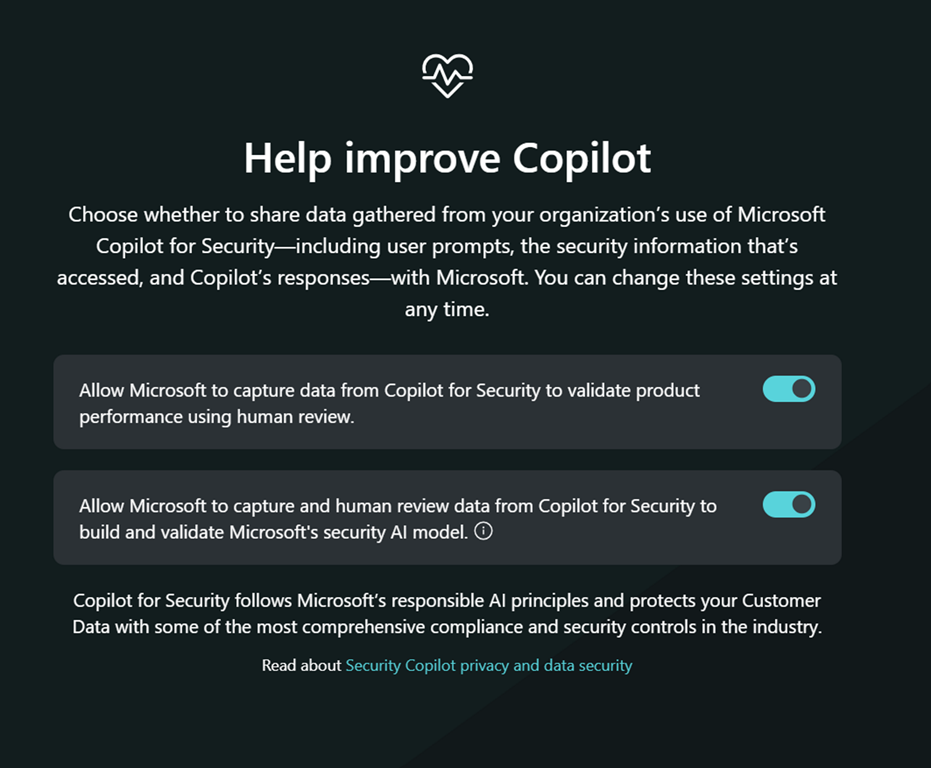
You’ll then be asked whether you wish to help Copilot improve as shown above. Make your choice and continue.

image

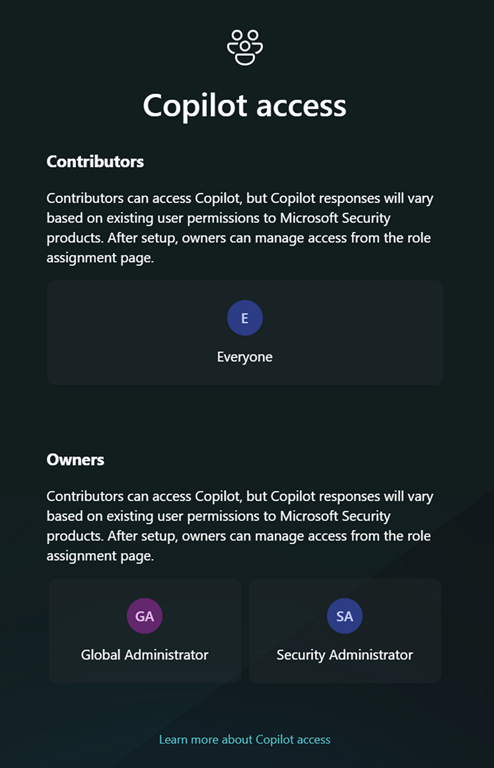
Next, you get the option to set up any permissions. As this is simply a test and I’ll be the only one using it I didn’t make any changes and just continued.

image

You should be all good to go as shown above.

image

If you now return to the initial starting point:

https://securitycopilot.microsoft.com

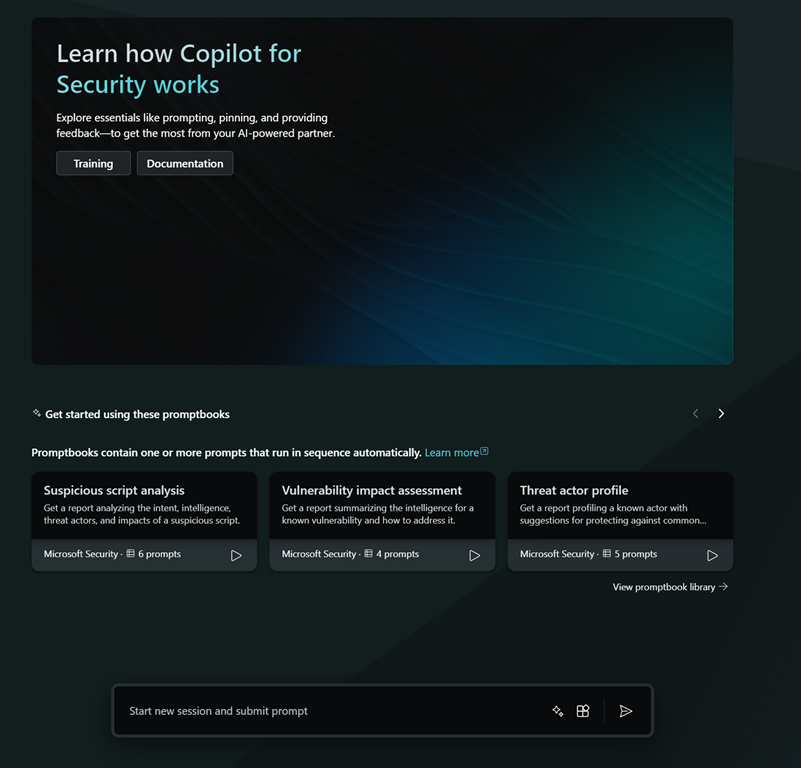
you should see the above, where you can input your query.

image

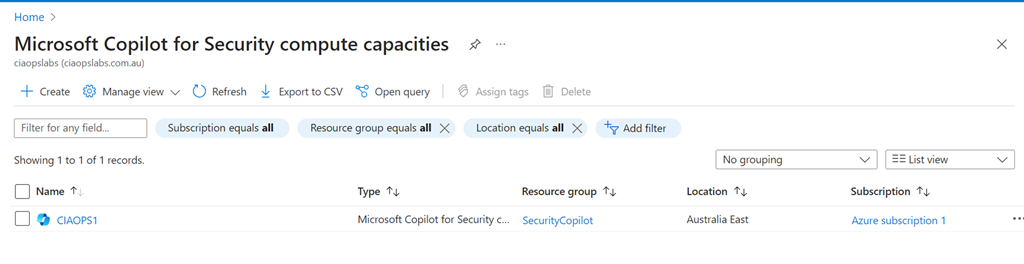
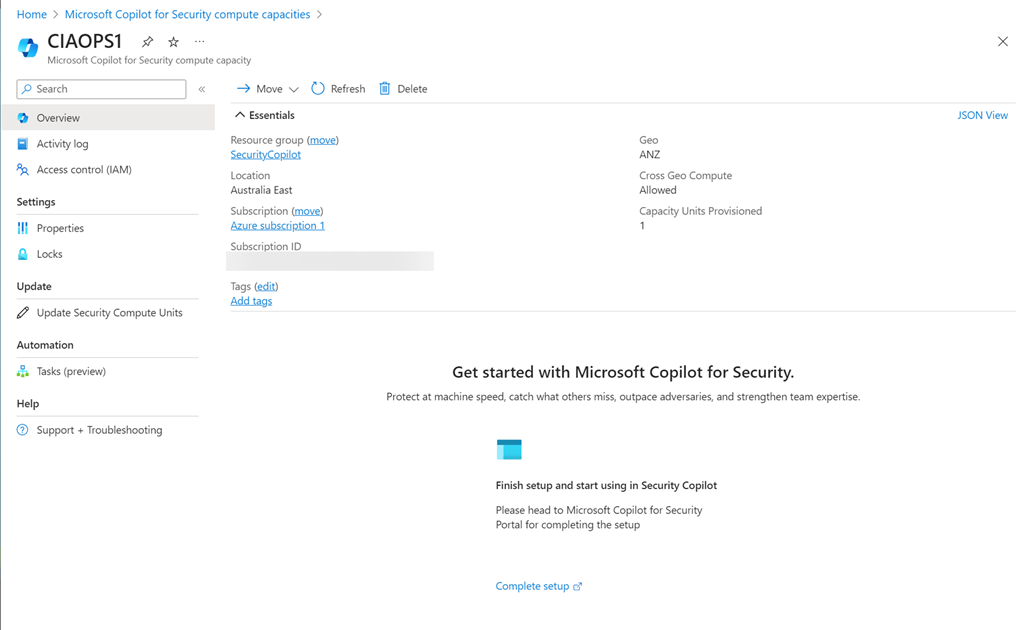
If you look in the Azure back end you will see a new item called Copilot inside your Azure portal, which looks like the above.

image

Selective the resource displayed the above.

image

You’ll also notice that you can’t adjust the Security Compute Units (SCU) below 1.

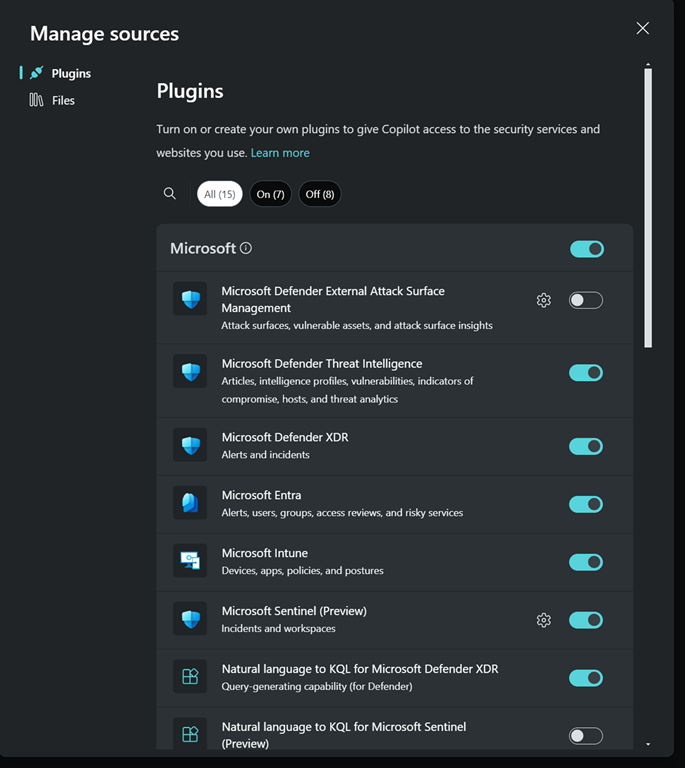
By clicking this button in the prompt

image

you’ll see all the plugins that can be configured in your environment

image

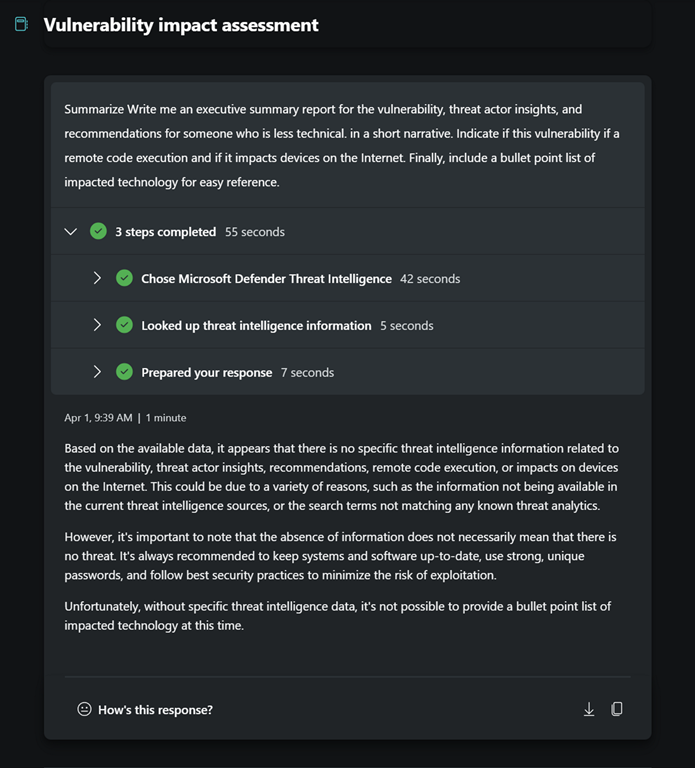
So, I went off and had a play to see what results it would give me.

image

I asked for some summaries.

image

and I had a look at some inbuilt playbooks.

image

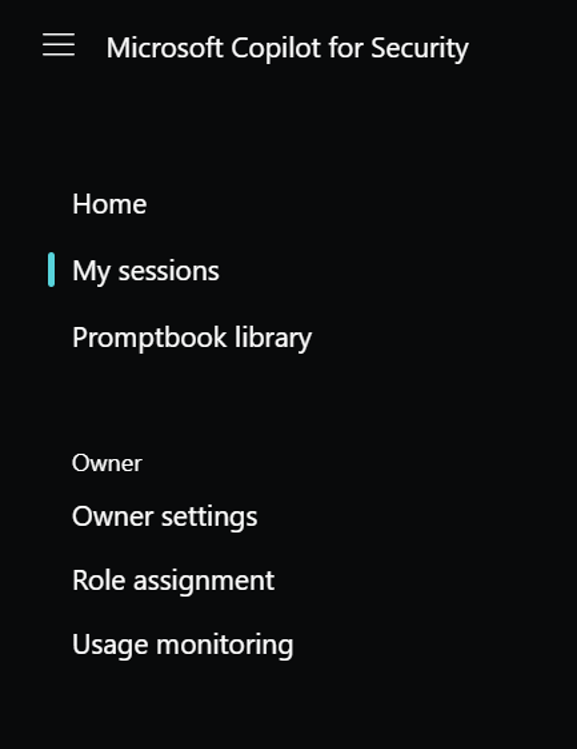
I them dug around into the Usage monitoring which you’ll find the menu at the top left of the page.

image

In here I could change the Security compute units and delete them as well. Which I did eventually after play around a bit more.

Clearly, most smaller businesses are not going to justify running this full time. It is therefore VERY important to delete the SCU when you have finished playing around. After doing that and running Copilot for Security I was interested to see my bill, but as yet no amounts have appeared in my Azure portal. I’ll share these when they appear.

I still however believe this can be an effective security tool for SMB, PROVIDED, you enable and disable it as required, kind of on demand. I’m playing with doing that for myself to better understand any limitations on that approach and I’ll report back.

I have more to share on my findings so far so stay tuned.

Time to enable more logging

Having logs enabled is a good thing because it allows you to track down information after the fact. This is especially handy when you are performing a security investigation. Here is some additional logging that I recommend you enable.

image

Start by navigating to:

https://entra.microsoft.com

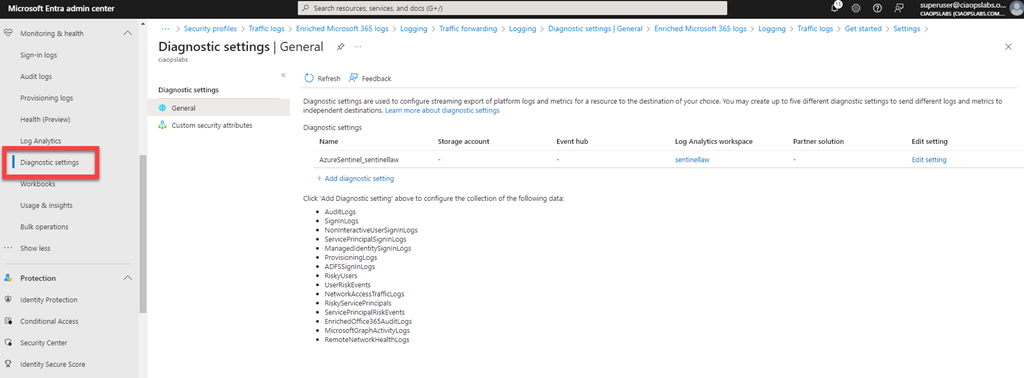
You’ll need to login with an administrative account that has rights. Expand the menu on the left of the screen until you see Monitoring & health and shown above.

image

Under this option you will find the menu item Diagnostic settings as shown above, which you select. This will display your diagnostic settings on the right. Here you can see that I am currently sending logs to a Log Analytics workspace, which is linked to Microsoft Sentinel for analysis. If you aren’t already sending your logs to a Log Analytics workspace you can set one up via the Add diagnostic setting hyperlink. I will assume here you already have something set up.

image

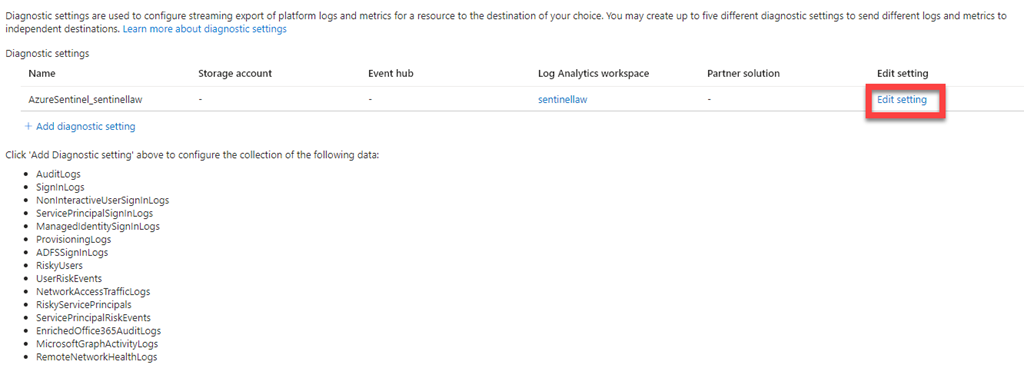
Select the Edit settings hyperlink and under Edit settings column on the right, as shown above.

image

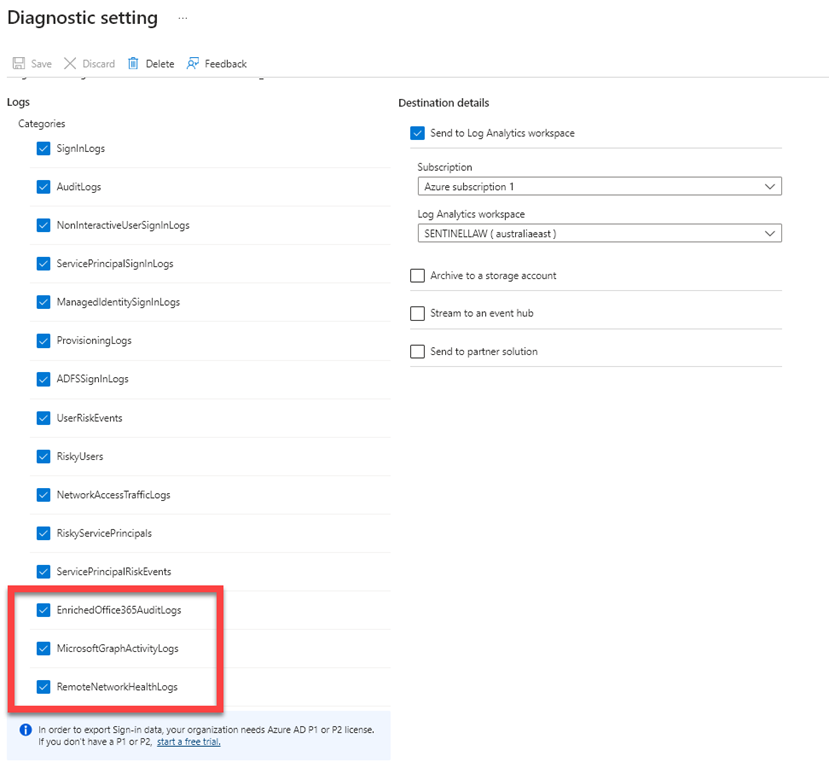
Scroll down the categories of logs listed and ensure they are all select so the logging data will be sent to Microsoft Sentinel via the Log Analytics workspace.

If you have already enabled this logging I suggest you go back in and check that all categories are selected as Microsoft has now added some additional items:

– EnrichedOffice365Auditlogs

– MicrosoftGraphActivityLogs

– RemoteNetworkHealthLogs

which I had to enable.

When you have completed your category selections press the Save button in the menu bar at the top of the window to update your preferences.

This now means that you’ll have even more data in your Sentinel environment to help keep you secure.

blockMsolPowerShell blocks all users if set to true

One of the options in the EntraID Authorization policy in the Default user permissions section is a setting blockMsolPowerShell which means when you dig into it:

Specifies whether the user-based access to the legacy service endpoint used by MSOL PowerShell is blocked or not.

Screenshot 2024-03-12 210611

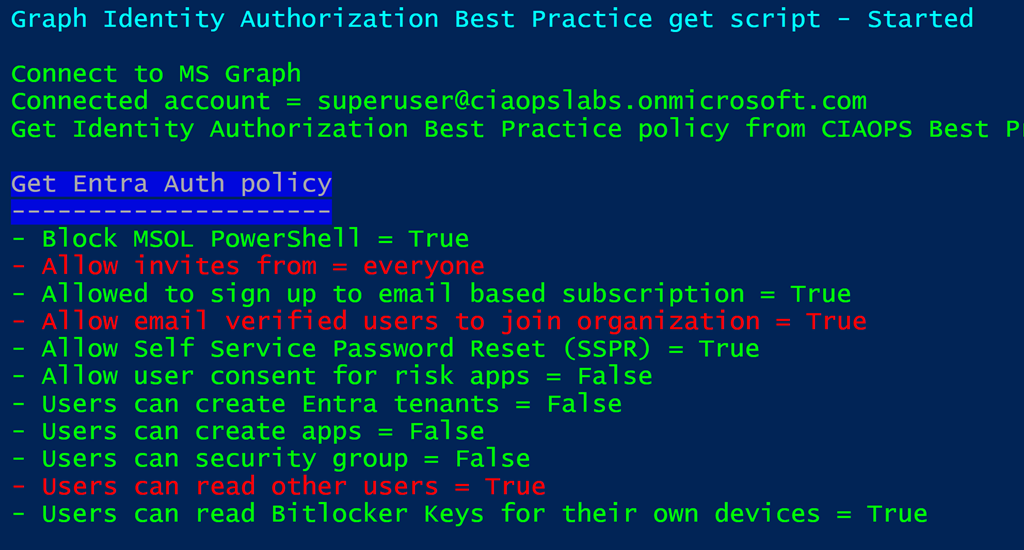
Using my script:

https://github.com/directorcia/Office365/blob/master/graph-idauthpolicy-get.ps1

you can see whether this is enabled, which it is as shown above.

Screenshot 2024-03-12 205633

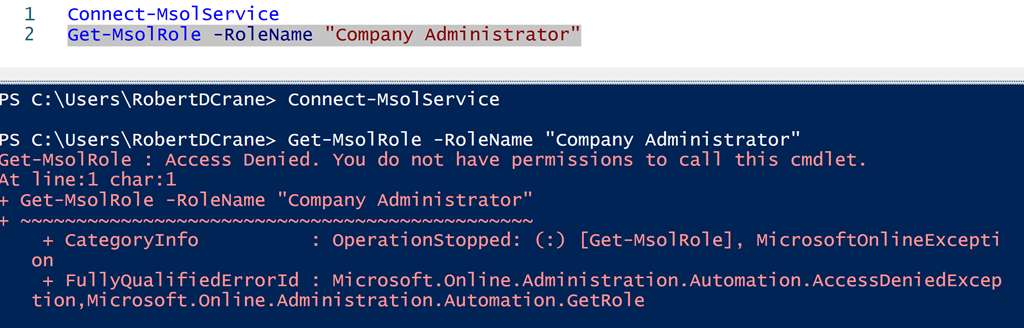
With this setting blockMsolPowerShell set to True, then all user access to the msolservice PowerShell commands are blocked as shown above. This applies to users, ordinary and administrators (even Global Administrators, which is the result I tested in the above screenshot). The user can connect to the service BUT they can’t run an msol commands as shown above.

Now given that the msolservice module will be deprecated on March 30, 2024 there shouldn’t be any issue disabling this for ALL users. However, you may want to make sure you test any Outlook add-ins or other third party apps you have in place that might have a dependency on the old msolservice module. The easiest way to achieve this is probably to simply disable the settings and see if problems arise. If they do, just make sure you know how to revert the setting back. I think is going to be the fastest way to determine if and what any dependencies you may have.

I would suggest that unless you have a dependency it should be disabled to improve the security of your environment.

Microsoft 365 Backup restore process

image

In a previous article:

Setting Microsoft 365 Backup policies

I determined that I liked the simplicity of setting up backups with Microsoft 365 Backup but the negative was a lack of reporting or alerting on the execution of these jobs.

I’m sorry to say that I also find the restoration process for Microsoft 365 lacking for a number of reasons.

1. The main reason is, at the moment, there is not really a granular restore option.

2. The restore option is typically all over the top of what is there already, effectively replacing it or restoring everything to a different location and then you have to manually copy the data across.

3. Selecting which actual backup to restore from I also found cumbersome.

4. I found the restoration of Exchange online mailboxes the most tricky to restore a select amount of data. You have to filter what you looking for via a few options. You kind of have to know what you want prior, you can’t just browse.

5. When the restore process actually runs you get no real indication of what it is actually doing, you simply have to wait for it to finish. My 1.28TB test SharePoint site took around 45 minutes to copy to a new location.

This may be me but when I did a restore of a OneDrive for Business to another location, the destination into which it copied the data is blank!

image

I did this more than once and got the same result. I couldn’t find any new SharePoint sites in my environment or sub folders. As such I am still trying to find out where the data actually restored to, as it does say it is completed!

image

The good thing is the restore process is pretty straight forward. A wizard takes you through the process as shown above.

image

For example, if you want to restore a OneDrive for Business you select the item from a list.

image

You then need to select a time and date to restore from. This is somewhat cumbersome and would be much better if you could simply browse through the available backups. For now you need to select the date and time you want.

image

I’m not sure what “standard restore” means when you confirm the restore point as shown above.

image

When you select the destination you’ll see that it typically everything over the top or everything to another location and then you need to manually copy what you need and delete the rest.

image

You confirm the restore.

image

and you select Done.

image

Then at the bottom of the page are the restore tasks as shown above.

image

Even with the restore in progress, you’ll see you don’t any information of progress or completion time. You’ll also note that the Destination will be available on restore,

image

but it wasn’t again unfortunately.

I found the mailbox restore process quite cumbersome.

image

If you want to do selected content as shown above you need to select a time frame

image

and that time frame is 14 days maximum.

image

Then you need to add filters from the four options shown above.

image

Then you have to find any matches and more me, most of the time I didn’t find any in my test environment, which was frustrating.

Remember, Microsoft 365 Backup is still in preview and will continue to improve and develop. However, as it stands now I don’t feel this is a viable alternative for people who do wish to restore their Microsoft 365 environment in a granular manner. I think as a disaster recovery tool, that is, back up everything and restore everything, over the top if needed, it would be fine.
Thus, in summary, for now, I think Microsoft 365 Backup could work as a disaster recovery service but for granular, item level restore – no so much. However, it is still very early days for this product, so keep your eye on what develops. I know I will.

Microsoft 365 Backup pricing

image

I recently detailed how to

Set up Microsoft 365 backup

I thought it was about time to take a look at the cost of Microsoft 365 Backup to see how it compares to other offerings.

The interesting thing is that billing is a little different from other third party solution. Microsoft 365 Backup is based on storage not on users. This makes direct comparison hard, so let me just focus on Microsoft 365 Backup is billed for now.

If you take a look at the Microsoft 365 Backup site you’ll see that at this point in time the service is billed at US$0.15 per GB per month. That is no matter what the data is whether, SharePoint, Exchange, OneDrive for Business. Data is data and the backup cost is per GB per month.

You’ll find this from Microsoft:

Pricing model for Microsoft 365 Backup (Preview)

in which you need to note:

image

there is also a Microsoft 365 Backup pricing spreadsheet here:

https://aka.ms/M365BackupCalculator

but bottom line is to add up all your data storage and multiple by US$0.15, right? Not so quick. Per the documentation:

The size of protected content is equal to the cumulative size of the mailboxes being protected plus the size of the SharePoint sites and OneDrive accounts being protected (that is, the size of the live OneDrive accounts and SharePoint sites as display in the live sites’ usage reports) plus the size of any deleted/versioned content held for restore during the protection period.

Let’s say that I have 1,024GB (1TB) of total data I wanted backed up across SharePoint, Exchange and ODFB. That is relatively easy to determine via the usage reporting tools in Microsoft 365. Where it becomes more challenging is determining the deleted data capacity.What exactly is that?

After some digging, in essence, deleted data is data that has been purged from the service. For example, deleted data is data that was backed up in the SharePoint Online recycle bin that has now expired the standard retention period of 93 days and is no longer in SharePoint Online. Thus, deleted data, is largely, data that no longer resides in the service but has been backed up inside the service at some stage. Ok, but how will I know what that is? That’s a challenge. I can’t find an easy way of determining that. Maybe we’ll see that soon in Microsoft 365 Backup as I think we need to have it, otherwise knowing the costs becomes challenging.

For now, let’s say that the deleted data is exactly the same as my source data inside the services currently being backed up. Thus, if I have 1TB of live data to be backed up, let’s assume the total amount being sent to Microsoft 365 Backup is 2TB. Thus, the cost of this would be:

2,048 GB x US$0.15 = US$307.20 per month

If I assume say 30 users in that tenant of that size then I get roughly US$10 per month per user. I’m taking this as the high end benchmark for SMB in terms of tenant size. I’m just trying to get an average benchmark price with these numbers. That figure is around US$10 per user per month for Microsoft 365 Backup (with plenty of assumptions I admit, but you got to start somewhere)

I appreciate this is all very subjective but upon first glimpse, but looking at a few example tenants around the place and doing the same sort of calculations, I found that, at the very least, Microsoft 365 Backup seems to be comparable to the pricing of third party products on a purely economic basis, which I found interesting.

Of course, price isn’t the only measure of product value and the more live and deleted data you have as well as the longer you retain that data the more expensive it becomes with Microsoft 365 Backup. However, interestingly, Microsoft 365 Backup is pretty cost effective for smaller environments, that is, typically those in SMB. The challenge is that most competitive products are a flat fee per month per user (like a Microsoft 365 Business Premium license is), whereas Microsoft 365 Backup is a consumption based (Azure) fee (i.e. you pay for what you use). That leads to variable costs which many people don’t favour. But, remember with Microsoft 365 Backup your overall backup cost could be much lower as well. It all depends on what you use.

It is still early days for Microsoft 365 Backup and I remind you that it is still in preview at the moment. I’ll take a look a feature comparisons to third party services in an upcoming article but I found it interesting that Microsoft 365 Backup has taken a different approach to pricing that could work well in SMB, but I’ll take a closer look at the feature set in an upcoming article and hopefully present a better picture of how you should be considering Microsoft 365 Backup.

For me, that fact that it generally seems to be price competitive in SMB environments is a plus (aka in the ballpark). Not definitive, I grant you to replace what might be in place with other solutions from third parties, but still it is a good start in the comparison journey.

I’ll have more to share soon on what I’ve found and how I believe Microsoft 365 Backup can work in SMB.

Set up Microsoft 365 backup

image

The first step you’ll need to take is to:

Enable Microsoft Syntex PAYG

this is how the Microsoft 365 backup service will be billed. That will be basically via Azure and you’ll only pay for what your need.

image

You’ll then have to go backup into the Use content AI with Microsoft Syntex area again, which is where you established the billing. Here you need to select Manage Microsoft Syntex as shown above.

image

A dialog will appear from the right. In the list that appears, select Backup as shown above.

image

Select the Turn on button at the bottom of the page.

image

You should see a warning, like shown above that Microsoft Backup is about to be enabled. Select Save to continue.

image

There will now be a confirmation that the Microsoft 365 Backup service is Turned on (enabled) as shown above. You’ll also notice the Turn off button at the bottom of the page if you wish to return and disable Microsoft 365 Backup.

image

If you select the link Go to Microsoft 365 Backup you’ll be taken to the area to actually operate the service which looks like:

image

You’ll see that you can also navigate to this area via the Microsoft 365 admin center | Settings | Microsoft 365 Backup options on the menu on the left as shown above.

Stay tuned for upcoming posts on running Microsoft 365 Backup and the costs associated.