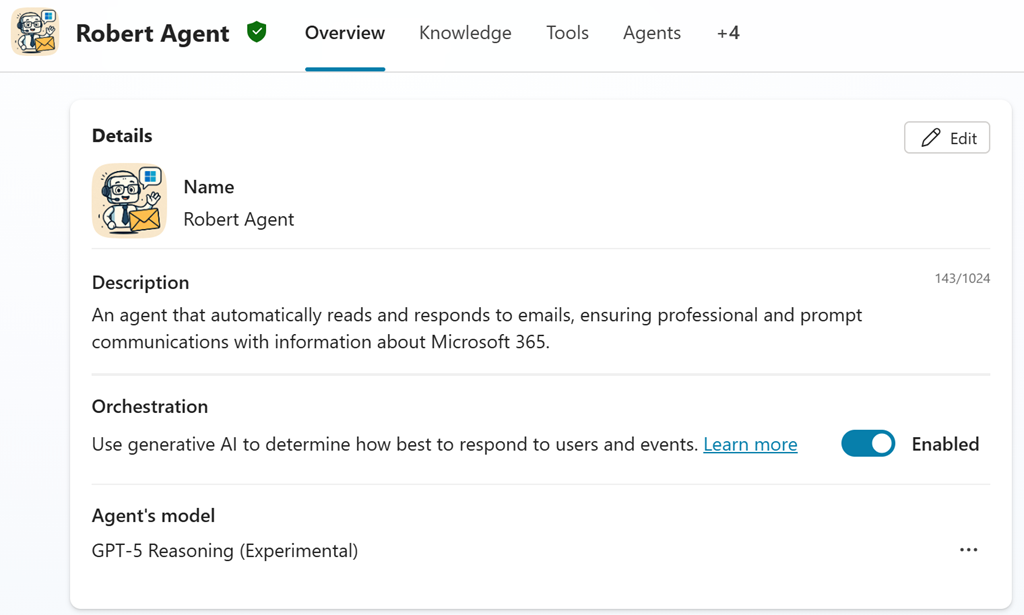
Robert.agent in action

Here’s an example of how clever AI is getting.

Someone sent the following screen shot of PowerShell code to robert.agent@ciaops365.com. Which, if you haven’t seen, is an agent I built to respond automatically to emails using Copilot Studio.

Screenshot 2025-07-10 130705

My Copilot Agent was able to read the PowerShell inside the screen shot and return the following 103 lines of PowerShell for that person!

Screenshot 2025-07-10 130823

Why don’t you give robert.agent@ciaops365.com a try to get your Microsoft Cloud questions answered?

Small Business, Big AI Impact: Understanding the AI MCP Server

bp1

Imagine Artificial Intelligence (AI) as a super-smart assistant that can answer questions, write emails, or even create images. However, this assistant usually only knows what it was taught during its “training.” It’s like a brilliant student who only knows what’s in their textbooks.

Now, imagine this assistant needs to do something practical for a business, like check a customer’s order history in your sales system, or update a project status in your team’s tracking tool. The problem is, your AI assistant doesn’t automatically know how to “talk” to all these different business systems. It’s like our brilliant student needing to call different departments in a company, but not having their phone numbers or knowing the right way to ask for information.

This is where an AI MCP server comes in.

In non-technical terms, an AI MCP server (MCP stands for Model Context Protocol) is like a universal translator and connector for your AI assistant.

Think of it as:

  • A “smart switchboard”: Instead of your AI needing to learn a new way to communicate with every single business tool (like your accounting software, email system, or inventory database), the MCP server acts as a central hub. Your AI assistant just “talks” to the MCP server, and the MCP server knows how to connect to all your different business systems and translate the information back and forth.
  • A “library of instructions”: The MCP server contains the “recipes” or “instructions” for how your AI can interact with specific tools and data sources. So, if your AI needs to find a customer’s last purchase, the MCP server tells it exactly how to ask your sales system for that information, and then presents the answer back to the AI in a way it understands.
  • A “security guard”: It also helps manage what information the AI can access and what actions it can take, ensuring sensitive data stays secure and the AI doesn’t do anything it shouldn’t.

Why is this important for small businesses?

For small businesses, an AI MCP server is incredibly important because it allows them to:

  1. Unlock the full potential of AI without huge costs: Instead of hiring expensive developers to build custom connections between your AI and every piece of software you use, an MCP server provides a standardized, off-the-shelf way to do it. This saves a lot of time and money.
  2. Make AI truly useful and practical: Generic AI is helpful, but AI that understands and interacts with your specific business data (like customer details, product stock, or project deadlines) becomes a game-changer. An MCP server makes your AI assistant “aware” of your business’s unique context, allowing it to provide much more accurate, relevant, and actionable insights.
  3. Automate tasks that require multiple systems: Imagine your AI automatically updating your customer relationship management (CRM) system, sending an email confirmation, and updating your inventory, all from a single request. An MCP server enables this kind of multi-step automation across different software.
  4. Improve efficiency and save time: By connecting AI directly to your existing tools and data, employees spend less time manually searching for information, switching between applications, or performing repetitive data entry. This frees up staff to focus on more strategic and valuable tasks.
  5. Enhance customer service: An AI-powered chatbot connected via an MCP server can instantly access real-time customer data (purchase history, support tickets) to provide personalized and accurate responses, leading to happier customers.
  6. Stay competitive: Larger businesses often have the resources for complex AI integrations. An MCP server helps level the playing field, allowing small businesses to adopt advanced AI capabilities more easily and gain a competitive edge.
  7. Future-proof their AI investments: As new AI models and business tools emerge, an MCP server helps ensure that your existing AI setup can adapt and connect to them without major overhauls.

In essence, an AI MCP server transforms AI from a clever but isolated tool into a powerful, integrated assistant that can truly understand and interact with the unique workings of a small business, making operations smoother, smarter, and more efficient.

M365 Copilot Chat vs. Copilot Research Agent: Use Cases and Examples

bp1

Microsoft 365 Copilot serves as your AI-powered assistant across Office apps and Teams, helping with everyday tasks through a conversational chat interface. In contrast, the Copilot Research Agent is a specialized AI mode for deep, multi-step research that can comb through vast amounts of data (both your enterprise data and web) to produce comprehensive, evidence-backed reports. Choosing the right tool will ensure you get the best results for your needs. Below, we break down the strengths, ideal use cases, and examples for each, as well as when not to use one versus the other.

Overview of the Two Copilot Modes

M365 Copilot Chat (Standard Copilot): This is the default Copilot experience integrated into Microsoft 365 apps (such as Teams, Outlook, Word, etc.). It provides quick, near real-time responses in a conversational way[1]. Copilot Chat can draft content, answer questions, summarize information, and help with tasks in seconds using the context you provide or your work data via Microsoft Graph[2]. It’s like an AI assistant always available in-app to help you “work smarter” on everyday tasks.

Copilot Research Agent (Researcher Mode): This is an advanced reasoning agent for in-depth research. It uses a more powerful, iterative reasoning process to handle complex, multi-step queries that require analyzing multiple sources. The Research agent will take longer (often a few minutes per query) to gather information from across emails, chats, meetings, documents, enterprise systems, and even the web, then synthesize a thorough answer[1][3]. The output is usually a well-structured report or detailed response with sources cited for verification[1][1]. In short, Researcher acts like a diligent analyst digging through all data available to answer your question with high accuracy and detail – albeit with a slower response time than standard Chat.

Key Differences at a Glance

Aspect M365 Copilot Chat (Standard) Copilot Research Agent (Researcher)
Response Speed Near-instant answers (usually seconds). Optimized for real-time use so you can get quick help while working. Slower, deep processing (often 3–6 minutes for a full response). It spends more time reasoning, gathering and verifying information.
Complexity Handling Basic to moderate complexity. Great for straightforward or single-step questions and tasks. It can use context but generally handles one prompt at a time without extensive planning. High complexity, multi-step reasoning. Designed for complex questions that require breaking down into sub-tasks, looking up multiple sources, and synthesising findings. Performs chain-of-thought planning and iterative research.
Data Scope Immediate context + relevant enterprise data. Can tap into your recent emails, files, chats if needed (via Graph) to give an answer, but typically focuses on the content at hand (e.g., the document or thread you’re viewing). Broad enterprise and external data. Securely searches across emails, documents, meeting transcripts, chat history, and even external connectors or web sources as needed. It will “search everywhere” to ensure no relevant info is missed.
Typical Output Brief replies or edits. E.g., a paragraph answering your question, a list of bullet points, a draft email or document section. The style is often concise and may not always cite sources (it’s more like a quick assistant). Detailed reports or comprehensive answers. Often provides a structured report with sections, detailed explanations, and inline citations to sources for fact-checking. It resembles what an analyst’s researched memo might look like.
Interaction Style Conversational and interactive. You can have a back-and-forth with Copilot Chat, ask follow-ups instantly, or refine the output. It’s meant for real-time collaboration while you work. Task-focused sessions. The Research agent might ask clarifying questions up-front then deliver a final report. It’s less about continuous chat and more about digging for answers, though you can still follow up with additional questions (each may invoke a new deep research cycle).
Limitations May not fully answer very broad or data-heavy queries. It uses faster reasoning, which can sometimes mean less depth or context. Complex multi-source questions might get summary-level answers or require you to prompt multiple times. Not ideal for trivial or time-sensitive queries. Because it takes longer and uses intensive resources (often even limited to a certain number of uses per month), it’s overkill for simple tasks. You wouldn’t use Researcher for a one-line answer or tiny task you needed immediately.

When to Use M365 Copilot Chat (with Examples)

Use Copilot Chat for day-to-day productivity tasks, especially when you need a quick, on-the-fly response or assistance within the flow of work. Here are the best use cases and examples:

  • Quick Summaries of Single Sources: When you want a fast summary of a specific item (an email thread, document, or meeting). For example, “Summarise this email chain for me” – Copilot Chat can instantly pull out the key points from a long email conversation[2]. Or in Teams, you might ask, “What were the main action items from the meeting I missed?”, and it will recap the meeting recording or chat for you in seconds. This is ideal for catching up on information without reading everything yourself.
  • Drafting and Composing Content: Copilot Chat excels at generating initial drafts and content ideas quickly. If you need to write something, you can instruct Copilot to draft it for you, then you refine it. For instance, you could say: *“Draft an email to

References

[1] Researcher agent in Microsoft 365 Copilot

[2] Top 10 things to try first with Microsoft 365 Copilot

[3] Conversation Modes: Quick, Think Deeper, Deep Research

[4] Introducing Researcher and Analyst in Microsoft 365 Copilot

[5] Inside Copilot’s Researcher and Analyst Agents

Need to Know podcast–Episode 349

Explore the future of AI integration, Microsoft Cloud updates, and security innovations tailored for the SMB market. In this episode, we dive into the transformative role of AI MCP servers, the latest Microsoft 365 and Teams updates, and practical security and compliance strategies. Whether you’re an IT pro, business leader, or tech enthusiast, this episode delivers actionable insights and resources to stay ahead in the Microsoft ecosystem.

Brought to you by www.ciaopspatron.com

you can listen directly to this episode at:

https://ciaops.podbean.com/e/episode-349-mcp-is-for-me/

Subscribe via iTunes at:

https://itunes.apple.com/au/podcast/ciaops-need-to-know-podcasts/id406891445?mt=2

or Spotify:

https://open.spotify.com/show/7ejj00cOuw8977GnnE2lPb

Don’t forget to give the show a rating as well as send me any feedback or suggestions you may have for the show.

Resources

CIAOPS Need to Know podcast – CIAOPS – Need to Know podcasts | CIAOPS

X – https://www.twitter.com/directorcia

Join my Teams shared channel – Join my Teams Shared Channel – CIAOPS

CIAOPS Merch store – CIAOPS

Become a CIAOPS Patron – CIAOPS Patron

CIAOPS Blog – CIAOPS – Information about SharePoint, Microsoft 365, Azure, Mobility and Productivity from the Computer Information Agency

CIAOPS Brief – CIA Brief – CIAOPS

CIAOPS Labs – CIAOPS Labs – The Special Activities Division of the CIAOPS

Support CIAOPS – https://ko-fi.com/ciaops

Get your M365 questions answered via email

Show Notes

What’s new in Microsoft Entra – June 2025: Highlights include upcoming support for backing up account names in the Authenticator app using iCloud Keychain
Enhancing Defense Security with Entra ID Governance: Discusses how Entra ID Governance strengthens defense sector security
What’s New in Microsoft Teams | June 2025: Covers new Teams features and enhancements 3.
What’s new in Microsoft Intune: June 2025: Summarizes Intune updates including device management improvements
Microsoft Intune data-driven management | Device Query & Copilot: Introduces new Copilot-powered device query features

Data Breach Reporting with Microsoft Data Security Investigations: Guidance on regulatory breach reporting
Modern, unified data security in the AI era: New Microsoft Purview capabilities for AI-driven data protection
Safeguarding data with Microsoft 365 Copilot: Focuses on compliance and security in Copilot deployments
Protection Against Email Bombs: Microsoft Defender for Office 365 introduces new protections
Introducing the Microsoft 365 Copilot App Learning Series: Learning resources for Copilot adoption
Making the Most of Attack Simulation Training: Best practices for security training
Processing status pane for SharePoint Autofill: New UI enhancements for SharePoint
Introducing the New SharePoint Template Gallery: Streamlined template discovery and usage
Planning your move to Microsoft Defender portal: Transition guidance for Sentinel customers
Jasper Sleet: North Korean IT infiltration tactics: Threat intelligence update
Managing warehouse devices with Microsoft Intune: Real-world Intune use case

Integrating Microsoft Learn Docs with Copilot Studio using MCP

Securing Microsoft 365 Copilot in a Small Business Environment

bp1

Microsoft 365 Copilot is a powerful AI assistant integrated into the M365 suite, capable of indexing and drawing from emails, files, chats, and more to help users with tasks. M365 Business Premium, designed for small and medium businesses, includes advanced security features that can protect against the risks introduced by Copilot. This report details the security risks of using Microsoft 365 Copilot in a small business and explains how to mitigate these threats using the tools and features available in M365 Business Premium. Technical details and best practices are provided for a comprehensive security strategy.


Security Risks of Using M365 Copilot in a Small Business

While Copilot boosts productivity, it also introduces new security and privacy risks that organizations must address. Key risks include:

  • Broad Data Access & Oversharing: Copilot can access all data a user has permissions for, aggregating information from mailboxes, SharePoint, Teams, etc. This means if a user’s access is too broad or misconfigured, Copilot could surface confidential data that the user technically has access to but shouldn’t[1][2]. For example, a user unknowingly given access to a sensitive document repository might ask Copilot a question and see excerpts from files they weren’t aware of. Copilot respects existing permissions – it won’t retrieve data a user isn’t authorized to access[1] – but if those permissions are overly permissive, sensitive data can be revealed in summaries or citations. This “security by obscurity” flaw is eliminated by Copilot’s powerful search capabilities[3][3], making it easier for users (or attackers with a user’s account) to discover data they shouldn’t see[1][2].

  • Over-Provisioned Permissions (Least Privilege Violations): Many small businesses accumulate permission drift – for instance, employees changing roles but retaining old access rights. Over-permissioned accounts are a primary concern with Copilot[2]. Copilot might allow a user with excess privileges to query and extract information from finance, HR, or other confidential areas that are unrelated to their job. Unused or unintended access (e.g., being part of a Teams channel or SharePoint site by mistake) becomes a serious liability[1]. In short, Copilot will expose any weakness in your access control policies by surfacing data accessible to each user.

  • Insider Threat & Misuse: A malicious or careless insider could leverage Copilot to quickly compile sensitive information. For example, an employee with access to HR files could prompt Copilot for “salary details” or other confidential data and get results if access controls aren’t strict. Even a well-meaning employee might inadvertently share a Copilot-generated report containing sensitive data. Insiders with access to data can choose to disclose or exfiltrate it; Copilot makes gathering that data faster[1]. If such an employee leaves the company, they could take sensitive summaries with them. This risk underscores the need for robust auditing and ethical use policies.

  • Account Compromise (External Threat Actors): If an outside attacker compromises a user’s account (through phishing, malware, etc.), Copilot becomes a powerful tool in their hands. Instead of manually searching through files and emails, the attacker can use natural language queries to have Copilot quickly surface confidential information (financial records, client data, intellectual property, etc.)[1]. Copilot accelerates data exfiltration – what might take an intruder hours or days to find, Copilot could summarize in seconds. A business email compromise or stolen credentials thus poses an even greater threat when Copilot is enabled, as the attacker can query the AI for whatever they want to know[1]. This makes account security (authentication & access) absolutely critical.

  • Prompt Injection & AI-specific Vulnerabilities: Copilot, like other AI agents, can be susceptible to prompt injection attacks – where an attacker hides malicious instructions in input data to manipulate the AI. For example, a recent security study demonstrated how hidden prompts (in something as simple as an email or document) could trick Copilot into executing unauthorized actions, like retrieving or divulging data it normally wouldn’t[2]. Researchers showcased a tool dubbed “LOLCopilot” that altered Copilot’s behavior without detection[2]. Such attacks are compared to remote code execution, highlighting that maliciously crafted content could bypass Copilot’s safety guardrails[2]. Microsoft has patched known vulnerabilities (e.g. the “EchoLeak” flaw that allowed data exfiltration via a single poisoned email), but the threat remains that new AI-specific exploits (so-called “LLM scope violations”) may emerge. This is a fresh class of security risk unique to generative AI systems.

  • Data Privacy & Compliance Challenges: By design, Copilot engages in dynamic, conversational interactions and generates content on the fly. This raises questions for data governance and compliance. Sensitive information might be included in AI-generated output, and organizations need to ensure this content is handled properly. Retaining and monitoring Copilot’s outputs for legal or regulatory purposes can be challenging – it’s a new type of data (AI-generated text) that must be captured and governed like any other business record[2]. Companies must consider how Copilot interactions are logged, how long those logs are kept, and how they can be searched during eDiscovery or audits. Without careful planning, regulatory requirements (GDPR, HIPAA, etc.) could be violated inadvertently if Copilot outputs containing personal data aren’t controlled. There’s also concern about data leaving the M365 ecosystem: for example, the U.S. Congress banned Copilot for fear it might send data to “unapproved cloud services” outside the secure boundary[2] (Microsoft has stated that Copilot’s foundation models do not use customer data to train AI[3], and it remains within compliance boundaries, but organizations with strict data sovereignty rules may still worry).

  • Limited Visibility and Control: Administrators currently have limited native tools to monitor Copilot’s usage in detail. Traditional M365 audit logs and reports may lack granularity regarding what questions users are asking Copilot and what data is being returned[2]. This can make it difficult to spot unusual usage patterns – for instance, if a user suddenly starts querying large volumes of sensitive data via Copilot, it might not standalone trigger an alert. The open-ended nature of Copilot’s queries means security teams might not know something is wrong until after data is already accessed. Microsoft is continually improving logging (Copilot interactions can be logged and searched, and Business Premium can export these logs for analysis[4]), but as of now the oversight is not as mature as for other services. A lack of fine-grained reporting could delay detection of misuse.

  • Third-Party Integration Risks: Microsoft 365 Copilot’s functionality may be extendable via plugins or connectors (for example, connecting Copilot to third-party services or future add-ins). If enabled, third-party Copilot plugins could introduce new attack surfaces. Data that Copilot sends to an external plugin might be stored or misused by the plugin provider if not properly vetted. By default, Copilot might even have capabilities to pull in external web content or use add-ins, which can increase risks if not controlled[3][3]. For instance, an organization allowing Copilot to use a third-party CRM plugin would need to ensure that plugin is secure, as it could receive sensitive data through Copilot queries. The more Copilot is integrated with outside systems, the more careful one must be to trust those systems. Admins should treat Copilot plugins similar to any third-party app: unauthorized ones should be blocked, and allowed ones should meet security and compliance standards[3].

In summary, Microsoft 365 Copilot itself adheres to Microsoft’s high security standards (enforcing identity authentication, honoring role-based access controls, encrypting data in transit and at rest, etc.) and does not override existing security[3][3]. However, it amplifies any weaknesses in your environment’s security configuration. The primary threats are data leakage through legitimate access, abuse of compromised accounts, and new AI-targeted attack vectors. Small businesses must therefore take proactive steps to tighten security before rolling out Copilot. Luckily, M365 Business Premium provides a suite of features to mitigate these risks.


Mitigation Strategies with M365 Business Premium

Microsoft 365 Business Premium includes advanced security and compliance features that directly address the risks above. By leveraging these tools, a small business can safely deploy Copilot and significantly reduce the threat surface. Below are key measures and best practices, enabled by Business Premium, to protect against Copilot-related risks:

  • Enforce Strong Identity Security (MFA and Conditional Access): The first line of defense is preventing unauthorized access. Business Premium includes Azure AD (Entra ID) Premium P1, allowing you to require multi-factor authentication (MFA) for all users, especially those with access to Copilot[3]. MFA ensures that even if passwords are compromised, attackers cannot easily use the account. Coupled with Conditional Access policies, you can restrict Copilot (and general M365) access to only compliant devices, certain locations, or trusted networks[4][3]. For example, you can stipulate that only company-managed devices or only sign-ins from your country are allowed to use Copilot – blocking out attackers from overseas or unknown devices. Business Premium also supports features like Windows Hello for Business (biometric sign-in on Windows 11 Pro) for an extra layer of authentication[4]. Implementing conditional access based on sign-in risk and device health will further prevent external bad actors from accessing Copilot and your data[4]. In short, lock down accounts with MFA and context-aware access rules so that it’s extremely difficult for an outsider to hijack a user session and exploit Copilot.

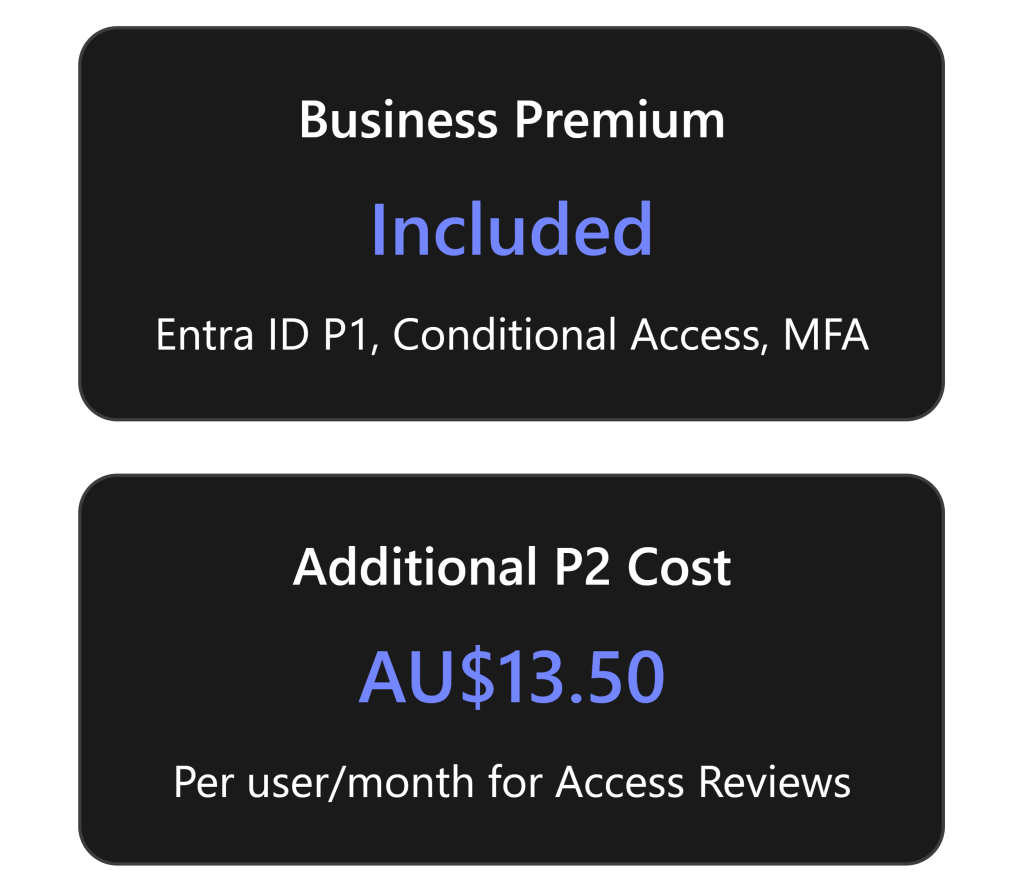
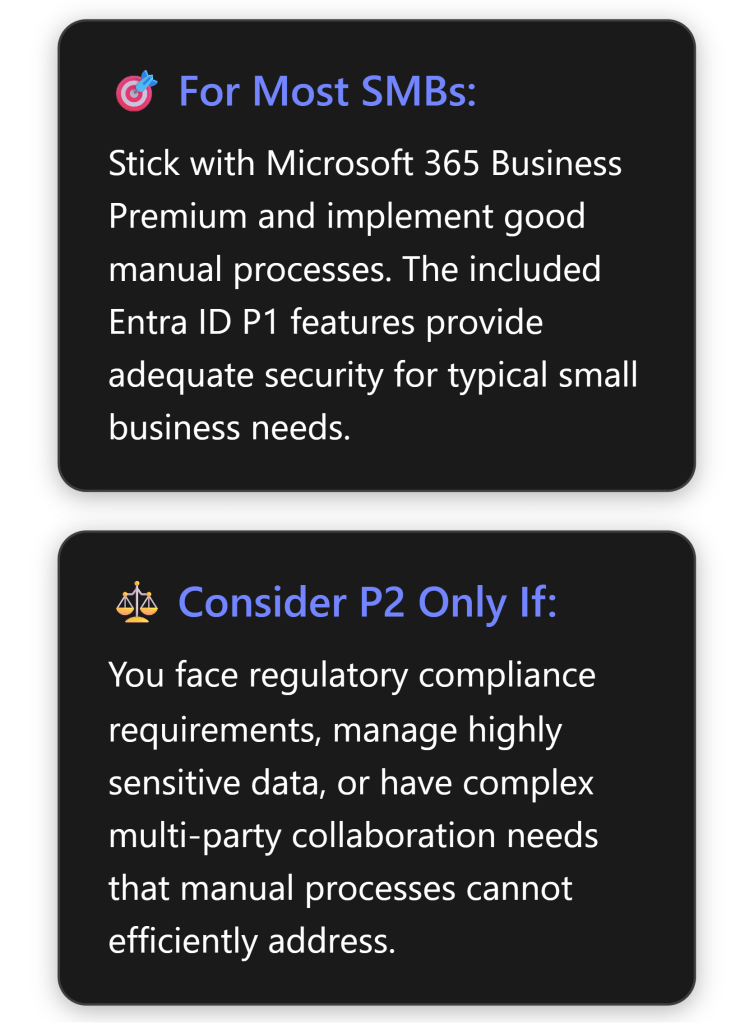
  • Apply Least Privilege and Access Reviews: To tackle the risk of oversharing, audit and minimize user access rights. Use Business Premium’s Azure AD capabilities to regularly review who has access to what groups, Teams, and SharePoint sites[1][1]. Remove users from any data repositories that aren’t necessary for their role[1][1]. A best practice is to manage access via security groups (and even Dynamic Groups that auto-adjust membership based on user attributes, available with P1)[1]. This ensures a consistent, role-based access scheme. When someone changes role or leaves, updating group membership will automatically update their access. Conduct periodic access recertifications for sensitive SharePoint sites and Teams channels to ensure only the right people are listed. Business Premium doesn’t include Azure AD P2 (which has advanced Access Review and Privileged Identity Management features), but you can still implement manual reviews and use P1 features to great effect. The goal is to prune excessive permissions so that even if Copilot is queried, it cannot pull data from areas a given user should not touch. By tightening internal access controls (the principle of least privilege), you contain Copilot’s reach to appropriate data only[2].

  • Restrict Copilot Index to Relevant Content: As an added precaution, consider excluding particularly sensitive repositories from Copilot’s scope. Microsoft 365 Copilot uses a “semantic index” to know what content is available to answer questions. Using administrative settings, you can prevent certain SharePoint sites or collections from being indexed by Copilot if they contain highly sensitive info (e.g., an HR folder with payroll data)[1][1]. This way, even if some users have access to those sites, Copilot will ignore them. This is a coarse control, but for small businesses with a few especially sensitive projects, it might make sense to keep Copilot focus on less sensitive data while still allowing users to benefit from Copilot on general content.

  • Device and Endpoint Protection: Business Premium includes Microsoft Intune (Endpoint Manager) and Microsoft Defender for endpoints and Office 365, providing comprehensive device and threat protection. Use Intune to enforce device compliance – only allow Copilot access from devices that are managed, up-to-date, and meet security standards (OS patched, disk encrypted, not jailbroken, etc.)[4]. With Intune app protection policies, you can restrict Copilot (and other M365 apps) on personal/BYOD devices[4]; for instance, you might block Copilot usage on devices that don’t have a device PIN or which lack enterprise wipe capability. If a device is lost or compromised, Intune enables you to remotely wipe corporate data, including any Copilot-generated content on that device[4][4]. This ensures that an opportunistic thief cannot simply open the user’s Copilot history or files on a stolen laptop. Meanwhile, Microsoft Defender for Office 365 (included in Business Premium) helps safeguard email and collaboration tools from phishing and malware attacks[5]. Features like anti-phishing policies, Safe Links/Attachments, and AI-based threat detection will reduce the chance of a successful phishing email that could steal credentials or deliver a malicious payload aimed at Copilot[5][5]. Likewise, Defender for Business (endpoint protection) will detect and block malware or suspicious activities on endpoints, preventing tools like keyloggers or token theft that attackers might use to hijack a Copilot session. In summary, secure the devices and platforms through which Copilot is accessed – this creates a strong barrier against external exploits and ensures only trusted, secure endpoints are interacting with your sensitive M365 data.

  • Sensitivity Labels and Information Protection: A cornerstone of mitigating Copilot risks is classifying and protecting sensitive data so that even if Copilot can index it, it won’t divulge it to the wrong people. M365 Business Premium comes with Microsoft Purview Information Protection (equivalent to Azure Information Protection P1) which lets you create and apply sensitivity labels to documents and emails[1][1]. These labels can enforce encryption and access restrictions on content. For example, you might have labels like “Confidential – Finance” that only the finance team can open, or “Private – HR” that only HR and executives can read. Copilot honors these labels: if a user asks a question that would involve labeled content they aren’t permitted to see, Copilot will not include that data in its response[4][1]. In effect, sensitivity labels add a second layer of authorization on top of basic file permissions. Even an employee who somehow has read access to a labeled file will be blocked by encryption from actually viewing it or having Copilot summarize it unless they are explicitly included in the label’s access policy[1][1]. Business Premium allows you to require these labels on content: for instance, you can make it mandatory that all files in a certain site have a label, or train users to apply a “Confidential” label to particularly sensitive files[4][1]. Copilot also inherits sensitivity labels for any content it generates[4] – meaning if it summarizes a confidential document, the summary it creates will automatically get tagged with the same confidentiality label to prevent it from being freely shared. By establishing a data classification scheme (e.g. Public, Internal, Confidential) and consistently labeling data, you ensure Copilot cannot become a conduit for leaking the most sensitive information[2][2]. This approach directly addresses insider misuse and inadvertent oversharing: even if someone tries, the platform will technically prevent them from accessing or sharing what they shouldn’t. Start with at least one or two high-sensitivity labels for your crown jewels and expand as needed[1]. Business Premium makes it feasible for small businesses to use enterprise-grade information protection without additional cost.

  • Data Loss Prevention (DLP) Policies: Alongside sensitivity labels, Data Loss Prevention policies in Business Premium can help prevent sensitive data from leaving your organization. With DLP, you can define rules that detect confidential information (keywords, credit card numbers, personal data, etc.) in emails or files and block or warn on sharing attempts. For example, if Copilot (or a user) tries to share a document containing customer SSNs or other PII outside the company, a DLP policy can automatically prevent it or alert an admin. Business Premium supports DLP for Exchange email, SharePoint, and OneDrive, which covers the main channels through which Copilot might output content. You can thus mitigate the data exfiltration risk: even if a user gets sensitive content via Copilot, DLP can stop them from, say, copying that text into an email to an external address[1][2]. Microsoft’s guidance specifically notes using DLP to “restrict the ability to copy and forward confidential business information”[4] that could be obtained via Copilot. In practice, this means setting up rules to catch things like financial info, personal data, or other critical keywords. DLP won’t stop a determined insider in all cases, but it’s an effective net to catch and log many improper sharing attempts, adding another layer of defense against both malicious and accidental leaks[2][1].

  • Secure Collaboration Settings: Review and tighten sharing settings in your M365 environment. Default sharing policies in SharePoint/OneDrive should be limited to prevent free-for-all access. As recommended for Copilot security, set external sharing to “Only people in your organization” by default or “Specific people” instead of anonymous links[1][1]. Similarly, limit who can create Teams sites or SharePoint sites[1] – uncontrolled sprawl can lead to sensitive data being stored in places IT doesn’t know about, which Copilot could then index. Business Premium allows customization of these tenant settings. Also consider requiring users to accept a Terms of Use banner or policy before using Copilot (Conditional Access can present a terms of use notice) to remind them of their responsibilities[4][4]. All these measures reduce the chance of sensitive info being broadly accessible. In essence, shrink the sandbox in which Copilot operates: compartmentalize data (project-specific sites with strict membership), avoid open-access group shares, and use private channels for confidential topics. By doing so, you minimize the fallout if Copilot is misused, since the AI can only search well-defined silos of information.

  • Monitoring, Audit, and Incident Response: Business Premium extends M365’s auditing and compliance capabilities, which are crucial for monitoring Copilot usage and responding to incidents. Ensure that Audit Logging is turned on for your tenant (it is on by default in most M365 setups) so that Copilot interactions are recorded. Microsoft has built hooks such that every question a user asks Copilot, and potentially Copilot’s responses, can be logged as an event[4][4]. In Business Premium, you can use eDiscovery (Standard) to search these logs and even place a legal hold on Copilot-related content if needed for an investigation or compliance inquiry[4]. For example, if you suspect a particular user was using Copilot to gather confidential data before leaving the company, you can search the Copilot interaction logs for that user’s sessions and keywords. Business Premium’s eDiscovery allows you to export Copilot interaction data and analyze it for any signs of policy violation[4]. Also set up alert policies in the Microsoft Purview compliance portal or Defender portal – e.g., trigger an alert if a single user’s Copilot queries a high volume of content or if Copilot is asked for certain classified info. Although still evolving, Microsoft 365’s unified audit log will capture things like “User X used Copilot to access file Y” which is invaluable for forensic analysis. Develop an incident response plan specific to Copilot: Identify how admins will disable Copilot for all users or a specific user if a major vulnerability is discovered or misuse is detected, how to communicate such an event, and how to remediate. In case of an account compromise incident, treat it like any O365 breach – immediately revoke the session (which you can do with conditional access or by resetting their token), reset passwords, and review all Copilot queries made by that account. Having the ability in Business Premium to quickly search and hold those interaction logs ensures you can assess what (if anything) was leaked via Copilot and report accordingly. In summary, actively monitor Copilot’s use just as you would email and file access, and be prepared to react if something seems amiss.

  • Compliance Configuration: Leverage Business Premium’s compliance features to ensure Copilot usage stays within legal and regulatory bounds. This includes creating data retention policies for Copilot content. For instance, you might decide that Copilot chat history for each user should be retained for 90 days (or a year) for audit purposes, or conversely not retained at all beyond a point, depending on compliance needs. M365 allows admins to set retention or deletion policies on “Copilot interactions” similar to chat messages[4]. Use this to prevent indefinite accumulation of possibly sensitive AI-generated content, or to ensure you have an archive if required by law. Likewise, ensure that your data classification and labeling (as mentioned above) aligns with regulations like GDPR – e.g., label personal data clearly and handle it with DLP rules. The audit and eDiscovery capabilities included in Business Premium support GDPR Subject Access Requests or legal eDiscovery by allowing content search and export, including Copilot outputs[4]. Microsoft 365 Copilot and Business Premium are compliant with industry standards (ISO 27001, SOC 2, etc.)[3][3], but it’s up to you to configure the policies to meet your specific obligations. Regularly review Microsoft’s compliance documentation and updates, since Copilot is new and Microsoft may release additional compliance controls or guidance. In short, treat Copilot-generated data as you would any other business data: apply retention schedules, legal hold when necessary, and ensure you can search and retrieve it to meet any regulatory requirement.

  • User Training and Security Awareness: Technology alone isn’t a silver bullet – user behavior is critical. Conduct training sessions for your staff on the proper use of Copilot and the sensitivity of data. Make sure employees understand that Copilot is not magic – it will give out anything they have access to. Teach them what not to ask Copilot (e.g., don’t try to snoop on areas they know are off-limits, as such attempts are logged and against policy). Emphasize the existing company policies on data confidentiality apply equally to Copilot outputs. For example, if it’s against policy to download a client list, it’s also against policy to ask Copilot to summarize that client list for you unless you have a business need. Encourage a culture of least privilege and ethical data use. Additionally, include Copilot scenarios in your regular security awareness training – for instance, educate users about prompt injection: warn them that if Copilot ever responds in a strange way or tries to do something odd like sharing a link unexpectedly, they should stop and report to IT, as it might be an attack attempt. Since Business Premium also offers Attack Simulation Training (via Defender, you can run phishing simulations, etc.), extend that to Copilot by maybe simulating a scenario where a user might be tricked into revealing info via Copilot. Overall, informed users can act as an additional defense: if they understand the risks, they are less likely to make mistakes and more likely to notice suspicious behavior. In small businesses, investing time in security awareness pays off greatly because each person often has relatively broad access. Make sure they all practice good security hygiene: strong passwords, not sharing accounts, and reporting lost devices immediately so you can wipe them. Finally, clearly communicate to all employees that all Copilot interactions are monitored and misuse will have consequences – this alone can deter inquisitive minds from pushing the boundaries.

  • Stay Updated on Threat Intelligence: The landscape of AI threats is fast-evolving. As part of your Business Premium subscription, you have access to Microsoft’s security community and alerts. Pay attention to announcements from Microsoft about Copilot’s security (for example, the patch of the “EchoLeak” vulnerability in June 2025). Enable Microsoft Defender Threat Intelligence feeds if possible, or simply keep an eye on Microsoft 365 admin center messages regarding security updates. Microsoft continuously improves Copilot’s safeguards (such as better prompt filtering and content securities). By staying current with patches and recommendations, you ensure you’re protected against the latest known exploits. Also consider joining preview programs or consulting trusted Microsoft 365 experts (partners) to get ahead of emerging risks. Business Premium subscribers can use the Secure Score tool in the Microsoft 365 security center to get recommendations — some will directly apply to Copilot scenarios (e.g., “Require MFA for all users” would mitigate many Copilot risks). Treat Copilot security as an ongoing process, not a one-time setup: regularly review your configurations, audit results, and user feedback. Perform drills or risk assessments periodically (Microsoft has even provided a Copilot Risk Assessment QuickStart guide) to identify any new gaps. Being proactive and vigilant will ensure that as Copilot evolves, your security keeps pace.


Conclusion

Microsoft 365 Copilot can be used securely in a small business when combined with the robust security features of M365 Business Premium. The main risks – from data leakage due to over-broad access, to account compromise, to novel AI attacks – can be mitigated through a layered approach: strong identity security, strict access controls, data encryption/labelling, device protection, diligent monitoring, and user education. Business Premium provides all the essential tools (MFA, Conditional Access, Intune, Defender, Purview Information Protection, DLP, Audit, eDiscovery, etc.) to implement a multi-layered defense that aligns with the principles of Zero Trust (verify explicitly, least privilege access, assume breach). By applying these measures, a small business can enjoy Copilot’s productivity benefits while safeguarding sensitive data and maintaining compliance[1][4].

In summary, to securely deploy Copilot: harden your identities and devices, clean up permissions, label and protect your data, monitor everything, and train your people. With M365 Business Premium, even a small organization can achieve enterprise-grade security in these areas. The result is an environment where Copilot becomes a trusted assistant rather than a potential leak. By following the best practices above, you will significantly reduce the security risks of using Microsoft 365 Copilot and can confidently leverage its AI capabilities to drive productivity – safely and securely.[3][2]

References

[1] Microsoft 365 Copilot | Security Risks & How to Protect Your Data

[2] Microsoft 365 Copilot Security Concerns and Risks – lepide.com

[3] Microsoft 365 Copilot Security Risks: Steps for a Safe … – CoreView

[4] Secure Microsoft 365 Copilot for small businesses

[5] Microsoft Defender for Office 365

Does a M365 Copilot license include message quotas?

*** Updated information – https://blog.ciaops.com/2025/12/01/copilot-agents-licensing-usage-update/
bp1

Yes, a 25,000 message quota is included with each Microsoft 365 Copilot license for Copilot Studio and is a monthly allowance—not a one-time allocation.

Key Details:
  • The quota is per license, per month 1.
  • It resets each month and applies to all messages sent to the agent, including those from internal users, external Entra B2B users, and integrations 2.
  • Once the quota is exhausted, unlicensed users will no longer receive responses unless your tenant has:
    • Enabled Pay-As-You-Go (PAYG) billing, or
    • Purchased additional message packs (each pack includes 25,000 messages/month at $200) 2.

This means in a setup where only the agent creator has a license of M365 Copilot, any agent created will continue to work with internal data (i.e. inside the agent, like uploaded PDFs, or data inside the tenant, such as SharePoint sites) for all unlicensed users until that monthly creator license quota is used up.

Thus, each Microsoft 365 Copilot license includes:

  • 25,000 messages per month for use with Copilot Studio agents.

So with 2 licensed users, the tenant receives

2 × 25,000 = 50,000 messages per month

This quota is shared across all users (internal and external) who interact with your Copilot Studio agents.


References:

1. https://community.powerplatform.com/forums/thread/details/?threadid=FCD430A0-8B89-46E1-B4BC-B49760BA809A

2. https://www.microsoft.com/en-us/microsoft-365/copilot/pricing/copilot-studio

CIAOPS AI Dojo 001 Recording

Video URL = https://www.youtube.com/watch?v=dk-mZ3o6bk4

Unlocking the Power of Microsoft 365 Copilot: A Comprehensive Guide to AI Integration

Welcome to my latest video where I dive deep into the world of Microsoft 365 Copilot! In this comprehensive guide, I explore the incredible capabilities of Copilot, from its free version to the advanced features available with a paid license. Join me as I demonstrate how to leverage Copilot for enhanced productivity, secure data handling, and seamless integration with Microsoft 365 applications. Discover the benefits of using agents like the analyst and researcher, and learn how to create custom agents tailored to your specific needs. Whether you’re an IT professional or a business owner, this video will provide you with valuable insights and practical tips to maximize the potential of Microsoft 365 Copilot. Don’t miss out on this opportunity to transform your workflow with AI-powered tools!

More information – https://blog.ciaops.com/2025/06/25/introducing-the-ciaops-ai-dojo-empowering-everyone-to-harness-the-power-of-ai/

Integrating Microsoft Learn Docs with Copilot Studio using MCP

bp1_thumb[2]

Are you looking to empower your Copilot Studio agent with the vast knowledge of Microsoft’s official documentation? By leveraging the Model Context Protocol (MCP) server for Microsoft Learn Docs, you can enable your agent to directly access and reason over this invaluable resource. This blog post will guide you through the process step-by-step.


What is the Model Context Protocol (MCP)?

MCP is a powerful standard designed to allow AI agents to discover tools, stream data, and perform actions. The Microsoft Learn Docs MCP Server specifically exposes Microsoft’s official documentation (spanning Learn, Azure, Microsoft 365, and more) as a structured knowledge source that your Copilot Studio agent can query and utilize.


Prerequisites

  • Copilot Studio Environment: An active Copilot Studio environment with Generative Orchestration enabled (you may need to activate “early features”).
  • Environment Maker Rights: Sufficient permissions in your Copilot Studio environment to create and manage connectors.
  • Outbound HTTPS: Your environment must permit outbound HTTPS connections to learn.microsoft.com/api/mcp.
  • Text Editor: A text editor (e.g., VS Code, Notepad++) for creating a YAML file.


Configuration Steps

Step 1: Grab the Minimal YAML Schema

The Microsoft Learn Docs MCP Server requires a specific OpenAPI (Swagger) YAML file to define its API. Create a new file (e.g., ms-docs-mcp.yaml) and paste the following content into it:

swagger: '2.0'
info:
  title: Microsoft Docs MCP
  description: Streams Microsoft official documentation to AI agents via Model Context Protocol.
  version: 1.0.0
host: learn.microsoft.com
basePath: /api
schemes:
  - https
paths:
  /mcp:
    post:
      summary: Invoke Microsoft Docs MCP server
      x-ms-agentic-protocol: mcp-streamable-1.0
      operationId: InvokeDocsMcp
      consumes:
        - application/json
      produces:
        - application/json
      responses:
        '200':
          description: Success

Save this file with a .yaml extension.

Note: This YAML file is available for download here: ms-docs-mcp.yaml on GitHub

Step 2: Import as a Custom Connector in Power Apps

Copilot Studio leverages Custom Connectors, managed within Power Apps, to interface with external APIs like the MCP server.

  1. Go to Power Apps: Navigate to make.powerapps.com.
  2. Custom Connectors: In the left navigation pane, select More > Discover all > Custom connectors.
  3. New Custom Connector: Click on + New custom connector and choose Import an OpenAPI file.
  4. Upload YAML:

    • Give your connector a descriptive name (e.g., “Microsoft Learn MCP”).
    • Upload the .yaml file you prepared in Step 1.
    • Click Import.

  5. Configure Connector Details:

    • General tab: Confirm that the Host is learn.microsoft.com and Base URL is /api.
    • Security tab: For the Microsoft Learn Docs MCP server, select No authentication (as it is currently anonymously readable).
    • Definition tab: Verify that an action named InvokeDocsMcp is present. You can also add a description here if desired.

  6. Create Connector: Click Create connector.
  7. Test Connection (Optional but Recommended): After the connector is created, go to the Test tab. Click +New Connection. Ensure the connection status is “Connected.”

Step 3: Wire It Into an Agent in Copilot Studio

With your custom connector in place, the next step is to add it as a tool to your Copilot Studio agent.

  1. Go to Copilot Studio: Navigate to copilotstudio.microsoft.com. Ensure you are in the same environment where you created the custom connector.
  2. Open/Create Agent: Open your existing agent or create a new one.
  3. Add Tool:

    • In the left navigation, select Tools.
    • Click + Add a tool.
    • Select Model Context Protocol.
    • You should now see your newly created “Microsoft Learn MCP” custom connector in the list. Select it.
    • Confirm that the connection status is green.
    • Click Add to agent (or “Add and configure” if you wish to set specific details).

  4. Verify Tool: The MCP server should now appear in the Tools list for your agent. If you click on it, you should see the microsoft_docs_search tool (or similar, as Microsoft may add more tools in the future).

Step 4: Validate (Test Your Agent)

It’s crucial to test your setup to ensure everything is working as expected.

  1. Open Test Pane: In Copilot Studio, open the “Test your agent” pane.
  2. Enable Activity Map (Optional): Click the wavy map icon to visualize the activity flow.
  3. Ask a Question: Try posing questions directly related to Microsoft documentation. For instance:

    • “What MS certs should I look at for Power Platform?”
    • “How can I extend the Power Platform CoE Starter Kit?”
    • “What modern controls in Power Apps are GA and which are still in preview?”

The first time you execute a query, you might be prompted to connect to the custom connector you’ve just created. Click “Connect,” and then retry the query. Your agent should now leverage the Microsoft Learn MCP server to furnish accurate and relevant answers directly from the official documentation.


Important Considerations:

  • Authentication: Currently, the Microsoft Learn Docs MCP server operates without requiring authentication. However, this policy is subject to change, so always consult the latest Microsoft documentation for updates.
  • Generative Orchestration: This feature is fundamental for the agent to effectively utilize MCP. If you don’t see “Model Context Protocol” under your Tools, ensure generative orchestration is enabled for your environment.
  • Updates: As Microsoft updates its documentation, the MCP server should dynamically reflect these changes, ensuring your agent’s knowledge remains current.

By following these steps, you can successfully integrate the Microsoft Learn documentation server into your Copilot Studio agent, providing your users with a powerful and reliable source of official information.