
A common concern that holds many back from using all the resources available in Azure is consumption billing aka being billed for what you use rather than a flat fee as you get with Microsoft 365 services.
Here’s a way to keep an eye on those costs daily via email.
Firstly, login to the Azure portal as an administrator and then navigate to Cost Management + Billing. Next, you want to set up the report that you want to see daily.
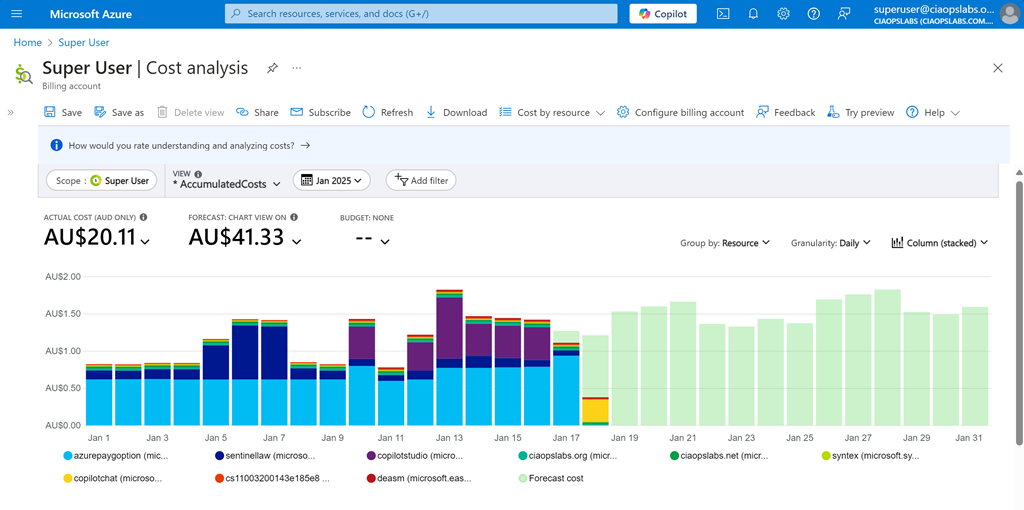
For me I want to see Cost Analysis for the current monthly with accumulated costs, grouped by resource, granularity daily and as a stacked column as shown above. When you have it the way you want select the Save option on the menu at the top of the page.
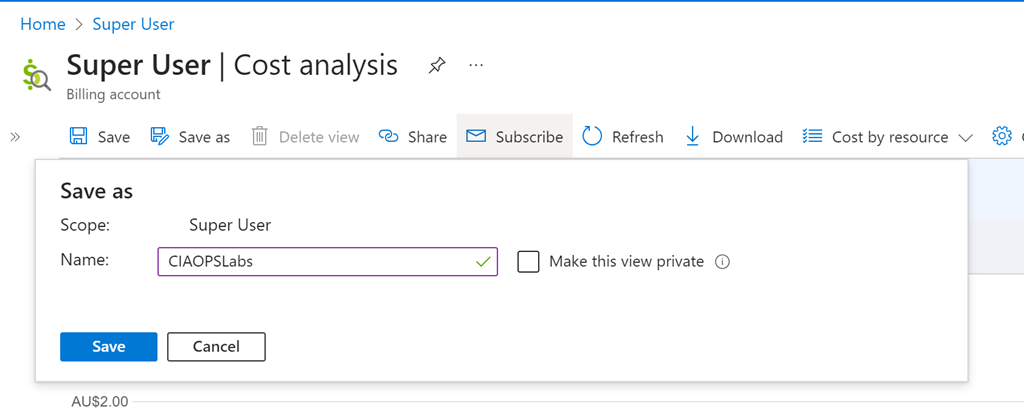
You’ll be asked for a name, as you see above. Select Save when complete.
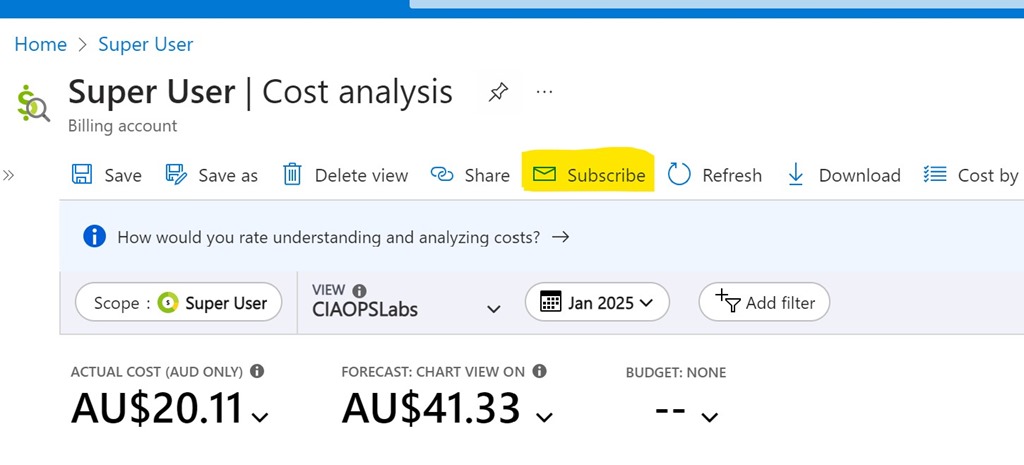
Also on the menu at the top, now select Subscribe as shown above.
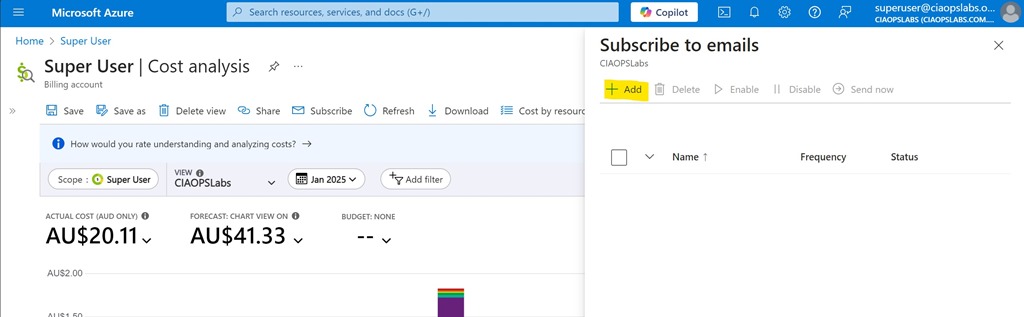
Select the Add option from the Subscribe to emails option that appears on the right as shown above.
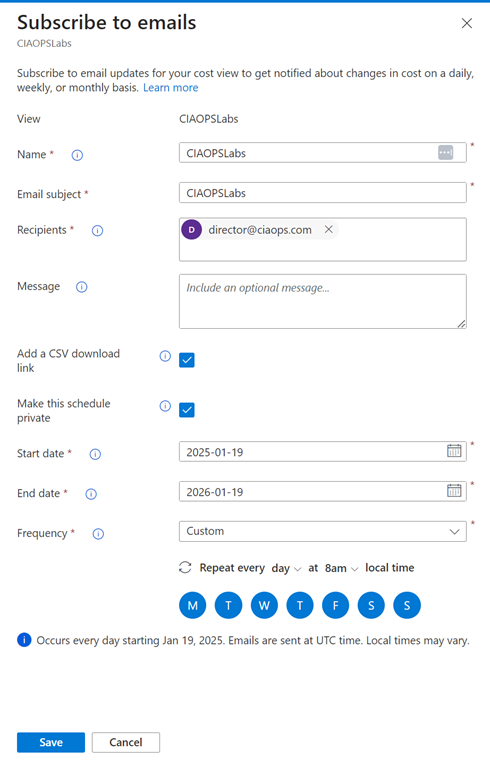
You should see the View you just saved at the top. Now complete the rest of the fields as desired. Personally, I select the option to include a CSV and want the report every day. The only challenge is that you can only specify a maximum end date 12 months out from the day you configure this. You’ll need to return annually to update this.
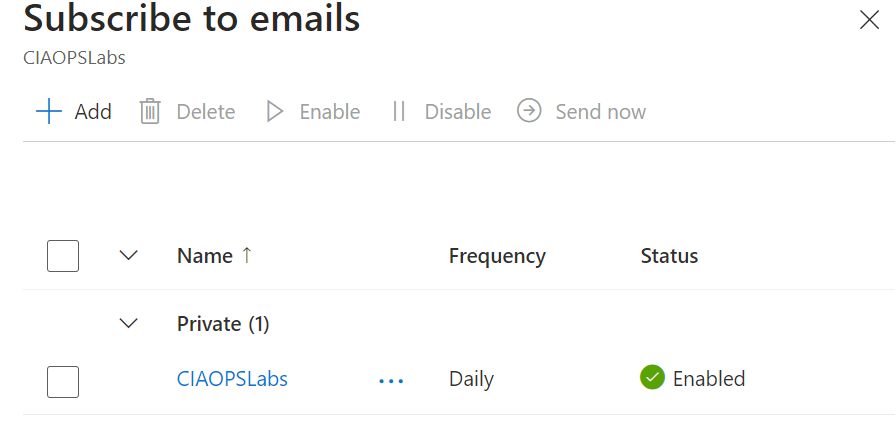
Select Save at the bottom of screen and you should now see your configuration listed as shown above.
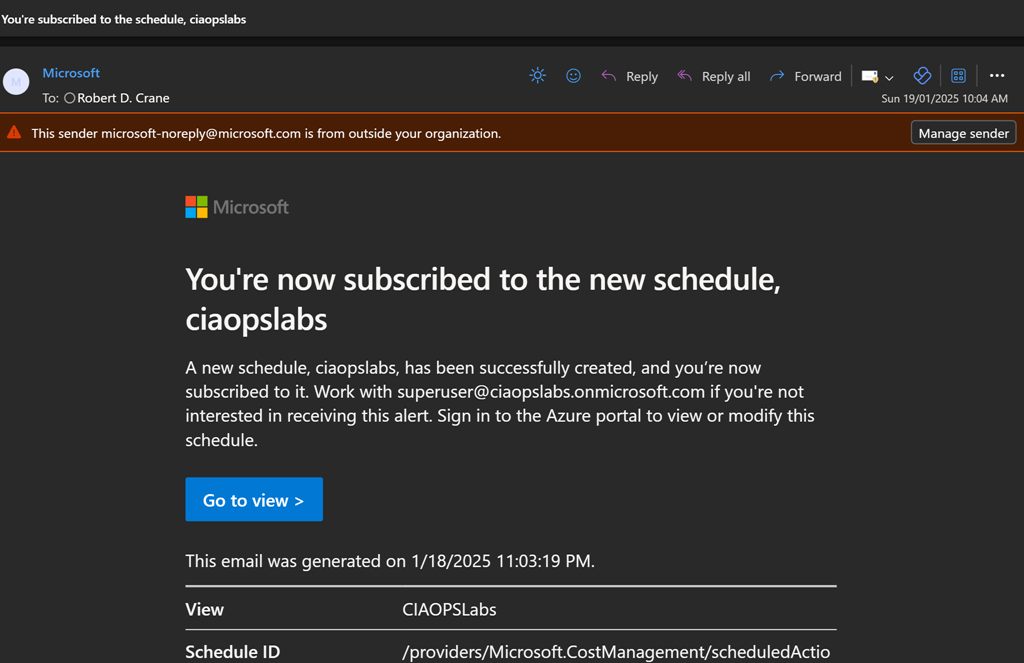
You’ll get a summary email confirming these settings as shown above.
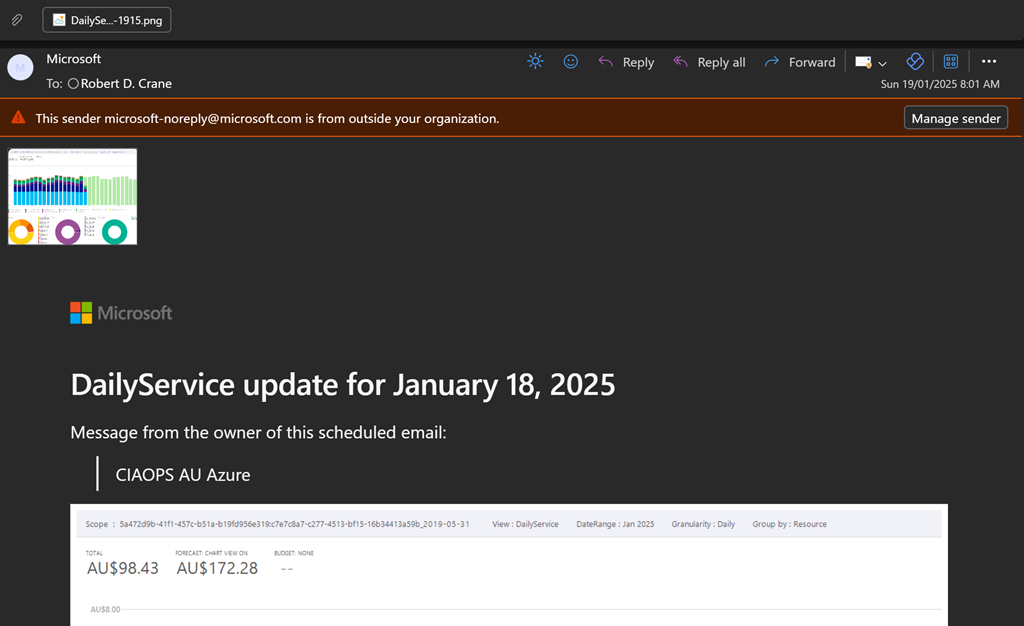
You should now start receiving a summary email on at the frequency your selected as shown above. You’ll see a screen shot of the report and a CSV attachment if you elected to include that.
Hopefully, this option provides greater piece of mind when it comes to monitoring costs with Azure. Remember, you can create as many subscription reports as you want to see a range of different details if desired.
 CIAOPS