
I’m a HUGE fan of OneNote. Personally, I feel it is the one tool that makes me the most productive. As an engineer I’ve always been documenting stuff simply because I can’t remember it all. I learnt many, many years ago that writing it down and getting it out of my memory is in fact the best way to retain and use that information.
Before OneNote, like many people, I used paper to capture everything but the more I captured the more challenges that brought. Such challenges included, how do I back up these paper notes? How do I find things with paper notes? How do I store these paper notes? and so on. Enter OneNote to solve all these issues.
Thus, I have OneNote notebooks on just about everything these days. It’s a huge source of knowledge that I can access anywhere on any device. Love it. If I need to find something I just use the inbuilt search functionality and it would pop right out. Magic!
Given that I also now have Copilot for Microsoft 365, I have started to explore how these two product combined can make me more productive and I’d like to share a use case with you that has made me sit up and pay attention to what the combination of these two services can now provide.
When you become a CIAOPS Patron you get access to two extensive notebooks on Microsoft 365 and Azure. These notebooks contain my cumulative knowledge of the Microsoft Cloud and I use them pretty much every day in my work.
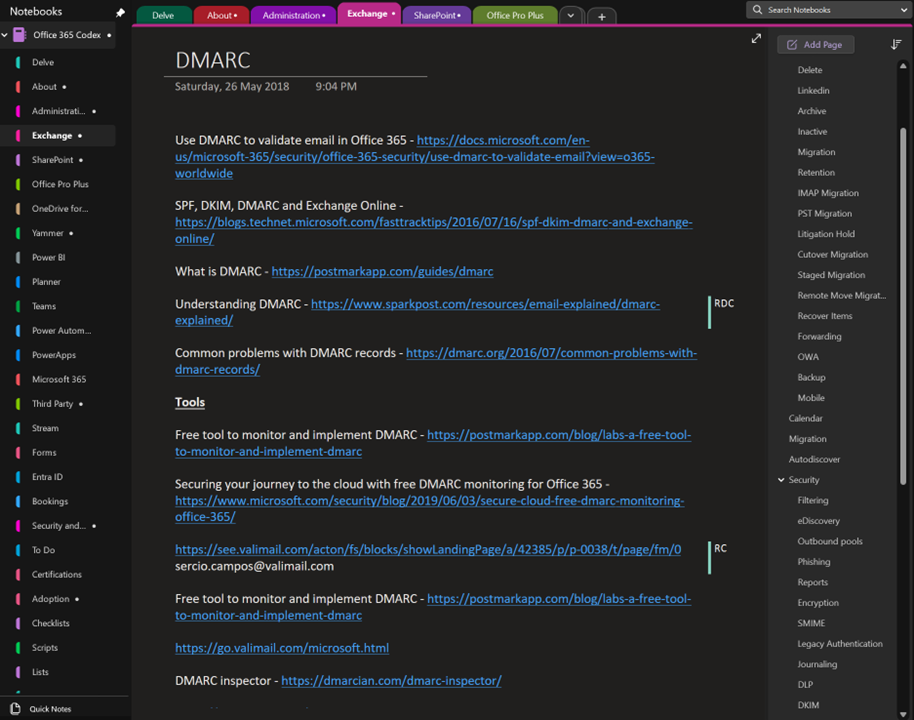
The above shows you an example page on DMARC from my Office 365 codex. The page typically contains knowledge plus links. You see on the right I have a section for every Microsoft 365 service and on the right many pages relating to that service. Here DMARC is a dedicated page in the Exchange section along with other pages such as Retention, Migration etc.
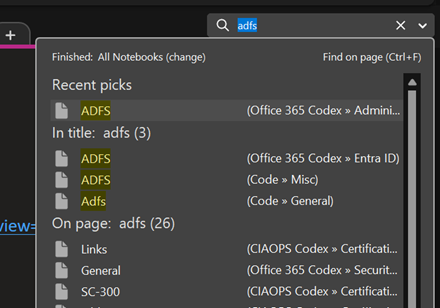
Typically, to find any information on Microsoft 365 I’d go to the top right and just use search as shown above.
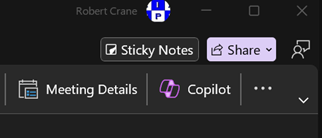
But now my desktop version of OneNote has a Copilot button as shown above. This capability doesn’t appear to be available in the web version of OneNote yet. I hope it will be soon.
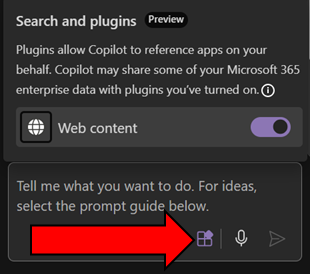
Before you go too much further make sure you select the Plugins button inside the Copilot window that appear and enable Web content as shown above. This will give you the best of both worlds with AI. It will work across you data (the notebook typically, andl in your tenant) as well as information from the web.
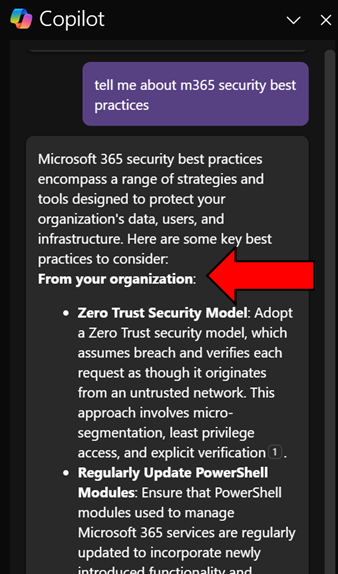
When I ask Copilot a question here you’ll see that it return information from my organization (shown above)
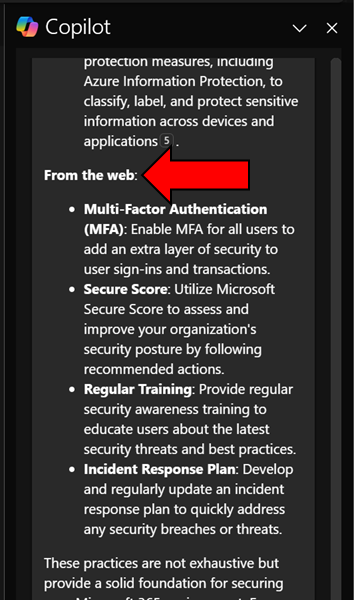
and from the web.
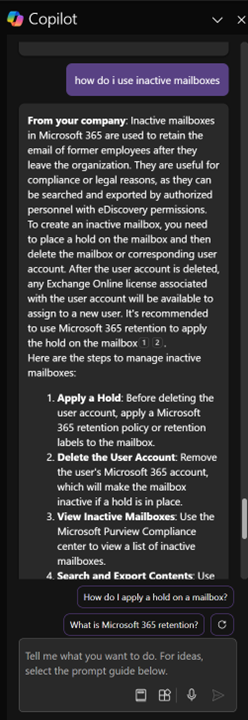
Another example is asking Copilot how to work with Exchange Online inactive mailboxes, as shown above. Again, it works with my own information and information on the web and presents in easy to digest format as well as providing me additional relevant prompts.
I have to say that this now my go to for unlocking all the knowledge I have accumulated in all my OneNote notebooks. Of course, I can probably extract something similar from other Copilot interfaces in Microsoft 365 but giving me this capability inside an application that I use more than email is a huge productivity boostt for me. Hopefully now that I have shown you what it can do for me too can go and see what Copilot for Microsoft 365 and OneNote can do for you. Let me know in the comments your use case, I’m all ears!
 CIAOPS