
This series of posts is an approach to implementing Intune inside a business. So far, I have covered off:
1. Create compliance policies and update devices to be compliant
2. Implement LAPS to control the local device admin account that cannot be deleted
3. Remove all other accounts from local administrator group on devices
4. Setting the default search engine in Edge with Intune
The goal we are trying to achieve is to move all users from third party browsers to using Microsoft Edge. The next step in this process will be deploying and managing a constrained set of extensions in Microsoft Edge.

The first step is to visit the Microsoft Edge store for extensions and grab the unique ID for the extensions you want to use. You find this in the URL for the extension as shown above. Here are three common extensions I will use for this example:
Lastpass – bbcinlkgjjkejfdpemiealijmmooekmp
DuckDuckGo Privacy – caoacbimdbbljakfhgikoodekdnlcgpk
Save to Pocket – jicacccodjjgmghnmekophahpmddeemd
Once we have these we need to login to the Intune management portal.

In the last article I created a generic device configuration profile called ‘Edge configuration’ policy that I’ll be extending here. Select the policy name to view its settings.

Scroll down the policy until you locate the heading Configuration settings as shown above, and then select the Edit hyperlink to the right of this.

Select the + Add Settings link as shown above.
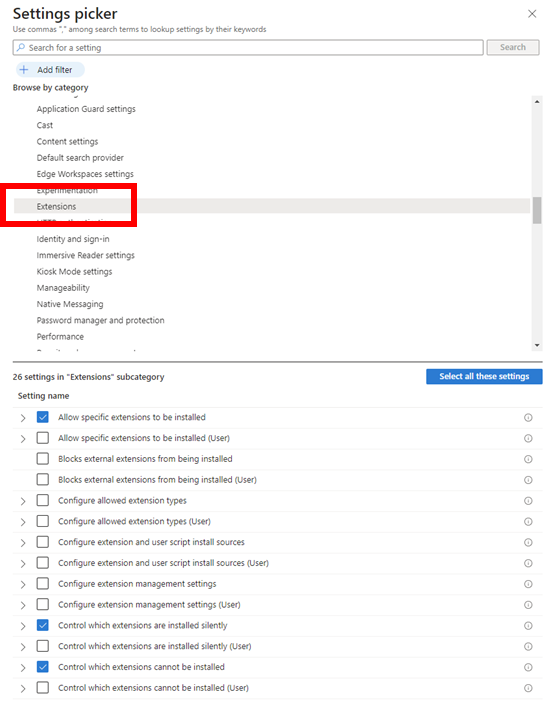
Expand the Microsoft Edge option in the top part of the blade that appears and then select Extensions as shown above. In the options that appear in the lower part of the screen select:
– Allow specific extensions to be installed
– Control which extensions are installed silently
– Control which extensions cannot be installed
Close the blade.

You should now see the ability to customise these options in the policy as shown above.
Add the ID’s of the extensions you want silently installed and ensure that each is ticked as shown.
Add ‘*’ (i.e. all) as the option for IDs to be prevented from being installed and ensure it is ticked as shown. Basically all other extensions will not be permitted to be installed.
Add the ID’s of the extensions you want to allow in the exempt from block area and ensure each is ticked as shown.
Save the policy changes and allow it to be propagated to all groups included in the policy.

Once the policy has rolled out, you should find the extensions you entered in the policy have been added to Microsoft Edge as shown above.

You should also find that users cannot add additional extensions to their Microsoft Edge browser as shown above.
The aim of this exercise was to automatically configure a number of ‘standard’ extensions for Microsoft Edge and block everything else. We have been able to achieve this by extending the original ‘Edge configuration’ policy that was created earlier.
The next step in the process will be to lock down the Microsoft Edge browser using a baseline policy. Stay tuned.
 CIAOPS
4 thoughts on “Managing browser extensions in Edge with Intune”