My software and services 2021

startup-photos

Here’s last year’s post for comparison:

My software and services – 2020

All my PC’s are running the latest version of Windows 10 (20H2) without any issues and none during the upgrade process either. I do have Windows 10 and Office Insider builds happening on an original Surface PC as a testbed. All Windows 10 Pro machines are directly joined to Azure AD and managed via Intune and Microsoft Endpoint Manager.  Their configurations are based on the Windows MDM security baseline settings. All machines run Windows Defender is a far better option in my experience. Thanks to Microsoft E5 on my production tenant, I am also using Microsoft Defender For EndPoint at the back end for monitoring and investigation of endpoint threats.

The WD Sentinel DX4000 runs Windows Storage Server 2008 and replacement is now in full swing thanks to the NBN finally arriving late last year. I have site to site VPN to Azure to allow data to be easily moved across my different infrastructure.

My two main tenants are an Office 365 E5 demo and Microsoft 365 production environments. A mix of Windows 10 Pro and Enterprise machines are all Azure AD joined to the Microsoft 365 production domain. The production Microsoft 365 tenant has Microsoft 365 Business for all users except myself. I have a Microsoft 365 E5 license on which I have configured all the services including integrated PSTN calling via Switch Connect.

I use Azure Sentinel to monitor threats across my environments via a single pane of glass.

I use the following major browsers:

Edge – my primary browser across all my devices including iOS and Android. I have it locked down with baseline policies via Microsoft Endpoint Manager.

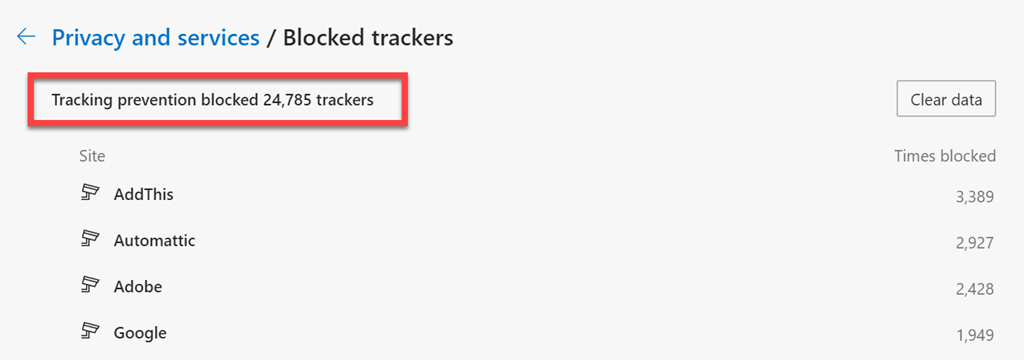
Brave – I have become increasingly concerned about the surreptitious tracking that many sites perform, especially when it comes to social media sites. I therefore now do all my ‘random browsing’, searching and viewing of social media sites. I became aware of the extent of tracking when I was adjusting the security settings in Edge Insider and found the following:
image

Made me realise that I probably need to take this ‘do not track’ stuff more seriously!

– Firefox – I now only use this on my Surface Pro X because Brave doesn’t offer an ARM version.

I have now cranked Edge up to the maximum security level but wanted to isolate the most likely tracking culprits into another browser that was security focused. After some evaluation, I have chosen Brave to be this browser. This is now where I do all the stuff that is more likely to be tracked and now hopefully blocked or at least minimised. I have also set this browser up to use Duck Duck Go as the default search engine, otherwise I use Bing for my production Edge browser. I have completely eliminated Google Chrome off all my machines without any issues and recommend those who are becoming more concerned about their privacy, like me, do the same.

Services like SharePoint Online and OneDrive I use regularly both in the demo and production tenant. I have the OneDrive sync client installed, running and connected to various locations on my production and demo tenants. I can now sync across all my different tenants as well as my consumer OneDrive storage. We have come a long way with the sync client!

I used to have  Microsoft Teams which is now my main messaging application. All the CIAOPS Patron resources like the intranet, team, etc all reside in the Office 365 E5 demo tenant but I connect to it on my desktop normally via an Azure B2B guest account from my production tenant. Thus, I can admin the Patron resources in a browser if need be but I get the same experience on my desktop as any Patron would. Handy to know what works and doesn’t work with Microsoft Teams guest access. Thanks to Microsoft E5 and Switch Connect, I also have Teams connected as a phone.

I use Lastpass to keep my passwords and private information secure. It allows me to do things like generate and store unique passwords for each website that I sign up for. It is also available across all browsers on my machine (including Microsoft Edge). I also now also use Lastpass to store secure notes.

The extensions I run in all my browsers are:

LastPass

GetPocket

I use Microsoft Power Automate for automation as well as Azure Functions.

For my email newsletters I use Mailchimp.

My preferred public social networks for business, in order are:

1. Twitter

2. Linkedin

3. Facebook

I consume a lot of content from YouTube both for business and personal interest. I also also use YouTube extensively for my publicly available training video training.

Microsoft Office desktop software is still part of my everyday workday via applications such as Outlook, Word, Excel, PowerPoint, etc. I use the desktop version of Outlook on my Surface Pro 7 which lives on my desk but I only use Outlook Web App on my travelling Surface Pro 6 device. I could happily not use Outlook on the desktop any more I believe but I still use so I understand the experience for most users. However, I do see the day when Outlook on the desktop begins to lose its appeal.

One of the things I have added to my desktop version of Outlook is a digital certificate that signs every email that I now send. This helps the receiver confirm that the message they have received is in fact from me and that it hasn’t been altered in any way. There are some issues when people attempt to reply to these emails from a mobile device but I believe a fix from Microsoft is not far away.

The key application from the suite for me is OneNote. OneNote is my go to Swiss Army knife for just about everything digital. I use it to capture all sort of data. I even use it as a diary as I have detailed previous here:

One of the ways I use OneNote

The reason OneNote is key is because:

1. Just about everything I put in there us searchable

2. It is freely available across all platforms.

3. All my information is synced and accessible on all devices.

4. It is available on the web or offline if needed.

There are now two version of OneNote, the Windows store OneNote and OneNote 2016. I am a big user of OneNote on my iPad mini with the Apple pencil. This combination has allowed me to totally eliminate my paper notebooks for things such as journaling.

I use Pure Text to easily paste information, especially to and from OneNote as only text.

I am now a big Microsoft To-Do user. I use it to keep many tasks and items that I need to follow up. I love how it is available on all my devices and syncs across them all as well.

I use Windows terminal now for things like PowerShell execution and Microsoft Whiteboard for demonstrations and training.

Another key service I use everyday along with Office 365 and OneNote is Azure. Typically, I use it for running up virtual machines that I test various things with but I also use it to backup my local data as well as that of other members of my family using Azure Backup.

Azure desktop backup

I have also now implemented an Azure site to site VPN as well as Azure SMB File storage to start moving my data into. I use Azure Sentinel to monitor all my services and machines in one single console and tell me about any incidents.

There is just so much that can be done with Azure and I pretty much use it everyday.

For a subset of my local data that I wish to remain secure I use Truecrypt to create encrypted volumes. All my Windows 10 machines run with full disk encryption thanks to Bitlocker, but stuff like financial and customer data I keep inside Truecrypt volumes for that extra layer of security. I understand that Truecrypt is no longer maintained and may have some very minor security flaws, but for how and why I use it, it is more than adequate.

Production data is also protected using Windows Information Protection which provides yet a further level of protection and extends that to all devices including mobile devices like phones and tablets,

To capture my desktop for my online training academy or my YouTube channel I use Camtasia. I use SnagIt to capture screen shots and add highlights and emphasis to these. Snagit allows me to capture complete screens or specific areas quickly and easily.

I use Microsoft Teams to record my podcasts, which I then produce with Camtasia. These are uploaded to Podbean where they syndicated across various network.

To compose and publish blog articles I use Open Live Writer. My blog lives on WordPress.com.

My web site and Battlefields site live on Squarespace.

The majority of images I get, like the one at the top of this article, I get from Pexels. Pickit is also another great option.

For improved meeting management productivity I use Microsoft FindTime.

I use Visual Studio Code in which I do most of my PowerShell editing and publishing. The end result typically is my GitHub repository where you will find a range of scripts and other resources that I maintain regular. With Visual Studio Code I can edit publish and sync all my machines and my GitHub repository no matter where I am. Very handy.

Here are also a few of the other items I use regularly that are not for business:

Amazon Prime Video – only place to the latest The Grand Tour action. I also liked the Jack Ryan series and well as the Gymkana Files but most of this viewing is now on my iPad mini.

NetFlix – Seen a lot of great stuff this give all the time in lock down but most of this viewing is now on my iPad mini.

XBox Live Gold – access to all the online Xbox goodness.

Duolingo – language learning, Japanese and Italian at the moment but most of this access is now on my iPad mini.

So there you have it, the major software and services that I use regularly. I continue to search out additional software that will improve my productivity. If you use something that you’ve found really handy, please let me know and I always keen to explore what works for others.

My Gear 2021

You can take a look back at last year’s gear here:

My Gear 2020

there were/are some major changes happening with my assortment.

Pixel 4 XL phone – My ‘Google’ phone. This as a ‘secondary’ or backup phone. It has all the Microsoft apps installed on it and is connected to my Microsoft 365 production account. Most importantly, it has the Microsoft Authenticator app for MFA access for certain apps.

This phone is becoming a bit old, tired and slow to be honest. I haven’t installed many new apps but it somehow feel slower? Maybe that has to do with the OS updates over the year? Given that my primary phone contract is due to expire in early 2021 I am debating whether to switch to Android? I’d really like to get Microsoft Duo phone but they are not yet available here in Australia. I appreciate the Duo has limitations and is expensive when compared to other phones but I’d like to see how the concept of dual screens works in a business context. We’ll have to wait and see if the Duo is rolled out Australia in 2021 and then I may retire my current Pixel. For now the Pixel will remain.

iPhone XS Max – This has been my main phone for almost two years now. As mentioned, the contact is up in February so I’m beginning to think about potentially replacing it. My main concern with doing that is not to lose my unlimited data contract, which got me out of a major jam last year when my ADSL broadband service failed for over 6 weeks.

After two years of living the iPhone lifestyle I gotta admit I still don’t get people’s fanaticism about it. Yes it is well engineered, better than most I’ll readily admit, but at the end of the day it is just a phone for me. I have a few common apps I use on it, apart from all the Microsoft ones, but honestly, I just use it as a phone not as a surrogate friend.

So when it comes to upgrading after the contract expires shortly, I’m kinda in two minds as to whether the benefits really justify this or whether it may be time to look live with Android for a while.

Surface Pro 7 – With the death of my Surface Pro 4 in late 2019 I invested in a new Surface Pro 7 as my main desktop machine. Being the same form factor, it just slotted directly into my Kensington SD7000 Surface Pro Docking Station. This meant that my Surface Pro 6 device has been relegated to my backup or travelling device (which kinda didn’t happen much in 2020 now did it!).

The only real noticeable difference with the Surface Pro 7 is that it is a little faster, however it is the machine that I use most day to day and has performed flawlessly.

Surface Pro 6 – Moved from being my primary desktop to being my backup and travelling machine. I use it pretty much every day as an adjunct to my main machine. It lives on my secondary Kensington SD3500v connected to a full screen and acts as my onsite backup in case my main machine fails or is unavailable for some reason. It is also a handy way to test things from outside my environment by hot spotting to my phones.

Surface Pro X – I had the opportunity in 2020 to buy a virtually new ARM based version of a Surface PC cheaply, so I did. I was interested to see how it performed with an eye to make it my travelling PC given it was lighter and was less power hungry. I also grabbed it to better understand the limitations that an ARM processor would bring to productivity work.

At the moment this device sits in my offsite  ‘back up’ office which I still visit regularly. The idea with my ‘back up’ office is that if my main office is unavailable for some reason (i.e. no broadband, on fire or under water, unable to access, etc) then I have another location I can work from that has everything I need, including infrastructure.

The major thing I like about the Surface Pro X is the pen. It is far superior to the Apple pencil in my opinion. It feels and operates far more like a real pencil. Given that this style of electronic scribe also comes with a Duo device is one of the major reason I am keen on getting it when it becomes available in Australia.

Can I use the Surface Pro X as a desktop replacement for say my Surface Pro 7? Yes, but with more reliance on the cloud to do things the Surface Pro X can’t do natively. Could others? probably not if they are dependent on ‘old world’ desktop software. However, as that dependency falls away I see a real place for devices like these. Maybe not this one, but something like it in the future. That’s why I’d love to get my hands on Duo device to see whether it is closer to this dream

Surface Pro 3 – Continues to work fine and functions as a Microsoft Teams ‘phone’ tablet on my desktop. Basically, it is now a device I use for making and receiving calls. It sits on my desk without a mouse and keyboard, arranged in portrait orientation. It doesn’t get used much to be honest but it still chugs along and while it does I’ll hang onto it if for nothing else than testing.

Surface – I have had an original Surface version 1 for many years now. The keyboard has long since broken by the system still works fine, although somewhat under powered with only 4GB of RAM. This is why this machine is the machine I use with Windows 10 insider builds. In essence, it is a test machine that I can reformat and reconfigure on a whim.

iPad mini 5th Gen – I decided I wanted a smaller ‘notebook’ size table to use like a paper diary, amoungst other things, so I went out and bought an iPad mini. My older, larger iPad was then repurposed for a family member, so it also still remain in operation.

I also now use this iPad mini with the Apple pencil, which generally works well. The secret is to get a good case for both the iPad mini and the pencil. My choice was:

Finite Case with Pencil holder

which I’d certainly recommend as it is flexible, tough and cheap.

Another reason for going with an iPad mini was that it would be less bulky to travel with but that didn’t get tested in 2020, hopefully 2021.

The only major downside of the iPad mini is that battery life is a lot less than the full size iPad, which is understandable. I have however never run out of juice but you do notice the power levels fall away quickly when compared to the full size version. I like that the iPad mini comfortable fits on my desk, works will with the Apple pencil and is much more transportable than the larger version. I was a little concerned that the screen size would be too small to enjoy movies and read web pages, etc but that hasn’t proved to be the case. I happy use it lying back on the couch to watch a variety of programs and read web sites.

All in all I’m very happy with this devices as a replacement for a paper diary or notebook. When you add in everything else it can provide as well I’m happy to say that apart from my desktop PC, this is probably the device I use most.

Ubiquiti – Towards the end of 2020 I started to have real issues with my ADSL broadband. This last for over six weeks and at times meant that I had to resort to using my mobiles. Luckily, after that NBN broadband FINALLY became available in my location but unfortunately the modem that I ordered from the new supplier decided to take a holiday trip around Australia instead of being delivered to me. I therefore went out and bought a D-Link Wireless N300 Model Router DSLG225 so I could at least connect.

Now thanks to the fact that I already had a variety of Ubiquiti in place I just needed to slap this modem inline, set it to bridge mode, may a few minor changes to the configuration of the Security Gateway and I was up and running.

image

This new broadband connection has made a huge difference to my work, especially have so much more upload speed! However, having the Ubiquiti stuff already in place removed the need for a major reconfiguration of my on premises infrastructure.

One of the items that I am again considering for 2021 (still) will be a Ubiquiti camera like this:

G3 micro

Again, not really a must have but I can see benefits of having one of these device to monitor things when I’m not there.

Docking station – I still love my Kensington SD7000 Surface Pro Docking Station. It is a really neat device, that suits most modern Surface Pro devices. It is slim, compact and now all me to have 3 external monitors off the one Surface devices (as you can never have enough screen now can you eh?). I can plug in all my devices, microphones, phones, etc to it and all the cables are hidden at the back. I also like that you can adjust the screen up and down, a bit like a Surface Studio.

Occasionally, one of my monitors goes dark and a few seconds later comes back, kinda like it is doing a reset or refresh. Maybe I need to update some drivers? Apart from that it continues to perform flawlessly.

The original Kensington SD3500v has now moved to work with the travelling PC when it is running in my office and that is also working well, making it a truly ‘plug and play’ experience when I get back from road trips.

WD Sentinel DX4000 – Now that NBN has finally arrived I’m beginning to shift most of my production data to Microsoft 365 and Azure. I doubt that I’ll de-commission this device as it is still useful as a backup and a repository for stuff that doesn’t make sense in the cloud. My on premises environment is connected to Azure via a site-to-site VPN so I can readily move files between the two locations.

In the end, this device serves less and less purpose as I move more and more data off it and into the cloud.

Personal fitness device – I am still in two minds about this. Is it something that I will really take advantage of? I am also somewhat concerned about the privacy of them, given that Google purchased Fitbit a while back. My major reason for such a device would be to monitor my sleep and my activity (steps). A heart rate monitor would also be handy. If I went with anything I think it would the Oura ring, but that ain’t cheap. So I am still deciding whether it is worth the investment.

Amazon Kindle – Still have this but it has now largely been superseded by the iPad mini for reading books. I still love my Kindle but if I can have one less device then I’m going to take that option. so for now, the Kindle has been relegated as a backup.

Xbox One S – Still use it to watch YouTube, Netflix and Amazon video but now playing more games thanks to the release of the latest Call of Duty game.

My major hardware investments in 2020 where a new Surface Pro 7, Surface Pro X and iPad mini. The arrival of NBN is now accelerating the retirement of the WD Sentinel. My major focus will be determining what I go for in regards my day to day phone and I would really love to see the Duo device arrive on our shores.

2020 was a very different year, with greatly reduced travel so we’ll see what this year brings but I kinda feel it is going to be pretty much the same for now.

My Stuff 2021

This post is my annual post aimed at bringing the links to everything I have out there on the Internet together into a single place. Here we go.

About me

Social Media

Free Stuff

Regular technical and business information, tutorials, walk throughs, learnings, upcoming courses and more.

Here you’ll find currently almost 200 videos full of tutorials on SharePoint, Office 365, Azure and technology.

Presentations and whitepapers for free download.

Documentation for older versions of SharePoint on premises, especially the free versions and those that came with SBS.

Cloud lecture series is a set of free tutorials, training session and so on that I have provided over the years:

I have number of free GitHub repositories that include things like PowerShell scripts, pricing calculators, reference documents, helpful links and more. You will find all these at:

With almost 265 episodes and now entering it’s 11th year my podcast focuses on providing you news and updates from the Microsoft Cloud around Office 365 and Azure.

You can subscribe using iTunes or Stitcher.

Need to Know webinars are held monthly and announced on my blog but you can always register and get the details for the next one here:

and subscribe to to previous and upcoming webinars here:

Commercial stuff

This stuff helps pay for free stuff above so I appreciate your support for my paid work.

Access to the private CIAOPS community for technical support, product discounts and access to the best Office 365 and Azure information

For end user focused training on Office 365 services and applications:

Lots of courses on Office 365, PowerShell, Azure, SharePoint and the like.

General Interest

This accounts sends a tweet to commemorate a significant dates from the Australian battles in France during World War 1.

I’m a big believer in supporting those who want to build their own business but just need a leg up to get started. Kiva is simply and easy way to provide this and I recommend this to everyone.

In 2020 I read over 44 books. That means I do a lot of reading on a variety of topics and with Goodreads you can follow along with the books I’m reading as well as those that I add to my bookshelf. I’ll have an upcoming post on my recommended reads, so watch out for that post coming soon.

End to End email protection with Microsoft 365–Part 4

This is part of a series of articles about email security in Microsoft 365. Please check out previous articles here:

End to End email protection with Microsoft 365 – Part 1

End to End email protection with Microsoft 365 – Part 2

End to End email protection with Microsoft 365 – Part 3

These articles are based on a model I have previously created, which you can read about here:

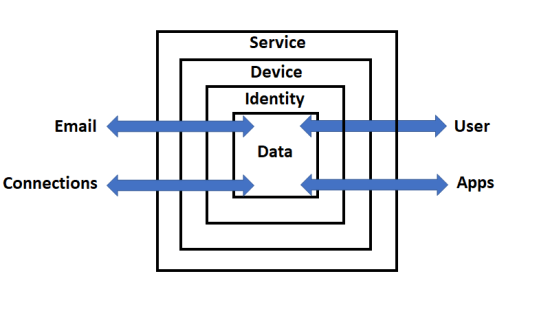
CIAOPS Cyber protection model

designed to help better explain expansive security included with Microsoft 365.

In previous parts, we covered how an external email was delivered into the Microsoft 365 service and all the protections that it passed through until it finally came to rest in the Data container (user’s inbox) ready to be viewed. The next step in the process will therefore for the user to fire up their device to read the email. This article will therefore focus on the protections available for that device.

For the sake of simplicity we’ll focus on that being a modern device running at least a Windows 10 Professional. Of course, email from Microsoft 365 can be viewed on just about any devices these days, Windows or not, and all of these have unique and overlapping protections. However for the sake of brevity let’s just focus on the more common Windows 10 device for now.

A range of hardware device protection is available and recommended including:

and should already be in place to protect the device.

We will also assume that the Windows device is fully up to date

How to keep your Windows computer up to date

The device in question should also already live inside the Device container as shown in the above model. This is largely achieved thanks to being joined to Azure Active Directory (AD):

Azure AD joined devices

Join your work device to your organization’s network

Tutorial: Join a new Windows 10 device with Azure AD during a first run

When that device is turned on we want it to complete the:

Secure Windows boot process

Once the machine has booted and before the user has logged into the machine, thanks to being Azure AD joined, Microsoft Endpoint device policies have already been pushed and implemented on that machine per:

Manage device security with endpoint security policies in Microsoft Intune

Such policies could be enforcing disk encryption, implementing Attack Surface Reduction (ASR) and so on.

Importantly, you can also enforce device compliance policies to ensure devices meet a security standard before they are allowed to access any data:

Use compliance policies to set rules for devices you manage

All of this is achieved via:

Microsoft Endpoint Manager

which I have also written a whole series of articles to help provide a better understanding of the role that it plays with device security. You can read these articles here:

Modern Device Management with Microsoft 365 Business Premium–Part 1 of 10

Assuming that the device has booted and successfully completed all the protection processes associated with that have been correctly applied, it is now time for the user to login to that devices. This means that we now follow the User connector in our model shown above, into the Service container from outside, then onto the Device Container and so on.

The user’s identity is protected inside the Microsoft 365 service via a variety of mechanisms. When logging into a Windows 10 device they will typically need to provide their account and password details that were set up with the service. However, best practice would now be to use Windows Hello for Business.

Windows Hello for Business Overview

Windows Hello addresses the following problems with passwords:

  • Strong passwords can be difficult to remember, and users often reuse passwords on multiple sites.

  • Server breaches can expose symmetric network credentials (passwords).

  • Passwords are subject to replay attacks.

  • Users can inadvertently expose their passwords due to phishing attacks.

Many mistakenly believe that the Windows Hello PIN is all that protects a users access to device and the service when at login. That is in fact not the case as Windows Hello leverages the TPM hardware to provide a highly secure login to the service.

Why a PIN is better than a password

How Windows Hello for Business works

These days just a login and password are not enough to secure any identity, you MUST implement Multi Factor Authentication (MFA). Why? As Microsoft will tell you:

Your password doesn’t matter, but MFA does! Based on our studies, your account is more than 99.9% less likely to be compromised if you use MFA.

Your Pa$$word doesn’t matter

All your creds are belong to us!

So MFA, along with a number of other recommended steps, are what can be done with Microsoft 365 to protect user identity.

Five steps to securing your identity infrastructure

Windows Hello for Business requires all users perform multi-factor authentication prior to creating and registering a Windows Hello for Business credential. Importantly, Windows Hello for Business replaces passwords with strong two-factor authentication on PCs and mobile devices. This authentication consists of a new type of user credential that is tied to a device and uses a biometric or PIN. Many don’t appreciate that correctly configured Windows Hello for Business DOES provides MFA when users access their devices, while making the device login process seamless. If you are however still concerned about this ‘single credential’ being compromised then you can also implement:

Multifactor Unlock

It is also important to remember that MFA is provided FREE on all Microsoft 365 accounts and support a variety of methods including authenticator apps, hardware token and more.

Enable multi-factor authentication for free

Once the user has correctly provides a login and password, then completed their MFA challenged (or equivalent thanks to Windows Hello for Business) they would then be subject to Azure AD Conditional Access.

It is important to remember that Azure AD Conditional Access is evaluated AFTER a successful login from a user, not before! This means that it can’t be used to block things like Password Spray Attacks.

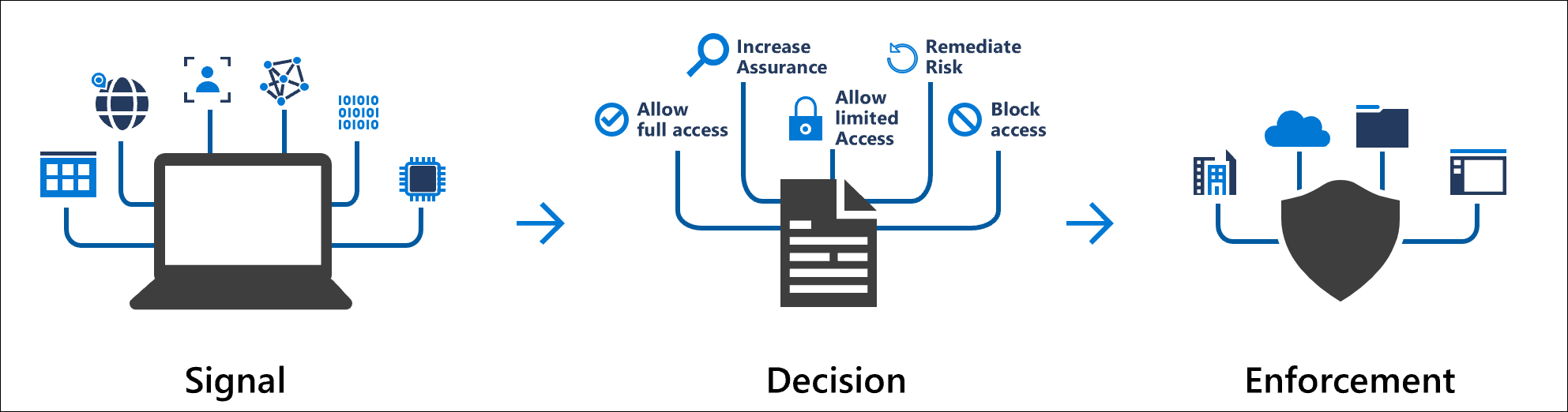
Conditional Access policies at their simplest are if-then statements, if a user wants to access a resource, then they must complete an action.

Conceptual Conditional signal plus decision to get enforcement

What is Conditional Access?

For example, user account access can be blocked if it comes from outside a specific country or region.

Conditional Access: Block access by location

and enforcing MFA

Conditional Access: Require MFA for all users

Conditional Access: Require MFA for administrators

Once any Conditional Access policies have been met the user will be able to login to their device. At this point additional Microsoft Endpoint Manager policies will be applied to that specific account now logged in. Such policies could restrict applications the user has access to, limit Windows functionality and so on.

Remember, all of these protections have taken only during the user has logging onto their device. They have not as yet run an application like Outlook to read the inbound emails. That is what is going to happen next and I’ll cover that process in the next part of the series, so stay tuned.

End to End email protection with Microsoft 365–Part 5