Need to Know Podcast–Episode 130

Marc and I have some brief news and cloud updates for you and then we are straight into our guest for this episode. I speak with MVP Alan Burchill all about his upcoming Microsoft Ignite presentations:

Using Edge in the Enterprise

Microsoft Edge is one of the most secure and web standards compatible browsers on the market. See how the new management features in Windows 10 can help IT Professional to provide support for legacy web sites while still allowing users to access web sites with the latest web standards.

Don’t forget to send us your feedback at feedback@needtoknow.cloud

You can listen to this episode directly at:

https://ciaops.podbean.com/e/episode-130-alan-burchill/ 

or on Soundcloud here:

Subscribe via iTunes at:

https://itunes.apple.com/au/podcast/ciaops-need-to-know-podcasts/id406891445?mt=2

The podcast is also available on Stitcher at:

http://www.stitcher.com/podcast/ciaops/need-to-know-podcast?refid=stpr

Don’t forget to give the show a rating as well as send us any feedback or suggestions you may have for the show.

Resources

@alanburchill

@marckean

@directorcia

www.grouppolicy.biz

Azure ready

Office 365 German datacenters

Microsoft tech days online

Microsoft tech summit – Birmingham

Enabling Azure AD Domain Services

One of the last remaining pieces of infrastructure that was required to either stay on premises or be virtualised was the Active Directory Domain Controller (DC). That is no longer the case as Microsoft has made its Directory Services as a Service available from Azure.

What that effectively now means is that you no longer need a dedicated box (physical or virtualised) for Active Directory, you can simply consume it as a service directly from Azure.

Given that this is a new Azure service there are some challenges. The main one is that Azure Active Directory Services is only available in the older Service Manager portal, not the newer Resource Manager model where everything should really be created these days. Azure Active Directory Services will be coming to the Resource Manager, however at the moment, we need to deploy it using the older Service Manager.

In preparation, I’ve used Azure AD Connect to synchronise users from an existing on-premises Active Directory to Office 365. This has also created accounts for those users in Azure AD. I’ve then added a paid Azure subscription to my free Office 365 Azure AD to enable all the services required.

Next, I created a Virtual Network in both Service Manager and Resource Manager. I then connected these together using a site to site VPN. The idea is that the Service Manager network will simply be used for Directory Services, while the Resource Manager network will hold all the other services such as member servers and so on.

Now, with the site to site VPN between Azure Service Manager (ASM) and Azure Resource Manager (ARM) in place, I navigate to the ASM portal.

image

Here I select my Active Directory option and then name of the Active Directory.

image

I select the Groups option at the top of the page and create a new security group called:

AAD DC Administrators

It is to create a group EXACTLY as it appears above.

Into this new security group add all the users from your AD that you want to be effectively Domain Administrators in Azure AD Domain Services.

image

Now select the Configure option at the top of the page.

image

Scroll down the page until you locate the Domain Services area as shown above.

Select the Yes option to enable the service.

image

You’ll also need to check that the DNS Domain and Virtual Network options are correct. in this case I’ve select the custom domain I have in Office 365 and synchronised from an on-premises AD.

Select Save at the bottom of the page to complete the configuration.

image

Azure will now hum away for about 35 minutes enabling the service for you.

image

When the enablement process is complete you should now see two IP addresses at the bottom of the domain services area as shown above.

You should update the virtual network on the ARM network to point to these DNS servers on the ASM network. You can think of it like the Domain Controller for the whole network is now on the ASM network which is reached by the ARM network across the VPN.

So let’s say you now spin up a member server on the ARM network. You add this member server to the domain as you would normally. When you do, you’ll be prompted for credentials to allow this. Here you’ll need to use a member of the security group AAD DC Administrators you created earlier. Apart from that everything is exactly the same as if there was a physical domain controller in the network.

image

So your next question is probably going to be about to manage this ‘DC as a service’? Easy. Simply add the AD management tools to any member server and as you can see from the above, the domain appears exactly like it would if there as an on-premises server on the network. If you go in and look a the domain controllers on the network you’ll two, as see above. They have a random GUID and obvious correlate to the two IP addresses provided by the Directory Service during configuration.

If you then elect to say, remove the on-premises domain controller you’ll have all your users and a fully functioning domain in Azure. You’ll have your AD now as service rather than requiring dedicated equipment, which is far more flexible as easier to manage. You’ll be able to manage your users, group policy and the like just as you could on premises, but now totally in the cloud.

At the moment there is some extra configuration because of the necessity of an ASM network for Directory Services but in time everything will move to ARM which will make it even easier to have your domain controllers as a service!

For more information on Azure AD Domain Services visit:

https://azure.microsoft.com/en-us/documentation/articles/active-directory-ds-getting-started/

Thank you Mr Jeffrey Snover for telling me about OMS

image

After conducting a recent podcast with Jeff Snover from Microsoft I decided to spend a little time playing with Microsoft Operations Management Suite (OMS). What I didn’t realise, but was highlighted by Jeff in the podcast, was that fact that OMS comes with a free tier!

So I went ahead and created a workspace and then started to connect things like my local machines to it so that the status could be reported back to my OMS dashboard. Thanks to that ability i received the above email letting me know that I needed to update one of my machines.

image

However, OMS does more than just warn me about security patches, it also details what software changes have been made on my systems as shown above as well of lots of other stuff.

image

You can also connect it to your Office 365 tenant as you see above.

image

I can click on that Office 365 tile in the console to reveal further detail, like that for SharePoint as shown above.

image

If I drill in further I get detailed log information as you see above. All of this is also searchable from OMS.

image

From this I can then go in and create an email alert as shown above.

This therefore provides a lot more detail and functionality around Office 365 reporting than I’ve seen elsewhere. Best of all, it is totally free! I would expect to see its abilities continue to increase.

image

You’ll find a huge amount of solutions you can simply plug into your dashboard to monitor all kinds of things, and they are adding new ones all the time. Just go to the solutions gallery, as shown above, to see all the modules you can add.

image

You’ll also see from the above that you can get a free plan that provides a lot of functionality, certainly a no brainer as a starting point for low level Office 365 monitoring and log capture. From there you can upgrade to the full plan on a per node per month cost.

Microsoft OMS is probably not as comprehensive as some existing third party monitoring solutions I’ve see out there in the SMB space at the moment, however I can also see how powerful OMS is going to become very soon as Microsoft focuses more attention and resources on its development.

I’d therefore be suggesting that if you need to monitor on-premise or cloud services then you really need to have a look OMS and understand what it can do today and what it is going to be capable of in the future. If I were those third party monitoring solutions, I’d be pretty worried about my business model going forward as Microsoft is coming to town with something that is going to make a huge impact.

If you need to monitor or secure any sort of technology, take a look at Microsoft Operations Management Suite (OMS) can do for you. You can even get started for free, so there is no reason not to give it a try.

Need to Know podcast–Episode 111

In this episode we dive into the world of containers and Docker. We learn about what they are, why they are relevant to IT Pros and how Microsoft is providing more ways to utilise these technologies today. Our special guest subject matter expert is Trevor Sullivan who is a Microsoft MVP and able to explain to us why containers and Docker are so important in today’s technology landscape. Listen and learn.

You can listen to this episode at:

http://ciaops.podbean.com/e/episode-111-trevor-sullivan/

The podcast is also available on Stitcher at:

http://www.stitcher.com/podcast/ciaops/need-to-know-podcast?refid=stpr

Don’t forget to give the show a rating as well as send me any feedback or suggestions you may have for the show.

Resources

@marckean

@directorcia

Trevor Sullivan

https://blogs.msdn.microsoft.com/dotnet/2016/06/27/announcing-net-core-1-0/

https://azure.microsoft.com/en-us/blog/powershell-is-open-sourced-and-is-available-on-linux/

https://blogs.technet.microsoft.com/enterprisemobility/2016/06/23/azuread-conditional-access-for-office365-exchange-sharepoint-in-preview/

https://azure.microsoft.com/en-us/blog/alerting-and-monitoring-for-azure-backup/

Feedback to – feedback@needtoknow.cloud


Need to Know Podcast–Episode 107

In this episode Marc is joined by Steve Hosko to talk about the latest with System Center. You’ll also get the latest news om Azure.

Listen to this episode at:

http://ciaops.podbean.com/e/episode-107-steve-hosko/

or subscribe to this and all episodes in iTunes at:

https://itunes.apple.com/au/podcast/ciaops-need-to-know-podcasts/id406891445?mt=2

The podcast is also available on Stitcher at:

http://www.stitcher.com/podcast/ciaops/need-to-know-podcast?refid=stpr

Don’t forget to give the show a rating as well as send me any feedback or suggestions you may have for the show.

Resources

Marc Kean – @marckean

Azure News:

https://marckean.com/2016/06/30/azure-news-2016-week-26/

Reddit (SCCM):

https://www.reddit.com/r/SCCM/comments/4qhcwg/amawe_are_the_configmgr_team_here_to_talk_about

Facebook pages about SCCM:

https://www.facebook.com/groups/ConfigMgr2012

https://www.facebook.com/groups/techkonnect

https://www.facebook.com/groups/mssccm

https://www.facebook.com/groups/windowsnoob

Guest Twitter:

@Steve_Hosko

Other:

Azure Stack user group meet-up, hear all about Azure Stack Vs Azure Public

http://www.meetup.com/Sydney-System-Center-and-Infrastructure-User-Group/events/232103039

SBS to Office 365 and Azure slides

https://docs.com/d/embed/D25193681-9964-1490-6940-000704935949%7eMd4186d87-61d5-259a-4d26-00a8bd86cfff

I have recently completed a roadshow for Microsoft where I spoke about the options and potential processes for the migration of Small Business Server (SBS) environments to Office 365 and Azure. I have posted the slides from that presentation on my docs.com site so they are available for people to download. The presentation is also posted above.

The idea with the presentation was to show the possibilities when it comes to migration to Office 365 and Azure. It is not a step-by-step procedure for those environments, there are simply too many variables. However, hopefully, it does give people looking to do this a better overall picture of what can be done and a potential way of going about it.

I’ll be diving deeper into the migration process from SBS to Office 365 and Azure, based on this presentation, in upcoming articles so stay tuned for more.

Azure Backup for Applications

In a previous article I showed how the first step into Azure is typically to use Azure backup for files and folders. I also covered off how you can restore files via that method. That backup method works great for static files and folders on a network but what about applications such as SQL, SharePoint, Exchange, etc where important data also resides? You typically can’t backup the data because it is ‘in use’ by the application. In most cases you need a special ‘agent’ that allows the data inside these applications to be backed up even when the data is in use. Luckily, Azure provides that with a service called Azure backup for applications.

This walk through covers how to use Azure Backup for applications with Azure Resource Manager. if you are looking for how to do this in the older ‘classic’ Azure Service Manager check out my previous article on that topic:

Azure Backup Server for Applications configuration

Azure backup for applications is an extension of Azure backup for files and folders. You’ll back the data up into the same Azure Backup Vault that I detailed how to create in a previous article. What I’ll therefore show you here now is how to set up Azure backup for applications.
image

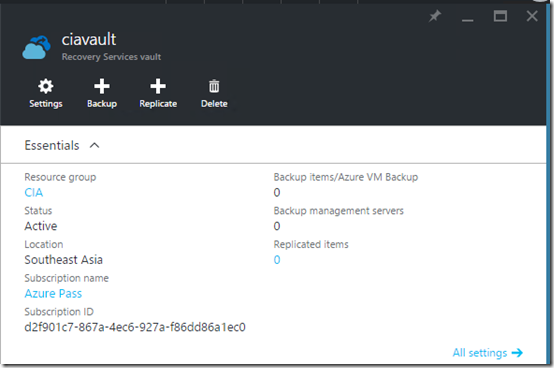
You’ll need to navigate back to the Azure Recovery Vault in the new Azure portal. When you do you should see a screen similar to that shown above. Select the Backup button at the top of the page.
image

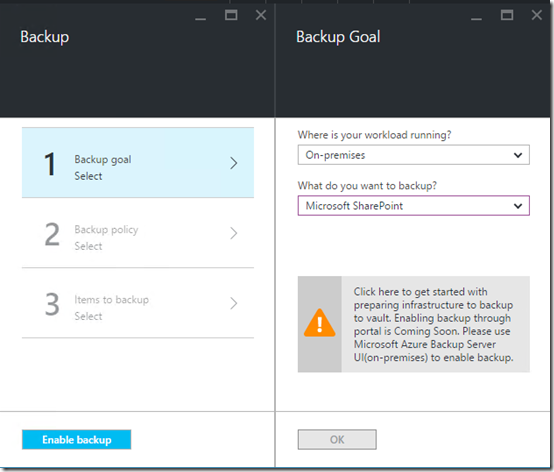
You’ll now be prompted to work through the steps required to configure the Azure backup. For the option Where is your workload running? Select On-premises from the selections available. For the option What do you want to backup select either Microsoft SharePoint, Microsoft SQL or Microsoft Exchange (i.e. an application).

When you do you’ll see a warning message appear below prompting you to click on it to get started. Do so.
image

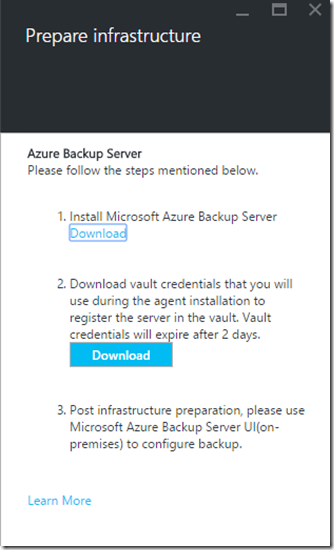
You’ll be taken to the Prepare Infrastructure blade as shown above. You’ll now need to download the dedicated Azure Backup software. This is different from what was used with Azure Backup for files. It is in fact a version of Microsoft Data Protection Manager (DPM). To download the DPM software select the Download link. This will open a browser windows to:

https://www.microsoft.com/en-us/download/details.aspx?id=49170
image

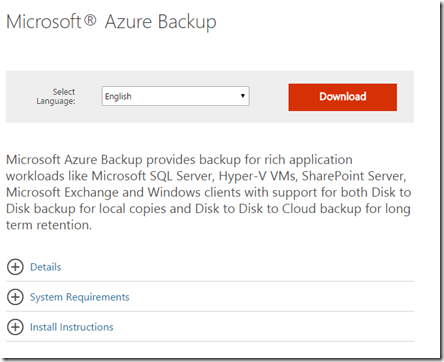
You are now taken to the download page for the Azure Backup for applications software as shown above. Select the Download button to continue.

image

You’ll need to select all the components and download them to the machine on which you plan to install the software. You’ll note that this software is much larger (at 3GB) than that for Azure Backup for files and folder, that is because this Microsoft Data Protection Manager.

image

Once the software has downloaded, kick off the setup and select Next to continue.

image

Select the location where the files can be extracted. Typically, just accept the default and press Next to continue.

image

Select Extract to expand the compressed files from the download.

image

You should now see the files being extracted as shown above.

image

Ensure the Execute setup.exe is select and press the Finish button.

image

The above splash screen should now appear. Select the Microsoft Azure Backup option under the Install column in the top left.

image

You may see some additional software components being installed as shown above.

image

Select Next at the Welcome screen to continue.
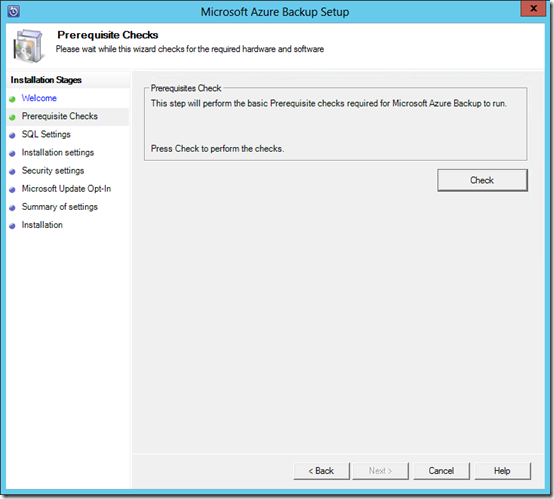
image

Select the Check button in the top right to verify the current computer meets the requirements for the Azure Backup software.

image

Hopefully everything is in order and the check are passed as shown above.

Select Next to continue.

image

The backup software will need to store its data in an SQL database. You can either elect to install a new version of this or use an existing version. Typically, you’ll allow the installation to create a instance of SQL server and install the SQL software.

Select the Check and Install button in the top right to continue.
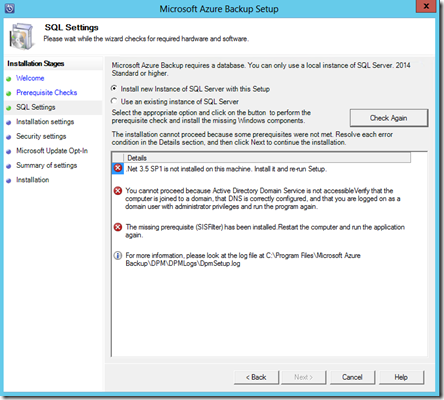
image

For Azure Backup software to install successfully you’ll need to ensure you have .Net 3.5 SP1 as well as ensuring that the machine can access a Domain Controller. Typically this means it is a member server in the network attached to the Domain Controller. You can install the software on a Domain Controller if you wish but you may need to take additional steps to accomplish this. Here is an article on this:

https://technet.microsoft.com/en-us/library/ff399416.aspx

image

If however, there are no red flags you should see a summary of the confirmation as shown above. Select Next to continue.
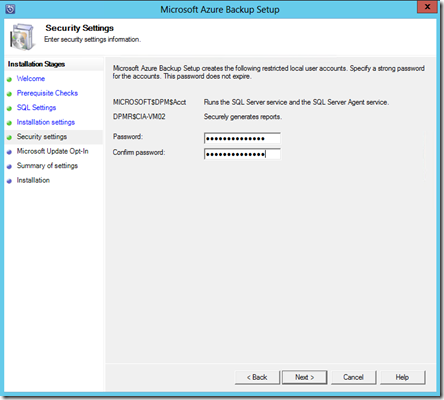
image

You’ll now need to specify a password that will be tied to a system account for the installed software. Enter and appropriate password and select Next to continue.
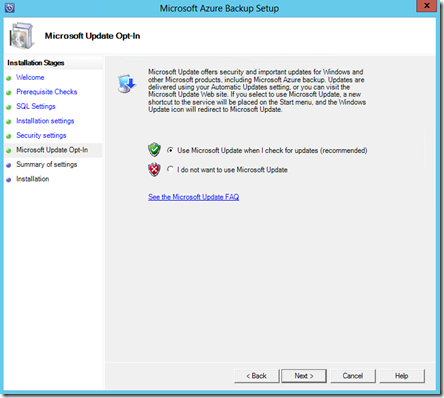
image

Typically select the option to allow Microsoft updates and select Next to continue.
image

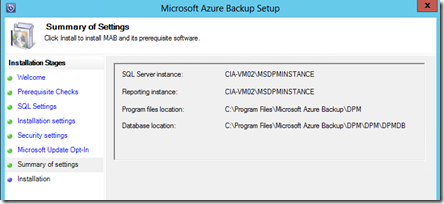
You will now see a summary of the installation. If all is good, select Next to continue.

image

The first step in the installation process will be the registration of the software with the Azure Recovery vault. You’ll need to browse to the location of the downloaded vault credentials. These will then be validated as shown above.

Select Next to continue.

image

As with the Azure Backup for files and folders, you’ll now need to enter or generate a strong passphrase to use to provide encryption of the backed up data.

Remember that you need to save this pass phrase in a location independent of the machine that you are currently using. If you lose the password you will be unable to restore the data you backup here, so best practice is to ensure you have multiple copies of the password.

Select Next to continue.
image

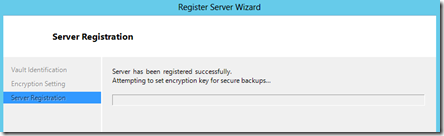
The registration process will now complete.

image

The installation process will then continue with the installation and configuration of SQL Server as shown above. The process will then proceed to complete the installation of the Azure Backup for applications.

image

When the process is complete you should all tasks have been completed successfully.

Press Close to complete the process.

image

You should see two icon now displayed on the desktop, one for the Azure Backup for applications program and one for an Azure Backup for applications PowerShell environment. Select the Azure Backup for applications program to launch the software.

image

You should now see Azure Backup for applications (basically Microsoft Data Protection Manager) as shown above.

Future articles will cover how to use this software to actually backup and restore from network locations.

In summary, if you are looking to backup more than files and folders to Azure you need to install Azure Backup for applications which means basically installed the Microsoft Data Protection software on a server in the network which is connected to an Azure Recovery Services vault configure using Azure Resource Manager.

For more details about using Azure Backup for applications see:

Preparing to back up workloads using Azure Backup Server