
My list for last year:
Documentaries
Easy to Learn, Hard to Master: The Fate of Atari
What’s Next? The Future with Bill Gates
Movies

Information about SharePoint, Microsoft 365, Azure, Mobility and Productivity from the Computer Information Agency
My list for last year:
Documentaries
Easy to Learn, Hard to Master: The Fate of Atari
What’s Next? The Future with Bill Gates
Movies

Managed Service Providers (MSPs) serving small and medium-sized businesses (SMBs) must elevate their game in 2026 to meet rising expectations and rapid technology changes. Globally, the MSP market continues to expand (projected at $424–$511 billion by 2026), and SMBs are channeling unprecedented investments (over $90 billion in new managed IT spending through 2026). However, with this opportunity comes intense pressure: clients demand better cybersecurity, optimized cloud services, meaningful use of AI, improved service experiences, strict compliance, greater automation, and skilled support. Many MSPs today struggle with gaps in these areas – from reactive security postures to talent shortages – which must be addressed for sustained growth. [deskday.com]
The table below summarizes key operational areas, where MSPs often fall short at present, and the essential focus and actions needed in 2026 to improve:
| Area | Current Gaps / Needs Improvement | 2026 Focus & Actions |
|---|---|---|
| Cybersecurity | Reactive approach prevalent; advanced threat detection, incident response, and user security training are often insufficient [provaltech.com]. | Adopt 24/7 threat monitoring (MDR/SOC), implement zero-trust & MFA, run regular security awareness training, and offer compliance guidance (e.g. PCI/GDPR) [deskday.com], [provaltech.com]. |
| Cloud Services | Focus often limited to migration; many lack expertise in multi-cloud management, cost optimization, and robust cloud security [deskday.com]. | Provide end-to-end cloud support: manage hybrid/multi-cloud environments, practice FinOps for cost control, ensure cloud backup & DR, and leverage edge computing for low-latency needs [deskday.com], [deskday.com]. |
| AI Integration | Slow adoption of AI – only ~30% of MSPs use AI to automate tasks, as others remain cautious or lack skills [kaseya.com] (smaller MSPs risk falling behind larger competitors [channele2e.com]). | Embed AI in operations: deploy AI-driven ticket triage/chatbots for Tier-1 support, use predictive analytics to prevent outages, and develop client-facing AI solutions (e.g. deploying productivity AI tools) [deskday.com], [channele2e.com]. |
| Customer Experience | Often seen as mere IT vendors rather than strategic partners – value reporting and proactive guidance lag behind client expectations [channele2e.com]. | Elevate client engagement: act as a vCIO with business-aligned IT roadmaps, conduct outcome-focused QBRs, provide transparent ROI dashboards (e.g. uptime improved, incidents prevented), and personalize support [channele2e.com], [provaltech.com]. |
| Compliance & Governance | Proactive compliance management is not standard – many SMBs lack guidance on regulatory requirements and data governance [deskday.com]. | Offer compliance-as-a-service: audit and ensure adherence to standards (GDPR, HIPAA, PCI), deliver automated compliance reports, and keep clients ahead of regulatory changes (adopt “compliance-first” service design) [deskday.com], [deskday.com]. |
| Process Automation | Operations still too manual – MSPs waste 100+ hours/month on tasks (ticket entry, reporting) due to disjointed tools and <25% workflow automation [suppfusion.com], [suppfusion.com]. | Maximize automation: integrate PSA/RMM and other tools to eliminate duplicate data entry [kaseya.com], use scripts/RPA for routine maintenance, auto-generate reports (e.g. for QBRs) to free time for strategic work [suppfusion.com], [suppfusion.com]. |
| Workforce Development | Skill shortages and burnout persist – over 52% of MSPs cite hiring skilled staff as a top challenge [deskday.com], and overworked teams (59% working holidays) reflect understaffing [kaseya.com]. | Bolster talent and capacity: invest in upskilling (certifications, training) [provaltech.com], improve work-life balance by offloading work (e.g. outsource NOC/SOC via white-label partners) [deskday.com], and create clear career paths to retain experts [provaltech.com]. |
Below, we dive into each of these focus areas, examining what MSPs are not doing well today and how they can improve in 2026, with examples and global trends in mind.
Cybersecurity is the number-one growth driver in managed services, yet many MSPs’ security offerings haven’t kept pace with evolving threats. What’s not done well: Too often, MSP security is reactive – providing basic antivirus, firewalls, and backups – but lacking in proactive threat hunting, continuous monitoring, and incident response planning. Many providers still treat security as an add-on, rather than baking it into every service. Crucially, clients now expect more: they want their MSP to be a comprehensive security partner, handling advanced threats and compliance needs, not just a help-desk for cyber issues. For example, SMBs are increasingly asking MSPs for help with compliance and cyber insurance requirements – areas in which some MSPs are underprepared. [deskday.com] [provaltech.com]
Focus for 2026: MSPs must shift from reactive to proactive security. This means adopting 24×7 threat monitoring and rapid response capabilities. For instance, a provider might set up a managed detection and response (MDR) service or partner with a Security Operations Center (SOC) to monitor client networks around the clock for intrusions. MSPs should implement zero-trust security frameworks (verify every user/device), enforce multi-factor authentication (MFA) everywhere, and regularly test backup and disaster recovery plans. Security awareness training for client employees is also key – many breaches start with human error, so MSPs should run phishing simulations and training sessions to harden the human element.
Moreover, expanding compliance services is critical. Compliance has become “table stakes” for clients in regulated industries like healthcare, finance, and manufacturing. Yet not all MSPs offer systematic compliance support today. In 2026, leading MSPs will offer Compliance-as-a-Service – e.g. continuous monitoring of compliance (using tools aligned to standards like HIPAA, PCI DSS, GDPR), automated audit reporting, and guiding clients through regulatory changes. An MSP might, for example, maintain a compliance dashboard for each client that tracks data backup practices, access controls, software patch levels, and other policy requirements in real-time. By doing so, the MSP not only protects the client’s data but also helps them avoid fines or legal issues. [deskday.com]
Example Action – Cybersecurity: One MSP serving many SMB law firms realized its basic security package was insufficient. In 2026, it invested in an AI-enhanced threat detection system and partnered with a specialized managed SIEM provider to filter and analyze logs across all client sites. It also began conducting quarterly security posture reviews for each client, showing how many attacks were blocked and recommending next steps (like encrypting all mobile devices). This proactive stance not only reduced incidents but also reassured clients with compliance concerns (e.g. demonstrating support for GDPR and emerging privacy laws). As a result, the MSP could “command premium pricing” for its security-centric services while building deeper trust with customers. [deskday.com]
In summary, cybersecurity in 2026 should permeate every aspect of an MSP’s offerings. The MSPs that succeed will be those who anticipate threats (using advanced tools and intelligence), respond swiftly to incidents, and ensure clients meet security compliance mandates. Given that cybersecurity services are growing ~18% annually (faster than the overall MSP market), investing in these capabilities is both a defensive move and a major growth opportunity. [deskday.com]
Cloud services have become a core component of SMB IT strategies worldwide, but MSPs often struggle to move beyond basic cloud enablement. Current weaknesses: Many MSPs excel at initial cloud migrations (moving an SMB’s servers or applications to AWS/Azure or a private cloud), but fall short in ongoing optimization and multi-cloud expertise. As more businesses adopt complex architectures – e.g. hybrid clouds (mix of on-prem and cloud) and multi-cloud deployments – MSPs need deeper skill in managing and optimizing these environments. In practice, some providers still treat cloud management as a set-and-forget hosting task, missing opportunities to fine-tune performance, optimize costs, or update security configurations continuously. SMB clients, however, increasingly expect their MSP to be the cloud expert who can navigate these complexities: nearly 48% of SMBs now rely on MSPs for public cloud management (a figure climbing each year). [deskday.com]
Focus for 2026: End-to-end cloud lifecycle management should be a priority. MSPs must go beyond provisioning to deliver ongoing optimization, cost management, and integration across cloud platforms. One key area is cost optimization (FinOps) – cloud costs can spiral out of control for SMBs who lack the expertise to right-size resources. An MSP in 2026 should regularly analyze clients’ cloud usage, eliminate waste (e.g. unused VMs or over-provisioned storage), and advise on reserved instances or savings plans. This proactive cost management demonstrates tangible value. In fact, experts note that MSPs should invest in cloud optimization capabilities to meet evolving demand. [channele2e.com]
MSPs also need to handle multi-cloud and hybrid environments confidently. With 73% of organizations using hybrid cloud and multi-cloud adoption doubling in recent years, a provider might, for example, manage an SMB’s Azure infrastructure alongside a Salesforce SaaS and an on-prem file server – ensuring they all work together. Skills in cloud orchestration and monitoring tools (that work across AWS/Azure/GCP) are essential. Security in the cloud is another improvement area: MSPs should implement cloud security best practices like regular cloud vulnerability scans, proper identity & access management, encryption of data at rest and in transit, and configuration audits (using benchmarks such as CIS benchmarks for cloud). [deskday.com]
Emerging technologies present both a challenge and opportunity. Edge computing and IoT integration are on the rise, especially for industries needing real-time data processing (manufacturing, retail, smart devices). In response, MSPs should be prepared to manage distributed edge infrastructure – for example, deploying and monitoring mini-servers or appliances at client sites or in the field that sync with central cloud systems. By developing solutions for edge computing (like local data processing coupled with cloud analytics), an MSP can differentiate itself for clients who require low-latency performance. [deskday.com]
Example Action – Cloud: An MSP with several SMB clients in e-commerce noticed their cloud bills were climbing while performance issues lingered. In 2026, the MSP introduced a Cloud Cost & Performance Audit service. Using cloud management tools, it analyzed each client’s resource utilization and identified overspending (e.g. servers running at 5% utilization). It then implemented auto-scaling and schedule-based resources (shutting down non-critical systems after hours) for those clients, cutting cloud costs by 20%. They also added a multi-cloud backup solution – replicating critical data from the primary AWS environment to an Azure data center – to bolster resilience. The clients not only saved money but also gained confidence that their cloud setup was optimized and fault-tolerant, something they wouldn’t have achieved on their own.
In short, MSPs in 2026 should provide holistic cloud stewardship: from architecture planning and migration through continuous optimization, security, and new tech integration. As SMBs continue to increase spending on cloud and related services, MSPs who deliver efficiency and reliability in the cloud will deepen customer loyalty and attract new business. [channele2e.com]
AI integration is shifting from a buzzword to a competitive necessity for MSPs. By 2026, AI won’t be optional – it will be woven into service delivery for efficiency and smarter support. Where MSPs are lagging: A surprising number of MSPs have been slow to leverage AI in their operations. Surveys show roughly 30% of MSPs are already using AI to eliminate repetitive tasks, but the majority have not yet implemented such solutions, with some firms cautious about AI’s risks or lacking in-house expertise. This reluctance is problematic: AI is rapidly changing MSP economics by automating Tier-1 support tasks, and providers not leveraging AI will struggle to compete on cost and service quality. In essence, larger MSPs (often backed by investors) are racing ahead with AI, widening the efficiency gap over smaller players. [kaseya.com] [channele2e.com]
Focus for 2026: MSPs should embed AI across their workflows to enhance both internal efficiency and customer value. A primary application is in the service desk: deploying AI-driven chatbots or virtual agents that can handle common support queries and basic troubleshooting. By 2026, an AI-powered system can automatically categorize and route tickets, suggest solutions, or even resolve issues (like password resets or simple network glitches) without human intervention. In fact, analysts predict widespread service desk automation could cut ticket volumes by 40–60% and drastically speed up resolution times. This frees up human technicians to focus on more complex issues, improving overall support quality. It’s telling that 87% of MSPs plan to increase AI investments by 2026 – the tools are becoming more accessible (built into RMM/PSA software, for instance) and MSPs recognize the ROI. [deskday.com]
Beyond support, predictive analytics is a game-changer. MSPs should use AI to analyze system logs and performance metrics to predict and prevent failures – for example, forecasting when a server might fail or when storage will run out, so they can fix it before it causes downtime. This predictive maintenance approach was once a luxury but is increasingly expected as part of proactive managed services.
MSPs can also extend AI to augment decision-making and reporting. Modern AI tools can comb through an SMB client’s data and provide insights, such as identifying security anomalies or highlighting usage trends. Some MSPs are starting to use generative AI to draft clearer client communications or create executive summaries of IT performance for quarterly reports. In 2026, we’ll see successful MSPs providing clients with AI-generated insights – for example, an automated monthly report that not only lists incidents resolved, but explains in plain language how those IT events affected the client’s business and recommends improvements (all generated with minimal human editing). [deskday.com]
Furthermore, MSPs should consider offering AI-related services to customers. SMBs often lack the knowledge to implement AI solutions themselves, so an MSP can step in as a guide. This could include setting up an AI-powered analytics platform for a client’s sales data, or integrating an AI chatbot on a client’s website for customer service. Since 55% of businesses expect their MSPs to adopt and deploy AI tech by 2026, showing expertise in practical AI applications can be a major selling point. [deskday.com]
Example Action – AI: A mid-sized MSP in 2025 handled thousands of tickets monthly and struggled with slow response times. In 2026, they integrated an AI service bot into their ticketing system. The bot uses natural language processing to understand incoming emails and chat requests from users – it automatically resolved simple issues (password resets, Wi-Fi setup instructions) and pulled up relevant knowledge base articles for technicians on more complex problems. The result was a 50% reduction in human-handled Level-1 tickets and much faster first responses. Additionally, the MSP began offering an “AI Advisory” service to clients: helping SMBs pilot tools like Microsoft’s AI Copilots or AI-based CRM add-ons to streamline their own business workflows. This not only generated a new revenue stream but also positioned the MSP as an innovation partner.
In sum, AI and automation are key to MSP efficiency and differentiation in 2026. MSPs should aim to automate away the grunt work – from repetitive troubleshooting to data reporting – so they can deliver faster service at scale. Those who fail to leverage AI will find themselves with higher costs and slower service, unable to match “AI-powered” competitors. Embracing AI is thus both a defensive strategy (to stay efficient) and an offensive one (to offer new intelligent services). [channele2e.com]
As technology solutions commoditize, customer experience (CX) and the strategic value an MSP provides become critical differentiators. Today’s SMB clients don’t just want IT support; they want a partner who understands their business and helps it grow. Where MSPs fall short: Many MSPs still operate in a reactive, technical mindset – fixing what’s broken and maintaining systems – but not engaging at the business level or clearly demonstrating value. Clients are increasingly scrutinizing costs and asking, “What am I getting for this monthly fee?”. If the MSP only talks in technical terms (uptime, tickets closed) without linking to business outcomes, clients may feel the partnership is not delivering enough. In fact, MSP industry experts observe that successful MSPs now “sell outcomes, not just services,” using benchmarks and reviews to prove their worth. Many providers have been slow to adopt this outcomes-focused approach. [channele2e.com]
Another aspect of CX is responsiveness and personalization. SMB customers can feel neglected if their provider treats them like just another ticket number. Some MSPs could do better in maintaining regular communication, soliciting feedback, and tailoring their support to each client’s unique needs. It’s telling that clients are asking for more guidance – for example, they want help choosing which software matters, which investments to prioritize, and clarity on why MSP recommendations are made. If MSPs aren’t providing this guidance, clients may seek someone who will. [provaltech.com]
Focus for 2026: MSPs should strive to become trusted advisors to their SMB clients, not just IT fixers. This means deeply understanding each client’s industry, business goals, and challenges, and then aligning technology strategies accordingly. A concrete step is to institute regular strategic meetings – often Quarterly Business Reviews (QBRs) – but these must evolve from perfunctory report-outs to forward-looking planning sessions. Rather than just reciting metrics, the MSP should use QBRs to discuss “Here’s how your IT environment improved your business this quarter, and here’s what we recommend for the next quarter to support your goals.” For example, tie in how a new collaboration tool led to faster project completion for the client, or how the MSP’s quick incident response saved X hours of downtime, preserving the client’s revenue. Actionable outcomes should be the focus of these meetings. [provaltech.com]
To support these strategic discussions, MSPs need to provide clear, tangible reporting of value. Gone are the days of sending a generic monthly uptime report that clients might not even read. In 2026, MSPs should leverage dashboards and analytics to show key performance indicators (KPIs) that matter to the client’s leadership – whether it’s the number of cyber attacks blocked (indicating risk reduction), the time to resolve issues (operational efficiency), or improvements in system performance that enable employee productivity. As one channel expert noted, benchmarks, business reviews, and analytics dashboards have become must-haves for MSPs to prove their value. Clients also “expect more proof of value” – they want to know what was prevented, what improved, how security posture changed, and what’s coming next. Ensuring your data is clean and presented in an accessible way is vital – e.g. an MSP might implement a customer portal where the client can log in anytime to see ticket status, security alerts, and project updates in real time. [channele2e.com] [provaltech.com]
Improving customer experience also involves being proactive and consultative. An MSP should bring new ideas to the client: for instance, recommending a workflow automation tool to an accounting firm client because the MSP knows reducing manual data entry could save them money. This kind of proactive solutioneering shows the MSP is thinking about the client’s business, not just waiting for instructions. Industry trends show that clients in mature markets now expect MSPs to help predict and prevent issues and to speak the language of business outcomes. Instead of waiting for clients to ask for a technology, the MSP should be saying “We’ve analyzed your operations and we think adopting XYZ software could improve your customer satisfaction by 10%, let us help you implement it.” [deskday.com]
Personalization and responsiveness remain key to CX. Simple gestures like having a dedicated account manager who really knows the client’s environment, or sending quick status updates during a major incident, go a long way in building trust. Also, timely support (meeting or exceeding SLAs) is part of the experience – even with automation, MSPs must ensure that when a human touch is needed, they are prompt and effective.
Example Action – Customer Experience: Consider an MSP serving a chain of retail stores. Historically, they just kept the POS systems running. In 2026, the MSP shifts approach: they schedule quarterly strategy sessions with the retailer’s management. In one QBR, they present a dashboard showing that over the holiday season, their support kept 99.9% uptime, preventing an estimated 5 hours of downtime (which, for the retailer, translates to an estimated $50k of sales not lost). They also highlight that by upgrading the store’s Wi-Fi and installing a new inventory management app (their suggestion last quarter), the client’s inventory turnover improved noticeably. Going forward, the MSP recommends a customer analytics tool to help the retailer personalize marketing – a bit outside pure IT infrastructure, but a tech solution aligned to growing the retailer’s business. The client, seeing the MSP’s advice consistently improve outcomes, now views the MSP as a strategic partner rather than just an IT supplier, leading to a long-term contract and openness to more services. [provaltech.com]
In essence, the MSPs that win in 2026 will pair excellent technical service with high-touch, value-driven customer engagement. They will measure their success in the client’s terms (productivity, risk reduction, growth support) and continuously communicate that value. This shift from “vendor” to “partner” status not only improves client satisfaction but provides MSPs with opportunities to broaden their services (since satisfied clients trust them with more tasks). As one MSP CEO put it, support is essential “but strategic guidance becomes the real differentiator”. [provaltech.com]
In a world of escalating data regulations and industry-specific rules, compliance has become a critical area where MSPs need to step up. SMBs often lack dedicated compliance officers or expertise, so they look to their MSPs for help in governing IT systems according to laws and standards. Current state: Not all MSPs currently include compliance management in their service portfolio. Many focus on technology uptime and security, assuming compliance (e.g., with data privacy laws or industry regulations) is the client’s responsibility. This gap means SMBs might be unaware of vulnerabilities or violations until an audit or breach occurs. Given the proliferation of regulations – from GDPR and CCPA (privacy) to PCI DSS (payment security), HIPAA (health data), or even sector-specific cybersecurity mandates – MSPs that ignore compliance are leaving clients exposed. In 2025, forward-looking MSPs identified compliance as a major opportunity, noting that continuous compliance monitoring and audit support could command premium services. Yet execution is lagging: compliance is often addressed in a piecemeal way (e.g., enabling encryption here or there) rather than through a structured program. [deskday.com]
Focus for 2026: Make compliance and governance a proactive service, not an afterthought. MSPs should familiarize themselves with the key regulations affecting their client base. For example, if you support medical clinics, HIPAA guidelines on data protection and breach notification should be second nature; if you serve European customers, GDPR’s requirements for data handling and breach reporting must be baked into your processes. In practical terms, MSPs need to audit their clients’ systems for compliance gaps regularly. This could entail running tools that check for data that’s stored without proper encryption, or ensuring that access rights are configured according to least privilege principles.
Offering Compliance-as-a-Service (CaaS) can differentiate an MSP. CaaS might include services such as: policy development (helping an SMB craft an IT usage policy or data retention policy), continuous monitoring (monitoring logins, file transfers, and configurations against compliance benchmarks), and automated compliance reporting. For instance, an MSP can use dashboard tools to map a client’s status against frameworks like NIST or ISO 27001, showing which controls are in place and which need attention. Prior to audits or assessments, the MSP can run an “audit readiness” exercise to fix issues. It’s also wise to educate clients – e.g., hold an annual workshop on new laws (such as updates to privacy regulations) that the client needs to know about. [deskday.com]
Compliance efforts go hand-in-hand with security improvements, but have a distinct business value: they reduce risk of legal penalties and build trust with the client’s customers. SMBs may not have realized their MSP could help here, so proactively offering this service in 2026 can meet an unmet need. Industry data suggests MSPs especially in mature markets (US, Canada, EU, ANZ) are starting to adopt a “compliance-first” service design approach, making compliance a core part of every solution due to strict regulations in these regions. This trend will likely spread worldwide as more countries introduce data protection laws. [deskday.com]
Example Action – Compliance: A small finance company (client of an MSP) faces strict regulations (PCI DSS for credit card data and new cybersecurity mandates from their government). The MSP decides in 2026 to create a Compliance Dashboard for this client. Each month, the dashboard scans the client’s systems: checking that all devices have the latest security patches, that antivirus is active, that only approved personnel accessed sensitive databases, and that backups were performed. The MSP shares this dashboard during monthly calls, so the client sees they are, say, 98% compliant with PCI requirements, with specific recommendations to get to 100%. When the client undergoes its annual audit, the MSP helps generate the required reports (e.g. user access logs, incident logs) at a click of a button. The audit passes without major findings – a stark improvement from previous years. The client’s executives now sleep better knowing compliance is continuously watched by their MSP.
In short, MSPs in 2026 should integrate compliance into their offerings to protect clients not just from hackers, but also from regulators. This involves staying current on relevant laws, leveraging tools to automate compliance checks, and guiding clients through the complex maze of requirements. By doing so, MSPs add a layer of strategic value (shielding clients from fines and reputational damage) and strengthen their role as a long-term partner. Given that regulatory scrutiny is only increasing globally, a proactive stance on compliance is both a defensive necessity and a chance to build trust (clients will know their MSP “has their back” on more than just tech). [deskday.com]
Operational efficiency is the backbone of MSP profitability and service quality. Yet, many MSPs today are held back by inefficient, manual processes, which translates into slower service for clients and squeezed margins for the MSP. What’s not working: Despite great advancements in management tools, surveys reveal that MSP teams still spend excessive time on low-value, repetitive tasks. For example, one study found MSP staff spend over 100 hours per month on manual chores like re-entering ticket data between systems, preparing reports for QBRs, and reconciling billing—tasks that could be automated. In interviews, managers admitted that engineers spend “half their week” babysitting these processes instead of focusing on higher-level projects. There’s wide acknowledgment (95% of MSP leaders agree) that automation is required for growth, and that repetitive busywork is blocking strategic initiatives. However, most MSPs estimate they’ve automated fewer than 25% of their core workflows so far. The reasons cited include lack of time to set up automations, disparate tools that don’t talk to each other, and the complexity of custom scripting. This is a clear area where MSPs are not doing well enough currently – they know automation is key, but progress has been uneven and slow. [suppfusion.com]
Focus for 2026: The coming year should be when MSPs aggressively streamline and automate their operations. Efficiency isn’t just about saving money – it directly impacts customer satisfaction (faster, error-free service) and the MSP’s ability to scale without adding headcount. Here are key targets for automation:
To get there, MSPs should overcome barriers by allocating time for automation projects (maybe dedicating a staff member a few hours a week to building automations) and leveraging community scripts and best practices. The new generation of MSP owners, often backed by private equity, are already pushing for this operational efficiency as a mandate. [suppfusion.com], [suppfusion.com]
Example Action – Automation: A 20-person MSP found its engineers were drowning in repetitive tasks and using 10+ different tools that didn’t sync well. In 2026, they embarked on an “Automation Sprint”: First, they consolidated from 3 separate monitoring and ticketing systems to a single unified platform to reduce context switching. Next, they identified the top 5 daily tasks that ate up engineer time – patching Windows, adding new Office365 accounts for clients, resetting passwords, updating tickets, and compiling monthly reports. They created scripts for each: patches now deploy automatically with reports of success/failure; a simple form was built for clients to request new accounts which triggers an automated user creation in all relevant systems; a self-service password reset tool was rolled out; ticket updates between their systems and a major client’s system were linked via API to stop double entry. They also set up a dashboard that pulls data from their PSA to auto-generate QBR slides. Over a few months, they measured a reduction of ~120 hours of busywork per month across the team. Technicians now spend those hours on project work and learning new skills, which benefits both the MSP and its clients through faster project delivery and more informed staff. [kaseya.com] [suppfusion.com]
The lesson is clear: streamlining operations through automation is no longer optional. In 2026, the most successful MSPs will be those who have turned efficiency into a competitive advantage – enabling them to offer faster response times, more consistent service, and even innovative pricing models (because automation can reduce the cost to serve). Clients ultimately benefit from this through fewer errors and quicker service. As MSP commentary notes, the new wave of MSP leadership “expects operational efficiency and scalability” and will prioritize automation and data-driven processes to stay competitive. MSPs should do the same, treating automation not as a one-off project but as an ongoing discipline (continuously finding new ways to eliminate waste and streamline as tools evolve). [suppfusion.com]
Behind every successful MSP is a skilled and motivated team. In 2026, human talent remains irreplaceable – even as AI and automation handle more tasks – because people drive the complex problem-solving, relationship management, and strategic planning that set top MSPs apart. The problem: The MSP industry is facing serious talent challenges. There’s a well-documented shortage of IT professionals, especially in high-demand areas like cybersecurity and cloud architecture. According to industry surveys, 52% of MSPs identify hiring and recruiting as their primary challenge, and 68% of IT leaders in MSPs struggle to find cloud and security expertise. The talent gap often forces MSPs to either overwork their existing staff or turn down business. Indeed, burnout is an issue: nearly 40% of MSP techs were working 50+ hour weeks in recent years and 59% had to work through holidays to keep up with workload. Such strain leads to high turnover, which creates a vicious cycle of understaffing. [deskday.com] [kaseya.com]
Moreover, MSPs sometimes underinvest in training their staff. In the rush of daily operations, keeping engineers’ skillsets up-to-date (with new certifications or learning emerging technologies) can fall by the wayside. This leaves teams ill-prepared for new service offerings (like managing a new cloud platform or a new security tool) that clients might demand.
Focus for 2026: MSPs need a multi-pronged strategy to build and maintain a strong workforce, treating talent as a long-term investment:
Example Action – Workforce: A growing MSP of 15 employees had trouble hiring senior cloud engineers in 2025. In 2026, they took a different approach: they identified two junior techs with interest in cloud and enrolled them in an accelerated Azure training program (funded by the MSP). Within months, those juniors earned certifications and started taking on cloud project work under supervision, filling much of the gap. To cover overnight shifts, the MSP contracted with a reputable NOC service that would handle alerts from midnight to 6 AM, so their on-call engineers could actually rest at night. They also instituted “Tech Fridays” – every second Friday afternoon, the company sets aside client work and all staff focus on learning: taking an online course, lab time, or sharing knowledge with peers. This became a valued perk and led to cross-training (e.g. the security specialist taught a class on advanced firewall management to others). By year-end, employee satisfaction (measured via survey) was up significantly, the MSP’s attrition dropped to near-zero, and their enhanced skills meant they could offer new services (like Azure database management) without external hires.
In summary, solving the talent puzzle is vital for 2026. MSPs should treat their employees as their greatest asset, because they are. A combination of developing internal talent, easing workloads through smart resourcing and automation, and fostering a positive work environment will pay dividends. Not only will this ensure you have the skills to deliver all the advanced services discussed (security, cloud, AI, etc.), but clients will notice stability and expertise in their interactions (frequent turnover or junior, untrained support is a red flag to many customers). Given the tight labor market, MSPs that invest in people will be the ones with the capacity to grow and innovate, whereas those that neglect it may find they can’t meet client needs or quality standards due to staffing shortfalls.
Entering 2026, MSPs globally – especially those catering to SMBs – must retool and refocus across these critical operational areas. The overarching theme is moving up the value chain: from putting out IT fires to delivering strategic prevention; from offering generic services to providing specialized, client-tailored solutions; from using people for every task to harnessing automation and AI for scalability. The challenges are real – cyber threats are more serious, technology is more complex, competition is fiercer, and clients are more demanding. But so are the opportunities: SMBs are investing heavily in technology and rely on MSPs more than ever for expertise. The MSPs that proactively improve in the areas discussed – security, cloud, AI, customer success, compliance, efficiency, and talent – will position themselves to capture this growth. [deskday.com]
It’s worth noting that in mature IT markets, clients now expect MSPs to behave almost like consulting partners with automation engines, blending advisory insight with flawless execution. This is a useful vision for 2026: an MSP that can talk business outcomes, ensure compliance and security, implement cutting-edge tech (cloud/AI) smoothly, and continually optimize its own operations behind the scenes. Achieving all of this at once is daunting, so MSPs should prioritize incrementally: for example, “secure first, automate second” – shoring up cybersecurity and compliance before layering fancy AI, since automation without security just accelerates risk. They should also pick a focus – mastering one vertical or technical specialty at a time – rather than try to do everything broadly. [deskday.com]
By addressing what is not being done well today and committing to these improvements, MSPs can transform their businesses in 2026. The payoff will be stronger customer relationships (and contract renewals), higher margins (through efficiency and premium services), and sustainable growth even in competitive markets. In contrast, MSPs that cling to the old break-fix, “one-size-fits-all” mindset will increasingly struggle – facing commoditization and client churn as they fail to meet rising standards. [deskday.com]
In conclusion, 2026 is set to be a pivotal year for the MSP industry. It will reward providers who are bold and strategic – those who invest in AI and automation, build deep security and compliance capabilities, tailor their services to client needs, and nurture talented teams. MSPs that embrace these changes will not just survive the evolving landscape, they will thrive as indispensable partners in their customers’ success. The blueprint is clear; now it’s about execution. As the industry saying goes, the MSPs who evolve will lead, and those who don’t will be left behind. By focusing on the areas outlined above, MSPs can ensure they are on the leading side of that equation in 2026.
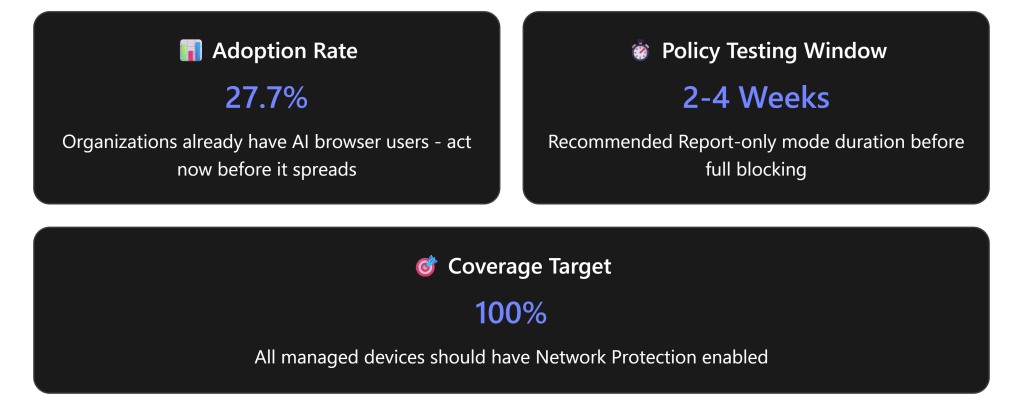
In December 2025, Gartner issued an urgent advisory recommending that organizations “block all AI browsers for the foreseeable future” due to critical cybersecurity risks.AI browsers like Perplexity’s Comet and OpenAI’s ChatGPT Atlas introduce threats including irreversible data loss, prompt injection vulnerabilities, and unauthorized credential access.With 27.7% of organizations already having at least one user with an AI browser installed,the time to act is now. [computerworld.com]
This comprehensive guide provides step-by-step instructions for configuring Microsoft 365 Business Premium (M365 BP), specifically Microsoft Defender for Cloud Apps, to detect, monitor, and block AI-enabled browsers like Comet from accessing your enterprise resources.
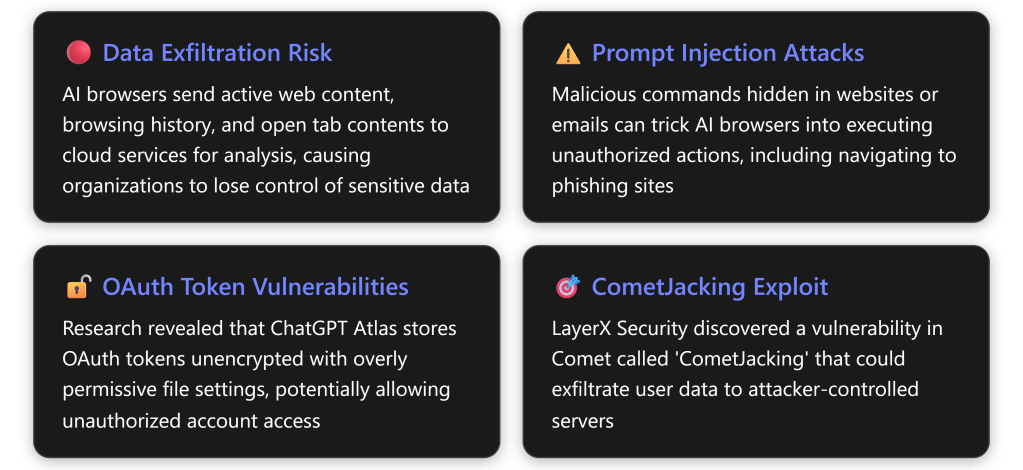
According to Gartner analysts, “The real issue is that the loss of sensitive data to AI services can be irreversible and untraceable. Organizations may never recover lost data.” [computerworld.com]
Key Security Concerns:
To implement comprehensive AI browser blocking, you need: [wolkenman….dpress.com]
| License Option | What’s Included |
|---|---|
| Microsoft 365 Business Premium + E5 Security Add-on | Defender for Cloud Apps + Defender for Endpoint |
| Microsoft 365 E5 / A5 / G5 | Full suite including Conditional Access App Control |
| Enterprise Mobility + Security E5 | Defender for Cloud Apps + Defender for Endpoint |
| Microsoft 365 F5 Security & Compliance | All required components |
| Microsoft 365 Business Premium + Defender for Cloud Apps Add-on | Minimum required configuration |
Before implementing blocking policies, ensure: [learn.microsoft.com], [learn.microsoft.com]
Blocking AI browsers requires a comprehensive, defense-in-depth approach using multiple Microsoft 365 security layers:
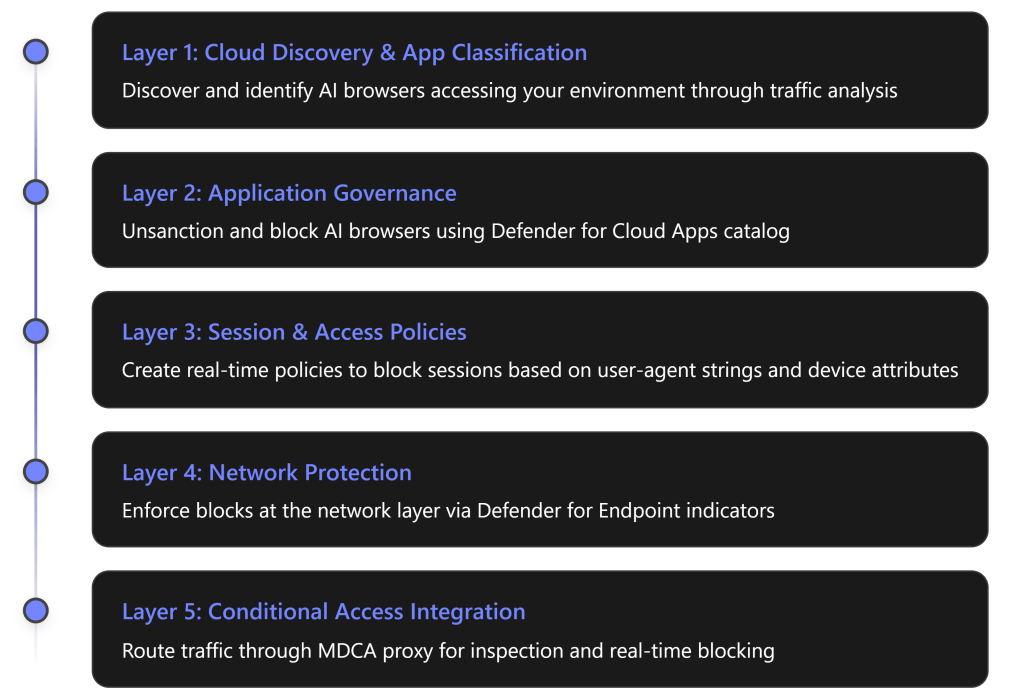
Objective: Gain visibility into which AI browsers and applications are being used in your organization.
Beyond browsers, also identify: [wolkenman….dpress.com]
Navigate to: Cloud Apps → Cloud App Catalog → Filter by “AI – Model Providers” and “AI – MCP Servers”
Objective: Enable automatic blocking of unsanctioned apps through network-level enforcement.
Ensure Network Protection is enabled for all browsers: [wolkenman….dpress.com]
Why This Matters: Network Protection ensures that blocks work across all browsers (Chrome, Firefox, etc.), not just Microsoft Edge. [wolkenman….dpress.com]
Objective: Mark Comet and other AI browsers as unsanctioned to trigger automatic blocking.
Note: If Comet hasn’t been discovered yet in your environment, you can still add custom URLs for blocking (see Phase 6).
Example domains that may be blocked:
*.perplexity.aicomet.perplexity.aiObjective: Route traffic through Defender for Cloud Apps proxy for deep inspection and control.
Policy Name: Block AI Browsers via Session Control
Assignments: [learn.microsoft.com]
| Setting | Configuration |
|---|---|
| Users | Select All users (exclude break-glass accounts) |
| Target Resources | Select Office 365, SharePoint Online, Exchange Online |
| Conditions | Optional: Add device platform, location filters |
Access Controls: [learn.microsoft.com]
Enable Policy: Set to Report-only initially for testing [learn.microsoft.com]
Critical Note: Ensure the “Microsoft Defender for Cloud Apps – Session Controls” application is NOT blocked by other Conditional Access policies, or session controls will fail. [learn.microsoft.com]
Objective: Create real-time session policies that identify and block AI browsers based on user-agent strings and behavioral patterns.
This is one of the most effective methods to block specific browsers like Comet. [securityhq.com]
Basic Information: [learn.microsoft.com]
| Field | Value |
|---|---|
| Policy Name | Block AI Browsers - Comet and Similar Agents |
| Policy Severity | High |
| Category | Access control |
| Description | Blocks access attempts from AI-enabled browsers including Comet, Atlas, and other agentic browsers based on user-agent detection |
Activities matching all of the following: [learn.microsoft.com]
While Defender for Cloud Apps doesn’t expose direct user-agent string matching in the UI by default, you can leverage activity filters: [securityhq.com]
Known AI Browser User-Agent Patterns to Block:
User-Agent patterns (Create separate policies or use contains logic):
- Contains "Comet"
- Contains "Perplexity"
- Contains "axios" (common in automated tools)
- Contains "ChatGPT" (for Atlas browser)
- Contains "AI-Browser"
- Contains "agentic"
Advanced Method – Using Session Policy with Inspection:
Actions:
Access Denied: AI-Enabled Browser Detected

Your organization's security policy prohibits the use of AI-enabled browsers
(such as Comet, Atlas, or similar tools) to access corporate resources due to
data security and compliance requirements.

Please use Microsoft Edge, Chrome, or Firefox to access this resource.

If you believe this is an error, contact your IT helpdesk.
Objective: Manually add Comet-related domains to Defender for Endpoint indicators for network-level blocking.
Based on Perplexity’s infrastructure, key domains include: [computerworld.com]
Primary Domains:
- perplexity.ai
- www.perplexity.ai
- comet.perplexity.ai
- api.perplexity.ai

CDN and Supporting Infrastructure:
- *.perplexity.ai (wildcard)
- assets.perplexity.ai
- cdn.perplexity.ai
For each domain, configure:
| Field | Value |
|---|---|
| Indicator | perplexity.ai |
| Action | Block |
| Scope | All device groups (or specific groups) |
| Title | Block Perplexity Comet Browser |
| Description | Blocks access to Perplexity Comet AI browser per organizational security policy |
| Severity | High |
| Generate alert | Yes |
https://www.perplexity.ai in any browser
This site has been blocked by your organization
Microsoft Defender SmartScreen blocked this unsafe site

This web page was blocked by Microsoft Defender Application Control
perplexity.ai has been blocked by your IT administrator
Objective: Set up automated alerts when AI browsers are detected in your environment.
Policy Template: Use “New risky app” template or create custom [learn.microsoft.com]
| Field | Configuration |
|---|---|
| Policy Name | Alert on New AI Browser Detection |
| Category | Cloud discovery |
| Risk score | High and Medium |
| App category | Select “Generative AI” |
| Traffic volume | Greater than 10 MB (adjust as needed) |
Filters:
Governance Actions:
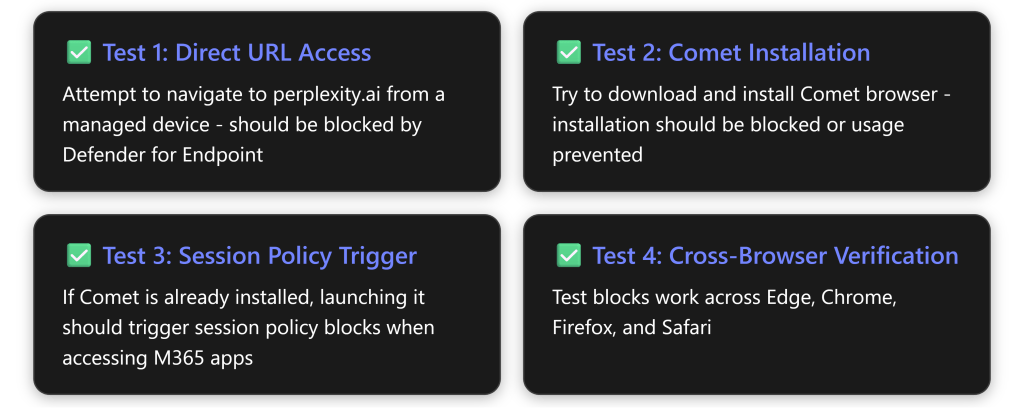
Activity Log Monitoring:
Defender for Endpoint Alerts:
Combine AI browser blocking with device compliance:
Before full blocking, consider “Warn and Educate” mode: [learn.microsoft.com]
Target specific departments first:
Even with blocks, ensure data leakage prevention:
While official Comet user-agent strings aren’t publicly documented by Perplexity, AI browsers typically exhibit these patterns:
Common AI Browser User-Agent Characteristics:
Mozilla/5.0 (Platform) ... Comet/[version]
Mozilla/5.0 (Platform) ... Perplexity/[version]
Chromium-based with custom identifiers
May contain "AI", "Agent", "Agentic" in UA string
Detection Strategy:
Comet communicates with Perplexity cloud infrastructure: [computerworld.com]
api.perplexity.aiMonitor via Defender for Cloud Apps:
Symptom: Comet/Perplexity sites accessible in non-Edge browsers
Solution: [wolkenman….dpress.com]
Symptom: Users can access M365 apps without session controls
Solution:
Symptom: False positives blocking valid user activity
Solution:
Symptom: Unsanctioned apps don’t create indicators
Solution:
| Method | Scope | Effectiveness | User Experience | Management Overhead |
|---|---|---|---|---|
| Cloud Discovery + Unsanctioning | Network-wide | ⭐⭐⭐⭐⭐ | Transparent (blocked before access) | Low (automated) |
| Session Policies | M365 Apps only | ⭐⭐⭐⭐ | May show warning messages | Medium (requires tuning) |
| Access Policies | M365 Apps only | ⭐⭐⭐⭐⭐ | Blocks before session starts | Medium |
| Manual Indicators | All network traffic | ⭐⭐⭐⭐ | Transparent | High (manual updates) |
| Conditional Access | Cloud apps only | ⭐⭐⭐⭐ | May require re-authentication | Low |
Recommended Combination: Use Cloud Discovery + Unsanctioning AND Access Policies for comprehensive coverage.
AI browsers are rapidly evolving. Stay ahead of threats:
✅ Cloud App Catalog Updates
✅ Threat Intelligence
✅ Policy Effectiveness
Beyond Comet and Atlas, watch for:
Maintain these records for audit purposes:
Consider these compliance frameworks:
| Framework | Relevance |
|---|---|
| GDPR | Data processing outside organization control |
| HIPAA | Protected health information exfiltration risk |
| SOX | Financial data protection requirements |
| PCI DSS | Cardholder data security |
| NIST 800-53 | Access control requirements |
The threat posed by AI browsers like Perplexity’s Comet is real, immediate, and growing. With security experts uniformly recommending that organizations “block all AI browsers for the foreseeable future,”the time for action is now—not later. [pcmag.com], [gartner.com]
Key Takeaways:
This Week:
Next Week:
Within 30 Days:
Microsoft Documentation:
Security Research:
Community Resources:
Conditional Access is Microsoft’s Zero Trust policy engine that evaluates signals from users, devices, and locations to make automated access decisions and enforce organizational policies. Think of it as intelligent “if-then” statements: If a user wants to access a resource, then they must complete an action (like multifactor authentication).
For SMBs using Microsoft 365 Business Premium, Conditional Access provides enterprise-grade security without requiring complex infrastructure, protecting your organization from 99.9% of identity-based attacks.
Important: Only disable security defaults after you’re ready to create Conditional Access policies immediately.
Only implement after basic policies are stable

Small and medium businesses (SMBs) with remote employees have shifted from a single “office network” model to a Zero Trust model. Microsoft 365 Business Premium (BPP) already includes extensive security layers – identity protection, device management, email scanning, and endpoint defenselearn.microsoft.comlearn.microsoft.com. With those controls fully configured, the traditional on-premises network perimeter (and thus an expensive firewall appliance) becomes far less critical. In practice, a standard router/NAT firewall combined with Windows/macOS built‑in firewalls and M365’s cloud protections can cost‑effectively secure a remote SMB. We explain how M365 BPP’s features cover typical firewall functions, and when a dedicated firewall (beyond a basic one) may not be needed.
Microsoft 365 Business Premium bundles multiple security layers: endpoint protection, identity/access controls, device management, and more. Key built‑in features include:
These built-in layers cover most attack vectors. For example, M365 BPP’s Defender for Business includes a managed host-based firewall and web filtering, so each laptop is protected on any networklearn.microsoft.com. And Conditional Access can block sign-ins from unsecured locations or unregistered devices, effectively extending the network perimeter to only trusted endpoints.
In a modern SMB, employees “can work anywhere,” so the old model of trusting the office LAN no longer applies. As Microsoft describes, traditional protections rely on firewalls and VPNs at fixed locations, whereas Zero Trust assumes no network is inherently safelearn.microsoft.com. Every sign-in is verified (via Azure AD) and every device is checked (via Intune) no matter where the user is.
In this diagram, a corporate firewall on the left no longer suffices when employees roam (right side)learn.microsoft.com. With Business Premium, identity and device policies take over: multifactor authentication and Conditional Access ensure only known users on compliant devices connectlearn.microsoft.commicrosoft.com. In effect, the organization’s “perimeter” is the cloud. Remote workers authenticate directly to Azure/Office 365 and receive Microsoft’s protection (e.g. encrypted tunnels, safe browser checks), rather than passing first through an on‑site firewall.
Even without a hardware firewall, devices must protect themselves on untrusted networks. All common operating systems include a built‑in firewall. Enabling these host firewalls is free and highly effective – many MSP guides advise turning on Windows Defender Firewall (and macOS’s) on every device before even buying a hardware applianceguardianangelit.com. Microsoft Defender for Business not only installs antivirus but can manage each device’s firewall settings: for instance, Intune can push a profile that blocks all inbound traffic except essential serviceslearn.microsoft.com.
By treating each endpoint as its own secured “network edge,” an SMB covers the user’s connection in coffee shops or home Wi‑Fi. For example, if a user’s laptop is on public Wi‑Fi, the Windows firewall (enforced by Defender policies) stops inbound attacks, while Defender’s web protection filters malicious sites. This layered endpoint approach (antivirus+EDR + host firewall + encrypted disk) significantly shrinks the need for a central firewall inspecting all traffic.
If an SMB still maintains an office or data closet, some firewall or router will normally be used for basic perimeter functions (NAT, DHCP, segmentation of guest networks, etc.). However, the level of firewall needed is typically minimal. A basic managed router or inexpensive UTM is often enough to separate IoT/guest Wi-Fi from internal staff, and to enforce outbound rules. Beyond that, heavy enterprise firewalls yield little benefit in a predominantly cloud-centric setup.
For remote-heavy SMBs, many experts suggest zero-trust access (e.g. VPN, ZTNA) instead of relying on office hardware. ControlD’s SMB security checklist, for instance, recommends ensuring VPN or Zero-Trust Network Access for remote employees, rather than expecting them to route through the office firewallcontrold.com. In other words, with cloud apps and M365-managed devices, the on‑site firewall sees only its local subnet – almost all work and threats are already handled by Microsoft’s cloud services and endpoint defenses.
A Business Premium tenant can be tuned to cover typical firewall functions:
In this configuration, each device and identity becomes a control point. The M365 stack effectively sits in front of your data, rather than hardware at the network perimeter.
Without regulatory mandates, a high-end firewall appliance is often not cost-justified for an SMB fully on M365. The hardware itself and ongoing subscriptions (threat feeds, VPN licenses, maintenance) add significant cost. Given that M365 Business Premium already provides next-generation protection on endpoints and enforces secure access, the marginal security gain from a $2k+ firewall is small for remote-centric SMBs.
That said, a simple firewall/router is still recommended for the office LAN. It can provide:
For example, installing Azure AD Application Proxy (no cost beyond BPP license) often removes the need to expose an on‑site port for remote accesssherweb.com. Similarly, if home users connect via secure VPN with M365 credentials, the corporate firewall is bypassed by design.
In contrast, host-based security and cloud controls cover most threats: phishing and remote intrusion are handled by Defender and MFA, malware is stopped at the device, and data exfiltration is controlled by identity and DLP settings. As one MSP guide notes, for small businesses the built-in OS firewalls should be used before investing in hardware firewallsguardianangelit.com. In practice, the total protective overlap from Intune+Defender+Conditional Access can eliminate many risks that a hardware firewall is meant to address.
For a typical SMB with Microsoft 365 Business Premium fully enabled, the need for an expensive dedicated firewall is greatly reduced. M365 BPP delivers comprehensive security – endpoint protection, email filters, and zero-trust access – that, when properly configured, cover most attack vectorslearn.microsoft.comlearn.microsoft.com. A basic network firewall (even the one built into a router) is useful for simple segmentation, but beyond that most protections are handled by Microsoft’s cloud services and host firewalls. In short, by leveraging Business Premium’s features (Defender, Intune, Azure AD P1, etc.), an SMB can safely rely on default and cloud-managed defenses rather than purchasing a high-end firewall applianceguardianangelit.comsherweb.com.
Sources: Microsoft documentation and SMB security guides detailing Microsoft 365 Business Premium’s included protectionslearn.microsoft.comlearn.microsoft.comcontrold.comguardianangelit.comsherweb.com, and industry best practices for SMB security in a remote-work, zero-trust modellearn.microsoft.comcontrold.com.

Microsoft Defender for Business is a security solution designed for small and medium businesses to protect against cyber threats. When issues arise, a systematic troubleshooting approach helps identify root causes and resolve problems efficiently. This guide provides a step-by-step process to troubleshoot common Defender for Business issues, highlights where to find relevant logs and alerts, and suggests advanced techniques for complex situations. All steps are factual and based on Microsoft’s latest guidance as of 2025.

These are some typical problems administrators encounter with Defender for Business:
Understanding which of these scenarios matches your situation will guide where to look first. Next, we’ll cover where to find the logs and alerts that contain clues for diagnosis.
Effective troubleshooting relies on checking both cloud portal alerts and on-device logs. Microsoft Defender for Business provides information in multiple places:
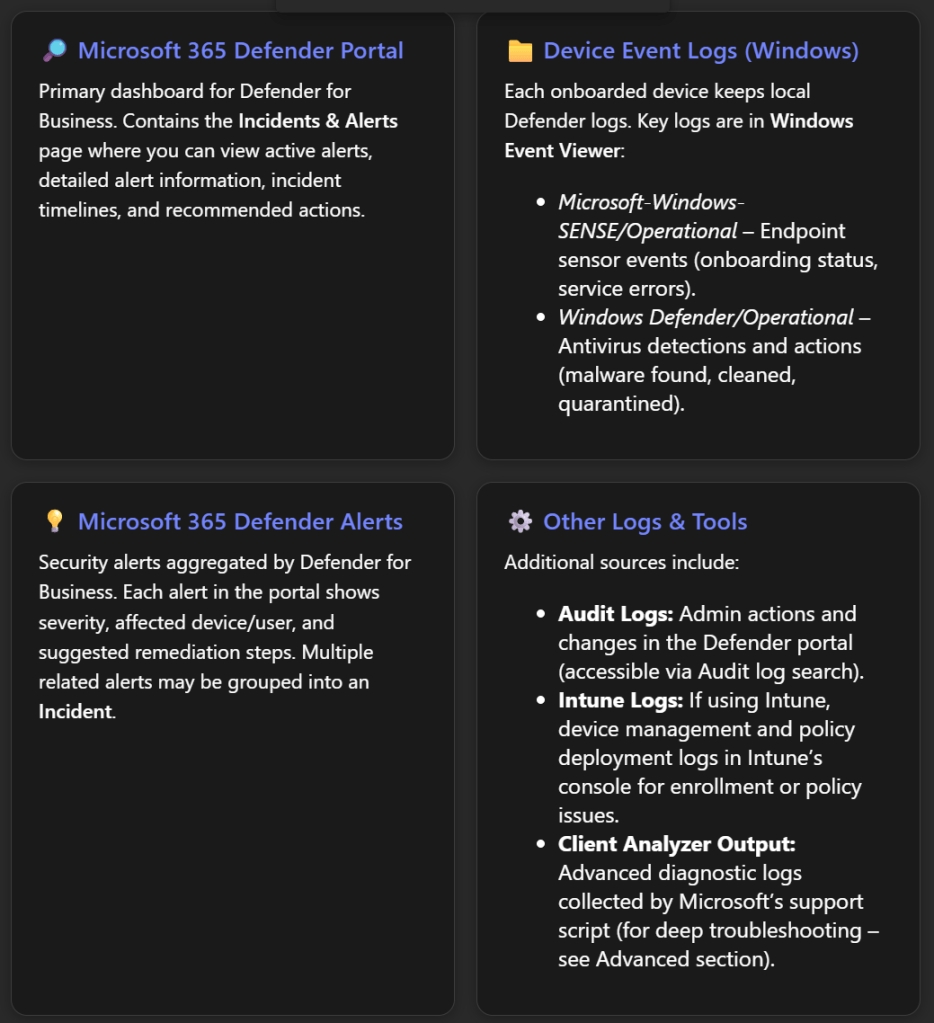
Microsoft 365 Defender Portal (security.microsoft.com): This is the cloud portal where Defender for Business is managed. The Incidents & alerts section is especially important. Here you can monitor all security incidents and alerts in one place[2]. For each alert, you can click to see details in a flyout pane – including the alert title, severity, affected assets (devices or users), and timestamps[2]. The portal often provides recommended actions or one-click remediation for certain alerts[2]. It’s the first place to check if you suspect Defender is detecting threats or if something triggered an alert that correlates with the issue.
Device Logs via Windows Event Viewer: On each Windows device protected by Defender for Business, Windows keeps local event logs for Defender components. Access these by opening Event Viewer (Start > eventvwr.msc). Key logs include:
Alerts in Microsoft 365 Defender: Defender for Business surfaces alerts in the portal for various issues, not only malware. For example, if real-time protection is turned off on a device, the portal will flag that device as not fully protected[1]. If a device hasn’t reported in for a long time, it might show in the device inventory with a stale last-seen timestamp. Additionally, if an advanced attack is detected, multiple alerts will be correlated as an incident; an incident might be tagged with “Attack disruption” if Defender automatically contained devices to stop the spread[2] – such context can validate if an ongoing security issue is causing what you’re observing.
Intune or Endpoint Manager (if applicable): Since Defender for Business can integrate with Intune (Endpoint Manager) for device management and policy deployment, some issues (especially around onboarding and policy conflicts) may require checking Intune logs:
Advanced Hunting and Audit (for advanced users): If you have access to Microsoft 365 Defender’s advanced hunting (which might require an upgraded license beyond Defender for Business’s standard features), you could query logs (e.g., DeviceEvents, AlertEvents) for deeper investigation. Also, the Audit Logs in the Defender portal record configuration changes (useful to see if someone changed a policy right before issues started).
Now, with an understanding of where to get information, let’s proceed with a systematic troubleshooting process.
The following steps outline a logical process to troubleshoot issues in Microsoft Defender for Business. Adjust the steps as needed based on the specific symptoms you are encountering.
Before jumping into configuration changes, clearly define the problem. Understanding the nature of the issue will focus your investigation:
Gathering this context will guide you on where to look first. For example, an issue with one device might mean checking that device’s status and logs, whereas a widespread issue might suggest a configuration problem affecting many devices.
Log in to the Microsoft 365 Defender portal (https://security.microsoft.com) with appropriate admin credentials. This centralized portal often surfaces the problem:
Example: Suppose the portal shows an alert “Real-time protection was turned off on DeviceXYZ”. This is a clear indicator – the device is onboarded but not actively protecting in real-time[1]. The recommended action would likely be to turn real-time protection back on. Alternatively, if an alert says “New malware found on DeviceXYZ”, you’d know the issue is a threat detection, and the portal might guide you to remediate or confirm that malware was handled. In both cases, you’ve gathered an essential clue before even touching the device.
If you do not see any alert or indicator in the portal related to your problem, the issue might not be something Defender is reporting on (for example, if the problem is an onboarding failure, there may not be an alert – the device just isn’t present at all). In such cases, proceed to the next steps.
Next, ensure that the devices in question are configured correctly and not in a state that would cause issues:
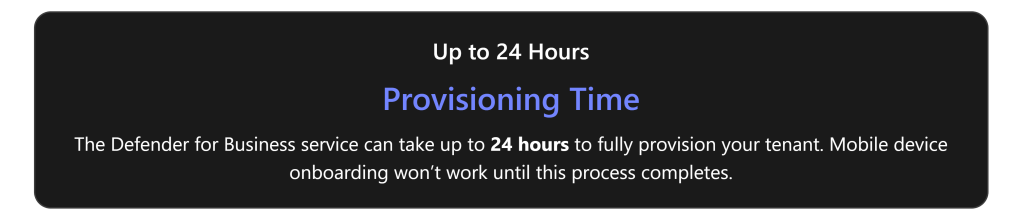
By verifying these settings, you either fix simple oversights (like turning real-time protection back on) or gather evidence of a deeper issue (for example, confirming a device is properly onboarded, yet still not visible, implying a reporting issue, or confirming there’s a policy conflict that needs resolution in the next step).
If the issue is not yet resolved by the above steps, or if you need more insight into why something is wrong, dive into the device’s event logs for Microsoft Defender. Perform these checks on an affected device (or a sample of affected devices if multiple):
eventvwr.msc and hit Enter. Navigate to Applications and Services Logs > Microsoft > Windows and scroll through the sub-folders.Sense service is running (in Services.msc). If not, an OS issue or missing prerequisites might be at fault.MALWAREPROTECTION_STATE_MALWARE_DETECTED) means malware was detected, and ID 1117 means an action was taken on malware[4]. These confirm whether Defender actually caught something malicious, which might have triggered further issues.By scrutinizing Event Viewer, you gather concrete evidence of what’s happening at the device level. For instance, you might confirm “Device A isn’t in the portal because it has been failing to reach the Defender service due to proxy errors – as Event ID 5 shows.” Or “Device B had an event indicating onboarding never completed (Event 6), explaining why it’s missing from portal – need to re-onboard.” This will directly inform the fix.
Armed with the information from the portal (Step 2), settings review (Step 3), and device logs (Step 4), you can now take targeted actions to fix the issue.
Depending on what you found, apply the relevant resolution below:
*.security.microsoft.com, *windows.com related to Defender cloud. Proxy settings might need to allow the Defender service through. See Microsoft’s documentation on Defender for Endpoint network connections for required URLs.Sense service and watch Event Viewer to see if it connects successfully).Perform the relevant fixes and monitor the outcome. Many changes (policy changes, enabling features) may take effect within minutes, but some might take an hour or more to propagate to all devices. You can speed up policy application by instructing devices to sync with Intune (if managed) or simply rebooting them.
After applying fixes, confirm that the issue is resolved:
Sense service should be running and set to automatic).MpCmdRun -SignatureUpdate to also check connectivity).If everything looks good, congratulations – the immediate issue is resolved. Make sure to document what the cause was and how it was fixed, for future reference.
If the problem persists despite the above steps, or if logs are pointing to something unclear, it may require advanced troubleshooting:
MDELiveAnalyzer.ps1 (and related modules like MDELiveAnalyzerAV.ps1 for AV-specific logs) will produce a zip file with results[6][6]. Review its findings for any errors (or provide it to Microsoft support).Escalating ensures that more complex or rare issues (like a service bug, or a weird compatibility issue) are handled by those with deeper insight or patching ability.
For administrators comfortable with deeper analysis, here are a few advanced techniques and tools to troubleshoot Defender for Business issues:
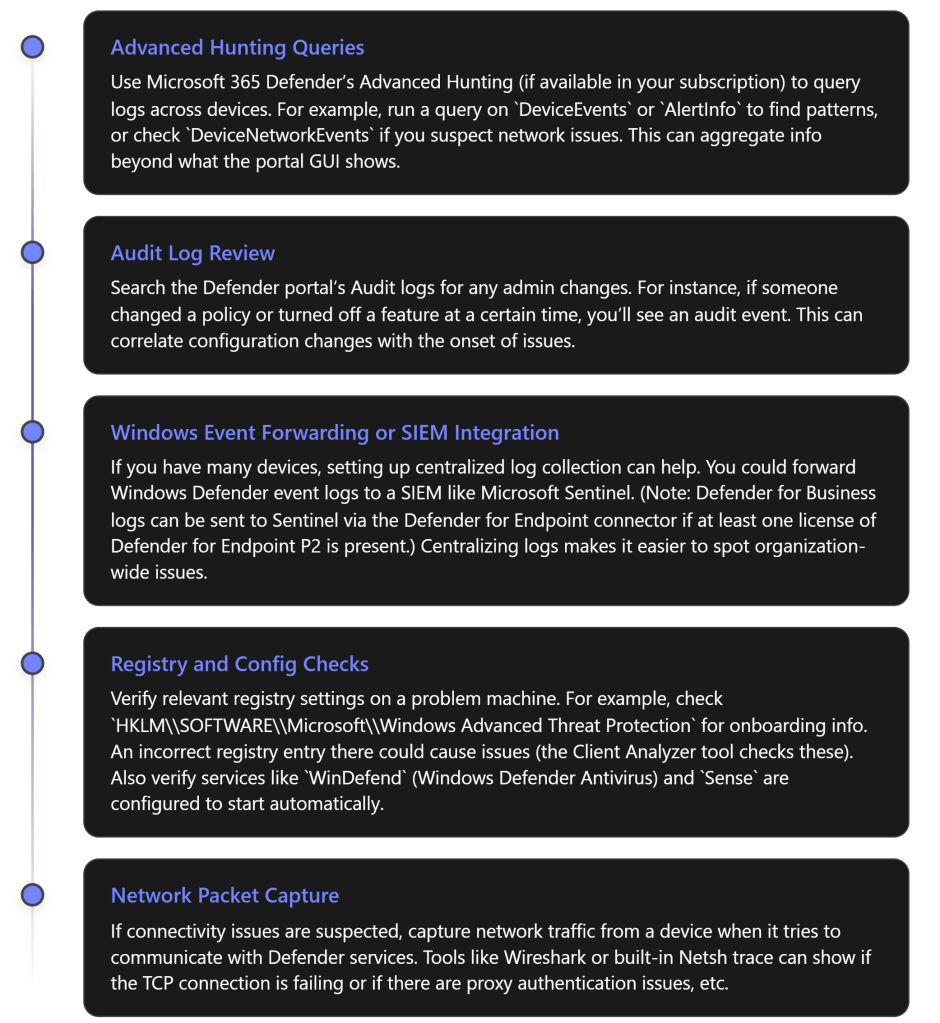
Advanced Hunting: This is a query-based hunting tool available in Microsoft 365 Defender. If your tenant has it, you can run Kusto-style queries to search for events. For example, to find all devices that had real-time protection off, you could query the DeviceHealthStatus table for that signal. Or search DeviceTimeline for specific event IDs across machines. It’s powerful for finding hidden patterns (like if a certain update caused multiple devices to onboard late or if a specific error code appears on many machines).
Audit Logs: Especially useful if the issue might be due to an admin change. The audit log will show events like policy changes, onboarding package generated, settings toggled, who did it and when. It helps answer “did anything change right before this issue?” For instance, if an admin offboarded devices by mistake, the audit log would show that.
Integrations and Log Forwarding: Many enterprises use a SIEM for unified logging. While Defender for Business is a more streamlined product, its data can be integrated into solutions like Sentinel (with some licensing caveats)[7]. Even without Sentinel, you could use Windows Event Forwarding to send important Defender events to a central server. That way, you can spot if all devices are throwing error X in their logs. This is beyond immediate troubleshooting, but helps in ongoing monitoring and advanced analysis.
Deep Configuration Checks: Sometimes group policies or registry values can interfere. Ensure no Group Policy is disabling Windows Defender (check Turn off Windows Defender Antivirus policy). Verify that the device’s time and region settings are correct (an odd one, but significant time skew can cause cloud communication issues).
Use Troubleshooting Mode: Microsoft introduced a troubleshooting mode for Defender which, when enabled on a device, disables certain protections for a short window so you can, for example, install software that was being blocked or see if performance improves. After testing, it auto-resets. This is advanced and should be used carefully, but it’s another tool in the toolbox.
Using these advanced techniques can provide deeper insights or confirm whether the issue lies within Defender for Business or outside of it (for example, a network device blocking traffic). Always ensure that after advanced troubleshooting, you return the system to a fully secured state (re-enable anything you turned off, etc.).
Prevention and proper management can reduce the likelihood of Defender for Business issues:
By following best practices, you reduce misconfigurations and are quicker to catch problems, making the overall experience with Microsoft Defender for Business smoother and more reliable.
For further information and help on Microsoft Defender for Business:
In summary, Microsoft Defender for Business is a powerful solution, and with the step-by-step approach above, you can systematically troubleshoot issues that come up. Starting from the portal’s alerts, verifying configurations, checking device logs, and then applying fixes will resolve most common problems. And for more complex cases, Microsoft’s support and documentation ecosystem is there to assist. By understanding where to find information (both in the product and in documentation), you’ll be well-equipped to keep your business devices secure and healthy.
References
[1] Microsoft Defender for Business troubleshooting
[2] View and manage incidents in Microsoft Defender for Business
[3] Review events and errors using Event Viewer
[4] windows 10 – How to find specifics of what Defender detected in real …
[5] Troubleshoot Microsoft Defender for Endpoint onboarding issues
[6] Collect support logs in Microsoft Defender for Endpoint using live …
[7] Microsoft 365 Defender for Business logs into Microsoft Sentinel
[8] Common mistakes during Microsoft Defender for Endpoint deployments

In today’s security landscape, it’s not uncommon for organizations to run Microsoft Defender for Business (the business-oriented version of Microsoft Defender Antivirus, part of Microsoft 365 Business Premium) alongside other third-party antivirus (AV) solutions. Below, we provide a detailed report on how Defender for Business operates when another AV is present, how to avoid conflicts between them, and why it’s important to keep Defender for Business installed on devices even if you use a second AV product.
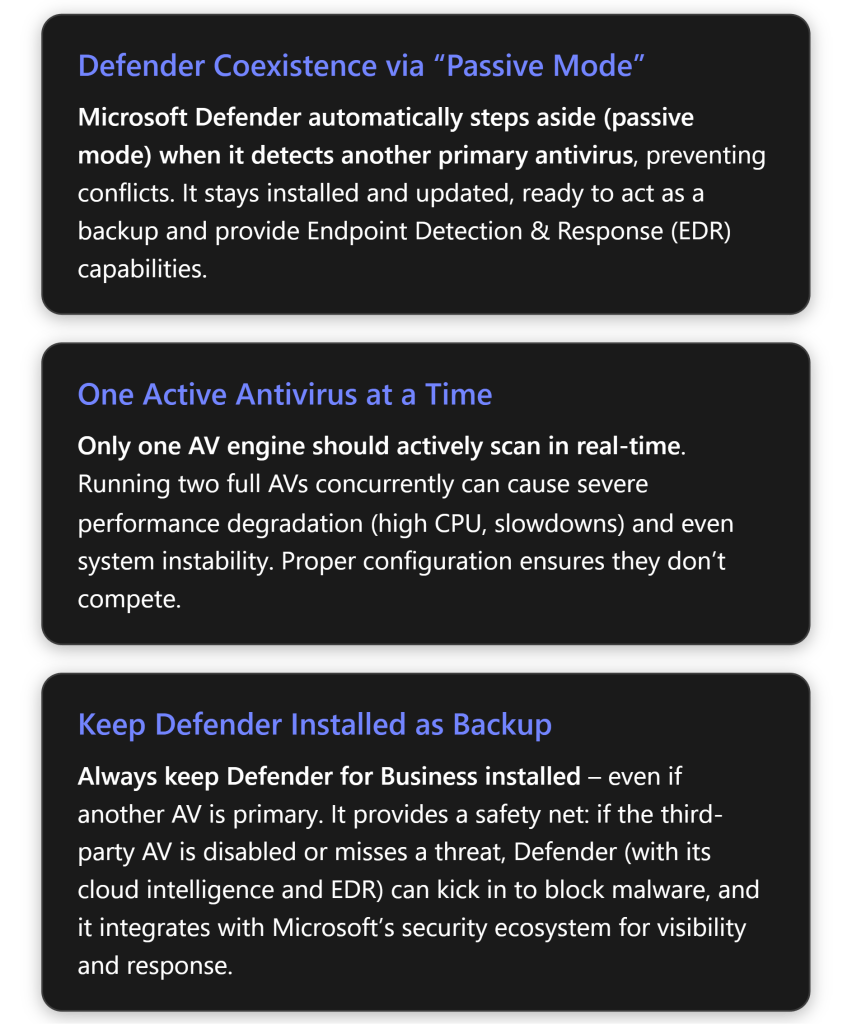
Microsoft Defender for Business is designed to coexist with other antivirus products through an automatic role adjustment mechanism. When a non-Microsoft AV is present, Defender can detect it via the Windows Security Center and adjust its operation mode to avoid conflicts[1]. Here’s how this interaction works:
In summary, Defender for Business is smart about coexisting with other AVs. It uses Windows’ built-in security framework to detect other security products and will yield primary control to avoid contention. By entering passive mode, it ensures your third-party AV can do its job without interference, while Defender continues to run in the background (for updates, EDR, and as a backup). This design provides layered security: you get the benefits of your chosen AV solution and still retain Defender’s visibility and advanced threat detection capabilities in the Microsoft 365 Defender portal.
Running two antivirus solutions concurrently without proper coordination can lead to a number of issues. If misconfigured, multiple AVs can interfere with each other and degrade system performance, undermining the security they’re meant to provide. Here are some common conflicts and problems that occur when Defender and a third-party AV operate simultaneously (both in active scanning mode):
In short, running two full antivirus solutions in parallel without coordination is not recommended. As one internal cybersecurity memo succinctly put it, using multiple AV programs concurrently can “severely degrade system performance and stability” and often “reduces overall protection efficacy” due to conflicts[3]. The goal should be to have a primary AV and ensure any secondary security software (like Defender for Business in passive mode) is configured in a complementary way, not competing for the same role.
To safely leverage Microsoft Defender for Business alongside another antivirus, you need to configure your environment so that the two solutions cooperate rather than collide. Below are the key steps and best practices to achieve this and prevent conflicts:
Get-MpComputerStatus) that Defender’s status is “Passive” (or “No AV active” if third-party is seen as active in Security Center) on those devices. Do not attempt to force both to be “Active”. (On Windows 10/11, Defender will normally disable itself automatically when a third-party is active, so just let it do so. On servers, see the next step.) The bottom line: pick one AV to be the primary real-time scanner – running two concurrently is not supported or advised[1].HKLM\SOFTWARE\Policies\Microsoft\Windows Advanced Threat Protection\ForceDefenderPassiveMode = 1 (DWORD)[1].\ Then onboard the server to Defender for Business. This ensures Defender Antivirus runs in passive mode (so it won’t actively scan) even while the other product is active. If you skip this, you might end up with Defender still active alongside the other AV on a server, which can cause conflicts. Alternatively, some admins choose to completely uninstall or disable Defender on servers when using a third-party server AV, to avoid any chance of conflict[1]. Microsoft allows Defender to be removed on Windows Server if desired (via removing the Windows Defender feature)[1], but if you do this, make sure the third-party is always running and up to date, and consider the trade-off (losing Defender’s EDR on that server). In summary, for servers: explicitly set Defender to passive or uninstall it – don’t leave it in an ambiguous state.wscsvc. In troubleshooting scenarios, if you find Defender and a third-party AV both active, check that the Security Center is running properly.%ProgramFiles%\Windows Defender or specific Defender processes like MsMpEng.exe)[1]. This prevents the third-party from mistakenly flagging Defender’s components. Likewise, ensure Defender (when active or even during passive periodic scans) excludes the other AV’s program folders, processes, and update directories. Many enterprise AV solutions publish a list of directories/processes to exclude for compatibility. Following these guidelines will reduce unnecessary friction – each AV will essentially ignore the other. Microsoft’s guidance specifically states to “Make sure to add Microsoft Defender Antivirus and Microsoft Defender for Endpoint binaries to the exclusion list of the non-Microsoft antivirus solution”[1]. Doing so means, even if a periodic scan occurs, the AVs won’t scan each other.By following the above steps, you ensure that Defender for Business and your third-party antivirus operate harmoniously: one provides active protection, the other stands by with auxiliary protection and insight. Properly configured, you won’t suffer slowdowns or weird conflicts, and you’ll still reap security benefits from both solutions.
A major concern when using two security solutions is preserving continuous real-time protection – you want no gaps in coverage. With one AV in passive mode, how do you ensure the system is still protected at all times? Let’s clarify how Defender for Business works in tandem with a primary AV to maintain solid real-time defense:
In essence, you maintain continuous protection by leveraging the strengths of both products: the third-party AV actively stops known threats, and Defender for Business supplies a second layer of defense through behavior-based detection and instant backup protection if the first layer falters. Done correctly, this hybrid approach can actually improve security – you have two sets of eyes (engines) on the system in different ways, without the two stepping on each other’s toes. The key is that Microsoft has built Defender for Endpoint/Business to augment third-party AV, not compete with it, thereby ensuring there’s no lapse in real-time security.
Microsoft Defender for Business is more than just an antivirus scanner. It’s a whole platform of endpoint protection capabilities that can offer layers of defense and insight that some third-party AV solutions (especially basic or legacy ones) might lack. Even if you have another AV in place, keeping Defender for Business on your devices means you can leverage these additional features:
In summary, Defender for Business offers a suite of advanced security features – from behavioral blocking, vulnerability management, to deep integration – that go beyond file scanning. Many third-party solutions aimed at SMBs are essentially just antivirus/anti-malware. By keeping Defender deployed, you ensure that you’re not missing out on these advanced protections. Even if you’re not using all of them while another AV is primary, you have the flexibility to turn them on as needed. And critically, if your third-party AV lacks any of these defenses, Defender can fill the gap (provided it’s allowed to operate in those areas).
It’s this breadth of capability that leads cybersecurity experts to often recommend using Defender as a primary defense. One internal analysis noted that adding a redundant third-party AV “introduces substantial security limitations by deactivating or sidelining the advanced, integrated capabilities inherent to the Microsoft 365 ecosystem”[6]. In plain terms: if a third-party AV causes Defender to go passive, you might lose out on the very features listed above (ASR, network protection, etc.). That’s one reason to carefully weigh which product you want in the driver’s seat.
Keeping security software up-to-date is critical, and when you have two solutions on a device, you need to maintain both. Here’s how updates and patches are handled for Defender for Business when another AV is installed, and what you should do to ensure smooth updating:
In summary, maintain a regular patching regimen for both Defender and the third-party AV. There’s little extra overhead in doing so, and it ensures that whichever solution needs to act at a given moment has the latest capabilities. Microsoft Defender in passive mode should be treated as an active component in terms of updates – feed it, water it, keep it healthy, even if it’s sleeping most of the time.
Microsoft Defender for Business is built to be compatible with third-party antivirus programs, but there are a few compatibility issues and considerations to be aware of:
Set-MpPreference -DisableRealtimeMonitoring 0 to turn it on. Or reboot – on boot, Security Center should turn Defender on within a few moments. If it doesn’t, you might have a GPO that’s disabling Defender (like “Turn off Windows Defender Antivirus” might have been set to Enabled by some old policy). Remove such policies to allow Defender to run.In summary, the compatibility between Defender for Business and third-party AVs is generally smooth, given the design of passive mode. The main things to do are to ensure proper registration with Windows Security Center and avoid manually forcing things that the system will handle. By following the earlier best practices, most compatibility issues can be circumvented. Always treat both products as part of your security infrastructure – manage them intentionally.
When running Microsoft Defender for Business alongside another AV, you’ll want to monitor both to ensure they’re performing well and not negatively impacting the system or each other. Here are some tips for monitoring the performance and health of Defender in this scenario:
Get-MpComputerStatus | Select AMRunningMode\ This will return Normal, Passive, or EDR Block Mode as the current state of Defender AV[1]. In your scenario it should say “Passive” on clients (or “EDR Block Mode” if passive with block mode active). If you ever find it says “Active” when it shouldn’t, that warrants investigation (maybe the other AV isn’t being detected). If it says “Disabled”, that means Defender is turned off completely – which only happens if the device is not onboarded to Defender for Business in presence of another AV, or someone manually disabled it. Prefer passive over disabled, as disabled means no EDR.Overall, monitoring a dual-AV setup is about verifying that the primary AV is active and effective, and that Defender remains healthy in the background. Microsoft provides you the tools to see Defender’s status deeply (via its logs and portal), and your third-party AV will have its own status readings. By staying vigilant, you can catch misconfigurations early (like Defender accidentally disabled, or two AVs active after an update) and ensure continued optimal performance.
Given all the above, one might ask: What if we just didn’t install or use Defender at all, since we have another AV? However, there are significant risks and disadvantages to not having Microsoft Defender for Business present on your devices:
In short, not having Defender for Business installed means relying solely on one line of defense. If that line is breached or fails, you have nothing behind it. Defense in depth is a core principle of cybersecurity; eliminating Defender removes one of those depths. The safer approach is to keep it around so that even if dormant, it’s ready to spring into action. The risks of not doing so are essentially the inverse of all the reasons to keep it we’ve discussed: fewer protections, fewer alerts, and greater exposure if something goes wrong.
Indeed, an internal team discussion at one organization concluded with a clear recommendation: “fully leverage the built-in Defender solution and avoid deploying redundant AV products” to maximize protection[3]. The reasoning was that adding a second AV (and thereby turning off parts of Defender) often “leaves security gaps” that the built-in solution would have covered[3].
Microsoft Defender for Business plays an important role in your overall security posture, even if you’re using a third-party antivirus. It provides enterprise-grade security enhancements that, when combined with another AV in a layered approach, can significantly strengthen your defense strategy:
In conclusion, Defender for Business significantly bolsters your security posture by adding layers of detection, response, and integration. It helps transform your strategy from just “an antivirus on each PC” to “an intelligent, cloud-connected defense system.” Many businesses, especially SMBs, have found that leaning into the Microsoft Defender ecosystem gives them security capabilities they previously thought only large enterprises could afford or manage. It’s a key reason why even if you run another AV now, you’d still want Defender in play – it’s providing a safety net and broader protection context that stand-alone AV can’t match.
To quote a relevant statistic: Over 70% of small businesses now recognize that cyber threats are a serious business risk[7]. Solutions like Defender for Business, with its broad protective umbrella, directly address that concern by elevating an organization’s security posture to handle modern threats. Your posture is strongest when you are using all tools at your disposal in a coordinated way – and Defender is a crucial part of the Windows security toolkit.
Many organizations have navigated the decision of using Microsoft Defender alongside (or versus) another antivirus. One illustrative example is a small professional services firm (fictitiously, “Contoso Ltd”) which initially deployed a well-known third-party AV on all their PCs, with Microsoft Defender disabled. They later enabled Defender for Business in passive mode to see its benefits:
Another scenario to note comes from an internal IT advisory in an organization that had a mix of security tools. After reviewing incidents and system reports, the advisory concluded that running a third-party AV alongside Defender (and thus putting Defender in passive mode) was counterproductive: it “severely degraded performance” and “sidelined advanced threat protection features of Defender for Business, leaving security gaps”[3]. They provided guidance to their teams to minimize use of redundant AV and trust the integrated Defender platform[3]. The result was improved system performance and a more streamlined security posture, with fewer missed alerts.
These examples show that while you can run both, organizations often discover that fully leveraging one robust solution (like Defender for Business) is easier and just as safe, if not safer. Still, if regulatory or company policy demands a specific third-party AV, using Defender in the supportive role as we’ve described can certainly work well. Many businesses do this, especially during a transition period or to evaluate Defender.
The key takeaway from real-world experiences is that Defender for Business has proven itself capable as a full endpoint protection platform, and even in a secondary role it adds value. Companies have caught threats they would have otherwise missed by having that extra layer. And importantly – when configured correctly – running Defender and another AV together has been manageable and stable for those organizations.
For IT administrators looking to dive deeper into configuring Microsoft Defender for Business alongside other antivirus solutions (or just to maximize Defender’s capabilities), here are some valuable resources and references:
In all, you have a wealth of information from Microsoft’s official documentation to community wisdom. Leverage the official docs first for configuration guidance, as they are authoritative on how Defender will behave. Then, use community forums to learn from others who have done similar deployments. Keeping knowledge up to date is important – both Defender and third-party AVs evolve, so stay tuned to their update notes and blogs (for instance, new Windows releases might tweak Defender’s behavior slightly, which Microsoft usually documents).
Lastly, as you maintain this dual setup, regularly review Microsoft’s and your AV vendor’s recommendations. Both want to keep customers secure and typically publish best practice guides that can enhance your deployment.
Conclusion: Running Microsoft Defender for Business concurrently with another antivirus solution can be achieved with careful configuration, and it offers significant security advantages by layering protections. By following best practices to avoid conflicts (one active AV at a time, using Defender’s passive mode, adding exclusions, etc.), you can enjoy a harmonious setup where your primary AV and Defender complement each other. This approach strengthens your security posture – Defender for Business brings advanced detection, response, and integration capabilities that fill gaps a standalone AV might leave[6][1], all while providing a safety net if the other solution falters[1].
In today’s threat environment, such a defense-in-depth strategy is extremely valuable. It ensures that your endpoints are not only protected by traditional signature-based methods, but also by cloud-powered intelligence and behavioral analysis. And should you ever choose to transition fully to Microsoft’s solution, you’ll be well-prepared, as Defender for Business will already be installed and familiar in your environment.
TL;DR: Use one antivirus as primary and let Microsoft Defender for Business run alongside in passive mode. Configure them not to conflict. This gives you the benefit of an extra set of eyes (and a ready backup) without the headache of dueling antiviruses. Always keep Defender installed – it’s tightly woven into Windows security and provides crucial layers of protection (like EDR, cloud analytics, and ransomware safeguards) that enhance your overall security. In the end, you’ll achieve stronger security resilience through this layered approach, which is greater than the sum of its parts.[3][1]
References
[1] Microsoft Defender Antivirus: 12 reasons why you need it
[2] Antivirus solution compatibility with Microsoft Defender for Endpoint
[3] Uncovering the Truth: Can McAfee and Windows Defender Coexist?

Following on from a post I wrote recently:
I’d like to continue my musing about the challenge of finding qualified staff, especially if you are a technology provider.
Traditionally, IT Providers have looked for staff that can perform a certain defined role in their business and that has kind of been where it ends. When that person leaves, they need to find a similar soul to replace them. There ain’t much leverage here if we are honest is there? Technology and technology businesses should be about leverage.
The main fault lies with the skill set that IT providers are recruiting for these days.
A very famous tech luminary wrote an article back in 2011 called:
Why software is eating the world
and if you haven’t read it, you should. You should also be mindful of that fact that it is now over ten years old! Given that context, I feel pretty confident in saying that EVERY business is in fact a software business today. Every business relies more on IT systems that it ever has and the core of IT systems is software NOT hardware or infrastructure. Problem is, most business don’t yet realise they ARE a software business!
So why is it that most IT businesses recruit people for old world hardware and infrastructure roles? Don’t they realise the world has well and truly been eaten now it is 2022? Perhaps a reason they can’t successfully recruit is what they consider ‘suitable’ candidates has moved on so much from such traditional roles to roles that embrace what modern technology is all about today. Software. Perhaps the reason people can’t be found is that no one wants those traditional roles anymore! Maybe?
In essence, any modern role, especially in industries that provide technology services should include software as a core capability, most importantly, the ability to code. No, I am not saying that everyone needs to be a C sharp developer. What I am saying that our world today is built on code and it takes people who understand that and can speak that language to successfully support it. The past is about speed and feeds, aka hardware. That is now pretty much an arcane ancient language. Bandwidth is the principal commodity of the modern workplace not CPU speed or RAM.
A traditional IT provider should therefore be looking for DevOps people. Those that can do the IT operations, create users, reset passwords, etc as infrastructure types have done for years but also be comfortable with creating automation processes and scripting to reduce the precious amount of human capital that needs to be invest to achieve these aims.
Another benefit of employing DevOps types is that the code they develop can be leveraged across many customers, unlike their time. A typical infrastructure tech is limited to a fixed linear set of tasks between certain times in a day. Code however, can run constantly across multiple environments with minimal human interaction.
Still further, when a DevOps type leaves the organisation their code stays with the organisation, whereas when a traditional infrastructure technician leaves they leave no real value beyond their actual time in the business. That is not playing smart business in my books, that is simply trying to throw resources at a problem which you can never win, because you are always going to have to replace the resource at some point in time. That situation has taken many business this long to realise. Problem is, now they have, they are not well placed to deal with it. All they can do is scramble for more resources which are becoming scarcer everyday. In short, your staff are going to move on, that is a fact. You will need to replace them. Is your only solution simply to replace staff as they leave with similar candidates? That isn’t a game you can win because you’ll always be time poor when recruiting and never find an exact replacement, and even if you do, that replacement could resign immediately and you are again faced with the same dilemma. What’s the definition of insanity again?
I think another reason why so few people want to do traditional IT infrastructure work is that it is purely and simply ‘slog’ work. By this I mean that your reward for closing a trouble ticket is, guess what? Another trouble ticket and then another and then another at infinitum. If you want to disincentivise and burn people out, keep giving the same grinding work over and over again like trouble tickets. Most IT managers would hate that themselves yet they enforce it on their subordinates. To me, that is utter madness because you are treating people like machines and to my knowledge we should have all left that behind in the Victorian age!
An emphasis on code and software allows expression, it allows the human brain to to what it is good for. To create, to be imaginative and innovate. Most people entering the workplace are more digitally native than any previous generation. They have grown up with technology and the Internet. They don’t fear the technology but most businesses today still constrain their workers by time management methodologies rather than measuring them on result based outcomes. Most are more comfortable seeing workers put in the ‘hours’ (whether or not they are being efficient is irrelevant, as long as they are visibly burning time is the key) rather than providing incentives based on outcomes (like say adding value to a customers business). Again, pure and utter madness in our modern technology landscape.
Anyone today who as even a slight interest in IT is going to be into software and coding as they should be. In fact, EVERYONE, yes EVERYONE needs to learn how to code. It is the language of our age. This, as I said earlier, doesn’t mean you need to be a developer. What it does mean is that you have a greater array of tools you can use to solve problems for one piece of code can build on another and be shared with others thereby leveraging the initial input invested to create it.
Software is a problem solving tool that should be part of everyone’s professional skills. It ain’t hard. There is so much free stuff out their on the myriad of languages available to code in. BASIC, PowerShell, C++, Java, and so on, and so on. Just go to Youtube and you’ll find someone willing to teach you code. The more time you spend learning and implementing code, the better you’ll get at it. Coding is a skill, it ain’t a talent. Everyone who already codes at some point learnt how to code, they weren’t born with the ability to write quality Python out of the womb!
If your are selling your skills into today’s market, skill up on programming. Even knowing Excel macros is going to put you at least one step in front of your competition who can’t code. Because, if you can’t code you’ll be consigned to role where people take advantage of your time not you brain. In essence, you are trading your personal time for money and no matter what they pay you, that transaction is never enough as you’ll never get your time again.
So ask yourself the question, have I (and the business I may run) truly embraced the modern technology world that software has ‘eaten’ or are you living in the past hoping to trade time for money? Because if you are living in the past still, eventually the appetite of software will catch up with you and automate what you do faster, better and cheaper than you ever could. Where will that then leave you?
If you own a business, you should looking for people who support this model. That is, those who are software aware. Those who can use software to solve problems better than anyone else. Allow them to unleash the true capabilities of the human mind rather than constraining them to a treadmill of endless problem tickets. We want creators, not biological robots to burn out and throw away. That means businesses need to create the environments to support this. Look around and ask yourself whether your business today truly supports that environment. I’d have a guess and say that it probably doesn’t. You better watch out then, the software tyrannosaurus rex now roams freely.
 CIAOPS