Using Microsoft Teams to keep up to date

I wrote an article a while back about

Using Office 365 to stay up to date

That article focused on the functionality provided by Office 365 Groups. Of course, you can solve the same challenge multiple ways in Office 365. So here’s how you can do something similar but this time using Microsoft Teams.

image

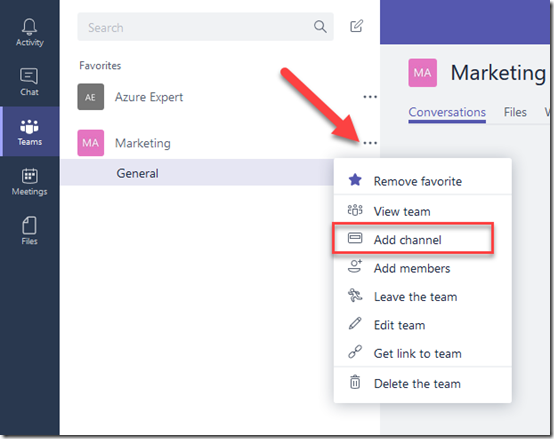
I already have a Marketing Team as you can see, so what I do is select the ellipse (three dots) to the right of that and from the menu that appears I select Add channel.

My suggestion would be to create an individual channel for each source of information. This allows you to not only group incoming information on that topic together but also start grouping additional resources around that like files and plans if you choose.

image

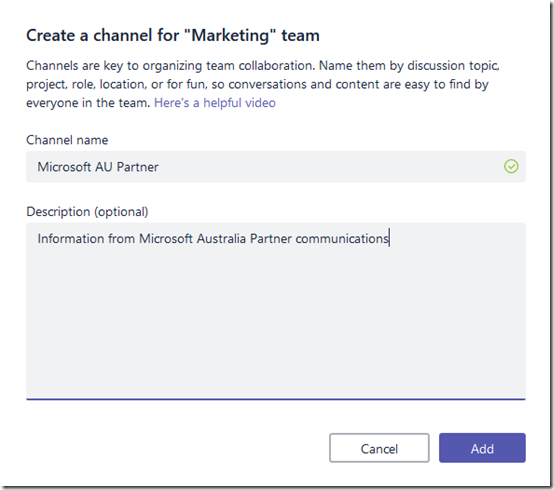
I give the new channel a name a description and select Add.

image

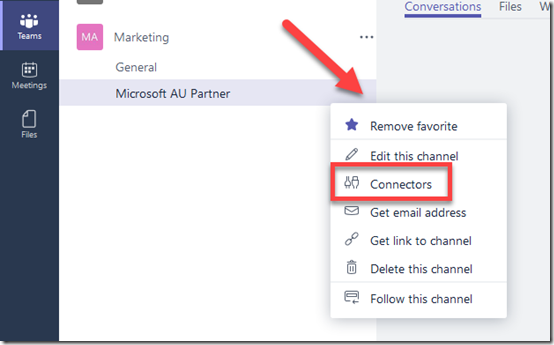
Once the channel has successfully been created, I select the ellipse for this new channel and then Connectors from the menu that appears.

image

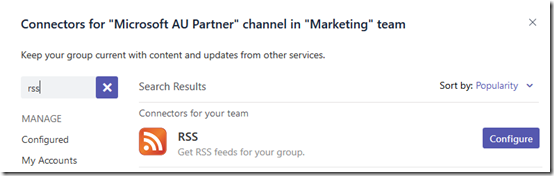
Locate the RSS option and select Configure.

image

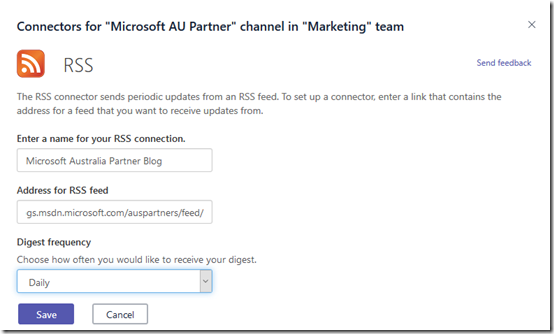
Enter in all the details as per the previous article for this feed and select Save.

image

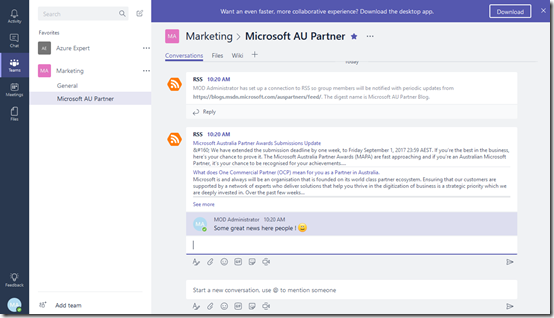
You should now see the feed information appear in the conversations tab as shown above. The big benefit here is that everyone in the marketing team can not only see the information but they can also comments and provide additional feedback on the item, all in one central location. This gives this item far more value that if everyone just consumed it on their own.

image

Another great option about having a single channel for these communications is that we can also connect other information sources, like Twitter.

To add the Microsoft Australia Partner Twitter account to this same channel, I firstly get the address of the Twitter account, which in this case is:

https://twitter.com/msau_partner

image

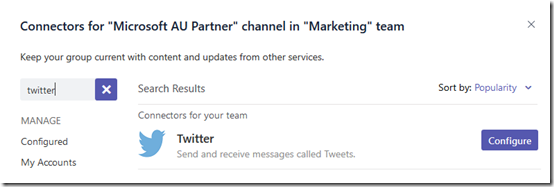
I repeat the above process and add a connector to my channel, however this time instead of select RSS I select the Twitter connector as shown above.

image

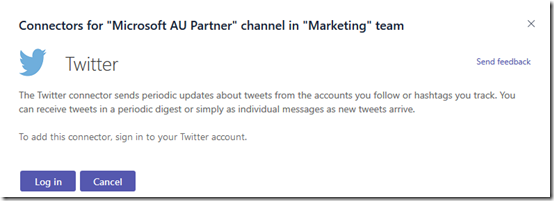
You’ll need to provide a valid Twitter account to authorise access to the feed, so Log in if you need to.

image

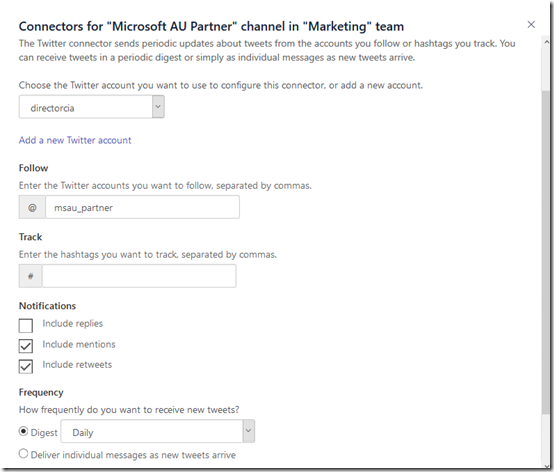
Configure the Twitter feed as desired. You can see I can elect to follow a Twitter account and/or a specific hashtag as well.

Once this is all configured, simply save the options.

image

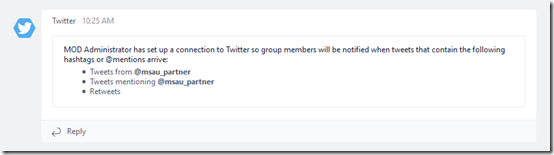
You should again see confirmation of the configuration in the channel conversations.

image

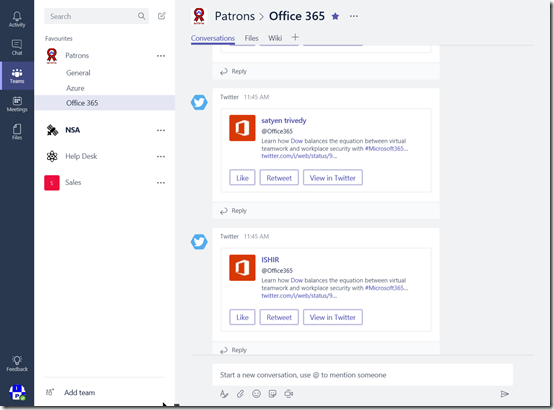
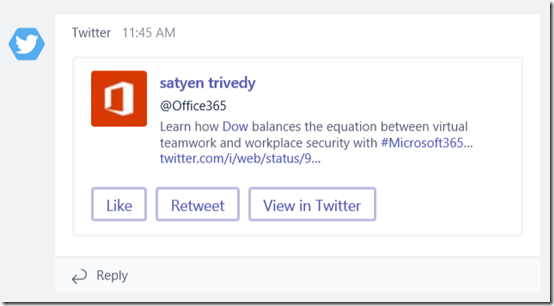
Now the information from Twitter also ends up in the channel and you can potentially also take actions from the cards that are presented depending on how you configured the connector.

image

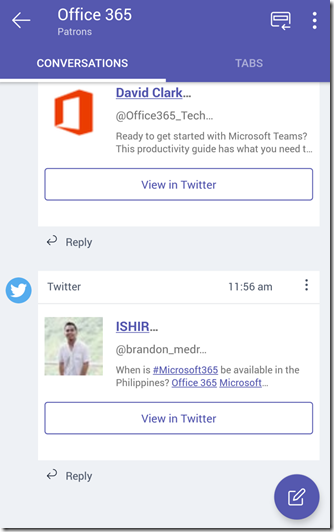
Another great benefit of feeding information into Office 365 Groups and Teams is that there is a mobile app available on just about every platform for these two services. Thus, no matter whether people are on the road or at their desks they can see and contribute to conversation around the news as it arrives.

image

As I mentioned, even though I am a team of one, I have configured a lot of news sources to be delivered to me in the manner. I also use other aspects of the Microsoft Teams that was created, such as the SharePoint Team Site, for managing my scheduled tweets as I have detailed previously here:

Sending recurring tweets using Microsoft Flow

and

Using Microsoft Flow for event confirmations

So even as a team of one, Office 365 helps me manage and be more effectively with my marketing. Imagine the benefits when you start scaling this out to larger teams.

If you now move beyond just marketing you can hopefully see the benefits things like Office 365 connectors can provide you. You could use them to stay up to date with patches, security alerts, and so on. The use cases are pretty endless.

Office 365 provides a very extensive toolbox to allow your business to be more effective. Where could you use it to improve your business?

Microsoft Teams and OneNote integration

One of the ways that I describe Microsoft Teams to people is as a simplified and aggregated wrapper over things such as SharePoint Teams Sites and Skype for Business. Many may not appreciate however that it is also a wrapper over one of other favourite products, OneNote.

image

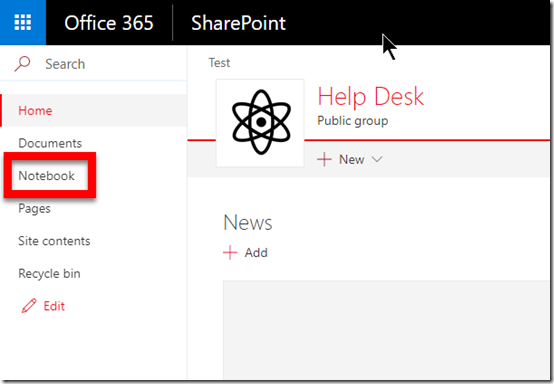
When you create a new Microsoft Team you also get a new SharePoint Team Site as part of that. That SharePoint Team Site contains a OneNote notebook which is known as a ‘site notebook’. To view it, simply select the link Notebook from the Quick Launch menu on the left of the SharePoint Team Site.

image

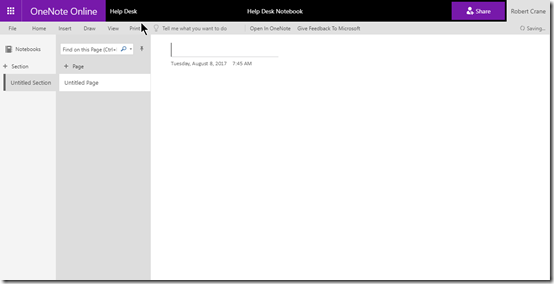
If you open that notebook you’ll see that it is blank, as shown above. OneNote is arranged by sections, inside which are individual pages.

image

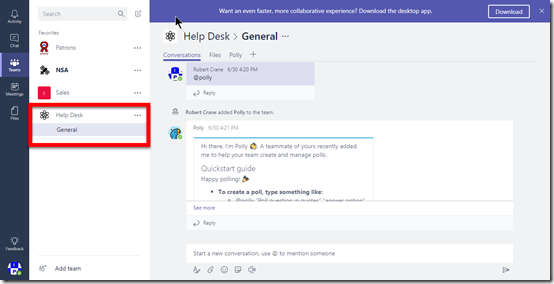
If you now go to that Microsoft Team (in my case, called Help Desk), you will see the normal Conversations and Files tabs at the top of the only channel I currently have in the Team called General, like so:

image

You’ll notice that I have already added a new tab to this channel (Polly) thanks to a bot I’ve inserted into this Team. I’ll cover bots in another post.

What you don’t yet see in the Team channel is anything to do with OneNote. The reason is that OneNote connectivity is not added by default.

SNAGHTML47bbcaeb

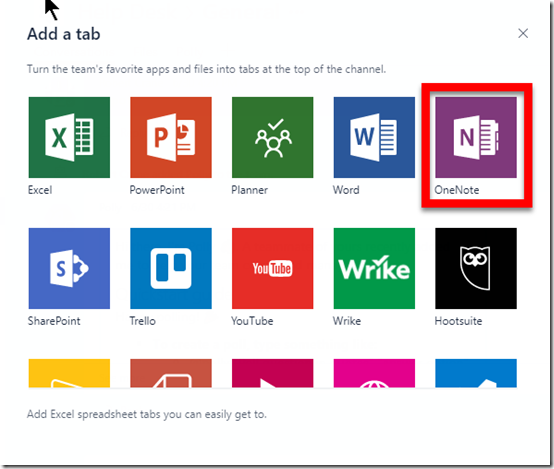
To connect this Microsoft Team channel to OneNote press the ‘+’ (plus) item on the menu.

image

That will display a new window, as shown above with all the items you can add to menu. One of these you should find is OneNote.

Select the OneNote tile.

image

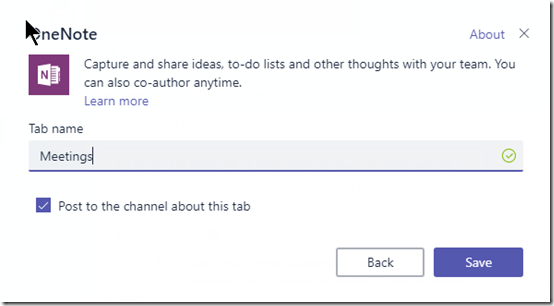
You’ll then be asked to give the new tab a name. Here I have called it Meetings. Select the Save button when you have made your choice.

image

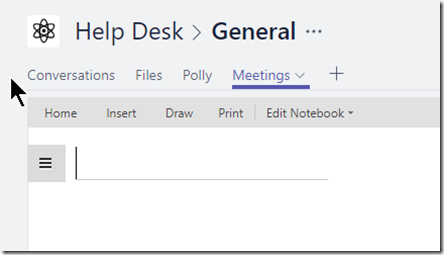
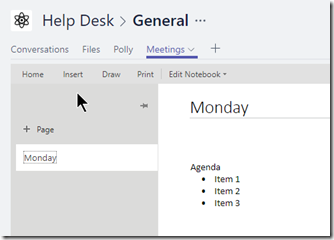
Now you should see a new menu item across the top matching the name you just gave OneNote (here, Meetings). You’ll also notice that you are placed into a OneNote style page below the menu.

image

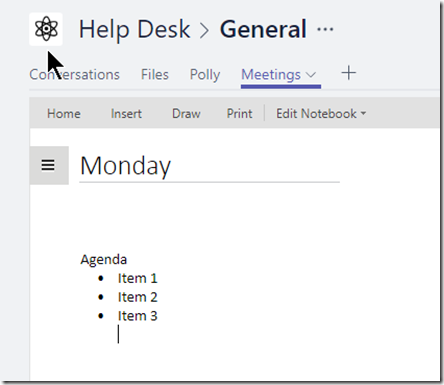
You are now free to give your page a name and enter any notes into that page.

image

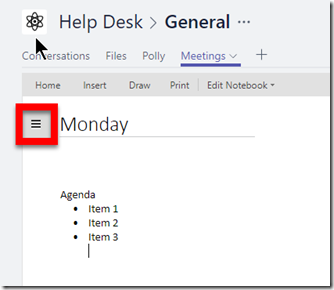
If you now select the ‘hamburger’ menu in the top left of the page you will see,

image

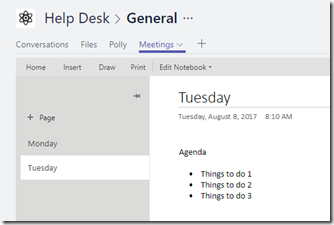
This should now begin to look more and more like OneNote. Here you can go in and create new pages like so,

image

That’s really handy for everyone in that channel to capture information.

image

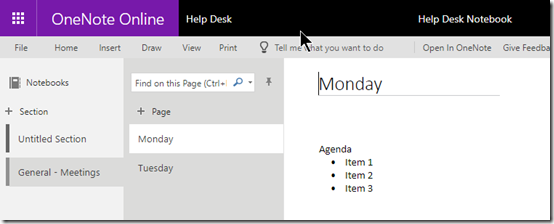
If you now return to the Site Notebook directly in SharePoint you should find the notebook looks something like that shown above. There is a new section with the name Channel – Selection name (here General – Meetings) and the information just enters appears as pages.

Thus, when you add the OneNote option to a Team channel a new section is created in the Site Notebook in the SharePoint Team Site that was created when that Microsoft Team was established. Pages you create in that channel are then saved under that section.

image

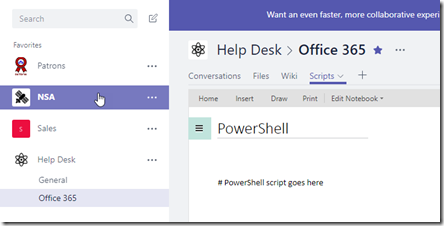
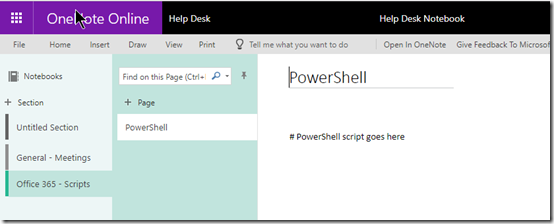
If I now go and create a new channel for that Team (here called Office 365) and then add OneNote to that channel as above, I again get the ability to add pages. Here, I have created a new page called Scripts in my Office 365 channel.

image

If I now go back to my Site Notebook in the SharePoint Team Site I can see this new channel as a section and the page I created underneath it in standard OneNote format.

So in summary, when you create a new Microsoft Team you get a new SharePoint Team Site. This SharePoint Team Site contains a single OneNote notebook called a Site Notebook. If you then add OneNote to a channel in Microsoft Teams, the name you give that OneNote tab becomes a new section in the Site Notebook. Any new page you create in that channel gets created under this section in the Site Notebook.

image

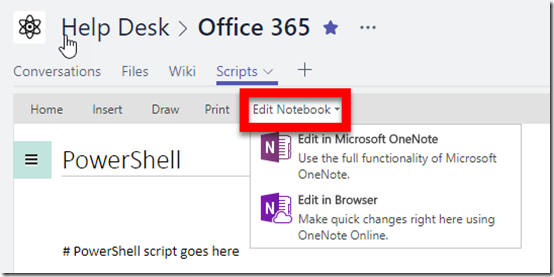
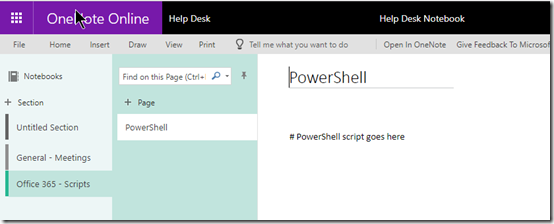
If you elect to Edit Notebook, as shown above, you will get the option to work with the WHOLE notebook in the web or via OneNote on the desktop. That means you are in effect opening the complete Site Notebook where you will see ALL the sections (channels) and pages below like so

image

Given the way the sections are named after the actual channel, hopefully this avoids confusion but there will no doubt be those who don’t see the connection between the Microsoft Team as a whole and all the channels within it and the Site Notebook which holds ALL the OneNote information for the Microsoft Team as a single OneNote notebook file. You can view the OneNote information for the Microsoft Team by channel inside the Microsoft Teams app or for the WHOLE Microsoft Team (i.e. all the channels) at once using the OneNote app.

Hopefully, this articles goes some way to explaining the configuration and connectivity between Microsoft Teams, SharePoint Teams Sites, the Site Notebook and OneNote.

Schedule a Microsoft Teams meeting in Outlook

image

If you have the Microsoft Teams app on your desktop and you check in your Outlook calendar you should see a new button as shown above.

image

This button will allow you to schedule Microsoft Teams meetings. Clicking this will create a new meeting invite in you Outlook calendar as well as the Teams desktop app when saved.

You can read more about this add in here:

https://techcommunity.microsoft.com/t5/Microsoft-Teams-Blog/Now-available-Outlook-add-in-to-schedule-meetings-in-Microsoft/ba-p/71157

Turning off Teams cloud storage connectivity

I wrote an article recently about how Microsoft

Teams adds cloud storage connectivity

and I noted in there that the ability to connect Microsoft Teams to things like Dropbox and Google Drive was enabled by default, as it typically is.

Of course, there may be the need to disable this ability, which can be done. Let me show you how.

image

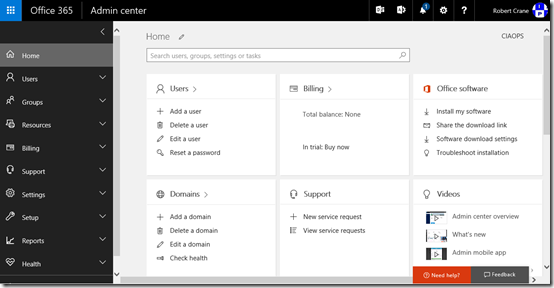
You’ll need to login to the Office 365 portal as an administrator with the rights to make the changes. You’ll then need to navigate to the Admin center as shown above.

image

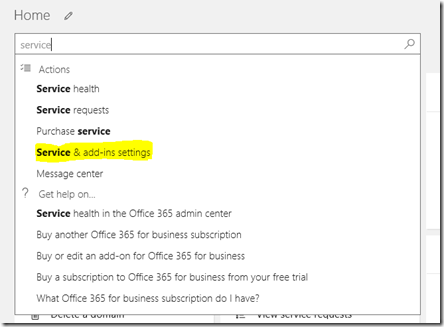
In the search box on the right hand side of the page, type “service” and from the menu that appears select Service & add-ins settings.

image

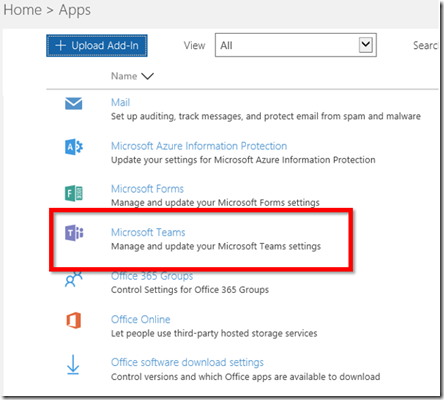
Scroll down the page and select Microsoft Teams from the list.

image

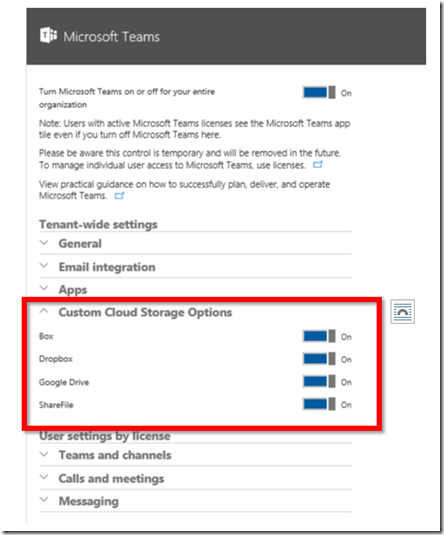
Locate and select the option Custom Cloud Storage Options and expand it as shown above.

You can now unselect one or all of the storage services here.

After you have made your choice ensure you scroll to the bottom of the page and select the Save button to update your preferences.

Teams adds cloud storage connectivity

image

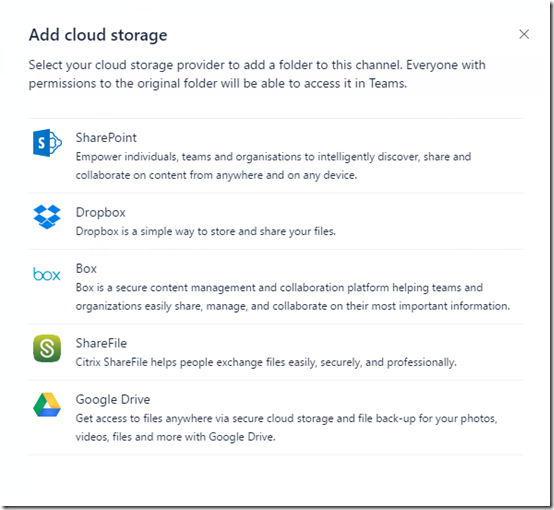
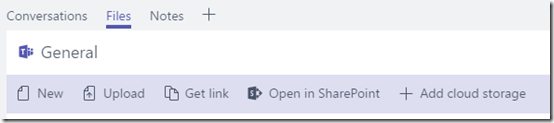
if you go into the files area of any Microsoft Teams channel you’ll now see an option to Add cloud storage.

image

You can then add a connection to one of the services shown above.

image

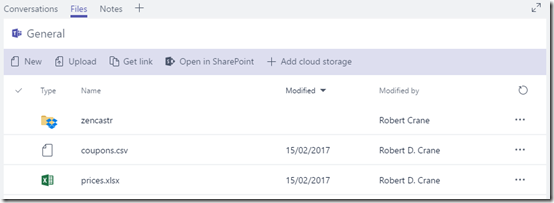
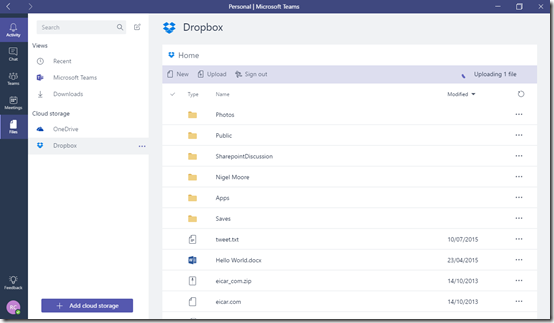
In this case, I added a connection to Dropbox where my podcast recordings are located.

This means that you can now easily access your third party cloud storage locations directly from within Teams and you can effectively put a link to the location of your files directly into the appropriate location within a Microsoft Teams channel.

image

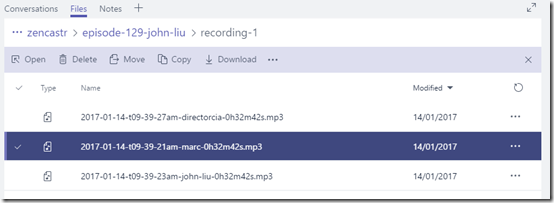
Even better than that, you can now easily go to the cloud storage location you have added and copy or move a file, all within the Microsoft Teams interface.

image

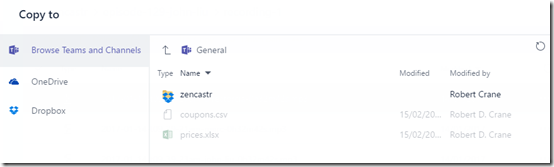
You can then copy the file to another location, not necessarily within the added cloud storage. What immediately sprang to my mind was the ability to copy/move from the added cloud storage directly into the Microsoft Teams files area.

image

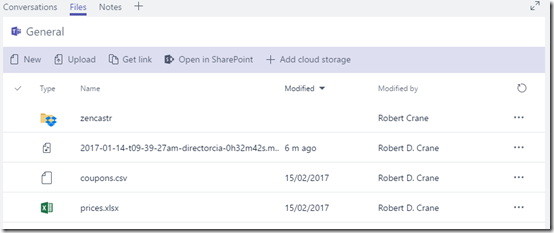
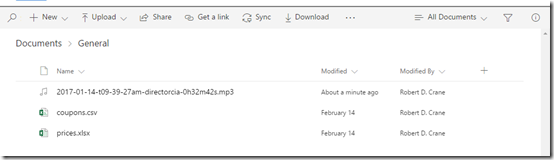
This therefore makes it not only dead easy to migrate files from other cloud storage locations into Microsoft Teams but also dead easy to move them directly into a SharePoint Teams Site.

image

image

Thus, Microsoft Teams now has added an integrated ability to migrate files from other cloud storage services to Microsoft Teams. This is going to be very handy because I see a lot of customers who are already using something like Dropbox but want to move to Microsoft Teams. This new ability allows them to link the appropriate location quickly and easily within a channel and start using those files in their current location. Then over time, they can start migrating them to Microsoft Teams and SharePoint Teams Sites without additional assistance.

image

Once the location is linked it will also appear in the Files area of your Microsoft Teams interface as shown above.

I can see Microsoft Teams becoming more and more a central hub of not only Office 365 information but also cloud information. I also like how it is making it easier for people to get started using Office 365 by removing a lot of the complexity and allowing them just to get things done!

Understanding Office 365 Groups and Teams

A while ago I wrote an article that detailed:

Where to put data in Office 365

and in typical fashion, technology has now moved on. This means that I need to revisit the concept of where you should be putting inside Office 365.

We of course now need to remember that we have new locations like Microsoft Teams and Staffhub, as well as improved locations like Office 365 Groups to house our business data. So let my try and broadly explain the the data locations that are currently available to you in Office 365.

image

Let’s start by considering the two major types of data we have to deal with in today’s businesses. As the above slide shows, we can typically categorise data it shared and personal. Personal data is typically created and owned by a single user in the business. Personal data is also only shared between a handful of people at most. By contrast, shared data is data that is not owned by any single individual and typically needs to be seen across a wide wide audience.

You also typically tend to find that shared data is a much greater percentage of the overall amount of data as illustrated by the size of the bars above. From here on in, we’ll consider shared data locations being green and private data locations being blue. We will also consider shared data locations to be on the left while personal data locations will be on the right.

image

Office 365 provides us a location into which we can store all business data, whether shared or personal. It is the box into which everything will live, both shared and personal.
image

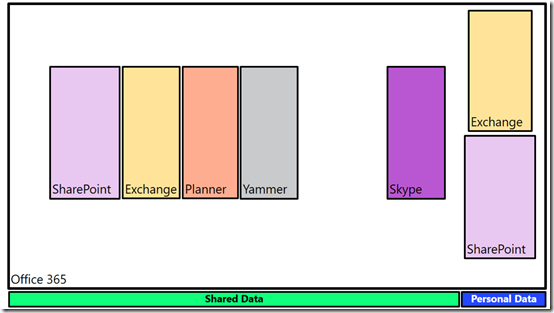
We store business data inside a number of serviceswithin Office 365. These include Exchange for emails, SharePoint for files, Planner for tasks, Yammer for social conversations and Skype for meetings.

You’ll notice that the majority of these services are designed for the storage of shared data, however both Exchange and SharePoint have the ability to store both shared and personal data. Thus, they appear twice in the above slide as locations in which we can store data.
image

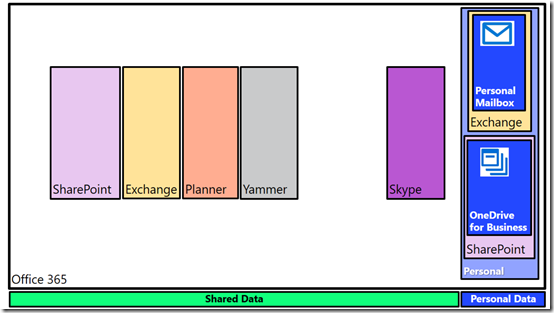
Into the personal data location for Exchange we place a users individual mailbox. This is designed for them to receive emails from outside the organisation and also typically from individuals inside the business. A personal mailbox is not a good location for generic email addresses like accounts@ or info@. It is designed for personal correspondence to and from an individual.

Likewise, SharePoint provides the OneDrive for Business location designed for a user’s personal files. These files are owned by the user and typically shared with a very small number of people. OneDrive for Business is NOT designed as a file server replacement, it is designed as repository for an individual users to store files they typically have on their desktop, on their local hard disk, or on an external USB drive or a home directory on a network.

Thus, Office 365, thanks to both Exchange and SharePoint, provide each and every licensed user a distinct location in which to save their own own personal information. Because that information is still within the Office 365 environment it remain secure and compliant as well as being easy to manage for the business owners.
image

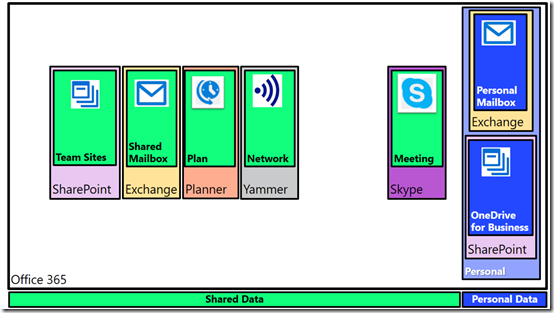
Now Exchange and SharePoint also provide locations to save shared data into. Exchange provides this via shared mailboxes. Best practice is for shared mailboxes to be things like info@, sales@, etc that may need to be shared between a number of people and will also persist beyond any individual currently performing that task.

Likewise, SharePoint provides Team Sites as a location to save information into that all people in the business can access. You can of course provide custom security around all shared Office 365 services as needed.

However now in this space of shared data in Office 365, you get additional locations to store your information. Services like Planner allow the organisation of tasks and schedules across a team. Yammer allows the business to get out of email and work in an enterprise social network. Not only does that reduce email overload for users but because information is shared publically, it makes it more searchable and shareable. Finally, Skype for Business allows people in the business to meet virtually. They can chat, conduct meetings, share desktops, whiteboards, files and more.

Each one of these shared locations can be used stand alone if desired. Thus, you can have a Team Site to fill a single need. Likewise, you can use Skype as a way of chatting to people. As I have written about before:

The modern way of collaboration

To get a job done these days, people need more than stand alone tools. They need all the power of the individual services that Office 365 provides but they need them rolled together in a single place that is easy to work with.
image

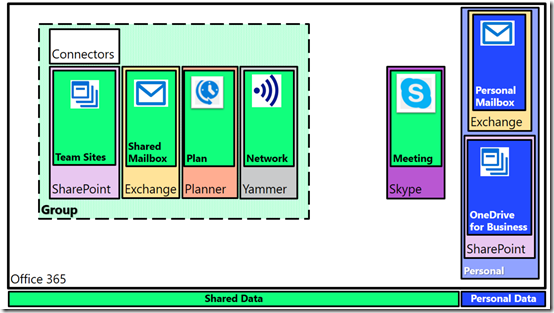
Enter Office 365 Groups. If you combine a SharePoint Team Site, an Exchange shared mailbox, a Planner plan and a Yammer network you get an Office 365 Group. However, an Office 365 Group also provides you with an additional service, called ‘Connectors’, that allows you to bring information from services outside your business (i.e. Facebook, Twitter and more) directly into the Office 365 Group.

You can create as many Office 365 Groups as you need and when you do each one will get its own dedicated SharePoint Team Site, Exchange shared mailbox, Planner plan and Yammer network. You can also still have each service stand alone, like a stand alone Team Site, but each Office 365 Group you create automatically provisions all the individual services inside it and links them together.

Why might you still need a stand alone service like a Team Site?  Maybe you just want a single location to put all your brochures for people to sent to customers. That function might not need email or plans or chat, so you simply provision a stand alone Team Site to perform that function. However, when the people who create those brochures need to actually collaborate, then an Office 365 Group makes sense and you can mix and match as needed.

Again, it is totally up to you how and when you use these services. You may choose to only use stand alone services and no Groups. Likewise, you may choose to only use Groups. The choice if yours. That’s the flexibility Office 365 provides
image

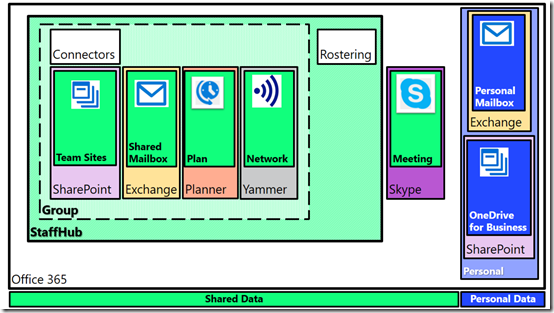
If we now take an Office 365 group and add a Rostering service we get Staffhub. So when you create a new Staffhub for your business to manage rostering and employee times you also get a dedicated SharePoint Team Site, Exchange mailbox, Planner plan, and Yammer network. Do you have to use them all? Of course not, but they are provisioned automatically for you when you create a Staffhub because chances are that you will find use for the services.

Imagine you need to create a roster for your business. You will also probably need to share documents with your staff about their duties. That’s where the SharePoint Team Site fits in. There also probably be the need for staff to chat about their work. That’s where Yammer comes in. Hopefully, you get the idea here is that when you create a Staffhub or Office 365 Group Microsoft automatically gives you a range of stand alone services integrated together because the chances are you’ll find a need for them. It’s bundling at its best!

Again, you don’t need to use them all immediately, but they are there from the start, ready for your to use, whenever you need.
image

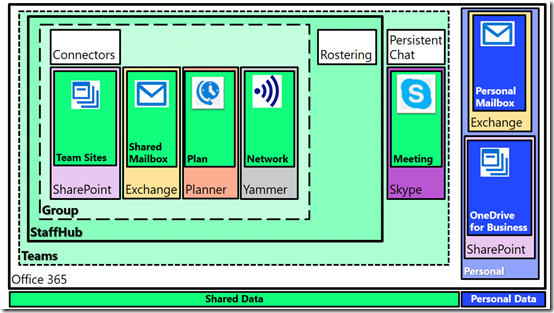
Finally, if we ingrate Skype for Business and add persistent chat to our Staffhub resources (that were a superset of Office 365 Group resources) we get a Microsoft Team.

As with Staffhub, when you create a new Microsoft Team you get everything Staffhub provided plus additional integrated services. If all you want to use is persistent chat then you can use that but again, chances are you are going to need more options down the track so they are automatically provisioned for you.

Everything in Office 365 is built on core services like Exchange for email, SharePoint for files and Skype for Business for communications. You can use each of these services stand alone or you can combine them together in an Office 365 Group, a Staffhub or Microsoft Team.

Of course, there is more planning involved than what I have laid out here when it comes to collaboration but I hope that I’ve made things a bit clearer and shown you all the options Office 365 provides you for storing your information. The trend today is certainly to provisioning something like a Microsoft Team first to give you everything you want immediately, even if you don’t use it all. However, the choice is yours. Go with a single service or go with them all. Do what makes the most sense for your business today and don’t too much about what will happen down the track as you can easily scale up into all the options that Office 365 provides, because typically, you’ll find that what you want is already provisioned thanks to Office 365 Groups, Staffhub and Microsoft Teams.

Teams mobile adds access to tabs

image

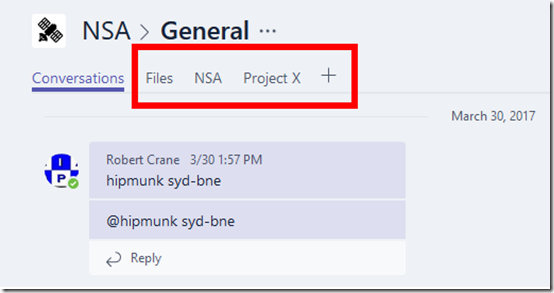
If you navigate to a Team using the browser you can see and add additional tabs to an individual channel as shown above.

image

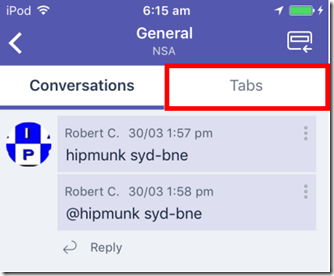
Since the mobile Teams app launched it was not possible to view those additional tabs. The only option you could access was the Files tab.
However, as you see above, with the latest iteration of the Teams app (on iOS and Android) there is now a Tabs option when you go into a Team.

image

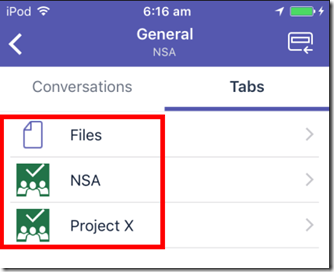
Once you do you will then see the Tabs as shown in the browser view.

As with all Office 365 mobile apps, make sure that you update them regularly to take advantage of all the latest features.

Learning Collaboration in Office 365

people-woman-coffee-meeting2

A little while ago I announced that I’ll be conducting a new course focused on showing you the best practices when it comes to collaboration in Office 365. This will answer questions about whether you should use Microsoft Teams over Yammer, what roles Groups plays and to drive adoption for your business to ensure that everyone makes full use of the Office 365 suite they have been allocated.

You’ll find all the original information about the course here:

Understanding collaboration in Office 365 course

The course gives you the opportunity to participate in the learning live. You’ll be able to complete the hands on tutorials right there and then. You’ll get immediate feedback on what you’ve learnt and you’ll also be able to ask questions and most importantly get your questions answered right there and then. If you think this is just going to be a boring webinar style presentation, then you in for a shock as nothing could be further from the truth. This course will be more hands on than if you were sitting in a classroom!

Best of all is that all the sessions will be recorded and made available to you, along with all the training materials (notes, links, whitepapers and more) FOREVER! That’s right, you can continue to come back to the course and watch the training at your leisure. You can even download it all and watch it offline. So if you are too shy to attend the live events you’ll still get full benefit from all the material.

Those lucky enough to have signed up already have been able to take advantage of the initial substantial early bird discount, however if you missed that then you need to act now to get a $30 discount. Use the coupon code EAERLYBIRD2 at checkout or click here to have the discount automatically applied upon registration:

Understanding collaboration in Office 365 – $30 discount

Remember, you need to use the link or the coupon code to get the discount.

An additional offer is that if you are not already a CIAOPS Academy affiliate you should sign up so you can offer this course to others and receive a commission. That’s right, just refer this (or any CIAOPS Academy course) to others and you’ll receive a percentage of the course direct to you. To become an affiliate simply sign up for free at the CIAOPS Academy and then contact me (director@ciaops.com) to let me know you want to be an affiliate and I’ll send you all the details and get you signed up asap.

The count down to the course kick off on the 1st of June is on and I’d encourage you to take advantage of this discount before it expires on the 19th of May. Remember, the course includes over 5 hours of hands on training, video recordings of all sessions as well a lifetime access to all the course materials including video replays, course notes, links, white papers and more. All of which you can download and view offline.

If you want to learn how Office 365 can give your business a completive edge by being more effective and productive then sign up today to take advantage of this discount.

I’ll also point out that if you sign up as a CIAOPS Patron you’ll not only receive discounts starting at 25% on this course but you’ll also get access to my private Office 365 Facebook community where you can get your questions answered by myself and other in the community daily. For all the benefits of being a CIAOPS Patron head over to:

http://www.patreon.com/ciaops

I hope to see you on the course with me and those who have already signed up.