Posting code snippets to Microsoft Teams

image

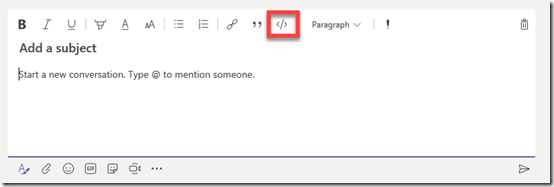
If you want to post a snippet of code to Microsoft Teams go to the Conversations tab and then select the Format text icon as shown above.

image

From this expanded dialog box select the Code icon as shown.

image

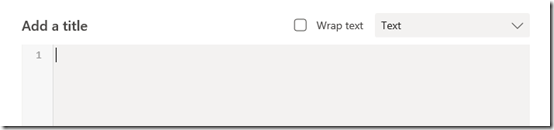
This should display a new dialog like shown above.

image

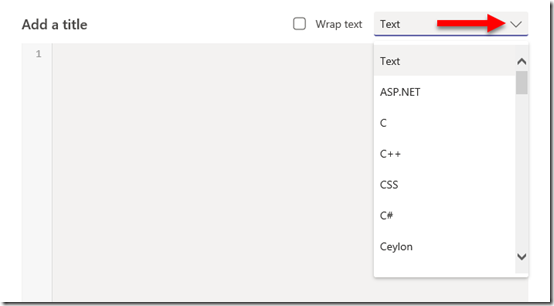
If you select the options in the top right you will see a huge range of code selections displayed as shown.

image

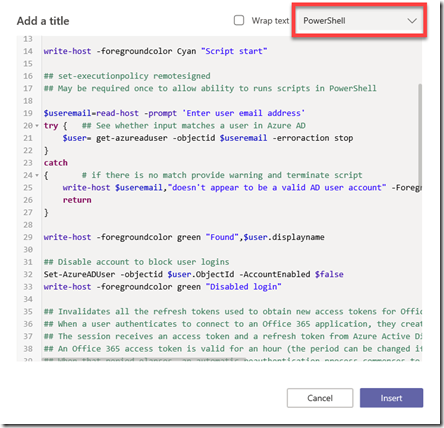
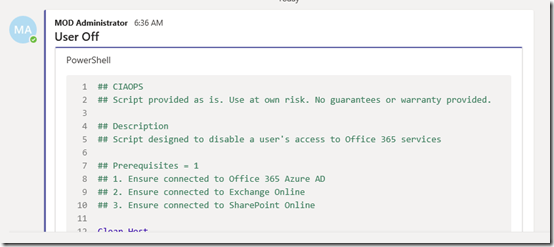
In the above case, I have select PowerShell and you can see that it formats and colours the code snippet for me automatically making it much easier to read.

image

You can now post the result and that will be added to the Teams Conversations as shown above. You will see that it even automatically add line numbers, which is very handy.

Thus, if you are going to post code into Microsoft Teams Conversations, make sure you do it via the Format Text option so that it is formatted in a way that makes it more readable.

Teams resource information from SharePoint site

image

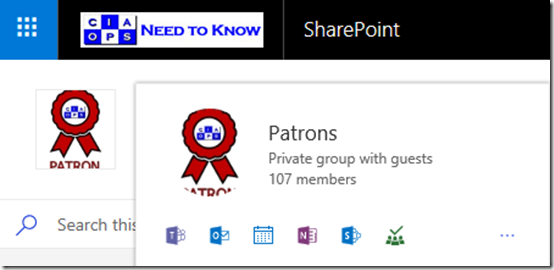
Hopefully you know that when you create a Microsoft Team you get a range of resources automatically provisioned, including a SharePoint Site, group mailbox and calendar, Planner and more.

If you mouse over the icon for the Microsoft Team in the SharePoint that was created as part of that Team you’ll see a nice summary of the Team’s resources as shown. Clicking on this small icon will take you direct to the Team, the Team inbox, calendar, notebook, SharePoint site, Planner, etc.

image

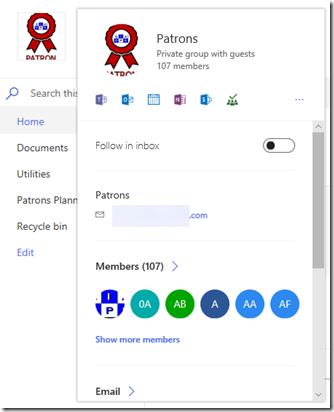
If you leave your mouse there for a little longer a more extensive card will appear, as shown above. You will notice the option to Follow in inbox at the the top.

image

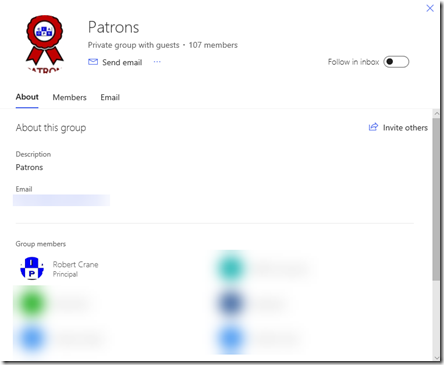
If you scroll right to the bottom of this card you’ll find a Show more option which, when selected, will display even more information about the Team as shown above.

So to get some handy short cuts to all your Microsoft Teams resources, just roll your mouse over the icon.

Need to Know Podcast–Episode 189

This is our follow up episode with Marcus Dervine from Webvine speaking about Digital Transformation. We continue with the transformation pillars that Marcus has outlined in his as the road to successful adoption of technologies like Office 365. Of course Brenton joins me again to catch you up on all the cloud news. We’ve tried to keep the update as short as we can as we noticed that the episodes are getting longer. We’ll do a deeper dive into updates in the next episode as we wanted to make sure there was plenty of time for our guest.

Take a listen and let us know what you think –feedback@needtoknow.cloud

You can listen directly to this episode at:

https://ciaops.podbean.com/e/episode-189-marcus-dervin/

Subscribe via iTunes at:

https://itunes.apple.com/au/podcast/ciaops-need-to-know-podcasts/id406891445?mt=2

The podcast is also available on Stitcher at:

http://www.stitcher.com/podcast/ciaops/need-to-know-podcast?refid=stpr

Don’t forget to give the show a rating as well as send us any feedback or suggestions you may have for the show.

Resources

@marcusdervin

@contactbrenton

@directorcia

Marcus’s book – Digital Transformation, from the inside out (use coupon code CIAOPS for 20% off)

Webvine

Azure outage

New file template management

Mass delete notification

Passwordless Login

Windows 10 sandboxing

Windows 10 Quality updates

Join my free Microsoft Team

image

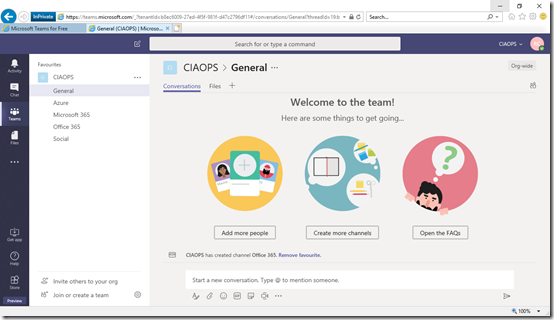
A while ago I create a free Yammer network for people to see what Yammer is all about as well as share Microsoft Cloud information. Since then, Microsoft has announced that it is making a version of Teams freely available, so I thought why not do the same there as well.

So I have gone out and created a free Microsoft Team which you are more than welcome to join. All you need to do is send me an email (director@ciaops.com) and I’ll arrange an invite for you that will allow access.

I think making a free version of Teams is great move by Microsoft and will allow more people to see what Teams is all about without the need for Office 365.

Of course, you can go out and create your own free Microsoft Team but hopefully, if we can get some people into this free Team I have created, you’ll get a better idea of exactly how it works with a group of people.

Need to Know podcast–Episode 185

A great interview this episode with Marcus Dervin from Webvine focused on Digital Transformation. Marcus has some real insights to share from his recent book on this very subject and we even have a special offer to listeners of this podcast to also grab a copy and learn from an experienced operator. If you are looking to digitally transform or help other business do the same, don’t miss this episode.

You’ll also get the latest round of Microsoft cloud updates from Brenton and myself as we aim to keep you up to date with the ever changing face of the cloud.

Take a listen and let us know what you think –feedback@needtoknow.cloud

You can listen directly to this episode at:

https://ciaops.podbean.com/e/episode-185-marcus-dervin/

Subscribe via iTunes at:

https://itunes.apple.com/au/podcast/ciaops-need-to-know-podcasts/id406891445?mt=2

The podcast is also available on Stitcher at:

http://www.stitcher.com/podcast/ciaops/need-to-know-podcast?refid=stpr

Don’t forget to give the show a rating as well as send us any feedback or suggestions you may have for the show.

Resources

@marcusdervin

@contactbrenton

@directorcia

Marcus’s book – Digital Transformation, from the inside out (use coupon code CIAOPS for 20% off)

Webvine

Page metadata coming to SharePoint and Office 365

Idle session timeout policy in SharePoint and OneDrive is now generally available

New Office ribbon

Microsoft Surface Go

New Planner capabilities

Location of chat history in Microsoft Teams

image

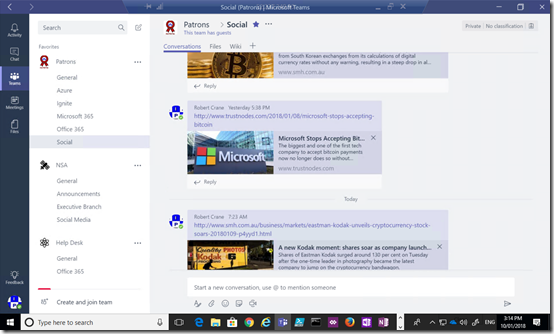
I have a Microsoft Team in my tenant called “Patrons”. In there is a channel called “Social”. In this area CIAOPS Patrons chat about things such a cryptocurrency as you can see.

As an administrator what I want to do is find out how I can view information that is shared by others in this chat location. In short, how do I see chat history in Microsoft Teams?
image

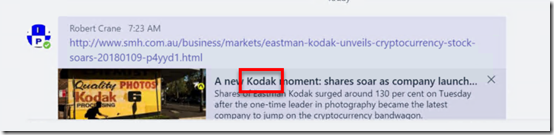
As an example, let’s say I want to find the term ‘kodak’ in these chats. You’ll see from the above that it is part of a link that was pasted into the chat.
image

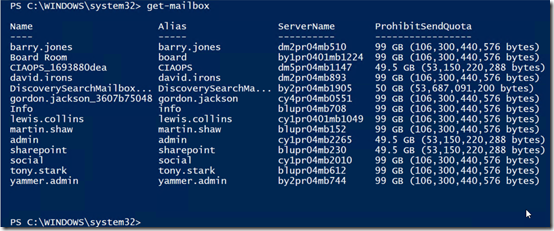
All the chat history from Microsoft Teams is saved into a mailbox with the name of the Team. So I’m looking for a mailbox called “Patrons”.

Easiest way is to fire up trusty PowerShell and run:

get-mailbox

and as you can see from the results above, I only see user mailboxes.
image

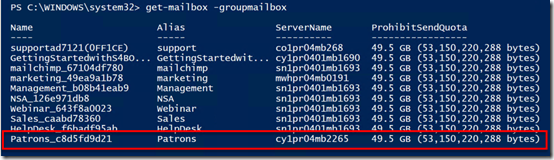
but if I run:

get-mailbox –groupmailbox

I see all the shared mailboxes in my tenant.

As you can see I find one called “Patrons” as shown above.

image

To get the details I run:

get-mailbox –groupmailbox patrons@ciaops365.com

and you can see that I again get all the information but just for that mailbox. So this is the one that is linked to my Microsoft Team.
image

If I now run:

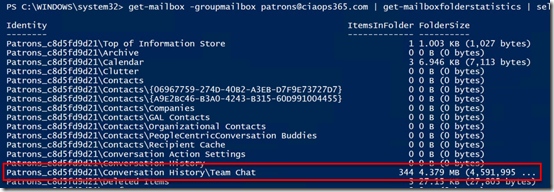
get-mailbox –groupmailbox patrons@ciaops365.com | get-mailboxstatistics | select-object identity, itemsinfolder, foldersize

I basically get a report of what is inside that Teams mailbox. In there I can see a folder:

\conversation history\team chat

this is indeed where the chats are located. You can see there is currently 344 items of 4.38 MB in size.
image

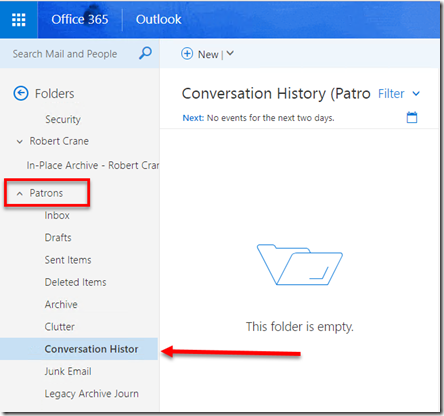
Now I can actually add this mailbox to my Outlook Web Access and view the contents as you can see above. However, I can’t get the folder \Conversation History\Team Chat because it is hidden and probably has other permissions associated with it.
image

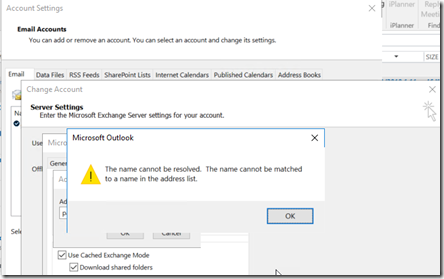
I can’t add this shared mailbox to Outlook 2016 on my desktop as you can see above.

image

So now if I try to view/change the permissions on the mailbox using:

get-mailbox –groupmailbox patrons@ciaops365.com | get-mailfolderpermission

I get the message that the mailbox doesn’t exist.

image

If I now try:

get-mailfolderpermission –identity patrons@ciaops.com:\inbox

I again get the message that the mailbox doesn’t exist.

image

If I use that same command on another ‘standard’ shared mailbox the command works. So I know my command does work, it just doesn’t work with a Microsoft Teams mailbox.

image

Again, just changing mailbox identity confirms that the command can’t even see the mailbox.
image

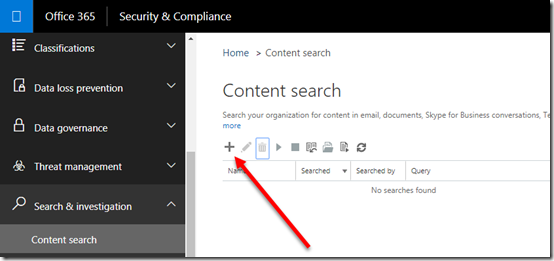
The way to actually see what the contents of the Teams chats are is to use the Content Discovery component of the Security & Compliance center in Office 365 which you’ll find under the Search & Investigation heading on left hand side. You need to be an administrator with appropriate rights to access this area.

You start by creating a new Content Search by pressing the + icon as shown above.
image

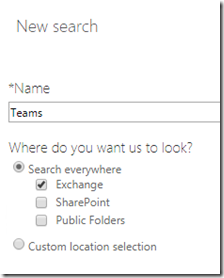
Give the new Content Search a title and select the locations where you wish to search. In this case I’ll simply look through all email data.
image

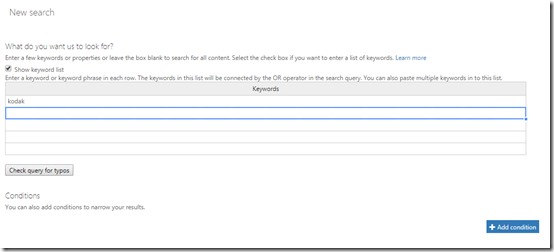
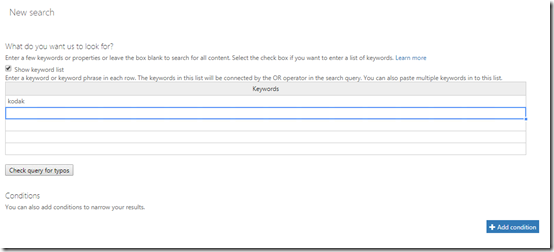
Next, I enter what I want to search for. Here, I’m only looking for the word ‘kodak’.
image

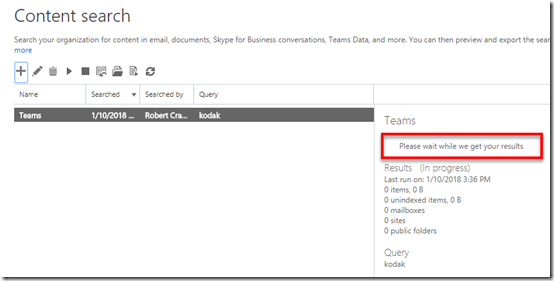
After I finish my configuration, the search commences and I need to wait a few moments while it searches all the nominated locations and generates the results.
image

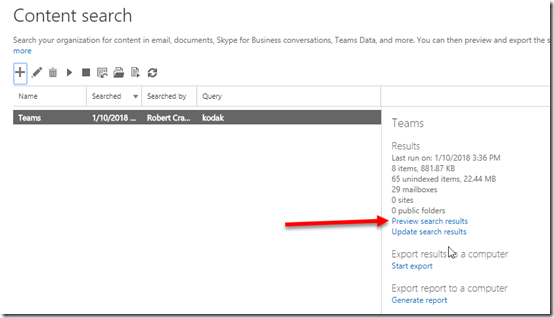
When the process is complete I select the Preview search results hyperlink on the right as shown above.
image

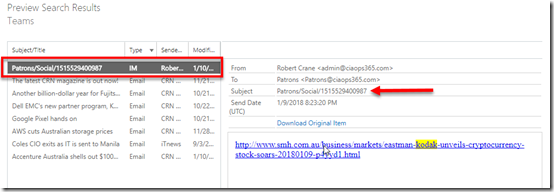
Another window opens and I can locate the item I’m after as the type is ‘IM’ as shown above. When I select that item on the left I see the full context on the right. I confirm that the search does display the link that is the Microsoft Team chat.
image

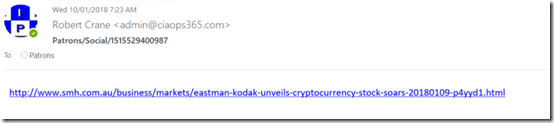
If I elect to download the item, it does so as an .EML file which I can open in any mail client as shown above. This indicates that each chat message appears to be a separate email in a sub folder in a shared mailbox in Exchange Online effectively.
image

So I went back in and changed the content search terms to make it broader to encompass more chats.
image

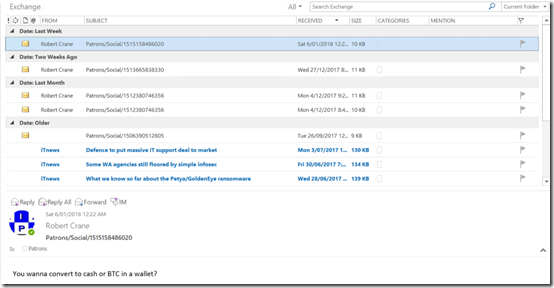
I ran the search and exported the data from the Security & Compliance center into a .PST file and then imported that into Outlook.

Thus, as you can see above, I can now view all the chats that match my search criteria as an administrator.

The problem with this is, from a pure ‘overwatch’ point of view, it is a very manual process to get to the information and secondly you can only look at things you specify in your content search. It would be nice to have the ability for an administrator to export the whole chat content from a Microsoft Teams channel into a single document that could then be viewed.

However, at the end of the day, rest assure that your Microsoft Teams chats are being saved and you can access them if you need to. Hopefully, the above has shown you how to do exactly that.


Enabling Microsoft Teams External Access

Microsoft Teams has just announced that you can grant access to users outside your tenant. You can read about it here:

https://blogs.office.com/en-us/2017/09/11/expand-your-collaboration-with-guest-access-in-microsoft-teams/

Now being the eager beaver I am, I wanted this working asap. So I started invited people but for some reason they couldn’t gain access to my Team. They also seemed to get automatically removed from the Team after a period of time.

Turns out that external access for Teams is not enabled by default. To enable it you must go to your Office 365 Admin Center. Then select Settings from the left hand side.

SNAGHTML1a1ec049

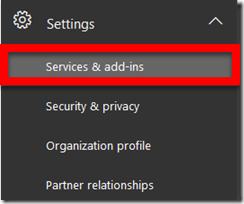
From the menu that appears select Services & add-ins.

image

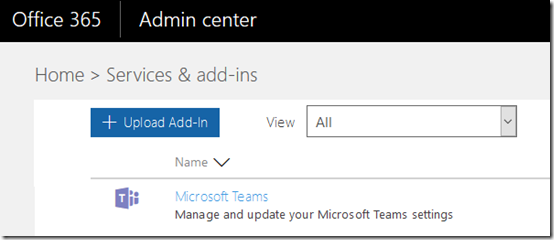
Locate Microsoft Teams from the list and select that.

image

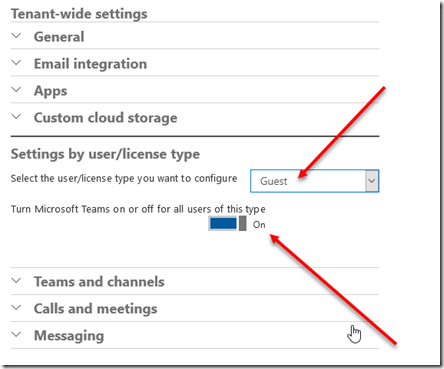
In the Tenant-wide settings locate Settings by user/license type. Change the pull down to read Guest and the set the option to On as shown above.

The first time I looked, I didn’t change the pull down from the default of Business & Enterprise so I totally missed the Guest option D’Oh.

After I made that change I could indeed invite external users successfully into the Microsoft Team I had prepared for them!

So if you are having troubles like I was, check that you have enabled guest access as shown above.