Locate all Office 365 Site Collection Administrators

image

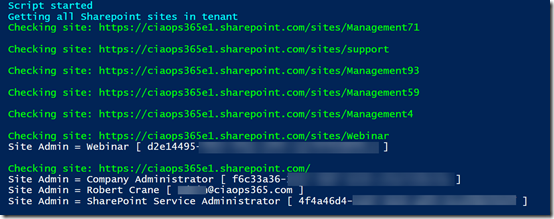
One of the other things you probably need to check in your tenant is exactly who is a Site Collection administrator in your SharePoint sites in Office 365.

Site Collection administrators have full access to that SharePoint site and can only be removed by another Site Collection administrator. Also, they generally don’t appear inside the permission settings inside a site. So, knowing who has full rights to your SharePoint sites is a good thing I feel.

You can find the script to display all your SharePoint sites and Site Collection administrators inside those sites in my GitHub repository here:

https://github.com/directorcia/Office365/blob/master/o365-spo-admins.ps1

The interesting thing I discovered when I ran the script was that I have a number of site with no Site Collection administrator (most likely deleted sites it seems) and a number of sites I didn’t have access to (again, seems to have something to do with becoming orphaned during deletion). So, I have some further work to do now to clean all this up.

The script won’t fix or deal with any errors, but it will tell you about them and you can go investigate further.

Run it and see what it turns up for you!

Need to Know podcast–Episode 185

A great interview this episode with Marcus Dervin from Webvine focused on Digital Transformation. Marcus has some real insights to share from his recent book on this very subject and we even have a special offer to listeners of this podcast to also grab a copy and learn from an experienced operator. If you are looking to digitally transform or help other business do the same, don’t miss this episode.

You’ll also get the latest round of Microsoft cloud updates from Brenton and myself as we aim to keep you up to date with the ever changing face of the cloud.

Take a listen and let us know what you think –feedback@needtoknow.cloud

You can listen directly to this episode at:

https://ciaops.podbean.com/e/episode-185-marcus-dervin/

Subscribe via iTunes at:

https://itunes.apple.com/au/podcast/ciaops-need-to-know-podcasts/id406891445?mt=2

The podcast is also available on Stitcher at:

http://www.stitcher.com/podcast/ciaops/need-to-know-podcast?refid=stpr

Don’t forget to give the show a rating as well as send us any feedback or suggestions you may have for the show.

Resources

@marcusdervin

@contactbrenton

@directorcia

Marcus’s book – Digital Transformation, from the inside out (use coupon code CIAOPS for 20% off)

Webvine

Page metadata coming to SharePoint and Office 365

Idle session timeout policy in SharePoint and OneDrive is now generally available

New Office ribbon

Microsoft Surface Go

New Planner capabilities

Preventing Malware downloads from Office 365

image

If you are unfortunate enough to somehow get malware in your Office 365 tenant you may not appreciate that by default you can still download this, even though it gets detected as shown above.

image

Best practice would be to use the PowerShell command:

Set-SPOTenant –DisallowInfectedFileDownload $true

to prevent users from having the option to download the infected file. Basically, it removes the Download button as shown above. Doing this will apply the setting across all SharePoint Sites, including OneDrive for Business, Teams and stand alone site collections.

From the Microsoft documentation:

If the Set-SPOTenant cmdlet has the DisallowInfectedFileDownload parameter set to:

true (recommended), this happens:

  • All actions, except Delete, are blocked for detected files.

  • People cannot open, move, copy, or share detected files.

  • People see a visual cue that indicates that a file has been identified as malicious. No one can download the file.

false, this happens:

  • All actions, except Delete and Download, are blocked for detected files.

  • People cannot open, move, copy, or share detected files.

  • People see a visual cue that indicates a file has been identified as malicious, but they can choose to accept the risk and download the file anyway.

Allow up to 30 minutes for your changes to spread to all Office 365 datacenters.

The recommended best practice is then to turn this on for all tenants as it is not on by default.

Azure AD and SharePoint Online user differences

I’ve been developing scripts to work with OneDrive for Business when I fell into a bit of a rabbit hole that lead me to an interesting revelation.

Part of the challenge with working with OneDrive for Business in Office 365 is that not all users have one, even though they are licenses for it. The reason for this is simply that a user’s OneDrive for Business isn’t generally provisioned for them until they start using it. Thus, in my demo tenant there are probably users who haven’t as yet been through the process of having a OneDrive provisioned. No issues.

Secondly, when you share information with external users in SharePoint and Teams you may also find an AD account but that user hasn’t as yet access SharePoint resources for some reason. Maybe, they haven’t accepted the sharing request and so on. Again, no big deal.

image

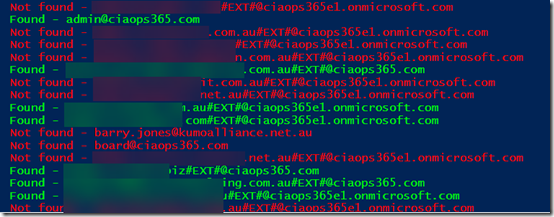
So I created a script that goes through each active Azure AD user in the Office 365 tenant and check to see whether there is a corresponding SharePoint Online user. To do this I used the following commands:

get-spouser

and

get-azureaduser

So I trained these commands on the OneDrive for Business URL which is typically:

https://tenantname-my.sharepoint.com

As you can see from the above report, the green lines indicates matches to accounts in my Azure AD and in my OneDrive for Business. The green tenant users, with a custom domain typically have their own OneDrive for Business. The green External users, distinguished by an account that includes #EXT# are typically accounts outside the tenant that have been shared information with and accepted that sharing request.

Now the red tenant users, typically haven’t had their OneDrive for Business provisioned yet and the red external users typically haven’t accepted the sharing request that has been sent them as yet. All understood.

image

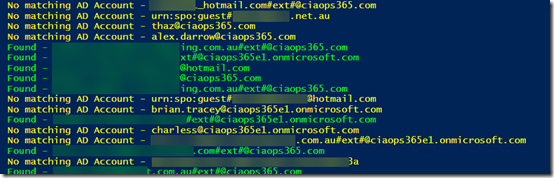
Here’s where the rabbit hole opened up. Ok, I thought, now what happens if I do the reverse? That is, check my SharePoint users against my Azure AD users? So off I went to create a script.

The script came back with the results you see above. All the the yellow accounts are SharePoint users that don’t have a match Azure AD account. Quite a few eh? When I first saw this I panicked a bit, because many of the accounts I didn’t recognize. What was going on here I wondered? Had I been compromised?

In a perfect world, there would be a one to one mapping between Azure AD accounts and SharePoint account. However, things aren’t that perfect, so in my demo tenant, I had created lots and lots of accounts over the years and many had become ‘orphaned’ leaving behind information in SharePoint. Many were just so old I forgotten that I created them and then later deleted the Azure AD account.

Is this a problem? Not really I don’t think, because without an Azure AD account to login to, these ‘orphaned’ resources aren’t much use. Still, if they aren’t needed then they really should be deleted to my mind.

Interestingly, some of these ‘orphaned’ SharePoint users actually still had their own OneDrive for Business that clearly wasn’t being displayed anywhere else. Once I took control of these ‘orphaned’ sites by making myself a Site Collection Administrator I could see what they actually contained. When I was happy it wasn’t needed or in use I deleted these, again using PowerShell.

So what did my trip down the rabbit hole teach me? Firstly, I learned that Azure AD and SharePoint user accounts don’t always line up. Next, I learned that you can end up with ‘orphaned’ SharePoint users and resources that you may want to clean up using PowerShell. I don’t believe these represent any security issues but if they aren’t necessary then they probably should be deleted. However, be careful of system accounts which shouldn’t be removed. Just get rid of those you recognise as no longer being required.

The biggest thing that my exploration taught me is the value of PowerShell to get behind the standard interface of Office 365 and see what is really going on. It gives you much better control and for me it helps me understand much better how everything works.

If you want the scripts that I used to do these comparisons then I suggest you sign up to my Patron community – www.ciaopspatron.com where you’ll find these and whole lot more Office 365, Microsoft 365 and Azure resources.

Saving custom columns widths with SharePoint Online

*** September 2019 : It appears that the configurations mentioned here no longer work unfortunately.

image

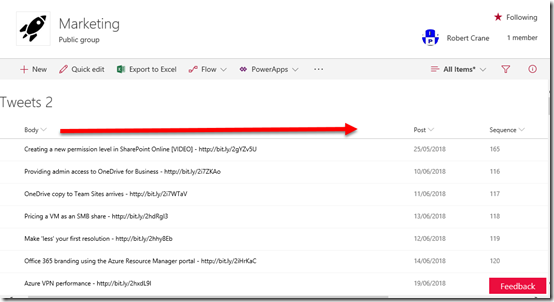
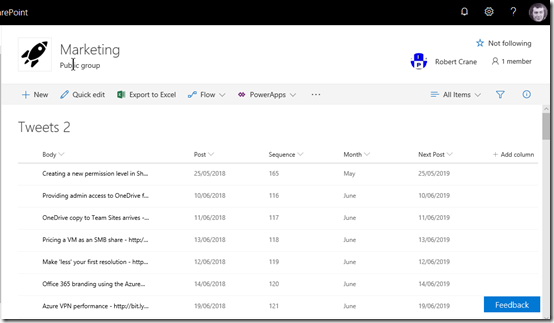
One of the great things about SharePoint Online is that you can create custom columns for just about every element in a site. The information that SharePoint Online displays to you can be customised using “Views”. You can configure multiple “Views” inside a List or Library to show exactly the information you want, as you can see above.

image

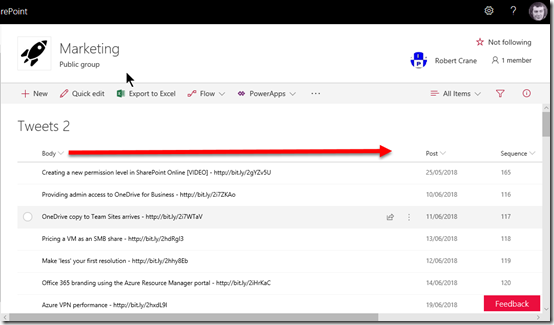
You can also adjust the width of any column by simply dragging it out like you do in something such as Excel. Just go to the boundary of the column heading and drag the column width out as shown above.

The issue was that when you return to this layout after the current session (i.e. closed the browser and logged in again later), the column width would revert back to the default width. Frustrating.

image

Also, if another user looked at the same location they would again, only see the default widths, even though you changed it in your session.

So, any column changes made were not persistent between sessions or globally available. Frustrating.

image

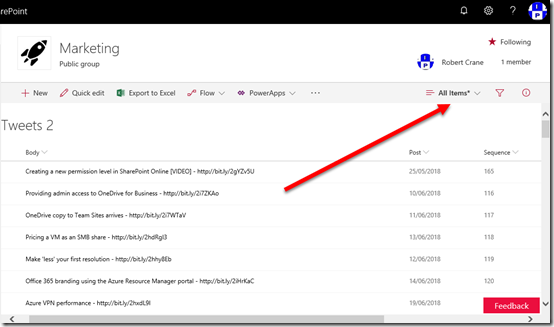
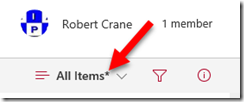
However, if you take a close look at the “View” pull down in the top right of the page you will notice something.

image

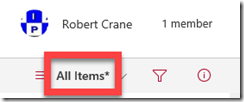
You should see that once you change a column width on the page a * appears after the “View” name.

image

Again, make a change to the column width and a little * will appear. This is telling you that the “View” has changed is different from the default. This is kinda the same when you edit documents. It indicates that the contents have changed and you SHOULD save these changes for them to be retained!

image

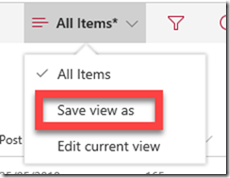
If you therefore select the “View” pull down there will be an option to Save view as.

image

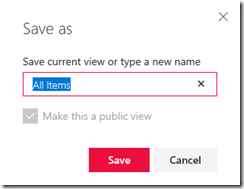
If you then Save the “View”, using the same name as before, you are overviewing the old display with the new layout i.e. with different column widths.

image

If another user now navigates to the page they will see the columns widths that you set! i.e. saving the “View” after adjusting the columns sets these columns width for all users! Yes Martha, we have achieved the global configuration for column widths in SharePoint Online! Yeah!

In summary then, adjust the column widths to the size you want and then save the “View” to make those widths available to all users globally.

The layers of Office 365 collaboration

One of the misconceptions that many have about Office 365 is that SharePoint Team Sites is the only place that you have files. My response to that is that SharePoint Teams Sites is not the hammer to every request for an Intranet. You need to case your gaze wider. You need to consider all the options that Office 365 provides. You need to think collaboration not just storage. You need to shift your thinking from the way it has been to the way it could be.

Now having lots of options for collaboration can make choice harder, I get it. The solution is knowledge. Know what each service does well and then determine if it is a good fit. If, after consideration of all the options, a stand alone SharePoint Team Site makes sense, then great, but in my experience that is rarely the case.

Here’s an Office 365 collaboration framework that I present people to help them understand how to better use the collaboration tools that Office 365 provides them.

image

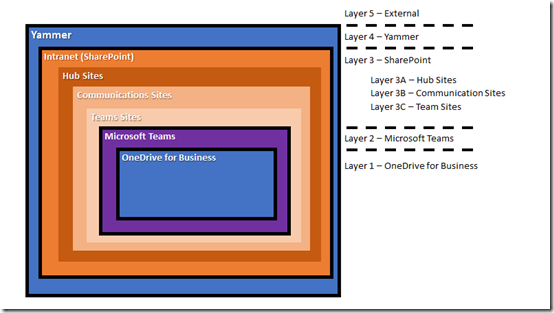
The simple structure I start with is shown above. There are 5 layers, each embedded within each other.

The inner most layer, layer 1, is a personal OneDrive for Business. Next is layer 2 being Microsoft Teams. Layer 3 is good old SharePoint. Layer 4 is Yammer and the outside layer is everything outside Office 365.

The SharePoint layer, layer 3, has three sub layers that are still SharePoint features but should be considered independently. These sub layers are: layer 3A being Hub sites, layer 3B being Communication sites and finally layer 3C being the traditional stand alone SharePoint Team Site.

Layer 3C is where many seem to think is the only place available to them when it comes to document collaboration. Each layer provides its own unique abilities and should be utilised in its own unique way. Let me explain further.

image

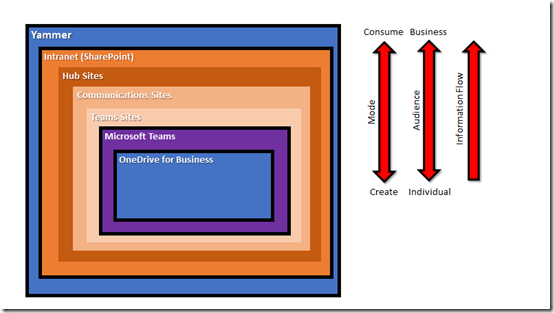
As you move from layer 1 (OneDrive for Business) to layer 5 (external) there is a move away from creation of information to a consumption of information. For example, most people start working on document in their own private space (layer 1 = OneDrive for Business), when they are ready they push these into a shared space for their team (layer 2 = Microsoft Teams). Here they are worked on by more people and seen more people. From here they are then pushed to the next layer (layer 3 = SharePoint) where they are seen by even more people but now few people are actually making changes to the document. Finally, the document is pushed to layer 4 where it is announced with everyone in the business. This garners the most eyeballs most of whom are merely going to consume or view the work.

Think of this analogy. A single user creates a new HR policy document in their OneDrive for Business. When they are ready they push that into the HR Microsoft Team to get further input from others in HR. Once that process is complete the completed HR policy document is pushed to the Intranet (SharePoint) where everyone else in the company can view it. Once the document is pushed to the Intranet it is announced publically on the Yammer network were it is now available for all to consume, use and comment on it.

Just as the creation process changes from creation to consumption as it moves through the layers, likewise the audience grows, from the individual to the team and then to the whole business and potentially those outside the business. Thus, information generally flows from layer 1 through to layer 5.

image

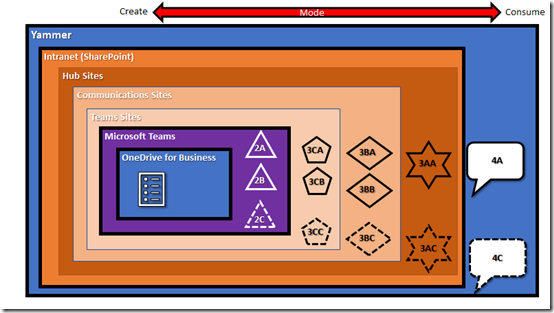
Let’s break this down some more. A user creates a new document in the OneDrive for Business. At this point the document is undergoing 100% creation.

image

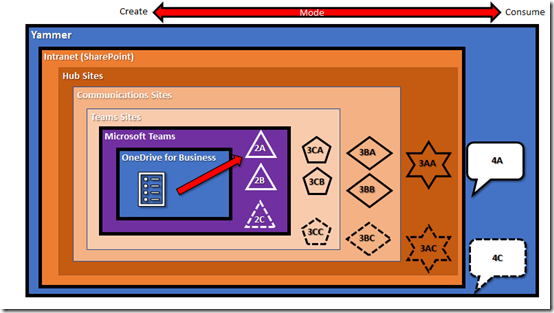
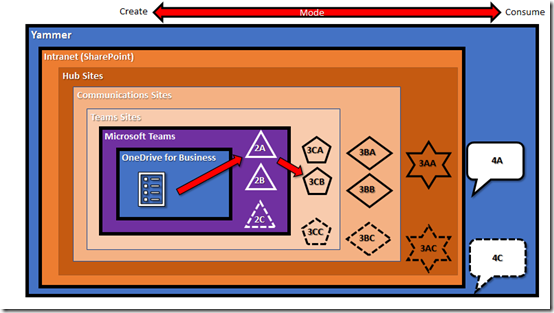
When the user is ready they move the document into the appropriate Microsoft Team. Now the user may belong to some Microsoft Teams in the structure (2A and 2B) and not to others (2C).

At this point the document is probably undergoing 75% creation and 25% consumption.

image

From here the document is pushed to a traditional Team Site. There can be many different Team Sites if required, that people may or may not have access to. In this case it is being pushed to Team Site 3CB.

The ratio of creation to consumption here probably falls below 50% i.e. more people are reading it than editing it.

image

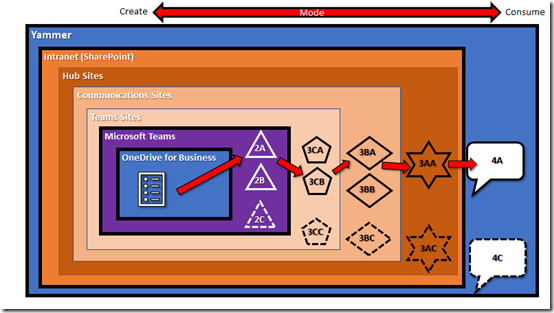
I think you get the picture. The document continues its journey through the various layers with different, but increasing audiences, having access to the document. However, the further through the layers it gets, the less the document is edited but the more it is viewed.

The reality here is that layers 3A (Hub sites) and 4 (Yammer) are really just providing navigation to the completed document which probably actually physically lives in either a traditional SharePoint Team Site or a Communication Site inside layer 3. However, the consumers of the information don’t care where it is actually stored, they simply want to know how to get to it.

At each layer I can only see and access information that is relevant to me. If I am part of the Microsoft Teams that works on the document then I can contribute. If I am not, then that document won’t be visible to me until it is pushed to a location further along that I have access to.

This means that the working for the final product can remain hidden from those not involved. So, think of the Microsoft Teams area as the traditional location where groups of people “create” and “work” on the information. This should be the location where most files from a file server are migrated, they should not be ‘dumped’ into a single location at layer 3 (SharePoint). They should be ‘placed’ into an appropriate work area for that team.

So, you should build your collaboration framework on layers. The above is just a simplified model but it is a good place to start I believe. The next point to consider with collaboration is information flow. Chances are, information is going to need to flow through to different places i.e. even though the finance department works on budgets, at some point they need to be shared with others in the business. Collaboration is about creation AND sharing of information. Simply creating information doesn’t serve any real purpose or benefit the larger cause without actually sharing it.

In most cases, your layers are going to mimic what your business already looks like structurally i.e. you’ll have a financial team, a HR team, a management team, etc. Each of these groups needs to create and publish information, thus they make logical Microsoft Teams in your collaboration structure. You may of course not need or want all these layers but I urge you to consider using them as a ‘standard’ no matter how large or small your business as each layer bring unique features and functionality to the table.

In all of this, you will notice that the concept of an ‘Intranet’ is really at the extremity of collaboration creation. To me an Intranet is about 20% creation and 80% consumption. It is not really the place you go to do work. It is however, the place you go to find stuff from others in your business. Think of the Intranet like a bookcase at reception, into which each department places the end result of their work i.e. when the finance team is done with the budgets they place them in the finance folder in this bookcase for anyone else in the business to reference. Once they have done that, they go back to their Microsoft Team to start creating the next round of budgets they’ll publish.

This framework also couples well with my recommended adoption framework detailed here:

Focus on the ‘Me’ services first

In that I suggest you implement Yammer first (layer 4) and then OneDrive for Business (layer 1). Once that is successful you move to Microsoft Teams (layer 2) and finally the Intranet (layer 3). In short, you win the adoption battle by adopting a two prone attack at the outside layers and then proceed inwards. In my books, that is a more certain way to victory.

Office 365 is a toolbox with lots of options for you to work with. Hopefully, this framework makes it bit easier for you to look at a way to conquer collaboration rather than simply abdicate for storage when it comes to your information in Office 365.

Using Office 365 labels

One of the best things about SharePoint is the ability to add ‘metadata’ about items. This makes it easier to filter, sort and search information. What you may not realise is that Office 365 itself has it’s own ‘metadata’ ability, known as Labels.

image

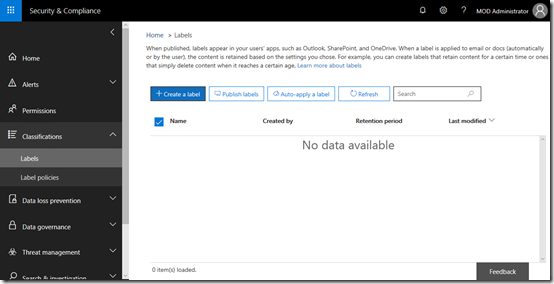
To create a label in Office 365 you’ll first need to navigate to the Security and Compliance center as an administrator. From there, select Classifications from the menu on the left and then Labels from the items that appear.

Now select the Create a label button on the right.

image

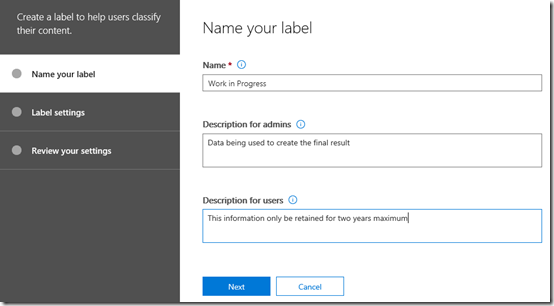
This will commence the label creation wizard as shown above. The first step is to give the label a Name and Description.

Press the Next button at the bottom of the dialog to continue.

image

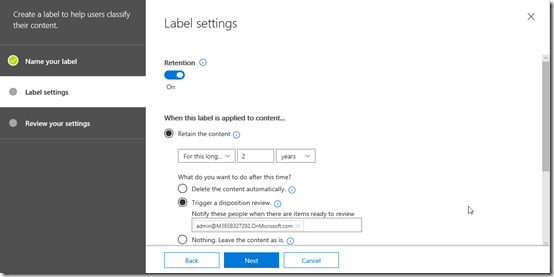
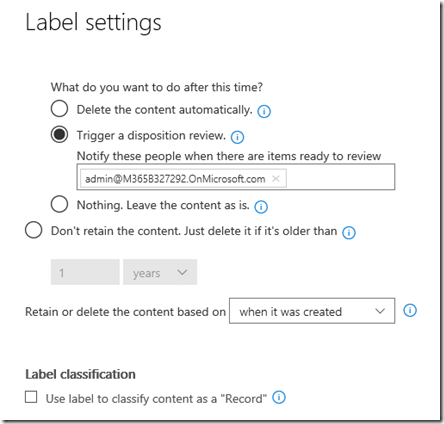
In the next step you can determine whether you wish to associate a retention policy with this label. In this case, I’m creating a 2 year retention policy with a ‘disposition review’ before the data is deleted.

image

You’ll see a lot of these settings are similar to the Retention Policies you can create in Office 365 which I have written about here:

Using Retention Policies in Office 365

When complete, press the Next button to continue.

image

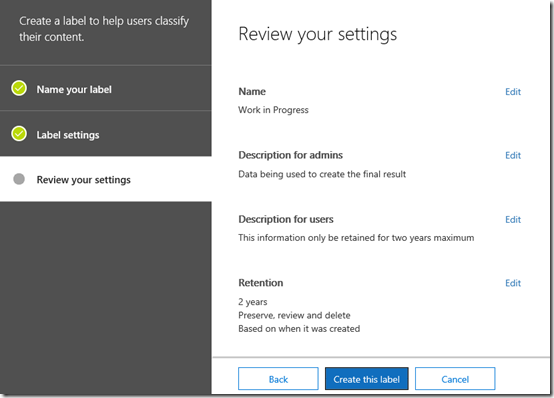
Review the options you have selected and then press the Create this label button at the bottom.

image

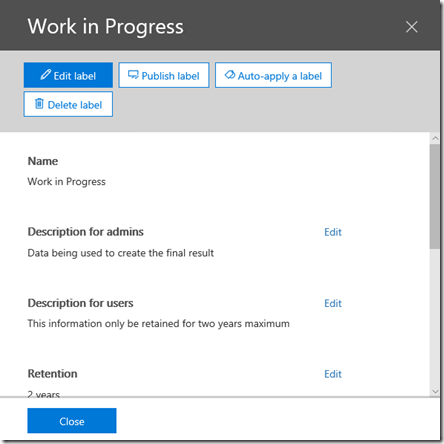
You should now see a summary of the label you just created as shown above. At this stage the label has been created but not applied anywhere in Office 365.

Select the Publish label at the top of the screen to apply this to Office 365.

image

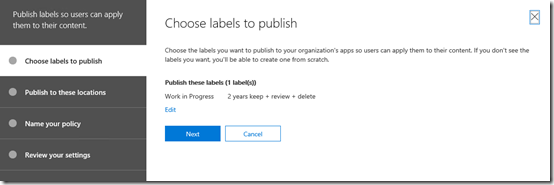
This will kick off the label publishing wizard as shown above. You should already see the label that you just created shown as the label to publish.

Select Next to continue.

image

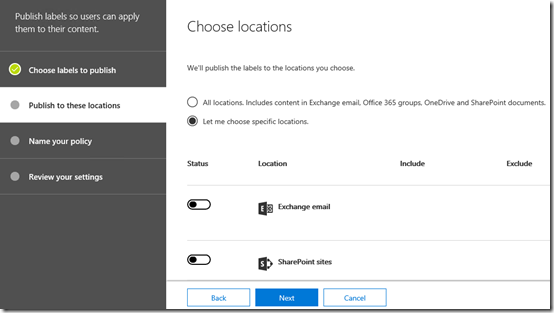
You now need to determine where this label will be applied in Office 365. You can elect to apply it across the entire tenant by selecting the All locations option at the top of the screen or select locations using the Let me choose option.

This means that you can target a specific label to a specific location in Office 365.

image

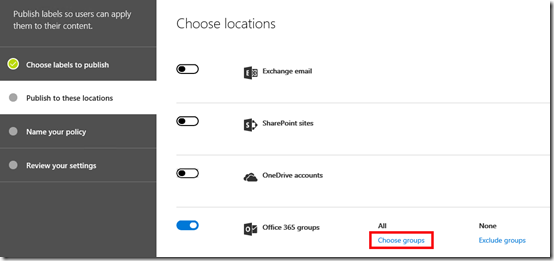
In this case, I’m going to apply the label to a specific Microsoft Team in the tenant. I select this location by ensuring the Office 365 Groups option is set to On and then selecting the Choose groups hyper link as shown above.

image

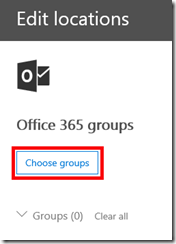
On the next screen I select Choose groups.

image

I then see a list of my Office 365 Groups and Microsoft Teams. In this case I’m going to select just the Special Projects group.

image

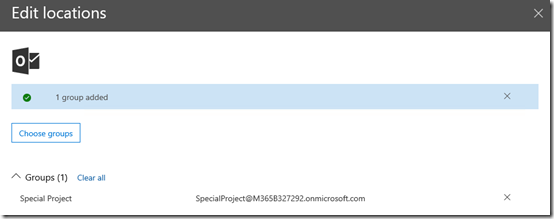
I should now see a banner at the to of the page that indicates my selection.

I select the Done button to continue.

image

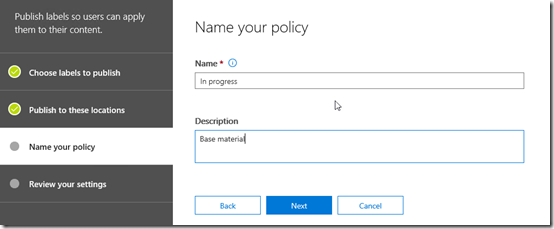
I now give the policy a name and select the Next button to continue.

image

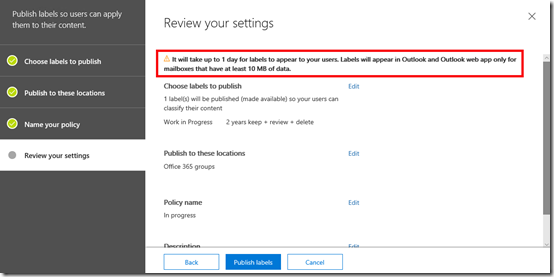
You should now see a list of all the options you have selected for this policy to review. You should also note the information message that the top that it may take up to 1 day for the label to appear for users and the limitations for Outlook mailboxes.

Select the Publish labels button to complete the process.

image

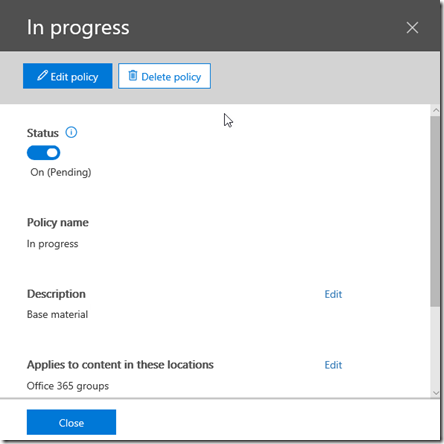
As detailed in the previous Retention Policies article, if you return to the policy you will see the status as shown above. You need to wait until that show success before the changes are available across you tenant.

image

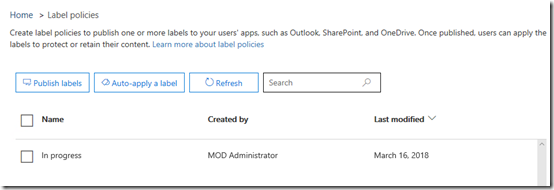
You should now also see you policy listed as shown above. I have also created a second policy and applied in the same way.

image

After the label policy has been successfully applied across your tenant you can visit the SharePoint Team Site where it has been applied.

if you look at the Document Library in that location you see no obvious changes.

image

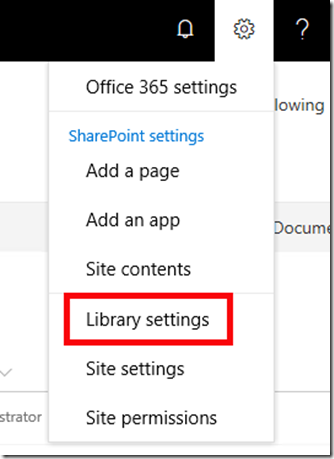
However, if you select Library settings from the COG in the top right of the screen

image

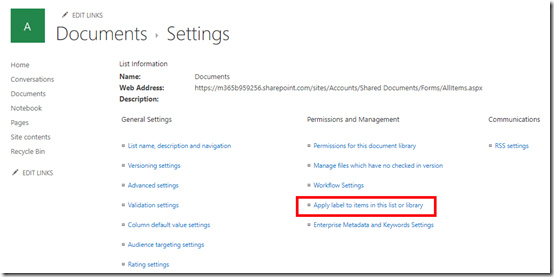
and then look in the Permissions and Management section as shown above, you will see an option Apply label to items in this list or library. Select this.

image

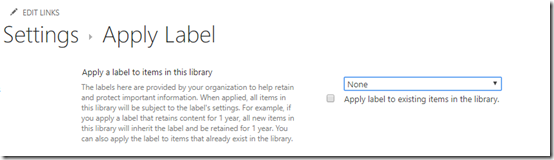
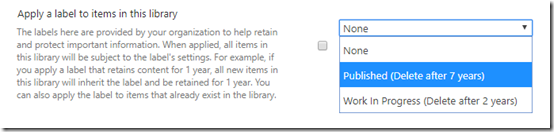
You’ll now see the ability to apply a label to item in this library automatically. This means when a new document is created here it will automatically assume the label you nominate. You can also elect to apply this label to any current unlabelled items in the library.

image

If you now select the list of labels that are available to be applied you should see the labels you just created in the Office 365 Security and Compliance center.

image

You can also modify the Document Library View to display the Labels field as shown. This will display the label that has been applied to that item.

image

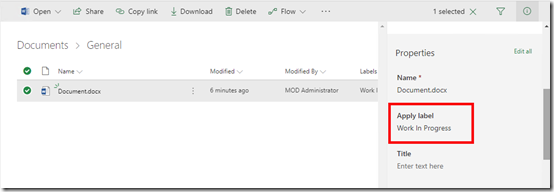
If you now edit any item in that library you will see the Apply label field displayed as shown above.

image

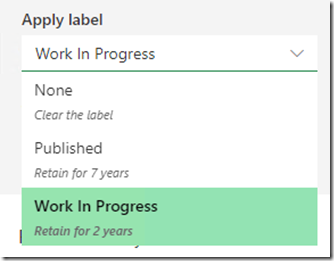
When you edit this field, you will again see a list of labels you have created in the Security and Compliance center as shown above.

So the Office 365 labels act as a kind of managed metadata but the advantage they have over traditional SharePoint managed metadata is that these same labels can apply across different SharePoint, OneDrive and email locations in Office 365.

image

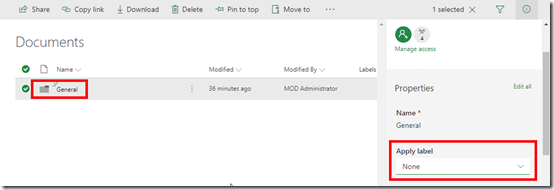
Another really great thing about Office 365 labels is that they can be applied to folders in SharePoint as well as individual items as shown above. Doing so means that everything in that folder will inherit the settings of the folder by default, just like SharePoint permissions.

Remember that labels are available across all Office 365 plans. With the Enterprise plans you get even more power when it comes to labels which I’ll dive into down the track.

Beware that you need to allow time for the policy to be applied across all your locations. In my experience this is generally quite quick with SharePoint and OneDrive but for Exchange it may take much longer. This is because each individual service applies and enforces the policy in its own way and own schedule.

In the case of Exchange the Managed Folder Assistant (MFA) handles the policy application. The MFA only runs on a seven day cycle so it can take this long for any of the policy to be applied to the mailboxes in question. You can run a PowerShell command to try and speed this process up somewhat but it is still somewhat hit and miss. So be patient after creating a new policy with email, it may take up to 7 days to be available.

I think the big take away here, and the different approach that needs to be adopted, is looking at data in a different way. Traditionally, most organisation have manually managed their own data. In reality, they haven’t really managed it at all because it takes too much work. They simply continue to create and save data in various locations with no real overarching management strategy. This allows mounts of data to accumulate, most of which no longer has relevancy. There is a cost to this.

With a bit of thought, up front planning and the use of Office 365 labels, organisations can better manage their data. They can create classifications that apply across their organisation, making it easier for users to tag data. This then allows the policies in operation in the background to take care of a large component of on going data management for them.

Like Alerts and Retention Policies, Labels are included in all Office 365 plans. They provide an easy to classify and manage across your tenant. They should be part of your information management strategy or in more official terms, the compliance policy within your organisation. To get the most from new tools like Office 365 you typically need to take a new approach to managing your information. Office 365 includes the tools to help you work smarter, so use them!

Using Retention Policies in Office 365

Before we get into this article I need to reinforce the following:

Retention is NOT the same as backup

Thus, what I am going to cover here should NOT be considered as a replacement to any existing backup policy you have for Office 365. What I’ll cover here is retention of data based on policies you set. Retention can be a way to preserve data as well as delete data based on a set of defined rules. You should consider retention policies as part of your compliance strategy not as part of the disaster recovery strategy.

The great thing about retention policies in Office 365 is that they are generally available across all plans. So what I detail here should apply to all Office 365 tenants.
image

Office 365 has no retention policies in place by default. This means that any existing data has no additional protection. Importantly, this means that existing data will NOT be covered by the policy UNTIL the data has been changed. Thus, if you create a retention policy and then go and delete data BEFORE making any changes to it, the data will NOT be saved! Once in place, the policy ONLY applies to data that gets altered (i.e. updated or modified) from that point on.

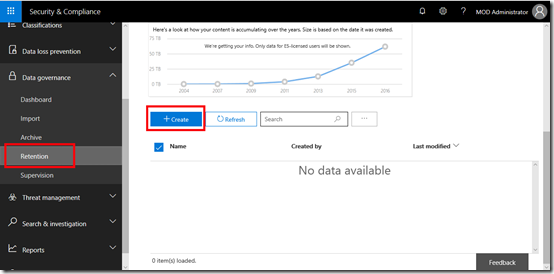
With that in mind the first step in the process is to create a retention policy. You do this by navigating to the Security and Compliance center in Office 365. From there, select the Data Governance option from the menu on the left and then Retention from the submenu as shown above. You should see that there no policies in place yet.

To create a new policy select the Create button on the right hand side of the screen.
image

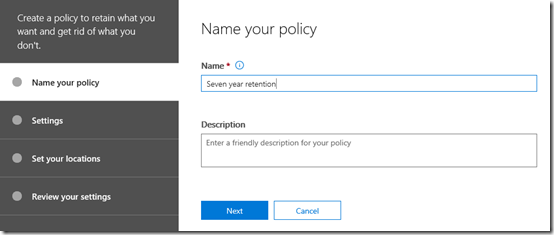
Give your new policy a name and description and press the Next button at the bottom of the screen.
image

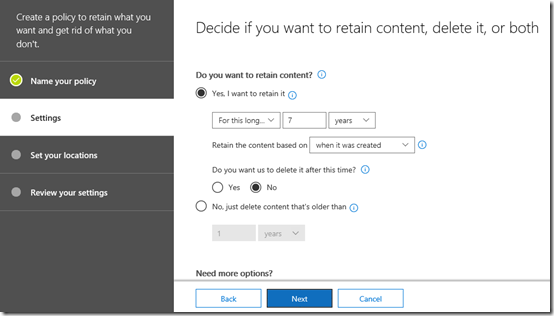
Here is where you need to decide what rules your policy will have. In this case I have chosen to retain data for 7 years based on when it was created and to not delete it after this period.

You’ll note that you can create policies that also delete data so be very careful when you select those options.
image

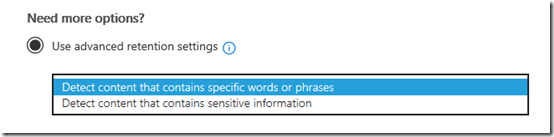
The bottom of the page allows you to use more advanced retention settings. In here there should two options to select from as shown above.
image

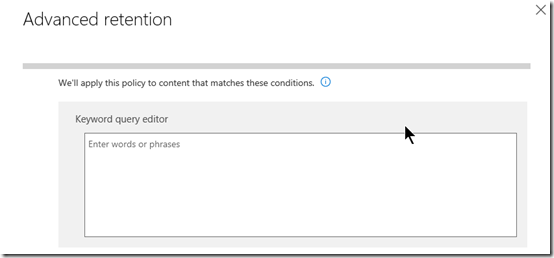
The first option allows you to apply the policy via keyword or phrase. You simply enter those terms into the editor that is displayed when you select the option.
image

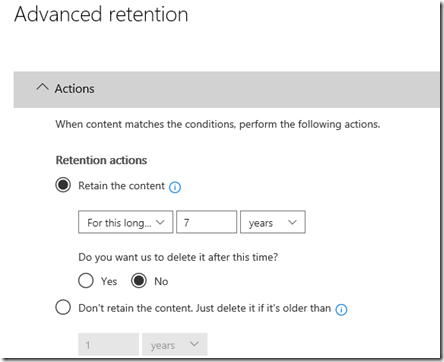
Once you have entered the keywords you wish, you’ll need to enter the standard retention options as shown above.
image

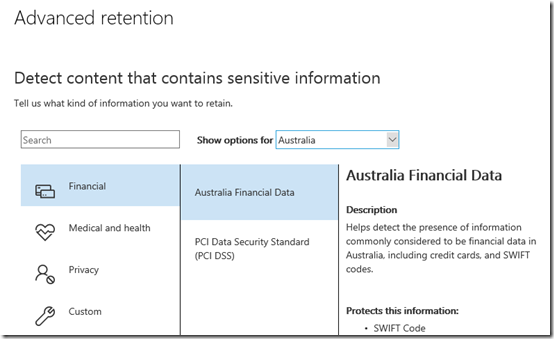
The second advanced retention option allows you to apply the policy based on ‘sensitive information’. As you can see from the above, you can select from a range of pre-configured sensitive information types that can be scoped to your country. Here, I am selecting Australian Financial Data.
image

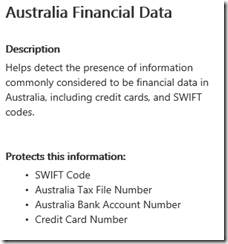
If you look at the policy you will see what information it consider ‘sensitive’. In this case, the policy will match things like Australian SWIFT banking codes, Tax File Numbers, Bank Accounts and Credit cards.
image

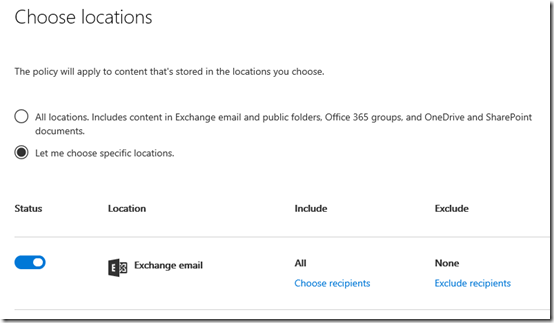
Once you have set the data types for your policy, you’ll need to nominate which locations inside Office 365 this retention policy will apply to. You can apply the policy across all or specific data inside Office 365 as shown above.
image

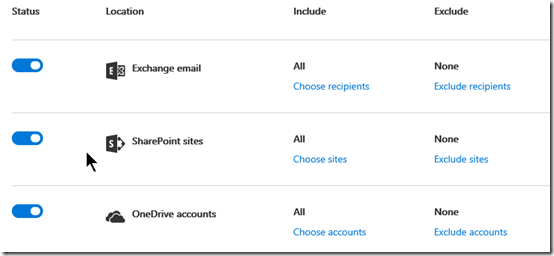
You’ll see that you can target Exchange mail, SharePoint Online,

image

Groups (as well as Teams), Skype and Exchange public folders.
image

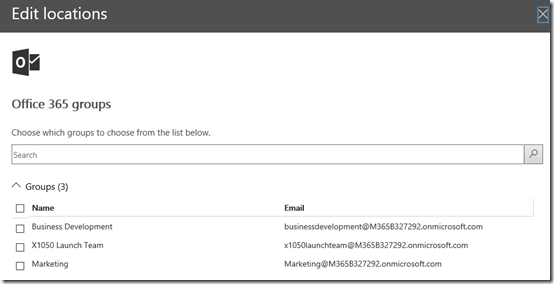
You’ll see that you can also include an/or exclude specific locations inside each service if you wish. Simply select the Choose hyperlink and make your selections as shown above.
image

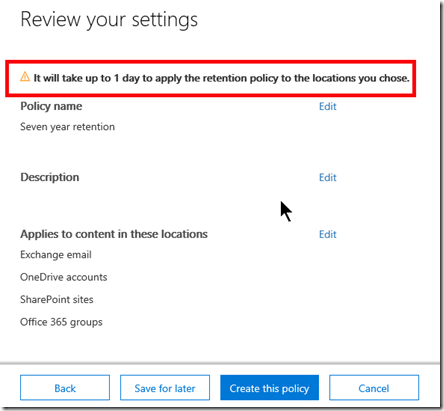
Once you have completed all these options you can then Create this policy and apply it immediately or Save for later application.

In this case I’ll create the policy and apply it immediately. Note the message at the top of of the dialog that tells you it may take a full day for the policy to be applied. I would suggest that you do wait a full day for the policy to be applied throughout your tenant before you continue.
image

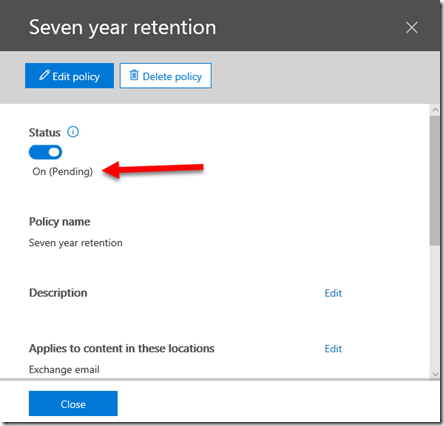
After creating the policy you will see that the Status is On but it is Pending as shown above.
image

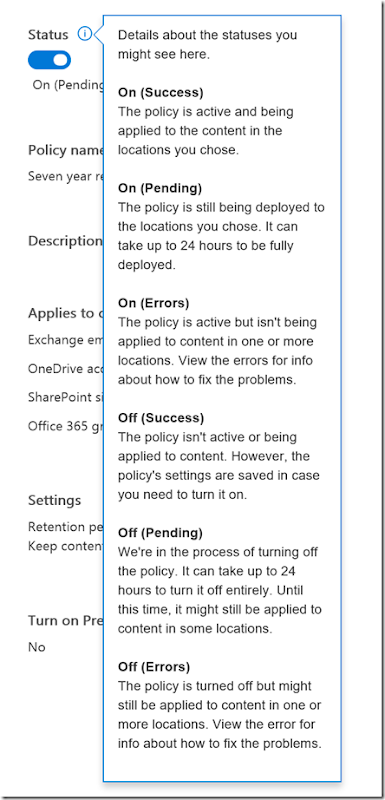
If you select the information icon you’ll see that what you want to wait for is the On (Success) option to be displayed here.
image

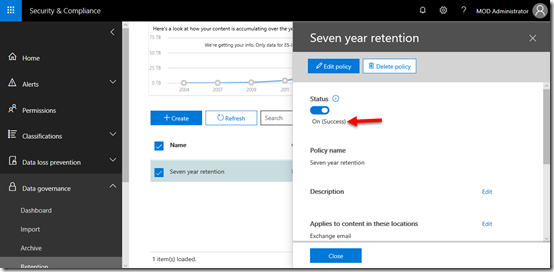
After waiting a suitable amount of time and checking the policy status you will find that it has succeeded as shown above.

At this point the policy is in place and is protecting any data that is now changed.
image

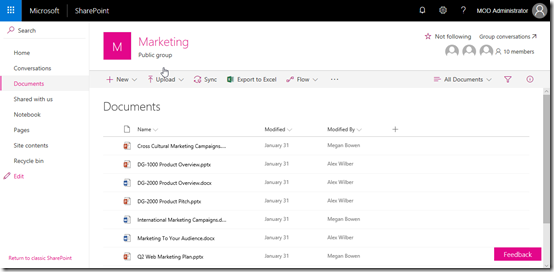
With the retention policy in place let’s go to the location of some file data in a SharePoint Team Site, specifically a Document Library as shown above.
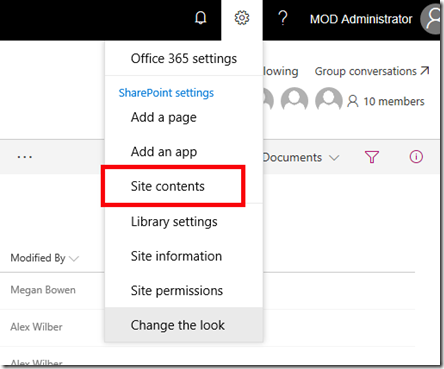
image

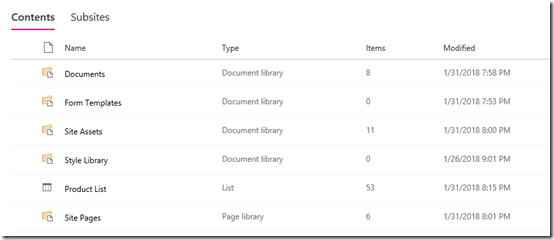
Before we do anything, let’s check out that the Site actually contains.
image

We see that there is nothing special as yet. There will be, just not yet.
image

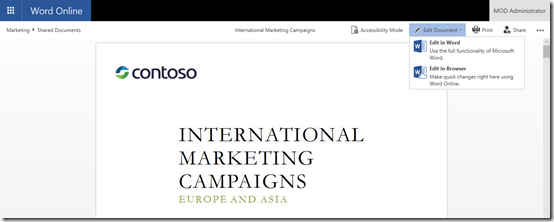
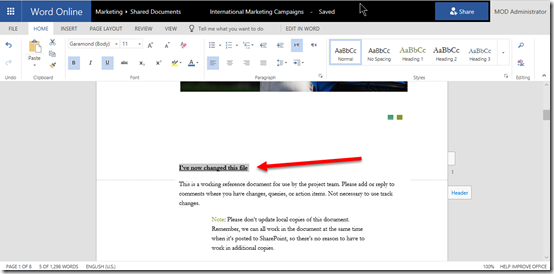
The retention policy will only act on changed documents from the point it was enabled. So we select a document in the library and edit it.
image

The document is changed and saved back to the library.
image

Now the file is still in it’s original location and the retention policy is applied. As the original file still existing in its original location the retention policy doesn’t need to take any action.

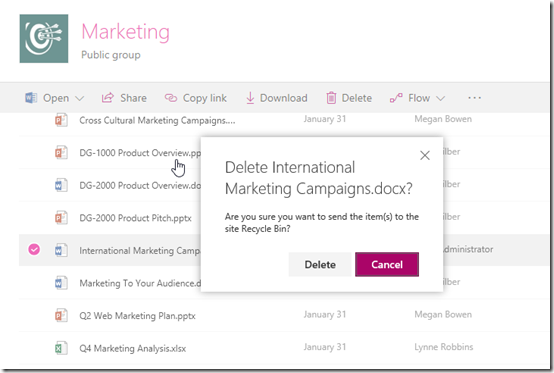
However, if the original file is now deleted from its original location as shown above what will happen?
image

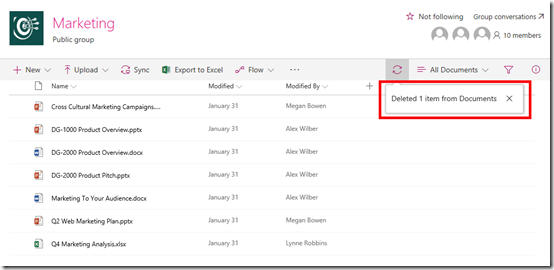
Any document deleted from a SharePoint Document Library is sent to the Recycle Bin.
image

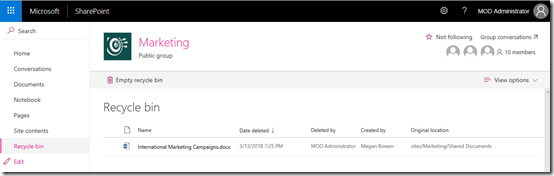
If we look in Recycle Bin we see the deleted document as shown again. The retention policy still does not yet need to take any actions as the document is still available, however remember, that items don’t stay in the SharePoint Recycle Bin forever. They are aged out after a total of 93 days. Thus, the retention policy doesn’t need to do anything until this time period is exceeded.
image

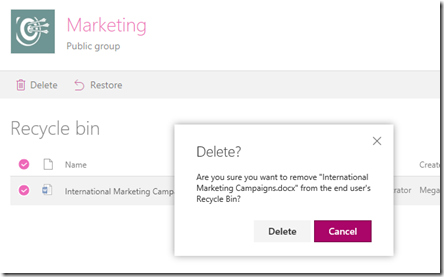
However, it is also possible for the user to delete the file from their recycle bin as shown above.
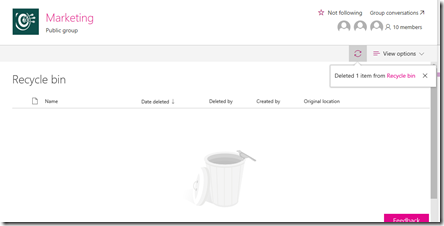
image

Once the user has deleted the file from their recycle bin the file will move to an administrator recycle bin or the remainder of the 93 days. Again, the retention policy doesn’t need to take any actions until this time period is exceeded.
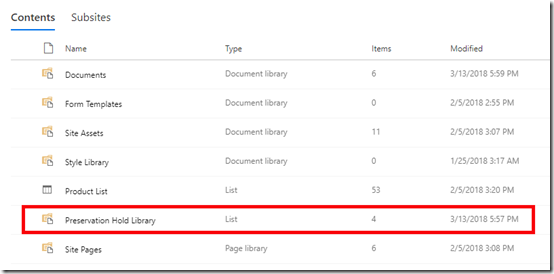
image

At the point at which the file is going to be purged from the Office 365 environment the retention policy that was configured kicks in. It creates a new document library in the Team Site called Preservation Hold Library as shown above.
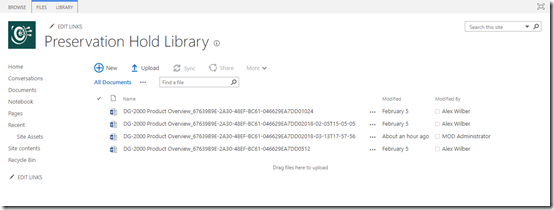
image

This new document library is only available for administrators to view and when you look in here you will see all versions of the deleted file. Remember, that every time you change a file in SharePoint it create a previous copy.
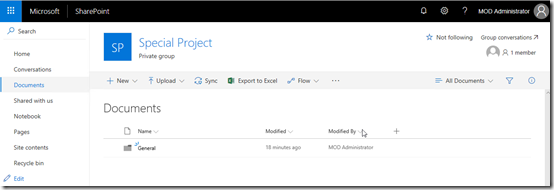
Thus, as an administrator, we can recover a file from this location for the period of the retention policy, which in this case is 7 years. Once the conditions of the retention policy no longer apply to the file (here it is > 7 years) the file will be removed permanently within 7 days from the tenant.

You can find lots more information about Office 365 retention policies here:

Overview of retention policies

In there, you will note for email data:

To include an Exchange Online mailbox in a retention policy, the mailbox must be assigned an Exchange Online Plan 2 license. If a mailbox is assigned an Exchange Online Plan 1 license, you would have to assign it a separate Exchange Online Archiving license to include it in a retention policy.

So, retention policies are a good way to manage the compliance of your data. As I said at the start, they are NOT a replacement for backup, however they do provide an extra layer of protection for you information and can be implemented quite easily as you can see above.

The last thing to remember is that retained data has to live somewhere and will consume you tenant space availability across the difference services. The more locations and data protect, the more copies of previous data you will have. So keep it simply and limit what you want to retain. This means planning your retention strategy in advanced rather than bulk applying it to all data in all locations.

Finally, remember that retention policies are available across the range of Office 365 license and I would encourage you to take advantage of them.