
Given that Copilot for Security has just been released, I thought I’d spin it up in my tenant and see what it looks like.
To get the most from Copilot for Security you’ll first need to have an Azure subscription. You’ll get more out of the service if you also have Intune and Sentinel as well as aggregation of your logs, but an Azure subscription is all you need to get started.
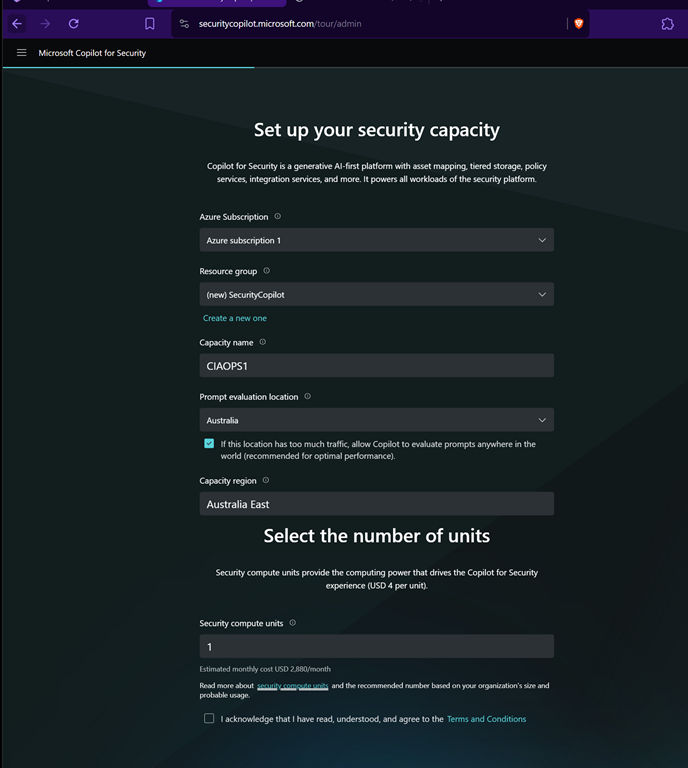
The easiest way to commence the set up process is to visit:
https://securitycopilot.microsoft.com
where you’ll be greeted with the set up wizard shown above.
Prior to setting up Copilot for Security, as I mentioned, you need an Azure subscription and I’d also recommend setting up a dedicated Azure Resource Group to help monitor and manage costs.
It is important to under what this will cost you in the default configuration. That is detailed on this page:
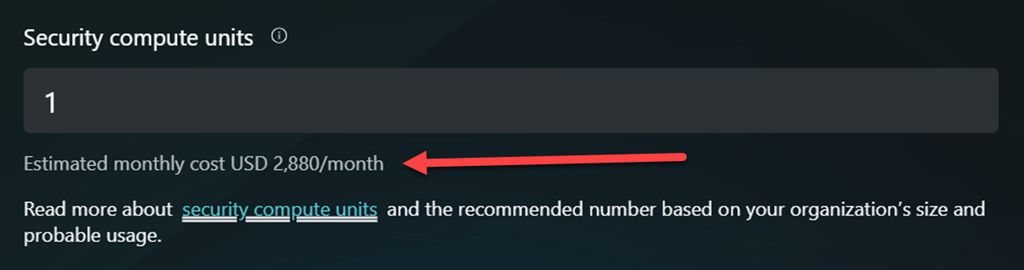
Yup, you read right $2,880 per month is the minimum! That is basically $4 per hour over 730 hours in a month. So, ensure you turn all this OFF once you have finished testing!
Once you complete all the listed fields you can continue.

You’ll need to wait a moment or two as the service is set up.
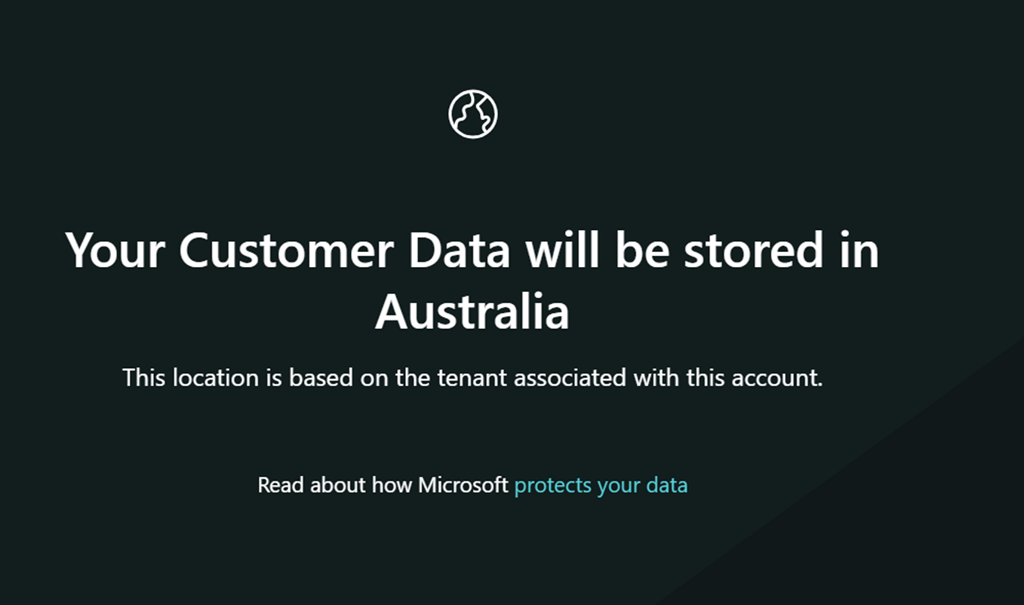
Since the Azure Resource Group into which I’m placing Copilot for Security is in Australia, my data will also be in Australia.
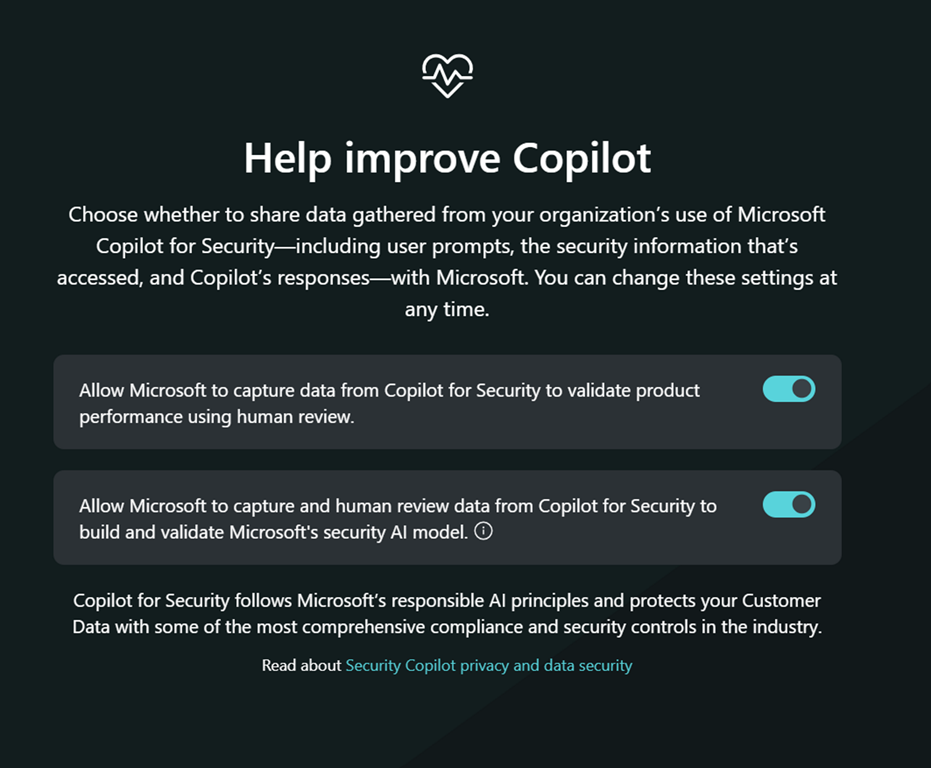
You’ll then be asked whether you wish to help Copilot improve as shown above. Make your choice and continue.
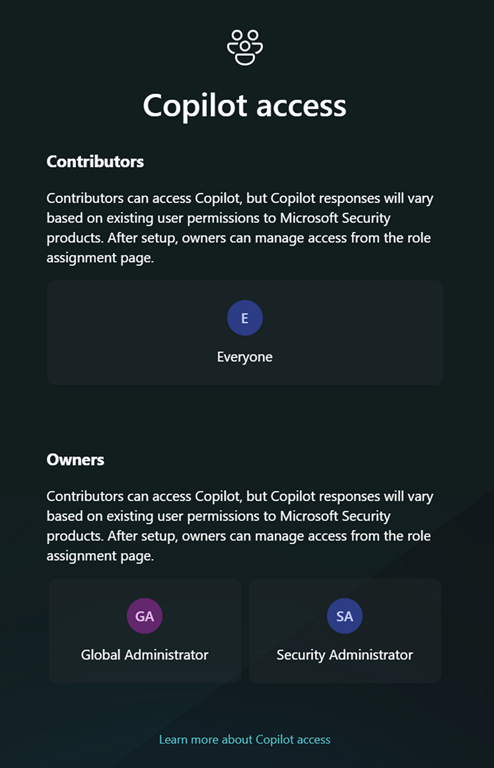
Next, you get the option to set up any permissions. As this is simply a test and I’ll be the only one using it I didn’t make any changes and just continued.
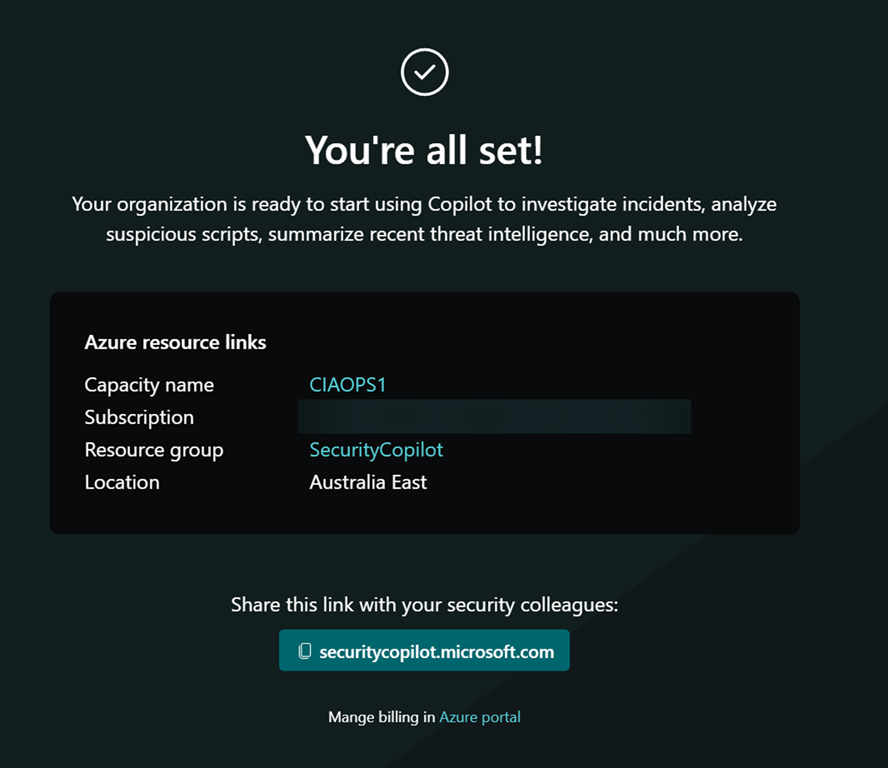
You should be all good to go as shown above.
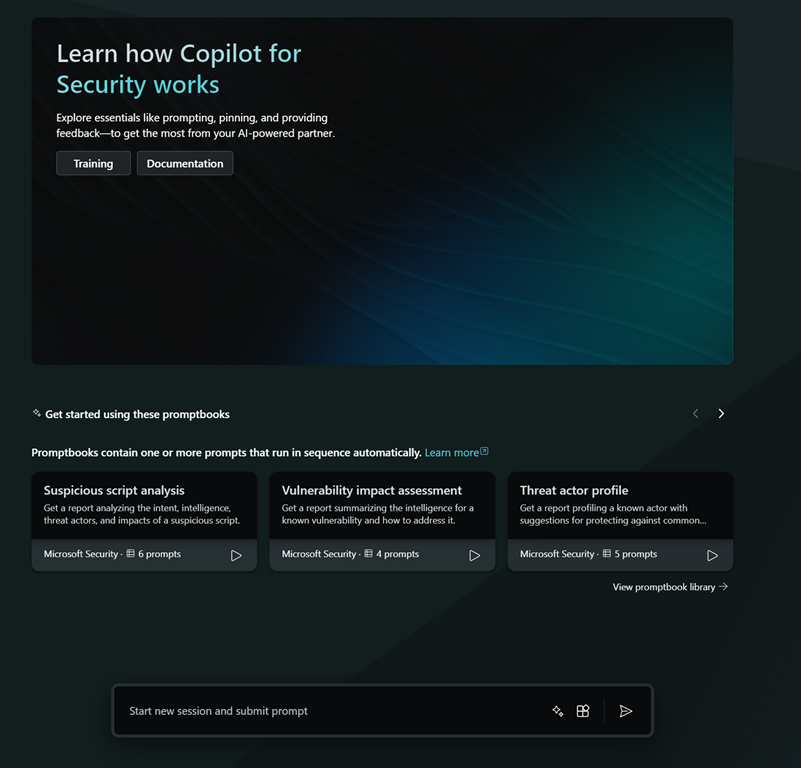
If you now return to the initial starting point:
https://securitycopilot.microsoft.com
you should see the above, where you can input your query.
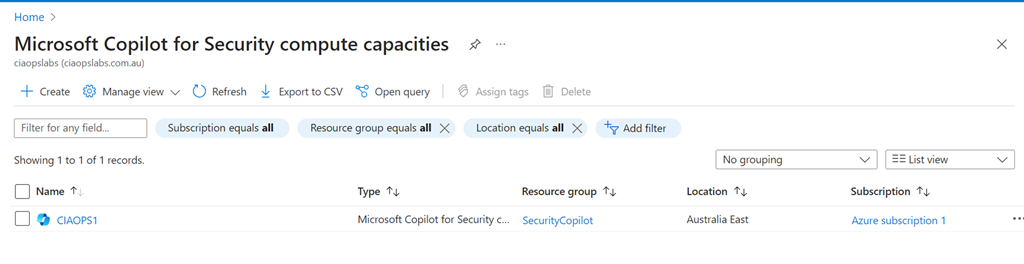
If you look in the Azure back end you will see a new item called Copilot inside your Azure portal, which looks like the above.
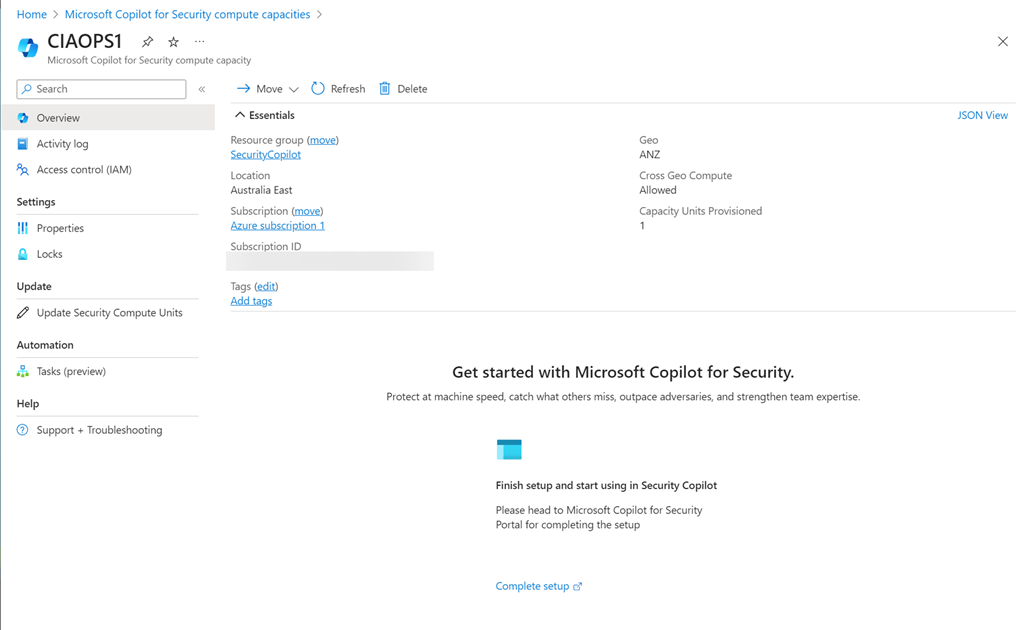
Selective the resource displayed the above.

You’ll also notice that you can’t adjust the Security Compute Units (SCU) below 1.
By clicking this button in the prompt

you’ll see all the plugins that can be configured in your environment
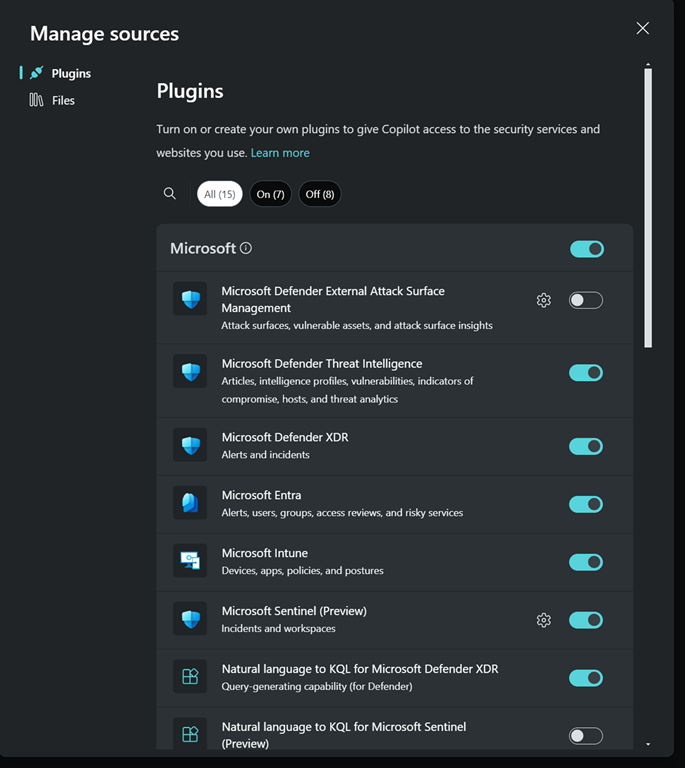
So, I went off and had a play to see what results it would give me.
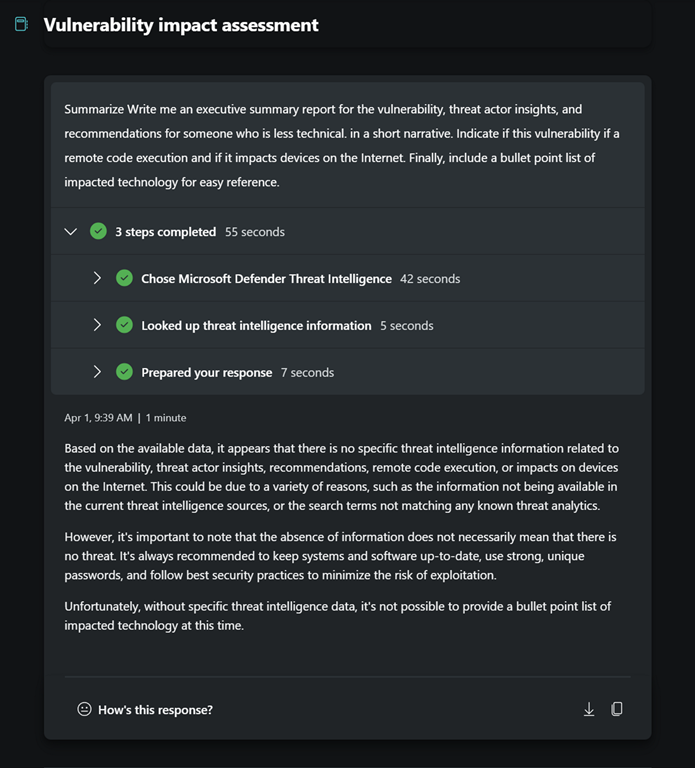
I asked for some summaries.
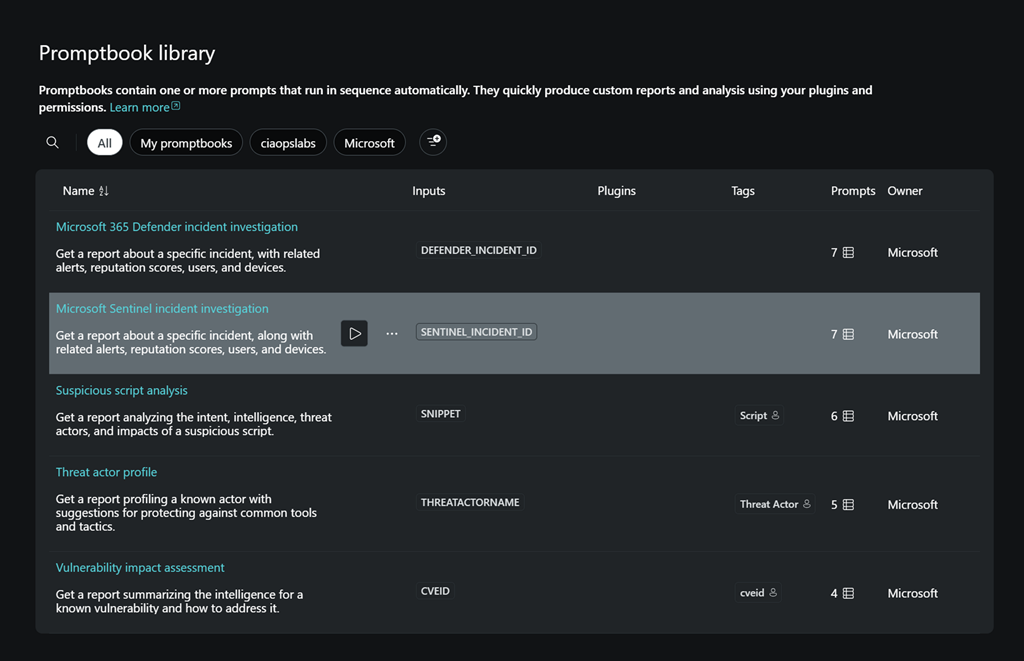
and I had a look at some inbuilt playbooks.
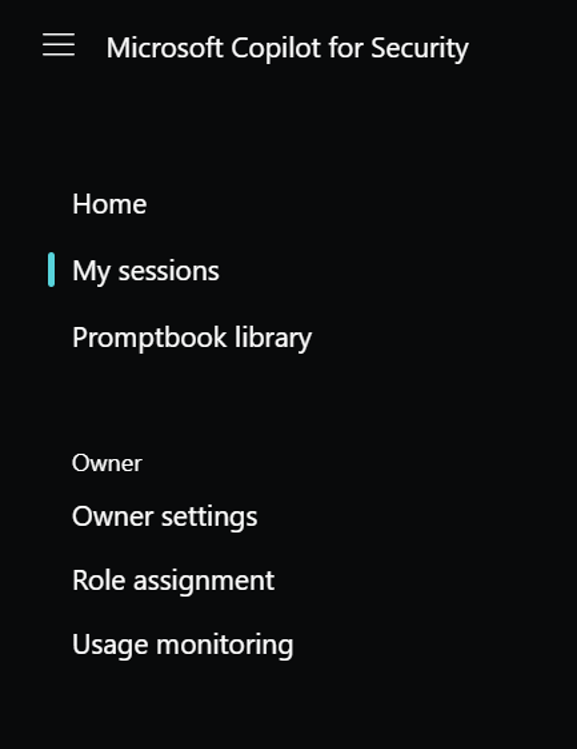
I them dug around into the Usage monitoring which you’ll find the menu at the top left of the page.
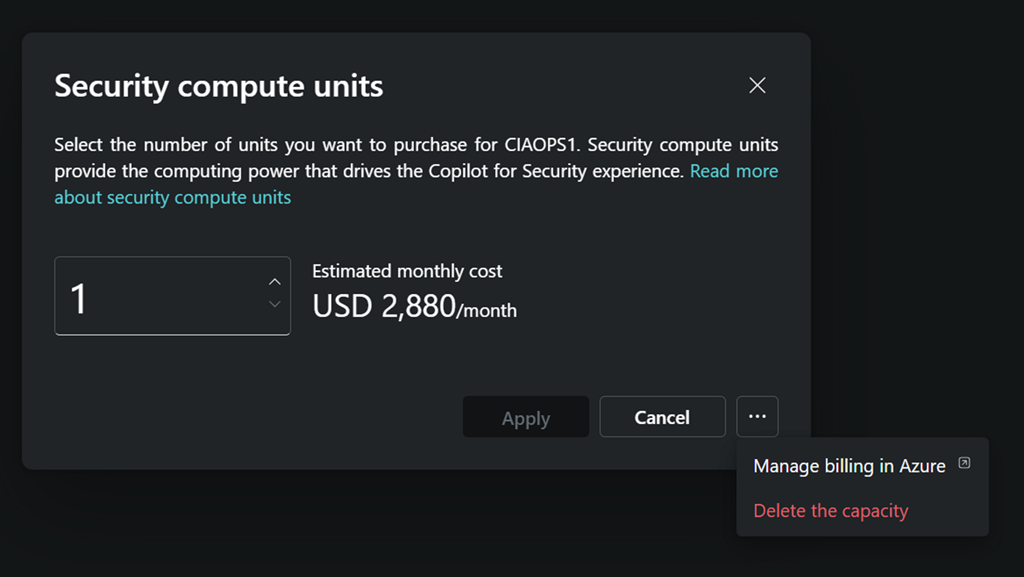
In here I could change the Security compute units and delete them as well. Which I did eventually after play around a bit more.
Clearly, most smaller businesses are not going to justify running this full time. It is therefore VERY important to delete the SCU when you have finished playing around. After doing that and running Copilot for Security I was interested to see my bill, but as yet no amounts have appeared in my Azure portal. I’ll share these when they appear.
I still however believe this can be an effective security tool for SMB, PROVIDED, you enable and disable it as required, kind of on demand. I’m playing with doing that for myself to better understand any limitations on that approach and I’ll report back.
I have more to share on my findings so far so stay tuned.
 CIAOPS