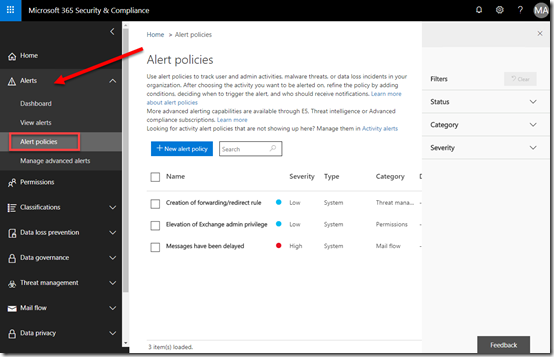
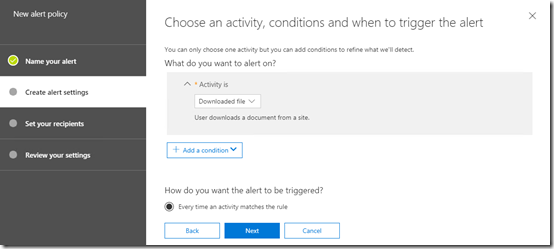
Recently I wrote an article about setting an alert for file download in Office 365. This is just one of many alert conditions you can configure in Office 365 here:

Here is a list of all the conditions you can set and more details on each.
Common user activities
– User submitted email = User reported a problem with mail filtering. This can include false positives, missed spam, or missed phishing email messages.
– Detected malware in files = Office 365 detected malware in either a SharePoint or OneDrive file.
– Shared file or folder = User shared or granted access to a file or folder.
– Create mail forward/redirect rule = User created an inbox rule to forward or redirect mails.
– Any file or folder activity = User performed any file or folder activity.
– Change file or folder = User deleted, modified or renamed a file or folder.
– Shared file externally = User shared, granted access of a file or folder to an external user, or created an anonymous link for it.
– Granted Exchange admin permission = User granted admin permission to same or another user.
– Granted mailbox permission = User granted permission for same or another user to access a target mailbox.
– External user file activity = An external user accessed, modified, deleted, modified or checked in a file.
– DLP policy match = A data loss prevention policy match is detected.
File and folder activities
– Accessed files = User or system account accesses a file
– Checked in file = User checks in a document that they checked out from a document library
– Checked out file = User checks out a document located in a document library. Users can check out and make changes to documents that have been shared with them
– Copied file = User copies a document from a site. The copied file can be saved to another folder on the site.
– Deleted file = User deletes a document from a site.
– Discarded file checkout = User discards (or undos) a checked out file. That means any changes they made to the file when it was checked out are discarded, and not saved to the version of the document in the document library.
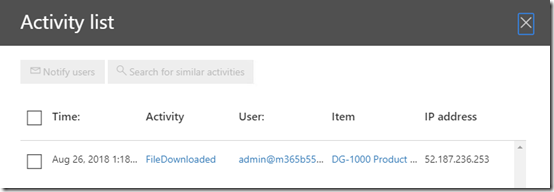
– Downloaded files = User downloads a document from a site.
– Modified file = User downloads a document from a site.
– Move file = User moves a document from its current location on a site to a new location.
– Renamed file = User renames a document on a site.
– Restored file = User restores a document from the recycle bin of a site.
– Uploaded file = User uploads a document to a folder on a site.
File sharing activities
– Accepted access request = An access request to a site, folder, or document was accepted and the requesting user has been granted access.
– Accepted sharing invitation = User (member or guest) accepted a sharing invitation and was granted access to a resource. This event includes information about the user who was invited and the email address that was used to accept the invitation (they could be different). This activity is often accompanied by a second event that describes how the user was granted access to the resource, for example, adding the user to a group that has access to the resource.
– Created company shareable link = User created a company-wide link to a resource. company-wide links can only be used by members in your organization. They can’t be used by guests.
– Create access request = User requests access to a site, folder, or document they don’t have permissions to access.
– Created anonymous link = User created an anonymous link to a resource. Anyone with this link can access the resource without having to be authenticated.
– Created sharing invitation = User shared a resource in SharePoint Online or OneDrive for Business with a user who isn’t in your organization’s directory.
– Denied access request = An access request to a site, folder, or document was denied.
– Removed a company shareable link = User removed a company-wide link to a resource. The link can no longer be used to access the resource.
– Removed anonymous link = User removed an anonymous link to a resource. The link can no longer be used to access the resource.
– Shared file, folder or site = User (member or guest) shared a file, folder, or site in SharePoint or OneDrive for Business with a user in your organization’s directory. The value in the Detailcolumn for this activity identifies the name of the user the resource was shared with and whether this user is a member or a guest. This activity is often accompanied by a second event that describes how the user was granted access to the resource; for example, adding the user to a group that has access to the resource.
– Updated an anonymous link = User updated an anonymous link to a resource. The updated field is included in the EventData property when you export the search results.
– Used an anonymous link = An anonymous user accessed a resource by using an anonymous link. The user’s identity might be unknown, but you can get other details such as the user’s IP address.
Synchronization events
– Allowed computer to sync files = User successfully establishes a sync relationship with a site. The sync relationship is successful because the user’s computer is a member of a domain that’s been added to the list of domains (called the safe recipients list) that can access document libraries in your organization.
– Block computer from syncing files = User tries to establish a sync relationship with a site from a computer that isn’t a member of your organization’s domain or is a member of a domain that hasn’t been added to the list of domains (called the safe recipients list)that can access document libraries in your organization. The sync relationship is not allowed, and the user’s computer is blocked from syncing, downloading, or uploading files on a document library.
– Downloaded files to computer = User establishes a sync relationship and successfully downloads files for the first time to their computer from a document library.
– Downloaded file changes to computer = User successfully downloads any changes to files from a document library. This activity indicates that any changes that were made to files in the document library were downloaded to the user’s computer. Only changes were downloaded because the document library was previously downloaded by the user (as indicated by the Downloaded files to computer activity).
– Uploaded files to a document library = User establishes a sync relationship and successfully uploads files for the first time from their computer to a document library.
– Uploaded file changes to document library = User successfully uploads changes to files on a document library. This event indicates that any changes made to the local version of a file from a document library are successfully uploaded to the document library. Only changes are unloaded because those files were previously uploaded by the user (as indicated by the Uploaded files to document library activity).
Site administration activities
– Added exempt user agent = Global administrator adds a user agent to the list of exempt user agents in the SharePoint admin center.
– Added site collection admin = Site collection administrator or owner adds a person as a site collection administrator for a site. Site collection administrators have full control permissions for the site collection and all subsites.
– Added user or group to SharePoint group = User added a member or guest to a SharePoint group. This might have been an intentional action or the result of another activity, such as a sharing event.
– Allowed user to create groups = Site administrator or owner adds a permission level to a site that allows a user assigned that permission to create a group for that site.
– Change exempt user agents = Global administrator customized the list of exempt user agents in the SharePoint admin center. You can specify which user agents to exempt from receiving an entire web page to index. This means when a user agent you’ve specified as exempt encounters an InfoPath form, the form will be returned as an XML file, instead of an entire web page. This makes indexing InfoPath forms faster.
– Changed sharing policy = An administrator changed a SharePoint sharing policy by using the Office 365 Admin center, SharePoint admin center, or SharePoint Online Management Shell. Any change to the settings in the sharing policy in your organization will be logged. The policy that was changed is identified in the ModifiedProperty field property when you export the search results.
– Created group = Site administrator or owner creates a group for a site, or performs a task that results in a group being created. For example, the first time a user creates a link to share a file, a system group is added to the user’s OneDrive for Business site. This event can also be a result of a user creating a link with edit permissions to a shared file.
– Created send to connection = Global administrator creates a new Send To connection on the Records management page in the SharePoint admin center. A Send To connection specifies settings for a document repository or a records center. When you create a Send To connection, a Content Organizer can submit documents to the specified location.
– Created site collection = Global administrator creates a new site collection in your SharePoint Online organization.
– Deleted group = User deletes a group from a site.
– Deleted sent to connection = Global administrator deletes a Send To connection on the Records management page in the SharePoint admin center.
– Enabled document preview = Site administrator enables document preview for a site.
– Enabled legacy workflow = Site administrator or owner adds the SharePoint 2013 Workflow Task content type to the site. Global administrators can also enable work flows for the entire organization in the SharePoint admin center.
– Enabled Office on Demand = Site administrator enables Office on Demand, which lets users access the latest version of Office desktop applications. Office on Demand is enabled in the SharePoint admin center and requires an Office 365 subscription that includes full, installed Office applications.
– Enabled RSS feeds = Site administrator or owner enables RSS feeds for a site. Global administrators can enable RSS feeds for the entire organization in the SharePoint admin center.
– Enabled result source for People Searches = Site administrator creates or changes the result source for People Searches for a site.
– Modified site permissions = Site administrator or owner (or system account) changes the permission level that are assigned to a group on a site. This activity is also logged if all permissions are removed from a group.
– Removed user or group from SharePoint group = User removed a member or guest from a SharePoint group. This might have been an intentional action or the result of another activity, such as an unsharing event.
– Renamed site = Site administrator or owner renames a site
– Requested site admin permissions = User requests to be added as a site collection administrator for a site collection. Site collection administrators have full control permissions for the site collection and all subsites.
– Set host site = Global administrator changes the designated site to host personal or OneDrive for Business sites.
– Updated group = Site administrator or owner changes the settings of a group for a site. This can include changing the group’s name, who can view or edit the group membership, and how membership requests are handled.