Email Message Header Analyzer for Office 365

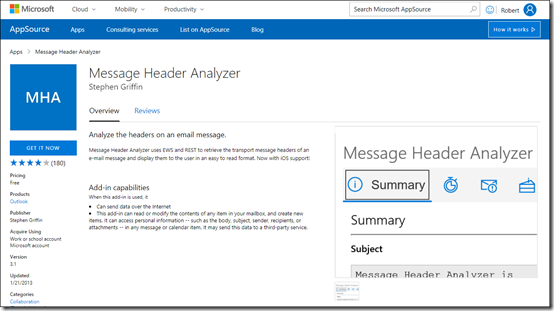
Much of the diagnostic detail relating to emails is buried in locations that you can’t see. If you have the need to examine email messages for troubleshooting or security this can be a challenge.

image

A great tool you can add to your arsenal is the free Message Header Analyzer which you can find here:

https://appsource.microsoft.com/en-us/product/office/WA104005406

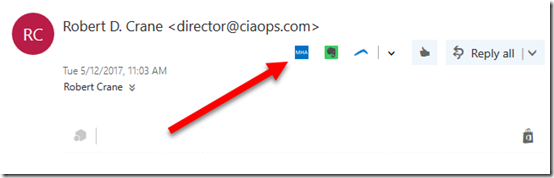
Once installed you will find an additional button in your OWA:

image

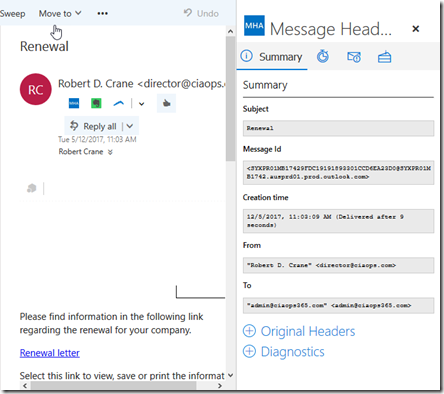
That when selected will give you a range of options you can use to dive deep into the technical information surrounding the email in question.

image

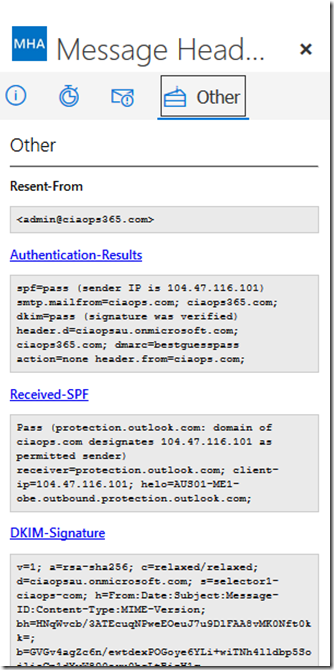
I especially like the ability to dig into the SPF and DKIM style details.

image

If you need in to do any troubleshooting or email analysis on a regular basis I’d highly recommend you add this to your inbox.

Double check those links

Unfortunately, as services like Office 365 become more prevalent so too do the attacks against them. These attacks are going to target people who are the least IT savvy.

image

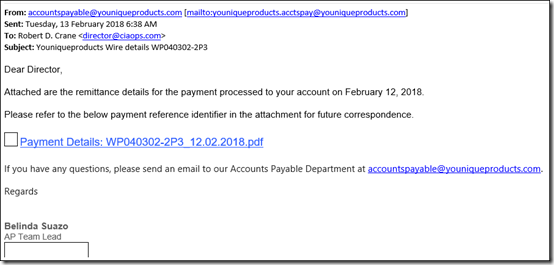
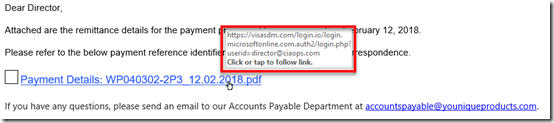
The above is the first example of an email I received this morning. Being close to Valentine’s Day it would be easy for an ordinary user to click on the link provided inside to download the PDF of their order.

image

However, if you mouse over that link, you see that it actually re-directs you to a malicious web site, but of course a user isn’t going to know that.

image

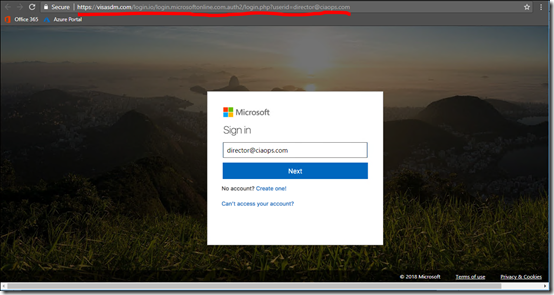
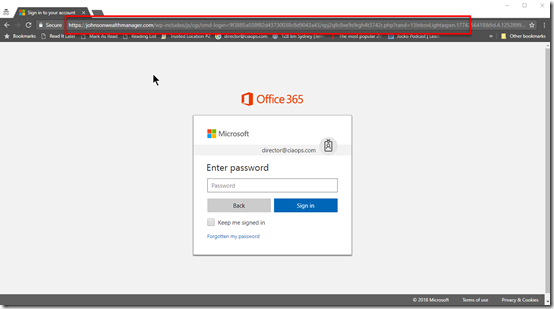
I gotta say that the malicious web site really does look an Office 365 login page doesn’t it? The only obvious give away is the URL at the top of the page.

image

Upon closer inspection you see that it is in fact not going to the Office 365 login URL which is:

image

You’ll also note that the email address is already in the dialog box so all a user would need to do is press enter as they normally would.

image

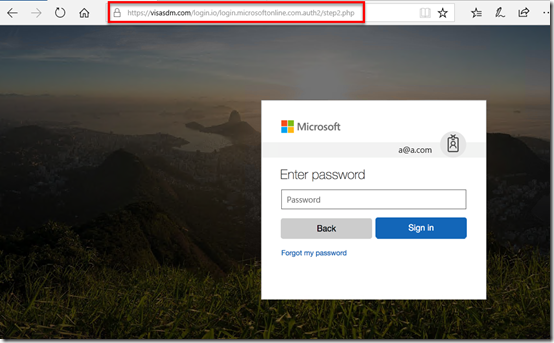
At the next page they are prompted for their email address. again, very, very authentic looking Office 365 login page.

Typically, the user would enter their password and hit enter. At this point their login details have been sent to the bad guys and the user is redirected to correct Office 365 login page. The user of course, thinks they entered something wrong and go through the process again. However, their account has now been compromised, pretty much without them realising.

image

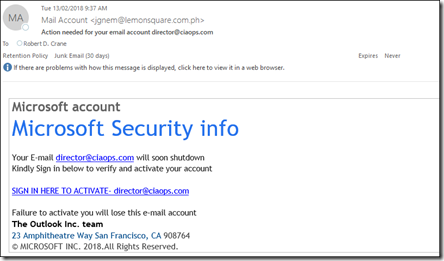
Here is the next phishing email that I received moments after getting the first. This one appears to be directly from Microsoft request an update to the security of the Office 365 account.

This prays on the underlying fear most users have of technology in order to get them to click the link.

image

If they do so, they are again taken to another ‘official’ looking Office 365 login page as you see above.

SNAGHTML1c8c4fac

Again, this one has a non Office 365 login URL as shown above. Like the previous case, this site has it’s own certificate (HTTPS) making it appear even more legitimate.

So if you come across these sites, first course of action is to report them to Microsoft.

Submit spam, non-spam and phishing scam messages to Microsoft for Analysis

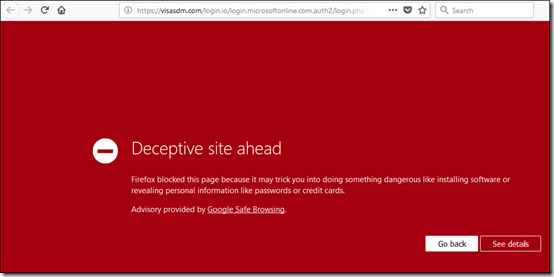
Because these types of attacks are new into the wild they are typically not picked up by reputation based systems. Eventually they picked up, like in the browser here:

image

but until they are, there really isn’t much that can be done.

I’ve said this before, security is tough:

The bad guys keep winning

and technology can’t be used to solve every issue. We need to couple that with education to help people ask the right question before potentially doing the wrong thing.

if something in your inbox doesn’t seem right, chances are it isn’t. So treat it with caution.

Enable activity auditing in Office 365

image

Here’s something I suggest you ensure is enabled in all Office 365 tenants.

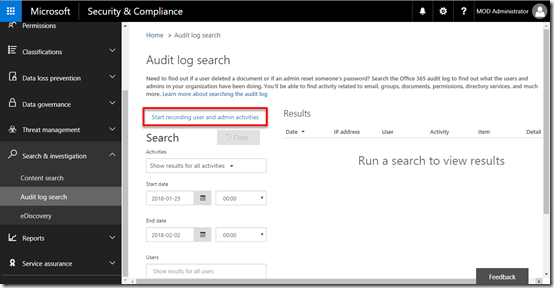
Visit the Office 365 Security and Compliance center as an administrator. From the menu on left, select the Search & investigation heading. From the items that appear select Audit log search.

If your audit logging hasn’t been enable you see a hyperlink on the right that says Start recording user and admin activity. If that link is visible, then select it as shown above.

image

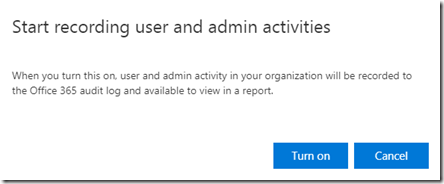
You will then receive the above confirmation. Select Turn on.

image

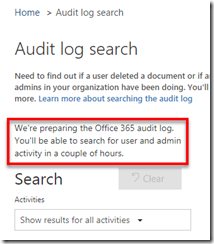
You’ll be taken back to the Audit log search page where you’ll see a message telling you that logging is being enabled.

image

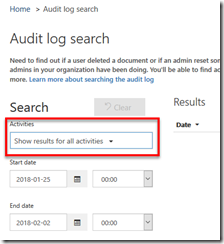
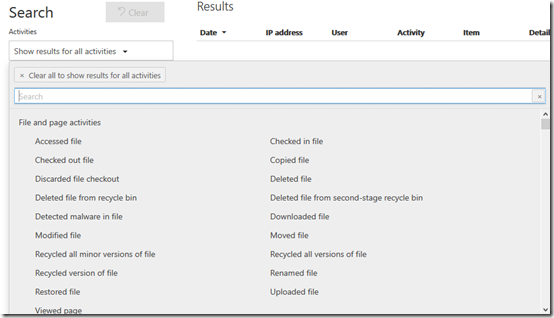
When that process is complete return to the Audit log search and select the Activities drop down.

image

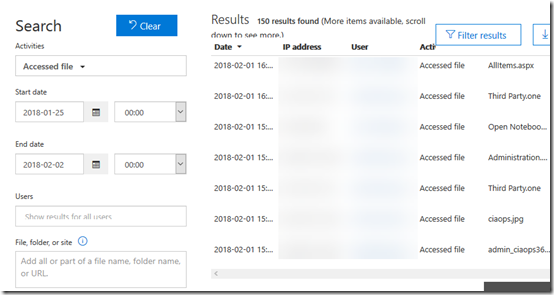
You’ll now be able to audit a huge range of activities and produce a report, like this –

image

Here, I’ve run a report to display any files that have been accessed. From the results I can see the user, IP address and the file that was accessed.

image

You can now also set up an alert on any of these activities.

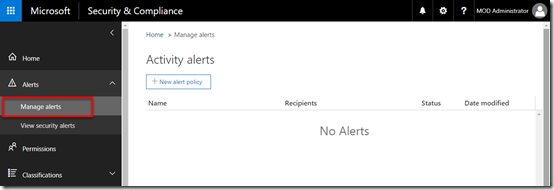
To do this, select the Alerts option on the left in the Security & Compliance center. From the items that appear select Manage alerts.

image

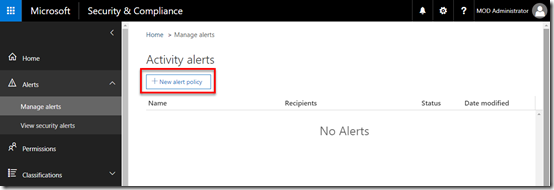
On the right select the + New alert policy button.

image

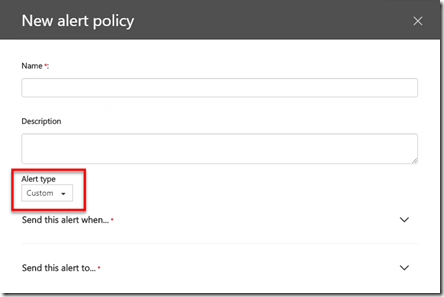
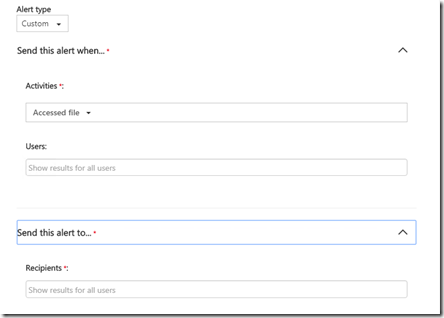
Set the Alert Type to Custom.

image

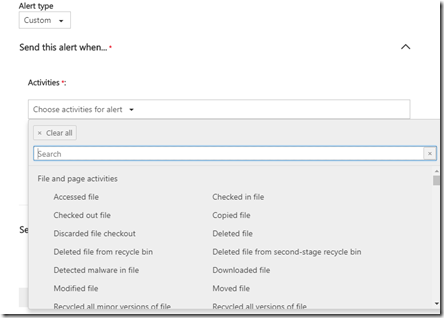
Select the Send this alert when… option and again choose the activity for the alert. The available options should be pretty much the same as you saw before with the audit logs.

image

Then choose which users you wish the alert to apply to as well as an email address to send the alert to.

As with all alert settings ensure that you don’t make these too general because you’ll end up getting too many alerts and end up spamming yourself.

The important thing here is that auditing is no enabled by default. The best practice recommendation is therefore to go and turn it on so you can audit activity in your tenant.

Create a Safe Attachment policy with Office 365 ATP

image

When you have Office 365 Advanced Threat Protection (ATP) you should ensure that you actually go in a create a Safe Attachments policy because I don’t believe one is created by default.

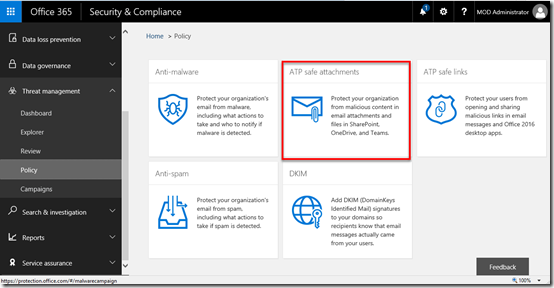
You’ll need to login to your Office 365 portal as an appropriate administrator and then navigate to the Security and Compliance portal as shown above.

From the menu on the left select Threat management. This should reveal a number of additional options. From those that appear, select Policy.

You should now see a number of options on the right hand side as shown above. Locate and select the ATP safe attachments option.

image

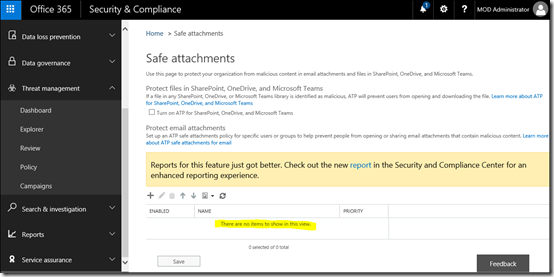
You should now be in the Safe attachments area as shown above.

image

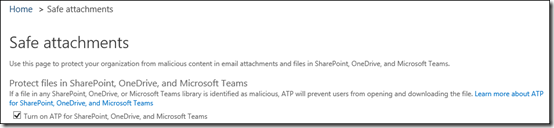
Starting at the top of the page, ensure you have the Turn on ATP for SharePoint OneDrive and Microsoft Teams checked as shown.

image

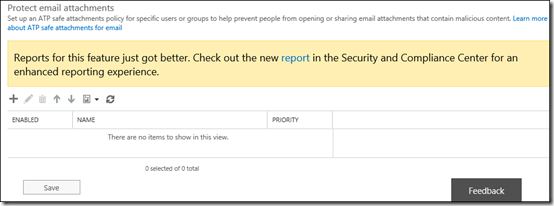
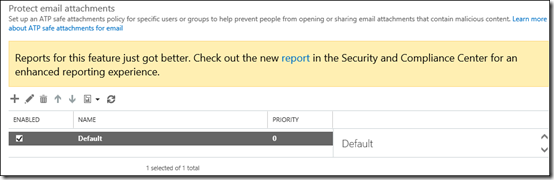
In the lower area you will see that no policies exist. To create a policy select the + (plus) icon.

image

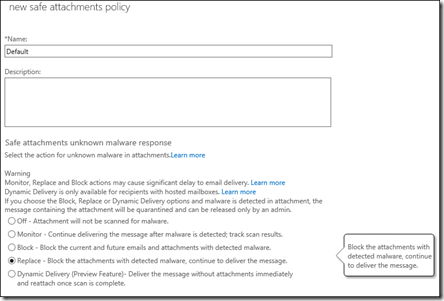
Give the new policy a name and select the action that will be taken from the options below. In this case I have selected the Replace option.

image

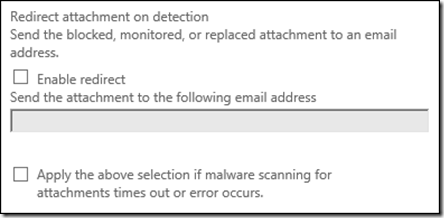
You can enable redirection if you wish.

image

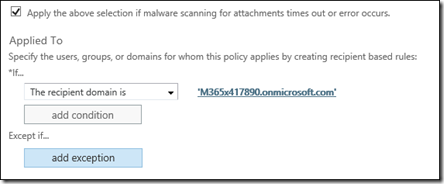
You now need to create the rules for this policy. if you want everything checked select the option The recipient domain is and then all the domains you have in your Office 365 tenant.

Save the configuration by using the button at the bottom of the screen.

image

The update will be processed and applied.

image

When you look at the Safe attachments page now you should the policy as shown in place.

To read more about safe attachments in Office 365 Advanced Threat Protection see:

Office 365 ATP safe attachments

Office 365 Cloud App Discovery

In today’s security environment it is really no longer possible for human beings to manage security, it typically needs to be out sourced to software. Signature based security is too slow to keep up with constantly changing attacks and the best way is to look for anomalies in behaviour patterns.

Office 365 Cloud App Security is service that is included in E5 licenses but also available as a separate stand alone purchase (called Microsoft Cloud App Security in the store). Unfortunately, you can’t add Office 365 Cloud App Security to Business plans only Enterprise plans.

Basically, Office 365 Cloud App Security allows you to configure policies that trigger alerts for specific activity as well as suspending accounts exhibiting suspicious activity. Let’s see how.

image

To get to Office 365 Cloud App Security you need to navigate to the Security & Compliance Center as an Office 365 administrator. Open the Alerts heading on the left and select Manage advanced alerts from the options that appear.

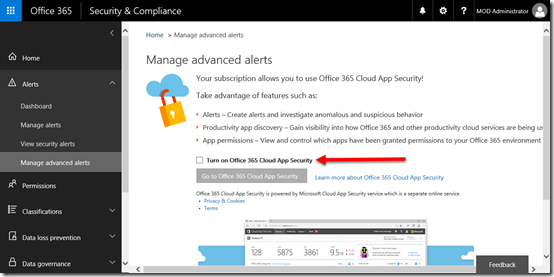
On the right you will see a check box to Turn on Office 365 Cloud App Security.

image

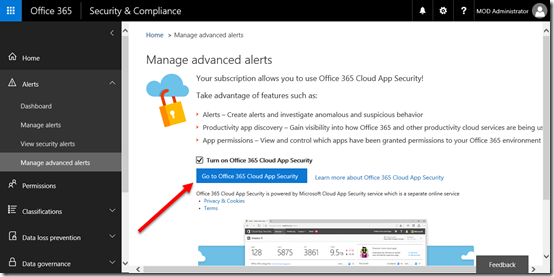
Once this has been selected you will be able to select the button to Go to Office 365 App Security.

image

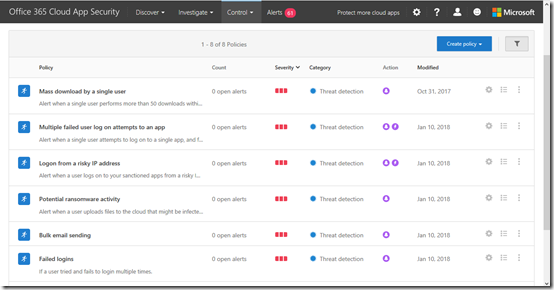
On this page you may see a number of policies in place already. Here, I’m going add a new policy. To get to this page again I select the Control option from the menu across the top of the page and then Policies from the items that appear.

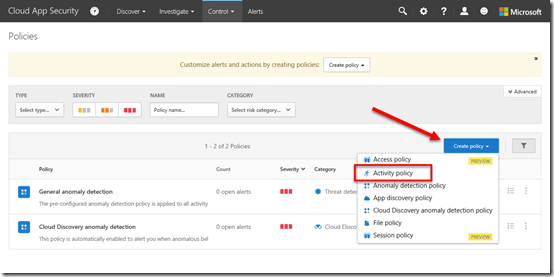
To add a policy I now select the Create Policy button on the right as shown above, and then Activity policy from the items that appear. You may have less items in this list, it depends on what licenses you have in place for your tenant.

image

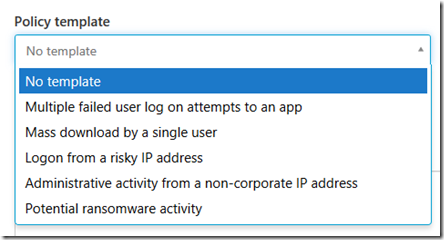
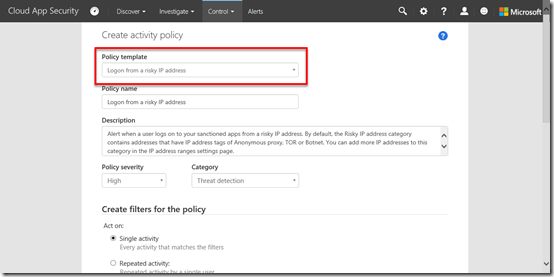
For the Policy Template option I am going to select from a list of pre existing templates and use the Logon from a risky IP address which is described as:

Alert when a user logs on to your sanctioned apps from a risky IP address. By default, the Risky IP address category contains addresses that have IP address tags of Anonymous proxy, TOR or Botnet. You can add more IP addresses to this category in the IP address ranges settings page. 

image

You can see the list of existing policy templates above and of course, you can create your own custom one.

image

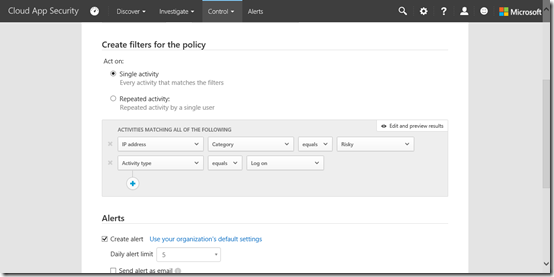
Once I have selected the policy I scroll down to the actual rules which appear in the Create filters for the policy section as shown above.

Basically you’ll see in this case that the rule looks at whether an IP is “risky” and the activity equals logon.

You can of course edit or define your own rules here if you want.

image

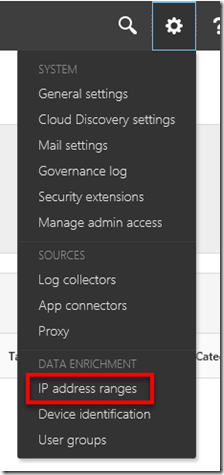
If you are wondering where the “risky” IP range is defined you’ll find these sorts of things in the upper left under the COG icon as shown above. In this case, look under the IP address ranges.

image

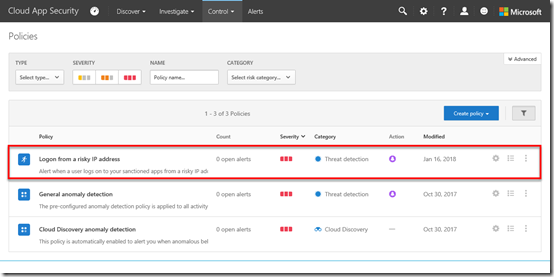
Once you save the settings you’ll be returned to the Policies page where you should now see the new policy as shown above.

image

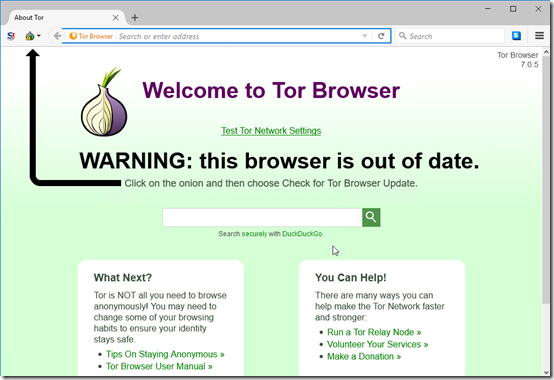
To test this policy, I’m going to fire up a Tor browser and login to Office 365.

image

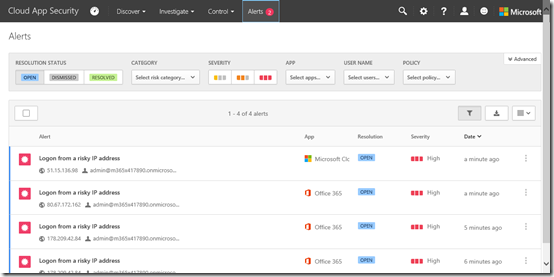
As expected, in a very short space of time (note it isn’t immediate. It may take a moment or two to appear) I get an alert and can view these by selecting the Alert option from the menu across the top of the page.

image

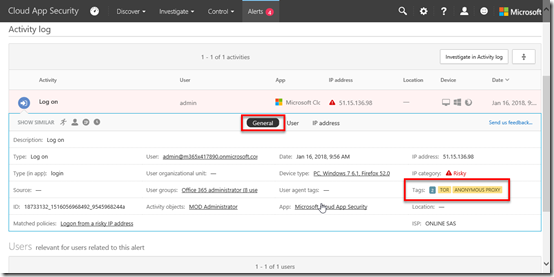
If I then click to open one of these alerts and select the General option in the middle of the page I get more information as shown above. You’ll see on the right that the IP category = “Risky” and this is because of a match to Tor and Anonymous proxy.

image

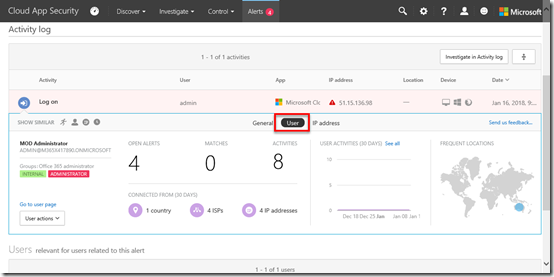
If I now select the User option in the middle of the page I get further information as to which user triggered this as shown above.

image

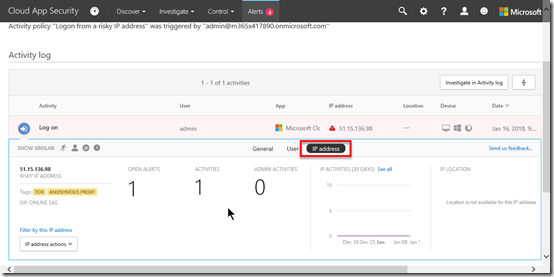
Likewise if I select the IP address option I get information about the networking in detail.

From here you can take actions on the alerts such as dismissing or digging deeper into the logs.

image

My advice would therefore be to enable all the default policy templates for your tenant as I have done for mine as shown above.

You’ll notice that I also have some custom policies in place as well. One of these is to provide an alert for repeated failed login attempts by a user.

image

Another policy is the one above that monitors logins by global administrators. You’ll see that I also restrict that policy to only apply when I am not on a corporate (i.e. office LAN) IP address.

My advice with custom policies is to start simply and broadly and tighten the rules up over time. There is nothing worse than setting a policy and getting deluged with alerts, so take it slow and increase restrictions over time to ensure you don’t overload yourself with false positives.

As I dig deeper into what is possible more I’m sure I’ll be adding additional policies to keep my tenant secure and provide a level of monitoring that no human could do. However, in today’s environment of increased attached I’d really recommend you look at adding Office 365 Cloud App Security to your tenant for enhanced protection.

Location of chat history in Microsoft Teams

image

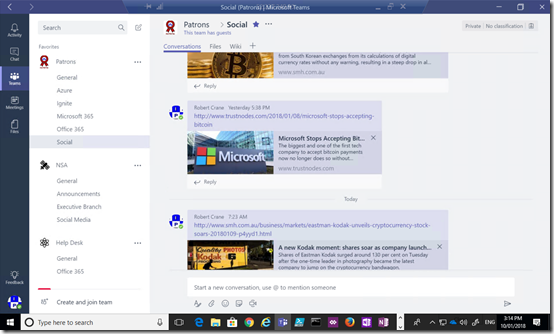
I have a Microsoft Team in my tenant called “Patrons”. In there is a channel called “Social”. In this area CIAOPS Patrons chat about things such a cryptocurrency as you can see.

As an administrator what I want to do is find out how I can view information that is shared by others in this chat location. In short, how do I see chat history in Microsoft Teams?
image

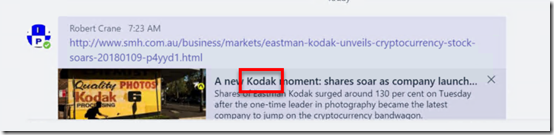
As an example, let’s say I want to find the term ‘kodak’ in these chats. You’ll see from the above that it is part of a link that was pasted into the chat.
image

All the chat history from Microsoft Teams is saved into a mailbox with the name of the Team. So I’m looking for a mailbox called “Patrons”.

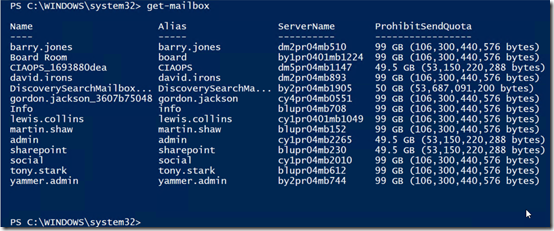
Easiest way is to fire up trusty PowerShell and run:

get-mailbox

and as you can see from the results above, I only see user mailboxes.
image

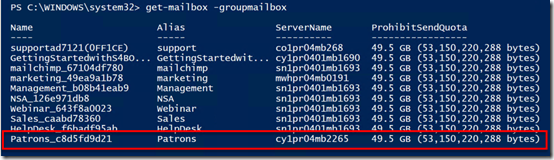
but if I run:

get-mailbox –groupmailbox

I see all the shared mailboxes in my tenant.

As you can see I find one called “Patrons” as shown above.

image

To get the details I run:

get-mailbox –groupmailbox patrons@ciaops365.com

and you can see that I again get all the information but just for that mailbox. So this is the one that is linked to my Microsoft Team.
image

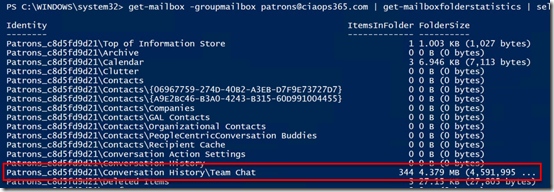
If I now run:

get-mailbox –groupmailbox patrons@ciaops365.com | get-mailboxstatistics | select-object identity, itemsinfolder, foldersize

I basically get a report of what is inside that Teams mailbox. In there I can see a folder:

\conversation history\team chat

this is indeed where the chats are located. You can see there is currently 344 items of 4.38 MB in size.
image

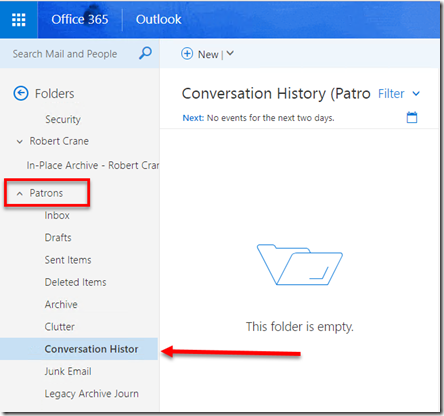
Now I can actually add this mailbox to my Outlook Web Access and view the contents as you can see above. However, I can’t get the folder \Conversation History\Team Chat because it is hidden and probably has other permissions associated with it.
image

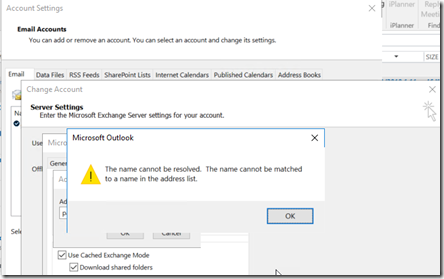
I can’t add this shared mailbox to Outlook 2016 on my desktop as you can see above.

image

So now if I try to view/change the permissions on the mailbox using:

get-mailbox –groupmailbox patrons@ciaops365.com | get-mailfolderpermission

I get the message that the mailbox doesn’t exist.

image

If I now try:

get-mailfolderpermission –identity patrons@ciaops.com:\inbox

I again get the message that the mailbox doesn’t exist.

image

If I use that same command on another ‘standard’ shared mailbox the command works. So I know my command does work, it just doesn’t work with a Microsoft Teams mailbox.

image

Again, just changing mailbox identity confirms that the command can’t even see the mailbox.
image

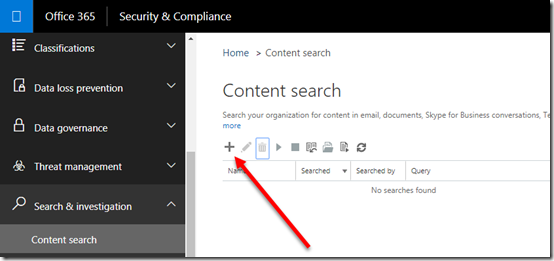
The way to actually see what the contents of the Teams chats are is to use the Content Discovery component of the Security & Compliance center in Office 365 which you’ll find under the Search & Investigation heading on left hand side. You need to be an administrator with appropriate rights to access this area.

You start by creating a new Content Search by pressing the + icon as shown above.
image

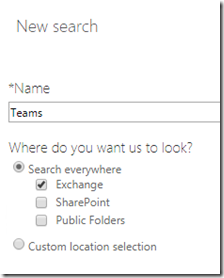
Give the new Content Search a title and select the locations where you wish to search. In this case I’ll simply look through all email data.
image

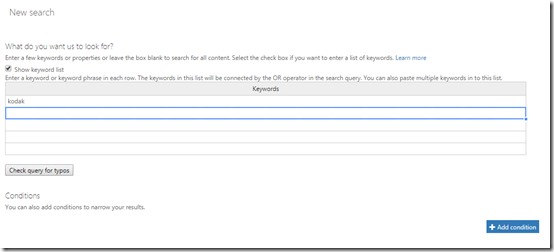
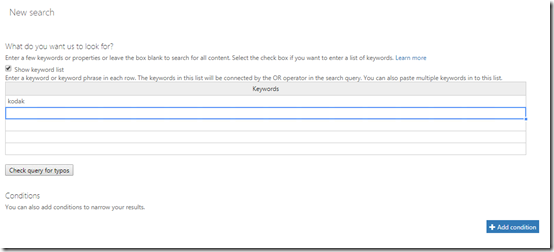
Next, I enter what I want to search for. Here, I’m only looking for the word ‘kodak’.
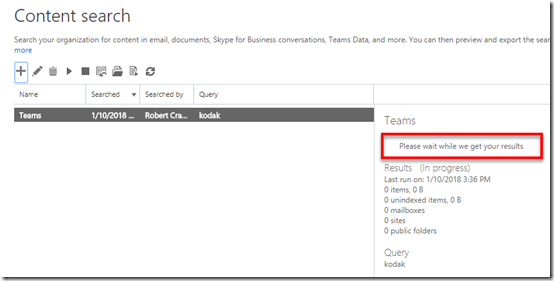
image

After I finish my configuration, the search commences and I need to wait a few moments while it searches all the nominated locations and generates the results.
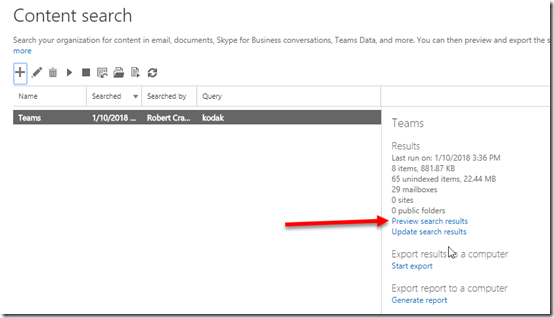
image

When the process is complete I select the Preview search results hyperlink on the right as shown above.
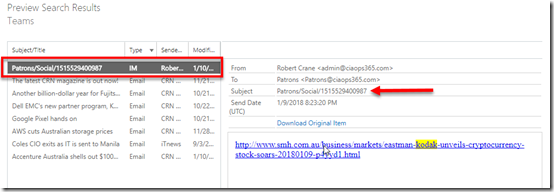
image

Another window opens and I can locate the item I’m after as the type is ‘IM’ as shown above. When I select that item on the left I see the full context on the right. I confirm that the search does display the link that is the Microsoft Team chat.
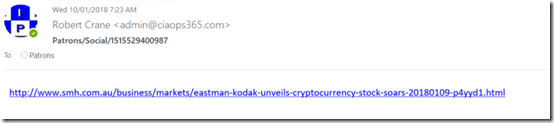
image

If I elect to download the item, it does so as an .EML file which I can open in any mail client as shown above. This indicates that each chat message appears to be a separate email in a sub folder in a shared mailbox in Exchange Online effectively.
image

So I went back in and changed the content search terms to make it broader to encompass more chats.
image

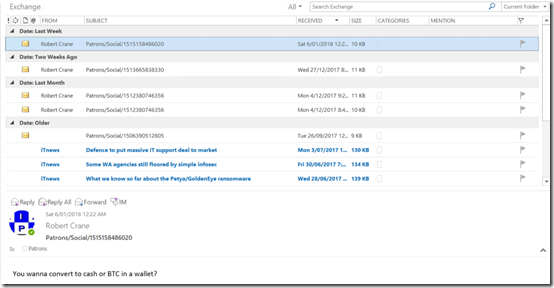
I ran the search and exported the data from the Security & Compliance center into a .PST file and then imported that into Outlook.

Thus, as you can see above, I can now view all the chats that match my search criteria as an administrator.

The problem with this is, from a pure ‘overwatch’ point of view, it is a very manual process to get to the information and secondly you can only look at things you specify in your content search. It would be nice to have the ability for an administrator to export the whole chat content from a Microsoft Teams channel into a single document that could then be viewed.

However, at the end of the day, rest assure that your Microsoft Teams chats are being saved and you can access them if you need to. Hopefully, the above has shown you how to do exactly that.

Office 365 Cloud Self Service Password Resets

One thing that many may not realise with Office 365 is that you can enable users to reset their own passwords.

There are some conditions here when enabling this. If your environment does not have Azure AD Connect synchronizing users from on-premises to the cloud (i.e. what is known as ‘cloud only’ users) then you need no additions. If however, you do have a synchronized environment you will need to purchase Azure AD Premium, configure password write back and assign licenses to each user you wish to have self service password resets enabled for. This is because with an synchronized environment, the on premises domain controller is the source of all user details and from here it is hashed, encrypted and sync’ed to Office 365. Thus, if a user does change their password, using this cloud process, in a matter of moments that change is overwritten with what is on premises thanks to the synchronization configuration. However, Azure AD Premium provides two way password sync (on-prem to cloud and cloud to on prem). Thus, with Azure AD Premium in place, when a user resets their password in the cloud it gets sync’ed back to on premises. Without Azure AD Premium it doesn’t.

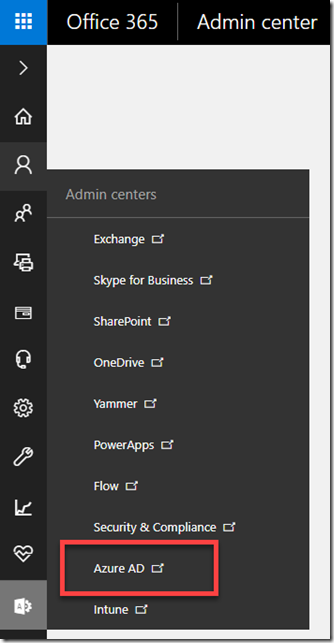
To enable self service password resets navigate to the Azure portal for that tenant using an Office 365 global administrator account.

image

You navigate there from the Office 365 Admin center by selecting Azure AD under the Admin centers option as shown above.

image

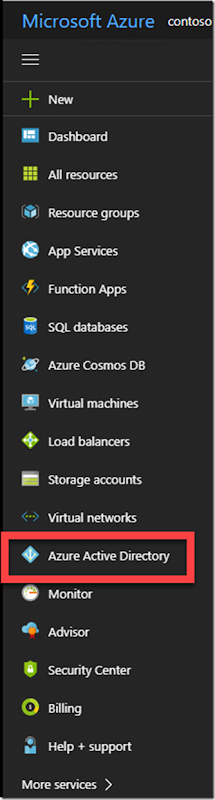
Locate the option Azure Active Directory from the list of options in the Azure portal on the left and select that.
image

image

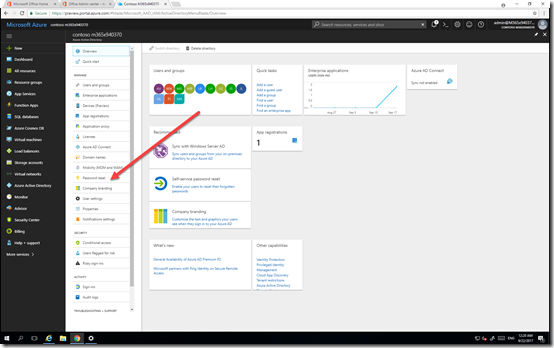
From the blade that appears select Password Reset as shown above.

image

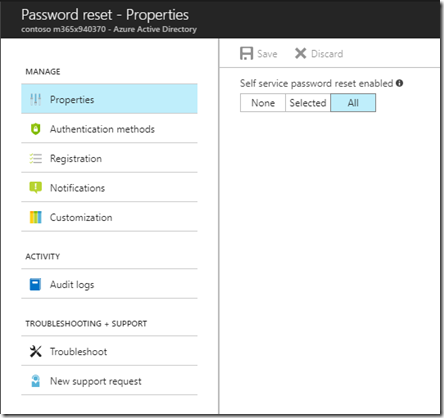
The Properties option allows you to enable password resets for selected or all users. Don’t forget to  press the Save button at the top when you have made your selection.

image

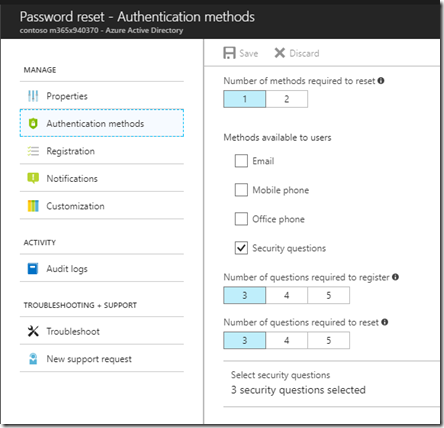
The Authentication methods allows you to determine how users will verify their identity when requesting their password to be reset.
They can be required for one or two forms of identity and there are four methods available – email, mobile phone, office phone and security questions.
In the case of security questions, you can select from 3 – 5 to be part of the registration process and 3 – 5 as being required to verify identity.

image

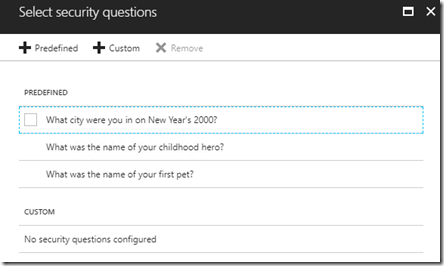
When you go to select security questions you are able to select a number of pre-defined or custom questions as well as mix of both as shown above.

Again, make sure that you Save your selections before continuing.

image

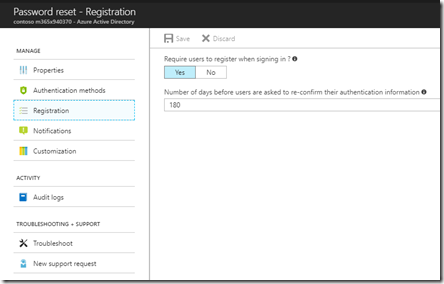
The Registration option allows you to force users to have to register their recovery options at next login or complete them manually.

image

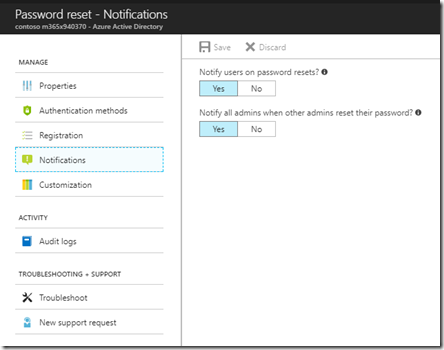
The Notifications option allows you to set whether users are notified via email when their password is reset and whether all administrators are notified when any administrator resets their password.

image

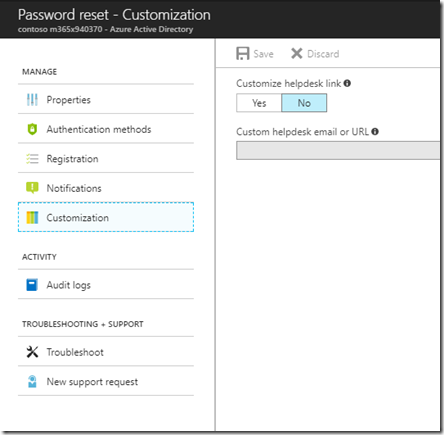
The Customization option allow you to set a custom link users can refer to if they need further assistance with this process.

image

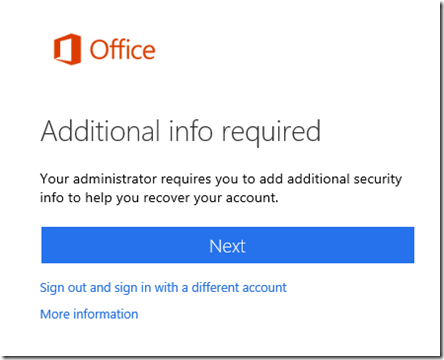
With all these options in place, and with users being forced to set their recovery options, the next time they login successfully they will see the above message prompting them to commence the recovery process.

Users should select Next to continue.

image

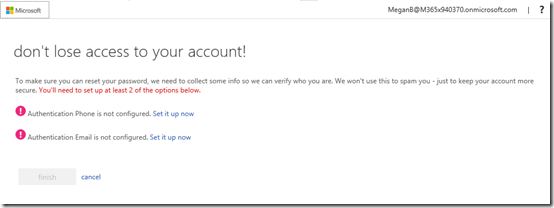
Users will now see the list of verification options that you set for them to complete. They need to work through all of these individually.

image

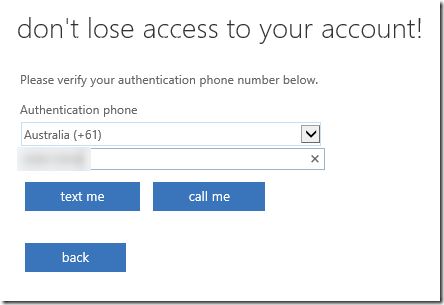
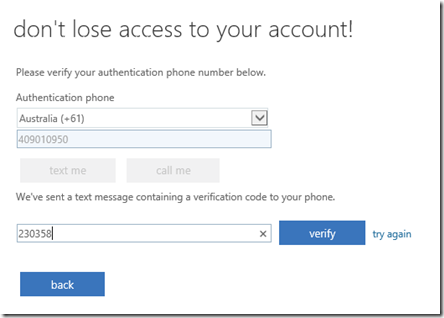
For example, with the mobile phone option, they enter their number and receive a code to verify.

image

With an email address verification they will receive a code that they need to verify.

Once the user has completed all the verification methods they will proceed to their Office 365 portal as normal.

image

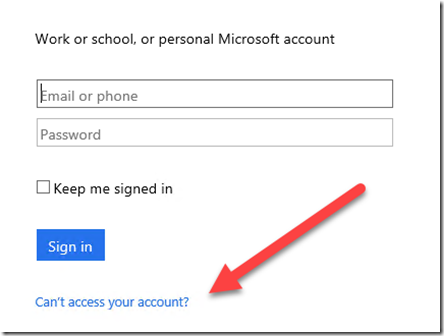
When a user needs to reset their password they can select the link Can’t access your account? at the bottom of the login area.

They then be prompted to select a personal or work account. Normally, they will then select a work account to proceed.

image

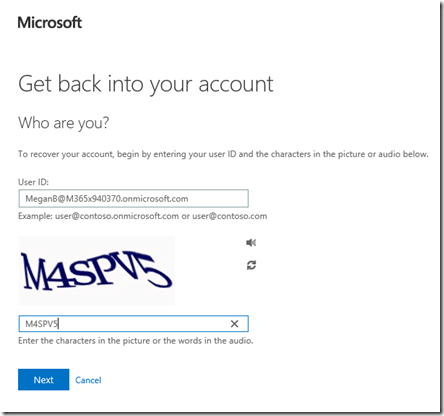
To verify that the process requesting the password reset is not an automated bot, the user will need to complete a captcha as shown above.

image

They will then be taken to a screen where they can select from the methods available to verify their identity. These were set up previously by each individual user and should be unique for that user.

image

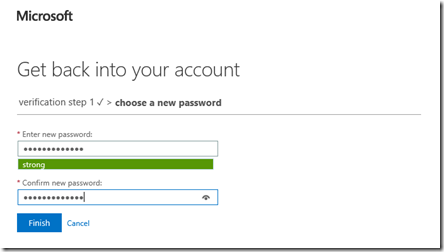
Once the user successfully completes the verification process they will be request to reset their password,

image

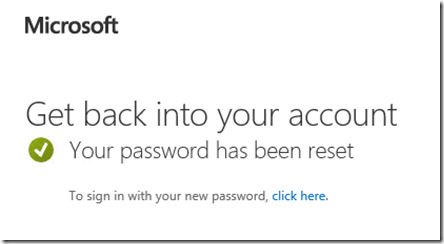
which when complete, will allow them to access their Office 365 account again.

The main benefit of enabling user self service password resets in Office 365 is that it allows users to manage their own passwords immediately and without having to contact an administrator to complete the reset. It is important that you ensure that you have enough verification methods for your environment and all users complete the registration process.

Again remember, that out of the box, Office 365 self service password resets work with cloud only identities. If you are using synchronized identities you will need to purchase Azure AD Premium and configure password write back to your on premises environment.