Do you need to backup Office 365?

The question of whether you need to backup data (emails and files) stored in Office 365 is one of the most common questions I see. The best answer is that you need to have as many backups of your own data as you feel comfortable with. That comfort level will vary with each person and business, but in general, more is better.

Let’s start by defining what most people consider to be “traditional” backup. A “backup”, for this definition, is a full copy of your data at a point in time that allows you to easily do a single item restore (such as a single email or file) if required, to the original or alternate location, that is retained for an extended (greater than 30 days) period of time. If this is the type of backup you wish to have then you should look at using a third party tool to supplement the way Office 365 retains your data.

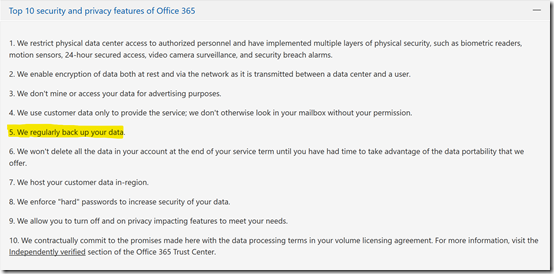
Microsoft is indeed able to restore your data if required but how they do is very different from what people may appreciate. Microsoft also does not publicly publish the specific process by which it backups up information in its data centers, however it certainly does backup your data as shown here:
clip_image001

Which can be found at – https://products.office.com/en-au/business/office-365-trust-center-top-10-trust-tenets-cloud-security-and-privacy

Also in “Protecting Privacy and Data” – http://download.microsoft.com/download/2/0/A/20A1529E-65CB-4266-8651-1B57B0E42DAA/Protecting-Data-and-Privacy-in-the-Cloud.pdf (page 3) you will find the following statement about Microsoft Online Services:

“Additionally, each service has established a set of standards for storing and backing up data, and securely deleting data upon request from the customer.”

Office 365 is also certified to many industry standards which you can read about here:

https://products.office.com/en-au/business/office-365-trust-center-compliance-certifications

These contain standards around maintaining data within its services. With all this, you should then feel completely at ease with the fact that Microsoft is indeed protecting your data in many different ways, to industry leading standards or better, one of which is the process of backup. It is important to however understand how the common initial “traditional” definition of backup highlighted above may be different within Office 365.

If needed, Microsoft are not going to restore a single item, such as one email message back into a mailbox. They will however restore a full mailbox for you back to a point in time. Also, they will not be able to restore a whole mailbox from say 12 months ago because, as you can appreciate, the amount of data storage required to provide this across all mailboxes in Office 365 would be enormous. Thus, if you have a need to have Microsoft restore a whole mailbox, you’ll need to typically request that as soon after the event as possible and do so by logging a support ticket with Microsoft.

Likewise with SharePoint. Microsoft won’t generally restore a single file into a document library, they will restore the whole site collection or OneDrive for Business back to a point in time provided it is within a recent time window. To do this, you’ll need to once again raise a service ticket with Microsoft.

Another point to remember with restores completed by Microsoft, for mailboxes and SharePoint sites, is that the restore will be over what is already in place. That is, restored data will be to the original location. Restored data from Microsoft cannot be recovered into an alternate location for comparison.This means that this will erase any current information in that location and replace it with everything from the restore. Thus, the data will be rolled back to that moment in time for a whole mailbox or site collection.

Thus, if you are looking for single item recovery of deleted items like files and email messages and/or items that are beyond the default Office 365 retention periods (for example from 12 months ago), then you need to consider a third party backup tool that you purchase, configure, manage and maintain yourself. Also, if you are looking to restore a whole mailbox, SharePoint site collection or OneDrive for Business without logging a support ticket with Microsoft, then you need to consider a third party tool. Also, if you wish to control where the destination of the backed up data is, you will again need to consider a third party solution. Finally, if you want granular control over the schedule of when backups actually take place, then you need to look at a third party backup solution.

Office 365 typically maintains data using a retention process. This means that Office 365 will make sure the data is made available but it does not generally keep a copy of that data forever. In essence, old deleted data will be aged out and eventually purged from the service after a period of time. That period of time varies by service as well as the license assigned to that data. There are however features that are part of the more advanced licenses and available as add ins, such as Litigation Hold that can be used to retain data indefinitely. The important difference here is “traditional” backup versus retention. For an overview of Office 365 retention policies see:

https://docs.microsoft.com/en-us/office365/securitycompliance/retention-policies

The important thing people need to understand is what protection does Office 365 provide them out of the box and do they need to supplement that? Take OneDrive for Business and SharePoint for example. Every time you update a file in either of these two services a previous copy of the file is kept. This allows the user to easily roll back to a previous version of that file if needed. By default, and this can be changed, Office 365 will retain 500 copies of previous version of a file. Once it reaches that limit it will commence over writing the oldest version.

Having version history in SharePoint and OneDrive for Business means that you can “recover” older items quickly and easily. You can also recover a whole OneDrive for Business quickly and easily using this recent feature:

https://support.office.com/en-us/article/restore-deleted-files-or-folders-in-onedrive-949ada80-0026-4db3-a953-c99083e6a84f

That same feature will soon be available for SharePoint document libraries.

Next, let’s take a look a what happens when you delete a file in OneDrive for Business or SharePoint online. Once a file is deleted it goes to the user’s recycle bin where it can be recovered if needed. If it is removed from the user recycle bin it goes to an administrator recycle bin. The total time that a file is retained across these recycle bins is 93 days. After that the file is purged from the system. I have outlined this process in depth in this article:

https://blog.ciaops.com/2018/03/using-retention-policies-in-office-365.html

What about deleted emails? An email that is deleted from the inbox is sent to the deleted items folder for that mailbox and retained there indefinitely. If it is removed from the deleted items folder it can be recovered for up to 14 days by default, which can be extended to 30 days via PowerShell. After that the email is purged from the system. I have detailed how to extend the default period to 30 days using PowerShell here:

https://blog.ciaops.com/2018/03/extending-exchange-online-deleted-items.html

Now the time that both of these processes retain for can be extended. In the case of OneDrive for Business and SharePoint you can use labels and retention policies to effectively maintain that data forever. With emails you can add the Litigation Hold feature to achieve basically the same effect. Thus, with either some additional configuration or additional license, Office 365 can retain data for a very long time. However, you need to appreciate that this is retention not backup as we defined it earlier.

What’s the difference between retained and backed up data in this context? If you enable extended retention policies for file data in SharePoint Online and OneDrive for Business beyond the default period, the information is kept in something called a Preservation Library. The challenge with this is there is only one Preservation Library per site. This means all the retained data is lumped into this one location. That can make finding a single file to restore a challenge. Preservation Libraries are also generally only available to administrators not end users.

In the case of deleted emails an administrator would need to use a tool like eDiscovery search to recover the deleted items. The items will certain be available but the structure they resided in would not be. Thus, if you deleted a file from your inbox that was stored a number of sub folders below the inbox, those folders would not typically be recovered using this eDiscovery process typically.

As you can see, there is a difference between what many people consider backup and the way that Office 365 retains data and how it can be accessed. In many cases it can be as good as a backup, however if your requirement for backup is what was defined initially, then implementing a third party tool is probably recommended. The downside to implementing a third party tool is that you need to pay, configure and maintain this. This means the additional cost of this needs to be weighed up against how often it will actually be required and what situations it provides protection above and beyond what Office 365 does. That is a decision that each business needs to make for themselves. This is a risk management decision.

In all of this you’ll also need to consider that Office 365 is fast becoming more than simply emails and files. It is Teams with chat, it is Yammer with discussions, it is Sway with presentations, Planner with tasks, and so on. No third party tools I know of will in fact backup these Office 365 services in any way. As the use of these additional services continues to grow, this means that you are going to have to rely on the processes that Microsoft has in its back end to potentially recover your data if required. At this point in time, there is no other option.

Of course, some features like Litigation Hold require a more advanced license, like Exchange Online Plan 2 but generally you don’t just get the one feature with these advanced licenses, you get a range of additional features. Thus, if you want Litigation Hold and upgrade a mailbox to Exchange Online plan 2 not only do you get Litigation Hold but you also get unlimited archiving as part of that upgraded license. Compare this for paying for a third party backup solution which generally only gives you the option to backup data and doesn’t provide much in the way of end user functionality. Also, chances are that you will rarely need that backup however the added features of advanced license can improve productivity for your end user every day.

In a perfect world, yes, you would add additional backup capabilities to Office 365 because more backups are better. However, we live in a world where compromises need to be made for different business reasons. We need to make decisions based on business risk. Thus, you need to balance risk with the offset mitigation cost and return on investment. Personally, if I had to choose between having a third party backup solution or upgrading an existing Office 365 license to include more functionality, I’d fall into the camp of providing users with additional day to day functionality. This is because I understand what Office 365 does. I understand how to get the maximum retention and recovery from what is provided out of the box and by adding advanced licenses to Office 365 and I am happy with that. I don’t believe adding third party backup software provides more value than what Office 365 can provide. Yes, I understand there maybe circumstances that may not be optimal but given how likely that circumstance may be, I believe that choice to be circumspect.

In summary then, yes, Office 365 does backup your data. However, the way that backup takes place and how it can be used to recover information is probably different many people’s “traditional” concept of backup. It is therefore important to understand:

  1. What Office 365 provides out of the box
  2. What additional configurations can be made to Office 365 to improve that
  3. What Office 365 services can be added to improve or enhance what is provide by default

Only after completing these steps should you consider adding additional third party backup solutions if appropriate.
Creating Office 365 Protection Alerts with PowerShell

I’ve previously covered off how to create a new Protection Alert in Office 365 using the web interface:

Setting an alert for file download in Office 365

I’d also tried doing this via PowerShell but ran into some issues:

I’m puzzled by new-protcetionalert

Luckily, after some chasing down, I have learned that I overlooked an important option in my scripting. It seems the option:

-aggregationtype none

needs to be included. This tells the script to only create a single alert at a time. Thus to create a Protection Alert that will tell you of malware in a file in OneDrive for Business or SharePoint you need to run:

New-protectionalert -category $category -name “Detected malware in files” -ThreatType activity –NotifyUser “user@domain.com” -Operation filemalwaredetected -AggregationType none -Severity High

You’ll first need to connect to the Security and Compliance center with PowerShell before you can run this command.

image

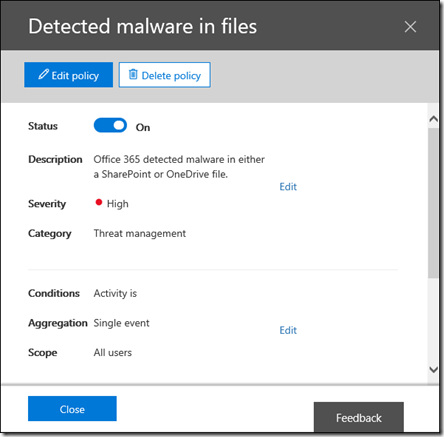
If you then at the Alert Policies you should see the above.

image

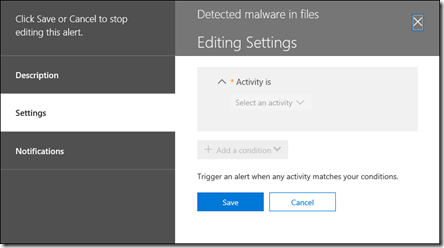
Interestingly, when you look at the activity that will trigger the alert you see the above, which doesn’t provide you any indication of what the activity for the alert actually is. You will also notice that I can’t edit the activity or much else on the alert once it has been created via PowerShell.

However, I do know that setting Protection alerts via PowerShell does work so I’m happy that I can do bulk add alerts via a script. I just that one option.

Script to check mailbox settings

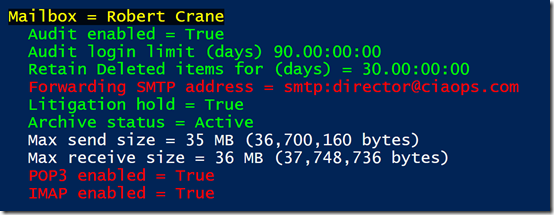
image

I’ve just uploaded a new PowerShell script to my Github repository, which you can find here:

https://github.com/directorcia/Office365/blob/master/o365-mx-check.ps1

This one will cycle through all the mailboxes you have and then report back the status as you can see above. Basically, anything in red is bad (i.e. have POP3 and IMAP enabled as well as an email forward) and green is good (like have Litigation Hold and Archive enabled).

The script doesn’t make any changes to the mailboxes it basically just reports back the status so you can see what is configured and what is not. You can adjust the variables like log and deleted item limits to suit your needs but they are set at the default levels of the tenant (which should be generally increased).

Ensure you check back over time as I improve the scripts and don’t forget to check the others that I have available there.

Office 365 Alert activity options

Recently I wrote an article about setting an alert for file download in Office 365. This is just one of many alert conditions you can configure in Office 365 here:

image

Here is a list of all the conditions you can set and more details on each.

Common user activities
     – User submitted email = User reported a problem with mail filtering. This can include false positives, missed spam, or missed phishing email messages.
     – Detected malware in files = Office 365 detected malware in either a SharePoint or OneDrive file.
     – Shared file or folder = User shared or granted access to a file or folder.
     – Create mail forward/redirect rule = User created an inbox rule to forward or redirect mails.
     – Any file or folder activity = User performed any file or folder activity.
     – Change file or folder = User deleted, modified or renamed a file or folder.
     – Shared file externally = User shared, granted access of a file or folder to an external user, or created an anonymous link for it.
     – Granted Exchange admin permission = User granted admin permission to same or another user.
     – Granted mailbox permission = User granted permission for same or another user to access a target mailbox.
     – External user file activity = An external user accessed, modified, deleted, modified or checked in a file.
     – DLP policy match = A data loss prevention policy match is detected.
    
File and folder activities
     – Accessed files = User or system account accesses a file
     – Checked in file = User checks in a document that they checked out from a document library
     – Checked out file = User checks out a document located in a document library. Users can check out and make changes to documents that have been shared with them
     – Copied file = User copies a document from a site. The copied file can be saved to another folder on the site.
     – Deleted file = User deletes a document from a site.
     – Discarded file checkout = User discards (or undos) a checked out file. That means any changes they made to the file when it was checked out are discarded, and not saved to the version of the document in the document library.
     – Downloaded files = User downloads a document from a site.
     – Modified file = User downloads a document from a site.
     – Move file = User moves a document from its current location on a site to a new location.
     – Renamed file = User renames a document on a site.
     – Restored file = User restores a document from the recycle bin of a site.
     – Uploaded file = User uploads a document to a folder on a site.
    
File sharing activities
     – Accepted access request = An access request to a site, folder, or document was accepted and the requesting user has been granted access.
     – Accepted sharing invitation = User (member or guest) accepted a sharing invitation and was granted access to a resource. This event includes information about the user who was invited and the email address that was used to accept the invitation (they could be different). This activity is often accompanied by a second event that describes how the user was granted access to the resource, for example, adding the user to a group that has access to the resource.
     – Created company shareable link = User created a company-wide link to a resource. company-wide links can only be used by members in your organization. They can’t be used by guests.
     – Create access request = User requests access to a site, folder, or document they don’t have permissions to access.
     – Created anonymous link = User created an anonymous link to a resource. Anyone with this link can access the resource without having to be authenticated.
     – Created sharing invitation = User shared a resource in SharePoint Online or OneDrive for Business with a user who isn’t in your organization’s directory.
     – Denied access request = An access request to a site, folder, or document was denied.
     – Removed a company shareable link = User removed a company-wide link to a resource. The link can no longer be used to access the resource.
     – Removed anonymous link = User removed an anonymous link to a resource. The link can no longer be used to access the resource.
     – Shared file, folder or site = User (member or guest) shared a file, folder, or site in SharePoint or OneDrive for Business with a user in your organization’s directory. The value in the Detailcolumn for this activity identifies the name of the user the resource was shared with and whether this user is a member or a guest. This activity is often accompanied by a second event that describes how the user was granted access to the resource; for example, adding the user to a group that has access to the resource.
     – Updated an anonymous link = User updated an anonymous link to a resource. The updated field is included in the EventData property when you export the search results.
     – Used an anonymous link = An anonymous user accessed a resource by using an anonymous link. The user’s identity might be unknown, but you can get other details such as the user’s IP address.

Synchronization events
     – Allowed computer to sync files = User successfully establishes a sync relationship with a site. The sync relationship is successful because the user’s computer is a member of a domain that’s been added to the list of domains (called the safe recipients list) that can access document libraries in your organization.
     – Block computer from syncing files = User tries to establish a sync relationship with a site from a computer that isn’t a member of your organization’s domain or is a member of a domain that hasn’t been added to the list of domains (called the safe recipients list)that can access document libraries in your organization. The sync relationship is not allowed, and the user’s computer is blocked from syncing, downloading, or uploading files on a document library.
     – Downloaded files to computer = User establishes a sync relationship and successfully downloads files for the first time to their computer from a document library.
     – Downloaded file changes to computer = User successfully downloads any changes to files from a document library. This activity indicates that any changes that were made to files in the document library were downloaded to the user’s computer. Only changes were downloaded because the document library was previously downloaded by the user (as indicated by the Downloaded files to computer activity).
     – Uploaded files to a document library = User establishes a sync relationship and successfully uploads files for the first time from their computer to a document library.
     – Uploaded file changes to document library = User successfully uploads changes to files on a document library. This event indicates that any changes made to the local version of a file from a document library are successfully uploaded to the document library. Only changes are unloaded because those files were previously uploaded by the user (as indicated by the Uploaded files to document library activity).

Site administration activities
     – Added exempt user agent = Global administrator adds a user agent to the list of exempt user agents in the SharePoint admin center.
     – Added site collection admin = Site collection administrator or owner adds a person as a site collection administrator for a site. Site collection administrators have full control permissions for the site collection and all subsites.
     – Added user or group to SharePoint group = User added a member or guest to a SharePoint group. This might have been an intentional action or the result of another activity, such as a sharing event.
     – Allowed user to create groups = Site administrator or owner adds a permission level to a site that allows a user assigned that permission to create a group for that site.
     – Change exempt user agents = Global administrator customized the list of exempt user agents in the SharePoint admin center. You can specify which user agents to exempt from receiving an entire web page to index. This means when a user agent you’ve specified as exempt encounters an InfoPath form, the form will be returned as an XML file, instead of an entire web page. This makes indexing InfoPath forms faster.
     – Changed sharing policy = An administrator changed a SharePoint sharing policy by using the Office 365 Admin center, SharePoint admin center, or SharePoint Online Management Shell. Any change to the settings in the sharing policy in your organization will be logged. The policy that was changed is identified in the ModifiedProperty field property when you export the search results.
     – Created group = Site administrator or owner creates a group for a site, or performs a task that results in a group being created. For example, the first time a user creates a link to share a file, a system group is added to the user’s OneDrive for Business site. This event can also be a result of a user creating a link with edit permissions to a shared file.
     – Created send to connection = Global administrator creates a new Send To connection on the Records management page in the SharePoint admin center. A Send To connection specifies settings for a document repository or a records center. When you create a Send To connection, a Content Organizer can submit documents to the specified location.
     – Created site collection = Global administrator creates a new site collection in your SharePoint Online organization.
     – Deleted group = User deletes a group from a site.
     – Deleted sent to connection = Global administrator deletes a Send To connection on the Records management page in the SharePoint admin center.
     – Enabled document preview = Site administrator enables document preview for a site.
     – Enabled legacy workflow = Site administrator or owner adds the SharePoint 2013 Workflow Task content type to the site. Global administrators can also enable work flows for the entire organization in the SharePoint admin center.
     – Enabled Office on Demand = Site administrator enables Office on Demand, which lets users access the latest version of Office desktop applications. Office on Demand is enabled in the SharePoint admin center and requires an Office 365 subscription that includes full, installed Office applications.
     – Enabled RSS feeds = Site administrator or owner enables RSS feeds for a site. Global administrators can enable RSS feeds for the entire organization in the SharePoint admin center.
     – Enabled result source for People Searches = Site administrator creates or changes the result source for People Searches for a site.
     – Modified site permissions = Site administrator or owner (or system account) changes the permission level that are assigned to a group on a site. This activity is also logged if all permissions are removed from a group.
     – Removed user or group from SharePoint group = User removed a member or guest from a SharePoint group. This might have been an intentional action or the result of another activity, such as an unsharing event.
     – Renamed site = Site administrator or owner renames a site
     – Requested site admin permissions = User requests to be added as a site collection administrator for a site collection. Site collection administrators have full control permissions for the site collection and all subsites.
     – Set host site = Global administrator changes the designated site to host personal or OneDrive for Business sites.
     – Updated group = Site administrator or owner changes the settings of a group for a site. This can include changing the group’s name, who can view or edit the group membership, and how membership requests are handled.

Setting an alert for file download in Office 365

A very common request I see is people wanting to know when users have downloaded a file from SharePoint Online to their desktop. You can configure an alert to let you know when this does happen. However, I will provide a word of caution here. Remember, that alerting on this state could generate quite a number of alerts and finding the needle in that haystack can be a challenge. Thus, if you want to set these types of alerts, you should put as many filters on monitoring these activities so you don’t end up with a screen full of alerts and become overwhelmed.

image

You’ll firstly need to navigate to the Security & Compliance center in the Office 365 web portal. You will also need to have the rights to do this.

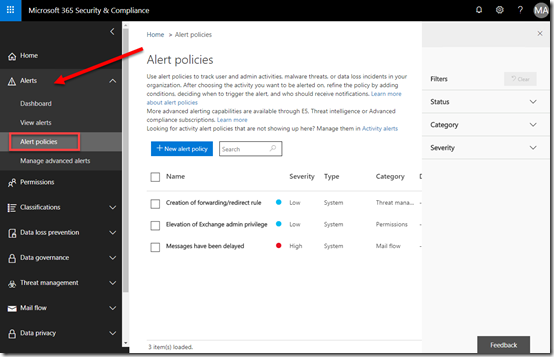
Here you’ll need to expand the Alerts section on the left and then select the Alert Policies option from the items that appear.

image

On the right, you should see a list of the existing policies for the tenant.

Select the New alert policy button.

image

You’ll now be prompted to enter a Name for your policy, a Description, Severity and Category.

When complete, select the Next button at the bottom of the page.

image

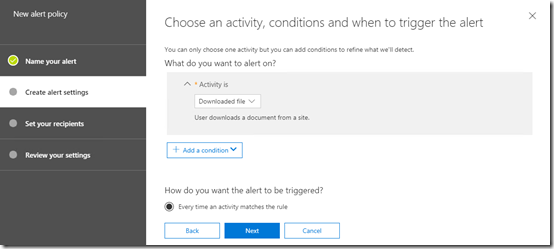
On the next screen select the down arrow to the right of the Select an activity option to display a list of activities as shown above

Scroll down the list until you locate the Downloaded file option, which is under the File and folder activities heading, and select this.

image

Below this you can select the Add condition button to filter your alert. This allows you to focus the alert to:

image

a specific IP Address (i.e. where the user is located) and/or

image

a specific user account and/or

image

a specific filename and/or

image

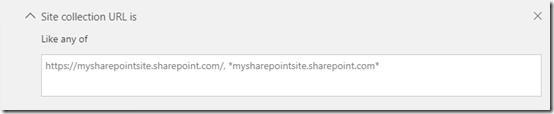
a specific site collection URL and/or

image

a specific file extension.

You want to take full advantage of these conditions to reduce the number of alerts you’ll receive. Thus, if you are only worried about a single user or perhaps a certain, put those conditions in now.

image

When complete, select the Next button at the bottom of the window.

image

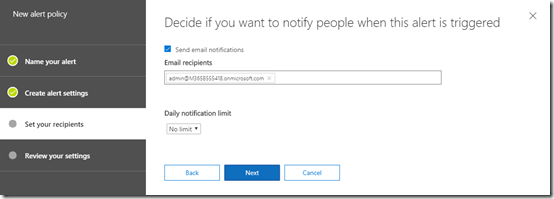
Now enter the email addresses of anyone you wish to receive notifications and ensure the Send email notifications option is set.

if you are expecting to receive lots of notifications (which is a bad idea) you may also wish to set the Daily notification limit.

Select the Next button at the bottom of the screen to continue.

image

Review the settings, make any changes and then select the Finish button. Generally, you will want to ensure the rule is enabled and turned on immediately.

image

You should now see that your policy appears in the list as shown above, and that it is enabled.

You can edit the policy simply by selecting it from this list.

image

Now, when a file is downloaded you should receive an email notification as shown above (assuming you have enabled email notifications of course).

You can get more details about the alert by selecting the Investigate button in the email.

image

Doing so will take you back to the Security & Compliance center and display the alert as shown above.

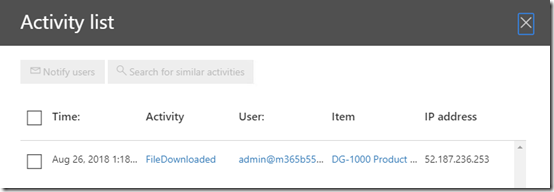
If you select the View activity list link you will get more details on the activity that triggered the alert.

image

When I do this I can see the time and date, activity, users, item, IP address and so on in a list as shown above, many of which are also hyper linked so you can get more detail.

image

Select the Item hyperlink, you will see the above screen and in this case see that the item downloaded was a PowerPoint file for the Marketing site collection.

image

You can return to this list of Alerts and see this item as shown above. Throughout this process please appreciate that alerts make take a few minutes to appear in emails, notifications and lists, so be patient.

You can select the alert item to drill back into the activity of you need to at any time.

image

You can also change the status of the alert to help your determine what items have been resolved. Simply change the status to suit and then Save the alert. You can always view alerts by changing the filtering options on the overview page.

There are many different types of alert policies you can set here and you therefore need to judicious in how you configure these. Too many alerts is just as bad as too few alerts so ensure you make them as specific as you can to avoid overload.

You can of course always create alert and leave them disabled until you need them activated.

Remember, there are only a few system alerts configured by default in most tenants. If you want more than these, then you need to go in and configure what you need.

Final discount to my new Microsoft 365 Security course

security-protection-anti-virus-software-60504 (1)

If you missed the first discount round and you want deep dive training into Office 365 security, with video demonstrations, included PowerShell configuration scripts, reference material and more then don’t hesitate. I’m offering one last round of discounts before I completely finish my course.

Use the coupon code LASTCALL at check for:

Microsoft 365 Security

or this direct URL that includes the discount:

https://www.ciaopsacademy.com/p/o365-security/?product_id=715774&coupon_code=LASTCALL

That will give you access to the complete course immediately, plus any coming additions for only US$249. There are already over 40 lessons in the course that you can take advantage of and I have lots more to add but that won’t take me long.

Remember, this is the last round of discounts I’ll do. After this the price reverts to the standard price of US$399.

So, if you want to learn more about the security options for Microsoft and Office 365 then sign up today to advantage of the discount while it lasts.

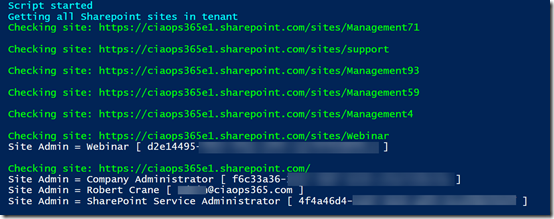
Locate all Office 365 Site Collection Administrators

image

One of the other things you probably need to check in your tenant is exactly who is a Site Collection administrator in your SharePoint sites in Office 365.

Site Collection administrators have full access to that SharePoint site and can only be removed by another Site Collection administrator. Also, they generally don’t appear inside the permission settings inside a site. So, knowing who has full rights to your SharePoint sites is a good thing I feel.

You can find the script to display all your SharePoint sites and Site Collection administrators inside those sites in my GitHub repository here:

https://github.com/directorcia/Office365/blob/master/o365-spo-admins.ps1

The interesting thing I discovered when I ran the script was that I have a number of site with no Site Collection administrator (most likely deleted sites it seems) and a number of sites I didn’t have access to (again, seems to have something to do with becoming orphaned during deletion). So, I have some further work to do now to clean all this up.

The script won’t fix or deal with any errors, but it will tell you about them and you can go investigate further.

Run it and see what it turns up for you!

Determining Office Add ins

After posting how to protect your Office tenant from malicious add-ins recently:

Thwarting the Office 365 Ransomware cloud

I was asked whether you could determine what add-ins users had already authorised? Thanks to PowerShell the answer is always “Yes”.

You need to ensure that you are connected to Exchange Online first and then you can run:

$mailboxes = get-mailbox –resultsize unlimited

foreach ($mailbox in $mailboxes) {
     write-host “Mailbox =”,$mailbox.primarysmtpaddress
     get-app -mailbox $mailbox.primarysmtpaddress | Select-Object displayname,enabled,appversion | Format-Table
}

This will basically spit out something that looks like:

image

So you can easily see what is already configured for each mailbox.

I have uploaded the file to my GitHub repository here:

https://github.com/directorcia/Office365/blob/master/o365-exo-addins.ps1

if you want it.