The name is already being used–Shared Mailbox troubleshooting script

Screenshot 2025-10-14 165536

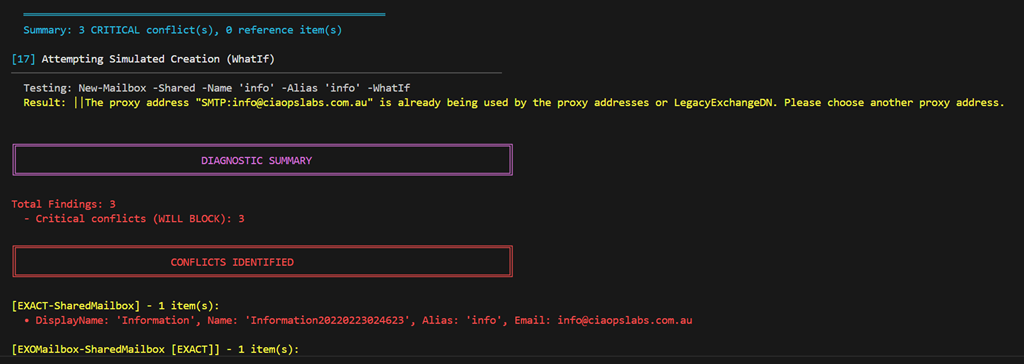
I recently had to move a mailbox alias from an existing mailbox to a hared mailbox. Every time I attempted to do so I received the following error:

The name is already being used. Please try another name

The error isn’t real helpful because it doesn’t tell you exactly what the other object causing the conflict could be. To make life easier and look across the array of places the conflict could be I created the following script:

https://github.com/directorcia/Office365/blob/master/find-name-conflict.ps1

with documentation at:

https://github.com/directorcia/Office365/wiki/Find-Name-Conflict-%E2%80%90-Shared-Mailbox-Diagnostic-Tool

In my case the issue was with a ‘Name’ value in Entra ID but the script will also give your recommendations on what PowerShell commands to run to overcome any issues it detects. I ran these and I was good to!

Hopefully, this script makes it easier to find any conflicts.

Script to report tenant directory activity

image

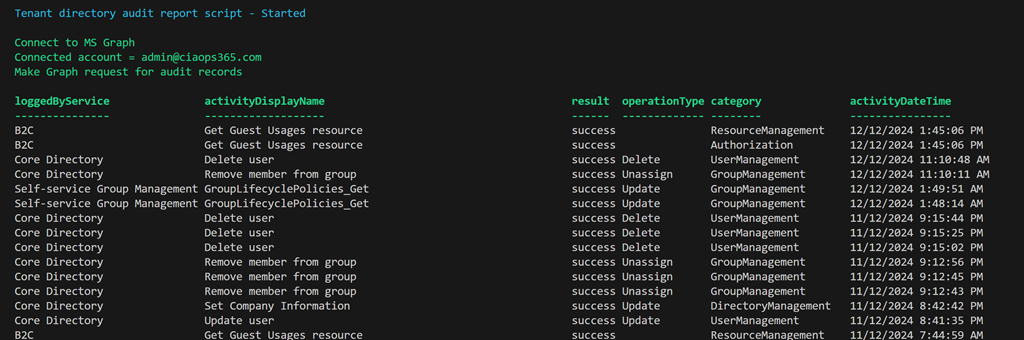
I have created a script that uses the Microsoft Graph to report directory activity for the tenant as shown above. You’ll find it here:

https://github.com/directorcia/Office365/blob/master/graph-diraudit-get.ps1

along with the documentation here:

https://github.com/directorcia/Office365/wiki/Report-directory-activity-in-a-tenant

You will need to have the Microsoft Graph PowerShell module installed and up to date.

The first time you run the script you maybe prompted to login to your tenant and then you may also be asked to provide permissions This script requires:

AuditLog.Read.All
Directory.Read.All

which you may need to consent to the first time.

After the script executes you should see an output as shown above showing the logging service, activity, result, operation, category and time stamp.

You can also use the –csv command line option to put the results to a CSV file in the parent directory.

Script to report tenant signins

image

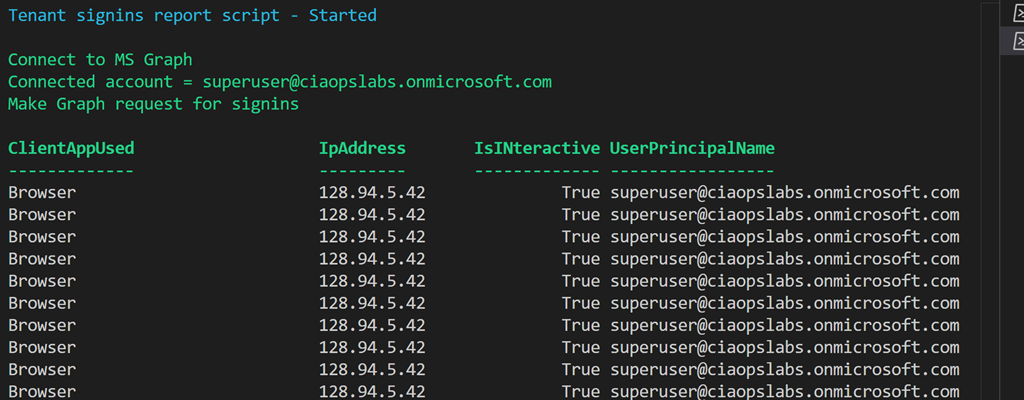
I have created a script that uses the Microsoft Graph to report signins for the tenant as shown above. You’ll find it here:

https://github.com/directorcia/Office365/blob/master/graph-signins-get.ps1

along with the documentation here:

https://github.com/directorcia/Office365/wiki/Get-tenant-signins

You will need to have the Microsoft Graph PowerShell module installed and up to date.

The first time you run the script you maybe prompted to login to your tenant and then you may also be asked to provide permissions This script requires:

AuditLog.Read.All
Directory.Read.All

which you may need to consent to the first time.

After the script executes you should see an output as shown above showing the Client App used, IP Address, is an interactive login and the user principal name.

You can also use the –csv command line option to put the results to a CSV file in the parent directory.

Script to create EntraID reset app

After a recent incident, I decided that it would be a good idea to have an EntraID app that I could use to re-enable a users inside a tenant if I needed. I have previously detailed how to do this manually:

Create an EntraID app to allow user enablement

I’ve now created a script you can use to accomplish this which you will find here:

https://github.com/directorcia/Office365/blob/master/eid-resetapp-set.ps1

Let me walk your through its operation:

You’ll need to ensure the Microsoft Graph PowerShell module is installed in your environment.

The new EntraID app will be called ‘Reset’ by default but you can change that by changing the variable $appname in the script.

The first thing the script will do is connect to the Microsoft Graph using the appropriate scopes or permissions. Typically you will need to login to your tenant with an administrator account because an new EntraID app needs to be created.

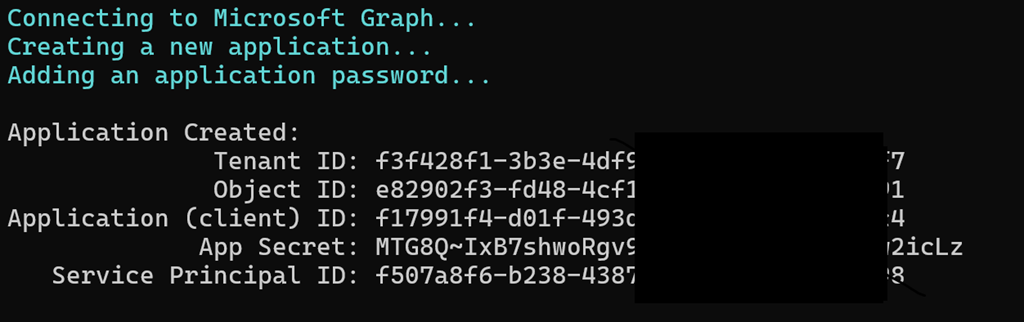
Next, the script will use the new-mgapplication command to create a new EntraID app in your environment. It will then use the add-mgapplicationpassword command to set a password for that app.
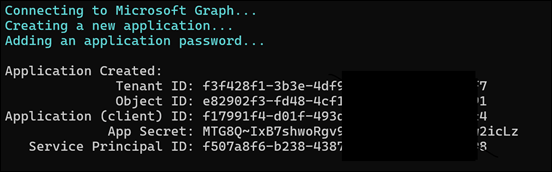
image

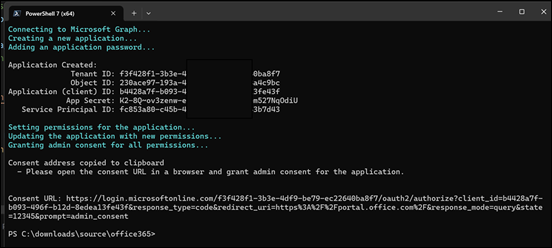
The script will now display all the important details about the EntraID app just created on the screen which you need to record for later use. Again, write this stuff down!

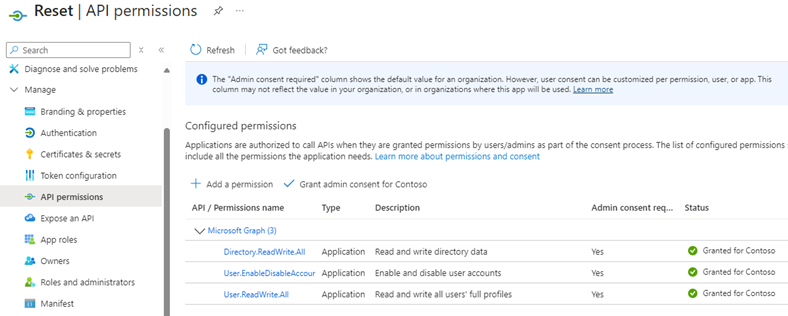
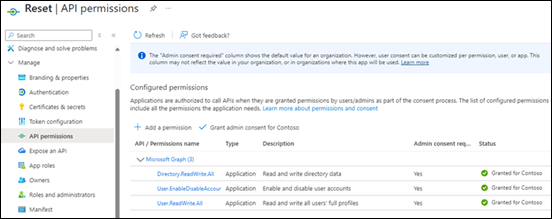
The script will now build the appropriate API permissions required for the EntraID app which are:

– User.EnableDisableAccount.All

– User.ReadWrite.All

– Directory.ReadWrite.All

These are required by the update-mguser command detailed here:

https://learn.microsoft.com/en-us/powershell/module/microsoft.graph.users/update-mguser?view=graph-powershell-1.0#description

The script now uses the command update-mgapplication to add these API permissions to the new EntraID app.
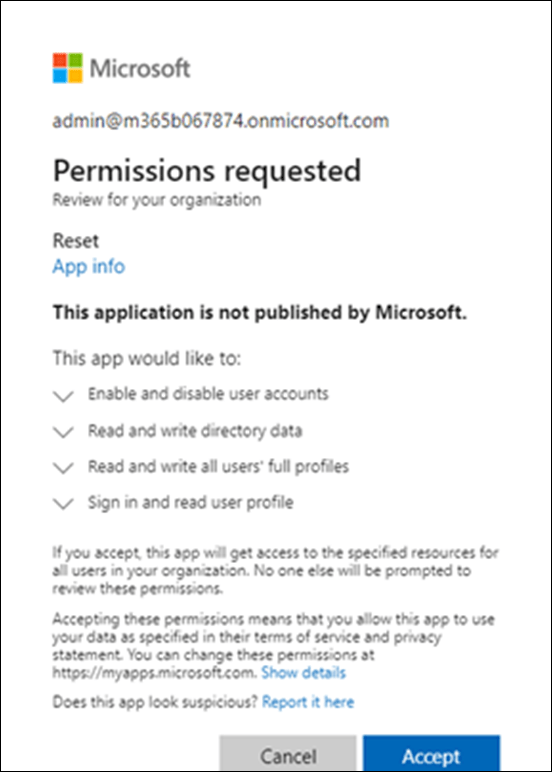
image

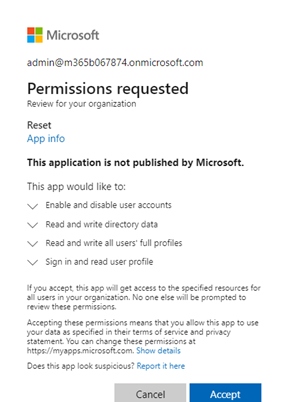
It then builds a consent URL and copies that to the clipboard. This consent URL you will need to past into a browser and click Accept. The consent URL is also displayed on the screen so you can copy and paste from there if needed.

I have not been able to get this consent function working inside my script. I aim to keep working on that but for now you’ll need to use the browser to consent to the permissions. If anyone know how to do this please let me know as I can’t get it to work.
image

If you look inside your EntraID application you should now see one called ‘Reset’ with the appropriate API permissions consented to as shown above.

The completed script output should look like:
image

You should now be able to follow these instructions:

Using PowerShell to allow user enablement

to gain access if needed to enable a user, but don;t forget to save the credentials that this script produces for later use.

ODFB summary script

I’ve have just uploaded a new script to my public Office 365 repo. Here is the direct link:

https://github.com/directorcia/Office365/blob/master/graph-odfb-get.ps1

The script will use the Microsoft Graph to create a summary report of users ODFB, which can also be output to a CSV file.

image

You will need to have the Graph PowerShell module installed. When you run the script you will typically need to consent to the above permissions. These can be found in the Users area of the Graph documentation.

image

The first thing the script will do is connect to the Microsoft Graph and you will generally be prompted to login with a user who has suitable permissions. Once that is complete a list of users will be displayed as shown above.

image

The script will then look at each user found and determine whether they have a ODFB assigned and enabled as shown above. Not all users in your tenant may have a ODFB.

image

For users that do have a ODFB the stats on these will display including total size, used and deleted as shown above.

image

If you use the –csv switch on the command line when you run the script a summary CSV file will also be generated in the parent directory.

Hopefully this helps get a quick summary of all your users ODFB usage.


Security test script walk through video – Update 1

I have made some updates to my free security test script:

https://github.com/directorcia/Office365/blob/master/sec-test.ps1

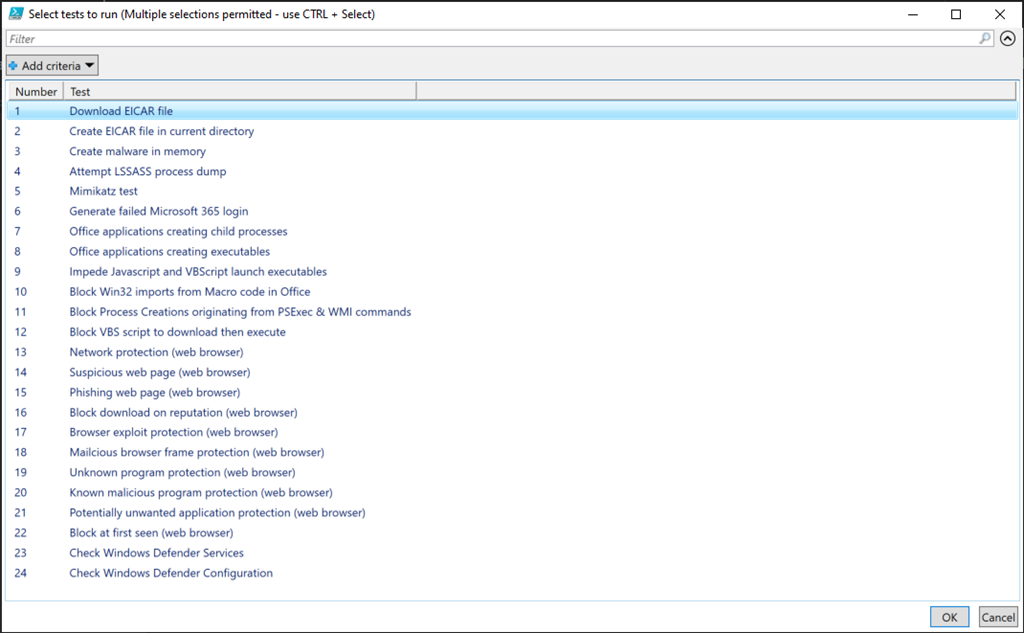
The main improvement is the inclusion of a menu that allows you to select which test you want to run.

image

You can use the CTRL and SHIFT key to make multiple selections here.

The video also shows the results when the test script is run on a Windows 10 environment with Trend Micro and a Chrome browser.

Don’t forget to keep checking back for further script updates and improvements.

Security test script walk through video

I’ve create this video to give you a basic walk through of the free security testing PowerShell script I’ve created. You’ll find the script here:

https://github.com/directorcia/Office365/blob/master/sec-test.ps1

In the video you’ll see how to quickly get and run the script as well the results it generates on a stand alone Windows 10 device.

Apart from Windows 10, PowerShell and Word there are no special requirements and it can be used on stand alone, domain or Azure Ad joined, etc. It doesn’t matter. It is designed to help you better evaluate your security posture.