
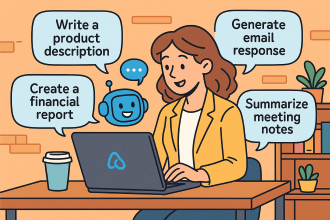
Microsoft 365 Copilot is a powerful AI assistant integrated into the Microsoft 365 apps you already use, designed to boost productivity, creativity, and efficiency. For small businesses, it can act as a virtual team member, automating routine tasks and providing intelligent assistance across various functions.
Here’s a breakdown of practical examples and a step-by-step implementation guide for a small business to leverage Copilot for increased productivity:
Practical Examples of Microsoft 365 Copilot in a Small Business
Here are concrete scenarios where a small business can use Copilot to be more productive:
1. Marketing & Content Creation:
2. Sales & Customer Management:
3. Finance & Operations:
4. Human Resources (HR) & Internal Communications:
Step-by-Step Implementation of Microsoft 365 Copilot in a Small Business
Implementing Copilot effectively involves more than just enabling licenses. It requires preparation, user adoption strategies, and ongoing monitoring.
Phase 1: Preparation and Readiness
-
Assess Your Microsoft 365 Environment:
-
Data Governance: Copilot inherits your existing Microsoft 365 security, privacy, and compliance settings. Ensure your data is well-organized, permissions are correctly set, and sensitive information is protected (e.g., using sensitivity labels). This is crucial to prevent “oversharing” of information through Copilot.
-
Licensing: Verify you have an eligible Microsoft 365 subscription (e.g., Microsoft 365 Business Standard or Business Premium). Copilot is an add-on, so you’ll need to purchase licenses ($30 per user per month, as of my last update).
-
Network Readiness: Ensure your internet connection and Microsoft 365 services are robust enough to handle the increased AI processing.
-
Identify Key Use Cases and Pilot Users:
-
Define Needs: Pinpoint specific pain points and areas where AI can provide the most immediate value for your business (e.g., slow report generation, repetitive email drafting, meeting summaries).
-
Select Pilot Group: Choose a small group of enthusiastic users from different departments who are heavy Microsoft 365 users and open to new technologies. These “champions” will be crucial for early feedback and encouraging wider adoption.
-
Establish an “AI Council” (Even for a Small Business):
-
This doesn’t need to be formal or large. It could be 1-2 owners/managers and a key IT contact (internal or external).
-
Their role: Define clear goals for Copilot, oversee implementation, address challenges, and communicate the vision.
Phase 2: Deployment and Onboarding
-
Assign Copilot Licenses:
-
Go to the Microsoft 365 admin center.
-
Navigate to Billing > Licenses.
-
Select Microsoft 365 Copilot and assign licenses to your chosen pilot users.
-
Note: It might take up to 24 hours for Copilot to appear in all apps for users. They may need to restart or refresh the apps.
-
Provide Training and Resources:
-
Basic Prompting: Train users on how to craft effective prompts. Emphasize clarity, context, and specifying the desired outcome.
-
Role-Specific Examples: Provide examples of how Copilot can be used in their specific roles (e.g., marketers: “draft a social media post,” sales: “summarize this client email”). Microsoft provides an “SMB Success Kit” and online quick-start training (aka.ms/quickstartcopilot) that can be valuable.
-
“When to use Copilot” vs. “When not to”: Help users understand when Copilot is a valuable assistant and when human judgment or expertise is still paramount.
-
Encourage Experimentation: Foster a culture where users feel comfortable experimenting with Copilot.
-
Establish a User Community (informal):
-
Even in a small business, create a dedicated chat channel (e.g., in Microsoft Teams) for users to share tips, ask questions, and celebrate “Copilot wins.” This peer-to-peer learning is highly effective.
Phase 3: Monitor, Refine, and Expand
-
Gather Feedback:
-
Regularly check in with your pilot users. What’s working well? What are the challenges? What new ideas do they have?
-
Qualitative feedback (discussions, surveys) is just as important as quantitative data.
-
Monitor Usage (Microsoft Copilot Dashboard):
-
Iterate and Optimize:
-
Based on feedback and usage data, refine your training materials, prompt guidelines, and use cases.
-
Address any data governance issues that arise.
-
Gradual Rollout (or full deployment):
-
Once the pilot is successful and you’ve addressed initial challenges, gradually expand Copilot access to more users or the entire team.
-
Continue to provide ongoing support and training as new users come online.
-
Celebrate Successes:
By following these practical examples and a structured implementation approach, even small businesses can effectively harness the power of Microsoft 365 Copilot to significantly boost their productivity and gain a competitive edge.


 CIAOPS