Using PowerShell to download all my Office 365 scripts together

I really like GitHub but the problem is that it is really a developer not IT Pro style environment. That means there is no easy way (that I know of at least) to simply to copy every file in a repository to a directory on your local computer. Yes, you can do that with Visual Code like I do, but what if you just want a complete copy so you can run the scripts that I have created quickly and easily?

Have no fear, PowerShell to the rescue once again.

I have just created the following script:

https://github.com/directorcia/Office365/blob/master/o365-getrepo.ps1

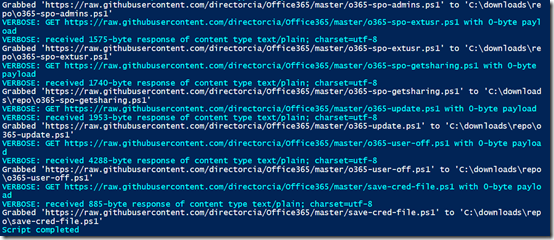
which, when run, will basically grab every file in my Office 365 repository and download it to the directory you nominate in the variable at the top of the script.

image

So the process is to copy the above script into the PowerShell ISE. Modify the variable $DestinationPath to suit your environment and then simply run the script.

The great thing is that you can re-rerun the script at any time to grab the latest updates I have made in that repository.


Office 365 services PowerShell bulk connection script

I spend a lot of my time logging in and out of various tenants using PowerShell. Some tenants require Multi Factor Authentication (MFA), others don’t. Sometimes I need to just use SharePoint Online or maybe Exchange and Teams.

Already having all the appropriate online services connection scripts in my Github repo here:

https://github.com/directorcia/Office365

I wanted a way to make it easy for me to login to any tenant, MFA or not, as well as an service, or combination of services. Thus my latest script at:

https://github.com/directorcia/Office365/blob/master/o365-connect-bulk.ps1

provides a neat solution I believe.

They way it works is that:

1. You need to copy all the files from my Github repo to a directory on your local environment.

2. Execute the o365-connect-bulk.ps1 script where all the scripts are with following command line options:

-mfa if MFA required for login

-std if Microsoft Online connect required

-aad if Azure AD connect required

-exo if Exchange Online connect required

-s4b if Skype for Business Online connect required

-sac if Security and Compliance Center connect required

-spo if SharePoint Online connect required

-tms if Microsoft Teams connect required

-aadrm if Azure AD Rights Management connect required

You can combine some or all of these onto the command line like so:

.\o365-connect-bulk.ps1 –mfa –exo –tms

which will do a login with MFA for Exchange Online and Microsoft Teams. Or:

.\o365-connect-bulk.ps1 –std –spo

which will login with no MFA to Microsoft Online and SharePoint Online.

The way that I use scripts is to break them down into small scripts. I don’t like the idea of large ‘mega’ scripts that do everything because they are harder to maintain and when they break they are harder to debug. This way, o365-connect-bulk.ps1 relies in the other stand alone scripts in the same directory which it calls as needed.

The down side to this approach is that you may need to login to the tenant multiple times as each independent script runs. That is only initially and a small price to pay for the added flexibility and functionality I would suggest.

If need to login to many different tenants and services throughout the day then this bulk connection script should help you.

Update to SharePoint Online PowerShell module

Since the beginning of working with SharePoint Online with PowerShell you have had to download and install a stand alone MSI for access to the SharePoint Online cmdlets as I have detailed here:

Connecting PowerShell to SharePoint Online

Well no more! Yeah! Now you can install the module directly from PowerShell using the command:

Install-Module -Name Microsoft.Online.SharePoint.PowerShell

You should uninstall the old MSI version if you have it first.

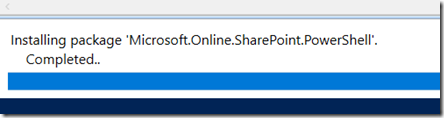
Whee you run this command you should see the modules being installed like so:

image

and then you should be good to go.

image

This will make working with SharePoint Online via PowerShell so much easier!

The current version is 16.0.8212.0 and can be found here:

https://www.powershellgallery.com/packages/Microsoft.Online.SharePoint.PowerShell/16.0.8029.0

Centralised Office 365 Add in deployments with PowerShell

The three common Outlook add-ins I suggest be deployed across the entire organisation are:

1. Report Message

2. Message Header Analyzer

3. FindTime

You can allow users to deploy these individually but that opens up potential security concerns if users can install their own add ins. The better way is to deploy these centrally for all everyone.

You can do this using the Admin center in Office 365 but an even smarter way is to use PowerShell to do this, especially if you are going to install these add ins in multiple tenants.

To achieve this with PowerShell you are firstly going to have to go download and install the:

Office 365 Centralized Deployment PowerShell

which will allow you to deploy add ins using PowerShell commands.

Once you have installed this software go and fire up PowerShell command editor. You’ll need to connect/login to this service using the command:

Connect-OrganizationAddInService

but I’ve made connecting to the service easy for you by uploading a connection script to my GitHub repository here:

https://github.com/directorcia/Office365/blob/master/o365-connect-ctrldply.ps1

The thing to note about the connection is that this services doesn’t appear to support MFA identities so you’ll need to use an admin account that doesn’t have MFA enabled on it.

Once you have connected you’ll need to install the add in into the tenant using the command:

New-OrganizationAddIn

when you do this you’ll need to know the ‘Asset ID’ of the add in, which you will find in the URL for that add in in the store. The asset id appears in the form of WA104381180 for example. However, rather than you hunting around for these I’ve got them for you here:

Report Message = WA104381180

Message Header Analyzer = WA104005406

Findtime = WA104379803

The full command looks like:

New-OrganizationAddIn -AssetId ‘WA104381180’ -Locale ‘en-US’ -ContentMarket ‘en-US’

make sure you change the Locale and ContentMarket options to suit your environment.

You’ll then need to enable the add in within the tenant using the command:

Set-OrganizationAddIn

for this you’ll need to the ‘Product Id’ of the add in. You can find that by running the command:

Get-OrganizationAddIn

Here are the Product Id’s for my recommended add ins:

Report Message  = 6046742c-3aee-485e-a4ac-92ab7199db2e

Message Header Analyzer = 62916641-fc48-44ae-a2a3-163811f1c945

FindTime = 9758a0e2-7861-440f-b467-1823144e5b65

The full command to enable the add in within the tenant looks like:

Set-OrganizationAddIn -ProductId 6046742c-3aee-485e-a4ac-92ab7199db2e -Enabled $true

Finally, you’ll need to assign the add in to users. In this case, I believe these add ins should be mandatory for all users. Thus you run the command:

Set-OrganizationAddInAssignments -ProductId 6046742c-3aee-485e-a4ac-92ab7199db2e -AssignToEveryone $true

to do this.

Now you are all done and those add ins will roll out to every user in your tenant.

To read more about the PowerShell options available to you with PowerShell and centralised add in deployment check out this from Microsoft:

Use the Centralized Deployment PowerShell cmdlets to manage add-ins

I have also made the full deployment scripts for these three add ins available on my GitHub repository to save you time. You’ll find that script here:

https://github.com/directorcia/Office365/blob/master/o365-addin-deploy.ps1

That should make deploying your favourite Office add ins into Office 365 easier.

Enabling modern authentication in Office 365 script

Just a quick note to let you know that I have uploaded another short script to make life a bit easier. This one will enable modern authentication in a tenant for Exchange Online and Skype for Business Online (it is already on for SharePoint Online).

Modern authentication basically prevents multiple logins when using multi factor authentication for desktop apps like Outlook and Skype for Business client. You can read more about this here:

How modern authentication works for Office 2013 and Office 2016 client apps

Enabling modern authentication will also impact older clients like Office 2010, so enable it on your tenant with the understanding that when you do you really should be running the latest version of Office on all desktops.

That said, you can find my script here:

https://github.com/directorcia/Office365/blob/master/o365-modern-auth.ps1

Note, that you’ll need to have connected to Exchange Online and Skype for Business online in PowerShell for the script to execute correctly.

Auditing Office 365 user logins via PowerShell

image

One of the common audit requirements people have with Office 365 is to determine when their users successfully. and unsuccessfully logged into Office 365.

I’ve detailed how to do this in the web interface here:

Searching the Office 365 activity log for failed logins

but now you can find this script that I have made available that will report this via PowerShell:

https://github.com/directorcia/Office365/blob/master/o365-login-audit.ps1

In the variables area you will find three options for $operations like so:

$operation=”userloginfailed”,”userloggedin” ## use this line to report all logins

##$operation=”userloginfailed” ## use this line to report failed logins

##$operation=”userloggedin” ## use this line to report successful logins

Only one of these should be uncommented. (the ## designates everything after it as a comment in PowerShell, just so you know).

image

The first option “userloginfailed”,”userloggedin” will give you all users logins between the dates you nominate as shown above. Any failed logins will be highlighted in red, successful ones are in green.

image

The second option, “userloginfailed” will just so failed logins for the period as shown above

The third option, “userloggedin” will just show successful logins for the period.

Those are the main variable to change to get different outputs, but make sure you read the whole script and set the other variables appropriately for your environment.

I’ll be improving the script over time so remember to check bag regularly but now you should be able to easily audit all your user logins to Office 365 using PowerShell.

Determining the time Office 365 ATP takes to scan an attachment

Office 365 Advanced Threat Protection (ATP) has the ability to sandbox and test attachments prior to delivery to an Office 365 inbox. This is known as ATP Safe Attachments which you read about here:

Office 365 ATP Safe Attachments

Basically, it takes email attachments and opens them in a protected sandbox inside the Microsoft data center to see whether they do any malicious or unexpected. If it does, then actions can be taken to prevent that attachment from reaching the inbox. If not, the attachment is delivered as normal.

Now this sandbox testing does cause a slight delay in delivery of attachment. In my experience, I have never seen any attachment, no matter how large take longer than 2 minutes to deliver. However, there maybe the need to test this delivery time when troubleshooting.

Luckily, I looked around and found this great article from Kloud:

https://blog.kloud.com.au/2018/07/19/measure-o365-atp-safe-attachments-latency-using-powershell/

which contains some handy scripting to allow you to determine the time ATP takes to verify an attachment. So I thought I’d build on that.

To complete this process you firstly need to have a tenant that has Office 365 ATP assigned to it. You’ll also need to target a recipient that has an Office 365 ATP license assigned to them. You’ll basically send this recipient two emails, one with an attachment and one without, and then we’ll use a script to determine and report the time difference.

image

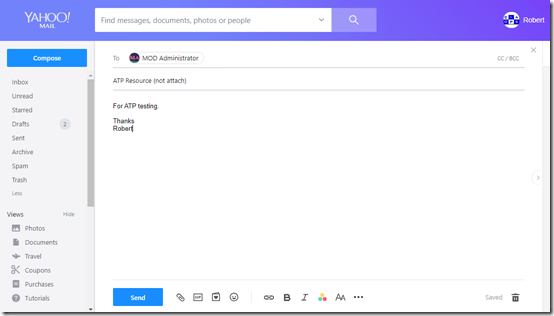
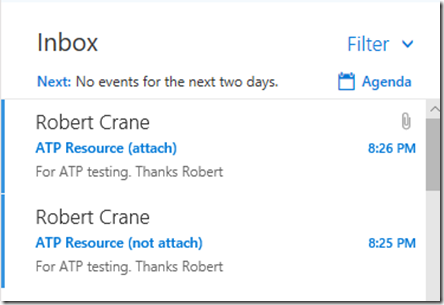
So step 1 is to send a standard email without an attachment to the recipient. I’ll do this here from my Yahoo account.

image

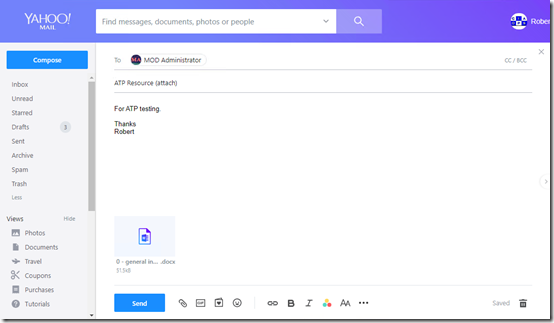
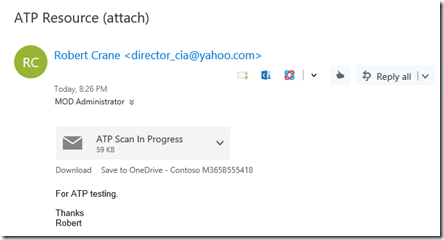
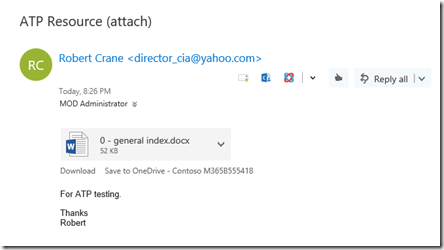
Once that has been successfully sent, I’ll immediately send another email that is basically the same but this time with an attachment. In this case, I’m send a Word document of 52KB in size.

image

I need to now wait to ensure both emails are FULLY delivered to the recipient.

image

If you have Safe Attachment Dynamic Delivery enabled where the body is received while the attachment is still being scanned you need to wait until this scanning process has FULLY completed.

image

That is, you need to wait until the whole message, including the attachment has been delivered to the Inbox as shown above.

image

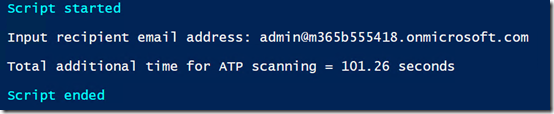
Ensure that you are connected to Exchange Online with PowerShell already and then run my script, which you can find at:

https://github.com/directorcia/Office365/blob/master/o365-atp-timer.ps1

After a few moments you should see the results like that shown above, giving you the number of additional second it took to scan the attachment. In this case around 101 seconds.

There is no real guidance from Microsoft on how long ATP scanning should take so if you do run this script I’d really appreciate you completing this short survey:

ATP Timings

so we can get an idea of what people are seeing out there with ATP. That should also give us an ‘average’ figure we can use to understand ‘normal’ ATP performance.

The survey has one required field of the time in seconds you received but if you could also indicate the size of the attachment you tested that would also help understand whether the size of attachment play a role in any way.

Like I said, my experience has been that ATP never takes more than around 2 minutes to do attachment scanning but I’d love to get your feedback in the survey if you run this script. Thanks again to Kloud for their blog post around this and doing the hard scripting yards.

Using Azure Automation to schedule Office 365 mailbox forward checks

One of the many things I say is that you should not think of Office 365 or Microsoft 365 alone, you should think of incorporating services like Azure as well since they provide a huge amount of additional functionality as I have detailed here before:

Add Azure to Office 365 for more flexibility

As I have also pointed out, I believe you should deploy Azure immediately with Office 365

Deploy Office 365 and Azure together

because until you start using Azure it isn’t going to cost you anything since Azure billing is typically consumption based. That is, you are only billed for what you use.

Now, one of the ways that you can use Azure to take advantage of the automation abilities it has. This is really handy when you want to run repeated process. One such process that you should run regularly I believe is checking for mailbox forwards in Office 365 tenants. I have detailed how to do manually this using a PowerShell script here:

PowerShell script to check email forwards

So, thanks to Azure automation we can take the heart of this script and automate it to run regularly against our tenant and provide an email report on which mailboxes have forwards enabled. Thus, Azure Automation allows us to automate the execution of PowerShell scripts to make life easier.

To enable all this you are going to need to use an Azure account with a paid subscription. It doesn’t have to be the same tenant as the Office 365 one, it just has to be a tenant with a paid subscription because there are costs (very slight) to running Azure Automation.
image

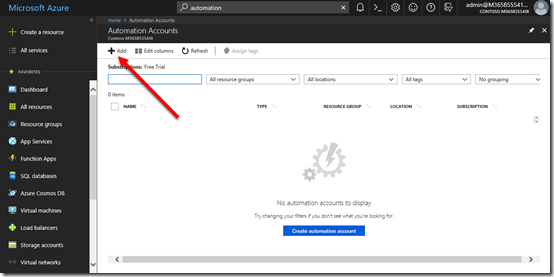
Once you have logged into you Azure tenant locate the Azure Automation Accounts and select the Add button in the top left to create a new account to use.
image

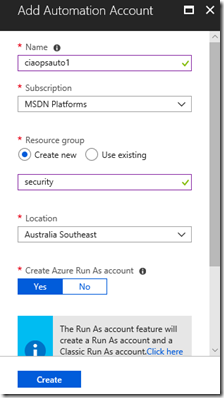
Give the new Azure Automation Account a name, paid subscription, resource group and location. Then select Create.
image

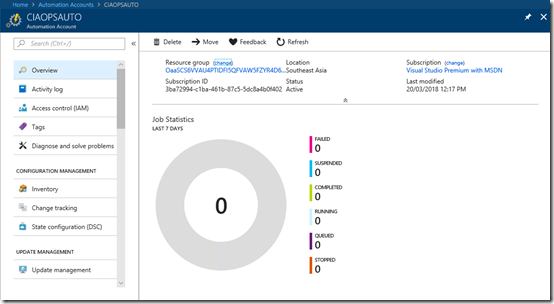
Once created, you’ll see an overview of the new account as shown above.
image

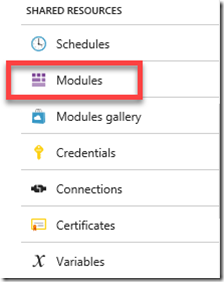
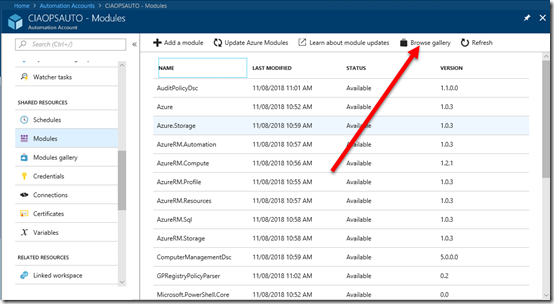
From the menu on the left locate Modules and select it.
image

Because this is a new automation account it will only have the standard PowerShell modules included. We need to go and add the one for Office 365.

We can find the Office 365 PowerShell module by selecting the option to Browse gallery from the buttons across the top on the right.
image

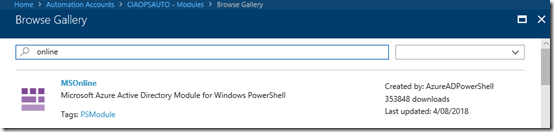
Do a search for “online” and the first result should be MSOnline as you see above.

Select this module to add it.
image

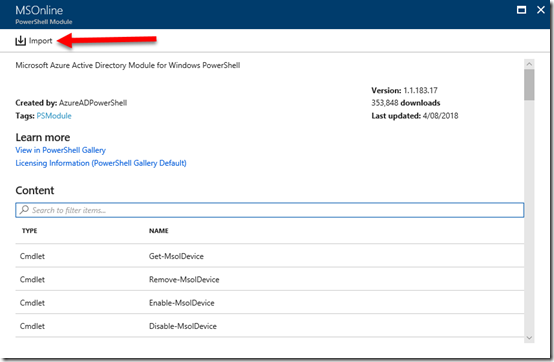
You should now see more detail about the module displayed. Select the Import button at the to of the page to include that module in this new Automation Account.
image

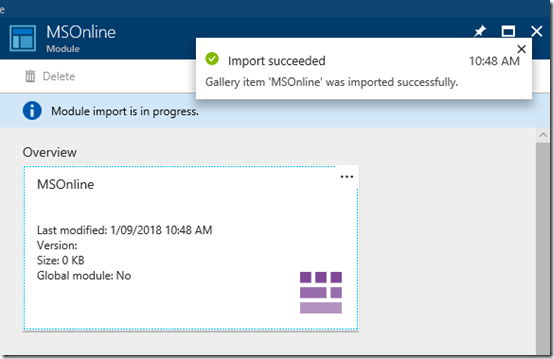
In a few moments you should get a message letting you know the module has been imported successfully. Remember, you only need to do this once for any new Automation Account that you wish to run commands against Office 365.
image

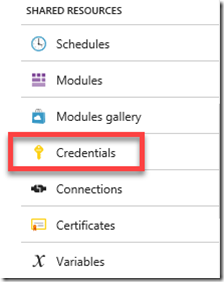
Return to the list of items for the Automation Account and locate the option for Credentials and select it. It is a few below the Modules one you just selected.
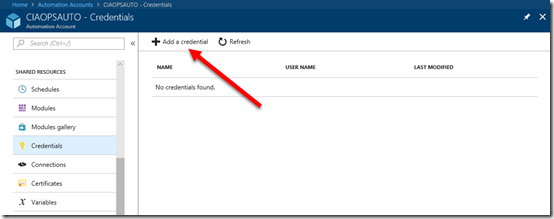
image

Select Add a credential at the top of the page.
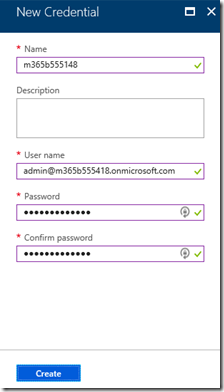
image

Now enter the user details for the user who is going to login to the Office 365 tenant when executing the script. This will typically be a global administrator that doesn’t have MFA enabled on the account. The credentials are stored securely in Azure and will be accessed with the name of the credential account you used (here m365B555418).

Generally, you will only need one set of credentials in your Automation Account but it is possible to have as many as you want for performing different tasks.

Select Create to complete this process.
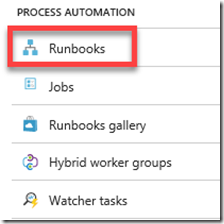
image

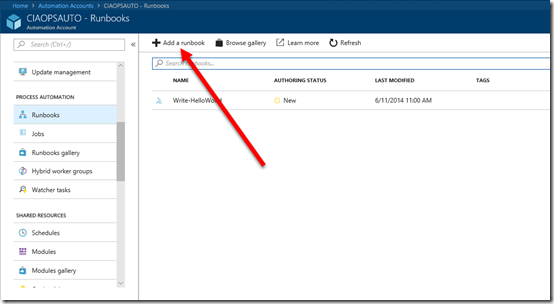
From the Automation Account menu locate Runbooks and select it.
image

From the menu across the top select Add a runbook.
image

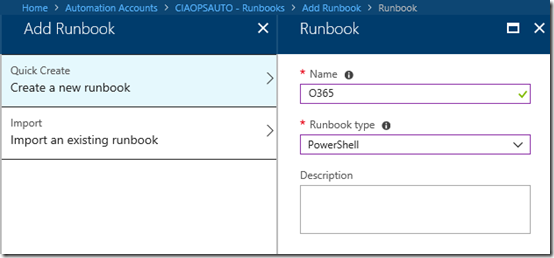
Select the option to Create a new runbook. Give the runbook a Name and select the type as PowerShell. Then select Create to establish the area for your code.
image

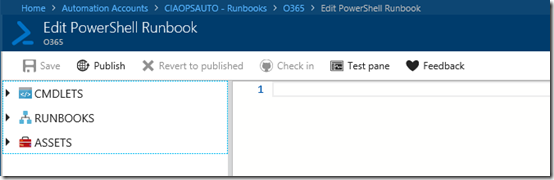
This should then take you to an editor where you can enter your code as shown above.

Rather then re-inventing the wheel you can use my code here:

https://github.com/directorcia/Azure/blob/master/runbook/scripts/O365.ps1

which you can just copy and paste in place.
image

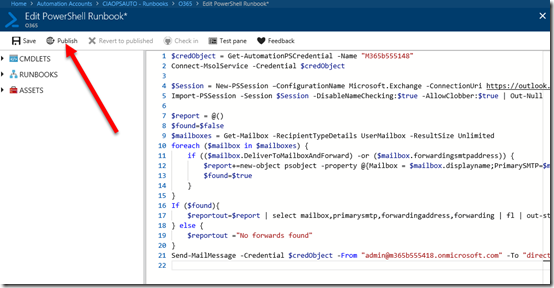
With that done, your screen should look like the above.

A few things to note here. Ensure that you change the name in the first line of the code to match the name of the credential you created earlier because it is from here that the login details for the Office 365 tenant will be sourced. You will also need to change email addresses on the last line of the script to match your environment. Remember, if you don’t I’ll know who it is!

The code is pretty short and sweet. All it does is look for any account that has any sort of forward enabled and sends those details through. If no forwards are found you’ll also get a message indicating that.

Feel free to modify and improve the script as you see fit, this version is simply designed to demonstrate what is possible.

When you have finished editing your script, select Publish in the top left as shown. Remember to always do this anytime your code changes or is updated.
image

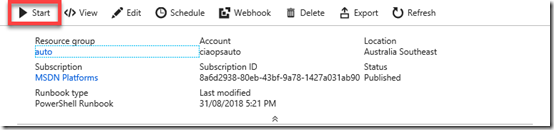
You’ll now be taken back to to the Runbook overview. Here, select the Start button in the menu to run the script immediately.
image

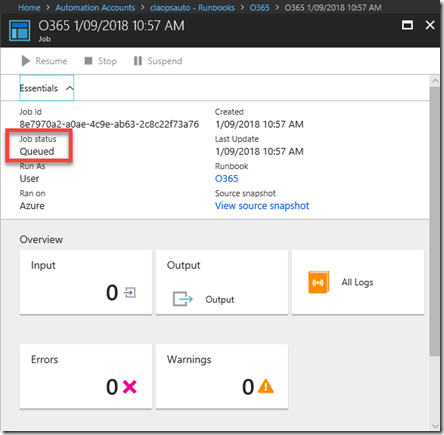
You will now be taken to the Job summary page as shown above. You can check on the progress of the job from the Job Status field as shown.

The job will first be queued and then run.
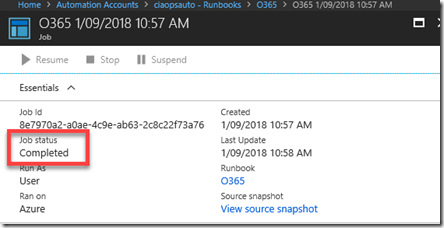
image

In a matter of moments the job should complete as you see above. If there are any errors or exceptions with your code then they will be visible in this summary page.
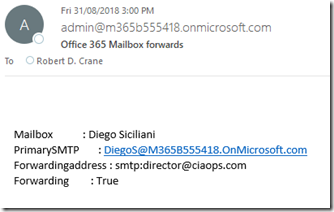
image

If everything went to plan, you should see an email like that shown above indicating the process has completed successfully.
image

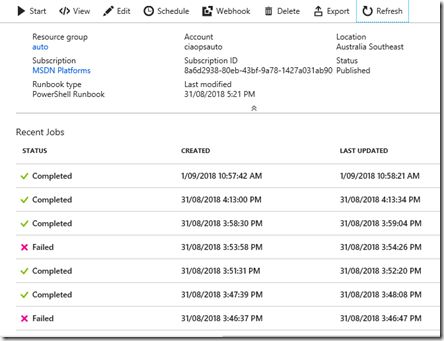
Each job run is recorded in a log on the summary page as shown above. Clicking on that job will give you more details.
image

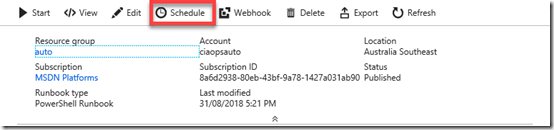
Now, we started this whole process with the aim of automating something so now we need to do this once we have confirmed our script is running as expected.

From the Runbook menu across the top select Schedule.
image

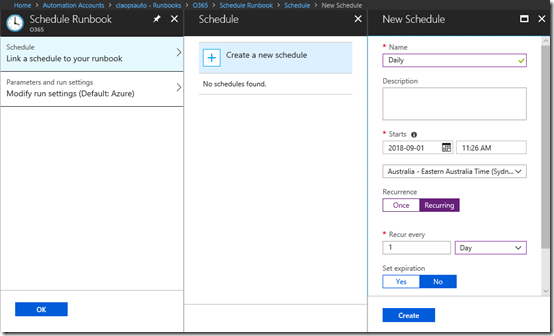
Complete your desired schedule for this process. Typically, it will be daily as shown above. When you have configured the desired options select Create and your job will now run on that schedule.

You can return to Azure Automation at any time to view and adjust your job but always remember to Publish your code if you make any changes.

Hopefully, I’ve shown you how straight forward it is to use Azure Automation with PowerShell scripting to target regular processes for you Office 365 tenants. There are many, many things you can automate thanks to PowerShell and Azure, so go forth and automate!