How to present Office 365

I’m working on a new course for my online training academy that will give people a framework for successfully presenting Office 365 to prospects, clients and colleagues.

Having presented this material in face to face classroom sessions I was really looking to incorporate the “whiteboard” experience on screen. What I therefore decided to try was using the Windows 10 OneNote app on my Surface 3 along with the Surface pen to see how well it would work while obviusly recording the whole thing.

My trial attempt is shown above and I think it worked pretty well. Obviously, there will need to be some polishing done before I release the final version of the course material, which will also contain more tutorials on how to present each individual service such as Delve.

Have a look and let me know what you think at the rough draft of on screen “whiteboarding”. Also, if you have played with OneNote and a pen then I suggest you do as OneNote is a great hand notetaking tool as hopefully the video illustrates. Of course if you want to find out when the course on Presenting Office 365 becomes available then stay tuned here or sign up for free at my online academy:

www.ciaopsacademy.com

Moving OneNote notebooks to OneDrive

The problem is that SharePoint 2010 no longer has mainstream support. Thus, it is therefore time to move everything off that platform including OneNote notebooks. Now you could easily move it to Office 365 but what if you wanted to move your OneNote notebooks to the consumer onedrive.com instead? Here’s how you can do that.
image

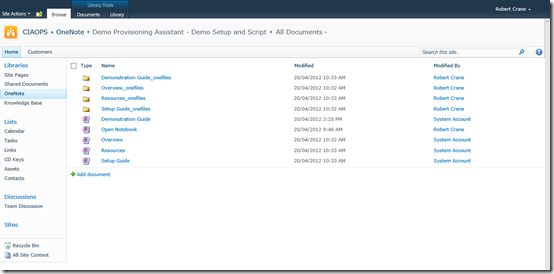
In my case, I have a number of ‘nice to have’ notebooks hanging around on an old hosted SharePoint 2010 site. They are currently stored in their own Document Library called OneNote. One such notebook called SharePoint Bootcamp and when you drill into its current location you see the above structure.
image

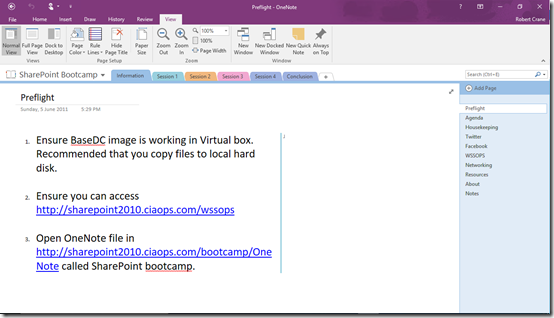
Because the SharePoint 2010 hosting service I was using didn’t include Office Online it meant that they only way I could see the contents of my notebook was to open and sync it with OneNote on the desktop as you see above.

All versions of SharePoint provide a great repository for OneNote files and allow them to be opened by multiple people and multiple devices and have them all in sync. Truly brilliant and if I hadn’t chosen to move away from SharePoint 2010 they could happily stay in place, working as they always did.

Now, the recommended process to move a notebook is laid out here:

Move a OneNote notebook that you’ve shared with others

It basically suggests you create a new notebook in the destination and copy the original sections over. That was just too much work for me so my approach was simply to change the source location of the notebook and have it sync to there.
image

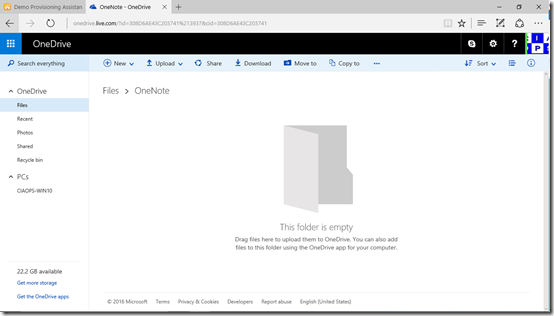
Now the challenge of moving a notebook to OneDrive consumer is that you need to go via an indirect method as you can’t simply use OneNote to complete the move.

The first step in my process was to login to my consumer OneDrive and create a new OneNote folder just to keep things tidy.

image

Next, I went in and created a new blank OneNote notebook here from the New menu at the top of the page as shown above.
image

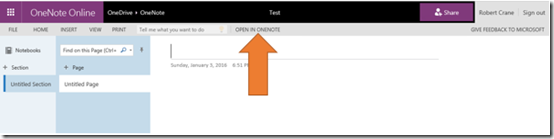
After you have given your new notebook a name it will open in a browser like that shown above. Select the option in the middle at the top of the page, Open in OneNote.

image

This will then open the notebook using OneNote on the desktop. Right mouse click on the name of the notebook in the top left and from the menu that appears select Properties as shown above.

image

You should see the current location as being your OneDrive consumer. Select the Change Location button on the right.
image

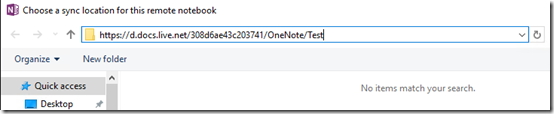
This should open a Windows File Explorer dialog as shown above. If you select the path box at the top of the page you should see the full path. Copy the full path to the clipboard and close the dialog as you are not going to change the location of this temporary notebook.
image

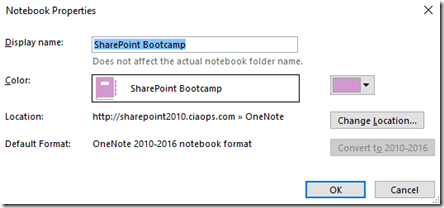
Locate the notebook you wish to move in the desktop version of OneNote. Right mouse click on the name and select Properties from the menu that appears as before.

As you can see this notebook is located in hosted version of SharePoint. Select the Change Location button as before.

image

Once again, the Windows File Explorer will launch. Paste the file location you copied previously at the top of the page. Make sure you remove the trailing temporary notebook name and only leave the folder structure i.e. from

https://d.docs.live.net/308d6e43c203741/OneNote/test

to

https://d.docs.live.net/308d6e43c203741/OneNote/

and press Enter.

Windows File Explorer should update the location as shown above. You should now see a folder for the temporary notebook you created. Simply press Enter to save the original notebook into this new location.
image

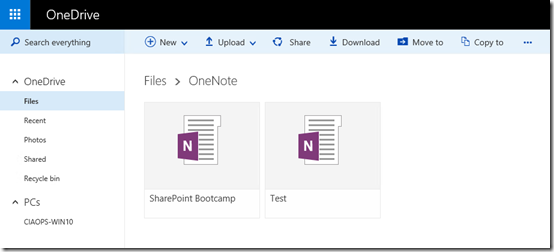
Once the notebook has moved and synced to the new location, if you look in OneDrive consumer you should see two notebooks as shown above. The original temporary one (which you can now delete) and the second one you relocated from the original location (here SharePoint Bootcamp).

image

The desktop version of OneNote will now sync the notebook to this new location in OneDrive consumer. This means you can return to the original SharePoint 2010 location and delete the source files.

The big benefits for me of moving notebooks into OneDrive consumer is that they are simple to sync on every device and that I can access them also directly from a web browser which I couldn’t before.

So in summary, you can simply move a OneNote notebook by changing its location via the notebook properties. Obtaining the location for OneDrive consumer can be a little tricky but as I have shown here it isn’t too difficult to find.

Office 365 planner

I was very excited to see Microsoft announce the Office 365 planner after rumours had abounded. You can read the Microsoft blog post here:

https://blogs.office.com/2015/09/22/introducing-office-365-planner/

Introducing Office 365 Planner 2

The reason I am excited (and should every IT Reseller) is that it offers yet another revenue stream opportunity. Why? It would be hard for me to find a I business that I deal with that doesn’t need some form of project management and need help doing just that.

Yes, you can do project management in SharePoint but SharePoint but be somewhat intimating for businesses still migrating from the old world of files and folders. A dedicated ‘planner’ app in Office 365 makes so much sense and open up so much opportunity.

What I also find interesting is the look as you can see from the above image taken from the Microsoft blog post. It looks very much like Delve, which I think is great. This is an indication of the direction Microsoft is heading with the whole Office 365 product. I wrote an article a while back about important I believe Delve is, which you can review here:

Delve should be the center of your Office 365 universe

Another point (and opportunity to note) is there is that every plan includes a OneNote notebook, much like Office 365 groups. I am a huge fan of OneNote and user it every day on every device I have. OneNote again is a huge opportunity got resellers to demonstrate how much productive customers can be if they start using OneNote in their business.

Although the Office 365 planner isn’t available yet, it will be soon along we a whole raft of updates and improvements. Office 365 just keeps getting better and better, for customers and resellers!

A mobile device must have

A while back I wrote an article about how I use OneNote. You can find it here:

One of the ways I use OneNote

It showed how to get a personal OneNote notebook up and running with Office 365 and access it on all your devices. It also detailed the process that I use to create my shared ‘Daybook’ notebook which I basically use as a replacement for a traditional pad and pen.

One of the must have add-ons for OneNote in my books is Office Lens from Microsoft. The way Microsoft tout it is as a OneNote scanner for your pocket.

You start by downloading the Office Lens app on your mobile device:

Here for Android

Here for iOS

Here for Windows Phone

Once you have the app on your device you can use it capture things like business cards, white boards and even documents. To do this you simply use the Office Lens app to take a picture of the information. Once captured you can then save it in a variety of locations, including OneNote.

image

The way I use it is to capture expenses when travelling as you can see in the above screen shot. Here, I’ve taken a picture of a petrol receipt using Office Lens on my mobile and then uploaded that to my cloud shared OneNote notebook. This then makes that available to every device automatically thanks to the syncing wonders of OneNote.

When I return to my desktop, I can bring up the same OneNote notebook and view the receipt. Even better, I can use OneNote pages and sections to categorise the information so I know for example which trip it was part of. Even better, the information inside the receipt has been made searchable. Thus, as the highlight in the above screen shot demonstrates, I have searched for the text ‘invoice’ and OneNote found and highlighted that text inside the receipt (i.e. inside a picture I took on my mobile device!).

Can you imagine how much easier it would be to record all your casual receipts like this? Once they are captured with Office Lens, they can be uploaded to you OneNote notebook saved in the cloud. There they are not only backed up and saved, they are also searchable and easily ordered if required.

It really is amazing at how well Office Lens works with receipts and whiteboards. Combined with cloud based OneNote notebooks it creates a great system for not only capturing but also retaining and organising information for individuals and also for businesses. Image a system where travelling staff can capture their receipts directly into OneNote so they can be processed quickly by admin staff back in the Office.

Think of how much time it takes you or your staff to do paper based expense reports now. Think of all the space consumed by those paper expense reports. Also, what happens to the receipts after they have been processed? How long do they need to be retained for tax purposes? Many receipts are printed on thermal paper which fades over time. That is not good if they need to be retained.

Having a digital copy has so many benefits and combined with cloud based notebooks like OneNote, it can greatly increase the productivity of your staff and your business. The best bit is that both OneNote and Office Lens are already free and if you have Office 365 or OneDrive.com (also free) you can take advantage of cloud synced notebooks to share the information between devices or between a team.

So if you enjoyed my previous OneNote article and are using OneNote synched notebooks, now you can take your productivity to the next level by using Office Lens. You can get even more done in your day by making the capture, retention and sharing of information simple and digital.