

OneNote’s strength lies in its flexibility and integration, making it much more than just a digital notepad.
Here are ways to better leverage OneNote, highlighting commonly overlooked features with detailed examples:
I. Enhancing Collaboration and Knowledge Sharing
-
Overlooked Feature: Deep Internal Linking (Beyond Basic Page Links)
- What it is: Creating links not just to other pages or sections, but directly to specific paragraphs within a OneNote page.
- Why it’s powerful: Allows for incredibly granular cross-referencing. You can connect specific action items in meeting minutes directly to the relevant background information in a project brief, or link a step in an SOP directly to a detailed explanation elsewhere.
- Detailed Example:
- Scenario: Your team is working on Project Alpha. You have a central “Project Alpha Overview” page, separate pages for “Meeting Minutes,” and a “Technical Specifications” section.
- How to use: In the “Meeting Minutes – Oct 26” page, you record an action item: “ACTION: Sarah to verify server capacity requirements.” Instead of just linking to the entire “Technical Specifications” section, right-click the specific paragraph discussing server capacity in the “Server Specs” page and select “Copy Link to Paragraph.” Then, paste this link next to Sarah’s action item in the meeting minutes.
- Benefit: When Sarah (or anyone) reviews the action item, clicking the link jumps them precisely to the relevant paragraph about server capacity, saving significant time hunting for the information. This creates a highly interconnected and efficient project knowledge base.
- Scenario: Your team is working on Project Alpha. You have a central “Project Alpha Overview” page, separate pages for “Meeting Minutes,” and a “Technical Specifications” section.
- What it is: Creating links not just to other pages or sections, but directly to specific paragraphs within a OneNote page.
-
Overlooked Feature: Using Tags for Actionable Insights (Beyond Simple To-Do)
- What it is: OneNote has built-in tags (To Do, Important, Question) but also allows creating custom tags. You can then use the “Find Tags” feature to generate summary pages based on these tags across multiple pages, sections, or even entire notebooks.
- Why it’s powerful: Turns scattered notes into organized, actionable lists. Perfect for tracking decisions, follow-ups, ideas, or specific types of information across various contexts (meetings, projects, client notes).
- Detailed Example:
- Scenario: A customer support team uses a shared OneNote notebook for tracking complex support issues.
- How to use: They create custom tags like
?WaitingOnClient,!EscalateToTier2,#FeatureRequest,@ClientName. During calls or investigations, agents tag relevant notes accordingly.
- Benefit: At the end of the week, the team lead can use “Find Tags” -> “Create Summary Page.” They can generate a page listing all items tagged
!EscalateToTier2to review escalations, another for#FeatureRequestto send to the product team, or filter by@ClientNamecombined with?WaitingOnClientto see all pending client responses for a specific customer. This aggregates critical information instantly.
- Scenario: A customer support team uses a shared OneNote notebook for tracking complex support issues.
- What it is: OneNote has built-in tags (To Do, Important, Question) but also allows creating custom tags. You can then use the “Find Tags” feature to generate summary pages based on these tags across multiple pages, sections, or even entire notebooks.
-
Overlooked Feature: Standardized Templates for Consistency
- What it is: Creating custom page templates that can be applied when creating new pages within a section.
- Why it’s powerful: Ensures consistency in note-taking for recurring tasks like meeting minutes, project status reports, client intake forms, or employee onboarding checklists. Saves time and standardizes information capture.
- Detailed Example:
- Scenario: A project management office (PMO) wants all project managers to follow a consistent format for weekly status reports.
- How to use: They create a page with predefined sections: “Key Accomplishments This Week,” “Planned Activities Next Week,” “Risks/Issues,” “Decisions Needed,” “Budget Update.” They then save this page as a template (usually via Page Templates pane -> Save current page as a template). They can even set this template as the default for the “Status Reports” section in the shared PMO notebook.
- Benefit: Every time a PM adds a new page in the “Status Reports” section, it automatically uses this structure. This makes reports easier to write, read, and compare across projects.
- Scenario: A project management office (PMO) wants all project managers to follow a consistent format for weekly status reports.
- What it is: Creating custom page templates that can be applied when creating new pages within a section.
II. Improving Information Capture and Retrieval
-
Overlooked Feature: Audio Recording Synced with Notes
- What it is: Recording audio directly within OneNote while simultaneously typing notes. OneNote timestamps your notes relative to the audio playback.
- Why it’s powerful: Captures the full context of conversations (meetings, interviews, client calls) that might be missed in typed notes. Clicking on a note you typed later will jump the audio playback to the exact moment you typed it.
- Detailed Example:
- Scenario: An HR representative is conducting an employee interview. They are taking notes in OneNote but want to ensure they capture nuances and exact phrasing.
- How to use: They start an audio recording (Insert -> Audio Recording) in OneNote at the beginning of the interview. As they type key points, OneNote subtly links the text to the recording timestamp.
- Benefit: When reviewing the notes later, if a typed point like “Candidate mentioned interest in X role” seems unclear, clicking that text will instantly play the audio recording from the moment the candidate discussed it, providing full context and exact wording without having to scrub through the entire recording.
- Scenario: An HR representative is conducting an employee interview. They are taking notes in OneNote but want to ensure they capture nuances and exact phrasing.
- What it is: Recording audio directly within OneNote while simultaneously typing notes. OneNote timestamps your notes relative to the audio playback.
-
Overlooked Feature: Powerful Search Capabilities (OCR & Audio Search)
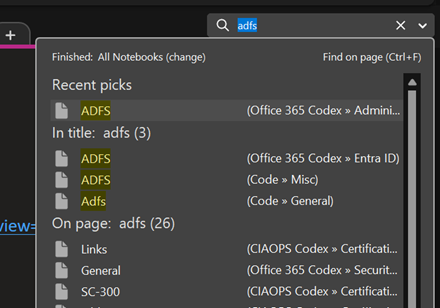
- What it is: OneNote search goes beyond typed text. It performs Optical Character Recognition (OCR) to search text within inserted images (like photos of whiteboards, scanned documents) and can even search for spoken words within audio and video recordings (requires indexing, may take time after insertion).
- Why it’s powerful: Makes ALL inserted content searchable, not just typed notes. Find information hidden in images or meeting recordings instantly.
- Detailed Example:
- Scenario: An engineering team takes photos of whiteboard brainstorming sessions and inserts them into their project notebook. A marketing team records brainstorming audio sessions.
- How to use (OCR): Weeks later, an engineer needs to find the diagram related to the “power coupling.” They simply search “power coupling” in OneNote. OneNote search results will include the image of the whiteboard where that term was written.
- How to use (Audio): A marketing team member needs to recall when the term “Synergy Campaign” was discussed. Searching for “Synergy Campaign” can highlight the audio recordings where that phrase was spoken (allow time for indexing after recording/inserting).
- Benefit: Dramatically increases the value of visual and audio information capture, making it easily retrievable later.
- Scenario: An engineering team takes photos of whiteboard brainstorming sessions and inserts them into their project notebook. A marketing team records brainstorming audio sessions.
- What it is: OneNote search goes beyond typed text. It performs Optical Character Recognition (OCR) to search text within inserted images (like photos of whiteboards, scanned documents) and can even search for spoken words within audio and video recordings (requires indexing, may take time after insertion).
-
Overlooked Feature: “Send to OneNote” Tool & Web Clipper
- What it is: The “Send to OneNote” tool acts like a virtual printer, allowing you to send content from almost any application (like a PDF report, an email thread, a document) directly to a specified OneNote page. The Web Clipper browser extension lets you easily clip articles, sections of pages, or full pages directly into OneNote.
- Why it’s powerful: Centralizes information from diverse sources into OneNote without manual copy-pasting. Great for research, collecting project resources, or archiving important communications.
- Detailed Example:
- Scenario: A research analyst is gathering information for a market report from various websites, PDF reports, and email discussions.
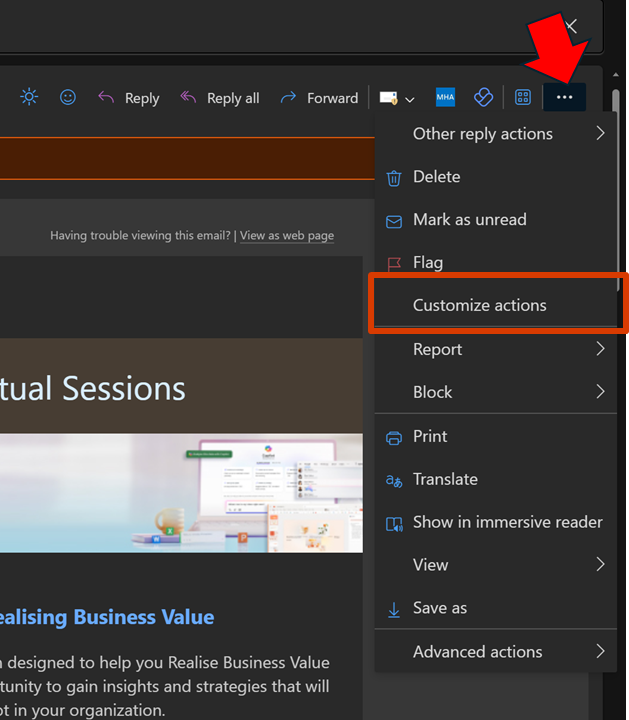
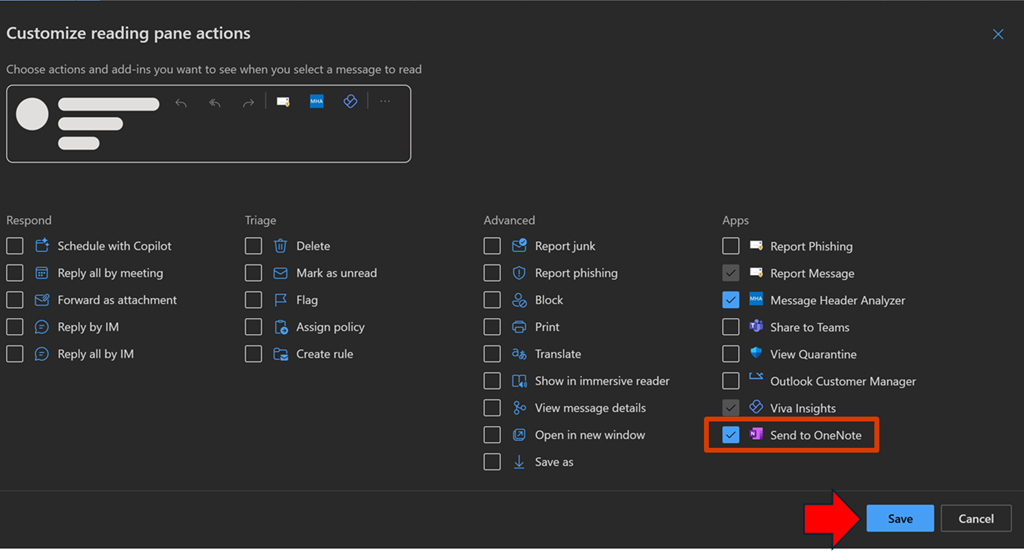
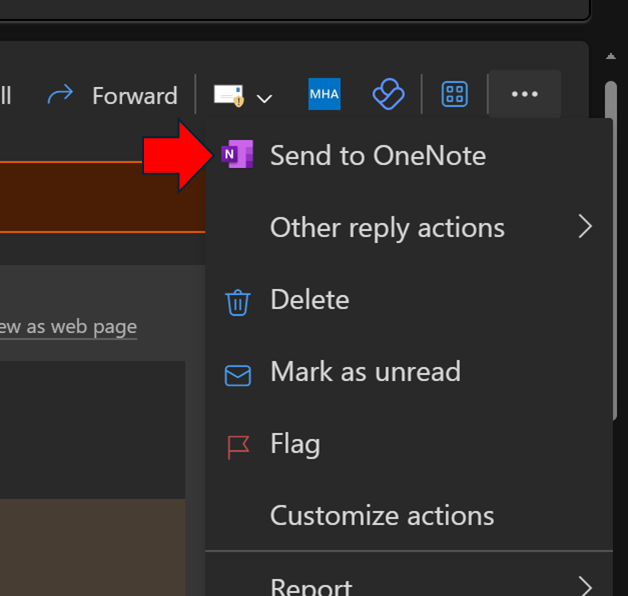
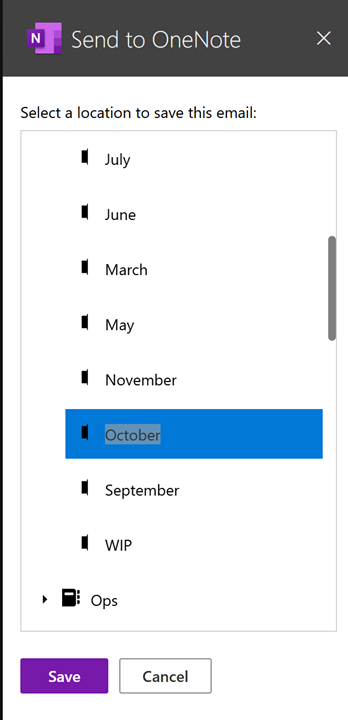
- How to use: They use the OneNote Web Clipper to save relevant web articles directly to their “Market Research” notebook section. For a crucial PDF report, they use File -> Print -> Send to OneNote. For an important email thread in Outlook, they use the “Send to OneNote” button directly within Outlook.
- Benefit: All research materials are consolidated in one searchable location within OneNote, regardless of their original format or source. This simplifies organization and later analysis.
- Scenario: A research analyst is gathering information for a market report from various websites, PDF reports, and email discussions.
- What it is: The “Send to OneNote” tool acts like a virtual printer, allowing you to send content from almost any application (like a PDF report, an email thread, a document) directly to a specified OneNote page. The Web Clipper browser extension lets you easily clip articles, sections of pages, or full pages directly into OneNote.
III. Streamlining Personal and Team Workflows
-
Overlooked Feature: Integration with Outlook Tasks
- What it is: You can flag notes or lines of text within OneNote as Outlook Tasks, complete with due dates and reminders. These tasks then appear in your Outlook To-Do list.
- Why it’s powerful: Connects note-taking and action items directly to the primary task management system for many users (Outlook). Ensures follow-ups captured in meetings or notes aren’t forgotten.
- Detailed Example:
- Scenario: During a team meeting documented in OneNote, several action items are assigned.
- How to use: Select the text of an action item (e.g., “John to finalize budget proposal”). Right-click (or use the Home tab) and select the Outlook Tasks flag. Choose a due date (e.g., “Tomorrow”).
- Benefit: This action item now appears in John’s Outlook Tasks list, with a link back to the original OneNote page for context. He gets reminders via Outlook, integrating his notes directly into his daily workflow.
- Scenario: During a team meeting documented in OneNote, several action items are assigned.
- What it is: You can flag notes or lines of text within OneNote as Outlook Tasks, complete with due dates and reminders. These tasks then appear in your Outlook To-Do list.
-
Overlooked Feature: Version History for Pages
- What it is: OneNote automatically saves previous versions of a page whenever changes are made (especially in shared notebooks). You can view and restore previous versions.
- Why it’s powerful: Acts as a safety net against accidental deletions or unwanted changes. Provides an audit trail in collaborative environments to see who changed what and when. Allows reverting to earlier ideas.
- Detailed Example:
- Scenario: A team is collaboratively editing a project plan in a shared OneNote notebook. Someone accidentally deletes a critical section.
- How to use: Right-click the page tab (or go to History tab -> Page Versions). A list of previous versions with timestamps and author appears. Find the version before the deletion occurred and click “Restore.”
- Benefit: The deleted content is instantly recovered. Alternatively, if there’s confusion about why a certain decision was documented, viewing page versions can show who added that text and when, facilitating clarification.
- Scenario: A team is collaboratively editing a project plan in a shared OneNote notebook. Someone accidentally deletes a critical section.
- What it is: OneNote automatically saves previous versions of a page whenever changes are made (especially in shared notebooks). You can view and restore previous versions.
Actionable Steps for Your Business:
- Assess Current Usage: Understand how teams are currently using OneNote. Are they aware of these features?
- Targeted Training: Don’t just do generic OneNote training. Focus sessions on specific features relevant to different roles (e.g., Project Managers on Tags & Templates, Researchers on Web Clipper & Audio Recording, All Staff on Internal Linking & Outlook Tasks). Use real business scenarios in training.
- Develop & Share Best Practices: Create simple guides or internal knowledge base articles (perhaps in a shared OneNote!) demonstrating how to use these features effectively for common company workflows. Define naming conventions for shared notebooks/sections.
- Promote Template Usage: Identify key recurring documents/notes (meeting minutes, project updates) and create official company templates. Encourage or mandate their use for consistency.
- Appoint OneNote Champions: Identify enthusiastic power users within different teams who can help colleagues, share tips, and provide feedback on what’s working.
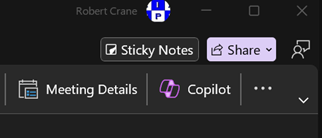
- Encourage Integration: Ensure employees know how to connect OneNote with Outlook (Tasks, Meeting Details) and potentially Microsoft Teams (OneNote tab in channels).
By actively promoting and training employees on these often-overlooked OneNote features, your business can significantly enhance collaboration, knowledge management, and overall productivity.

 CIAOPS