With the move to OneDrive for Business from SkyDrive Pro Microsoft has also announced the availability of a stand alone OneDrive for Business plan. It is clearly aimed as a ‘Dropbox killer’ so I thought I’d take a look under the covers and see exactly what it is.
I signed up for a trial at:
https://onedrive.live.com/about/en-us/plans/
and for that I received

The sign up process is just like any other Office 365 plan.

You complete all the address details, create an admin login and password and then you are live. This trial was for 25 users of OneDrive for Business.

After creating the admin account you are immediately signed into the Office 365 Administration Portal which is identical to any other plan. However, you will note that the top menu has the items Newsfeed and Sites listed as shown above. These disappear after a short while (obviously some provisioning happening in the background).

When I checked the subscriptions I could see what I expected, 25 licenses of OneDrive for Business.

When you actually check the license assigned to the user you see they have rights to Office Online (the old Office Web Apps) and OneDrive for Business (Plan 1).
Now that’s interesting. Firstly you can remove the ability to view document in a browser by removing the Office Online license but even more interestingly what’s this (Plan 1) thing about? My thoughts on this further on.

Upon returning to the main administration page I saw that Newsfeed and Sites no longer appeared in the menu bar at the top of the page.

So being logged on as the administrator account I thought I’d next have a look at the SharePoint admin center.

To do this you select the Admin option from the menu bar across the top and then SharePoint from the menu that appears.

Doing so takes me to the familiar SharePoint admin center common to both Enterprise and Mid-sized Business plans. What you will also see is that I have three standard SharePoint Team Sites provisioned! Say what? So not only do I get personal a OneDrive for Business for each licenses user but I ALSO get a standard SharePoint Online shared Team Site. More importantly, via this interface I can also create more shared sites it would seem. Interesting.

The other thing to note here is that I have approximately 25GB of free pooled space I can allocate! So each user gets the standard 25GB for OneDrive for Business as you do with any SharePoint Online plan BUT you also seem to get additional shared space as a bonus.

With normal SharePoint Online plans as you find details at:
http://office.microsoft.com/en-au/office365-sharepoint-online-enterprise-help/sharepoint-online-software-boundaries-and-limits-HA102694293.aspx
You only get 0.5GB of additional shared storage per licensed user. Here with OneDrive for Business Stand Alone plan it seems you get 1GB per licensed user. That explains the additional 25GB of pooled space I am seeing. It also indicates to me that all SharePoint plans will soon change to add 1GB per user to shared storage (I wonder how long that will be? Not long I’ll bet).

If I now actually click on the OneDrive option from the menu I get a video to watch and I’m told to wait. This is very much like what happens with OneDrive for Business with any standard SharePoint Online plan.

After a few more moments I am deposited in the familiar OneDrive for Business web interface (like the old SkyDrive Pro in many ways). So this user now has 25GB of personal storage they can use to sync their files.

With the personal space set up I navigate to the shared Team Site and sure enough it comes up like any standard SharePoint Online shared Team Site as you can see above.

My next question is, ‘That’s great, but exactly which SharePoint Online plan is it? 1 or 2?’. To find out I edit the home page and look at the web parts available in the Business Data section shown above.

If I now look at the same location but on an E3 tenant (i.e. that includes SharePoint Online Plan 2), you’ll see there are lots more web parts available in the same area including those for Excel Web Access and Visio Web Access, both exclusive features of SharePoint Online Plan 2.
So, my conclusion is that OneDrive for Business Stand Alone plan is basically like (if not identical) to SharePoint Online Plan 1. Given that it also includes Office Online the plan that it is probably more identical to is Office Web Apps Plan 1.
Here’s where my thinking on what the license saying OneDrive for Business (Plan 1) Stand Alone is all about as I pointed out earlier. My guess would be that we are going to see a OneDrive for Business (Plan 2) Stand Alone that will perhaps include more storage and SharePoint Online Plan 2 as the default Team Site. Only speculation on my part, but it seems logical to me.

Now I do a double check on OneDrive for Business Stand Alone Plan including SharePoint Online Plan 1 by looking at the web parts in the Forms section.

In the same area on my E3 plan (that includes SharePoint Online Plan 2) I see the InfoPath Form Web Part as shown above. So, I’m now pretty confident that OneDrive for Business Stand Alone includes the full Office Web Apps Online Plan 1 in its offering. Bonus!

With other SharePoint Online plans you have a menu item called Sites at the top. When you select that you get a list of promoted sites and what you see is like that shown above from an E3 tenant.

Even though the Sites menu option is not displayed in the OneDrive for Business Stand Alone plan I manually entered in the appropriate URL but was greeted with a 403 Forbidden as you see above. So there is one difference, the Sites URL doesn’t work!
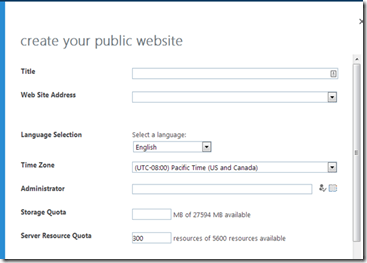
I then attempted to create a public website in the OneDrive for Business Stand Alone plan and it seemed to allow me. However, I couldn’t select a Web Site Address. It seems like that might be blocked but I’ll need to have a fiddle to see whether that is really the case or me just not doing something. But, it certainly seems possible.

There is a lot more to this OneDrive for Business Stand Alone plan than meets the eye and I’ll need to investigate further and report back. However, to round off I took a look at what happens when you want to actually convert the plan to a paid subscription. I had created 2 users and when I wanted to convert I was asked to pay for these two users as well as any additional space. Total cost would have been $5.00 ( 2 x $2.50 ) per month, on special ($10 normally). Pretty good value for what you are getting from what I see.
Summary
So it seems to me that OneDrive for Business Stand Alone on first glance:
– is almost identical to Office Web Apps Plan 1 that includes SharePoint Online Plan 1 and Office Online (the new Office Web Apps).
– provides each licensed user with a default of 25GB of personal storage in their own OneDrive for Business as with any other SharePoint Online plan
– can have additional pooled storage added that can be allocated to any existing users personal OneDrive for Business to take any personal OneDrive for Business up to a current maximum of 1024GB. Again, just like any existing SharePoint Online Plan.
– includes shared Team Sites accessible via the standard SharePoint admin center just like all E and M plans.
– seems to include an additional 1GB per licensed user of pooled storage that can be allocated to either the shared Team Site or an individual users OneDrive for Buiness. Other SharePoint Online plans currently only provide 0.5GB per licensed user (but I get the feeling that will change).
– seems that there maybe additional stand alone plans coming that include more storage and the features of SharePoint Online Plan 2 (i.e. Visio, Excel, Access services, etc).
For the cost, you get a lot of the features of SharePoint Online which is great. However, that still makes it a little more difficult for people to use when compared to other file syncing options like DropBox. However, if you want enterprise functionality and collaboration OneDrive for Business stand alone stands out.
I’ll be doing further deep dives into this OneDrive for Business Stand Alone plan very soon so stay tuned.


 CIAOPS
