Need to Know podcast–Episode 93

In this episode I’m joined by Amy Babinchak to chat about Azure for SMB. We talk about the opportunities Azure provides as well as how to get started using Azure. Amy shares her experience with converting Azure services into revenue opportunities you can utilise with your clients. There is the usual news updates to keep you current with everything that is happening in the cloud.

A big thank you to Marc Kean for all his work producing this episode.

You can listen to this episode at:

http://ciaops.podbean.com/e/episode-93-amy-babinchak/

or subscribe to this and all episodes in iTunes at:

https://itunes.apple.com/au/podcast/ciaops-need-to-know-podcasts/id406891445?mt=2

The podcast is also available on Stitcher at:

http://www.stitcher.com/podcast/ciaops/need-to-know-podcast?refid=stpr

Don’t forget to give the show a rating as well as send me any feedback or suggestions you may have for the show. I’m also on the hunt for some co-presenters so if you are interested on being a regular part of the show please contact me.

Resources

New CIAOPS Academy

Skype for Business Basic

Skype for iOS

Office Lens

New OneDrive Sync client

Third Tier

Enterprise Mobility Suite

Azure AD Domain Services

Configuring the Azure SSO portal

Changing the default SharePoint list forms using InfoPath

image

In a recent post I showed you how you could access InfoPath with Office 2013. Even though Microsoft has deprecated InfoPath 2013 it is still supported for quite a while and is a quick and easy way to start customising the look and feel of SharePoint, especially forms.

When you enter information into a standard SharePoint list you get the standard ‘look and feel’ as you see above.

image

You can modify this ‘look and feel’ using InfoPath. To do this select the List tab at the top of the page.

image

Then in the Customize list section to the right, select the Customize in InfoPath button.

image

You should now see InfoPath launch on the desktop (you’ll obviously need it installed on the local desktop prior).

image

In the middle of the page you will see a form like the one you saw when in SharePoint but in a different layout, font, style, etc.

image

Don’t make to changes to anything but simply select the Quick Publish button on the quick launch toolbar in the top left. It is the third button from the left as shown above.

image

You can also select File | Quick Publish if the quick start button is unavailable.

image

After a few moments you should receive a message that the form was successfully published as shown above.

image

If you now return to SharePoint and edit or create a new item you will see that that the form displayed has changed to match that from InfoPath as shown above. InfoPath has in effect has created new display, edit and create forms for this list in SharePoint.

The idea now will be to start customising these forms further using InfoPath and then ‘publishing’ them back to the SharePoint site. However, that will be the subject of upcoming posts.

image

Now what happens if you want to revert back to the original SharePoint forms and remove the InfoPath ones? To do this, select the Sites tab and then the List Settings button from the ribbon.

image

Then select Form settings at the bottom of the first column on the left which has the heading General Settings.

image

Select the option to Use the default SharePoint form (and optionally to Delete the InfoPath form from the server).

image

Now when you return to work with the list you should see the default SharePoint form displayed as shown above.

CIAOPS Getting Started with Office 365 Administration online course

o365

You may have seen on my Twitter feed all the new online courses I have been posting up. You can of course take these courses individually but I have now combined them all into a single course;

Getting Started with Office 365 Administration

The course includes the following material:

1. Configuring Office 365, licensing and creating users

  • 1.1 Create a trial Office 365 tenant via the web
  • 1.2. Create Office 365 tenant via Volume Licensing
  • 1.3. Set Partner of Record
  • 1.4. Managing licensing, subscriptions and domains
  • 1.5. Adding cloud users
  • 1.6. Office 365 administration roles
  • 1.7. Company profile and theming
  • 1.8. Managing Office 365 Service Settings

2. Configuring users for email on the web and via Outlook

  • 2.1. Using Outlook on the Web
  • 2.2. Using Outlook on the desktop
  • 2.3. Shared mailboxes
  • 2.4. Configuring mailbox options
  • 2.5. Office 365 groups

3. Configuring shared Document access via office 365 Team Sites

  • 3.1. Accessing SharePoint Online
  • 3.2. Uploading Documents to Team Sites
  • 3.3. Adding apps to Team Sites
  • 3.4. Creating sub-sites in Team Sites
  • 3.5. Administrating SharePoint Online

4. Working with private documents using OneDrive for Business

  • 4.1 The difference between OneDrive and Team
  • 4.2 Uploading documents to OneDrive for Business
  • 4.3 Synchronising Office 365 files to the desktop
  • 4.4 Sharing Office 365 documents
  • 4.5 Using the SharePoint Recycle Bin

5. Collaborating using Delve, Yammer and SharePoint

  • 5.1. Using Delve
  • 5.2. Enabling Enterprise Yammer
  • 5.3. Using Enterprise Yammer
  • 5.4. Using Office 365 video
  • 5.5. Editing office 365 User Profiles

6.  Integrating Skype for Business for all users in Office 365

  • 6.1. Install Skype for Business client
  • 6.2. Enabling external Skype for Business communications
  • 6.3. Adding contacts in Skype for Business
  • 6.4. Scheduling online meetings using Skype for Business
  • 6.5. Conducting Online meetings using Skype for Business

7. Configuring and managing synchronised Office 365 users

  • 7.1. Understanding Office 365 identity management
  • 7.2. Installing Azure AD connect
  • 7.3. Syncing local AD user to Office 365
  • 7.4. Managing users with synchronised identities
  • 7.5. Troubleshooting synchronised users

8. Office 365 PowerShell

  • 8.1. Configuring Office 365 PowerShell access
  • 8.2. Managing users with PowerShell
  • 8.3. Managing mailboxes with PowerShell
  • 8.4. Managing SharePoint with PowerShell
  • 8.5. Managing Skype for Business with PowerShell

With more lessons coming soon.

Each lesson includes a short video tutorial as well as downloadable lesson notes. Each lesson also includes a number for questions to test your knowledge and understanding on the topic.

To celebrate the launch of this new course I have a number of discount coupon codes that will provide a discount of 10% off the normal price of this complete course. I only have a limited number of these coupons so please contact me via email (director@ciaops.com) to receive yours. I expect these coupons to go fast so if you are reading this after November 2015, I’d suggest there won’t be any left. So hurry.

Going forward I’m planning migrate much of my published content into these online courses. You can check out what is there via:

CIAOPS Academy

Where you will find each individual course plus aggregated courses like Getting Started with Office 365 Administration.

Keep you eyes peeled for more courses launching soon.

CIAOPS Configuring and managing synchronised Office 365 users online course now available

sync

If you want to understand how to configure and manage the synchronisation of users from a local Active Directory to Office 365 then you can now do so thanks to my latest course:

Configuring and managing synchronised Office 365 users

Each lesson contains a short video tutorial, downloadable course notes and a quiz to test your knowledge. You can also ask questions and provide feedback to gain even more knowledge.

You’ll find this and a growing number of CIAOPS online courses at:

http://ciaops-academy.teachable.com/

Got a suggestion for a course you’d like to see me do? Then don;t be shy, let me know either via Twitter (@directorcia) or email (director@ciaops.com).

CIAOPS Office 365 PowerShell online course now available

combined

I’ve been working hard recently building a lot of Office 365 content that I plan to offer online. The first of these projects is now public:

PowerShell for Office 365

You can go, sign up and take the the course immediately. It is based on my original eBook from a while back but has been updated with the latest information.

Each lesson contains a short video tutorial, downloadable course notes and a quiz to test your knowledge. You can also ask questions and provide feedback to gain even more knowledge.

I am aiming to improve and extend the course over time, so please let me know what you’d like to see n future updates to the content.

As I mentioned previously, I am starting to add more and more of these online courses which you’ll find at:

http://ciaops-academy.teachable.com/

So take a look at what’s there already and keep an eye there for new material coming REAL soon!

Accessing Infopath 2013 with Office 365

InfoPath is a Microsoft Office desktop application that you can use to create intelligent forms. These forms can then be published to SharePoint Online.

The InfoPath application is part of the Office Pro Plus subscription in Office 365. This means it is typically available for those with the E3 suite. The problem is that Microsoft has announced that it will no longer be continuing to develop InfoPath and thus it will remain at the current 2013 version. However, the Office desktop software has now progressed to 2016. Thus, if you download and install Office 2016 from Office 365 as part of your subscription you no longer get InfoPath 2013 installed. You can however still download InfoPath 2013 as stand alone product if you have an Office Pro Plus subscription. Here’s the process you need to follow to do this.

image

First, login to your Office 365 web portal.

image

Select the COG in the top right hand corner of the window. This will reveal a menu as shown above. From this menu select Office 365 settings.

image

In the middle of the page select the hyperlink Install and manage software under the Software heading.

image

From the menu on the left select Tools and add ins.

image

In the middle of the page that appears now you should see a hyperlink to download and install under the InfoPath heading.

image

That will then take you the following Microsoft download page:

http://www.microsoft.com/en-us/download/details.aspx?id=48734

Where you can download the InfoPath 2013 software and install on your desktop. When you run the software you will be required to activate it using your Office 365 credentials. Note, unless you have a valid Office Pro Plus license from Office 365 you will not be able to activate and use InfoPath.

Once you have downloaded, installed and activated InfoPath 2013 you can start using to customise SharePoint, which I’ll cover in upcoming blog posts.

Praise arrived in my Office 365 tenant

image

It is a well known fact that money only motivates people to a certain level, beyond that it has little effect on improving performance and participation in an organisation. However, public recognition can provide measurable productivity and engagement improvements.

As you can see from the above image the ability to praise people has arrived in my Office 365 tenant.

image

Where do you find it this option? The ability to provide praise is found in Delve. Once you have navigated to your Delve you select the individual you wish to praise from the list on the left and then their profile page on the right. In the lower right of their profile page you will find an area, as shown above, in which you can add public praise for that individual.

If there is already praise there you will see it listed, as shown above. To add praise simple select the +praise link on the right.

image

When you do a new choice slide will appear from the right as shown above allowing you to enter text and select at suitable “badge” to go along with your praise.
image

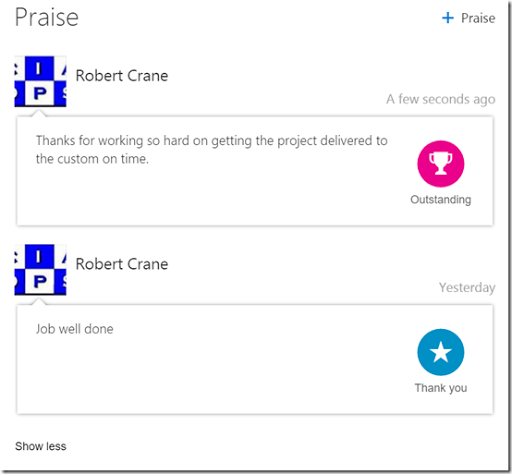
Once the praise has been saved you will see it added to any praise that has already been bestowed.

image

The user awarding the praise, as well as the person receiving it will receive an email informing them of the award.

I think this is a really great addition to Office 365 and shows to me that Microsoft is really thinking about ways to boost users productivity with Office 365. However, what concerns me is the lack of awareness of these types of features.

Features like praise are a free addition of every Office 365 tenant and should be an opportunity for resellers and IT Pros to go to their users and highlight the new included feature and help the customer understand how it can be used to improve their business. Unfortunately, I don’t see many IT Pros or resellers helping their clients use these new features, let alone even being aware of them.

That is a sad state of affairs and really devalues Office 365 and the features that it provides because 80% of the features of Office 365 remain unknown to customers. Most Office 365 implementations I run across from other providers are simply just using it for hosted email even though they have access to the full suite of services such as SharePoint, Skye for Business, Yammer, etc. as part of their Office 365 subscription.

It’s time for those that claim to be Office 365 IT Pros and resellers to truly embrace the length and breadth of the product. It is time for them to invest in understanding not only what the Office 365 product can do but also how it can help their customers business. Failing to let clients know about free additions to Office 365 like PowerBI, Azure Single Sign On portal and so on is simply a path to oblivion in the modern IT world.

Wake up and start using Office 365, the WHOLE of Office 365. If all you are doing for your customers is moving email from one location to another and NOT adding value you are going to struggle to remain valid to the customer. Office 365 offers so many opportunities to engage with customers and build unique products and services. If you don’t someone else will and if the customer is already on the Office 365 platform they have a standard platform to work with already. You have in fact made it easier for your competition to trump you.

At the very least, my call to action, is for you to start using Delve. Customers, ITPros and resellers, get to it now and use ALL the features the product provides.

Free Ask Us Webinar–October

image

We’re back with another free ‘Ask Us’ webinar on Thursday the 22nd of October 2015 from 12.30pm Sydney time. You can sign up for this events at;

http://www.cloudbusinessblueprint.com/ask-weekly-webinar

You’ll get the latest cloud news and updates. Then you’ll have the opportunity to ask any question you want and we’ll do our best to not only answer the question but show you exactly on screen.

A lots happened in the last month, especially with Office 365, so don’t miss this opportunity to catch up on all the news and see all the changes that happened recently.

I hope to see you at the event next week.