Microsoft Findtime

Microsoft has just released a new product for Office 365 that allows you to more easily schedule meetings with both people inside and outside your organisation.

Take a look at these two videos for more information.

Basically, it is a add-in for Outlook on your desktop and your Outlook Online.

image

When you select the meeting poll button you’ll get a new pane in your Outlook on the desktop like that shown above where you can select a few options for a meeting to send to every one.

image

You can then post those option into the email and send it off, in this case, to someone outside the organisation. If they were inside the organisation you would see their availability.

image

The recipient receives the email invite with a link to a page as shown above allowing them to vote on a suitable times.

image

You get the same style of interface from Outlook Online as you can see above when requesting an appointment.

image

You receive notification of those preferences as shown above.

image

Once the times are clear for everyone the meeting is automatically finalised.

image

A new calendar appointment item is automatically added to everyone inside your organisation with the meeting details as shown above.

image

While those outside the business receive a normal calendar appointment, as shown above, in an email they can accept and add to their calendar.

image

You can now also login to a web dashboard to see and manage your appointment requests as you see above.

I’ve only started to play around with Findtime but I gotta say it is really cool and is going to be a big benefit to many people. Best part? It’s free for Office 365 subscribers, so go to

http://findtime.microsoft.com

and get started today!

Enterprise Mobility Suite

https://docs.com/d/embed/D25195311-0229-9411-3450-000996151277%7eMd4186d87-61d5-259a-4d26-00a8bd86cfff

I did a presentation recently on the Enterprise Mobility Suite for Microsoft and have uploaded the slides (Above) to my docs.com for you to download if you want. You’ll find the direct link at:

https://doc.co/j28JKd/qcihGm

The main benefits I see of using the product is the fact that you get Azure AD Premium which means added features like password write back and more functionality in the Azure Single Sign On Portal amongst other things. There is plenty to commend EMS to customers but the first start for resellers is to understand the product.

Here are some additional links that I found relevant but didn’t include during my research:

Supported SaaS apps – https://azure.microsoft.com/en-us/marketplace/active-directory/

Deploying the Azure RMS connector – https://technet.microsoft.com/en-us/library/dn375964.aspx

Advanced Threat Analytics – http://www.microsoft.com/en-au/server-cloud/products/advanced-threat-analytics/

Advanced Threat Analytics Installation – https://technet.microsoft.com/en-us/library/dn707704.aspx

Although I did include this link to a presentation on Advanced Threat Analytics from Microsoft Ignite in May I’ll repeat it here because I think that anyone interested in what this product can do should take a look. It is also really cool technology as well, so even if you don’t you’d deploy I’d still encourage you to take a look.

https://channel9.msdn.com/Events/Ignite/2015/BRK3870

Office 365 E5 is here

After an announcement earlier this year Microsoft has released a new Office 365 suite plan called E5.

E5 will replace the current E4 plan that will be retired over the next 12 months. What does E5 include? Basically it includes everything E4 included but adds services like:

  • PSTN Conferencing provides the flexibility to dial in to a meeting from a traditional phone, in addition to the existing ability to join a meeting with a single click on your PC or mobile device.
  • Skype Meeting Broadcast makes it easier than ever to produce large virtual meetings for up to 10,000 meeting attendees, who can join from virtually any browser or device. Now Skype for Business truly is a single platform for every type of meeting.
  • Cloud PBX enables companies to eliminate separate PBX systems and transition to the cloud with Office 365 as the central location to manage users for communication and
  • With PSTN Calling, Office 365 customers can also subscribe to Microsoft managed calling plans and phone numbers, starting in the U.S. with more markets coming later.
  • Delve Analytics—Empowers individuals through rich dashboards that provide insights on time and relationships, with the goal of helping individuals get time back and spend it effectively.
  • Power BI—A business analytics service that enables information workers to visualize and analyze data with greater speed, efficiency and understanding through live data dashboards, interactive reports and compelling visualizations.
  • Customer Lockbox—Gives customers new approval rights, transparency and control over their data in the cloud.
  • Advanced eDiscovery—Integrates Equivio machine learning, predictive coding and text analytics capabilities, to reduce the costs and challenges that come along with sorting through large quantities of data for eDiscovery purposes.
  • Advanced Threat Protection—Protects against unknown malware and viruses by applying behavioural analysis.

For more information about the E5 SKU including pricing visit:

Office 365 Enterprise E5 overview and documentation

Join the CIAOPS Office 365 Tech email newsletter

One of the greatest challenges faced by IT Professionals today is simply keeping up with the technology. The problem is there are so many different sources that it comes from as well as the volume that it flows at.

What makes it even more difficult for todays IT Professional is that they need to be able to administer the systems as well as assist end users get the most from the same systems. This means understanding both the front and back end of systems. In effect that means keeping abreast of the twice the amount of information.

I do my best to provide the best quality of technical information via a number of sources but not all information is relevant to all audiences. With that in mind I have created an new email list dedicated to IT professionals and administrators of products like Office 365. It is aimed at providing technical information about the products in more depth to help administer them better.

You can sign up for this new CIAOPS Tech email list directly at:

http://eepurl.com/bFYpEX

If you are also interested in end user information via email I’d encourage you to sign up to my free 23 part SharePoint Online training course at:

http://bit.ly/gs-spo

because after the end of the SharePoint course the information continues with detailed emails about getting the best from Office 365 products like OneDrive, Delve and more.

Why via email? Email provides the ability to automatically collect the information, store it for later review. I have found that many people still prefer to use email as their primary source of information for these reasons.

There’ll still be plenty of detailed information in this blog and via my other social media sources as usual but if you want to receive information from me about Office 365 and the Microsoft cloud then subscribe to one or both of the above email lists as suits your needs. Of course you should also feel free to send me any suggestions, at any time, about what topics you’d like to see covered on these lists as I want them to be as relevant as possible.

As always, I appreciate people consuming what I produce via various channels and I look to continue to improve what is offered.

Office 365 Service Trust Portal

image

Security is a journey not a destination and that’s what makes it so hard when dealing with technology. One of the things that I believe that makes Office 365 the best product on the market is Microsoft’s commitment to security and compliance. A great place to start if you aren’t already aware is the

Office 365 Trust center

which has a huge amount of information around security for products like Office 365. If you have a security question about Office 365, start there.

What you may not be aware of is that Microsoft has just made available a dedicated an Office 365 Service Trust Portal for each Office 365 tenant. Once you sign up, you’ll find a vast array of security and compliance information tailored specifically for your Office 365 tenant. Here’s how you sign up.

Start by visiting:

https://trustportal.office.com/

image

You’ll be presented with the page shown above which you’ll need to login as an Office 365 global administrator.

image

After successfully logging in you need to approve access from the Office 365 Service Trust Portal to your Office 365 tenant. Simply select the Accept button to proceed.

(now for some reason I’ve had to repeat the login and accept twice a couple of times for different tenants I enabled, so if it doesn’t work the first time, simply try again)

image

You’ll then be asked to enter you region and industries. Simply select from the pull down options.

image

When you have made your selections select the Save button to the right.

image

In a moment or two you’ll receive a message that your configuration has been save and the Trust Portal has been updated with relevant information.

image

You can now navigate to the menu options on the left of the page, like Compliance Reports which are shown above. Here you will see all the security and compliance information available to you as you can see. You can also use the options at the top of the page to easily search for specific information.

image

One of the first options I suggest you take a look at is the Office 365 Customer Security Considerations spreadsheet. You’ll find details of this here:

https://blogs.office.com/2015/11/23/announcing-office-365-customer-security-considerations-preview/

image

You’ll find it by selecting Trust Documents from the menu on the left,

image

From the options on the left locate Office 365 Customer Security Considerations Preview. Selecting this will download a spreadsheet which you can save locally.

image

When you open the spreadsheet you should see something like that shown above.

If you take a look at all the content in the spreadsheet you’ll find links, PowerShell commands, best practices and more. There is also an Office 365 Customer Security Considerations Preview Reference Guide available from the portal to help you use the spreadsheet.

Security is a very important aspect of cloud computing and given resources like the new Office 365 Service Trust Portal I am confident that Microsoft is making available the best information needed to help both customers and resellers understand and better secure their information in their commercial services like Office 365. This is yet another reason why Office 365, for me, stands out from the pack when it comes to being serious about business cloud computing.

Getting more from Office 365 means understanding SharePoint

Would you accept purchasing a new car and it running in first gear? Of course not! You’d immediately return it to the dealer and have it fixed. I however see so many businesses running Office 365 suites that include SharePoint Team Sites and them never being used. Even worse I see SharePoint being used in first gear constantly, yet people never opting to change up gears to the next level of what SharePoint has to offer.

Why is this? I believe the answer is simply a lack of understanding about what SharePoint is, and like any knowledge, you don’t gain such insight over night or by reading a few web pages. To gain the most from SharePoint you need to change the way you view information sharing. You need to shift your mindset from storage to collaboration as I have written about previously:

The Classic SharePoint Online Migration Mistake

First gear with SharePoint is generally using it as file storage which I see many people do. The problem is if web storage is all you have planned for SharePoint how is that any different from where you store that data today? All you are doing is simply moving that data from one storage ‘bucket’ to another. Where that bucket maybe is irrelevant because it is just being used as container. Simply moving data from one location to another makes no sense. Where is the value add? What is the business benefit of data being in bucket number two? Where is the business benefit of going to all the trouble of migrating the data? Being purely pragmatic about things here, it make no business sense and generally is just incurring expense.

With SharePoint wedged in first gear many now continue to ‘load’ SharePoint up with more and more data and wonder why things aren’t magically becoming more productive. They do nothing more than just uploading files to one document library. Doing the same thing and expecting different results is the definition of insanity is it no? In short, you are burdening SharePoint with structures and concepts that bog the service down. In short, it is like constantly driving around in first gear.

Much like a modern car, SharePoint Online has a significant number of forward gears that you can and should take advantage of. Problem is most people don’t invest the time to learn how to do this. The essence of productivity is that you invest some time up front learning how to do something better and then apply that. The payoff is never immediate, it is down the track. However, the payoff is always much greater than the initial investment because productivity scales.

In my books, you cannot use or sell Office 365 without making some investment in learning SharePoint. Everyone, I mean everyone, using Office 365 must appreciate the basics of SharePoint. They must be at least able to take the product out of first gear. Beyond that is a choice. You can certainly skill yourself up on SharePoint or you can get assistance from someone already skilled who can provide a shortcut for you.

Every top professional sports person/team has a coach. Why? Because they are looking to improve so they can be more competitive. How come the same doesn’t apply to businesses with Office 365? Why aren’t they trying to use the product to its fullest extent? Why are they not seeking the skills and knowledge to become more competitive? Why are they using it’s most mundane functionality?

SharePoint knowledge and experience is not simply going to materialise overnight. It is a transformational process that requires learned experience. There are certainly ways and means to accelerate this but it means making the commitment to making the most of a tool like SharePoint and aspiring to open the product up beyond first gear. The benefits there are well worth the effort.

Of course, the next road block people raise is about how they go about learning SharePoint? The best option is to start with a problem you need solved and try and use SharePoint to solve that. Maybe you have a need for an automated vacation request process. Maybe a need to create a shared team calendar and so on. In essence SharePoint is a tool, a very powerful tool that is at your beckoned call. Use it to solve a problem. That’s what it does best.

The next resources I will point you to are my own. Although that may appear self serving I have taken what I have learned in the field and created offerings that are tailored to exactly these introductory needs.

If your SharePoint is stuck in first gear take my

Free email SharePoint course

there you’ll get an email a day for 3 weeks with a video tutorial about one aspect of SharePoint Online including downloadable lesson notes.

If you want training immediately take a look at my online courses at the

CIAOPS Academy

which include a number of SharePoint and OneDrive for Business (which is SharePoint) courses you can sign up for immediately.

Beyond that have a look at these resources:

SharePoint courses at Microsoft Virtual Academy

SharePoint 2013 training for IT Pros

Discover SharePoint

SharePoint Online Videos and Training

Start using your Team Site and OneDrive for Business

SharePoint can transform your business productivity but you will typically need to transform the way you think about SharePoint. That transformation is not simply going to drop in your lap, you need to invest some time up front to reap the rewards as with anything worthwhile.

Look at it this way, the investment you make today means that you will be able to do tomorrow what your competition can’t.

I hope that the next time I see your SharePoint driving past it isn’t screaming in pain over the redline in first gear, it is instead accelerating away into the distance in eight gear. I’ve shown you how to start that process, now be fruitful and apply.

Introduction to SharePoint lookup columns

Introduction to Lookup Columns

One of the problems faced when implementing a good collaboration Team Site is that you need to reference the same material in multiple locations within the Team Site. It is not always possible and it is also not best practice to put all the information you require in a single SharePoint app such as a list. There are however, times when you need to reference fields from another list in a Team Site. SharePoint supports this ability natively via Lookup columns that you can insert into an app as unique columns.

Although SharePoint should not be considered as a true relational database, good design encourages the minimisation of duplicated information by separating out information into unique apps (like lists) so that it can be used in many different ways. A good example of this is a contact list that contains names, email addresses, employers, etc. That contact list may need to be referenced in an “items purchased” list as well as perhaps a “phone log” list. It doesn’t make sense to have multiple contact items, it makes more sense to have a single point of truth that once updated is valid throughout the Team Site.

image

In this case the lookup will be performed on an existing contact list as shown above called Members. This is why designing a good structure with Team Sites is so important, because you need the look up item needs to exist prior to using it elsewhere.

image

In the list in which you wish to perform the lookup from (here a list called Locations) go into the List Settings and then locate the Column area towards the middle of the page as shown above.

Select the option Create Column at the bottom of this section.

image

You will need to give the new column a name. Then you need select the option below Lookup (information already on this site). Scroll down the page when you have made these changes.

image

You can then add a description and select whether the column must contain information and have unique values. Below these options you will now be able to select where the lookup information for those column comes from.

image

If you select the Get information from: field you will see a list of existing Team Site apps that you can select from. In this case the Members list will be selected.

image

Once you have selected where to get the lookup information from the In this column: field will change to be a list of all the columns in that app as shown above (here all the columns from the Members list). Now simply select the field you wish to display from the list that is being referenced. In this case the selection will be Full Name to avoid confusion.

image

With these two options now selected you will see that you can also display additional columns from the list that is being looked up. This is handy because you may need to display more than a single field from the list being looked up. In the case with the members list, perhaps you need not only their full name but also their email and mobile number.

In this case the additional fields Email Address and Business Phone have been selected.

image

At the bottom of the list of fields that can be added from the lookup location is a selection option that also allow these fields to be automatically added to the default List View. Normally, you will leave this selected, however fields displayed by Views can easily be customised at any point in the future.

image

The last option that can be set is how the relationship between the two lists will be handled. Basically here you determine what happens to this list when an item in the list being looked up is deleted. If you select the option to Enforce relationship behavior and an item is deleted in the list being looked up then any items in the current list that refer to that now deleted lookuped up item will also be deleted from this list.

You want to consider this cascading delete option carefully before you enable it because it can result in unexpected data removal. Best practice is generally to always retain the data, even if it no longer refers to something in the list being looked up. Best practice is therefore to leave the Enforce relationship beahvior unchecked.

Scroll down to the bottom of the page and select the OK button to save the changes.

image

If you now view the list you will see the additional columns just added. Here the Person column is a lookup to the Full Name field in the existing list Members and the fields Person:Email Address and Person:Business Phone are also taken from this location.
image

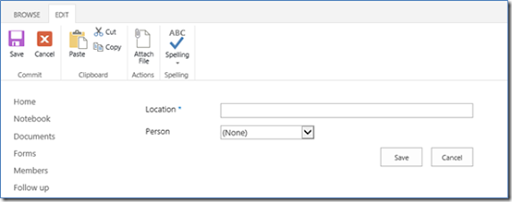
When you add a new record to this list you will only see two options (as the other fields are referenced once the lookup is performed).

image

If you select the Person field (which is a lookup to the Members list) you should see a list of all the rows from that location as shown above.

image

If you now complete a new record and save it you’ll be returned to the list summary as shown above. Because the lookup field was selected the associated values for that entry (here from the record for member Robert Crane) will automatically be populated in the email and phone fields as shown above.

image

You will also see that lookup field (here Person) also becomes a hyperlink that you can select.

image

When you do that, a dialog window will open and display that record from the list being looked up (here Robert Crane’s record). You can now edit and make changes to this looked up item quickly and easily if needed.

It is important to remember that the lookup functionality between SharePoint lists is not a true relational database. This means that there may be times when you update one field and a dependant location doesn’t appear to be updated. In this case, the information has indeed been updated but the display simply hasn’t. By viewing or editing that item you should find that the dependent information that was changed is automatically updated and displayed.

Lookup fields are an important part of designing good Team Site structures to ensure that information is not replicated in multiple locations. This however means that more time needs to be devoted to planning these linkages up front, however the payoff can be a significant reduction in overhead and complexity.