January webinar resources

https://docs.com/d/embed/D25191743-6640-8940-4220-000669904411%7eMd4186d87-61d5-259a-4d26-00a8bd86cfff

Welcome to 2017. The first webinar of the New Year is now done and dusted. You can see the slide above or download directly from:

January 2017 Need to Know Webinar

If you are not a CIAOPS patron you want to view or download a full copy of the video from the session you can do so here:

http://www.ciaopsacademy.com/p/january-2017-need-to-know-webinar/

you can also now get access to all webinars via:

http://ciaops-academy.teachable.com/courses/need-to-know-webinars

for a nominal fee.

Thanks to everyone who attended and I hope to see you again next month.

Need to Know podcast–Episode 127

In this episode we are joined by Alessandro Cardoso, Technology strategist at Microsoft to talk about his upcoming Microsoft Ignite Australia sessions:

Managing Red Hat on Azure with OMS [OPEN312]

With the capability to deploy a Red Hat supported Virtual Machine in Azure, you may be asking: “What else can I do with my Azure Red Hat VM?” We will introduce Microsoft Operations Management Suite (OMS), walking you through the incredible analytic power of the system for Linux and Windows Azure VMs. With Linux, OMS allows you to collect Syslog events, Performance data, and Nagios/Zabbix alerts

And

Deploying Linux on Microsoft Public and Private cloud [OPEN323]

Heterogeneous environments with Microsoft Windows Clients, Microsoft Windows Server, Linux, FreeBSD, and the cloud are the norm. Being able to run all of your virtualized workloads on a single hypervisor simplifies management and optimizes server capacity. Learn how to deploy Linux VM to Hyper-V or Windows Azure.

You can listen to this episode directly at:

http://ciaops.podbean.com/e/episode-127-alessandro-cardoso/

or on Soundcloud here:

or subscribe via iTunes at:

https://itunes.apple.com/au/podcast/ciaops-need-to-know-podcasts/id406891445?mt=2

The podcast is also available on Stitcher at:

http://www.stitcher.com/podcast/ciaops/need-to-know-podcast?refid=stpr

Don’t forget to give the show a rating as well as send us any feedback or suggestions you may have for the show.

Resources

@cloudtidings

@marckean

@directorcia

Microsoft OMS

Azure news from Marc

New features in Microsoft Flow

Using Flow for event registration

Project Osaka

Need to Know podcast–Episode 126

For our continued focus on speakers at the upcoming Microsoft Ignite event on the Gold Coast we speak with Andrew McMurray from Microsoft about Azure Information Protection. Andrew’s presentation is:

Prevent unwanted and embarrassing leakage with Azure Information Protection

Microsoft Azure Information Protection helps you safeguard your data throughout the complete data lifecycle. Data is “born” protected and carries the protection wherever it travels. So you don’t need to worry where it’s stored or with whom it’s shared – you can rest assured it’s always protected. Join us to learn more about the technology and how it can solve your information protection challenges.

Marc and I also do our usual wrap up of the latest Microsoft cloud news.

You can listen to this episode directly at:

http://ciaops.podbean.com/e/episode-126-andrew-mcmurray/

or on Soundcloud here:

or subscribe via iTunes at:

https://itunes.apple.com/au/podcast/ciaops-need-to-know-podcasts/id406891445?mt=2

The podcast is also available on Stitcher at:

http://www.stitcher.com/podcast/ciaops/need-to-know-podcast?refid=stpr

Don’t forget to give the show a rating as well as send us any feedback or suggestions you may have for the show.

Resources

andrew.mcmurray@microsoft.com

@marckean

@directorcia

AIP Slides: https://aka.ms/IPdeck
AIP video of slides: https://aka.ms/IPvideo
News: https://aka.ms/aipnews
Blogs: https://aka.ms/aipblogs
Security Overview: https://aka.ms/rmssec
Web: https://aka.ms/aip
Overview: https://aka.ms/aipoverview
Forum: https://www.yammer.com/AskIPteam
AAD Sync: https://aka.ms/aipaadsync

Azure news from Marc

Azure AV2 machines now available

Microsoft Staffhub is here

Study says Teams to pass Slack

Using Microsoft Flow for event confirmations

One of the handy features that many third party webinar products provide is the ability for people to register on a web page and then receive confirmation of that registration via email. Unfortunately, if you are looking to run a public Skype for Business meeting this feature is currently not really available. However, Office 365 does provides some tools that allows you to build an even more powerful solution than the one provided by third parties

image

The tool to do this with is Microsoft Flow, which you can access via:

https://flow.microsoft.com

You can then login with your Office 365 credentials.

If you then select the My Flows option from the menu bar in the top left you should see a screen as shown above. Here select Create from blank.

image

Flow allows me to connect to external web services such as Typeform, which is what I have used to create the public registration page. Basically, the Typeform registration will ask for First Name, Last Name and Email address.

I can search for the service I wish to use in the box as shown above. In this case I enter typeform.

image

I’ll need to authorise and connect to that third party web service. In the the case of Typeform, I’ll need to locate and insert the API key from my Typeform account into my flow.

image

Once the service is connected to my flow I can select the registration form I’m going to use to capture my data. Here, I’m using an existing Typeform form called “Flow demo” which I can select from a drop down list of all the TYpeforms I have set up.

This flow will start when a new response is submitted to this form.

Now select the + New step button below.

image

From the items that appear, select Add an action.

image

From the search box that appears I enter “Office 365” and select the Send an email option as shown.

You may need to authorise the connection to email but once that is done you will see the fields To:, Subject and Body that you can now fill.

I can now insert dynamic content into these regions. Dynamic content effectively means fields from the connected services. which appear on the right that I can now select.

So, I click in the To: field in the flow and then select the appropriate question from the Typeform form on the right that will yield the register’s email address. Thus, I will be sending a reply email to the registration email address that was collected from Typeform.

image

I then complete the rest of the information I want to go out in the confirmation email as shown above.

image

Now, here’s where Flow is superior to other third party registration services. I have a custom list in my Team Site that I also want to populate with the registration details so I have a copy. This list is just the name and email address as you see above.

image

I go back to my flow and Add an action again.

image

Into the search box that appears I enter “SharePoint” and select the option Create item that appears.

image

I now enter the Team Site URL and the list within that Team Site I want to populate from Typeform.

You will then see the fields from that list appear (here Email and Name), which again I can now populate with dynamic content from Typeform.

image

I could continue on and add more steps if I wanted but I’ll now give this Flow a name and select the Create flow option in the top right to save the changes and activate the automation.

image

Now one of things that you may get is an error like the above. From what I understand, this is telling you something about the dynamic content, in my case Typeform, isn’t quite right. I’ll need to do more digging to understand why this happens but if it does you’ll need to debug your flow.

In may case, for some reason, Flow doesn’t like the Typeform First name or Last response, which is weird as the email response is fine. Something I need to investigate further. For the time being I simply deleted these Typeform fields from my flow.

image

If all is good you should receive a message like that shown above and you can select the Done link on the right.

image

The flow you just created should now appear in My Flows as shown above. You can view, edit, disable and track the flow from here if needed.

image

So if I now go and complete the Typeform registration, it should kick off my flow.

image

If I look at the status of my flow I indeed see it has executed successfully as shown above.

image

If I now check my Team Site list I can see that item has been added as shown above.

image

The person registering has also received an email (above),

image

and I also have a the sent item in my inbox as seen above.

So there you have it, a pretty quick way to create a registration confirmation process with the added benefit of saving registration information into a Team Site list.

There of course limits to what can be done with Flow at this stage but it is improving rapidly and I am keen to spend more time with the service to improve my knowledge because it provides a great opportunity to automate business processes. The ability for Flow to connect to third party applications like Typeform shown here is where the real power lies I believe.

I look forward to the continued improvement in Flow and suggest that if you have Office 365 you should start looking at it to help automate more of your business.

Publish your Office 365 calendar publicly

image

There are plenty of times when it is handy being able to give people anonymous access to your calendar not matter where they are.

To enable this, login to your Office 365 web portal.

image

Navigate to your web calendar typically by selecting the calendar icon from the portal home page.

image

In the top right of the page select the Cog icon as shown.

image

This will slide a blade out from the right of the window. At the bottom of this locate and select Calendar as shown, this is under the Your app settings area.

image

Locate and select the option Publish Calendar which appears under the Shared Calendars option towards the bottom on the left.

image

Now determine your sharing options from the pull down menus. Since this is going to be available publically I’d be recommending you select Availability only from the Select permissions options.

Once you have made your changes select the Save icon at the top.

image

You’ll now get a HTML calendar URL as well as an ICS calendar URL that you can copy and paste, then send to any contacts.

image

If you navigate to the HTML link, you should see something like the above displayed. The entries there will depend on the permissions you selected previously.

Of course, when you update your private calendar the external links will also be updated, since they are basically a view onto this calendar.

Once you can configured this and copied the link it makes it really easy to provide people with a idea of what your calendar is like, now and in the future. Pretty cool eh?

Need to Know podcast–Episode 125

We are back for 2017! Marc and I do our usual news and cloud updates followed by a returning guest, MVP Troy Hunt. Troy chats to us about his upcoming Microsoft Ignite Australia presentation – Applied Azure: Building a Large Scale Real World Application on a Coffee Budget, which makes for real interesting listening.

You can listen to this episode directly at:

https://ciaops.podbean.com/e/episode-125-troy-hunt/

or on Soundcloud here:


or subscribe via iTunes at:

https://itunes.apple.com/au/podcast/ciaops-need-to-know-podcasts/id406891445?mt=2

The podcast is also available on Stitcher at:

http://www.stitcher.com/podcast/ciaops/need-to-know-podcast?refid=stpr

Don’t forget to give the show a rating as well as send us any feedback or suggestions you may have for the show.

Resources

@troyhunt

@haveibeenpwned

@marckean

@directorcia

Have I been Pwned

Azure updates from Marc

Updated SharePoint Team Sites move beyond first release

Microsoft Partner services being revamped

New unified DLP in Office 365

Microsoft Connect car platform

Replacement to Azure RemoteApp coming soon

Azure Backup protects against ransonware

Using Azure DNS with Office 365

One of the tasks that you need to perform when you adding a custom domain to Office 365 is to firstly verify that you actually own the domain name.

image

The Office 365 domain setup wizard, as shown above, will give you a TXT record you need to insert into your DNS zone so ownership can be verified by Office 365 before proceeding further.

Azure has the ability to host DNS records for you rather than using a hosting provider, so let’s see how you configure this.

image

Open your Azure Resource Manager Portal and select to add a DNS Zone from the market place.

image

The name of your new DNS zone has to match the domain you wish to host. Here azlab01.net. I have also elected to place this new DNS zone into a Resource Group for easy management.

image

After a few moments, the new DNS zone will be created and you can navigate to it in the Azure Resource Manager Portal to manage it.

Simple select the new DNS Zone to view its details.

image

You should see something similar to the above

You will notice two DNS records have already been created shown in the lower half of the screen.

image

In the top right of the blade you’ll find the name servers as shown above.

image

You’ll need to update the domain registration for that domain to point to these name servers instead of where they are currently pointing as shown above.

image

In top left of the blade select Record Set to create a new DNS record in this zone.

image

A new blade will appear, as shown. To verify our Office 365 domain we need to add a TXT record with the string provided as shown above.

When complete, save the new record.

image

If we now look at our DNS zone we see an additional TXT record as expected.

image

If we return to Office 365 and select Verify, our domain should successfully be verified thanks to Azure DNS. We can now proceed onto managing the individual domain records ourselves in Azure DNS. To do this select the option I’ll manage my own DNS records and select Next to continue.

image

As expected, and shown above, we get a long list of DNS records to add to our zone. Now here’s were the benefits of using Azure DNS shine through.

We can use PowerShell with Azure DNS to set all our records using a script. Thus, instead of adding them manually one by one via a browser, we simply run a script that does all the work for us.

get-azurermdnsrecordset –zonename –resourcegroup

To view the existing Azure DNS zone information run the above command once you are connected to Azure.

image

As you can see from the above, one of the entries is the TXT record entered into the Azure DNS zone manually via the portal.

To add an MX record for instance to the zone, execute the following command:

New-azurermdnsrecordset -name “@” -recordtype MX –zonename –resourcegroupname -ttl 3600 -DNSrecords (new-azurermdnsrecordconfig –exchange domain-com.mail.protection.outlook.com -preference 0)

That should produce the following record in your zone:

image

If you now execute the appropriate commands that add the remaining records to your zone, you can then return to Office 365 and complete the wizard.

image

If everything is in order you should now get confirmation that your domain has been successfully configured for Office 365 as shown above.

The huge benefit here that Azure DNS provides is the ability to totally script this. Most of the DNS records you need to add for Office 365 are identical or derived from the custom domain you wish to add. Thus, all you need to do is set some parameters at the top of your script and the remainder remains identical. Thus, you can use one PowerShell script to set the DNS Zone records for EVERY custom domain you wish to add to Office 365! How much time is that going to save you if you need to set up lots of custom domains?

Another benefit Azure provides is that ability to assign different rights to different users in you Azure portal. Maybe only a few users can update records, while other can only view them.

image

As you can see from the Azure pricing calculator above, Azure DNS is not a free service. There is a small fee based on the number of zones and DNS queries on those domains you have. In this case, for 1 zone with 1 million queries the cost is AU$1.15 per month, which is really pretty cheap.

I think Azure DNS has a lot of benefits for IT Professionals managing domains. They could aggregate them all under their own partner tenant and become like a hosting business. They could also host the zone records in the individual customer’s Azure tenant, which of course could use the same logins as Office 365 because Office 365 comes with a free Azure tenant. I also like the idea of bringing this sort of thing back to a single supplier rather than using multiple hosting providers.

However, I think the real killer benefit is simply the ability to script everything thanks to PowerShell. This alone is going to save me so much time when I set up test domains and labs. It also means I won’t make spelling mistakes when entering the records for Office 365. All I’ll need to do is change the variable at the top of my script to match the domain I want to work with and then the script is good to go. How easy is that?

Focus on adding value

This is part eight of my presentation “Making money from the cloud”. You can find the full slides at:

https://doc.co/LyrxvF/qcihGm

and the previous parts are at:

We live in exponential times

Consider the following

Major Trends

Macro Trends

Software will eat the world

The phone is the desktop

Build a tailored service
image

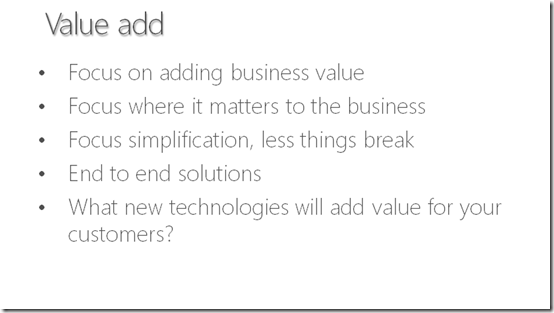
In a world of common cloud services like Office 365 and Azure, that anyone can buy at any time from the web, how do you make your IT reseller business stand out from the crowd? Simple. Add value.

As with many things, the answer is simple but executing on that is challenging. This is because the traditional model for IT resellers was basically, buy from distributor, add some margin and resell. That worked until the products became commodities where margins were driven to zero. Strike one.

The next ‘solution’ that resellers adapted was managed services. Basically, for a flat monthly free, a reseller agreed to fix any broken IT issues. Exactly the same thing then happened. Managed services became something that everyone was offering. Thus, with no point of real differentiation it became a commodity and once again margins were driven to zero. Strike two.

For small providers in the cloud world both the traditional reseller and managed service provider model are fading into oblivion. If you keep pursuing them you are going to go down swinging. The reason is that few providers can, or are, differentiating themselves from their competitors. Many providers are still locked into these old world models and trying to apply them to products like Office 365, Azure, etc and unsurprisingly they are failing to make them profitable. In short, they are striking out.

The reason for this is they are failing to add value in what they do. If you migrate emails from on premises to the cloud, what real value have you provided the customer? To their mind, nothing. What point of differentiation can you create with email migrations? Generally not much thanks to automated tools like Migrationwiz and Skykick. The only way to be profitable going forward is to focus on providing value.

Specifically, it must be value to the customer, not the IT reseller. Simply moving emails to the cloud doesn’t provide much value in the customers mind as I have highlighted. However, showing customers how to create rules to filter emails, enable enhanced security like encryption and data loss prevention certainly do. Again, value in the customers mind, not your own.

This means IT resellers needs to focus on what matters to the business. The hardest technical challenge may indeed need to be solved but it may not provide much perceived value to the business. Conversely, the simplest thing technically can provide enormous business benefit and value to a business. In short, you need to look using the customers eyes and understand what they see as valuable.

For most customers, value is added by making things simpler. Less steps, less choices, less options and so on. Less also means that there is less than can break and go wrong. Many technical people believe that being simple is somehow being inadequate. In fact, it is quite the opposite. Simplifying something is far more challenging than adding unwanted overhead. Complicating things just because you can doesn’t add value, in many cases it destroys value in the customers mind.

Apart from simplification, customers are looking for end to end solutions. This, to me, is one of the standard out features that Office 365 brings to the table that sets it apart from its competition. For example, there is one Azure AD user login for Office 365, Azure, Intune, CRM, Project Online, etc, etc. One end to end user identity to access everything. When you also combine that with Windows 10 on the desktop, where you can again login to machines using the same identity, life becomes a whole lot simpler for the customer. Value added.

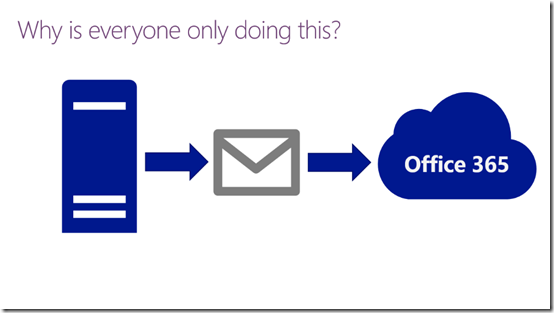
I continually harp on the fact that Office 365 is more than just hosted email, yet the vast majority of installations I see are email only enabled even though they have paid for the full Office 365 suite. That isn’t the customers fault, it’s the reseller who has implemented something they don’t know enough about!
image

If all you are doing is simply lifting and shifting emails and or files then:

1. You aren’t really adding any value from the way things currently are and

2. You are potentially allowing someone else to easily add value and push you out of the equation.

Not a smart or sustainable strategy at all.
image

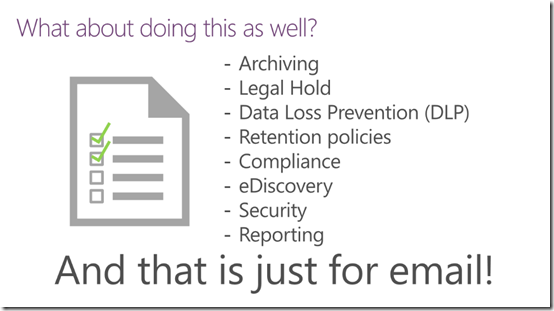
As the above slide indicates, there is just so much more that can be done with Office 365 email alone, not to mention SharePoint, Yammer, Skype, Teams and so on. Yet all I see, time after time, is resellers focused on simple email migrations. Lift and shifting while adding no value. Doing so adds zero value to the customer OR to the reseller’s own business. Why? Because just about anyone can do an email migration to Office 365 these days. Where’s the point of differentiation there? And of course, no differentiation means its a commodity and being a commodity means the only way you make money is in large volumes. And that is something a small reseller can’t do. They can never scale to a size that it becomes economically viable. So why limit your options to those that won’t help you win? Strangely, many resellers do.

You need to turn the whole model around and put value at the forefront of everything you do. My aim with this blog post is to provide value to readers in lifting their knowledge. My aim when doing a demo of Office 365 is to show customers how Office 365 services could help their business get things done better and more profitably. When I follow up with someone about Office 365 I send them a list of links with further information about the product. Value, value, value. In short, what can I do that adds value at every transaction point?

Value is your unique differentiation point. You need to understand and develop what you can bring to the table for the customer. Not just at installation time, but at every point through the engagement process. The act of adding value is a process that is never complete. There is always more value you can add. Importantly, no matter how small you are, you can still add value.

You know that you are getting your value offerings right when customers seek you out. The point at which people start asking you to provide your offerings without you even telling them is a clear indication that what you have is unique and is something they want. Perfect.

To have a successful value proposition you need to move beyond the technology. As an IT reseller you have to help the customer transform their business with technology. You have to help them do things better, faster and cheaper using the technology. Technology needs to be the centre piece of the way they run their business and at that centre is you guiding them and adding value every step of the way. You need to understand their business rather than merely selling ‘stuff’ to it as the old model dictated.

Take a look at what existing processes a customer may have that can have technology applied to it in order to improve it. Where are in inefficiencies? Where are the opportunities to help your customer reach more customers and serve their customers better? With tools like Office 365 and Azure there are virtually an unlimited number of opportunities to do just that for customers.

Changing your business model from that of a traditional IT reseller and managed services provider into a business that is focused on adding value through technology won’t happen overnight. It takes discipline and dedication as well as constant focus but the rewards are tremendous. Once you commence down the value path you’ll find that the world starts beating a path to your door step. Why? Because customers buy on value not on price, and you have the products that are most valuable to them.