Posting code snippets to Microsoft Teams

image

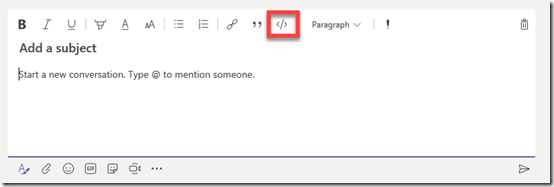
If you want to post a snippet of code to Microsoft Teams go to the Conversations tab and then select the Format text icon as shown above.

image

From this expanded dialog box select the Code icon as shown.

image

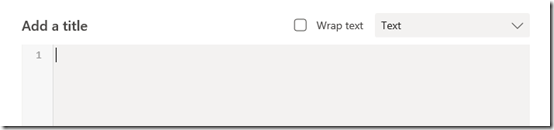
This should display a new dialog like shown above.

image

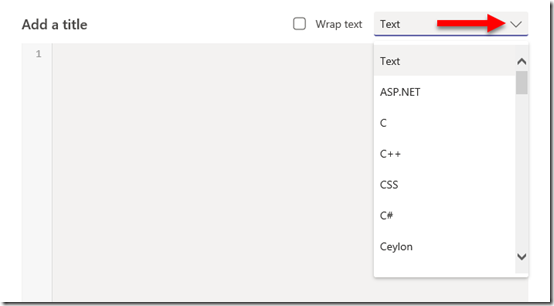
If you select the options in the top right you will see a huge range of code selections displayed as shown.

image

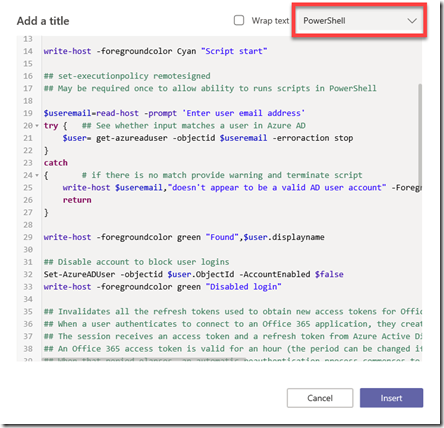
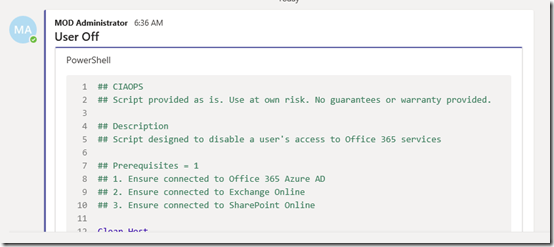
In the above case, I have select PowerShell and you can see that it formats and colours the code snippet for me automatically making it much easier to read.

image

You can now post the result and that will be added to the Teams Conversations as shown above. You will see that it even automatically add line numbers, which is very handy.

Thus, if you are going to post code into Microsoft Teams Conversations, make sure you do it via the Format Text option so that it is formatted in a way that makes it more readable.

Update to SharePoint Online PowerShell module

Since the beginning of working with SharePoint Online with PowerShell you have had to download and install a stand alone MSI for access to the SharePoint Online cmdlets as I have detailed here:

Connecting PowerShell to SharePoint Online

Well no more! Yeah! Now you can install the module directly from PowerShell using the command:

Install-Module -Name Microsoft.Online.SharePoint.PowerShell

You should uninstall the old MSI version if you have it first.

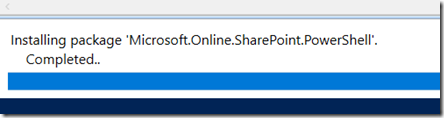
Whee you run this command you should see the modules being installed like so:

image

and then you should be good to go.

image

This will make working with SharePoint Online via PowerShell so much easier!

The current version is 16.0.8212.0 and can be found here:

https://www.powershellgallery.com/packages/Microsoft.Online.SharePoint.PowerShell/16.0.8029.0

Need to Know podcast–Episode 195

Troy Hunt makes a return to the podcast to talk about the power of serverless compute. We discuss how Troy has been successfully using serverless compute to run his website haveibeenpwned. Troy also shares with us some insights as to the practical day to day operations of running a site with 5 billion breach records. Brenton and I also update you on the latest Microsoft Cloud news including a raft of updates to Microsoft Teams.

Take a listen and let us know what you think –feedback@needtoknow.cloud

You can listen directly to this episode at:

https://ciaops.podbean.com/e/episode-195-troy-hunt/

Subscribe via iTunes at:

https://itunes.apple.com/au/podcast/ciaops-need-to-know-podcasts/id406891445?mt=2

The podcast is also available on Stitcher at:

http://www.stitcher.com/podcast/ciaops/need-to-know-podcast?refid=stpr

Don’t forget to give the show a rating as well as send us any feedback or suggestions you may have for the show.

Resources

@troyhunt

@contactbrenton

@directorcia

haveibeenpwned

Azure serverless compute

CIAOPS Patron program

Skype for Business is moving to Teams

What’s new in Microsoft Teams – November round up

Top scoring in industry AV tests

How can I get started with machine learning

CIAOPS Need to Know Office 365 Webinar–November

laptop-eyes-technology-computer

This month we are going to look at one of my favourite applications – OneNote. OneNote is a digital notebook and can be used for a variety of tasks and has many, many benefits which I’ll dive you. OneNote will truly change the way you work and help you to be better organised, more productive and use less paper across everywhere you work and play. I’ll also cover off all the latest Microsoft Cloud news and update to make you even MORE productive!

You can register for the regular monthly webinar here:

November Webinar Registrations

The details are:

CIAOPS Need to Know Webinar – November 2018
Thursday 22nd of November 2018
11am – 12am Sydney Time

All sessions are recorded and posted to the CIAOPS Academy.

There of course will also be open Q and A so make sure you bring your questions for me and I’ll do my best to answer them.

The CIAOPS Need to Know Webinars are free to attend but if you want to receive the recording of the session you need to sign up as a CIAOPS patron which you can do here:

http://www.ciaopspatron.com

or purchase them individually at:

http://www.ciaopsacademy.com/

Also feel free at any stage to email me directly via director@ciaops.com with your webinar topic suggestions.

I’d also appreciate you sharing information about this webinar with anyone you feel may benefit from the session.

Get started with Office 365 on the front page

image

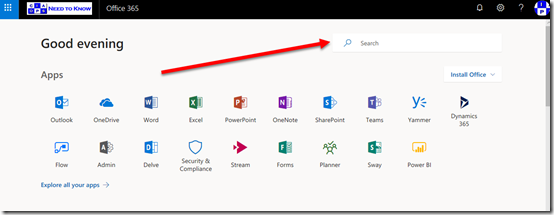
When most users access Office 365 they start on the front page as shown above. There is lots of really great and helpful stuff on this page but many people in my experience don’t take a moment to actually see what is here and understand how it can make their lives easier.

The first of these benefits is Search which you’ll find in the upper right corner of the page as shown. This will find information for you across all of Office 365.
image

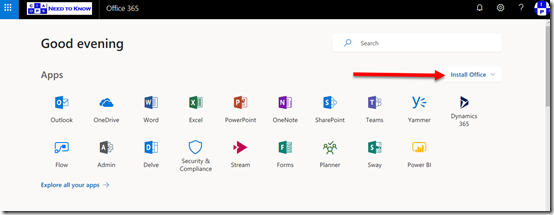
Then there is the ability to down and install a local version of Office via the Install Office button also on the right. Remember that you get 5 installs of Office on PC’s and Macs, 5 on tablets and 5 on phones.
image

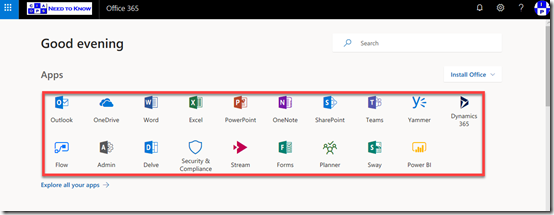
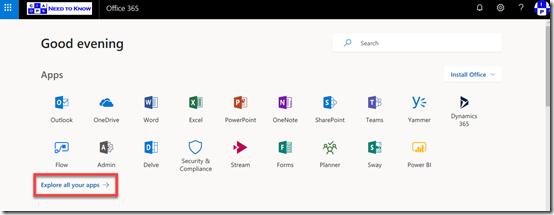
Hopefully most people are familiar with the Apps in the middle of the page that give you access to your Office 365 services simply by selecting them.
image

Of course, if you don’t see the app that you are after then you can select the Expand all your apps option to see all the Office 365 services you have access to.
image

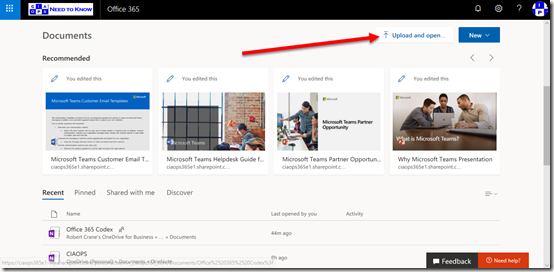
If you now scroll down you’ll see that you can Upload documents directly from this page,
image

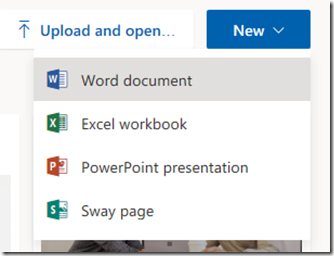
as well as create a New Office document.
image

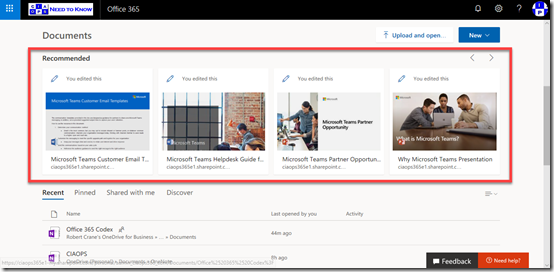
A little further down you’ll see Recommended documents. These recommendations come from the Office Graph and are files you make not have seen but have access two. These recommendations are typically files that your peers are working on.
image

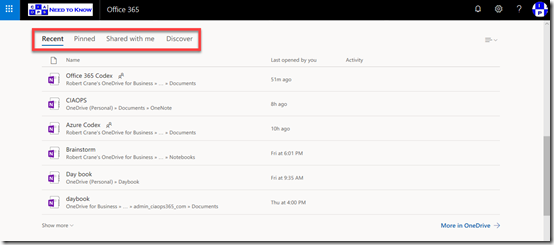
Further down you’ll find a number of categories of your files as shown above, including Recent files that you have been working on, which is handy.
image

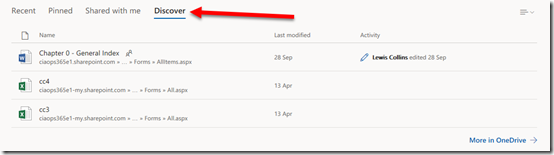
Here again, you’ll find the Discover option to view files that the Office Graph finds relevant for you.
image

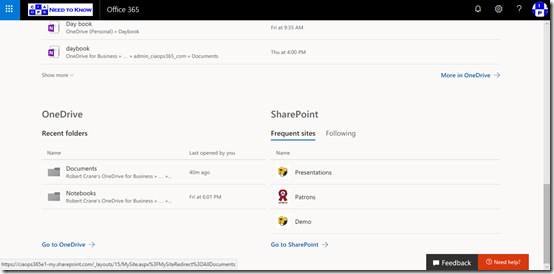
Right at the bottom you’ll find access and information about your OneDrive for Business and SharePoint sites.

So, this start page is a great summary for a user of all the stuff that they need access to. Take a moment and have a look at what it says for you and you may find that it is indeed the best way to get to your information in Office 365.


Teams resource information from SharePoint site

image

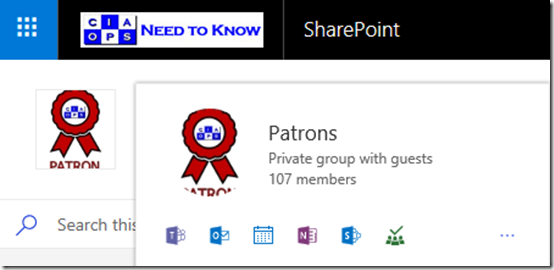
Hopefully you know that when you create a Microsoft Team you get a range of resources automatically provisioned, including a SharePoint Site, group mailbox and calendar, Planner and more.

If you mouse over the icon for the Microsoft Team in the SharePoint that was created as part of that Team you’ll see a nice summary of the Team’s resources as shown. Clicking on this small icon will take you direct to the Team, the Team inbox, calendar, notebook, SharePoint site, Planner, etc.

image

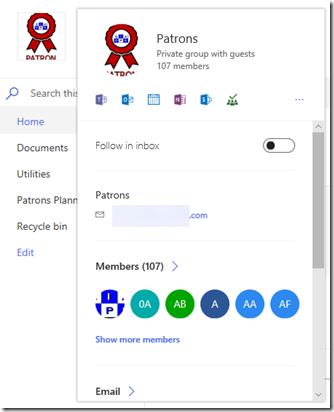
If you leave your mouse there for a little longer a more extensive card will appear, as shown above. You will notice the option to Follow in inbox at the the top.

image

If you scroll right to the bottom of this card you’ll find a Show more option which, when selected, will display even more information about the Team as shown above.

So to get some handy short cuts to all your Microsoft Teams resources, just roll your mouse over the icon.

Need to Know podcast–Episode 194

=””>

More news this week from the Microsoft Cloud. Plenty of things that you need to know around Microsoft 365 and Azure so we bring it to you in another all news episode.

Take a listen and let us know what you think –feedback@needtoknow.cloud

You can listen directly to this episode at:

https://ciaops.podbean.com/e/episode-194-cloud-update/

Subscribe via iTunes at:

https://itunes.apple.com/au/podcast/ciaops-need-to-know-podcasts/id406891445?mt=2

The podcast is also available on Stitcher at:

http://www.stitcher.com/podcast/ciaops/need-to-know-podcast?refid=stpr

Don’t forget to give the show a rating as well as send us any feedback or suggestions you may have for the show.

Resources

@contactbrenton

@directorcia

7 things Steve Jobs can teach you about business

How to be Jason Bourne

Keeping up to date

Microsoft MCA and Acceptance wording

https://uptakedigital.zendesk.com/hc/en-us/articles/360000549816

Windows 10 Home on the new Surface PC line

Windows Server 2019 RDS will not support Office Pro Plus from Office 365

New Office deployment customisation tool

What’s new for Microsoft To-Do in October 2018

Office 365 soars to 155 million active users

Windows Defender now runs in a sandbox

Hardware OAUTH tokens in Azure MFA in the cloud now available

Outlook for Mac adds administrative controls

CIAOPS Patron program offer