CIAOPS Need to Know Webinar–August 2017

laptop-eyes-technology-computer

Once again our monthly webinar is now scheduled for August. As always, it is free to attend and will cover the latest Office 365 news from Microsoft. This month’s deep dive will be into the new SharePoint Communications which provide an enhanced way to brand your SharePoint Team Sites.

You can register for free at:

August Webinar Registrations

The details are:

CIAOPS Need to Know Webinar – August 2017
Tuesday 22nd of August 2017
11am – 12am Sydney Time

All sessions are recorded and posted to the CIAOPS Academy.

There of course will also be open Q and A so make sure you bring your questions for me and I’ll do my best to answer them.

The CIAOPS Need to Know Webinars are free to attend but if you want to receive the recording of the session you need to sign up as a CIAOPS patron (for only USD$10 per month) which you can do here:

https://blog.ciaops.com/2017/08/the-ciaops-patron-program-is-being.html

or purchase them individually at:

http://www.ciaopsacademy.com/

Also feel free at any stage to email me directly via director@ciaops.com with your webinar topic suggestions.

I’d also appreciate you sharing information about this webinar with anyone you feel may benefit from the session.

Why Yammer is still relevant

A little while ago I did a presentation at a user group on “Why Yammer is still relevant”. I’ve recorded that presentation and made it available to all, so take a look and let me know what you think. The slide for the session are also available for download.

The crux of my process is that Yammer is the best way to drive Office 365 adoption. Why? Because:

– Yammer is really targeted to do one thing well (public conversations)

– It requires no infrastructure to implement as it is a cloud only solution

– It has a free entry level version

– It is mobile ready

– It integrates well to other Office 365 services

The secret to implementing such a huge product like Office 365 is not to overwhelm users with an ‘everything at once’ approach. See my ‘rule of three’ for more thoughts on that.

Likewise, if you underwhelm users with just email, they will yawn and ask with they are bothering to pay for Office 365.

You need to find a good starting point for on boarding people into the new way of working with Office 365. This means you need to give them something that doesn’t take a whole lot of training to understand, yet provides some major productivity benefits. To me, Yammer fits that bill in spades.

That doesn’t means that you can’t use Microsoft Teams down the line but Microsoft Teams, with its links to files and stuff, can be too much initially for users to get their heads around, especially if they are coming from a world of files and folders. Yammer by contrast is simple and ‘works’ in a similar way to many social networks they already probably use (a la Facebook). That means less training, and importantly, less resistance thanks to pre-existing understanding.

The big productivity payoff is simply visibility of shared information. Such visibility means that information can now be shared with everyone in the business. This means users can find what they want themselves by simply searching for it.

Yammer also speaks to the two most important demographics I have outlined previously when it comes to driving Office 365 adoption, your innovators and laggards. Yammer allows you innovators to dive right and start posting information and showing people how much they know. For laggards, Yammer allows them to sit back and watch what everyone is doing before become comfortable enough to contribute.

Like all Office 365 services, to have a successful adoption you need to have a plan. My suggestions for overall adoption, as I have outlined, is to start with Yammer. To kick this adoption process off with Yammer you create two internal networks called ‘Social’ and ‘Office 365 101’. The idea with the ‘Social’ area is that it is somewhere that people can share birthdays, sports results, holidays, etc. You may think that have a ‘Social’ group is frivolous to a business. It is, however, very specifically designed to help drive adoption. How? Well, the more restrictions you place on people, the less likely they are to use it right? So, the concept of the ‘Social’ group in Yammer is as place with few restrictions, therefore encouraging adoption of the service. If you don’t want to see the ‘Social’ stuff you don’t join that group. Unlike company wide email blasts, users can select which Yammer group they want to be part of.

The ‘Office 365 101’ group in Yammer becomes a place that is initially seeded with helpful links, videos, and the like. It is the place people come to ask questions about Office 365 inside the business and get answers from implementers. However, here’s where the real magic of Yammer happens. Although there is some initial effort required to seed the group, what you generally soon find is that soon your innovators and early adopters start answering questions posted by others as well as contributing helpful information. They start doing what they have always done, showing people how much they know and helping others. Now all you need to do is stand back and the group ‘Office 365 101’ becomes self supporting. Amazing eh?

Once users have grasped the concept of Yammer with these two groups they will come asking whether they can use Yammer to solve business challenges. At that point, you know your adoption process is on the road to success. Until that point, you have to continue to work getting users to understand the benefits of Yammer and using the service for themselves (hint, just show them search and they’ll ‘get it’).

In a nutshell, that’s why I see Yammer now as being more relevant than ever. I look at it as the starting point for all Office 365 adoption projects and in my experience is works really well in that way. Implemented correctly, it is a product that will revolutionize a business and help them understand how the ‘new world’ of collaboration with Office 365 can improve their productivity and change the way they work.

Consistent success comes from having a system and Yammer is a key part of my adoption system for Office 365. I would suggest it should also be part of yours.

Microsoft Teams and OneNote integration

One of the ways that I describe Microsoft Teams to people is as a simplified and aggregated wrapper over things such as SharePoint Teams Sites and Skype for Business. Many may not appreciate however that it is also a wrapper over one of other favourite products, OneNote.
image

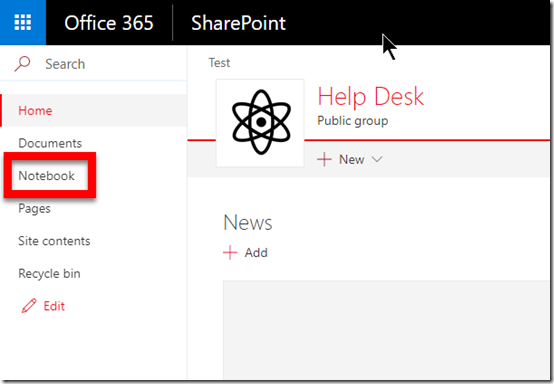
When you create a new Microsoft Team you also get a new SharePoint Team Site as part of that. That SharePoint Team Site contains a OneNote notebook which is known as a ‘site notebook’. To view it, simply select the link Notebook from the Quick Launch menu on the left of the SharePoint Team Site.
image

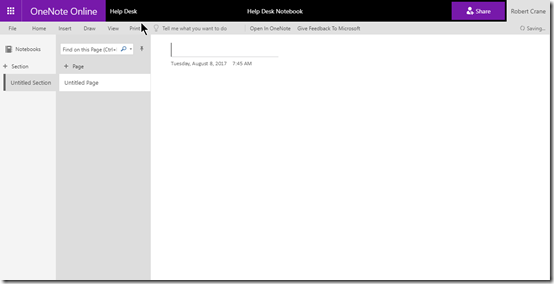
If you open that notebook you’ll see that it is blank, as shown above. OneNote is arranged by sections, inside which are individual pages.
image

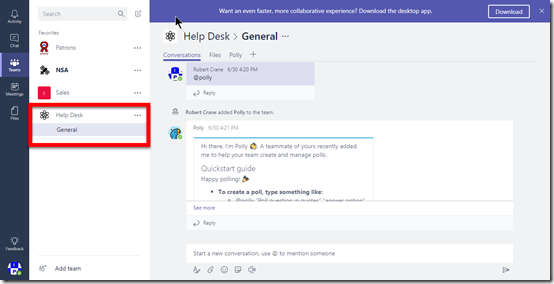
If you now go to that Microsoft Team (in my case, called Help Desk), you will see the normal Conversations and Files tabs at the top of the only channel I currently have in the Team called General, like so:

image

You’ll notice that I have already added a new tab to this channel (Polly) thanks to a bot I’ve inserted into this Team. I’ll cover bots in another post.

What you don’t yet see in the Team channel is anything to do with OneNote. The reason is that OneNote connectivity is not added by default.
SNAGHTML47bbcaeb

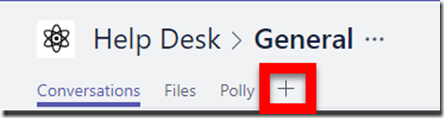
To connect this Microsoft Team channel to OneNote press the ‘+’ (plus) item on the menu.
image

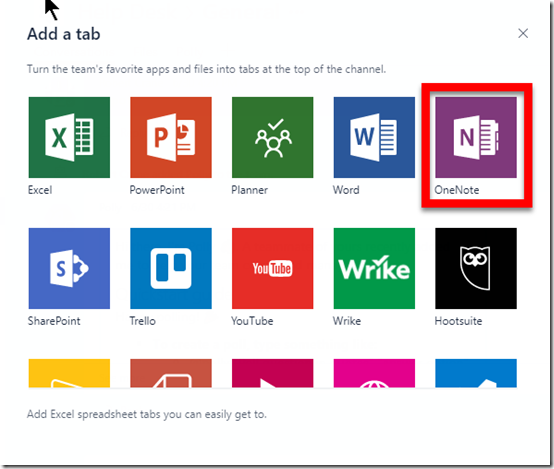
That will display a new window, as shown above with all the items you can add to menu. One of these you should find is OneNote.

Select the OneNote tile.
image

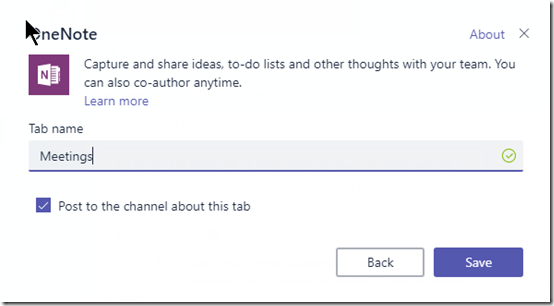
You’ll then be asked to give the new tab a name. Here I have called it Meetings. Select the Save button when you have made your choice.
image

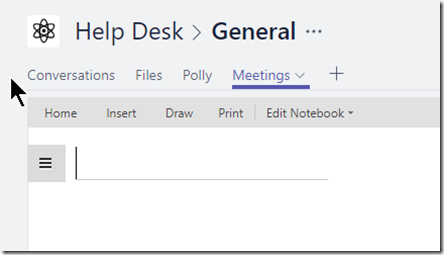
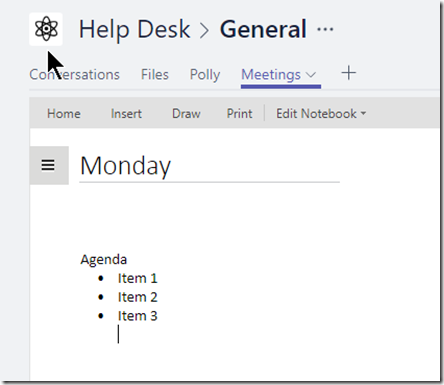
Now you should see a new menu item across the top matching the name you just gave OneNote (here, Meetings). You’ll also notice that you are placed into a OneNote style page below the menu.
image

You are now free to give your page a name and enter any notes into that page.
image

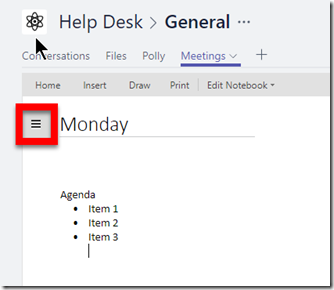
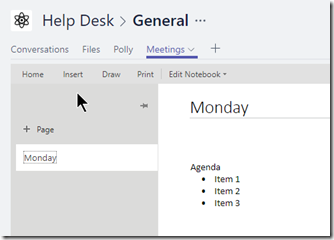
If you now select the ‘hamburger’ menu in the top left of the page you will see,
image

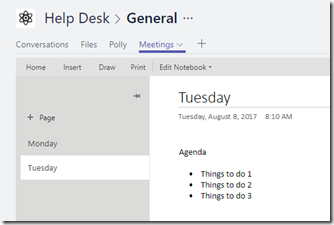
This should now begin to look more and more like OneNote. Here you can go in and create new pages like so,
image

That’s really handy for everyone in that channel to capture information.
image

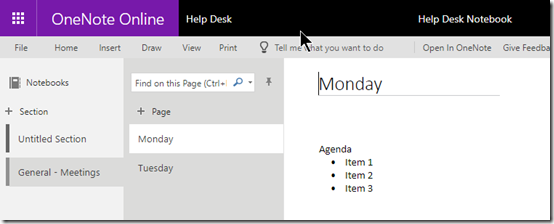
If you now return to the Site Notebook directly in SharePoint you should find the notebook looks something like that shown above. There is a new section with the name Channel – Selection name (here General – Meetings) and the information just enters appears as pages.

Thus, when you add the OneNote option to a Team channel a new section is created in the Site Notebook in the SharePoint Team Site that was created when that Microsoft Team was established. Pages you create in that channel are then saved under that section.
image

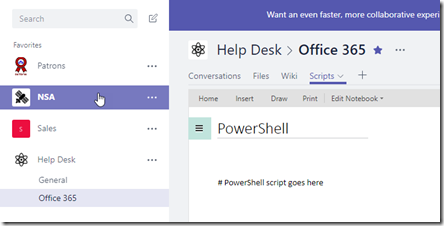
If I now go and create a new channel for that Team (here called Office 365) and then add OneNote to that channel as above, I again get the ability to add pages. Here, I have created a new page called Scripts in my Office 365 channel.
image

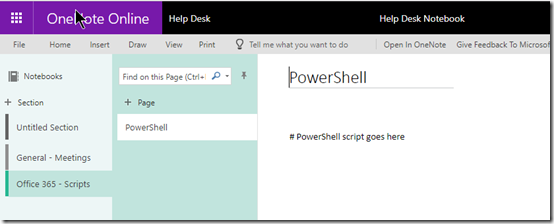
If I now go back to my Site Notebook in the SharePoint Team Site I can see this new channel as a section and the page I created underneath it in standard OneNote format.

So in summary, when you create a new Microsoft Team you get a new SharePoint Team Site. This SharePoint Team Site contains a single OneNote notebook called a Site Notebook. If you then add OneNote to a channel in Microsoft Teams, the name you give that OneNote tab becomes a new section in the Site Notebook. Any new page you create in that channel gets created under this section in the Site Notebook.
image

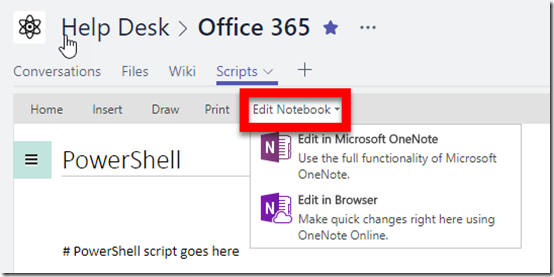
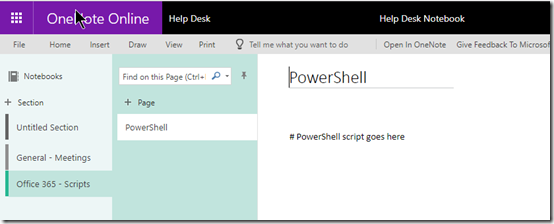
If you elect to Edit Notebook, as shown above, you will get the option to work with the WHOLE notebook in the web or via OneNote on the desktop. That means you are in effect opening the complete Site Notebook where you will see ALL the sections (channels) and pages below like so
image

Given the way the sections are named after the actual channel, hopefully this avoids confusion but there will no doubt be those who don’t see the connection between the Microsoft Team as a whole and all the channels within it and the Site Notebook which holds ALL the OneNote information for the Microsoft Team as a single OneNote notebook file. You can view the OneNote information for the Microsoft Team by channel inside the Microsoft Teams app or for the WHOLE Microsoft Team (i.e. all the channels) at once using the OneNote app.

Hopefully, this articles goes some way to explaining the configuration and connectivity between Microsoft Teams, SharePoint Teams Sites, the Site Notebook and OneNote.


Schedule a Microsoft Teams meeting in Outlook

image

If you have the Microsoft Teams app on your desktop and you check in your Outlook calendar you should see a new button as shown above.

image

This button will allow you to schedule Microsoft Teams meetings. Clicking this will create a new meeting invite in you Outlook calendar as well as the Teams desktop app when saved.

You can read more about this add in here:

https://techcommunity.microsoft.com/t5/Microsoft-Teams-Blog/Now-available-Outlook-add-in-to-schedule-meetings-in-Microsoft/ba-p/71157

Need to Know podcast–Episode 159

We are back after a break due to work scheduling. Listen in for a deep drive into why it has taken so long to get this epidode out. You choose whether you believe it or not but the good news is that we a new episode for you focusing on all the latest from Microsoft, Azure and Office 365. Plenty of product updates and some news about Microsoft’s recent financial performance.

Take a listen and let us know what you think –feedback@needtoknow.cloud

You can listen to this episode directly at:

https://ciaops.podbean.com/e/episode-159-excuses/

Subscribe via iTunes at:

https://itunes.apple.com/au/podcast/ciaops-need-to-know-podcasts/id406891445?mt=2

The podcast is also available on Stitcher at:

http://www.stitcher.com/podcast/ciaops/need-to-know-podcast?refid=stpr

Don’t forget to give the show a rating as well as send us any feedback or suggestions you may have for the show.

Resources

@marckean

@directorcia

Marc’s Azure news

Financial results from Microsoft

Skype for Business call analytics

Updates SharePoint Online sync button

Azure instant file recovery

Azure nested virtualisation

This episode brought to you by:

https://cpem.io/tJ01Hzu2k.js

The CIAOPS Patron program is being revamped

The CIAOPS Patron program has now been operational for over a year and it is time to revamp and improve what the program offers. As such, from the 1st of September 2017 the minimum entry level will be raised from its current US$10 and the sign up process will be moved into my online academy.

There will now be three patron levels you can sign up for, bronze, silver and gold with the following benefits:

Bronze US $25 pm – http://www.ciaopsacademy.com/p/ciaops-patron-bronze/ which provides:

Silver US $50 pm- http://www.ciaopsacademy.com/p/ciaops-patron-silver/ which provides:

Gold US $100 pm – http://www.ciaopsacademy.com/p/ciaops-patron-gold/ which provides:

  • Exclusive access to my private Facebook community
  • Free access to all the recordings from the monthly CIAOPS Webinars
  • Access to my Office 365 and Azure OneNote codexes packed full of information and links
  • Access to being an affiliate and receive 25% commission on all CIAOPS Academy courses you sell
  • At the gold patron level you also get 80% discount off CIAOPS Academy courses and free access to any publication
  • a monthly one on one remote consulting session for training or problem solving

So if you wish to be grandfathered into the Bronze level at US$10 then you’ll need to sign up before the 1st of September 2017 to take advantage of this offer. You can sign up by visiting the CIAOPS Online Academy and using the code PATRONGF during checkout for the Bronze Patron offering or you can visit this link directly:

http://www.ciaopsacademy.com/p/ciaops-patron-bronze/?product_id=372657&coupon_code=PATRONGF

Don’t forget that I’m aiming to build lots more value into my patron program going forward so if you are looking for the best information around Azure and Office 365 as well as being part of a community of progressive IT Pros looking to grow and share their knowledge of the Microsoft cloud, then now is the time to sign up to get the best deal.

Here is what other community members say about the value that being a CIAOPS Patron has provided their business

“Robert is a huge credit to the SMB support community, his knowledge of the Office 365 and Azure space is unsurpassed. I wouldn’t hesitate to recommend Robert’s blog, podcast, training resources and his Patreon funded tech community.” – Nick Lloyd, Active Business Communications UK

“Staying abreast of the rapid changes in the IT industry in today’s world can be a daunting and timely exercise. Since using the resources of Robert Crane from CIAOPS we have been able to better filter out the unnecessary noise of public information and better manage our time required to keep our fingers on the pulse. Robert’s informative knowledge base and CIAOPS Academy is a MUST HAVE resource for anyone seeking to better understand the changes required today to stay on top of the IT industry.” – Craig Young, Green Data IT

“I recommend Robert Crane for the wealth of experience he brings with Office 365 and Azure, with this experience he provides a vast amount of resources for sharing and learning at various levels.” – Robert Coleiro, Computer Help Sydney

I hope that you’ll join us.

Data Discovery done right

image

One of most common mistakes I see people make when they migrate IT systems is simply dumping all the old information from source to destination.

Migrating is the perfect opportunity for businesses to look at the data they have and basically do a ‘clean up’. Think of what happens when you physically move locations. You look at what you have, you throw some stuff away and your reorganise what you have into the new location. Rarely, if ever, do you take the contents of each room and dump them into exactly the same room at the new location. Moving house is an opportunity most people take to ‘clean up’. Why are you therefore not taking the same opportunity when it comes to migrating IT systems?

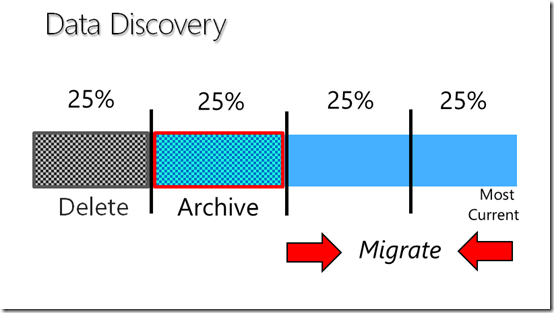
The system that I like to use is to divide digital data up into 4 logical segments. Now, in my experience a good rule of thumb here is that you can divide data up into four major categories, each of which will have a different action performed on it.

Firstly, there will be data you need to delete. By delete I mean erased from existence. Just because you can stick it on a USB thumb drive doesn’t mean you should. Data that should be deleted is typically duplicated information, large images or videos and stuff that is no longer relevant. In my case, keeping information about Office 365 from over 3 years ago makes little sense as the product is completely different. Thus, it should be deleted.

The next segment of data to consider is stuff that is still relevant and should be archived. In most cases archived data is required for compliance. Here in Australia, the typical compliance time frame is 7 years. Thus, data beyond 7 years can probably go into the ‘deleted’ bucket. Archive data is stuff a business wants to keep to refer back to or perhaps base new material on. If part of the migration of the IT systems is moving to the cloud then there are two options when it comes to dealing with data to be archived.

Firstly, any archived data can be done so on-premise and not moved to the cloud. Typically, this means moving it to a USB Hard disk or perhaps a local server or workstation. When, and if required, the device is hauled out, connected up and data accessed as required.

The other option with data to be archived is that it can be moved to somewhere like a dedicated SharePoint Team Site. The advantages of doing this are that the data can be marked as read only but is then indexed by Office 365. Indexing information makes it available to the business simply via the many search mechanisms in Office 365. The downside of moving archived data to the cloud? It has to be uploaded. If there is a lot of data that may take a while but once it is there it becomes lot more useful in my books that it would if it remained on premises. The other things about moving data to be archived is that the structure is not altered, it is moved ‘as is’.

With deleted and archived data now removed from the source location you are typically left with 50% of the original data. At this point my advice is to continue the migration process from the outsides in. That is you migrate the oldest and the newest data first and I’ll explain why but let’s firstly consider the oldest data.

When you commence shifting the oldest data you’ll find that some of this can also be moved to the archive but everything else should typically just be moved. By moved I mean taken to a new location without making major changes to the structure it is in. This means that if you have a folder of information that is ‘old’ you move it and its contents directly into a new SharePoint Team Site Document Library typically. You do the same with the next oldest source of information.

The reason that you don’t make major changes to the structure of ‘old’ data is that, in theory, it is not being accessed that often and there is no real value to be gained by doing a complete re-structure because it isn’t used that often. Basically, you just want to move it as is because eventually it will end up being archived.

At the end of the spectrum that newest data, or the data that is the most current and being used constantly should be re-structure before being moved. This means that most of the current data won’t end up in the same structure as it is found on the source. The most current data should be moved to where it makes the most sense for the business given the new abilities in the destination. For Office 365, this means that you shouldn’t ‘dump’ you current data into a single Document Library in the default SharePoint Online Team Site. It means you should probably be shifting some data into Microsoft Teams, use data into OneDrive for Business, some to Yammer and so.

The other reason I advocate moving the most current data is around adoption. If your process is to progress from the least current to the most current, then users will not typically be using the advantages that Office 365 provides on the data they work with daily. You really want users to take advantage of everything Office 365 provides them immediately they have access to the system. Thus, you should always restructure the most current data and move it to where ever make sense in Office 365 to give users the immediate benefits.

Thus, in summary, we can categorise the data on a source system as follows:

Delete = old duplicate and unwanted dated. To be erased

Archive = data to be kept without changes make to structure

Moved = active but older data to be moved without changes to structure.

Restructured = most current data to be moved to new locations that take advantage of the features available.

So, you should never be simply dragging and dropping your data from on premises file servers directly into SharePoint. You need to take the time and clean it up and categorise like shown above. Once complete, you then migrate it to the place that makes the most sense in the new system. Doing so will ensure you get the maximum return for the investment in the new system and optimise the information brought forward. Continuing to accumulate data between systems is simply being lazy and failing to leverage one of your most important business resources.

July Webinar Resources

My latest webinar is complete. You can now download the slides from:

https://www.slideshare.net/directorcia/ciaops-need-to-know-webinar-july-2017

If you are not a CIAOPS patron you want to view or download a full copy of the video from the session you can do so here:

http://www.ciaopsacademy.com/p/july-2017-need-to-know-webinar/

We focused on the various methods you can use in Office 365 to share information with those outside your business. Everything from email attachments to Yammer we spent time on. Thanks everyone for attending

you can also now get access to all webinars via:

http://ciaops-academy.teachable.com/courses/need-to-know-webinars

for a nominal fee.

See you next month.