Connecting Windows 10 Pro to Office 365

When you connect a Windows 10 Pro or Enterprise desktop system directly to Office 365 (thanks to Azure AD) you get seamless login to Office 365 without multiple password prompts.

It also allows you to directly login to the Windows 10 Pro machine with your Office 365 credentials. After that when you navigate to Office 365 in Microsoft Edge or Internet Explorer you’ll automatically be logged into the service. If you also add the following extension to Chrome:

https://chrome.google.com/webstore/detail/windows-10-accounts/ppnbnpeolgkicgegkbkbjmhlideopiji?hl=en

You’ll get the same functionality.

This ability and integration is one of the real benefits of connecting Windows 10 to Office 365 (via Azure AD). This video will show you how to take a stand alone desktop and connect it directly to Office 365 and get single sign on to Office 365.

An introduction to Microsoft 365

image

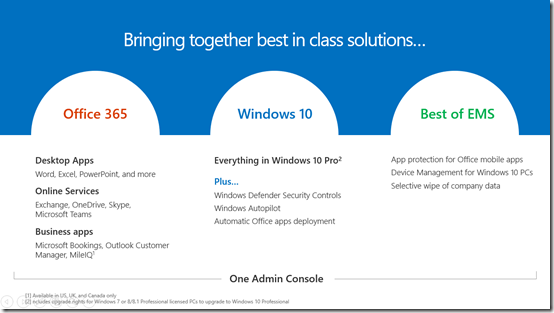
At the Microsoft Inspire conference back in July 2017 Microsoft 365 was announced. In essence, it is a combination of 3 core products – Office 365, Windows 10 and part of the Enterprise Mobility Suite.

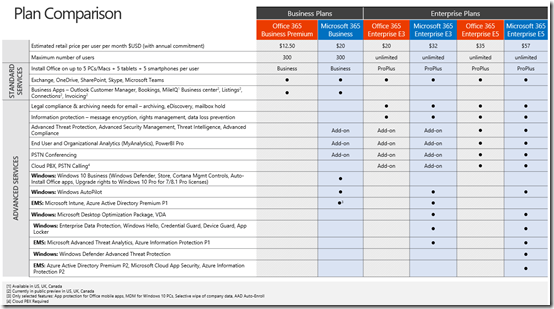
Microsoft 365 will come in two flavours – Business and Enterprise with different capabilities an inclusions as you can see from the following table.

image

The Microsoft 365 Enterprise plans are further broken up to an Microsoft 365 Enterprise E3 and Enterprise E5 offering. The prices shown in this table are US$.

Currently, the Microsoft 365 Enterprise offerings are available for purchase while it is expected the Microsoft 365 Business plans will be available before calendar (2017) year’s end. You can however, apply to obtain a trial of Microsoft 365 Business and you should do so through your distributor.

The power of Microsoft 365 is that it extends the functionality of Office 365 to environments that are moving more and more to the cloud. Doing so means many of the devices that access information are no longer inside or connected to a traditional network. This means a different set of tools and capabilities needs to be adopted to manage and secure this environment.

Likewise, customers expectations are to be up and running quickly with the latest software, no matter where they are and no matter what device they are all on. IT also expects to be able to manage and secure these devices and information from a single location. These are the benefits Microsoft 365 brings users and IT.

Technology is no longer about single monolithic solutions loosely coupled together. It is about making life easier and more productive for users and IT. It means being able to do all this via a single login and from a single console. That is what Microsoft 365 provides.

You’ll still get all the flexibility of Office 365, like the ability to mix and matches licenses with Microsoft 365. You’ll also get access to the latest updates and features of the products now and into the future and if you are a reseller you’ll also get the opportunity to help your customers solver more business challenges from within the Microsoft stack. This means more opportunity for your business.

I really like that Microsoft 365 brings together the best of Office 365 and Azure for customers. It does all this via a single identity and a feature set that continues to improve. If you haven’t as yet, take a look at Microsoft 365.

Office 365 Cloud Self Service Password Resets

One thing that many may not realise with Office 365 is that you can enable users to reset their own passwords.

There are some conditions here when enabling this. If your environment does not have Azure AD Connect synchronizing users from on-premises to the cloud (i.e. what is known as ‘cloud only’ users) then you need no additions. If however, you do have a synchronized environment you will need to purchase Azure AD Premium, configure password write back and assign licenses to each user you wish to have self service password resets enabled for. This is because with an synchronized environment, the on premises domain controller is the source of all user details and from here it is hashed, encrypted and sync’ed to Office 365. Thus, if a user does change their password, using this cloud process, in a matter of moments that change is overwritten with what is on premises thanks to the synchronization configuration. However, Azure AD Premium provides two way password sync (on-prem to cloud and cloud to on prem). Thus, with Azure AD Premium in place, when a user resets their password in the cloud it gets sync’ed back to on premises. Without Azure AD Premium it doesn’t.

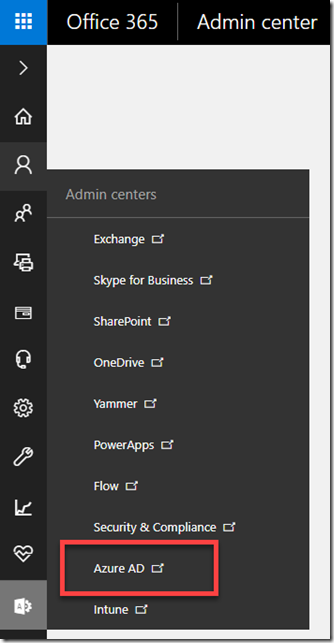
To enable self service password resets navigate to the Azure portal for that tenant using an Office 365 global administrator account.
image

You navigate there from the Office 365 Admin center by selecting Azure AD under the Admin centers option as shown above.
image

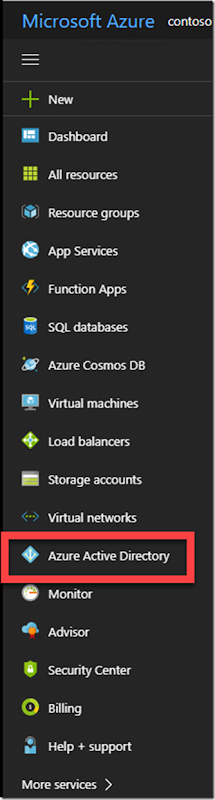
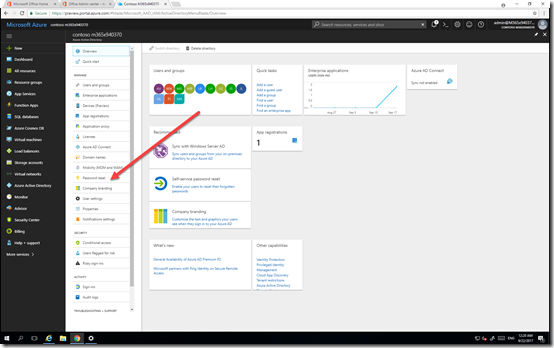
Locate the option Azure Active Directory from the list of options in the Azure portal on the left and select that.

image

image

From the blade that appears select Password Reset as shown above.
image

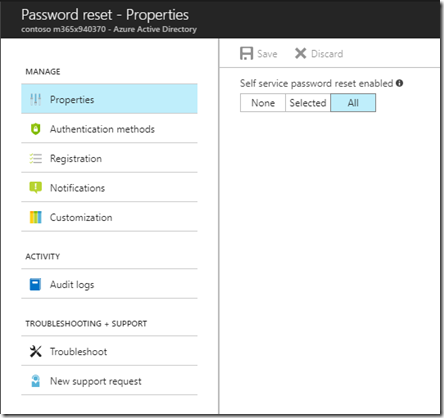
The Properties option allows you to enable password resets for selected or all users. Don’t forget to  press the Save button at the top when you have made your selection.
image

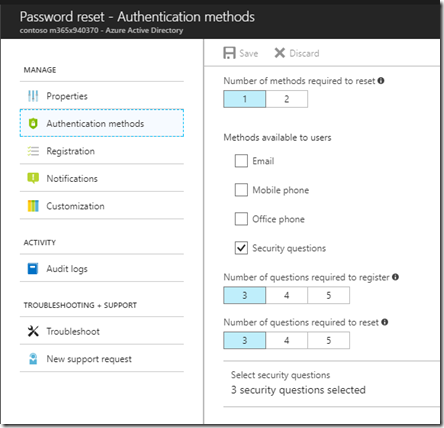
The Authentication methods allows you to determine how users will verify their identity when requesting their password to be reset.

They can be required for one or two forms of identity and there are four methods available – email, mobile phone, office phone and security questions.

In the case of security questions, you can select from 3 – 5 to be part of the registration process and 3 – 5 as being required to verify identity.
image

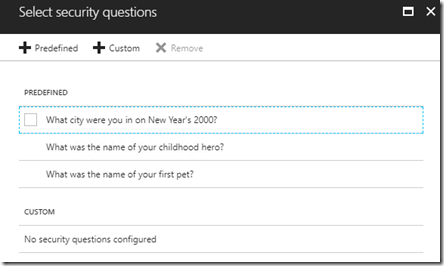
When you go to select security questions you are able to select a number of pre-defined or custom questions as well as mix of both as shown above.

Again, make sure that you Save your selections before continuing.
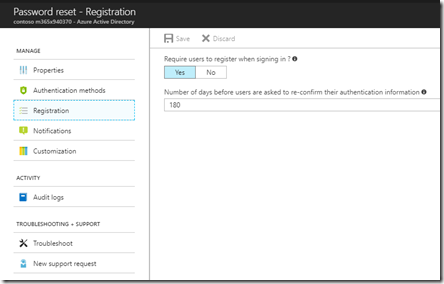
image

The Registration option allows you to force users to have to register their recovery options at next login or complete them manually.
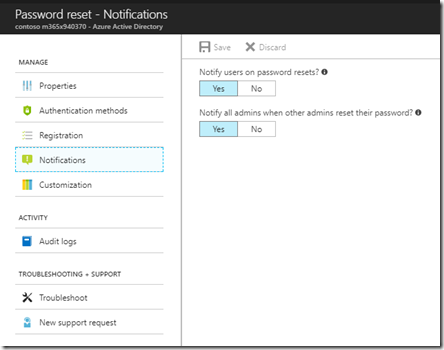
image

The Notifications option allows you to set whether users are notified via email when their password is reset and whether all administrators are notified when any administrator resets their password.
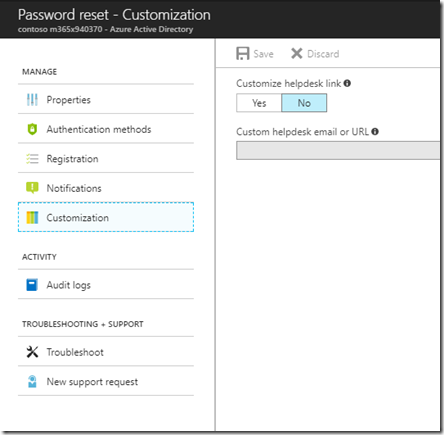
image

The Customization option allow you to set a custom link users can refer to if they need further assistance with this process.
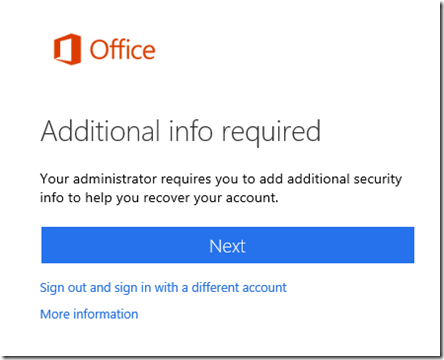
image

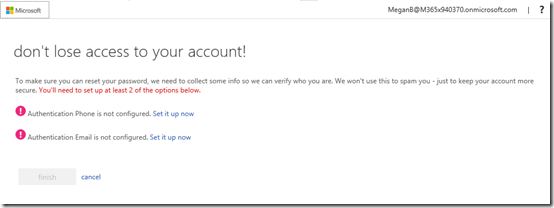
With all these options in place, and with users being forced to set their recovery options, the next time they login successfully they will see the above message prompting them to commence the recovery process.

Users should select Next to continue.
image

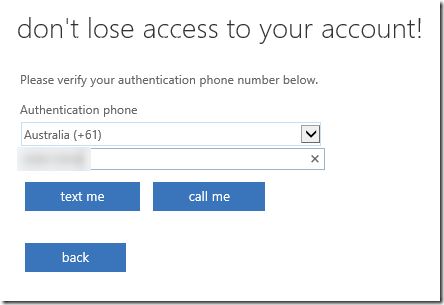
Users will now see the list of verification options that you set for them to complete. They need to work through all of these individually.
image

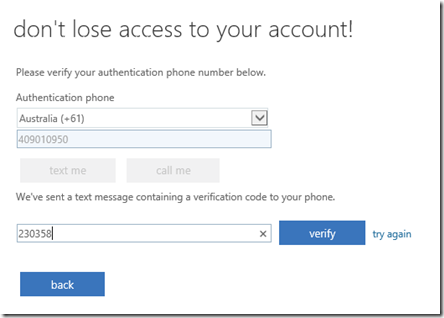
For example, with the mobile phone option, they enter their number and receive a code to verify.
image

With an email address verification they will receive a code that they need to verify.

Once the user has completed all the verification methods they will proceed to their Office 365 portal as normal.
image

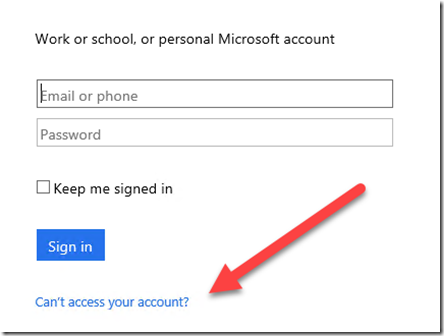
When a user needs to reset their password they can select the link Can’t access your account? at the bottom of the login area.

They then be prompted to select a personal or work account. Normally, they will then select a work account to proceed.
image

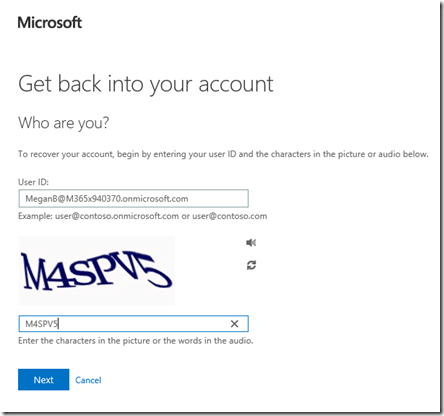
To verify that the process requesting the password reset is not an automated bot, the user will need to complete a captcha as shown above.

image

They will then be taken to a screen where they can select from the methods available to verify their identity. These were set up previously by each individual user and should be unique for that user.
image

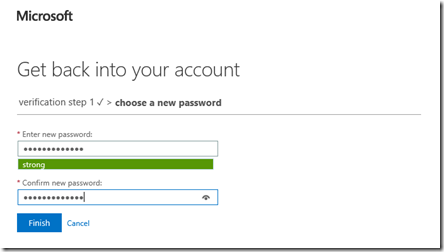
Once the user successfully completes the verification process they will be request to reset their password,
image

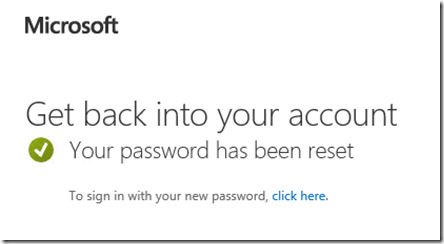
which when complete, will allow them to access their Office 365 account again.

The main benefit of enabling user self service password resets in Office 365 is that it allows users to manage their own passwords immediately and without having to contact an administrator to complete the reset. It is important that you ensure that you have enough verification methods for your environment and all users complete the registration process.

Again remember, that out of the box, Office 365 self service password resets work with cloud only identities. If you are using synchronized identities you will need to purchase Azure AD Premium and configure password write back to your on premises environment.

Need to Know podcast–Episode 165

Marc travels to Adelaide AU to speak with MVP Adam Fowler about his road to being an MVP as well his IT resources. They also cover off the local IT community in Adelaide as well as the upcoming cloud migration projects that Adam is involved with. Marc and I cover off the latest Microsoft Cloud news for Azure and Office 365.

Take a listen and let us know what you think –feedback@needtoknow.cloud

You can listen directly to this episode at:

https://ciaops.podbean.com/e/episode-165-adam-fowler/

The podcast is also available on Stitcher at:

http://www.stitcher.com/podcast/ciaops/need-to-know-podcast?refid=stpr

Don’t forget to give the show a rating as well as send us any feedback or suggestions you may have for the show.

Resources

@marckean

@directorcia

@adamfowler_it

Adam Fowler IT Blog

Marc’s Azure news

Expand your collaboration with guest access in Microsoft Teams

How external access for Microsoft Teams

Shared status indicator in OneDrive

The SharePoint and OneDrive guide to Microsoft Ignite 2017

New Office 365 App Launcher

This program is brought to you by:

image

Automation options in Office 365 presentation

Here’s the presentation I did for Office 365 Saturday here in Australia in various locations. It focused on the automation options that are available to you in Office.

You can also find the slides for download.

In the session I talk about Office macros, SharePoint Designer, third party options like If This Then That and Zapier. I also focus on Microsoft Flow and dip into some PowerShell.

In short, there are lots and lots of options when it comes to automating Office 365 and I feel more people should be taking advantage of them. Too many people are simply adding technology for technology’s sake and making their life harder. That is not what technology is for. Technology is designed to give you the freedom to do what you want not burden you with additional tasks.

Are you automating as much as you could? Hopefully, this presentation will inspire you to look more deeply at what is possible with a tool like Office 365.

Need to Know Podcast–Episode 164

Marc and I are back with the latest news and updates in the world of Office 365 and Azure. We are getting ready for the information overload we’ll suffer as Microsoft Ignite rolls around at the end of this month. Stay tuned right here for all the updates and maybe some special stuff!

In this episode I do a solo session around my belief that successful Office 365 adoption comes from focusing on the ‘me’ services – Yammer, OneDrive for Business, OneNote and Delve. I dive deep into my reasons and the actions you need to take away for success.

Take a listen and let us know what you think –feedback@needtoknow.cloud

You can listen directly to this episode at:

https://ciaops.podbean.com/e/episode-164-focus-on-me-services/

The podcast is also available on Stitcher at:

http://www.stitcher.com/podcast/ciaops/need-to-know-podcast?refid=stpr

Don’t forget to give the show a rating as well as send us any feedback or suggestions you may have for the show.

Resources

@marckean

@directorcia

Focus on the me service first

Conditional access with Microsoft Teams

Skype for Business becoming Microsoft Teams

Microsoft and Adobe build a closer relationship

Skype for Business updates on the Mac

This program is brought to you by:

image

More benefits added to CIAOPS Patron program

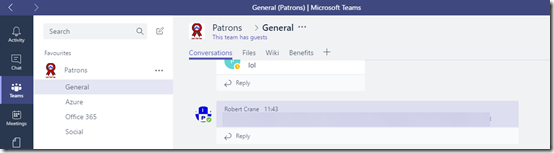
I am happy to announce that now Microsoft Teams is available to external users, so too is access to CIAOPS Patrons external Team from my own Office 365 tenant.

This means that all levels of CIAOPS Patrons now get access to an external Microsoft Teams resource that includes chat, SharePoint Team Site, Planner and more.

image

Not only will give you an better idea of what Microsoft Teams is all about, including how external access works, you’ll also get access to the variety of content that I’m adding into this Team.

The new external Microsoft Teams benefits is on top of all existing resources including a private Facebook community, webinar recording, access and more.

Visit www.ciaopspatron.com for more details of the program and watch out for further additions to the program.