Office 365 Lync troubleshooting

One of the real gems that I have found with Office 365 is Lync. I use it everyday and communicate with a range of people using it. I find it much better than Live Meeting and the only real downside I have found is that it currently doesn’t support the ability to record (see http://support.microsoft.com/kb/2433212/). My understanding is that it is only a matter of time before it does.


One of best things about Lync is that is now available on a variety of platforms, including those running iOS. However, not all the features of Lync are currently available on all platforms. The best way to find out what does and doesn’t work is to have a look at the Mobile Client Comparison Tables at:


http://technet.microsoft.com/en-us/library/hh691004.aspx


So if you do have problems getting Lync to work have a look at the following articles:


Automatic sign-in, domain federation, and other features do not work as expected in Lync Online when you use a custom domain in Office 365http://support.microsoft.com/kb/2566790


and


How to use and troubleshoot issues with Lync Mobile on Apple iPhone and iPad mobilehttp://support.microsoft.com/kb/2636320


Which are both great starting points.


If you want to federate with my Lync feel free to do so at admin@ciaops365.com but maybe send me an email (director@ciaops.com) so I know who you are first.

Recipient Rate for Office 365 P plans goes up

Microsoft has announced that it is increasing the recipient rate limit with the Office 365 P1 plan to allow users to send email to up to 1,500 recipients per day. This is an increase from the previous limit of 500. Here’s the announcement:


http://community.office365.com/en-us/b/office_365_technical_blog/archive/2012/01/31/recipient-rate-limit-for-office-365-p1.aspx


You’ll also find information about Bulk Email and Daily recipient limits here:


http://help.outlook.com/en-us/140/Ff381292.aspx


Not unexpected and shows that Microsoft is listening to its customers and adjust things as required and with Office 365 they can do this very quickly.

Office 365 P Domains

One of the interesting things I find about Office 365 and the drive to get resellers and partners involved is the almost zero focus on the Small Business and Professional plan (P SKU). When you qualify as a Microsoft Cloud partner you get access to an Enterprise (E SKU) for testing and demonstration, which is great. However, the difference between the E plans and the P plan in my experience is vast. Now if you are an SMB reseller focused on installation up to 50 seats then the chances of you having to support P plans is pretty high. Unfortunately, as even I find myself, you can never quite sure of some of the ‘features’ (and importantly limitations) of these plans. This makes selling and supporting those plans difficult.

Now I have never really liked the P plans because I believe they are too limiting. Most customers may say they only care about price (which is a good thing about the P plans, they are cheap) but what typically happens is they later on down the track want the additional functionality offered by E plans (say, Form Services in SharePoint, Archiving in Exchange, or Office on their desktop). E plans have these options and more importantly can be scaled up or down to suit. Not so with the P plan. Once you are on a P plan you only get those features and nothing more. If you want to use the features of the E plan you have to migrate out of a P plan, delete it, and then migrate into an E plan. Painful stuff. This is why I advocate E plans everywhere, they simply provide more flexibility, which in my experience is the mainstay of what SMB customers need.

However, all that won’t prevent P plans being the main product sold to SMB’s. In fact reports are that 90% of Office 365 sales are made to SMB customers, and I’ll bet more than 50% of those sales are P plans. So no matter what happens P plans are here to stay and something most resellers and IT providers are going to know how to configure. Problem is they not been given access to a P SKU for their own use and that makes it hard to support when the differences are so marked.

A good example of this is configuring DNS. Now in the E plans you get to control your own DNS records as you would normally. However, in the P plan the ‘recommended’ method if to allow Office 365 to manage the DNS for you. This option to manage DNS is not available at all in the E plans.

The first step in the process for P plans is to create a TXT record in the DNS for the domain you wish to use with Office 365 P plans so that Office 365 can verify that you own that domain. This record is unique for each domain in Office 365. You login to your Office 365 portal as an admin and select Domains from under the Management section on the left.

image_2_140E10DE

You’ll then see a list of domains that this tenant of Office 365 uses (if any). Select the Add a domain option.

image_4_140E10DE

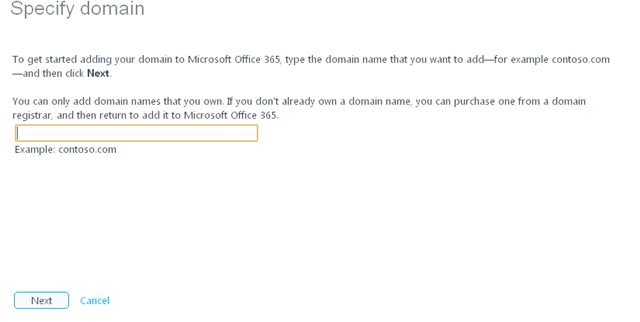
You’ll then be asked to enter the domain you wish to use.

image_6_140E10DE

Simply enter the domain and press Next.

You’ll then be asked to verify your domain.

image_8_7F1C8E6A

You’ll see that you can pull down an option that will help you with setting up the required verification. In this case we’ll select General Instructions.

image_14_7F1C8E6A

Here you will find the TXT record (or MX if you choose) that you need to insert into the DNS records of your domain. Once you have done that you need to press the Verify button so Office 365 can check that the required record is there for that domain and that domain. It is important to remember that when you change the DNS to add the required record it may take 72 hours for that to become available across the Internet.

This wait for verification can be very frustrating and I would recommend http://www.whatsmydns.net.

You enter in the domain you wish to check and the site will give your a report of whether the details for that domain appear in DNS servers around the globe. If it does then there is good chance Office 365 will be able to verify it.

Once the domain is verified you are requested to transfer the Name Server records for the domain to Office 365.

image_18_7F1C8E6A

In this case it is asking for the Name Server to be changed to ns1.bdm.microsoftonline.com and ns2.bdm.microsoftonline.com. What Office 365 has done in the background is set up all the required Office 365 DNS records for you. Once the name server changes have filtered out to the Internet again you Office 365 should be operational.

If you return to your Domains area in Office 365 you’ll see that you can select a domain and then click Manage DNS. Again, this is only available with P Plans.

image_20_2D09E123

When you do so you’ll see a list of all the DNS records that existing in the Office 365 for that domain. They are basically all the records you’ll need to get Office 365 operational. If need be you can add DNS records but they can only be A or CNAME records, however that is for another blog post.

Now that is all well and good and to my knowledge at the time that was more or less the ‘only’ way that it could be done. For most resellers and IT providers that look after SMB customers they will want to manage the customers DNS records via their own DNS management tools. So their question was always ‘. How do we do this without using Office 365 DNS?’. My response was that it really couldn’t be done. However, as someone pointed out to me recently Microsoft has the following document that explains how to do set up DNS for P plans if you don’t want to use Office 365 DNS management.

http://onlinehelp.microsoft.com/en-us/office365-smallbusinesses/hh416759.aspx

In essence you go through that whole process but you merely duplicate the DNS records that Microsoft creates in the alternate DNS management tool and then point the Name Server records to the alternate DNS management tool and everything works fine.

So what is the downside to using an alternate DNS tool for the P Plans? According to the above document:

If you add your domain name to Office 365 without redirecting your name server records to Office 365, consider the following:

  • SharePoint Online: If you enable SharePoint Online to host your public website, the DNS records that are required to route traffic to SharePoint Online won’t be created automatically by Office 365. You have to manually create those DNS records at your DNS provider, as described in this article, because Office 365 isn’t hosting the DNS records for your domain.
  • Domains troubleshooting tool: Because you didn’t configure your name server records to point to Office 365 name servers, the Office 365 domains troubleshooting wizard will always report that your name server records are incorrect. You can disregard this warning because you have manually created the DNS records for each of your services.
  • DNS manager: Microsoft Office 365 for professionals and small businesses provides DNS management tools that you can use to add custom DNS records. However, if you create, or have already created, custom records by using this tool, because the name server records for your domain don’t point to Office 365, the custom records won’t work. You must create, or recreate, any custom records by using your current DNS hosting provider.
  • Future Office 365 updates: When we add new services to Office 365, we won’t be able to automatically add the DNS records that are required to enable the services to work on your domain. To use the services, you must manually add the DNS records at your DNS hosting provider.

Most IT reseller probably wouldn’t see this as a major downside as it gives them more control, however it is important to remember for P plans using an alternate DNS provider is not recommended.

To sum up then. You can host your DNS with an alternate provider on the P plans but it is not generally recommended and to my mind creates confusion as you have DNS records in Office 365 Domain Management as well as any alternate tool. Never good to have two sources of the same information. Knowing where the Name Server points in that case is VERY important.

My main point is that there ARE major differences between P and E plans and if you are selling and supporting them you really need to understand these differences. That is going to be especially hard in the case of the P plan because you don’t get a version you can play with as a Microsoft Cloud Partner by default. Given they are so cheap it is probably worthwhile going out and purchasing a copy for your own purposes. This something that I have had to do to get up to speed with the differences myself and I admit that I am still learning all of the nuances and will endeavour to detail them here for you as it goes along.

If you are selling Office 365 to SMB customers, P plans ARE very different from E plans in many, many ways. One of these is DNS which I have hopefully shed light on here.

Linking from My Sites in Office 365

One of the greatest features of SharePoint 2010, especially on Office 365, is ‘My Sites’ (sorry, those on Office 365 P plans don’t get these, another reason not to have a P plan in my books). What ‘My Sites’ basically provides is a ‘home’ area in SharePoint for users that they can store information about themselves, their job experience and files in their own SharePoint site. Imagine  it a bit like a combination of Linkedin and SkyDrive but a whole lot better.


You get to your ‘My Site’ by generally going to the top left of your SharePoint site and selecting My Site from the pull down menu like so:


image_4_525A9BE5


That’ll take you to a screen that looks like this:


image_2_525A9BE5


From here you can get to your own SharePoint site via ‘My Content’ and to your Linkedin style information via ‘My Profile’. But hang on, how do I get back to my original SharePoint site without having to the back button in the browser? Bottom line is that there is no default link to take you back, which is frustrating once you have gone a few screen into your ‘My Site’.


The reason there is no default link is you can have access to many different SharePoint sites but you only have one ‘My Site’ per user. But your are in luck! There is a way to add a link at the top of the screen back to any URL you want. To do this you’ll need to login to your Office 365 portal as an administrator and then select Manage from under the SharePoint Heading.


image_6_525A9BE5


Then select Manage Site collections from the next menu.


image_8_525A9BE5


Then select User Profiles from the menu on the left.


image_10_525A9BE5


Now on the right, under the My Site Settings section select Configure Personalization Site.


image_12_525A9BE5


Now select the New Link option and enter in address of the SharePoint site you want to return to as well as an owner.


image_18_525A9BE5


Now when you go to ‘My Site’ you’ll see the link you just created and you use that to navigate back to your SharePoint site. In this case I created a link called Intranet to the right of ‘My Profile’.


image_16_525A9BE5


If you want to create more links just repeat the process.


So now that link will appear on everyone’s ‘My Site’ banner making navigation to and from their ‘My Site’ much easier.

Reflections on exams for Office 365


I have recently completed the beta exams for the two upcoming Office 365 certifications 70-321, Deploying Office 365 and 70-323, Administering Office 365. I won’t know the results for a few months but I’d like to convey some thoughts on these exams in context of those resellers in small to medium business (SMB).

I am very privileged to know many exceptional SMB technology resellers around the world. Not only are they hard working, very customer focused but they are some of the most technically astute and knowledgeable people I have ever met in technology. I have worked with enterprise people who perhaps know more on ONE single product but most SMB technology resellers have to be across so many different products and technologies in contrast to enterprise people who are normally focused on a single technology like Active Directory (AD), SQL, Exchange etc. Most SMB resellers have to be across these products also for multiple customers and configurations, where most enterprise people work only for a single business.

After completing both Office 365 exams I was struck by how much Office 365 is like Small Business Server. Why is that? Both product require a breadth of knowledge that most enterprise people would struggle with. To pass the Office 365 exams you are going to HAVE to know Exchange, Lync, SharePoint, AD integration, etc. Likewise, to pass the SBS certification test you need to be across Exchange, SharePoint, Windows Server, Remote connectivity and the like. Sure, Office 365 focuses more on the enterprise features of the products but few enterprise people I know are across such a broad range. However, just about every person I know who does SBS has skills across the entire product range.

To me this bodes well for SBS people looking to get into Office 365 and become certified. You already know what it is like to be across so many products, this gives you a leg up in my books. At the moment you’ll need to learn the advanced features of Office 365, as that is part of the curriculum and will certainly be tested in any certification exam. Even if perhaps SBS people will never implement things like Single Sign On (SSO) and ADFS configuration. I think that many SBS people who have the SBS certification will look at this as a great opportunity to learn more about the advanced features of products they have already been using. They’ll certainly have to study, but they’ll really learn something and that will make them better technology people and most likely open up additional opportunities for them.

However, just as there is a dedicated SBS certification exam from Microsoft it would nice to have an Office 365 certification exam that is focused on the SMB market. A market that typically doesn’t do AD integration, a market that moves everything to Office 365, a market that is truly looking to adopt the total cloud model. Bah humbug I hear the enterprise people say. Ok you guys and gals may have the greatest number of licenses perhaps but from what I understand 90% of businesses that use Office are small to medium in size. If Microsoft wants to speed adoption of this market then it need to make it easier for people who service that market to get certified. These people, like their customers, are time and cash poor. They believe the best reflection of certification is the fact that they could pass it simply based on their direct experiences with customers. At the moment I don’t believe that is possible and as such that will hinder to move of existing SMB resellers to supporting, adopting and selling Office 365.

So in summary, I think the existing exams cover the whole Office 365 products and configuration very well. This means that if you are weak in any area or on a specific product you need to bring that up to strength before attempting the exams. For SMB resellers this means you are going to have to dive into areas of Office 365 that you may never see in the field. It would also be nice for Microsoft to consider an Office 365 certification for the SMB market that can pretty much be passed provided you have enough experience setting it up and supporting it for SMB customers (i.e. those < 100 seats).

Office 365 keeps getting better


One of the big advantages I have always seen with Office 365 (or any online service for that fact) is its ability to improve quickly over time. Having the servers in a hosted data centre makes it much quicker and easier to roll out new and updated features over anything that is installed on site.

Here is a list of a few improvements that have been made recently that you may not be aware of:

Maximum number of email recipients has been increased for the P Plan

Previously, those on a P Plan were restricted to only sending to 500 recipients a day via email. This has now been increased, as of the end of December, to 1500 which is the same as for those on the Enterprise plans. Some may still complain that this is unacceptable, even though it is probably more than enough, I reckon this number will be increased further down the track.

Lync online web scheduler now available

On of the frustrating things I found when organizing meetings was that it could only be done via Outlook and only be done by logging into Outlook as a valid Office 365 user. I longed for the old Live meeting days when you could schedule a meeting directly via a web site. Well now you can with Lync after Microsoft announced the availability of the Lync online web scheduler. To organize a meeting now all you need to do is visit https://sched.lync.com.

Health dashboard supports per tenant status

When Office 365 had services issues you could examine the health dashboard to see what was going on. The only problem with that was that the health dashboard was regional. This meant that it only told if something was an issue in the Office 365 region. I did have cases where issues were exhibited with clients and it didn’t shown on the dashboard which was frustrating. However, according to this blog post that has now changed so that the dashboard shows the health information of the specific tenant that it is launched from.

The K plans have been improved

As this post outlines the K Plans (diskless worker) have been improved. This means that K Plans now have a storage limit of 1GB (used to be only 500MB). They now also support activesync, meaning devices like smart phones can be utilized. Also importantly, the ability to apply legal hold and unlimited mailbox storage can be added as an add on to these mailboxes. This greatly improves the flexibility of the K Plans and means that they are more likely to be adopted with an organization since they are so cheap and probably all that most users need.

Office 365 trust center has been updated

If you aren’t already aware you’ll find that Microsoft has created a site dedicated to answering question around the security and privacy of Office 365. You’ll find it at http://www.microsoft.com/en-us/office365/trust-center.aspx and is worth remembering so you can refer customers to it who may have concerns about how Microsoft manages and secures their information.

So just a few updates recent from Microsoft on Office 365 but it impressive to see these continue to roll out and improve the product. I expect we’ll see a whole range more in the very near future.

Image: http://carolyncholland2011.files.wordpress.com/2011/10/smileyfacek.jpg

The difference between P and E

One of the most common questions customers ask about Office 365 is the difference between the P (Small Business and Professional) and the E (Enterprise licenses). Hopefully, this will help.


1. P Plans cannot be upgraded to E Plans


Probably the most important thing to consider when selecting between P and E Plans. Once you move onto a P Plan the only way to change to another plan is to migrate the data out, cancel the P plan, buy a new plan and migrate the data back.


2. P Plans do not support advanced Exchange features


The P Plan does not support the following advanced Exchange features:


– Unlimited inboxes

– Legal hold


3. P Plans are aimed at no more than 25 users


The absolute maximum limit for P Plans is 50 users but it is recommended that they don’t exceed 25 users.


4. Plans do not support all the advanced SharePoint features


P Plans do support the following advanced SharePoint features:


– Office Web Apps read/write

– Access Services (for databases in the cloud)


P Plans do not support the following advanced SharePoint features:


– Form services

– Visio Services

– Excel services

– Encrypted traffic for SharePoint (i.e. all sites are http:// not https://)

– Multiple intranet sites (they have a single site collection only).

– Addition of extra space for SharePoint sites. P Plans only have 10GB to start with + 500MB per user max.

– My site

– Unlimited external (non-Office 365 users). P Plan is limited to 50.


5. P Plans do not support identity synchronization


P Plans do not provide the ability to link your local user list (Active Directory) to Office 365. Thus, with P Plans you will always have two distinct sets of users, on premises and one in Office 365 that both require maintenance. This typically means with P Plans you need to main 2 sets of user logins and passwords.


6. P Plans require DNS moved to Office365


DNS is basically a record of where information about Internet servers are located (i.e. web servers, email servers). By default, the P Plans require that these records be moved to and managed by Office 365.


7. P Plans only have community support (outside Australia)


For regions outside Australia P plans have not support apart form that found on the Internet. In Australia however P Plans are supported by Telstra via phone 24/7.


8. P Plans do not allow the management of mail security


Exchange Online as part of Office 365 is protected by Microsoft Forefront Protection for Exchange (FOPE). P Plans do not permit the administration or customization of this. Thus, with P Plans you are unable to set custom email white and black lists, block IP, etc.


9. P Plans have lower email receipt limits – limits removed Feb 2012. see – http://supportweb.ciaops.net.au/blog/archive/2012/02/09/recipient-rate-for-office-365-p-plans-goes-up.aspx


P Plans have a reduced amount of email that can be sent per day per user. Limits can be found at:

http://help.outlook.com/en-us/140/dd630704.aspx

with P Plans the limit is basically 500 1500* mail recipients per day. Now *1500 as of the end of December 2011.


10. P plans are limited to 50 online meeting participants


P Plans have access the Lync client software but are limited to having only 50 participants maximum attend any meeting. Thus, if you are planning to do webcasts to large audience 50 will be the limit with a P Plan.


Hope that makes things a little cleare.