Microsoft 365 Android configuration mappings

The great thing about Microsoft 365 Business is that it gives you control over the devices that are connected to your Office 365 environment. Many of these will be running Windows 10, which I have covered in previous posts:

Microsoft 365 Windows 10 device configuration mappings

and

Microsoft 365 Application management for Windows 10 mappings

These days, of course, there are additional, non-Microsoft devices, that also need to be connected to Office 365. One of these is Android. What I’m going to cover here is the Application Management for Android in Microsoft 365 Business.
image

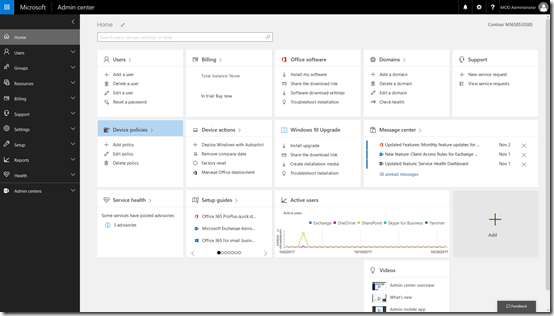
Start by navigating to the Admin center in your Microsoft 365 Business tenant.
image

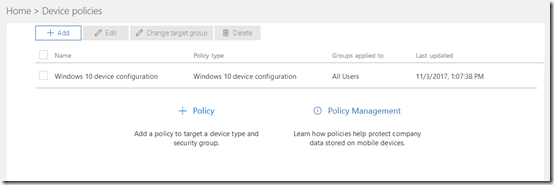
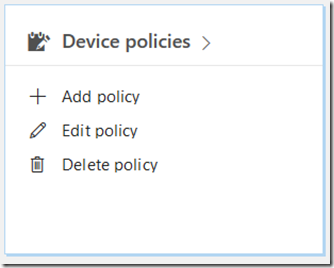
Locate the Device policies tile and select it.

image

You may see a number of policies but one should be named Application Management for Android. Select this.

image

image

image

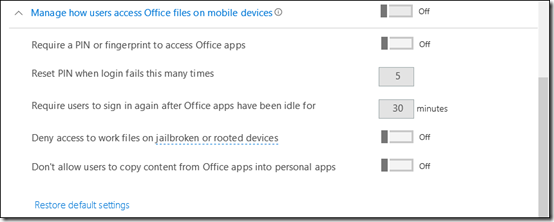
If the policy doesn’t exist you can create a new one. When you do you will see the above settings.

If you expand the display for each option you should see a list of all the options and their status as shown above.

The question now is, how do these map to settings in Intune under the covers?

To view the settings in Intune you’ll need to login to the Azure portal for that tenant and then navigate to the Intune option. Remember, you get access to an Azure management portal when you sign up for Office 365 free. I covered off how you can access it here:

Enabling your Office 365 Azure AD access
image

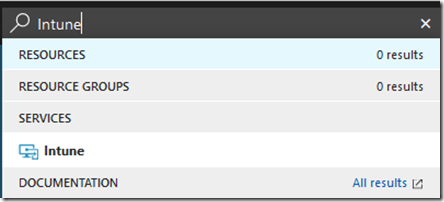
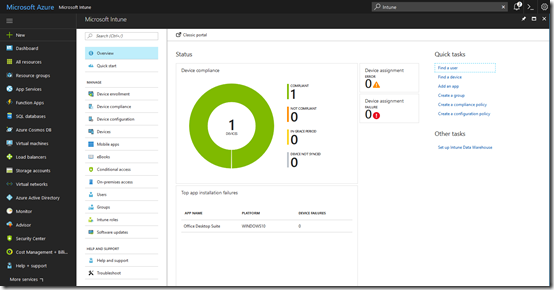
The easiest way to find the Intune settings is to do a search in the top right and then select Intune from the results.
image

You should see the Intune console displayed as shown above.
image

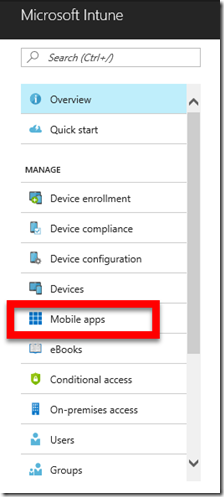
From the menu, under the Manage section, select Mobile apps

image

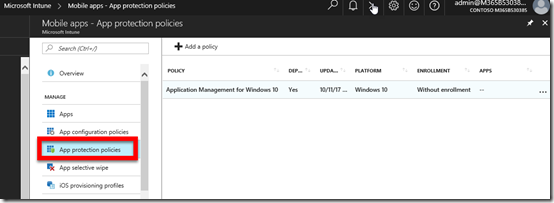
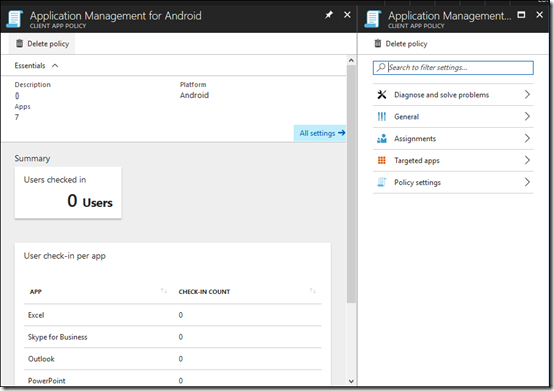
From here select the App protection policies option under the Manage section. This should display a policy on the right that matches the one you have in the Microsoft 365 Business console (here Application Management for Android). Select the policy name to continue.
image

The first setting in the policy in Microsoft 365 Business under the heading Protect work files when devices are lost or stolen is:

image

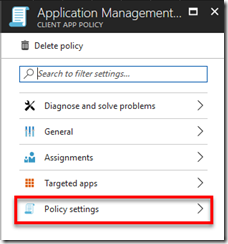
In Intune select Policy Settings

image

Here you will find:

image

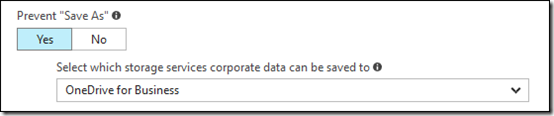
The next option in the Microsoft 365 Business policy for Android is:

image

In the same policy area in Intune this maps to the setting:
image

Next in Microsoft 365 Business is:

image

which maps to, also in Policy settings in Intune:

image

In Microsoft 365 Business, under the heading – Manage how users access Office files on mobile devices is:

image

This can be found once again in the Policy settings area of Intune and the options are:

image

Next is:

image

which maps to:

image

Next in the Microsoft 365 Business policy is:

image

which again can be found in the Policy Settings area:

image

Finally, in this section for Microsoft 365 Business is:

image

which corresponds to:

image

The managed apps are basically those at the bottom of the policy in Microsoft 365 Business, typically apps like Excel, Outlook, Word, etc.

image

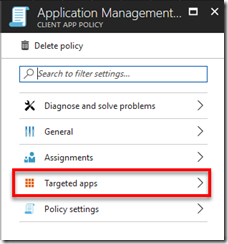
If you go out of Policy settings in Intune you should see:
image

Select Targeted apps.

image

image

Here you will see the same list of apps that you find in Microsoft 365 Business.

Remember, this policy is for Android devices and there is one for Windows 10 and iOS as well. Also remember that you can’t go and make changes to the in Intune, I have just shown you the mappings here. if you want to change the policy for any of your devices it needs to be done in Microsoft 365 Business.

You can of course delete the existing policy in Microsoft 365 Business or create different device policies and apply them to different security groups in your environment. Thus, you can have separate policies for floor staff and management if desired.

Microsoft 365 Business makes it easy to manage your devices by putting the policies right in the Office 365 Admin console. These map to policies in Intune under the covers but are only designed to be set inside the Microsoft 365 Business Admin console.
Deploying Microsoft 365

Here’s an overview of the administration options that are available for you in Microsoft 365 Business.

You’ll see how to add Microsoft 365 Business licenses as well as what each contains. You learn about the device and application policies that you can configure in Microsoft 365 Business as well as see the back end deployment inside Azure.

If you need to manage Microsoft 365 Business or are wonder how it all works in the back end then take a look at this tutorial.

Microsoft 365 Application Management for Windows 10 mappings

I wrote a previous article that showed the mapping from the Microsoft 365 Business Windows 10 Device Configuration settings to those in the Intune console in Azure. You can read that article here:

Microsoft 365 Windows 10 Device Management settings

What I am now going to cover is the Application Management for Windows 10 policy. That is the software and information that resides on Windows 10 devices.

image

Start by navigating to the Admin center in your Microsoft 365 Business tenant.

image

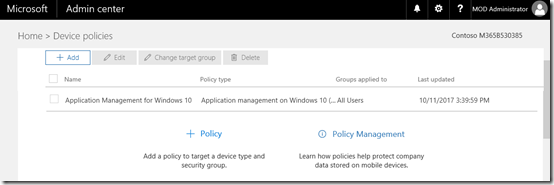
Locate the Device policies tile and select it.

image

You may see a number of policies here but one should be named Application Management for Windows 10 as shown above. Select this.

clip_image001
clip_image001[5]

If the policy doesn’t exist you can create a new one. When you do you will see the above settings.

If you expand the display for each option you should see a list of all the options and their status as shown above.

The question now is, how do these map to settings in Intune?

To view the settings in Intune you’ll need to login to the Azure portal for that tenant and then navigate to the Intune option.

image

The easiest way to find the Intune settings is to do a search in the top right and then select Intune from the results.

image

You should see the Intune console displayed as shown above.

image

From the menu, under the Manage section, select Mobile apps.

image

From here select the App protection policies option under the Manage section. This should display a policy on the right that matches the one you have in the Microsoft 365 Business console (here Application Management for Windows 10). Select the policy name to continue.

image

You will notice that when you create a new Application Management for Windows 10 policy that you have the option to set Encrypt work files to be on or off.

image

However, after you set it to on and save the policy you can’t change it to off as shown above. Thus, once Encrypt work files is set to on, it stays and can’t be changed.

image

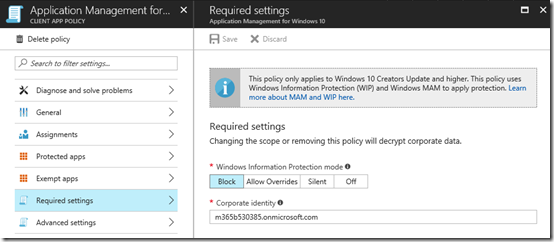
This setting maps to the Windows Information protection mode in the Required settings of the Application Management policy in Intune as shown above.

image

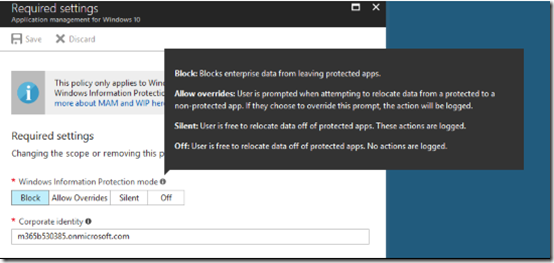
When Encrypt work files is set to on, the option in Intune is set to Block. This basically prevents Office 365 data from being used in non Office 365 applications on Windows 10. Thus, you can’t save an Office 365 file to a consume storage platform like Google Drive.

clip_image001[9]

When Encrypt work files is set to off, the option in Intune is also set to off as shown above. Thus, Office 365 files can be shared with any application.

image

If the option to Prevent users from copying company data to personal files and force them to save work files to OneDrive for Business is set to on, then I can ‘t see how this is enforced by the policy as there doesn’t appear to be any settings for this like there is with iOS and Android policies. I’ll need to investigate this one further.

clip_image001[11]

The next setting is Manage how users access Office files on mobile devices.

image

image

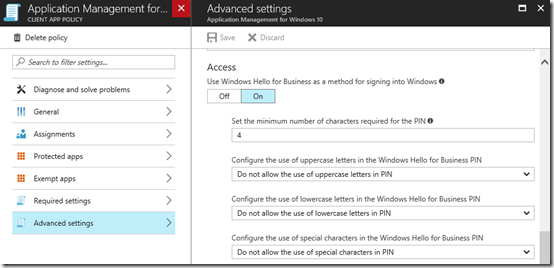
If the Require a PIN or fingerprint to access Office apps is set to on, the use Windows Hello for Business as a method of signing into Windows in the Access section of the Advanced Settings of the policy is also set to on as shown above.

image

image

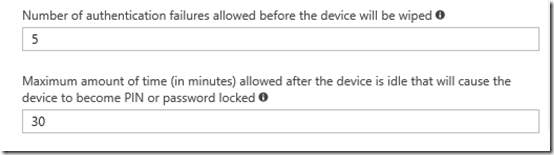
The Microsoft 365 Business policy options Reset PIN when login fails this many times and Require users to sign in again after Office apps have been idle for settings are located at the bottom of this same policy as shown above.

image

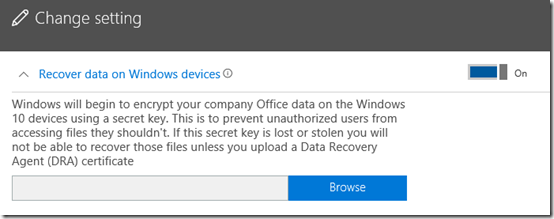
The next option Recover data on Windows devices appears to map to the Data protection area of the Intune policy.

image

I haven’t quite worked this setting out yet. I’m unsure whether you need to upload your certificate BEFORE you apply the policy to machines or you can do it at any time AFTER the policy has been applied. One would think that you need to do it BEFORE and retain the certificate to decrypt files later. However, I need to dig deeper here and do a follow up article.

clip_image001[13]

image

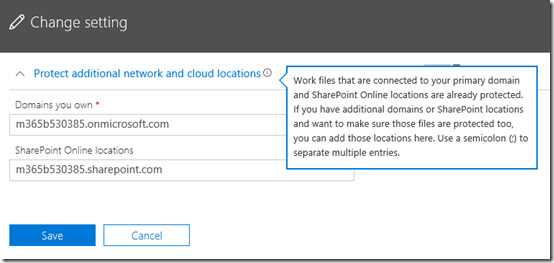
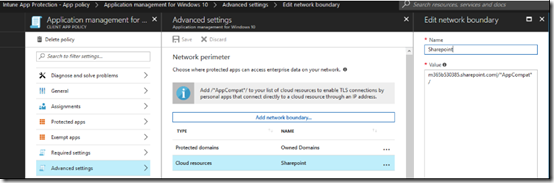
The Protect additional network and cloud locations in Microsoft 365 Business option maps to the following areas in Intune policy.

image

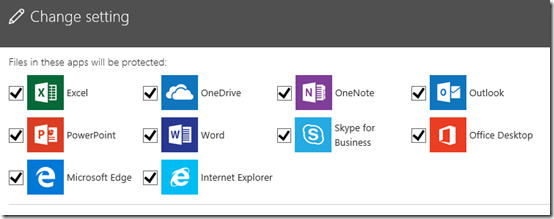
The final option, Files used by these apps are protected

image

map to

image

image

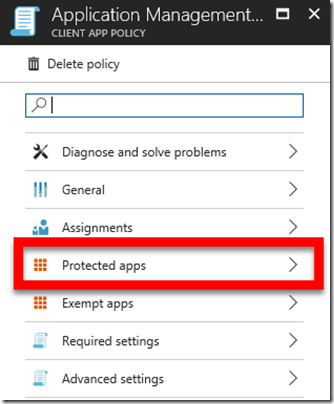
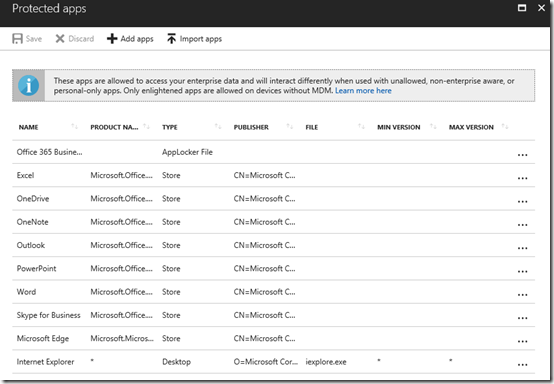
the Protected Apps area of the policy as shown above.

Remember, there is a similar policy for both iOS and Android that I’ll cover soon. There are also a few things here I need to do more research on but you should now have a better idea of how the Microsoft 365 Business settings map to Intune.

Also, as I understand it, you can’t make changes to the policies in Intune, they all need to be done via the Microsoft 365 Business console.

So, when you create a Application management for Windows 10 policy in Microsoft 365 Business, these are the mapping that occur to Intune under the covers.

CIAOPS Need to Know Office 365 Webinar–November 2017

laptop-eyes-technology-computer

November is once again super busy but I’m still going to give my monthly webinar focused on Office 365. I am scheduling this month’s free Office 365 webinar on Friday the 1st of December from 11am – 12pm. There is lots of news to cover (especially from the upcoming Microsoft Summit in Sydney) and we’ll also be doing a deep dive into SharePoint best practices. Not a session to miss.

You can register for free at:

November Webinar Registrations

The details are:

CIAOPS Need to Know Webinar – November 2017
Friday 1st of December 2017
11am – 12am Sydney Time

All sessions are recorded and posted to the CIAOPS Academy.

There of course will also be open Q and A so make sure you bring your questions for me and I’ll do my best to answer them.

The CIAOPS Need to Know Webinars are free to attend but if you want to receive the recording of the session you need to sign up as a CIAOPS patron which you can do here:

http://www.ciaopspatron.com

or purchase them individually at:

http://www.ciaopsacademy.com/

Also feel free at any stage to email me directly via director@ciaops.com with your webinar topic suggestions.

I’d also appreciate you sharing information about this webinar with anyone you feel may benefit from the session.

Microsoft 365 Windows 10 Device configuration mappings

Microsoft 365 Business allows you to configure Windows 10 devices that are connected. This management is typically done by Intune at the back end while Microsoft 365 Business provides a simplified interface over these settings. However, what settings in Microsoft 365 map to Intune?

The best place to start to understand this mapping is the following document from Microsoft:

How do protection features in Microsoft 365 Business map to Intune settings

image

Start by navigating to the Admin center in your Microsoft 365 for Business tenant.

image

Locate the Device policies tile and select it.

image

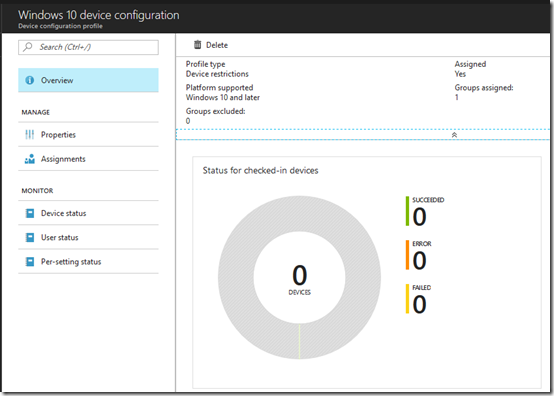
You may see a number of policies here but one should be named Windows 10 device configuration as shown above. Select this.

image

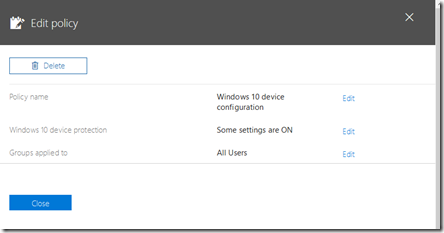
You should be taken to the Edit policy dialog as shown above.

Select the Edit hyperlink at the right of the Windows 10 protection line (the second option from the top).

image

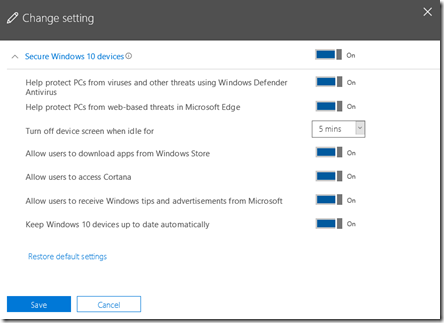
If you expand the display you should see a list of all the options and their status as shown above.

The question now is, how do these map to settings in Intune?

To view the settings in Intune you’ll need to login to the Azure portal for that tenant and then navigate to the Intune option.

image

The easiest way to find the Intune settings is to do a search in the top right and then select Intune from the results.

image

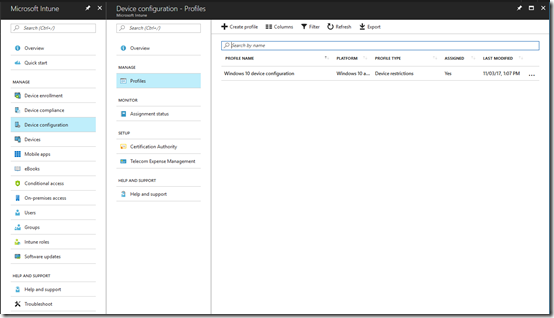
You should see the Intune console displayed as shown above.

image

From the available options, select Device Configuration. From the blade that appears then select Policies. You should then see a policy that matches the one in the Microsoft 365 for Business console (here Windows 10 device configuration).

Select the policy name.

image

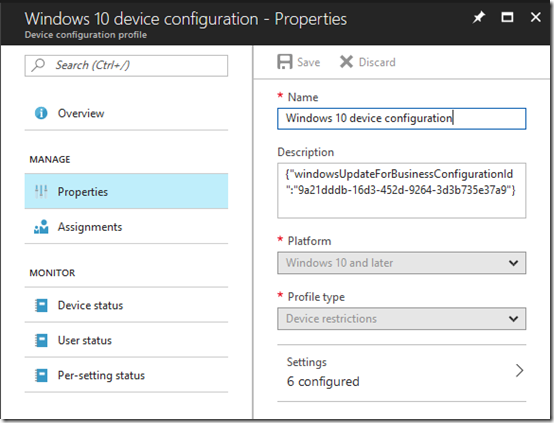
From the new blade that appears select Properties.

image

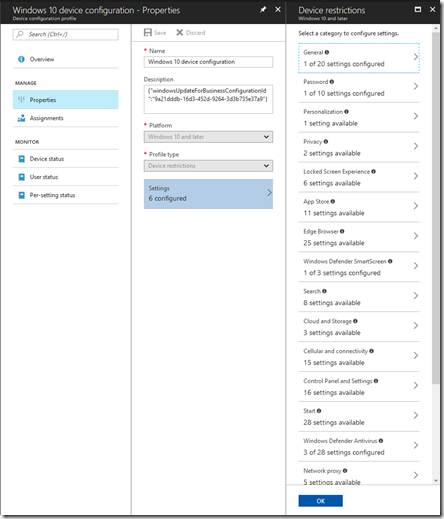
This should open another blade like shown above. The last option on this blade should be Settings. Select this.

image

This will open a Device restrictions blade with lots of different settings as you can see above. This is where most the mapped settings from Microsoft 365 are.

clip_image001[5]

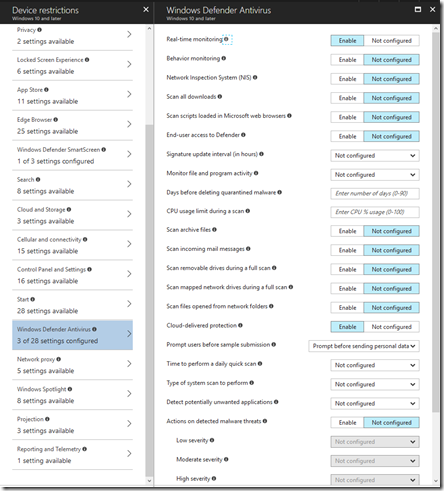
Working from the top, the Help protect PCs from web-based threats using Windows Defender Antivirus maps to Windows Defender Antivirus as shown.

image

However, only 3 of the 28 options are set and they are:

clip_image001[7]

clip_image001[9]

clip_image001[11]

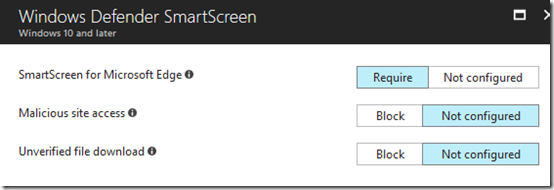
Next in Microsoft 365 Business is Help protect PCs from web-based threats in Microsoft Edge,

clip_image001[13]

This maps to SmartScreen for Microsoft Edge in Windows Defender Smart Screen.

clip_image001[15]

image

The next option is Turn off device screen when idle for:

clip_image001[17]which maps to Maximum minutes of inactivity until screen locks in Password.

clip_image001[19]

The option Allow users to download apps from Windows store maps to a Custom URI that I haven’t been able to locate in Intune.

image

I’m still researching what that actually maps to. More soon.

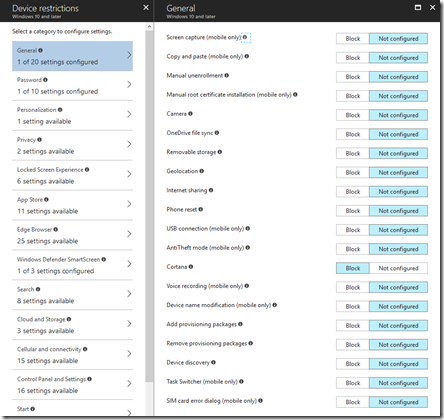
Next is Allow users to access Cortana

clip_image001[21]maps to Cortana in General in Intune.

image

image

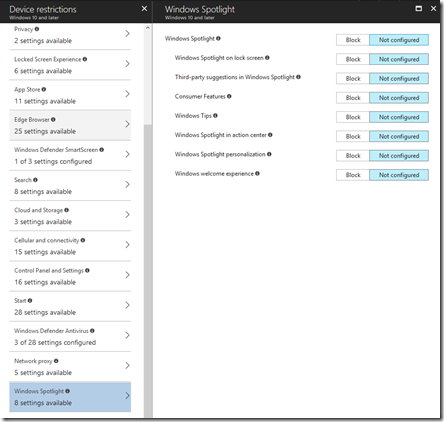
Next, Allow users to receive Windows tips and advertisements from Microsoft.

clip_image001[23]which maps to Windows spotlight in Intune.

image

Finally, Keep Windows 10 devices up to date automatically

image

is actually configured from the Software updates option in Intune.

clip_image001[29]

From the main Intune blade select Software updates. From the blade that then appears select Windows 10 Update rings. Then form the new blade select Update policy for Windows 10 devices.

clip_image001[31]

Select the policy and then Properties from the blade that appears.

At the bottom of the Properties page select Settings. This should then show a blade like that shown above.

clip_image001[33]

If the Microsoft 365 Business setting is ON the Service Branch will be set to Semi-Annual Channel (Targeted) like so:

clip_image001[35]

If the Microsoft 365 Business setting is OFF, the Service Branch will be set to Semi-Annual like so:

clip_image001[37]

You can review these update channels here:

Assign devices to servicing channels for Windows 10 updates

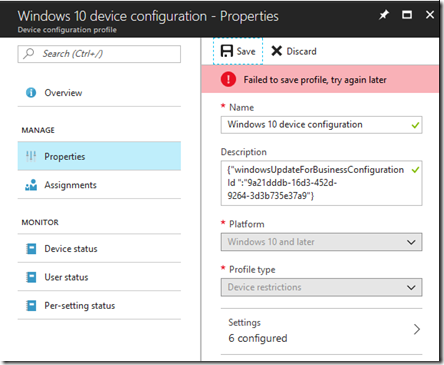
So making any changes in the Microsoft 365 Business console will be reflected in the Intune console. However, if you change these settings in Intune and then try and update them you seem to get an error like so

image

I would have thought that I could change the settings in any console but that doesn’t appear to be the case. I currently can’t find any confirmation of this but I will publish anything I find. So for now the guidance is – only make changes in the Microsoft 365 Business Admin Center.

There are a number of other policies in Microsoft 365 Business that I’ll cover in upcoming posts.

The End of the Domain Controller

Here is my keynote presentation from the Ingram Micro Cloud Connection 2017.

The end of the Domain Controller – A new era, a new opportunity

If businesses no longer require a traditional domain controller what does that means for the IT resellers? How can you utilise the latest cloud services to not only provide identity but security and management for customers? Will this mean a change of business model or simply an integration of new services and techniques into your current offerings? This session will help you understand the direction your business needs to focus on to take full advantage of the evolving cloud services that are fast making traditional domain controllers redundant.