Final discount to my new Microsoft 365 Security course

security-protection-anti-virus-software-60504 (1)

If you missed the first discount round and you want deep dive training into Office 365 security, with video demonstrations, included PowerShell configuration scripts, reference material and more then don’t hesitate. I’m offering one last round of discounts before I completely finish my course.

Use the coupon code LASTCALL at check for:

Microsoft 365 Security

or this direct URL that includes the discount:

https://www.ciaopsacademy.com/p/o365-security/?product_id=715774&coupon_code=LASTCALL

That will give you access to the complete course immediately, plus any coming additions for only US$249. There are already over 40 lessons in the course that you can take advantage of and I have lots more to add but that won’t take me long.

Remember, this is the last round of discounts I’ll do. After this the price reverts to the standard price of US$399.

So, if you want to learn more about the security options for Microsoft and Office 365 then sign up today to advantage of the discount while it lasts.

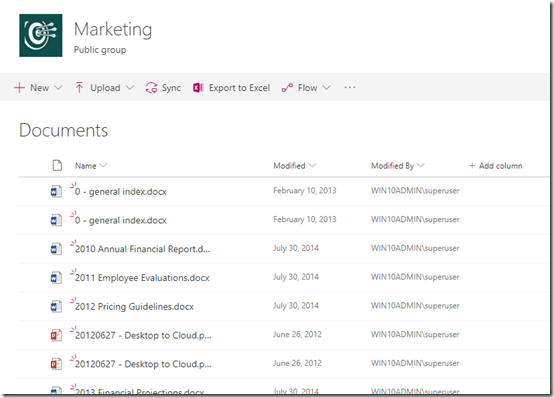
Don’t show folders in SharePoint

image

Best practice with the structure in SharePoint is to keep things as flat as possible. This typically means avoiding multi level folders within Document Libraries because doing so reduces the visibility of information and make it hard for people to find information if they don’t understand the folder structure it lives in.

However, best practices is not what always happens I appreciate. So is there any easy way to see all in the file in a structure with a SharePoint Document Library? There certainly is and it requires working with Views.

image

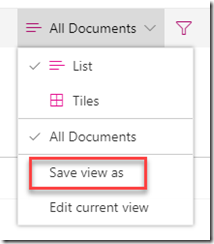
The recommended starting point is to navigate to the Document Library in question and then in the top right select the All Documents button. This should display a menu like shown above.

Select the Save view as option to create a duplicate of the way the Document Library is currently being displayed.

image

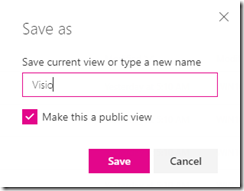
For this example, I’m looking for Visio files in my folder structure so I’ll call this new view Visio as shown above.

image

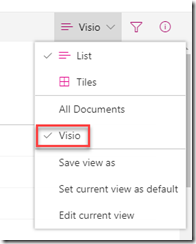
You should now see that the menu option on the right now show an item called Visio as shown, with a check to the left. This indicates that we are viewing the Document Library with a View called ‘Visio’.

image

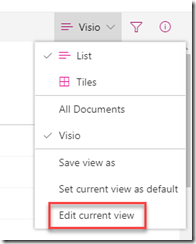
Because the ‘Visio’ view is simply a copy of the default All Documents view, we now want to go in and customise what is displayed with this View. To do this, select the Edit current view option from the menu as shown above.

image

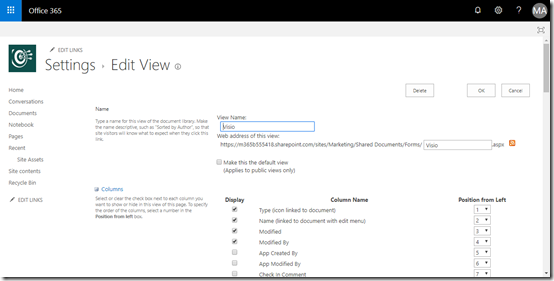
You are now taken into an area where you can customise all sorts of aspects of the current View.

image

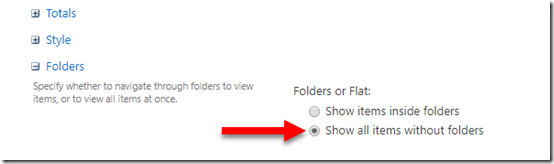
If you now scroll down to the bottom of all these options, you will find one called Folders, which you should expand as shown above. There you will find an option, Show all items without folders, which you need to select.

Scroll down to the bottom of the page and select Save to update your preferences.

image

You should no be returned to the list and you should no longer see any folders but every file in the structure shown together as shown above.

image

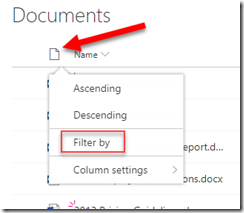
With this new list of just documents, you can select the Type column (first from the left) and from the menu that appears the Filter by option as shown above.

image

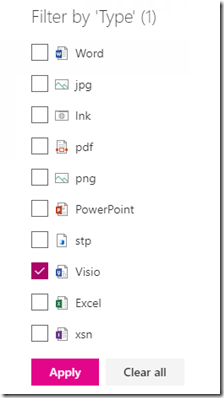
On the right hand side a filter menu will appear as shown above. Here, select Visio and then the Apply button.

image

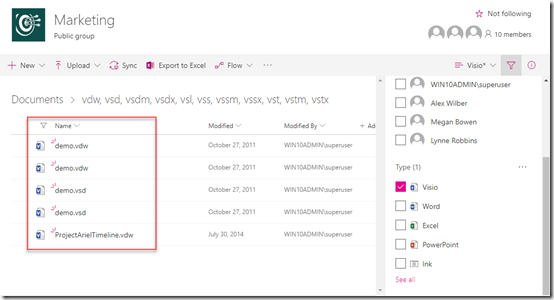
You should now only see Visio files as shown above.

This has achieved our aim but, all the filtering options are temporary. If we return to this Document Library later we’ll again see a full list of files. If we want our new View to continue to show just Visio files we’ll need to go in a edit the View again and make some changes.

image

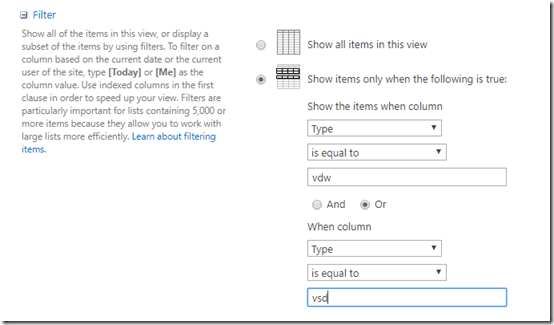
Once we are again editing the Visio view we can locate the Filter section and set conditions for what we want to see. Here, I’m adding filtering on the Type column in that I only want to see VDW or VSD file types.

Again, make sure you Save you changes before exciting the editing options.

image

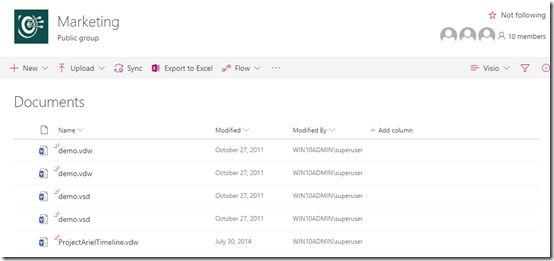
Now, every time I go to that Document Library and select the Visio vie win the top right I will see my filtered list of all Visio files in that structure. If you want to make this new filter View the default, just go back to editing the View and select that option. Easy.

SharePoint views therefore allow to easily view your Document Libraries the traditional way with folders or roll up to single ‘non-folder’ View.

Cleaning up orphaned SharePoint Online sites

image

A while back I made a script available that allows you to find all the external users in your environment. You can learn about this here:

Checking SharePoint External Users PowerShell Script

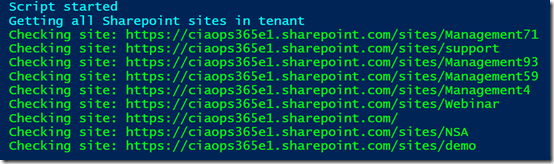
Now when I ran the script on my own tenant I noticed a number of SharePoint sites that didn’t seem right. As you can see from the above screen shot, these typically have the word “management” (e.g.management71, management93, management59, etc).

Hmm…ok, seems like I have some orphaned SharePoint sites. I kinda of remember playing around when Microsoft Teams came out, creating and deleting Teams to test the functionality. So it seems that when I deleted the Teams stuff in the early days it didn’t delete everything.

Ok, time for a clean up
image

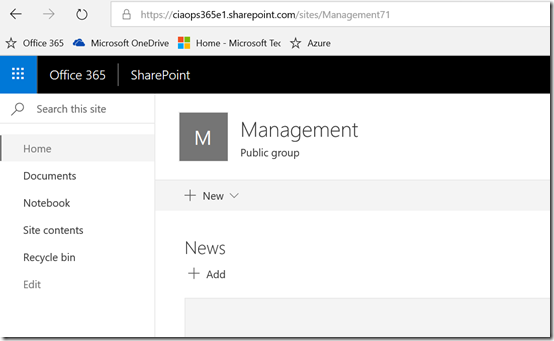
So I started with site Management71 and checked to see whether I could get to it. As you can see from the above, yes I can.

So back in the day, this would have been connected to the Office 365 Group. If I delete the site and it is isn’t fully orphaned (i.e. no Office 365 Group still exists) then I could have issues. So to see whether an Office 365 Group still existed with the word “management” in the title I ran this command to give me a list of every Office 365 Group in my tenant:

Get-UnifiedGroup | Format-List DisplayName,EmailAddresses,Notes,ManagedBy,AccessType

Turns out there still is an Office 365 Group called Management in my tenant as you can see from the results below.

image

So the question now, is whether the existing Office 365 Group called Management tied to the SharePoint site Management71 or another site also with management in the name? See how confusing I’ve made things?
image

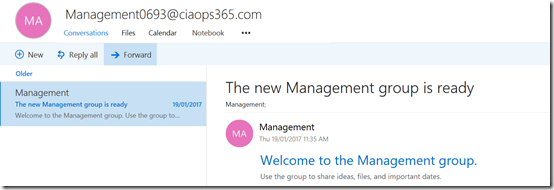
So next I checked whether I could discover this operational Office 365 Group I see via PowerShell and indeed I could see it in my tenant as you see above.

SNAGHTML208e3e48

To determine whether this indeed was connected to Management71 I navigated to the SharePoint site connected to the Office 365 Group from the Group page. Low and behold, the Group Site in question is a different site, with a URL that includes the word Management not Management71. Hopefully you get why I’m trying to make all this go away!

So, not needing this valid Office 365 Group I decided the best way to remove it was to use the PowerShell command to delete it which you will find here:

Remove-UnifiedGroup -Identity "Management"
image

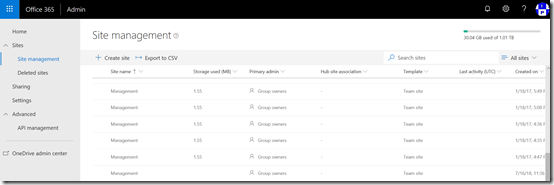
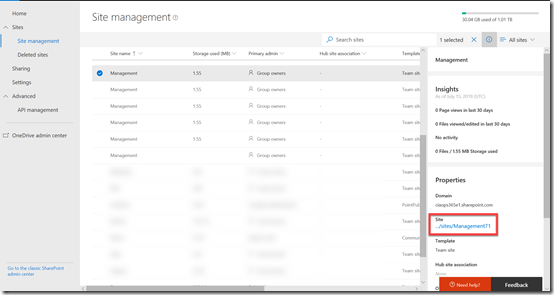
To see the sites created by Office 365 Groups you’ll need to go into the new SharePoint Online Admin console as you see above. Problem is, that this new portal doesn’t as yet allow you to delete sites. That means I’ll have to user PowerShell.
image

I was then able to locate the orphaned site in question – Management71 as shown above.
image

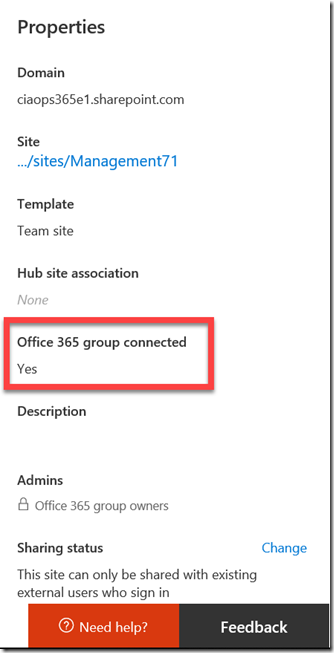
But if I look carefully at the properties for the site I see that it still thinks this site is connected to an Office 365 Group.
image

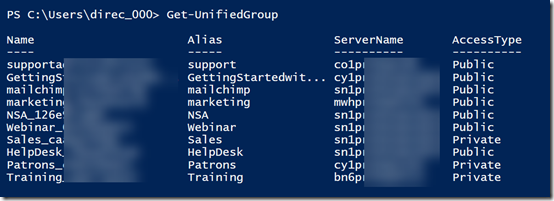
So I once again ran the PowerShell command to check the Office 365 Groups in the tenant and there is no longer one with the name management. I am therefore going to assume the site in question is orphaned and I’ll remove it using PowerShell.

image

When I look in the new SharePoint administration console, in the recycle bin for deleted sites I now see the site that was tied to the valid group that I just deleted called Management. To keep things tidy, I decided the best option was to purge unwanted items from here so the rogue SharePoint sites are completely gone from my tenant. To do that I ran:

remove-spodeletedsite -Identity https://ciaops365e1.sharepoint.com/sites/management –NoWait

To remove the other rogue SharePoint sites I firstly run:

remove-sposite -Identity https://ciaops365e1.sharepoint.com/sites/management71 –NoWait

Followed by the initial command to also remove them from the recycle bin and my tenant completely.

In the end, I have been able to remove active SharePoint sites in my tenant that appear to have been created by now defunct Office 365 Groups. I did all this via PowerShell to ensure that they weren’t still connected to something else in Office 365.

I feel much better have a clean tenant without these additional SharePoint sites float around and I got to also user PowerShell to get the job done. Win!

Join my free Microsoft Team

image

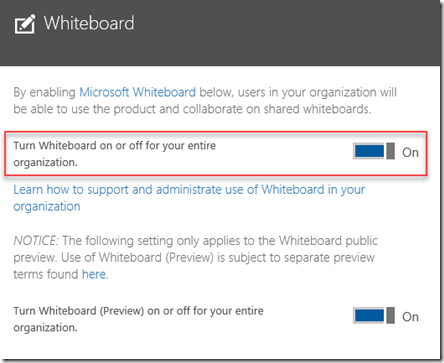
A while ago I create a free Yammer network for people to see what Yammer is all about as well as share Microsoft Cloud information. Since then, Microsoft has announced that it is making a version of Teams freely available, so I thought why not do the same there as well.

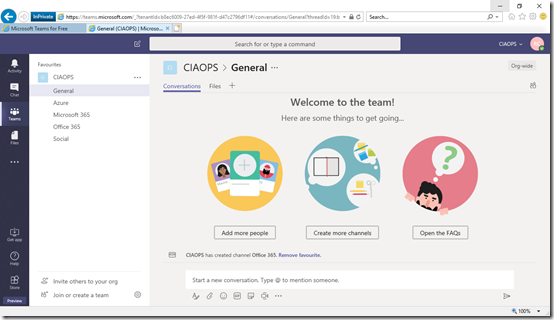
So I have gone out and created a free Microsoft Team which you are more than welcome to join. All you need to do is send me an email (director@ciaops.com) and I’ll arrange an invite for you that will allow access.

I think making a free version of Teams is great move by Microsoft and will allow more people to see what Teams is all about without the need for Office 365.

Of course, you can go out and create your own free Microsoft Team but hopefully, if we can get some people into this free Team I have created, you’ll get a better idea of exactly how it works with a group of people.

Locate all Office 365 Site Collection Administrators

image

One of the other things you probably need to check in your tenant is exactly who is a Site Collection administrator in your SharePoint sites in Office 365.

Site Collection administrators have full access to that SharePoint site and can only be removed by another Site Collection administrator. Also, they generally don’t appear inside the permission settings inside a site. So, knowing who has full rights to your SharePoint sites is a good thing I feel.

You can find the script to display all your SharePoint sites and Site Collection administrators inside those sites in my GitHub repository here:

https://github.com/directorcia/Office365/blob/master/o365-spo-admins.ps1

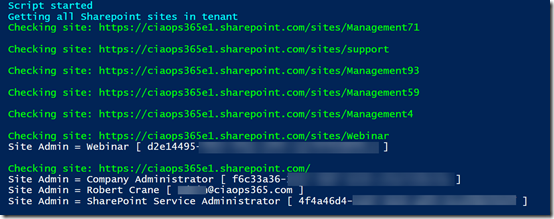
The interesting thing I discovered when I ran the script was that I have a number of site with no Site Collection administrator (most likely deleted sites it seems) and a number of sites I didn’t have access to (again, seems to have something to do with becoming orphaned during deletion). So, I have some further work to do now to clean all this up.

The script won’t fix or deal with any errors, but it will tell you about them and you can go investigate further.

Run it and see what it turns up for you!

Need to Know podcast–Episode 185

A great interview this episode with Marcus Dervin from Webvine focused on Digital Transformation. Marcus has some real insights to share from his recent book on this very subject and we even have a special offer to listeners of this podcast to also grab a copy and learn from an experienced operator. If you are looking to digitally transform or help other business do the same, don’t miss this episode.

You’ll also get the latest round of Microsoft cloud updates from Brenton and myself as we aim to keep you up to date with the ever changing face of the cloud.

Take a listen and let us know what you think –feedback@needtoknow.cloud

You can listen directly to this episode at:

https://ciaops.podbean.com/e/episode-185-marcus-dervin/

Subscribe via iTunes at:

https://itunes.apple.com/au/podcast/ciaops-need-to-know-podcasts/id406891445?mt=2

The podcast is also available on Stitcher at:

http://www.stitcher.com/podcast/ciaops/need-to-know-podcast?refid=stpr

Don’t forget to give the show a rating as well as send us any feedback or suggestions you may have for the show.

Resources

@marcusdervin

@contactbrenton

@directorcia

Marcus’s book – Digital Transformation, from the inside out (use coupon code CIAOPS for 20% off)

Webvine

Page metadata coming to SharePoint and Office 365

Idle session timeout policy in SharePoint and OneDrive is now generally available

New Office ribbon

Microsoft Surface Go

New Planner capabilities

Determining Office Add ins

After posting how to protect your Office tenant from malicious add-ins recently:

Thwarting the Office 365 Ransomware cloud

I was asked whether you could determine what add-ins users had already authorised? Thanks to PowerShell the answer is always “Yes”.

You need to ensure that you are connected to Exchange Online first and then you can run:

$mailboxes = get-mailbox –resultsize unlimited

foreach ($mailbox in $mailboxes) {
     write-host “Mailbox =”,$mailbox.primarysmtpaddress
     get-app -mailbox $mailbox.primarysmtpaddress | Select-Object displayname,enabled,appversion | Format-Table
}

This will basically spit out something that looks like:

image

So you can easily see what is already configured for each mailbox.

I have uploaded the file to my GitHub repository here:

https://github.com/directorcia/Office365/blob/master/o365-exo-addins.ps1

if you want it.