

This is part of a series on MSP priorities for 2026.
Workforce Development Program for SMB Clients (Step 7 Outcomes)
Step Seven of the MSP priorities (“Investing in Workforce Development and Talent”) emphasizes building a skilled, engaged, and loyal workforce. The following is a step-by-step implementation program for MSPs to help their SMB clients achieve these outcomes using Microsoft 365 Business Premium. It is organized into phased actions with clear timelines, assigned roles, and measurable outcomes, leveraging tools like Viva Learning, Teams, SharePoint, Intune, Defender, and Entra ID.
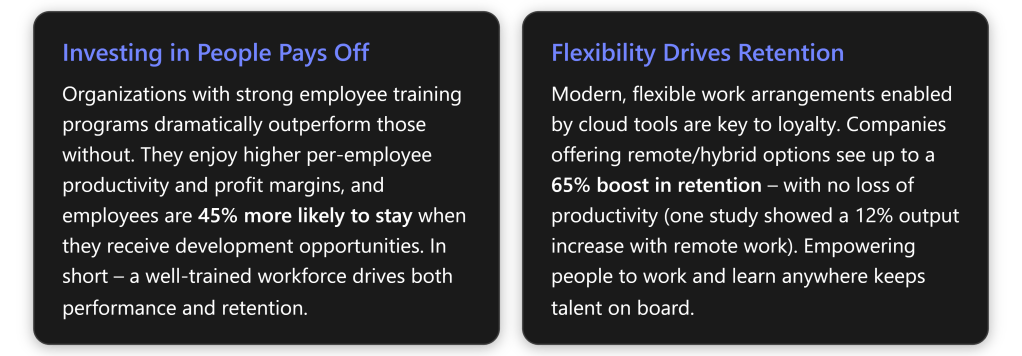
Program Phases Overview
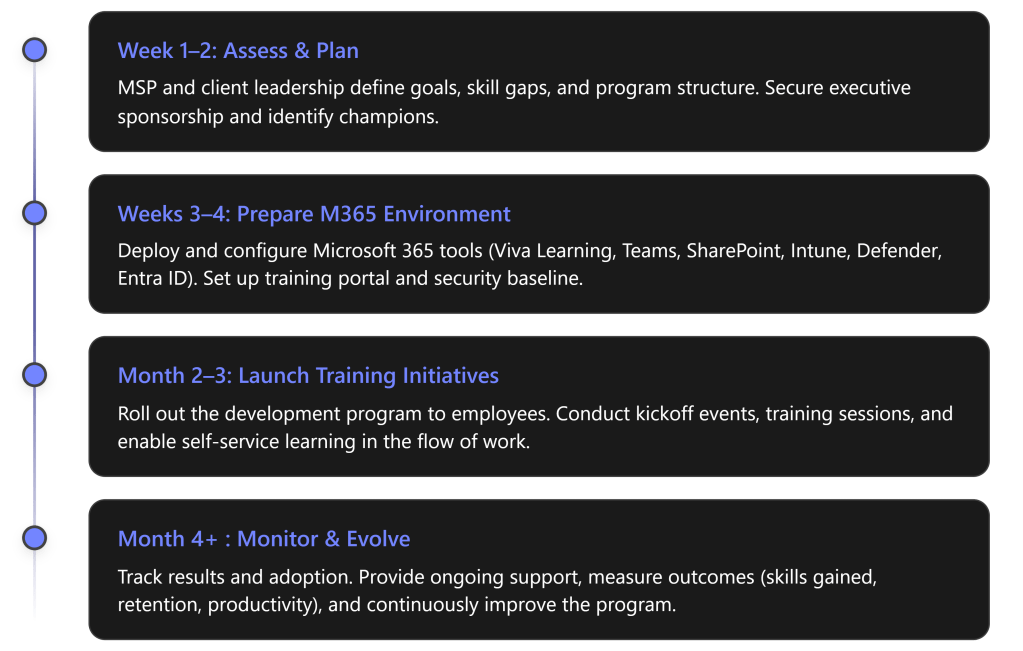
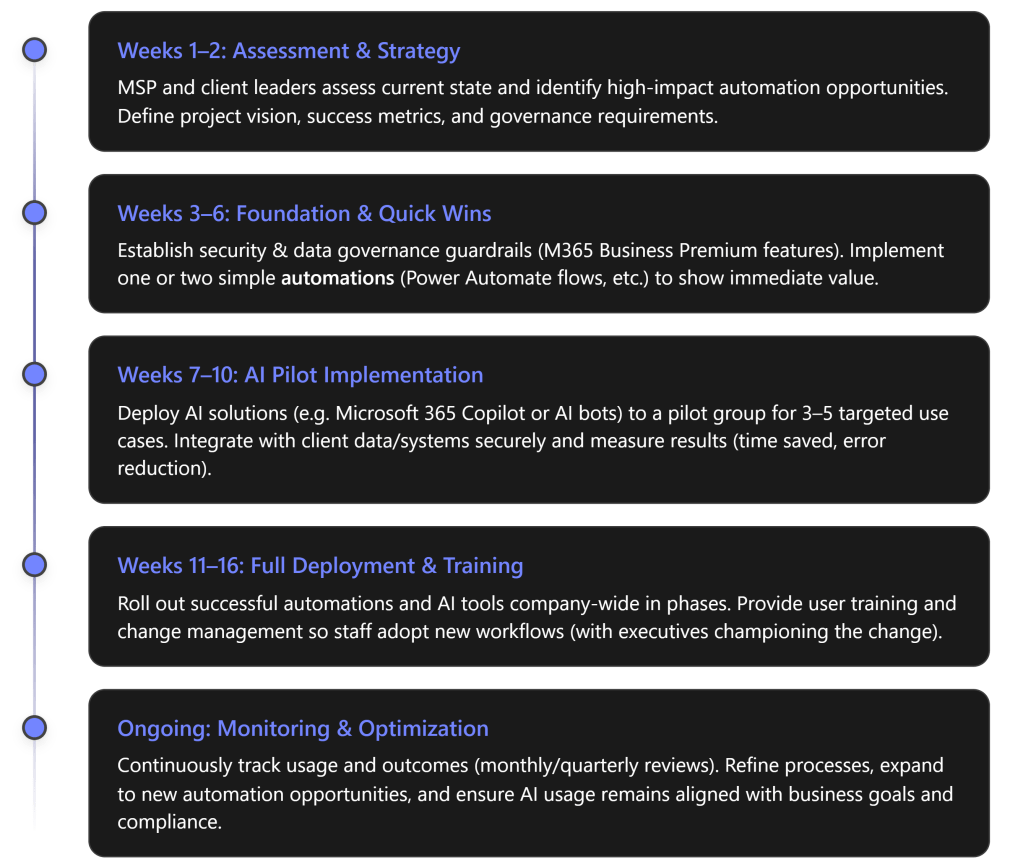
Below, each phase is detailed with specific steps, responsible roles, and expected outcomes:
Phase 1: Assess & Plan (Weeks 1–2)
Objective: Establish a clear workforce development strategy aligned with business goals.
- Secure Executive Buy-in: The MSP works with the client’s leadership (e.g. CEO or Principal) to designate an Executive Sponsor who will champion the talent program. This sponsor should communicate the high-level vision and commit resources, signaling to all employees that this initiative is a priority. A visible executive sponsor greatly increases success of the transformation.
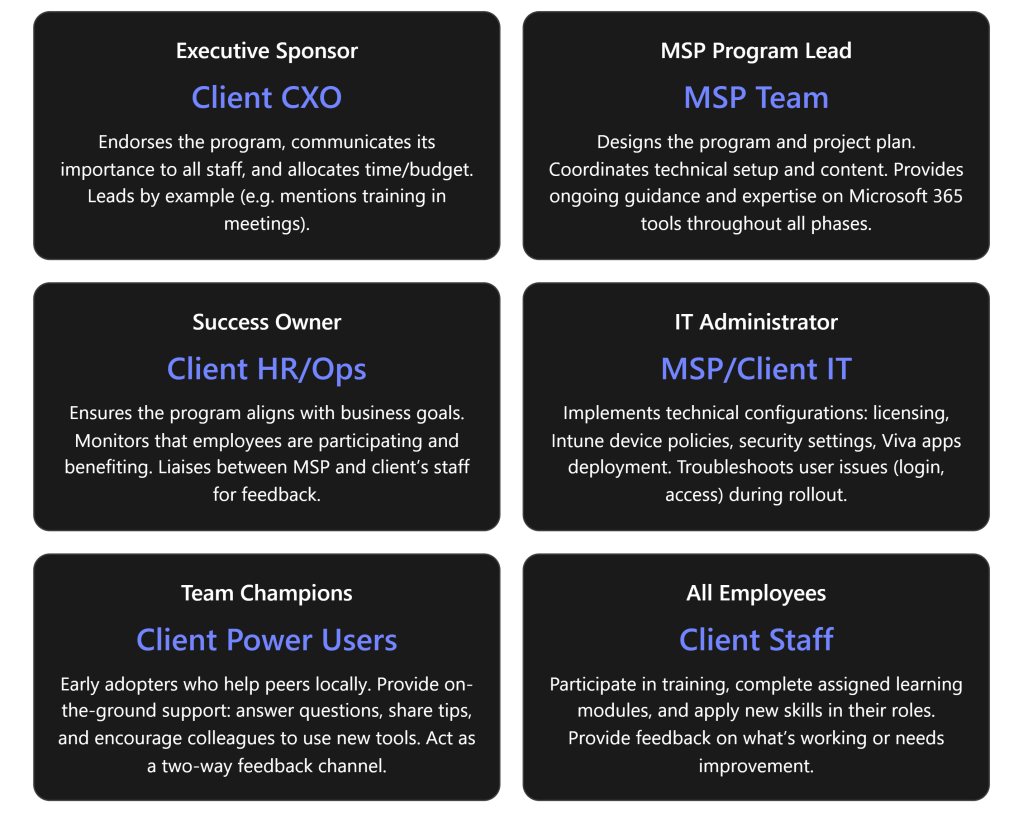
- Identify Stakeholders & Roles: Form a joint working group including the MSP project lead and key client stakeholders:
- Success Owner (client’s HR manager or operations lead) – to ensure the program meets business goals and employees actually use the new tools.
- IT Lead (either the MSP or client’s IT admin) – to oversee technical setup of M365 features.
- Team Champions – identify a few tech-savvy, enthusiastic employees who can act as champions in each department. Champions will help evangelize new tools and assist peers in learning (peer coaching), creating grassroots support.
- (See Roles & Responsibilities table below for a summary of all key roles.)
- Assess Skills & Needs: Conduct a quick skills gap analysis. The MSP can survey or interview managers to pinpoint critical skill gaps or training needs in the client’s workforce (e.g. cloud skills, cybersecurity awareness, productivity tool usage). Identify relevant competencies needed for the business to grow. For example, if the client plans to adopt new cloud software, ensure employees will be trained on it.
- Define Program Goals & KPIs: Set measurable outcomes to target. For instance: “Improve employee satisfaction with training resources (measured via survey) by 30%”, “Achieve 100% completion of cybersecurity basics training”, or “Reduce staff turnover rate from 15% to 10% within a year”. Establish baseline metrics (e.g. current turnover, current skill certification levels, etc.) so progress can be measured later. Also determine technical KPIs like Teams usage, Viva Learning engagement (course completion rates), and so on, which will be tracked in Phase 4.
- Plan the Curriculum & Schedule: Based on identified needs, outline the learning curriculum. Decide on a blend of self-paced learning (leveraging Viva Learning and LinkedIn Learning content) and live training sessions (e.g. monthly Teams workshops or lunch-and-learns). Schedule an official program kickoff event in Phase 3 and tentative dates for key training modules. Keep the initial program scope manageable (e.g. a 3-month push) with the option to extend. Ensure to build in time for employees to learn – e.g. allocate a few hours per week as “learning time.”
- Communication Strategy: Plan how to announce and promote the program to all staff. Utilize the executive sponsor for an announcement email or Teams post explaining “what’s in it for me” for employees. Create a simple message that investing in skills will benefit both the employees’ careers and the company. Generating excitement early will drive participation. (We will execute the communications in Phase 3.)
Deliverables (Phase 1): A brief Workforce Development plan document outlining the program goals, phases, and schedule; a list of identified participants in key roles (sponsor, success owner, champions); and baseline metrics recorded for future comparison.
Stakeholder Roles & Responsibilities:
Phase 2: Prepare M365 Environment (Weeks 3–4)
Objective: Set up the technical infrastructure and content needed to support the development program. Leverage Microsoft 365 Business Premium features to create a learning-friendly, secure environment.
- Enable Viva Learning: As the central hub for learning, Viva Learning will be used to distribute and track training content. The MSP ensures Viva Learning is activated in Teams for all users (it’s included in M365 and can be pinned in the Teams sidebar). Configure Viva Learning’s content sources:
- Connect to Microsoft 365 Training and Microsoft Learn (free, included content) so users can access MS’s own tutorials. [talentedla…esclub.com]
- If the client has licenses or subscriptions, integrate LinkedIn Learning or other LMS content libraries for a richer course catalog (optional).
- Upload or link any internal training materials the client already has (for example, an onboarding PDF or process videos stored on SharePoint) into Viva Learning’s central repository. This way, employees will find all learning resources in one place within Teams. [talentedla…esclub.com]
- Outcome: Employees get a “one-stop shop” for training content within their daily workspace, greatly reducing friction to engage in learning. [talentedla…esclub.com], [talentedla…esclub.com]
- Set Up SharePoint Training Portal: The MSP creates a simple SharePoint intranet site or uses an existing one for training and knowledge sharing. This site will serve as a home for program information – e.g. an FAQ about the program, a calendar of training events, links to helpful resources (like the company’s process docs or Microsoft’s support articles). This ensures even those who may not use Viva Learning immediately have a place to find training info via the intranet. The SharePoint site can also host discussion pages or a Q\&A list if needed. (Note: Viva Connections could be used to surface this SharePoint portal in Teams for convenience, if time permits.)
- Deploy Microsoft Teams Channels: Leverage Teams for communication and collaboration around learning:
- Create a dedicated “Learning & Development” Teams channel (or Team) for the client. This will be used to post announcements, schedules, and allow employees to discuss training topics. For example, after a webinar, participants can continue the conversation in this channel.
- Ensure Teams is rolled out to all users on all their devices. Since Teams is already part of M365, verify everyone has access and is in the necessary Teams/Channels. If some staff aren’t actively using Teams yet, consider a brief orientation for them because all program events will rely on Teams (meetings, chat).
- Within Teams, integrate Viva Learning app – so users can find and share courses directly in chat. Encourage a culture where employees share interesting learning content with each other via Teams (Viva Learning allows sharing courses in Teams chats/posts) to make learning social.
- Intune – Device and App Readiness: If not already in place, use Microsoft Intune (Endpoint Manager) to ensure all employee devices are ready for a modern, remote-friendly work environment:
- Enroll company PCs/mobile devices into Intune for management. This allows pushing required apps (Teams, Office, etc.) and settings.
- Deploy the Company Portal app which can list available business apps and resources – include links or apps for learning resources if applicable.
- Ensure Teams, OneDrive, and Office apps are installed and updated on all devices. Intune can push updates or new apps if someone is missing them.
- Configure device settings that support productive learning: for example, enable Windows 10/11 “Work Accounts” or single sign-on so that employees can easily access SharePoint and Teams without login hassles.
- Bottom line: Intune helps guarantee every user—whether in office or remote—has a secure device with the needed software to participate in online training.
- Security Baseline with Entra ID & Defender: A safe learning environment is crucial. Configure Azure AD (Entra ID) and Defender security features included in Business Premium to protect users as they engage in new online tools:
- Enforce Multi-Factor Authentication (MFA) for all user logins (via Entra ID). This protects identities as more services (Teams, SharePoint) are accessed from potentially anywhere. It’s a quick win to dramatically improve security and is part of Business Premium’s Entra ID P1 features.
- Set up Conditional Access policies if needed – e.g. require devices to be compliant (Intune-managed) to access sensitive SharePoint content. This ensures only secure, managed devices are used for work, reducing risk.
- Defender for Office 365: Turn on anti-phishing, anti-malware, and Safe Links/Safe Attachments for email and Teams. Users will be safer from cyber threats during their day-to-day work and training. (If available, use Attack Simulation Training to periodically send test phishing emails and auto-enroll those who fall for it into a quick remedial training. This feature might require an upgrade, but it’s worth considering to directly tie Defender security into workforce education.)
- Defender for Endpoint: If the client’s devices are Windows 10/11, ensure Defender antivirus is active and reporting to the portal. Set up baseline endpoint protection policies via Intune (e.g. requiring disk encryption, firewall on). These measures protect the devices used for learning and work, reducing the chance of disruptions (like malware outbreaks).\ By deploying these protections, the MSP also sets the stage to teach employees about security best practices in Phase 3. Tools like MFA and threat detection not only secure the environment but can be referenced in security training modules (e.g. “we have enabled MFA – here’s why it’s important”). Note that making security seamless is part of enabling flexible work – it addresses the challenge of maintaining data safety when people learn and work from anywhere. [whatjobs.com]
- Content Curation: Before launch, load up the initial content into Viva Learning and SharePoint:
- For example, identify 5–10 priority learning modules relevant to the client’s business. An MSP might include “Microsoft 365 Fundamentals” training for all staff, a specific course like “Teams Tips and Tricks for Daily Productivity,” and a mandatory “Security Awareness 101” training. Mark these as “featured” content in Viva Learning or list them on the SharePoint portal.
- Ensure each piece of content has an assigned owner who will track completion (this could be automated via Viva Learning reports if available, or manually by the Success Owner tracking who finishes what).
- Test access: have a few pilot users (like the champions) log into Teams, open Viva Learning, and access the SharePoint site to verify everything is accessible and content displays properly.
Deliverables (Phase 2): Microsoft 365 environment configured for learning:
- Viva Learning deployed with curated content and integrations.
- SharePoint training site live.
- Teams channels set up for program communication.
- Intune policies applied (devices compliant, apps deployed).
- Security policies active (MFA, threat protection).\ The end of Phase 2 should provide a “sandbox” ready for users to start their learning journey safely and easily.
Phase 3: Launch Training & Drive Adoption (Month 2–3)
Objective: Roll out the workforce development program to employees, maximize engagement, and achieve quick wins in upskilling and engagement. This phase is about execution – delivering the training and fostering a learning culture using M365 tools.
- Kickoff Event (Week 5): Host a program kickoff meeting with all employees. This can be a live town-hall style meeting on Microsoft Teams led by the executive sponsor. In the kickoff, announce the goals (e.g. “Our goal is to invest in each of you – by helping you grow your skills for the future. Here’s how we’ll do it…”). Demonstrate how to access Viva Learning in Teams and the SharePoint portal. Emphasize leadership’s commitment: e.g. the sponsor might say “We expect everyone to spend a few hours each month on learning – and we fully support that time.” This leadership messaging is critical to set the tone. Encourage questions and excitement. (If scheduling allows, consider bringing in a guest speaker or an MSP expert to briefly talk about the importance of continuous learning in tech.) The kickoff should leave employees motivated and clear on how to get started.
- Deploy Training Modules: Immediately after kickoff, launch the first set of training modules:
- Assign all employees an “Onboarding to Viva Learning” tutorial (so they learn how to use the tool itself). Microsoft provides a quick guide which can be shared. This ensures no one is lost on the platform.
- Assign or invite employees to the initial learning courses chosen in Phase 2. For example, everyone might be assigned “M365 Basics” and “Cybersecurity Basics” courses via Viva Learning. The MSP or Success Owner can use Viva Learning’s assignment/recommendation feature to push these to each user’s learning queue. Employees will see these recommendations in Teams and email.
- Schedule the first live training session via Teams. For instance, a “Teams Best Practices Workshop” in week 6, run by the MSP trainer or a champion. Send a Teams meeting invite to all required attendees. Tip: Record these sessions (Teams can record) and post the recording on the SharePoint portal for those who miss it or future new hires.
- Encourage managers to set aside time: have department managers discuss these courses in their team meetings, and allow perhaps 2 hours during work time in the first week for employees to complete the initial trainings. By integrating it into the work schedule, you increase participation (otherwise, busy staff might postpone it indefinitely).
- Foster Engagement and Culture: Make learning visible and social:
- Use the Teams “Learning & Development” channel for daily/weekly touchpoints. For example, start a thread asking: “What’s one new thing you learned this week?” – prompt champions to answer first to get the ball rolling. Celebrate small wins: “Kudos to for completing the Excel Advanced course!” Public recognition in Teams can motivate others.
- Set up a friendly competition or incentive. For instance, track points for each course completed (Viva Learning doesn’t natively gamify, but the Success Owner can manually track completions) and reward the top learners at quarter-end (small prizes or simply recognition in a company meeting). This appeals to those with a competitive spirit.
- Leverage Yammer/Viva Engage if the organization uses it, to create a community for sharing learning experiences company-wide. (If not, Teams channels suffice as the community hub.)
- Have the identified Champions host informal “office hours” or drop-in help sessions (via Teams meetings or in-person) once a week during this phase. This gives peers a place to ask questions about new tools or concepts. Champions can also periodically share tips in the Teams channel (e.g. “Tip of the Week: Use @VivaLearning in Teams chat to share a course with a colleague!”).
- Use Teams Live Events or Webinars for larger training if needed (since all employees are on Teams, it’s an easy way to broadcast to many).
- Throughout the launch, tie learning back to daily work. Encourage employees to discuss in Teams how they applied something from a course to their job. Example: someone completes a Teams productivity course and then shares how they used a new feature in a client meeting – these stories reinforce the practical value of the training and inspire peers.
- Support and Monitor: The MSP and client leads should be hands-on during this launch period:
- Track participation closely. Use Viva Learning’s analytics (if available, Viva Learning provides basic reports on content completion). If not, the Success Owner can manually note how many have completed key courses after a couple of weeks. Follow up with gentle reminders via Teams or email to those who haven’t started (“We see many of you have finished the first modules – fantastic! If you haven’t yet, please make time this week.”).
- Gather feedback in real-time. After the first module, perhaps post a quick Microsoft Forms survey asking employees how they found the experience – was the content relevant? Was the tech easy to use? Use this to address any issues immediately (e.g. if someone says “I didn’t understand how to access Viva Learning,” plan another short demo or send a tip sheet).
- Troubleshoot issues fast: If employees have trouble logging in, or content not loading, the MSP IT lead should assist immediately. Ensure no one is left behind due to technical difficulties.
- Continue the communications campaign: send weekly update emails or posts highlighting progress (“Week 2: 80% of our team has completed the security module – great work! If you haven’t, here’s the link to get started.”). Share success stories or quotes from employees who found value. According to best practices, ongoing communication boosts long-term adoption.
- Include External Opportunities: Workforce development isn’t only formal training. Encourage staff to also utilize other resources:
- For example, let them know they have access to the Office 365 Champion community or Microsoft tech community. Provide links on SharePoint to things like Microsoft’s free webinars or community forums relevant to their roles.
- If budget allows, consider certification paths: e.g. some employees might aim for a Microsoft certification (like MS-900 or Azure Fundamentals). The MSP can help identify candidates and perhaps organize study groups. This shows employees there’s room to grow professionally (a big factor in retention) and leverages the e-learning content in a goal-oriented way.
- Alignment with HR: Work with the client’s HR to integrate these development activities into performance reviews or development plans. For example, managers can set a goal for each team member: “Complete X training and apply it in a project.” This alignment ensures the program isn’t seen as “extra work” but part of career growth in the company. HR can also outline potential career paths that training can enable (e.g. “Complete advanced Azure training and you could move into cloud solution roles internally”). Making the connection to career advancement will strongly motivate participation.
- Quick Wins: Focus on achieving some quick, visible wins by the end of Phase 3:
- Highlight any immediate improvements. For instance, if many employees took a Teams training, perhaps meetings are already more efficient – call that out: “We’ve reduced our average meeting time by 15 minutes thanks to everyone using new Teams features learned in training” (if data available).
- If someone learned a skill that saved money or time, publicize it. Eg: an employee learns Power BI and automates a report – that success story should be showcased as a tangible outcome of the program.
- Ensure every employee has completed at least the baseline mandatory training (like security or compliance topics) by the end of this phase – that itself is a win (100% compliance on required training).
Deliverables (Phase 3): Employees actively engaged in development:
- Kickoff and at least one live training session completed.
- All staff onboarded to Viva Learning and core modules (with high completion rates).
- Active discussion in Teams around learning (qualitative indicator of engagement).
- Early feedback collected on program experience.
Outcome: By the end of month 3, the client’s workforce should have visibly higher engagement in learning. Ideally, you’ll see improved confidence and productivity – e.g. over 50% of employees report they have applied something learned to their job (measure via survey or anecdotes). The cultural shift toward continuous learning will have begun.
Phase 4: Monitor, Measure, and Evolve (Month 4 and beyond)
Objective: Transition the program into an ongoing cycle. Measure outcomes against the goals set in Phase 1, demonstrate improvements, and refine the program for continuous development of talent.
- Track Measurable Outcomes: Now that the program has been running for a few months, assess the impact:
- Skill acquisition: How many courses were completed per employee on average? Use Viva Learning reports to get numbers. Did employees earn any certifications or credentials? For example, if 5 people passed a Microsoft certification exam, that’s a concrete outcome (count it).
- Employee feedback & engagement: Send a follow-up survey to all staff. Ask about their satisfaction with training opportunities now vs before, their confidence in using new tools, etc. High positive responses or an increase from baseline indicates success. Also check engagement metrics – e.g. the Viva Learning usage, or Teams channel activity. 92% of employees say workplace learning improves their engagement – your survey should reflect a similar uplift if the program is working.
- Retention and HR metrics: Although a few months is short, check early signals. Has voluntary turnover slowed in these months? (Even anecdotal evidence like fewer resignation notices, or employees expressing that they feel more valued, is useful.) Over longer term (6–12 months), compare retention rates. The expectation is that investing in development will improve loyalty, aligning with statistics that training access makes over 90% of employees less likely to leave.
- Productivity or performance: This can be tricky to measure short-term, but you might use proxies. For example, are projects completing faster or with better quality after staff received training? If the client tracks metrics like sales per employee or tickets closed by IT per week, see if there’s an uptick. Global research suggests a ~17% productivity increase when employees get needed training, so look for any positive trend in relevant business metrics.
- Security posture: Since we included security training, measure incidents. Did phishing click rates drop? (If attack simulations were run, compare results before/after training.) Did the Secure Score in Microsoft 365 improve? A more aware workforce should contribute to fewer risky behaviors, which may show up as fewer malware infections or lower support calls related to security.
- Report to Stakeholders: The MSP should compile a progress report for the client’s executives at the end of the initial program period (around month 4). This report should highlight:
- Training participation stats (e.g. “85% of staff completed at least 3 courses”).
- Improvements or success stories (e.g. “Sales team reports 30% faster proposal turn-around after SharePoint training”, or “New hire ramp-up time reduced by 2 weeks due to improved onboarding training”).
- Employee quotes (e.g. an employee says “I feel more confident using Teams now and it saves me time every day”).
- Progress on KPIs: compare to the baseline set in Phase 1. If a goal was reducing turnover, show the current trend. If goal was increasing internal promotion rates, note any promotions that happened and if those employees engaged in learning.
- ROI of the program: While it may be early for full ROI, outline the expected long-term benefits. For instance: improved retention avoids recruitment costs (the report can cite that replacing an employee costs ~50–60% of their salary – so retaining even a couple of people has saved $X already). If productivity gains are evident, translate that to value (17% more productive workforce can equate to significant revenue gain). This helps solidify executive support to continue investing.
- Continuous Improvement: Use the data and feedback to refine the program:
- Address any gaps. If employees say the content wasn’t advanced enough, introduce more advanced courses next. If participation lagged in a certain department, have one-on-one meetings with that department head to find out why (maybe their workload was too high, or times weren’t suitable – adjust scheduling or provide more manager support in that area).
- Update the learning content catalog. Retire or replace modules that weren’t useful, and add new ones in response to technology changes or business plans. (For example, if the client adopts a new CRM software, coordinate with them to add training for that tool into Viva Learning).
- Evolve the timeline for ongoing training: Perhaps shift to a quarterly theme (e.g. Q2 focus on advanced data analytics skills, Q3 focus on leadership skills, etc.) to keep the momentum. Plan regular “boost” campaigns to maintain high engagement, such as a quarterly Learning Day or hackathon where everyone takes on a learning project.
- Continue leveraging M365 updates: Microsoft 365 is ever-evolving – new Viva Learning features, new Teams capabilities, etc. The MSP should keep the client informed and integrate those into the program. For instance, if Viva Learning adds a feature to track learning assignments better or Viva Insights starts providing training analytics, make use of that to enhance tracking of outcomes.
- Maintain the champion network: refresh membership if needed (new champions as people rise in skill), and keep rewarding champions. They can eventually run much of the peer support with minimal MSP involvement.
- Sustain and Support: After the initial intensive phase, the MSP can scale back to a supporting role while the client’s internal team sustains the program:
- The MSP might move to a quarterly check-in model – meeting with the Success Owner to review training metrics, providing any new recommendations or content updates, and assisting with any technical adjustments.
- Ensure the client has the knowledge to administer Viva Learning content, create new Teams events, and manage Intune/Defender policies as needed. Provide admin training if necessary in Phase 4 so they can be self-sufficient.
- Keep the door open for the MSP to provide advanced training or new rollouts in future (e.g. if the client later wants to implement Viva Insights or other Viva modules for further talent development, the MSP can step back in to assist).
- Celebrate Achievements: Finally, it’s important to recognize the progress to reinforce a culture of development:
- Have the executive sponsor acknowledge the company’s efforts publicly. For example: “In the last 3 months, our team completed over 200 courses, and we’ve already seen improvements in our operations. Thank you for embracing this initiative – it’s just the beginning of what we can achieve together.”
- Consider small rewards or an event to celebrate hitting a milestone (e.g. a team lunch after 100% of employees complete the initial learning path).
- Share individual success stories in company newsletters or town halls: e.g. “Jane from Marketing transitioned to a new Data Analyst role after completing an Excel and Power BI learning path – congratulations to Jane!” This shows tangible career growth, motivating others to follow.
Deliverables (Phase 4): A metrics dashboard or summary report showing the outcomes of the program, and a set of recommendations for next steps. Also, a refined action plan for the next cycle (which modules to add, any changes in approach).
Long-term Outcome: A sustainable talent development program that continuously adapts. Over the coming year, the client should see:
- Higher employee retention and satisfaction (monitor via HR surveys and retention stats – expecting positive movement in these metrics as the program’s impact solidifies).
- Enhanced skills and innovation – employees capable of taking on new challenges, evidenced by more internal promotions or successful new projects.
- A strong learning culture – where using tools like Viva Learning and Teams for knowledge-sharing is the norm, and employees proactively seek out training (the ultimate sign of success).
The MSP’s role evolves into a strategic partner maintaining this momentum, ensuring the client’s workforce keeps developing to meet future needs. This fulfills the vision of Step Seven: turning workforce development into a competitive asset for the business.
Feature-to-Outcomes Mapping
Finally, mapping the key Microsoft 365 Business Premium features to the workforce development outcomes ensures we leverage each tool optimally:
| M365 Feature | Role in Program & Workforce Outcome |
|---|---|
| Microsoft Teams | Training delivery & daily collaboration: Central hub for live training (meetings, webinars) and ongoing peer discussion. Fosters a collaborative learning culture by integrating training into workflow (chat, channels). Outcome: increased teamwork and knowledge sharing across the organization. |
| SharePoint Online | Intranet & content management: Hosts the learning portal, knowledge base, and resources. Provides 24/7 access to policies, guides, and recorded trainings. Outcome: consistent, organization-wide access to learning materials, supporting self-service learning and faster onboarding. |
| Microsoft Viva Learning | Learning hub in the flow of work: Aggregates learning content (LinkedIn Learning, MS Learn, internal content) into Teams. Allows personalized and on-demand skill development. Outcome: employees continually develop skills as part of their normal work routine, leading to higher engagement and skill proficiency. |
| Intune (Endpoint Manager) | Device management for flexible learning: Ensures every user device is secure, compliant, and pre-loaded with required apps. Enables remote and hybrid work by managing endpoints and protecting data. Outcome: a reliable technical environment where employees can learn/work from anywhere safely, which supports retention through flexibility. |
| Defender (Security Suite) | Threat protection & security training: Shields users from phishing, malware during daily work (reducing incidents that disrupt productivity). Can be used to run attack simulations and identify training needs. Outcome: a security-aware workforce with fewer breaches, and an embedded security training program (e.g. ongoing phishing awareness) that protects the business while upskilling staff on cybersecurity. |
| Entra ID (Azure AD) | Identity & access management: Provides single sign-on and MFA, securing access to learning resources. Enforces conditional access for compliance (e.g. only trusted devices/users access sensitive content). Outcome: builds trust in the digital workplace (users feel safe using cloud tools) and reinforces good security practices organisation-wide. Also enables scenarios like guest access if external trainers/mentors are invited, all under proper security controls. |
Every feature above works in concert to achieve Step Seven’s outcomes. Teams and Viva Learning drive the learning culture, SharePoint organizes knowledge, while Intune, Defender, and Entra ID create the secure, flexible foundation needed for modern workforce development. By executing this program, the MSP helps the SMB client transform workforce development from a one-time effort into a continuous, technology-enabled practice – leading to more capable employees, higher retention, and a stronger competitive position going forward









 CIAOPS