![bp1_thumb[2]](https://blog.ciaops.com/wp-content/uploads/2025/07/bp1_thumb2_thumb.png?w=332&h=222 "bp1_thumb[2]")
Are you looking to empower your Copilot Studio agent with the vast knowledge of Microsoft’s official documentation? By leveraging the Model Context Protocol (MCP) server for Microsoft Learn Docs, you can enable your agent to directly access and reason over this invaluable resource. This blog post will guide you through the process step-by-step.
What is the Model Context Protocol (MCP)?
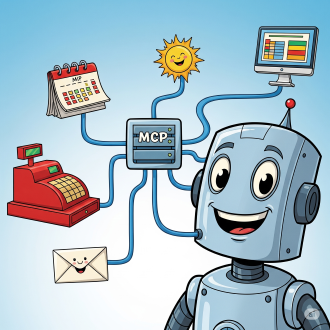
MCP is a powerful standard designed to allow AI agents to discover tools, stream data, and perform actions. The Microsoft Learn Docs MCP Server specifically exposes Microsoft’s official documentation (spanning Learn, Azure, Microsoft 365, and more) as a structured knowledge source that your Copilot Studio agent can query and utilize.
Prerequisites
- Copilot Studio Environment: An active Copilot Studio environment with Generative Orchestration enabled (you may need to activate “early features”).
- Environment Maker Rights: Sufficient permissions in your Copilot Studio environment to create and manage connectors.
- Outbound HTTPS: Your environment must permit outbound HTTPS connections to
learn.microsoft.com/api/mcp.
- Text Editor: A text editor (e.g., VS Code, Notepad++) for creating a YAML file.
Configuration Steps
Step 1: Grab the Minimal YAML Schema
The Microsoft Learn Docs MCP Server requires a specific OpenAPI (Swagger) YAML file to define its API. Create a new file (e.g., ms-docs-mcp.yaml) and paste the following content into it:
swagger: '2.0'
info:
  title: Microsoft Docs MCP
  description: Streams Microsoft official documentation to AI agents via Model Context Protocol.
  version: 1.0.0
host: learn.microsoft.com
basePath: /api
schemes:
  - https
paths:
  /mcp:
    post:
      summary: Invoke Microsoft Docs MCP server
      x-ms-agentic-protocol: mcp-streamable-1.0
      operationId: InvokeDocsMcp
      consumes:
        - application/json
      produces:
        - application/json
      responses:
        '200':
          description: Success
Save this file with a .yaml extension.
Step 2: Import as a Custom Connector in Power Apps
Copilot Studio leverages Custom Connectors, managed within Power Apps, to interface with external APIs like the MCP server.
- Go to Power Apps: Navigate to make.powerapps.com.
- Custom Connectors: In the left navigation pane, select More > Discover all > Custom connectors.
- New Custom Connector: Click on + New custom connector and choose Import an OpenAPI file.
- Upload YAML:
- Give your connector a descriptive name (e.g., “Microsoft Learn MCP”).
- Upload the
.yaml file you prepared in Step 1.
- Click Import.
- Configure Connector Details:
- General tab: Confirm that the Host is
learn.microsoft.com and Base URL is /api.
- Security tab: For the Microsoft Learn Docs MCP server, select No authentication (as it is currently anonymously readable).
- Definition tab: Verify that an action named
InvokeDocsMcp is present. You can also add a description here if desired.
- Create Connector: Click Create connector.
- Test Connection (Optional but Recommended): After the connector is created, go to the Test tab. Click +New Connection. Ensure the connection status is “Connected.”
Step 3: Wire It Into an Agent in Copilot Studio
With your custom connector in place, the next step is to add it as a tool to your Copilot Studio agent.
- Go to Copilot Studio: Navigate to copilotstudio.microsoft.com. Ensure you are in the same environment where you created the custom connector.
- Open/Create Agent: Open your existing agent or create a new one.
- Add Tool:
- In the left navigation, select Tools.
- Click + Add a tool.
- Select Model Context Protocol.
- You should now see your newly created “Microsoft Learn MCP” custom connector in the list. Select it.
- Confirm that the connection status is green.
- Click Add to agent (or “Add and configure” if you wish to set specific details).
- Verify Tool: The MCP server should now appear in the Tools list for your agent. If you click on it, you should see the
microsoft_docs_search tool (or similar, as Microsoft may add more tools in the future).
Step 4: Validate (Test Your Agent)
It’s crucial to test your setup to ensure everything is working as expected.
- Open Test Pane: In Copilot Studio, open the “Test your agent” pane.
- Enable Activity Map (Optional): Click the wavy map icon to visualize the activity flow.
- Ask a Question: Try posing questions directly related to Microsoft documentation. For instance:
- “What MS certs should I look at for Power Platform?”
- “How can I extend the Power Platform CoE Starter Kit?”
- “What modern controls in Power Apps are GA and which are still in preview?”
The first time you execute a query, you might be prompted to connect to the custom connector you’ve just created. Click “Connect,” and then retry the query. Your agent should now leverage the Microsoft Learn MCP server to furnish accurate and relevant answers directly from the official documentation.
Important Considerations:
- Authentication: Currently, the Microsoft Learn Docs MCP server operates without requiring authentication. However, this policy is subject to change, so always consult the latest Microsoft documentation for updates.
- Generative Orchestration: This feature is fundamental for the agent to effectively utilize MCP. If you don’t see “Model Context Protocol” under your Tools, ensure generative orchestration is enabled for your environment.
- Updates: As Microsoft updates its documentation, the MCP server should dynamically reflect these changes, ensuring your agent’s knowledge remains current.
By following these steps, you can successfully integrate the Microsoft Learn documentation server into your Copilot Studio agent, providing your users with a powerful and reliable source of official information.


![bp1_thumb[2]](https://blog.ciaops.com/wp-content/uploads/2025/07/bp1_thumb2.png "bp1_thumb[2]")
 CIAOPS