
Having logs enabled is a good thing because it allows you to track down information after the fact. This is especially handy when you are performing a security investigation. Here is some additional logging that I recommend you enable.

Start by navigating to:
You’ll need to login with an administrative account that has rights. Expand the menu on the left of the screen until you see Monitoring & health and shown above.
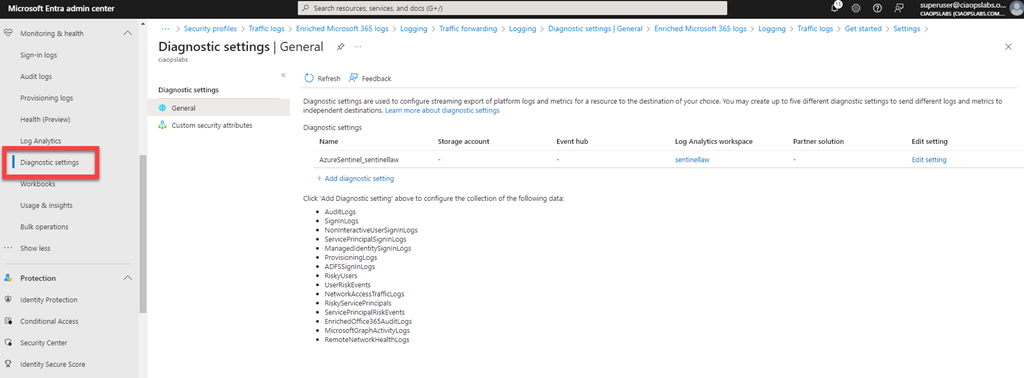
Under this option you will find the menu item Diagnostic settings as shown above, which you select. This will display your diagnostic settings on the right. Here you can see that I am currently sending logs to a Log Analytics workspace, which is linked to Microsoft Sentinel for analysis. If you aren’t already sending your logs to a Log Analytics workspace you can set one up via the Add diagnostic setting hyperlink. I will assume here you already have something set up.
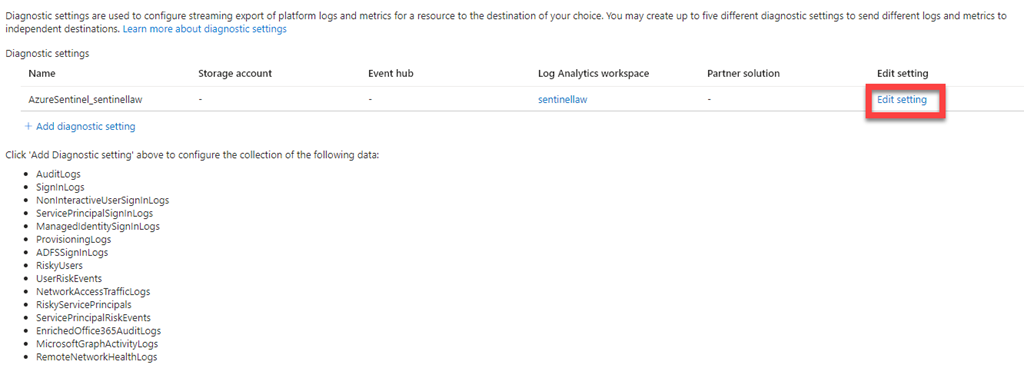
Select the Edit settings hyperlink and under Edit settings column on the right, as shown above.
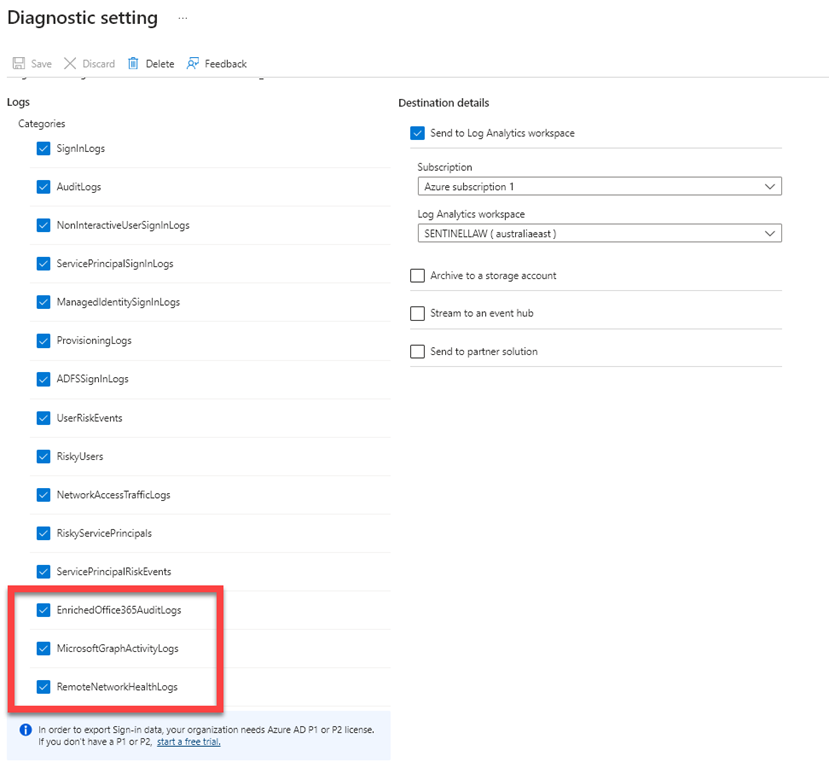
Scroll down the categories of logs listed and ensure they are all select so the logging data will be sent to Microsoft Sentinel via the Log Analytics workspace.
If you have already enabled this logging I suggest you go back in and check that all categories are selected as Microsoft has now added some additional items:
– EnrichedOffice365Auditlogs
– MicrosoftGraphActivityLogs
– RemoteNetworkHealthLogs
which I had to enable.
When you have completed your category selections press the Save button in the menu bar at the top of the window to update your preferences.
This now means that you’ll have even more data in your Sentinel environment to help keep you secure.
 CIAOPS