

Managed Service Providers (MSPs) often administer multiple Small and Medium-sized Business (SMB) customers, which presents unique security challenges. Each customer tenant must be protected while allowing MSP employees to perform necessary tasks. Microsoft Privileged Identity Management (PIM), combined with Microsoft Lighthouse and Granular Delegated Admin Privileges (GDAP), enables least-privilege, just-in-time access across multiple customer environments. This report explains how these tools work together and provides recommendations for setting up PIM for MSP scenarios.
Introduction
In the cloud solution provider model, MSPs are granted admin access to customer tenants – a necessity for support but a potential risk if not managed properly. Least privilege access, a core tenet of Zero Trust security, means users should have only the permissions needed to perform their job, for the shortest time necessary. Microsoft offers several solutions to help achieve this for MSPs managing multiple customers:
- Microsoft Privileged Identity Management (PIM): A feature of Microsoft Entra ID (formerly Azure AD) that provides just-in-time (JIT) elevation of privileges, time-bound access, approval workflows, and audit logging for administrative roles[1][1]. PIM ensures there are no standing admin rights—privileged roles must be activated when needed and automatically expire after a set duration.
- Microsoft Lighthouse: A service (available for Azure and Microsoft 365) that gives MSPs a unified portal to oversee multiple customer tenants. In the Microsoft 365 Lighthouse portal, MSPs can onboard customer tenants and manage security configurations, devices, and users across all customers in one place. Lighthouse also provides tools to standardise role assignments (via GDAP templates) and enforce least-privilege access for support staff across tenants[2].
- Granular Delegated Admin Privileges (GDAP): An improved, fine-grained alternative to the legacy Delegated Admin Privileges (DAP). GDAP allows an MSP to request limited, role-based access to a customer tenant with customer consent[3]. GDAP relationships can be time-limited and scoped to specific roles, aligning with least-privilege principles. For example, instead of having permanent Global Administrator access to a client (as was common with DAP), an MSP can have only the specific administrator roles needed (e.g. Exchange Admin, Helpdesk Admin) for that client, and for a defined period[3].
Why these matter: Recent cybersecurity threats have highlighted risks in broad partner access. Notably, attacks like NOBELIUM targeted the elevated partner credentials (DAP) to breach many customers[4]. In response, Microsoft’s strategy for partners is to enforce zero standing access and granular permissions via GDAP and PIM, minimising the potential blast radius of a compromised account[4].
Key Features of Microsoft PIM (Privileged Identity Management)
Microsoft Entra PIM is a privileged access management tool that helps organisations manage and monitor administrative access in Azure AD and Azure. Key features include:
- Just-in-Time Access: Rather than giving administrators permanent access, PIM makes users “eligible” for roles which they must activate on-demand. Activation is time-limited (e.g. one hour or a custom duration) and automatically revokes privileges when the time expires[1]. This JIT model ensures that higher privileges are only in use when absolutely needed.
- Time-Bound Role Activation: PIM allows setting maximum activation durations and can enforce start and end times or expiry for role assignments. Admins cannot remain in a privileged role indefinitely – they’ll drop back to a least-privileged state by default.
- Approval Workflow: PIM can require additional approval (often called “dual custody”) for activating certain sensitive roles[4]. For example, if an MSP technician requests the Global Administrator role in a customer tenant, a senior engineer or manager (approver) can be required to review and approve that activation. This adds oversight for critical actions.
- Multi-Factor Authentication (MFA) Enforcement: When elevating via PIM, MFA is prompted by default. This ensures the person activating a role actually is who they claim to be. In partner scenarios, customers can be assured that any privileged access by the MSP is protected by MFA[1].
- Detailed Auditing and Alerts: All PIM activities are logged. Activation and assignment changes are auditable events, with records of who activated which role, when, and for what reason[1]. Administrators can set up alerts for unusual or excessive activation attempts. This audit trail is crucial for compliance and forensics across multiple customer tenants.
- Justification and Notification: PIM can require a user to provide a business justification when requesting access. Additionally, notifications can be sent when roles are activated or changes occur, keeping stakeholders informed of all privileged access events.
How PIM Ensures Least Privilege: By leveraging these features, MSPs can configure each administrator to operate with minimal rights by default, only escalating when a task explicitly requires higher access. This significantly reduces the risk window. For example, an MSP engineer may be eligible for the Exchange Administrator role in a client’s tenant but not hold it 24/7. When that engineer needs to manage mailboxes, they activate Exchange Admin for a limited time, then automatically lose that role when the task is done. No standing privileges means even if the account is compromised, the attacker cannot immediately access high-level admin capabilities.
Benefits of PIM for MSPs Managing SMB Customers
Using PIM in an MSP scenario yields several benefits:
- Improved Security and Risk Reduction: Perhaps the biggest benefit is risk mitigation. Without PIM, an MSP’s user account might have persistent admin access in dozens of customer tenants, making it a lucrative target for attackers. With PIM, each such account would have no active admin rights until a controlled activation takes place. This containment of privilege drastically reduces the likelihood of a widespread breach[4]. If an MSP employee’s credentials are stolen, the attacker finds themselves with a normal user account, not an always-on Global Admin.
- Alignment with Zero Trust and Compliance: Many SMB customers (and regulatory regimes) demand strict control of administrative access, especially when outsourcing IT management. PIM demonstrates a Zero Trust approach – “never trust, always verify” – by requiring verification (MFA) and approval for each privilege escalation[1]. It also creates an audit trail that can satisfy compliance audits, showing exactly who had access to what and when.
- Customer Trust and Transparency: SMB customers are entrusting MSPs with highly privileged access to their systems. By implementing least privilege via PIM, MSPs can assure customers that they are only accessing systems when necessary and with oversight. The customer can even be given access to review PIM logs or receive notifications if desired. This transparency builds trust. Microsoft Entra ID’s sign-in logs now even let customers filter and see partner delegated admin sign-ins specifically[5], so customers will know that the MSP isn’t accessing their tenant arbitrarily.
- Accident and Misuse Prevention: With standing admin access, an inadvertent click or rogue action by an MSP admin could wreak havoc in a client tenant. PIM can prevent certain mistakes by adding friction – e.g. one cannot accidentally modify a sensitive setting without first deliberately activating a higher role. And if an MSP employee’s responsibilities change or they leave, their eligible roles can be removed or will expire, preventing orphaned access.
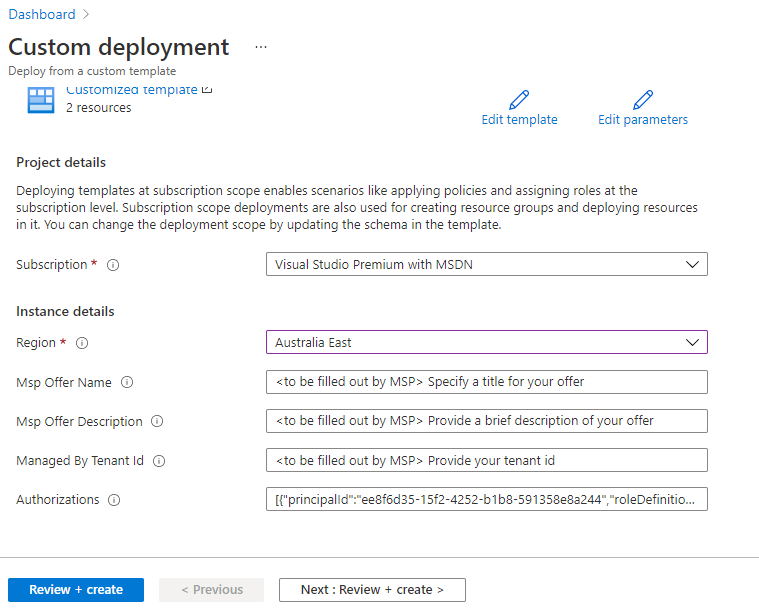
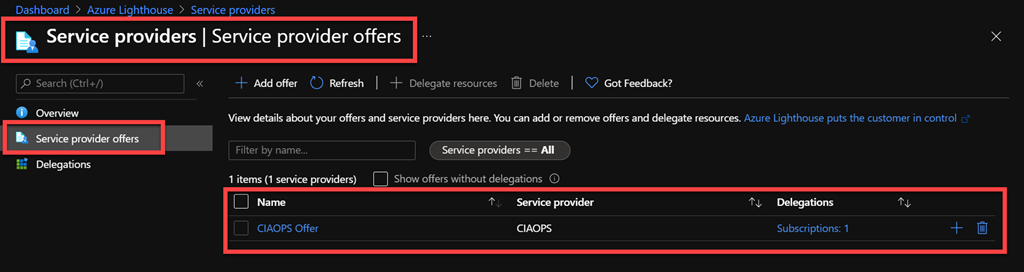
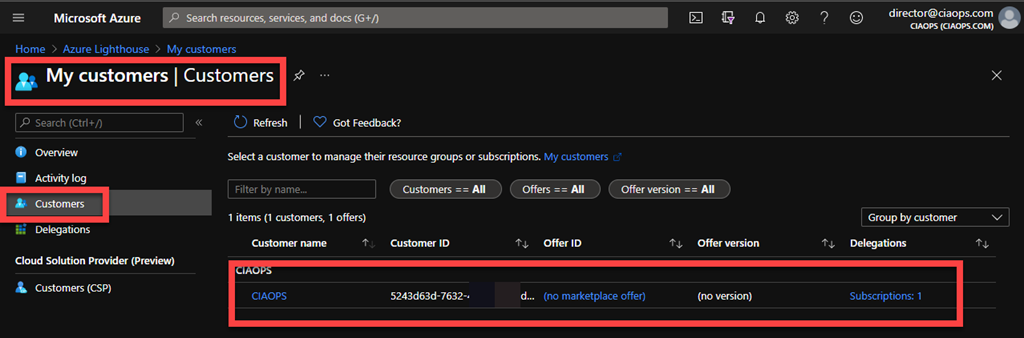
- Secure Azure Resource Management: Many MSPs also handle clients’ Azure infrastructures. PIM is not limited to Microsoft 365/Azure AD roles; it also covers Azure resource roles (via Azure RBAC). Through Azure Lighthouse integration, an MSP can manage Azure resources across tenants and use PIM to elevate resource roles just-in-time[1]. For instance, an MSP might be given eligible contributor access to a customer’s Azure subscription and will activate that role only when performing maintenance on VMs. This ensures the principle of least privilege extends to both Microsoft 365 and Azure workloads.
Managing Multiple Customer Tenants with Microsoft Lighthouse
Microsoft 365 Lighthouse is a management portal specifically designed for MSPs to oversee multiple customer Office 365/Microsoft 365 tenants. It provides a centralized dashboard for device compliance, threat detection, user management tasks, and importantly, delegated access management for multiple customers.
Key features of Lighthouse for MSPs:
- Unified Management Portal: Instead of logging into each customer’s admin center separately, an MSP can use Lighthouse to switch contexts and manage many tenants from one screen. This improves efficiency when supporting lots of SMB clients.
- Multi-Tenant Baselines and Policies: Lighthouse enables MSPs to deploy standard security configurations (like baseline conditional access policies, device policies) across all or selected tenants, ensuring consistent protection.
- Delegated Access via Support Roles: Lighthouse introduces the concept of Support Roles templates. There are five default support roles defined in Lighthouse – Account Manager, Service Desk Agent, Specialist, Escalation Engineer, and Administrator[2]. Each support role corresponds to a set of Azure AD (Entra ID) built-in roles. For example, a Service Desk Agent template might include Helpdesk Administrator and User Administrator roles, while an Escalation Engineer might include more powerful roles like Exchange Admin or even Global Admin. MSPs can use the Microsoft-recommended role set for each template or customise them[2].
- Consistent Role Assignment Across Tenants: Using these role templates, an MSP can assign the same set of least-privilege roles to their team members across multiple customer tenants in one go. Lighthouse allows creating a GDAP template per support role which can then be applied to many customer tenants at once[3][3]. This ensures, for instance, that every customer tenant grants an MSP’s helpdesk team only Helpdesk and Password admin roles, while not giving them higher access.
- Visibility of Access and Expiry: In Lighthouse’s Delegated Access view, MSPs can see all GDAP relationships with customers, including which roles have been granted, when they start/end, and which users or groups have access[3][3]. This makes it easier to track and renew or remove access as contracts change. It shows upcoming expirations of delegated access so nothing inadvertently lapses[3].
- Integration with GDAP and PIM: Lighthouse is built to work hand-in-hand with GDAP. It not only helps set up the GDAP relationships, but also now includes the ability to create Just-In-Time (JIT) access policies as part of those relationships[3]. In practice, this means MSPs can enforce PIM settings directly through Lighthouse when establishing access to a new tenant.
How Lighthouse Simplifies Multi-Tenant Least Privilege: Consider an MSP onboarding a new SMB client. With Lighthouse, the MSP could apply a pre-defined GDAP template (say, “Standard Support”) to that customer. This template might give the MSP’s Tier-1 support group the Helpdesk Admin role, Tier-2 group the User Administrator and Exchange Administrator roles, and no one the Global Admin role by default. If Global Admin is needed at times, that template can include a JIT policy (PIM) for a separate group allowed to elevate to Global Admin with approval[2]. Thus, across all customers using that template, the MSP enforces a consistent least privilege model. The MSP’s technicians see all their customers in Lighthouse, but to perform higher-impact changes in any tenant they must go through an elevation request.
Granular Delegated Admin Privileges (GDAP) and PIM Integration
GDAP is now a prerequisite for Microsoft 365 Lighthouse and a cornerstone of secure multi-tenant management[2]. It provides the baseline granular access on which PIM can build just-in-time capabilities. Let’s break down how GDAP works and how it complements PIM:
- Granular, Role-Based Access: Under GDAP, the partner (MSP) and customer set up a trust relationship where the partner is granted specific Azure AD roles in the customer’s tenant. For example, one GDAP agreement might grant the MSP’s Support Engineers group the Exchange Administrator and Teams Administrator roles in Contoso Ltd’s tenant. Unlike the old DAP (which often granted full admin rights), GDAP is about selective roles. This enforces least privilege at the role scope level – each admin gets only the roles necessary for their function[3].
- Time-Bound Access with Customer Consent: When requesting GDAP, the MSP can specify a duration (say, 1 year) for the relationship. The customer must approve (consent to) the GDAP request, and it can be set to automatically expire[3]. Many MSPs set shorter durations and renew as needed, so that if a relationship ends, access will automatically terminate on the expiry date if not renewed[3][3]. This time-bound aspect means even at the GDAP level (before PIM comes into play), there is no indefinite access.
- JIT Access via PIM on GDAP Roles: GDAP by itself can limit who has what roles, but those roles could still be permanently active for the MSP users. This is where PIM integration is vital. Microsoft recommends MSPs enable JIT (PIM) for the roles granted through GDAP[2]. In practice, this means that if an MSP’s group “Escalation Admins” is granted the Global Administrator role on Tenant A via GDAP, the MSP can configure that Escalation Admins group as a JIT-eligible group. When members of that group need to act as Global Admin in Tenant A, they must use PIM to request activation, which might require justification and approval from another group (an approver group defined in the JIT policy)[2][2].
- My Access Portal for Requests: Microsoft Entra ID provides a “My Access” portal where users can see roles they are eligible for. In a GDAP+PIM scenario, MSP users go to My Access to request admin roles in customer tenants, and approvers in the MSP organisation (or potentially the customer, if configured) can approve[2]. Only after approval does the user obtain the role, and it will expire after the defined duration (e.g. 1 or 2 hours).
- Enforcement of Least Privilege: By combining GDAP and PIM, MSPs achieve two layers of least privilege: coarse-grained, by making sure they only have limited roles in each tenant; and fine-grained, by ensuring even those limited roles are inactive until absolutely needed. For example, an MSP technician might have User Administrator rights via GDAP in all their customer tenants, but even that moderate role can be set as PIM-eligible if desired. In effect, **GDAP defines *what* you can potentially do, and PIM controls when you can do it**.
- Benefits to Customers: This approach gives customers comfort that MSP access is both limited in scope and tightly controlled in time. Customers grant only the roles they’re comfortable with, and even then, they know the MSP will be operating those roles under oversight. “With GDAP, you request granular and time-bound access to customer workloads, and the customer provides consent for the requested access”[3] – this encapsulates the model of shared responsibility and trust.
Table: Delegated Access Approaches for MSPs
| Access Approach | Privilege Scope | Persistence | Key Characteristics & Considerations |
|---|---|---|---|
| Legacy DAP (Delegated Admin) | Broad (often Global Admin or similar in customer tenant)4 | Permanent until removed | Gave MSP broad control over customer tenant by default. Easy to use but high risk – too much privilege standing at all times (targeted by NOBELIUM)4. Microsoft is deprecating DAP in favour of GDAP. |
| GDAP (Granular Delegated) | Granular (specific Azure AD roles per customer tenant)3 | Time-limited (e.g. 1 year, renewable) | Least-privilege by role scope: Roles are tailored to MSP job functions (e.g. Helpdesk, User Admin). Requires customer approval to establish3. Access is continuous during the term but can be quickly adjusted or revoked. No JIT by default, but short durations and limited roles reduce risk. |
| PIM (JIT Access) | Granular (same roles as above, but made eligible instead of active) | Just-in-Time (e.g. 1 hour per activation) | No standing access: Roles must be activated when needed, enforcing just-in-time use1. Can require approval and MFA on each use1. Provides full audit trail. Protects against misuse or compromised accounts having any privilege outside approved time windows. Best used on top of GDAP roles for maximum security. |
Best Practices for Setting Up PIM for MSPs
Setting up PIM for use across multiple customer environments requires planning. Below are best practices and recommendations to help MSPs maintain least privilege at all times:
1. Enforce “No Standing Admin Access”: Make it a policy that no user in the MSP should have persistent high-level admin access in any customer tenant. Leverage PIM to achieve this. All privileged roles (Global Admin, SharePoint Admin, Exchange Admin, etc.) in customer tenants should be assigned to MSP users as “Eligible” roles via PIM, not permanent. This way, even if a role is granted via GDAP, it stays dormant until activated. Microsoft explicitly advises partners with Entra ID P2 to use PIM to enforce JIT for privileged roles[4].
2. Adopt Least-Privilege Role Assignments: Use GDAP to grant the minimum set of roles needed for each job function, and avoid granting Global Administrator wherever possible. Instead, break down responsibilities into more specific admin roles:
- Example: Rather than giving a technician Global Admin for managing Exchange mailboxes, assign the Exchange Administrator role only. If they need to also manage user licenses, add the License Administrator role, etc. Using multiple narrow roles is better than one broad role.
- Microsoft 365 Lighthouse’s recommended role mappings can guide which roles cover most day-to-day tasks for support personnel[6]. Many MSPs find that with proper role selection, technicians rarely need to activate higher roles because their daily work is covered by lesser privileges[6]. This minimizes how often PIM elevation is required.
- Regularly review role assignments. As part of governance, periodically audit which roles are assigned to MSP staff on each tenant and remove any that are unnecessary[4]. If a customer offboards a service (e.g., they no longer use Exchange Online), the MSP’s Exchange Admin role access should be removed.
3. Use Azure AD P2 licenses for PIM: Ensure that all users who will have eligible admin roles are assigned Microsoft Entra ID P2 licenses (or that the customer tenant has P2 capabilities enabled). Microsoft often provides free P2 licenses for CSP partners so that they can use PIM for managing customer access[6]. Take advantage of this – without P2, you cannot use PIM. Note: Partners should enable P2 in their own tenant (for partner staff) and possibly in customer tenants if needed for resource roles or additional governance features.
4. Separate Admin Accounts and Least Privilege Identity: MSP personnel should have dedicated admin accounts distinct from their normal user accounts. For example, an engineer might have alice@msppartner.com for daily email and an account like alice_admin@msppartner.com used only for customer tenant administration. This administrative account should not be used for day-to-day email, browsing, or non-admin activities[4]. It should also be subject to stricter controls (such as device compliance, conditional access requiring a secure workstation, etc.). Furthermore, never use a shared account for admin tasks – each action must trace back to an individual[5].
5. Enable MFA Everywhere: This almost goes without saying but is worth reinforcing: multi-factor authentication must be enabled on all MSP user accounts, especially those with any admin capabilities[7][7]. Use authenticator apps or hardware keys (phishing-resistant MFA) for best security[5]. PIM will enforce MFA on role activation, but having MFA on the account at sign-in adds another layer if PIM isn’t in play yet. Lack of MFA is one of the mandatory partner security requirements, and failure to enforce it can even lead to loss of customer access by Microsoft’s rules[7].
6. Require Justification and Approval for High-Risk Roles: Configure PIM settings such that the most powerful roles (e.g. Global Administrator or equivalent) require a valid business justification each time they are requested, and route these requests to an approver (or even two approvers) for manual approval[4]. The approver could be a security lead in the MSP or a manager who verifies that the elevation is for an authorized task. This practice, sometimes called dual control or dual approval, greatly reduces the chance of misuse – even if an attacker managed to start an elevation, they’d hit a second human roadblock. Less sensitive roles (like Password Administrator) might be auto-approved, but make a conscious decision role by role.
7. Configure Short Activation Durations: When setting up PIM, choose the shortest reasonable duration for role activations – for example, 1 hour is often sufficient for a task. Avoid long windows like 8+ hours unless absolutely needed. Shorter activation periods limit how long a privilege can be misused and ensure admins get only “just enough” time. If more time is required, the admin can always re-activate or extend with approval. Keep default durations tight to enforce discipline.
8. Maintain Break-Glass Accounts: Even with PIM in place, **you should maintain 1-2 *emergency admin accounts* in each tenant that are permanent Global Administrators[8]. These are often called “break-glass” accounts, used only when PIM or normal admin accounts are unavailable (for example, if no one can activate PIM because of an outage or all approvers are locked out). These accounts should have extremely strong passwords, dedicated MFA devices, and ideally be stored securely (not used day-to-day). Microsoft recommends at least one permanent Global Admin for safety[8], but these accounts should not be associated with any person’s everyday identity to prevent misuse (e.g., an account named ContosoEmergencyAdmin with a mailbox that is monitored by security).
9. Leverage Lighthouse for Bulk Management: Use Microsoft 365 Lighthouse to streamline the deployment of these practices. For instance, create GDAP templates in Lighthouse with JIT (PIM) enabled for each admin role group[2]. Apply these templates to existing customers and as a standard for new customers. Lighthouse will help ensure uniform configuration, such as mapping your “Escalation Engineers” group to an eligible Global Admin role across all tenants, and your “Helpdesk” group to a permanent Helpdesk Admin role. This beats configuring PIM settings tenant by tenant manually. It also provides a central place to monitor GDAP status (so you can renew them before expiry) and check that JIT policies are in place.
10. Regular Auditing and Access Review: Treat privileged access reviews as a regular task. Monitor PIM audit logs for unusual activations (e.g., someone activating a role at 3 AM or outside change windows)[1]. Azure AD provides access review capabilities; you can use these to periodically have admins re-justify their continued eligibility for roles or to have someone review all eligible assignments. Disable or remove any accounts or role assignments that are no longer needed (for example, if an engineer no longer works on a particular client, remove their access to that tenant’s roles immediately). Also, review Azure AD sign-in logs filtered for “Service provider” logins on the customer side to spot any anomalous partner activity[5]. Customers may also conduct their own audits, so be prepared to provide evidence of control (the PIM logs and reports can serve this need).
11. Keep GDAP Relationships Updated: Over time, a customer’s needs or the MSP’s services may change. Regularly review the GDAP roles granted: ensure they still match the services you provide. Remove any roles that are not required. If a customer offboards from the MSP, proactively terminate the GDAP relationship rather than waiting for it to expire. Inactive or expired relationships should be cleaned up[4] to eliminate clutter and any lingering access.
12. Training and Simulation: Lastly, train your technical staff on these tools. Using PIM and working in multiple tenants via Lighthouse might be a new workflow for some admins. Conduct drills or tabletop exercises: e.g., simulate a scenario where a critical incident happens in a customer tenant and walk through the PIM elevation and approval process to ensure your team can respond quickly even with JIT controls in place. Proper training will prevent frustration and encourage adherence to the process rather than finding shortcuts.
Common Challenges and Solutions
While the combination of PIM, GDAP, and Lighthouse is powerful, MSPs may encounter some challenges implementing them:
- Initial Complexity: Setting up PIM with approval workflows, defining role templates, and configuring GDAP for dozens of customers can be complex initially. Solution: Start with a pilot – enable PIM for a couple of customers and refine your role templates. Use Microsoft’s documentation and Lighthouse guides to simplify setup (Lighthouse’s template feature is specifically meant to ease this complexity by applying one configuration to many tenants[3]).
- Cultural Change for Technicians: Technicians used to having unfettered admin access might chafe at needing to request access or wait for approval. Solution: Emphasize the security importance and make the process as smooth as possible (e.g., ensure approvers are readily available during business hours). Over time, as they realise most daily tasks don’t require Global Admin, this becomes normal. Also highlight that most routine tasks can be done with lesser roles, so activations should be infrequent[6].
- Tooling and Login Friction: Administering multiple tenants means lots of context-switching. Sometimes certain portals or PowerShell modules may not fully support cross-tenant admin via partner delegations (some admins resort to logging in directly to customer accounts if delegated access doesn’t work for a particular function[6]). Solution: Stay informed on updates – Microsoft is continuously improving partner capabilities. Azure Lighthouse helps for Azure tasks; Microsoft 365 Lighthouse and Partner Center cover most M365 tasks. For edge cases, document a process (for example, if a certain Exchange PowerShell cmdlet doesn’t work via delegated access, perhaps use a spare admin account with PIM as a fallback). Encourage use of scripts or management tools (like the Community Integrations – CIPP – mentioned by MSPs) that can handle multi-tenant contexts.
- Latency in Role Activation: In some cases, after approval, there might be a short delay before the elevated permissions take effect, which can confuse users. Solution: Teach admins to plan a few minutes of lead time for critical changes. Usually, Azure AD PIM activations are effective within seconds to a minute. If delays are longer (as one MSP noted experiencing hours in a test[6]), investigate if there’s misconfiguration. Ensure the admin is logging into the correct tenant context after activation.
- Licensing Costs: P2 licenses cost money if the free allotment is exceeded. Solution: Most MSPs will qualify for free Entra ID P2 licenses for a certain number of users (as part of partnership benefits)[6]. If you need more, consider the cost as part of your service pricing – the security gained is usually worth it. Alternatively, not every single junior technician might need PIM; perhaps only those performing higher privilege tasks need P2, while others can be limited to roles that don’t require PIM to manage (though best practice is to have it for all admin agents).
- Emergency Access vs. PIM: In an outage scenario, if the PIM service were unavailable or all approvers unreachable, you don’t want to be locked out. This is why maintaining break-glass accounts is important (as mentioned in Best Practices). Also document emergency procedures (who can log in with break-glass accounts, how to reach them, etc., under what circumstances it’s allowed).
By anticipating these challenges and addressing them with the solutions above, MSPs can successfully integrate PIM into their operations without significant disruption.
Monitoring and Auditing Access
Security is not “set and forget.” Continuous monitoring is essential, especially when managing many customers’ environments:
- Review PIM Activity Reports: Microsoft Entra PIM provides reports on activations, including who activated which role, when, for how long, and the approval details. MSP security teams should review these regularly. Look for anomalies like roles activated outside business hours, or one user activating an unusually high number of roles.
- Azure AD Audit and Sign-in Logs: Azure AD’s audit logs record changes like role assignments (e.g., if someone altered PIM settings or GDAP group memberships). Sign-in logs show each login; importantly, customers can filter sign-ins to see those by service provider admins[5]. MSPs should proactively monitor their own sign-in logs as well (in both partner tenant and, where possible, across customer tenants via Lighthouse) to spot potentially malicious login attempts.
- Microsoft 365 Lighthouse Security: Lighthouse also aggregates certain alerts and incidents from across tenants (for example, Identity-related risky sign-in alerts, Defender alerts, etc.). This can help detect if an MSP admin’s account is exhibiting risky behavior in any tenant (like impossible travel sign-ins, etc.). Use Lighthouse’s security center to get a multi-tenant view of security alerts.
- Customer Involvement: Some customers may require that any admin actions by the MSP be reported. Using PIM’s integration with Microsoft Purview compliance logs can allow exporting of privileged operations logs. In highly regulated industries, consider setting up automated reports or alerts to the customer for any elevation of privilege.
- Log Retention: By default, Azure AD sign-in and audit logs have retention limits (e.g., 30 days for P2 by default)[4]. Given MSPs might need to investigate incidents that involve cross-tenant activities, ensure that logs are being retained sufficiently. This could mean feeding logs to a SIEM or using Azure Monitor/Log Analytics to store logs for longer periods. Microsoft recommends ensuring adequate log retention policies for cloud activity, especially when third parties are involved[5].
- Periodic Access Reviews: At least quarterly, conduct formal access reviews. Microsoft Entra ID’s Access Review feature can automate this to an extent, even across tenants. Have each privileged user re-justify their need for each role, and have a peer or manager validate it. Remove any stale or unnecessary access immediately.
- Customer Audits: Be prepared to assist customers in their own audits of partner access. As noted, customers can see partner sign-ins and have recommendations to review partner permissions and B2B accounts[5][5]. A forward-thinking MSP will do this proactively and provide assurance to the client (for example, sending them a quarterly summary of which MSP staff accessed their tenant and for what purpose, based on PIM logs).
Scenarios Where PIM is Most Effective for MSPs
To illustrate, here are a few common scenarios and how an MSP can use PIM (with GDAP and Lighthouse) to maintain least privilege:
- Scenario 1: Routine User Management – An MSP’s helpdesk technician needs to reset passwords and update user info across many customers daily.
Without PIM: The technician might have had the User Administrator role always assigned in every customer tenant (or worse, Global Admin). This is standing access in dozens of tenants.
With PIM: Using Lighthouse, the MSP grants the technician a permanent Helpdesk Administrator role via GDAP for basic tasks, but an eligible User Administrator role for tasks that require it (like adding users). Most days, the technician can do everything with Helpdesk Admin. Once in a while, to add a new user or assign licenses, they activate User Administrator via PIM for an hour. They provide the ticket number as justification. The role auto-revokes after an hour. The rest of the time, they only have the limited Helpdesk role. - Scenario 2: Exchange Online Maintenance – An MSP engineer is responsible for managing mail flow and Exchange configuration for multiple clients.
Solution: The engineer is given the Exchange Administrator role in each customer tenant via GDAP, but as an eligible PIM role. When a change is needed (e.g., configuring a transport rule or migration), the engineer activates Exchange Admin for the needed tenant through PIM. If it’s a risky change, an approval could be required. Once done, the role is removed. If the engineer’s account were compromised outside those maintenance windows, the attacker still couldn’t access Exchange settings on any client. - Scenario 3: Emergency Security Incident Response – A virus outbreak is detected at an SMB client, and the MSP must urgently block a user, reset admin passwords, or modify tenant-wide settings. These actions require Global Administrator privileges.
Solution: The MSP has a small Security Response team that is eligible for Global Admin on that client’s tenant (and perhaps all tenants, in case of widespread incidents). One of these team members activates the Global Admin role via PIM – since this is a highly sensitive role, it pages an on-call approver who quickly reviews and approves the request. The admin then has full Global Admin capabilities to mitigate the incident, but only for 30 minutes before it expires (extendable if needed). All actions they take are logged. If no approver is available (middle of the night scenario), the MSP’s procedure is to use a break-glass account to take emergency actions, and then retroactively document it. This way, even crisis situations are covered without routinely keeping Global Admin active. - Scenario 4: Azure Infrastructure Deployment – An MSP is rolling out a new Azure VM and networking setup for a customer. The MSP uses Azure Lighthouse to project the customer’s Azure subscription into their Azure portal.
Solution: The engineer has eligible Contributor rights on that subscription via an Azure Lighthouse delegation with PIM[1]. Right before deployment, the engineer activates the Contributor role (triggering MFA). They then deploy templates and configure VMs. When finished, they remove their access (or it times out). The customer’s Azure environment thus doesn’t have standing admin sessions from the MSP lingering. All resource changes done by the MSP are recorded in Azure Activity Logs with the MSP user’s identity for traceability[1][1]. - Scenario 5: Onboarding a New Customer – A new client signs up for the MSP’s services. The MSP needs to set up access to administer the client’s Microsoft 365 tenant.
Solution: The MSP uses Microsoft 365 Lighthouse’s onboarding. They establish a reseller relationship (if not already) and then use Lighthouse to create a GDAP relationship with the tenant. In Lighthouse’s Delegated Access page, they create a GDAP template or use an existing one (for example, a template that grants their support roles appropriate access with JIT). They apply this template to the new customer. This automatically invites their MSP admin groups into the customer tenant with the designated roles[2]. For roles that are marked JIT, they also configure in the template the JIT (PIM) policy (duration, approvers)[2]. The customer’s admin approves the GDAP request. Now the MSP’s accounts show up in the customer’s Azure AD, but with no active roles until they request via PIM. The entire setup might take only an hour or two. The MSP documents the roles and access for the client as part of the handover, emphasizing the security measures (this can be a selling point to customers that “we use industry best practices like just-in-time access to protect your admin credentials”).
These scenarios demonstrate PIM’s flexibility – it can cater to daily operational needs as well as high-stakes situations, all while keeping access limited by default. In every scenario, the MSP is never overly empowered beyond what is necessary, and every elevation of privilege is deliberate and transient.
Steps to Implement PIM for an MSP Customer
When setting up a new or existing customer tenant with PIM-managed access, MSPs can follow these general steps:
Step 1: Establish Partner Relationship and Roles. Ensure your MSP is a partner of record for the customer in Partner Center. Set up a GDAP relationship for the tenant if not already in place, selecting appropriate Azure AD roles for your team (you can do this via Microsoft 365 Lighthouse or Partner Center)[2][2]. Aim for least privilege in this selection (e.g., choose specific admin roles instead of Global Admin).
Step 2: Provision Admin Accounts (B2B or Groups). Determine how your admin identities will appear in the customer tenant. The modern approach is that your MSP’s users are added as guest accounts via Azure AD B2B in the customer tenant and then granted the roles. If using Lighthouse GDAP setup, this is handled automatically (it leverages your Azure AD partner tenant’s user accounts and links them in). You might also create security groups in your tenant (e.g., “ContosoTenantHelpdesk”), add your users to those groups, and assign the GDAP roles to those groups for easier management[2][2].
Step 3: Enable PIM in the Customer Tenant. In the customer’s Azure AD (Entra ID), activate Azure AD Privileged Identity Management (if it’s the first time, there’s an activation step in the Azure portal’s PIM section). PIM is enabled per directory.
Step 4: Configure PIM Roles for the MSP. Inside the customer tenant’s PIM settings, locate the roles you granted via GDAP (e.g., User Administrator, Exchange Administrator, etc.). For each role assignment to your MSP users or groups, change the assignment type to Eligible if it’s not already. If you set up JIT through Lighthouse’s template creation (with the “Create a JIT access policy” checkbox)[2], this step may have been done for you by creating a PIM policy tied to a group. Otherwise, manually set the eligibility. You can do this in the Azure portal under PIM -> Azure AD Roles -> Roles -> select role -> Assignments.
Step 5: Define PIM Settings and Policies. For each role in PIM, configure the activation settings:
- Required MFA (usually enforced by default – verify it’s on).
- Activation duration (set the maximum hours an activation lasts).
- Require justification on activation.
- Require approval (and specify the approver group or user) for roles that need it. For example, set Global Administrator role to require approval by a designated group (which could include customer representatives if appropriate, or a senior MSP admin).
- Notification settings: ensure notifications for activation and expiration go to relevant people (e.g., your security admin or an email distribution).
If using group-based assignments (recommended for managing many users), you can set PIM per group – for instance, make a whole Azure AD group eligible for a role with PIM. Then you manage membership of that group to control who’s eligible, which can simplify things when staffing changes occur.
Step 6: Test the Access Workflow. Before going live, test that an MSP user can:
- Go to the customer tenant’s “My Access” portal (or Azure portal PIM blade) and see the eligible role.
- Initiate a role activation and that it triggers approval (if configured).
- Approver receives notification and approves it.
- The user gains the role capabilities within an acceptable time and loses them after the duration.
Conducting a full end-to-end test ensures that on a Monday morning when a tech needs to do something, there are no surprises. It also helps familiarize the team with the process.
Step 7: Educate the Customer (Optional but Recommended). Especially for larger SMB customers or those in regulated industries, it’s good to brief them on how you’re securing access. Explain that you are using PIM and GDAP to ensure their admin access is tightly controlled. You might even share documentation or have a joint session showing how an approval works. Some customers may want a say in the approval process (for instance, they may request that certain highly sensitive actions have to be approved by one of their internal IT staff – PIM can accommodate that by adding a customer user as an approver for specific roles).
Step 8: Rinse and Repeat for All Clients. Apply a similar approach for all customer tenants. Using Lighthouse to templatize and automate as much as possible will save time. Maintain a checklist for each new onboarding so nothing is skipped (role assignment, PIM enabled, test done, etc.).
Step 9: Ongoing Management. After initial setup, move into the regular cadence of monitoring and periodic reviews as discussed. Keep documentation updated with who has which roles and how PIM is configured, both for internal reference and for client transparency.
By following these steps, MSPs can ensure that from the moment they start managing a customer, the principle of least privilege is embedded in the access setup.
Conclusion
Microsoft PIM, Microsoft 365 Lighthouse, and GDAP together provide MSPs with a robust framework to manage multiple SMB customers securely while adhering to least privilege at all times. PIM delivers just-in-time, auditable access; GDAP ensures that access is scoped and customer-approved; and Lighthouse ties it all together with multi-tenant visibility and management tools. By implementing these solutions, an MSP can drastically reduce standing administrative risk – administrators only have the access they need, exactly when they need it, and no more.
This approach not only protects the MSP and its customers from security threats, but also instills confidence: customers can trust that their partner is following industry best practices to safeguard their data. In an era of increasing supply-chain attacks and credential theft, such a stance is quickly moving from optional to essential. MSPs who embrace PIM and least-privilege management differentiate themselves by delivering service with security at the forefront.
In summary, the recipe for secure customer access management is: grant less, monitor more. Through careful role design (grant less privilege), just-in-time activation (grant access for less time), and diligent oversight (monitor more), MSPs can achieve a strong security posture for managing all their client tenants. Adopting PIM with Lighthouse and GDAP is a strategic investment that pays off in reduced risk and strengthened trust across the MSP-customer relationship. [4][3]
References
[1] Azure Lighthouse PIM Enabled Delegations | Microsoft Community Hub
[2] Set up GDAP in Microsoft 365 Lighthouse
[3] Use GDAP to set up least privilege access in Microsoft 365 Lighthouse
[4] Cloud Solution Provider Security Best Practices – Partner Center
[5] Customer security best practices – Partner Center | Microsoft Learn
[6] Question on GDAP for the small MSPs : r/msp – Reddit
[7] Partner security requirements – Partner Center | Microsoft Learn
 CIAOPS