

What is KQL?
KQL is a powerful, read-only query language designed to explore data and discover patterns. It’s used across various Microsoft services, most notably for our discussion:
- Microsoft Sentinel: A cloud-native SIEM (Security Information and Event Management) and SOAR (Security Orchestration, Automation, and Response) solution.
- Microsoft 365 Defender: An XDR (Extended Detection and Response) platform that provides integrated threat protection, detection, and response across endpoints, identities, email, and cloud apps. Its “Advanced Hunting” feature uses KQL.
Essentially, KQL allows you to “talk” to the vast amounts of security log data generated by your M365 services.
Benefits of Using KQL to Improve M365 Tenant Security:
-
Proactive Threat Hunting:
- Beyond Built-in Detections: While Microsoft provides many out-of-the-box detections, KQL allows you to hunt for specific, emerging threats, anomalous behaviors, or indicators of compromise (IOCs) that might not trigger a standard alert.
- Hypothesis-Driven Investigation: You can form a hypothesis (e.g., “Are there any unusual external email forwarding rules set up?”) and use KQL to validate it against your logs.
- Beyond Built-in Detections: While Microsoft provides many out-of-the-box detections, KQL allows you to hunt for specific, emerging threats, anomalous behaviors, or indicators of compromise (IOCs) that might not trigger a standard alert.
-
Deep Incident Investigation & Root Cause Analysis:
- Contextual Understanding: When an alert fires, KQL lets you dive deep into the raw logs (Azure AD sign-ins, Exchange mail flow, SharePoint activity, Defender alerts, etc.) to understand the full scope, timeline, and impact of an incident.
- Connecting the Dots: You can join data from different sources (e.g., correlate a suspicious sign-in with subsequent file access or email activity) to build a complete picture.
- Contextual Understanding: When an alert fires, KQL lets you dive deep into the raw logs (Azure AD sign-ins, Exchange mail flow, SharePoint activity, Defender alerts, etc.) to understand the full scope, timeline, and impact of an incident.
-
Custom Detection Rule Creation:
- Tailored Alerts: If you identify a pattern of malicious activity specific to your environment or a new threat vector, you can write KQL queries and turn them into custom analytic rules in Microsoft Sentinel or custom detection rules in M365 Defender. This automates the detection of future occurrences.
- Reduced False Positives: By crafting precise KQL queries, you can fine-tune detection logic to minimize false positives and focus on genuine threats.
- Tailored Alerts: If you identify a pattern of malicious activity specific to your environment or a new threat vector, you can write KQL queries and turn them into custom analytic rules in Microsoft Sentinel or custom detection rules in M365 Defender. This automates the detection of future occurrences.
-
Enhanced Visibility & Reporting:
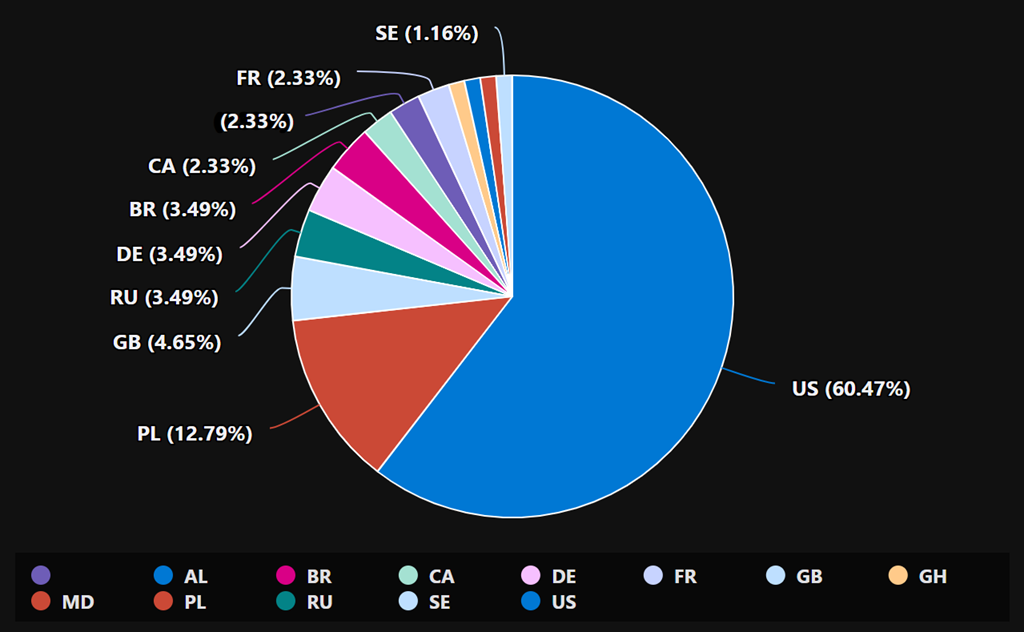
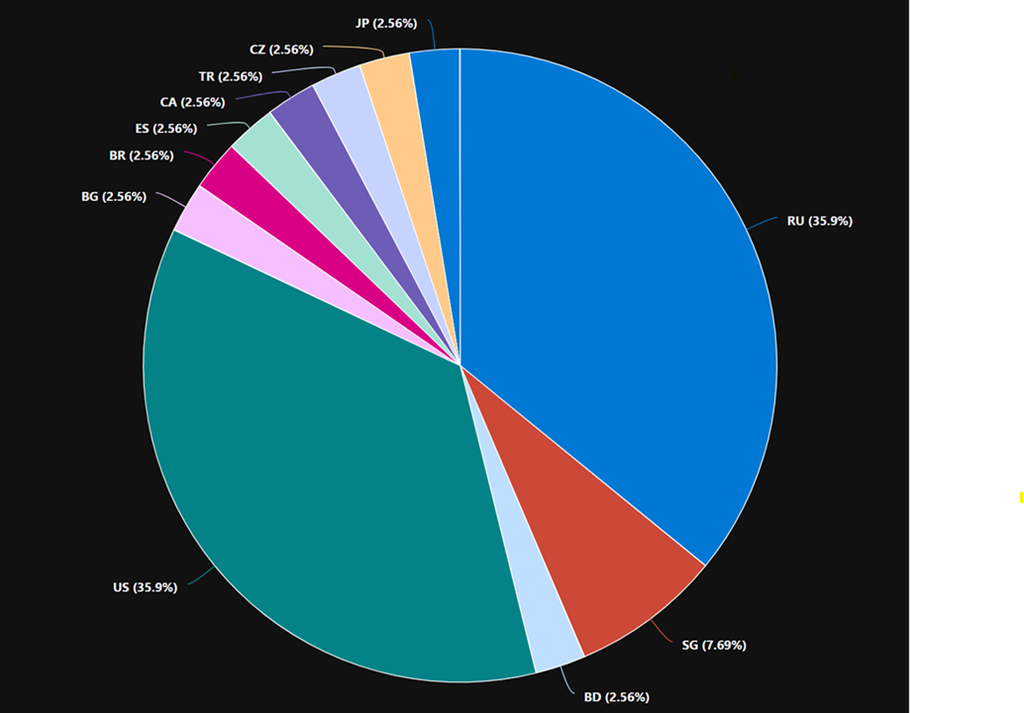
- Custom Dashboards & Workbooks: KQL queries can power custom dashboards and workbooks in Sentinel, providing tailored views of your security posture, trends, and key metrics (e.g., risky sign-ins by location, malware detections over time).
- Compliance & Auditing: Extract specific data needed for compliance reporting or internal audits, such as administrator activity logs or access to sensitive data.
- Custom Dashboards & Workbooks: KQL queries can power custom dashboards and workbooks in Sentinel, providing tailored views of your security posture, trends, and key metrics (e.g., risky sign-ins by location, malware detections over time).
-
Understanding Your Environment:
- Baseline Activity: Use KQL to understand normal patterns of behavior in your tenant. This makes it easier to spot deviations that could indicate a security issue.
- Configuration Audits: Query configurations (e.g., MFA status, conditional access policies, sharing settings) to ensure they align with security best practices.
- Baseline Activity: Use KQL to understand normal patterns of behavior in your tenant. This makes it easier to spot deviations that could indicate a security issue.
-
Speed and Scalability:
- KQL is optimized for querying massive datasets very quickly, which is essential when dealing with the volume of telemetry generated by M365 services.
How to Get Started Using KQL for M365 Security:
-
Access the Right Portals:
- Microsoft 365 Defender Portal (security.microsoft.com):
- Navigate to Hunting > Advanced Hunting. This is where you’ll query data from Defender for Endpoint, Defender for Office 365, Defender for Identity, Defender for Cloud Apps, and Azure AD Identity Protection.
- Microsoft Sentinel (via Azure Portal portal.azure.com):
- Navigate to your Log Analytics Workspace connected to Sentinel, then select Logs. This is where you’ll query data ingested into Sentinel, which can include M365 logs, Azure activity, third-party logs, etc.
- Microsoft 365 Defender Portal (security.microsoft.com):
-
Ensure Data Ingestion (Prerequisite):
- For Microsoft 365 Defender Advanced Hunting: Most data from the Defender suite is automatically available.
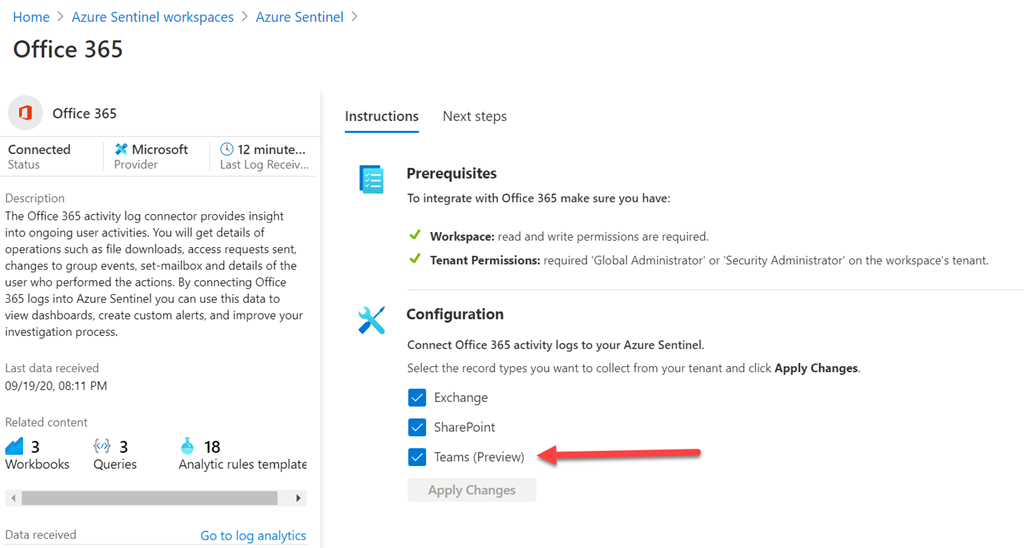
- For Microsoft Sentinel: You need to set up Data Connectors for the M365 services you want to query (e.g., Azure Active Directory, Office 365, Microsoft Defender for Cloud Apps).
- For Microsoft 365 Defender Advanced Hunting: Most data from the Defender suite is automatically available.
-
Learn Basic KQL Syntax:
- KQL queries are a sequence of data transformation steps piped (
|) together.
TableName: Start by specifying the table you want to query (e.g.,SigninLogs,EmailEvents,DeviceEvents).
- In Advanced Hunting, the schema is usually pre-loaded on the left.
- In Sentinel (Logs), you can see available tables in the schema pane.
- In Advanced Hunting, the schema is usually pre-loaded on the left.
| where Condition: Filters rows based on a condition (e.g.,| where ResultType == "50126"for failed logins due to MFA).
| project Column1, Column2: Selects specific columns.
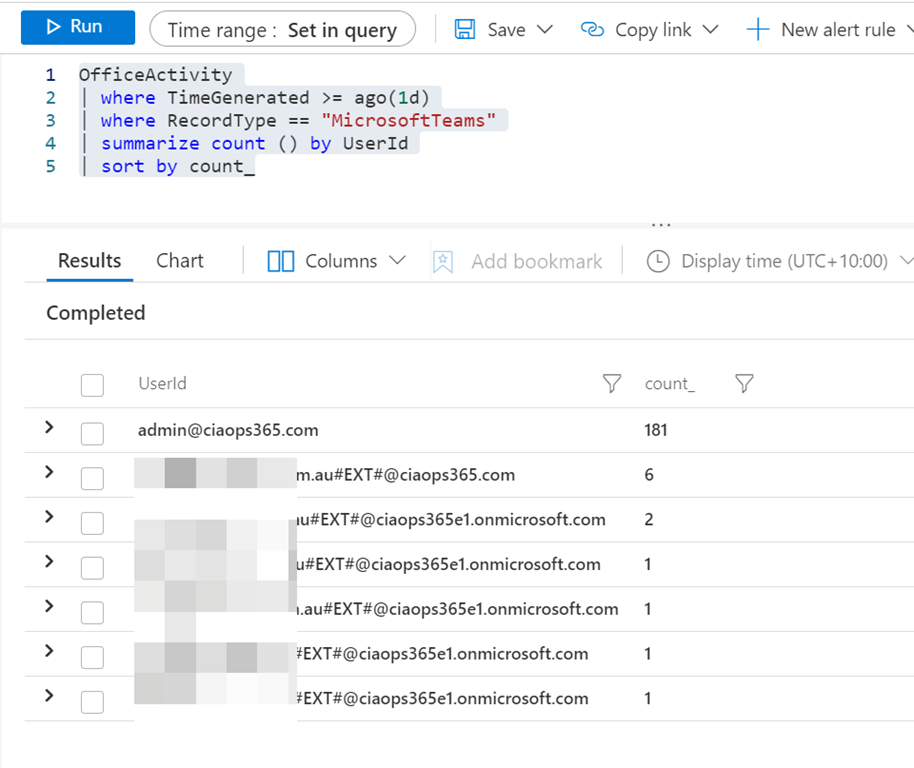
| summarize Aggregation by GroupingColumn: Aggregates data (e.g.,| summarize count() by UserPrincipalName).
| top N by Column [desc/asc]: Shows the top N results.
| extend NewColumn = Calculation: Creates a new column.
| join kind=inner (OtherTable) on CommonColumn: Combines rows from two tables.
- Time Range: Use the time picker in the UI or specify in the query (e.g.,
| where TimeGenerated > ago(1d)).
- KQL queries are a sequence of data transformation steps piped (
-
Explore Schemas and Tables:
- In both Advanced Hunting and Sentinel Logs, there’s a schema explorer. Familiarize yourself with the available tables and their columns. Common tables include:
- M365 Defender:
IdentityLogonEvents,EmailEvents,UrlClickEvents,DeviceProcessEvents,CloudAppEvents.
- Sentinel (often from Azure AD):
SigninLogs,AuditLogs,OfficeActivity,SecurityAlert.
- M365 Defender:
- In both Advanced Hunting and Sentinel Logs, there’s a schema explorer. Familiarize yourself with the available tables and their columns. Common tables include:
-
Start with Simple Queries and Build Up:
- Example: See the last 10 sign-ins.
SigninLogs // Or IdentityLogonEvents in M365 Defender | top 10 by TimeGenerated desc - Example: Count failed sign-ins by user in the last day.
SigninLogs
| where TimeGenerated > ago(1d)
| where ResultType != 0 and ResultType != 50140 // Filter for various failure codes, 0 and 50140 are common success/interrupts
| summarize FailureCount = count() by UserPrincipalName
| top 10 by FailureCount desc
- Example: See the last 10 sign-ins.
-
Use IntelliSense and Built-in Help:
- The query editors in both portals have IntelliSense to help you with table names, column names, and operators.
- Look for example queries or templates provided by Microsoft.
- The query editors in both portals have IntelliSense to help you with table names, column names, and operators.
-
Leverage Microsoft’s Learning Resources:
- Microsoft Learn KQL Path: Search for “KQL” on Microsoft Learn. There are excellent modules.
- Microsoft Sentinel Documentation: Full of KQL examples for security scenarios.
- Microsoft 365 Defender Advanced Hunting Documentation: Similar to Sentinel docs but focused on Defender data.
- GitHub Repositories: Microsoft and the community share many KQL queries for Sentinel and M365 Defender on GitHub.
- Microsoft Learn KQL Path: Search for “KQL” on Microsoft Learn. There are excellent modules.
-
Practice, Practice, Practice:
- Take an existing alert and try to find the related raw logs.
- Think of a security question (e.g., “Has anyone downloaded an unusual number of files from SharePoint recently?”) and try to answer it with KQL.
- Take an existing alert and try to find the related raw logs.
Example KQL Queries for M365 Security:
-
Suspicious Sign-in Locations (Sentinel – SigninLogs):
SigninLogs | where TimeGenerated > ago(7d) | where Location != "YourExpectedCountry" // Be more specific with IPs or city if possible | summarize count() by UserPrincipalName, Location, IPAddress | sort by count_ desc -
New Email Inbox Forwarding Rule (M365 Defender – CloudAppEvents):
CloudAppEvents | where TimeGenerated > ago(1d) | where Application == "Microsoft Exchange Online" | where ActionType == "New-InboxRule" | where RawEventData has "ForwardTo" or RawEventData has "RedirectTo" | project Timestamp, AccountObjectId, UserAgent, RawEventData -
Potentially Malicious File Downloads by a User (M365 Defender – CloudAppEvents for SharePoint/OneDrive):
CloudAppEvents
| where TimeGenerated > ago(1d)
| where ActionType == "FileDownloaded"
| where Application in ("Microsoft SharePoint Online", "Microsoft OneDrive for Business")
// Optional: add filters for specific file types if known (e.g., | where FileName endswith ".exe" or FileName endswith ".ps1")
| summarize FilesDownloaded = dcount(FileName), TotalSize = sum(tolong(RawEventData.FileSize)) by Actor = UserPrincipalName, bin(TimeGenerated, 1h)
| where FilesDownloaded > 10 // Example threshold
Key Takeaway:
KQL is an indispensable skill for modern security operations in the Microsoft ecosystem. It empowers you to move from reactive alert chasing to proactive threat hunting and deep investigation, significantly improving your M365 tenant’s security posture. Start simple, leverage the available resources, and gradually build your expertise.
 CIAOPS