Subscribing a Sparkfun ThingPlus ESP32-S2 WROOM to Adafruit IO

I have now been able to successfully publish temperature data from a ESP32-S2 device to Adafruit IO as I detailed here:

https://blog.ciaops.com/2023/05/31/connecting-a-sparkfun-thingplus-esp32-s2-wroom-to-adafruit-io/

The next thing I want to achieve is to ‘push’ data down to the device from the Adafruit IO web site.

The starting point for this is to create a new feed in Adafruit IO. You’ll find how to do that here:

https://learn.adafruit.com/adafruit-io-basics-feeds/overview

To inject data into this feed I’ll need to create a Dashboard in Adafruit IO. You can find out about doing that here:

https://learn.adafruit.com/adafruit-io-basics-feeds/overview

In my case, I’ll add an ON/OFF button to the dashboard and connect that button to the feed I just created.

image

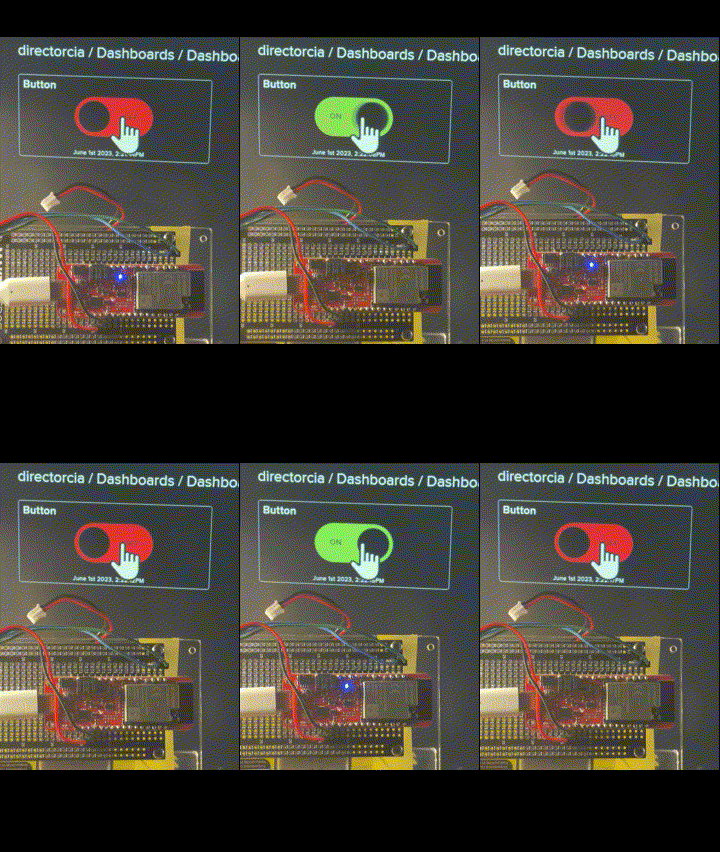
This will basically inject the text values ON and OFF into the feed, which I’ll then read on my device and take action.

The code looks similar to last time but now:

Adafruit_MQTT_Subscribe onoffbutton = Adafruit_MQTT_Subscribe(&mqtt, AIO_USERNAME “/feeds/onoffbutton”);

You’ll see that I define a variable using the Subscribe method.

while (subscription = mqtt.readSubscription(2000)) {

Serial.println(F(“Received button data”));

if (subscription == &onoffbutton) {

Serial.print(F(“Got: “));

String ledstatus = (char *)onoffbutton.lastread;

The core of the program on the device is the statement starting above that reads from the feed, and if contains a value, it then takes an action. In this case, I look for the text ON or OFF in the feed and then take the appropriate action with the inbuilt LED on the device.

The result looks like:

switchled

You’ll find the code at:

https://github.com/directorcia/Azure/blob/master/Iot/ESP32-S2/IO-Adafruit-Subscribe/main.cpp

So using Adafruit IO I’ve able to pretty easily send information to a dashboard and receive information from a dashboard. I now need to have a look at sending data from Azure to the device but I’m in no rush to do that just yet as I figure it will take a bit of work. I think my next project will trying to use the device to control some motors and add ‘motion’ to my project.

Stay tuned for more.

Connecting a Sparkfun ThingPlus ESP32-S2 WROOM to Adafruit IO

After my previous success getting data into Azure IoT Central I now wanted a way to send data the other way. That is to the device from the cloud. However, I could see this being a challenge if I continued to use Azure as my cloud endpoint. What I really needed was something simpler to help me better understand the core communication concepts.

With this in mind I discovered:

https://learn.adafruit.com/

that is much easier to use to do the basic stuff I wanted.

I therefore went to Adafruit IO and created a free account. This will then give you access to:

https://io.adafruit.com/

I then needed to create a ‘Feed’ into which the data from my device would be sent so that it could then appear in the Adafruit IO console. You can follow these instructions to create a ‘Feed’:

https://learn.adafruit.com/adafruit-io-basics-feeds/overview

image

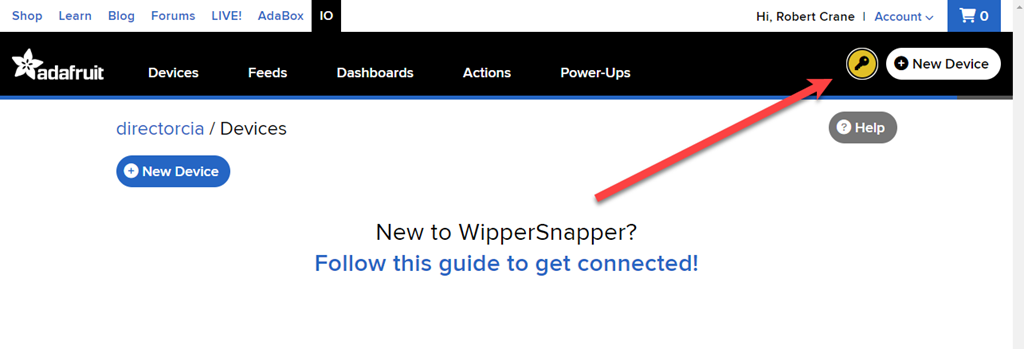
To get the credentials you’ll need to connect to the feed you just created you’ll need to select the ‘key’ icon in the top right of the window as shown above to reveal the details.

image

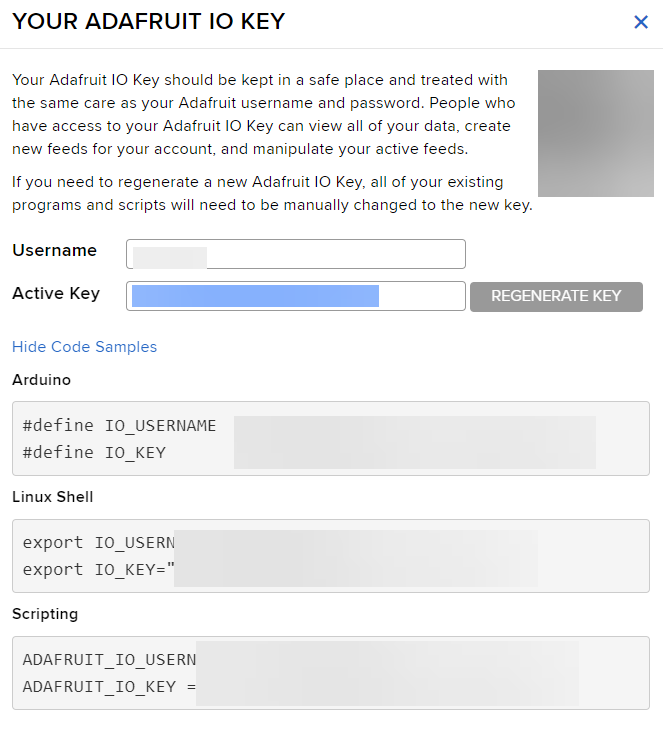
You should see a dialog like that shown above with your Active key. It is also handy to grab the sample code displayed below.

You’ll need the following headers/libraries in your code:

#include <Arduino.h>
#include <WiFi.h>
#include <Adafruit_MQTT.h>
#include <Adafruit_MQTT_Client.h>

you’ll also need to define a few things:

#define AIO_SERVER “io.adafruit.com”
#define AIO_SERVERPORT 1883
#define AIO_USERNAME “<Adafruit IO user name>
#define AIO_KEY “<Your Active key>
#define WLAN_SSID “<Your WiFi name>
#define WLAN_PASS “<Your Wifi password>

You’ll need to enter your own values for the last few to suit your own environment.

Next, you need to connect to the feed you created using:

// Setup the MQTT client class by passing in the WiFi client and MQTT server and login details.


Adafruit_MQTT_Client mqtt(&client, AIO_SERVER, AIO_SERVERPORT, AIO_USERNAME, AIO_KEY);

Adafruit_MQTT_Publish feed= Adafruit_MQTT_Publish(&mqtt, AIO_USERNAME “/feeds/<Your feed name>”);

The feed variable here is where you will ‘publish’ data to be sent to the Adafruit IO console. The main loop running on the device will then contain something like this:

if (!feed.publish(ciaaht_getTemp())) {
Serial.println(F(“Failed”));}
else {
Serial.println(F(“Success”));}

which in essence, publishes data to the feed you created. In my case, I’m feeding in temperatures data via the function ciaaht_getTemp() which get the temperature from the DHT20.

There is a little bit more to it than that, but all the code is here:

https://github.com/directorcia/Azure/tree/master/Iot/ESP32-S2/IO-Adafruit-Publish

including the custom temperature sensor functions code I created previously.

image

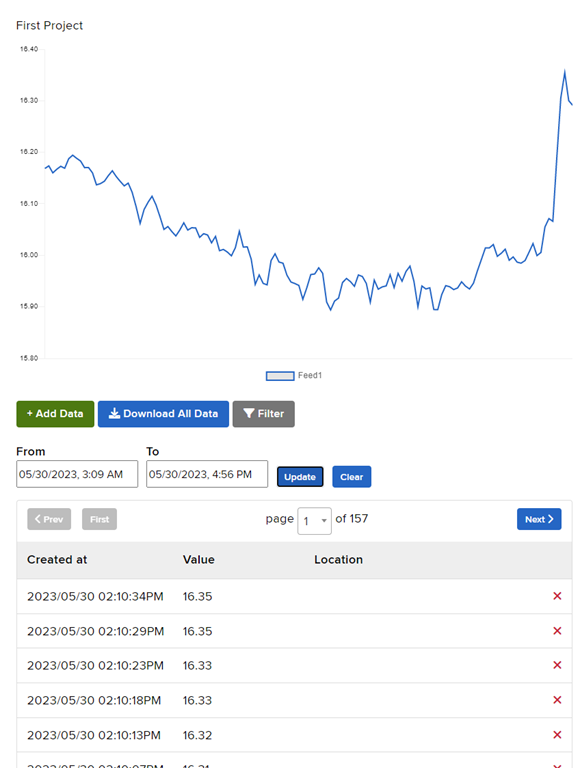
With the code now uploaded to the ESP-32 I was able to see the data appearing in my feed in Adafruit IO as shown above. You’ll also see in my code that I used the on board LED as kind of indicator to let me know if things were working. A visual debugger if you like.

As you can see, getting data into Adafruit IO is much, much easier than into Azure IoT Central and I understand why that is and I’d suggest people start with Adafruit IO before moving to Azure. There is far less code with Adafruit IO making far easier to debug and understand.

With this now working and displaying temperature from my sensor, it is time to try and now send data to the device to control it from the cloud. Look out for that update coming soon!

Connecting a Sparkfun ThingPlus ESP32-S2 WROOM to Azure IoT Central

One of the main aims I’ve had with all my IoT projects was eventually to integrate them into Azure. One way that I found was via:

Connecting to Azure IoT hub

The limitation there is that it really only gets the telemetry into Azure. From Azure IoT hub you need to send it off to another application to get any real value.

What I wanted to achieve was to send that data into Azure but have it display some sort of result, like a graph, without me having to do anything too much low level work.

The solution was to use the Azure IoT Central service. So the project plan was to use what I learned in building an

Adafruit Huzzah Temperature sensor

but instead of simply displaying the results on the serial console to have the results sent ot Azure and displayed in a graph.

The starting point was:

Quickstart: Connect an ESPRESSIF ESP32-Azure IoT Kit to IoT Central

problem was that the hardware device they use in this project is now obsolete it appears:

image

https://au.mouser.com/ProductDetail/Espressif-Systems/ESP32-Azure-IoT-Kit?qs=PqoDHHvF64%252BuVX1eLQkvaQ%3D%3D

Instead, I decided to use a:

SparkFun Thing Plus – ESP32-S2 WROOM

The hope being that it would be close enough to what the original document wanted.

Also for guidance and source files I used:

Connecting ESPRESSIF ESP32 to Azure IoT Central using the Azure SDK for C Arduino library

You should start here:

Getting started with the ESPRESSIF ESP32 and Azure IoT Central with Azure SDK for C Arduino library

which will take you through setting up a new IoT Central Application, which I won’t repeat here. The result of that will be 3 items that will need to be included in the code for the device:

  • ID scope
    Device ID
    Primary key

Next, you’ll need to download all the source files in the repo and include them in a new PlatformIO project. The files are:

  • AzureIoT.cpp
    AzureIoT.h
    Azure_IoT_Central_ESP32.ino
    Azure_IoT_PnP_Template.cpp
    Azure_IoT_PnP_Template.h
    iot_configs.h

I renamed Azure_IoT_Central_ESP32.ino to main.cpp in my project.

The next thing you’ll need to do is set your local wifi parameters in the file iot_configs.h. The settings should look like:

// Wifi

#define IOT_CONFIG_WIFI_SSID “<YOUR LOCAL SSID>”

#define IOT_CONFIG_WIFI_PASSWORD “<YOUR WIFI ACCESS POINT PASSWORD>”

Make sure you save any changes to the files you make.

In this same file also locate and the set the Azure IOT Central settings like:

// Azure IoT Central

#define DPS_ID_SCOPE “<ID SCOPE>”

#define IOT_CONFIG_DEVICE_ID “<DEVICE ID>”

// Use device key if not using certificates

#ifndef IOT_CONFIG_USE_X509_CERT

#define IOT_CONFIG_DEVICE_KEY “<PRIMARY KEY>”

which need to include the values obtained when configuring Azure IoT Central earlier.

If you now build your code and upload it to the device you should find that it will connect to your local wifi and start sending information to Azure IoT Central.

image

The device configured in Azure IoT Central should report as connected as shown above when you view this in the Azure IoT Central portal at:

https://apps.azureiotcentral.com/
image

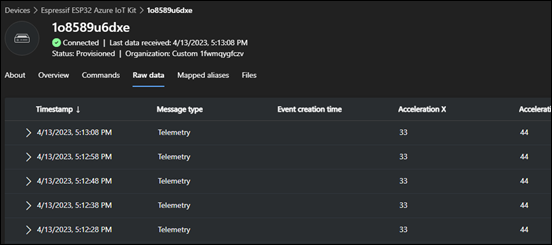
If you then select the Raw Data menu item as shown above, you see the data from your device being received regularly into Azure.

image

If you look at the serial monitor connected to the device locally you should see something like the above indicating that data is being sent up to Azure.

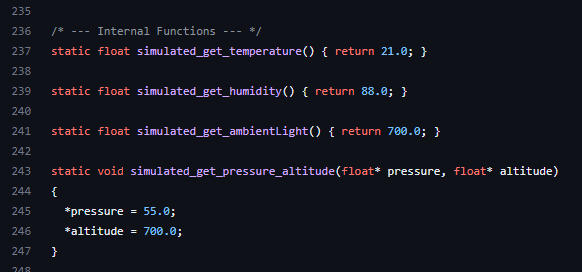
This, therefore, now indicates that there is a correct connection to the Azure IoT Central portal. The problem is that the data being sent currently is actually just static dummy data that never changes. What I want to do is send actual data read from a temperature sensor connected to my device. So I need to find the source of the data in the code so I can replace that with the dynamic data from the tempreture sensor connected to my device I want.

Turns out the source of that dummy data is in the file Azure_IoT_PnP_Template.cpp around line 236:

image

What I now want to do is replace the static value of 21.0 for temperature and 88.0 for humidity with actual readings from the device.

To achieve that I’ll need the code from the previous project that read the temperature data which is here:

https://github.com/directorcia/Azure/blob/master/Iot/huzzah-tempsens.ino

I’m going to add that to a new file in my project called ciaath.cpp to keep my code separate from the templated Azure stuff. In there I’ll have 2 functions:

float ciaaht_getTemp() which returns temp.tempreture

float ciaaht_getHumidity() which returns humidity.relative_humidity

Remember, both temp and humidity are objects and all I want is the actual numeric value in there.

I’ll also create a ciaath.h file that looks like:

#ifndef CIAATH_H
#define CIAATH_H
void ciaaht_init();
float ciaaht_getTemp();
float ciaaht_getHumidity();
#endif

The idea is that this tells other pieces of code about these functions. You’ll also note I have a function ciaaht_init() to initialise the temperature sensor at start up.

Back in the Azure_IoT_PnP_Template.cpp file I need to include the line:

#include <ciaath.h>

to tell it about my functions in my ciaath.cpp file. I can now also change the lines that report the temperature and humidity from their original static value to the value read from the temperature senor connected to my device to be:

static float simulated_get_temperature() { return ciaaht_getTemp(); }
static float simulated_get_humidity() { return ciaaht_getHumidity(); }

which basically get the data from my device which will then be sent to Azure.

Back in main.cpp I need to add:

#include “ciaath.h”

to tell it about my custom functions. I also have to add around line 359:

ciaaht_init();

to initialise the temperature sensor on my device at startup.

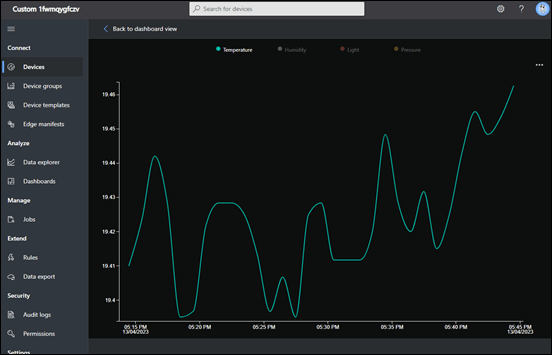
Once this all compiles and uploads to the device I can again check Azure IoT Central portal and see in the Overview menu item
image

and I see my temperature and humidity are no longer a constant.

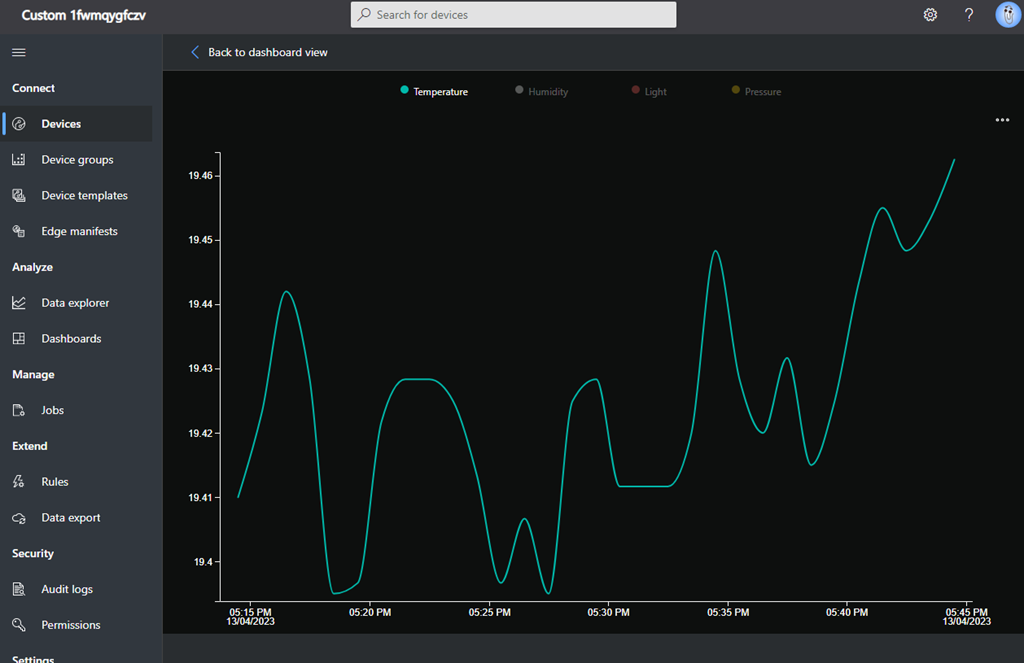
If I heat up the temperature senor connected to my device I see:
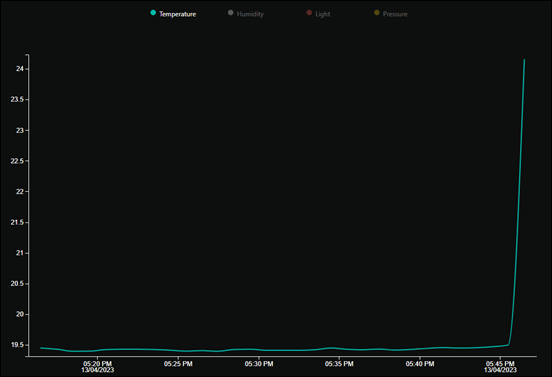
image

and if I leave it to return to normal I see:
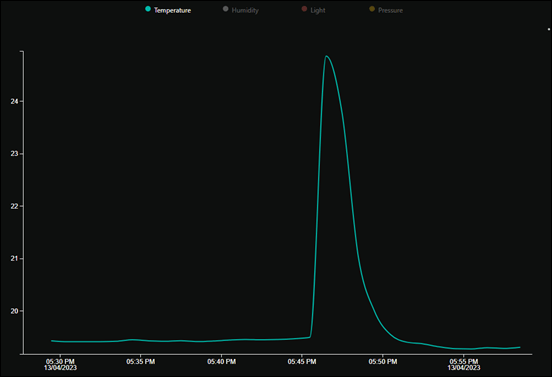
image

I’ve put all the code up at:

https://github.com/directorcia/Azure/tree/master/Iot/ESP32-S2/IoT-Central

so you can have a look and use it if you need to.

I did need to get some help along the way, especially with the code and working out where the values uploaded to Azure came from initially as well as how to structure the .h files to make it cleaner. I’m no coder but hopefully my explanation here helps other non-coder, but let me know if I haven’t got it right as I really want to better understand all this.

I’m now super happy I have this working and I’m confident that I can use this as a base to start creating more powerful projects connected to Azure!

Connecting to Azure IoT hub

The main aim of my dive into IoT was to get a remote device talking to Azure. After getting the IoT device connected to WiFi, flashing LEDs, accepting input from a button and capturing temperature data, it was now time to make that dream a reality.

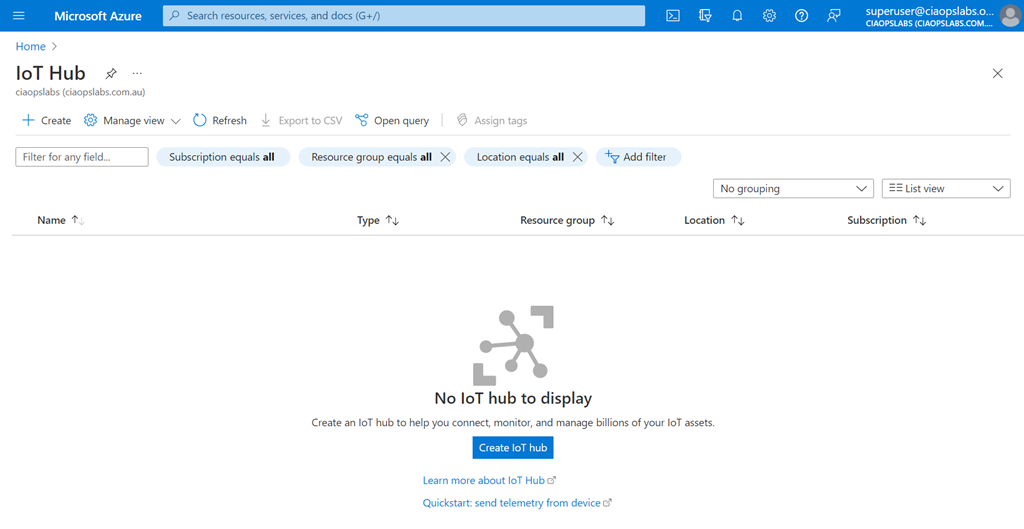
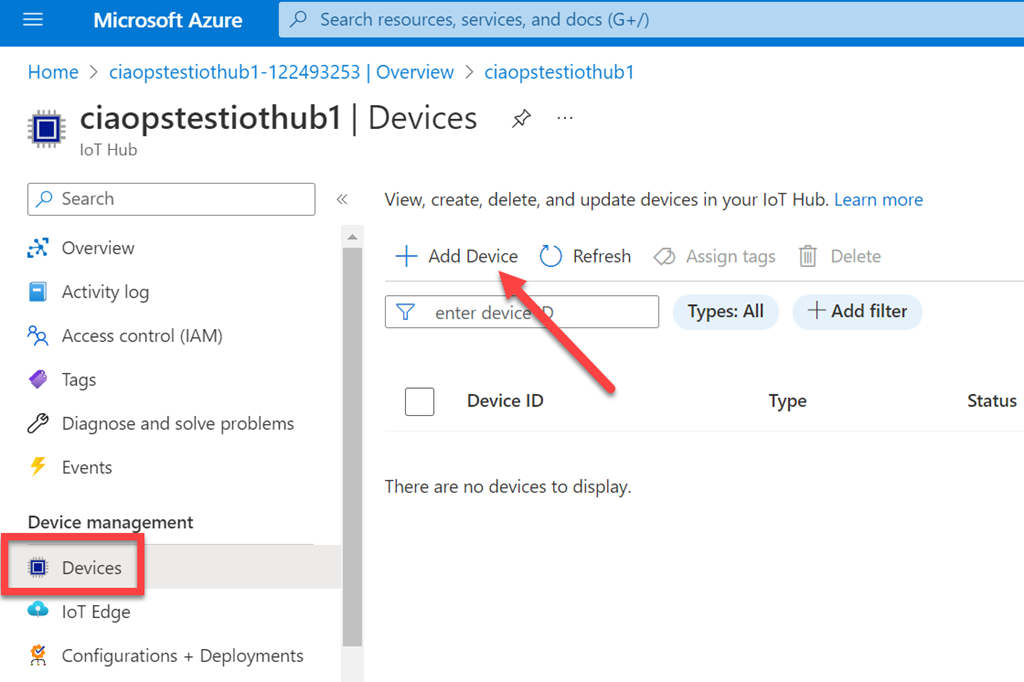
There are different methods of connecting devices to Azure but for my first attempt I decided to use Azure IoT hub. The first step in that process is to login to the Azure portal and create a new IoT hub.

image

To do this, select the Create menu option in the top left of the Azure IoT hub blade

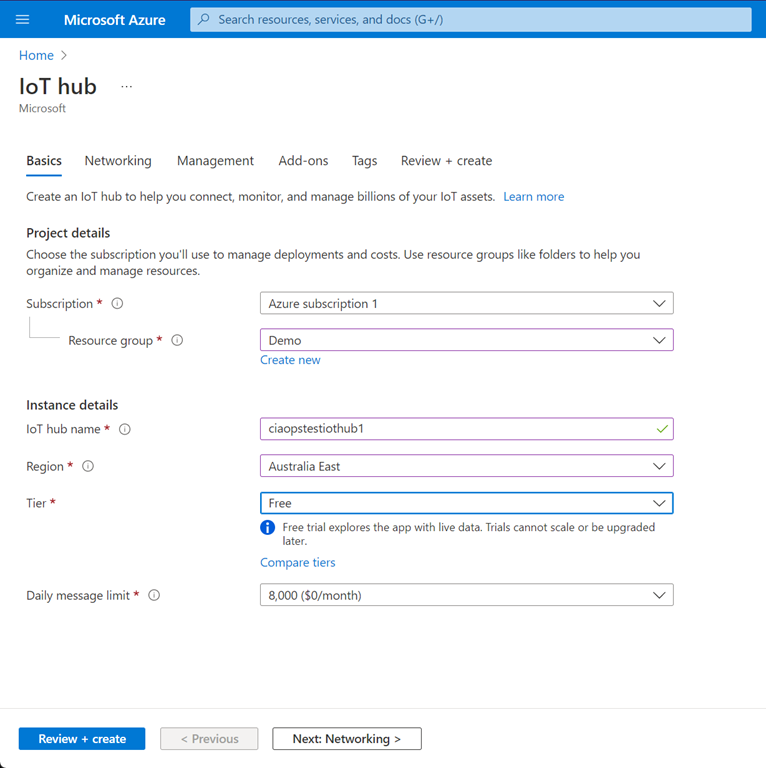
image

Once you have selected the Azure subscription and Resource group you’ll need to pick a Name for your Azure IoT hub. This name needs to be unique as a URL will be generated from this. Then select a Region and a Tier. You’ll notice that there is a Free tier, which I have selected for this example (very handy for tests like this).

image

Next, you can configure your networking. Because my device will just connect to a public Internet connection I selected Public access.

image

I left the management options as shown above.

image

The add-ons shown here are not available on the Free tier.

image

I didn’t need any tags.

image

I finally get a summary as shown. Note that the cost will be $0 because I am using the Free tier. Select Create to complete the process.

image

After a few minutes you should be able to see you IoT hub as shown above. Select Devices from the menu on the left.

image

Now select Add device from the menu on the right as shown above.

image

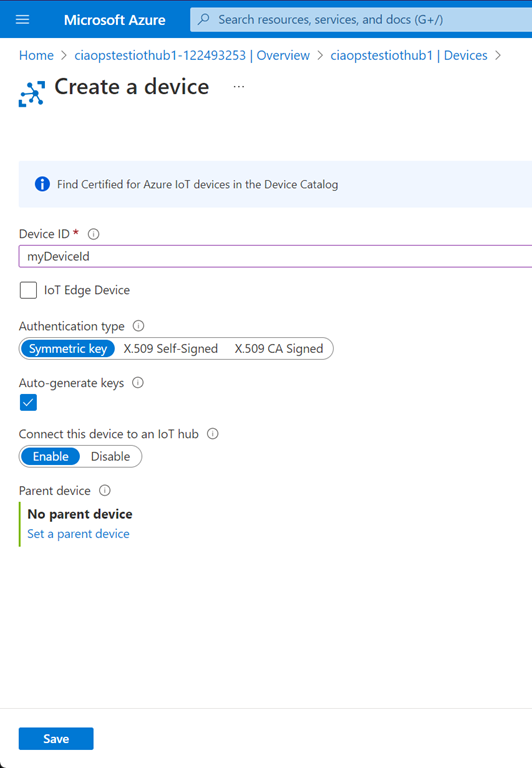
Give a the device a Name, and to keep things simple select Symmetric key for the Authentication type as shown. Ensure that the Auto-generate keys is select and that Connect this device to an IoT hub is set to Enable. Select Save to continue.

image

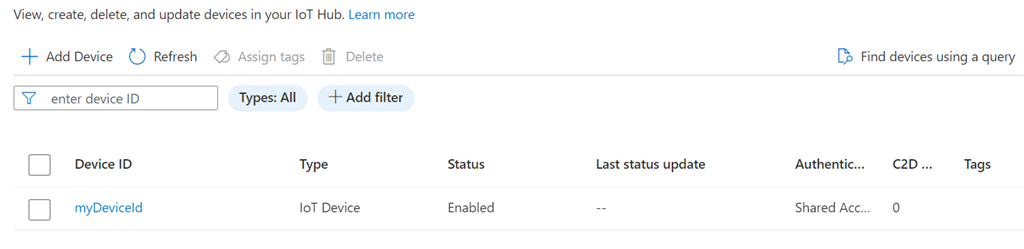
You should now see the device you just created listed as shown above. Select the name of the device to view it’s properties.

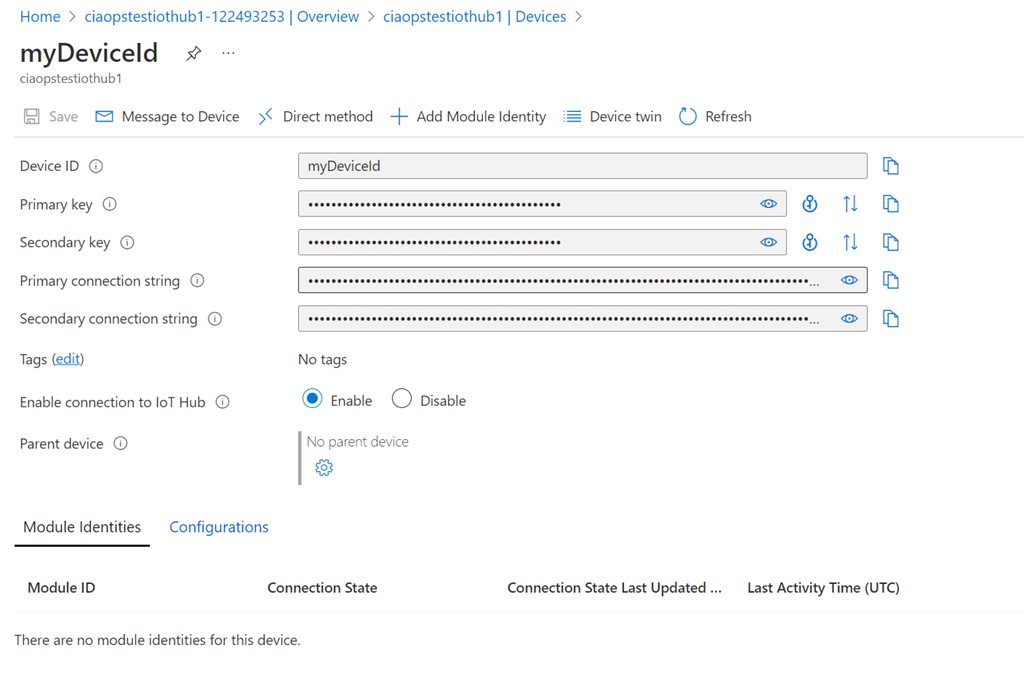
image

Here you will find the settings for your device. You’ll need to grab at least one Key and the matching Connection string to use when configuring your device.

With all of that information it’s time to head back and set up the device.

I have uploaded the code to get the device connected to Azure IoT hub here:

https://github.com/directorcia/Azure/blob/master/Iot/huzzah-iothub.ino

It is much more extensive that before and I will admit I am not yet 100% sure of what it all does but basically it connects the device to local Wifi then sends telemetry information to Azure IoT hub.

You’ll also need to have the file iot_config.h in the same directory when compiling your code. You can find an example of that here:

https://github.com/directorcia/Azure/blob/master/Iot/iot_configs.h

that file basically extracts all the unique security information like WiFi password, device keys and IoT Hub URL away from the main code. You’ll need to modify this file to suit your own environment before compiling.

The only other thing you’ll need to do is connect a single LED to pin 5 of the device to act as a diagnostic indicator. It will basically flash when data is sent to Azure IoT hub which gives a nice visual representation of something actually happening on the device.

image

When you compile the code you’ll also need to ensure all the appropriate libraries are available. Details of each of these is contained in the code.

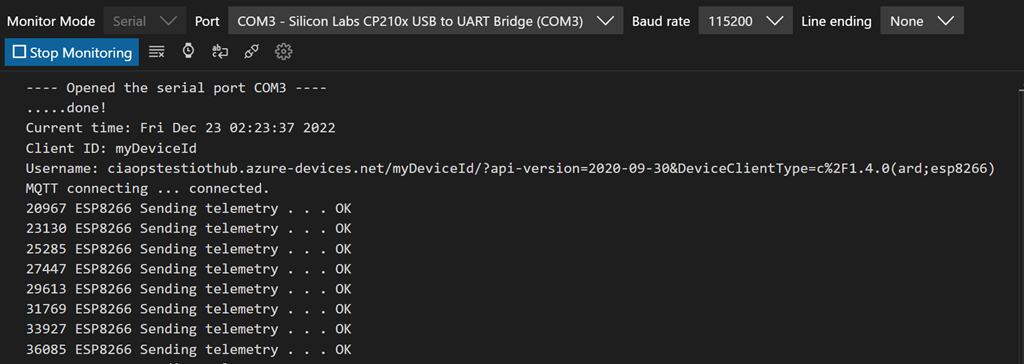
With the compiled code uploaded to the device you should see the LED light start to flash after a few seconds indicating that data is being sent. If you look at the serial port you should see diagnostic data like so:

image

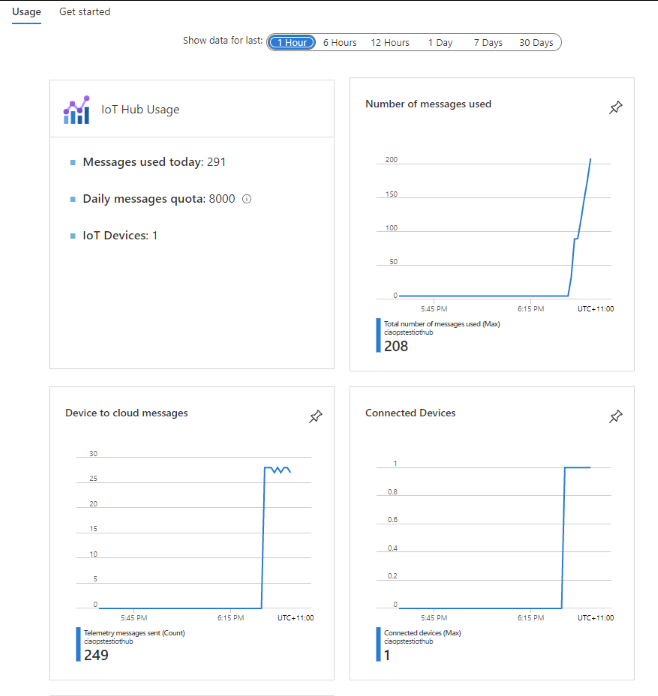
If you then look at the Overview page in the Azure IoT Hub you should the diagnostics reporting a number of messages increasing over time like so:

image

You can also download a tool called the Azure IoT explorer which you will find here:

https://github.com/Azure/azure-iot-explorer/releases

image

When you configure this for your IoT hub environment and drill down into the Device then Telemetry, as shown above, should allow to see the actual information being sent.

So there you have it. Once you have set up an Azure IoT hub and added a device to it you can grab the connection details and plug them into the code you use to configure your device. You can also use the Azure IoT Explorer to get more granular details of what your device is doing.

The next challenge is now to get the device working with Azure IoT central.

Adafruit Huzzah Temperature senor

image

Last project was:

Input from button

Next up now is connecting the DHT20 temperature sensor to the Adafruit Huzzah. The idea is to read data from the sensor and display it via the serial output.

The wiring diagram is shown above and is pretty straight forward. The main thing is to get the pin functions for the sensor. All 4 pins needs to be connected. On the DHT20 pin 1 goes to the 3V output on Huzzah. Next, the DHT20 pin 2 goes to ground on the Huzzah.

The final 2 pins (SCL and SDA) are for serial communications. Thus, DHT20 pin 2 goes to the SCL connection on the Huzzah. Finally, pin 4 from the DHT20 goes to SDA on the Huzzah.

The code is also very straight forward and I found it here:

https://learn.adafruit.com/adafruit-aht20/arduino

and my version is at:

https://github.com/directorcia/Azure/blob/master/Iot/huzzah-tempsens.ino

To make this work you’ll also need to add the following the library:

Adafruit AHTX0

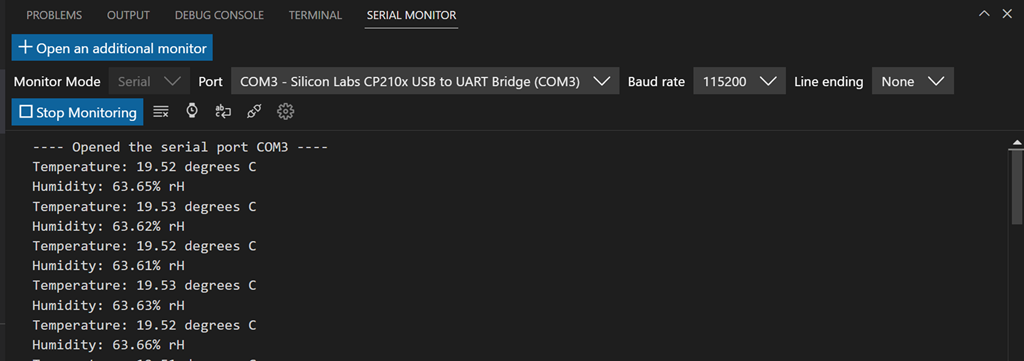
Once you combine all these elements you can compile the code and upload it to the Huzzah. Now, the Huzzah should produce a serial output that looks like:

image

which shows the temperature and humidity of the room.

A pretty simple one when it comes to capturing temperature and humidity.

The next challenge will be to getting data in and out of Azure.

Adafruit Huzzah input from button

After the last project:

Adafruit Huzzah WiFi

I wanted to have the device take input from a switch (which also came in the Starter kit).

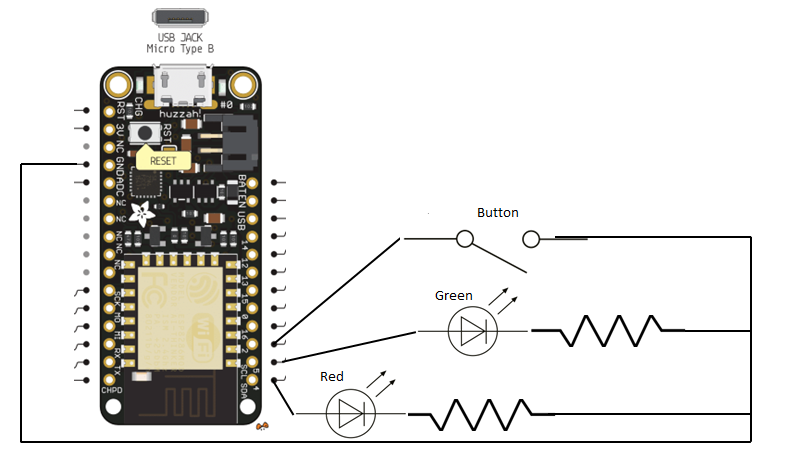
Based on my existing projects I now created a configuration of:

image

Pin 4 = Red LED + Resistor (560 ohm)

Pin 5 = Green LED + resistor (560 ohm)

Pin 2 = button

Each of these lines then went to the GND pin.

For the code I found the following article which was a great help:

https://create.arduino.cc/projecthub/muhammad-aqib/arduino-button-tutorial-using-arduino-digitalread-function-08adb5

from which I adapted my own code at:

https://github.com/directorcia/Azure/blob/master/Iot/huzzah-button.c

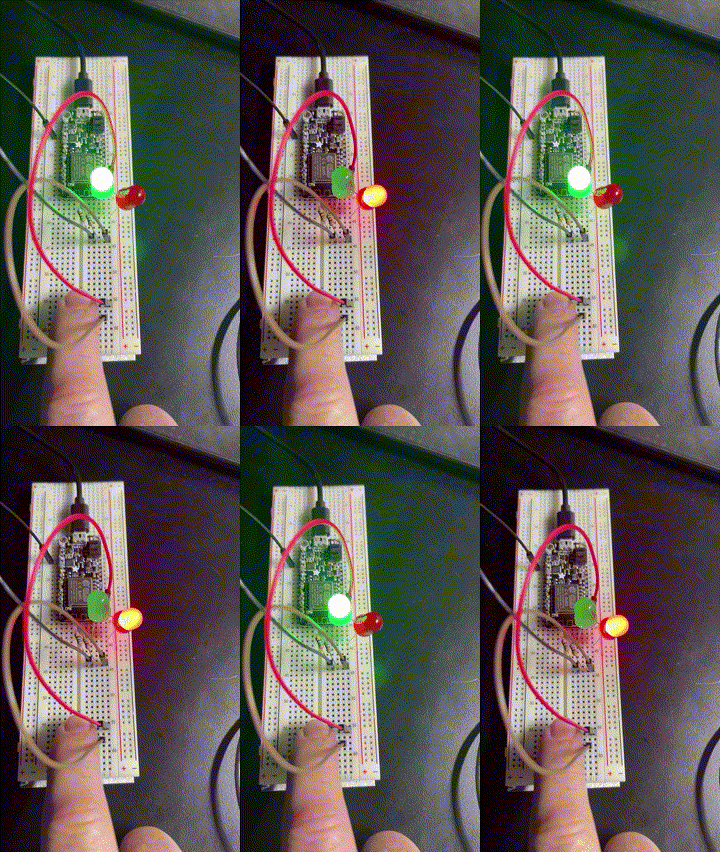
So that when the button is pressed it swaps which LED is on like so:

ledclick

Of course, it could be improved but I am still calling it a success as all I really wanted to do was incorporate input from an external source.

With all this now done, the next aim is to work out how to connect the device to Azure and get Azure capturing the input from the device and reporting it somehow.

Adafruit Huzzah Wifi

My last IoT challenge was to get an

External flashing LED

working and the next was to get the Adafruit Huzzah with ESP8266 to connect to Wifi. To do that I found most the required code here:

https://learn.adafruit.com/adafruit-feather-huzzah-esp8266/using-arduino-ide#connecting-via-wifi

and I’ve put my code on my Github here:

https://github.com/directorcia/Azure/blob/master/Iot/huzzah-wifi.c

You’ll need to put in your own WiFi access point details at the top of the code to connect to your own environment.

This script uses a lot of commands like:

serial.println

which basically outputs text to a serial port. This allows much easier troubleshooting so you can see what is going on. To see this output you will however need a dedicated serial monitor console program. I started off using Putty:

https://putty.org/

which works great but upon reflection, I wanted to use something that was integrated directly into Visual Studio code. After some poking around I found this extension:

https://marketplace.visualstudio.com/items?itemName=ms-vscode.vscode-serial-monitor

which is from Microsoft and seems to do what I needed.

image

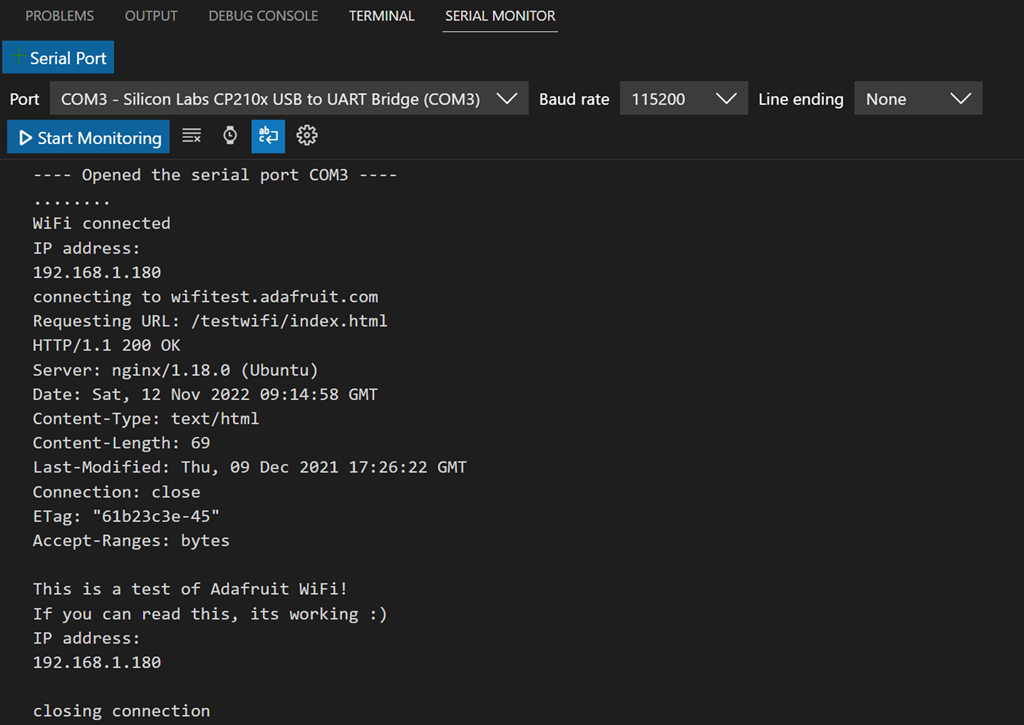
You can see the output from my code above in serial monitor. Always ensure you match the output port and baud rate in the serial monitor to the device you have (here COM3 and 115200). Configuring this is very easy with the serial monitor extension.

Without much alteration, I was able to take the initial code and easily connect to my network as well as the Internet. Once connected I could ping the Adafruit Huzzah with ESP8266 from another PC in the network. A pretty painless exercise. Nice that things are becoming a little easier now I’m becoming familiar with this stuff.

So far, all I’ve done is use the Adafruit Huzzah with ESP8266 for output. Next, I’ll be to start taking simple input into the device by reading something like a button press and then taking action on that.

Stay tuned for details on that soon.

External flashing LED

My first IoT project was to get the on board LED flashing which I achieved here:

Not as easy as IoT

With that accomplished, I now wanted to get an external LED flashing.

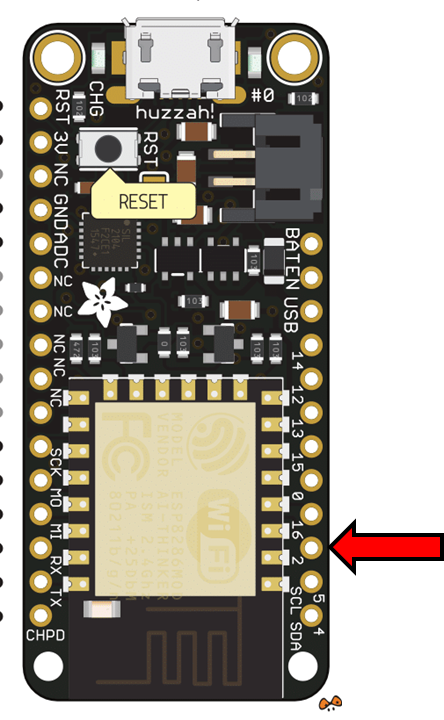
I firstly needed to pick a pin on the Adafruit device to control the output on.

image

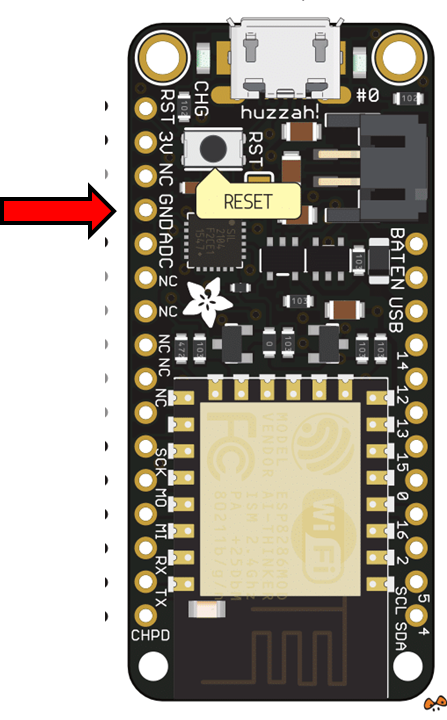
I chose the third in from the bottom on the right which is PIN 2.

Next, I needed to work out the maximum output voltage for the Adafruit Feather Huzzah, which turns out to be 3.3 Volts. I also noted the following from the pin output specifications as well:

“be aware the maximum current drawn per pin is 12mA. 6mA recommended”

I also needed to take into account the voltage drop that would occur across the LED, which is around 0.7V. So the voltage for my calculation was now:

3.3V – 0.7V = 2.3V

To work out what resistor I needed to place in the circuit I used the good ole V= IR.

V=IR

R = V/I

R = 2.3 / 0.006

R = 433 ohms

I double checked my logic at:

http://www.anycalculator.com/ohmslaw.htm

I then went through the:

Microsoft Azure IoT Starter Kit w/ Adafruit Feather HUZZAH

I had bought to see what resistors were included. In there I found a 560 ohm resistor. If you need to check your resistor markings like I did, you can use:

https://byjus.com/physics/resistor-colour-codes/

to help discern what you have.

A 560 ohm resistor would means my current would be:

I = V / R

I = 2.3 / 560

I = 4.1 milliamps (well below the 6 milliamp recommendation)

All I needed now was to find the ground for the Adafruit

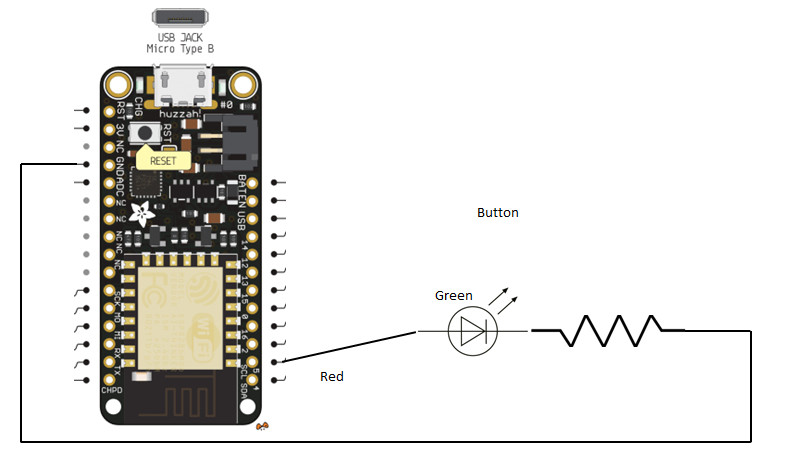
image

which turned out to be the fourth pin from the top on the left.

I therefore wired up the output from pin 2 on the Adafruit, through the LED, through the resistor and then to ground, completing the circuit.

Now for the code to make it flash.

#include <Arduino.h>

int LED_Pin = 2;

int status = 1;

void setup(){

pinMode(LED_Pin, OUTPUT);

}

void loop() {

  // put your main code here, to run repeatedly:

if (status) {

digitalWrite(LED_Pin, HIGH);

  } else {

digitalWrite(LED_Pin, LOW);

  }

status = 1-status;

delay (1000);

}

which is basically the same as before, except the LED_pin now is set to 2. The code is at:

https://github.com/directorcia/Azure/blob/master/Iot/huzzah-ext-flash-led.c

Using PlatformIO IDE I uploaded my code to the Adafruit and after a few minutes was greeted by:

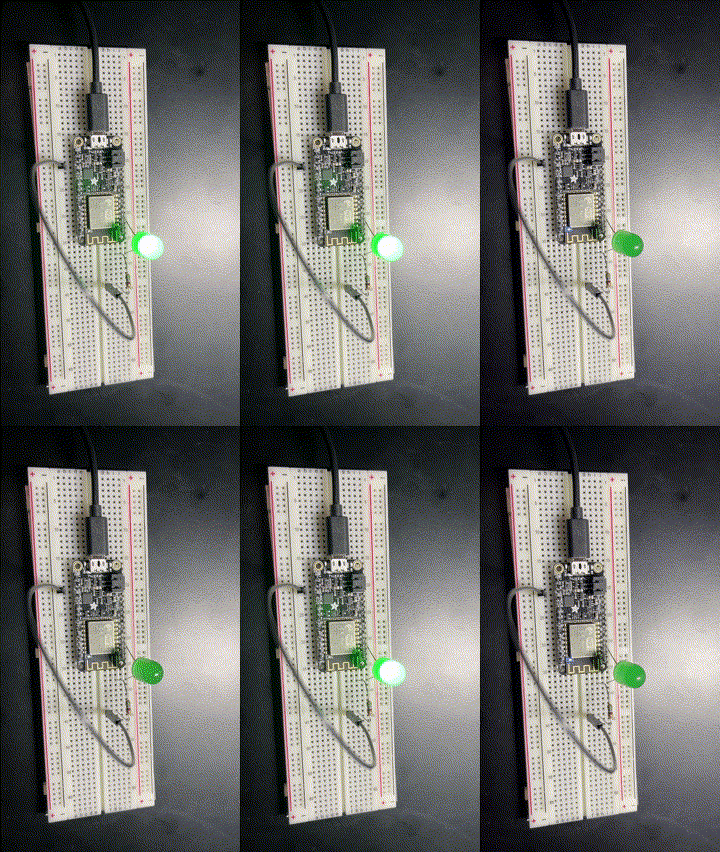
iot-flash

Magic eh?

Sure it’s simple but it’s another step along my IoT journey.