Blocking USB devices on Windows with an Intune Device Configuration profile

There are a number of ways to block USB storage devices using Intune. You can also complete:

Blocking USB devices on Windows with an Intune Endpoint Security policy

The following method is very similar but uses a Device Configuration profile.

image

Navigate to https://endpoint.microsoft.com and select Device from the menu on the left as shown above.

Then, select Windows on the right.

image

Select Configuration profiles from the menu on the left as shown.

image

Select Create profile.

Then select the Platform as Windows 10 and later.

Select the Profile type as Templates.

From the list of templates select Administrative Templates.

Select Create in the bottom right.

image

Give the policy a meaningful name and description.

Select Next to continue.

image

Select Computer configuration.

Then enter the following into the Search box ‘prevent installation of devices’ and Search.

Typically, the first item returned will be ‘Prevent installation of devices not described by any other policy. Select this.

Select the option Enabled.

Select OK.

Select Next to continue.

image

Assign the policy to a group. Here it is being assigned to all Windows devices.

Select Next to continue.

image

You will now see a summary. Ensure the Configuration settings has the above set before selecting the Create button to complete the policy.

image

You can also review these settings at any time by simply selecting the policy in the list and viewing its details as shown above.

image

You now need to wait until the policy is deployed successfully to devices. You can check the status of this by viewing the Device status for the policy as shown above.

Screenshot 2023-03-20 145033

If you now try and plug in an unknow USB storage device you may see the above warning. In other cases, you will see no warning but USB device storage will be blocked.

Some points to remember:

1. The above policy is only designed for Windows 10 and above

2. The above policy won’t prevent USB storage devices that have already been used on an endpoint. These need to be removed from the device manager on the device to be blocked in future.

3. Some USB devices that don’t appear as storage devices in fact have a small amount of storage on them (for video and projector drivers for example). These will also be blocked.

Blocking USB devices on Windows with an Intune Endpoint Security policy

There are a number of ways to block USB devices using Intune. The following method uses an Endpoint Security Policy.

image

Navigate to https://endpoint.microsoft.com and select Endpoint security from the menu on the left as shown above.

Then select Attack surface reduction from the options that appear on the right as shown above.

image

Select Create policy.

Select Platform as Windows 10 and later as shown.

Select Profile as Device Control as shown.

Select Create in the bottom right.

image

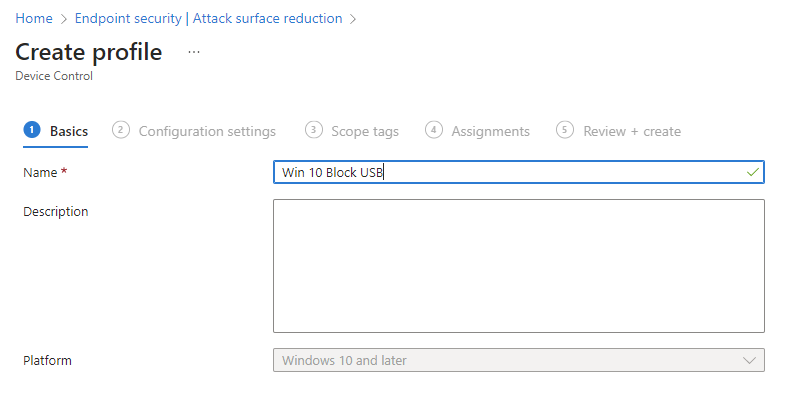
Give the policy a meaningful name and description.

Select Next to continue.

image

Under the System > Device Installation > Device Installation Restrictions heading locate the Prevent installation of removable devices item and set this to Enabled as shown above.

Select Next to continue.

image

Scroll down the list of available settings to locate the Device Control section as shown. To prevent ANY new USB from installing ensure this option is set to Not configured.

Select Next to continue.

image

Assign the policy to a group. Here it is being assigned to all Windows devices.

Select Next to continue.

image

On the summary screen, expand the Administrative Templates option as shown. In here you should see that Prevent installation of removable devices is set to Enabled.

Select Create.

image

The created policy should now be listed as shown above. Click on it to view.

image

When the policy has been successfully applied to the devices the policy was assigned to you should see the status of devices as shown above.

Select View report button.

image

You should now see all the listed that have this policy applied to them as shown above.

Screenshot 2023-03-20 145033

If you now try and plug in an unknow USB storage device you may see the above warning. In other cases, you will see no warning but USB device storage will be blocked.

Some points to remember:

1. The above policy is only designed for Windows 10 and above

2. The above policy won’t prevent USB storage devices that have already been used on an endpoint. These need to be removed from the device manager on the device to be blocked in future.

3. Some USB devices that don’t appear as storage devices in fact have a small amount of storage on them (for video and projector drivers for example). These will also be blocked.
4. You can create exceptions to this policy via the device id if you wish.

Need to Know podcast–Episode 298

In this episode I look at the recommended best practices for managing your emergency access or ‘break glass; accounts in Microsoft 365. In the news we welcome the arrival of the Intune Suite and major update to Windows 11. Listen along for all the details.

You can listen directly to this episode at:

https://ciaops.podbean.com/e/episode-298-break-glass/

Subscribe via iTunes at:

https://itunes.apple.com/au/podcast/ciaops-need-to-know-podcasts/id406891445?mt=2

The podcast is also available on Stitcher at:

http://www.stitcher.com/podcast/ciaops/need-to-know-podcast?refid=stpr

Don’t forget to give the show a rating as well as send me any feedback or suggestions you may have for the show.

This episode was recorded using Microsoft Teams and produced with Camtasia 2022.

Brought to you by www.ciaopspatron.com

Resources

@directorcia

@directorcia@twit.social

Join my shared channel

CIAOPS merch store

Become a CIAOPS Patron

CIAOPS Blog

YouTube edition of this podcast

The Microsoft Intune Suite fuels cyber safety and IT efficiency

Introducing a big update to Windows 11 making the everyday easier including bringing the new AI-powered Bing to the taskbar

Total Identity Compromise: DART lessons on securing Active Directory

Skilling snack: Intro to Azure Active Directory

Defender for Endpoint(MDE): Integrate with Compliance & Conditional Access Policy

Mitigate risks with application block in Defender Vulnerability Management

SharePoint Roadmap Pitstop: February 2023

Microsoft is named a Leader in the 2022 Gartner® Magic Quadrant™ for Endpoint Protection Platforms

Manage emergency access accounts in Azure AD

Enhanced phishing protection in Windows 11 22H2

image

If you have Windows 11 22H2 and you take a look at your Windows Security settings under App & Browser control, you’ll find some new settings in Reputation-based protection as shown above.

You can read about these here:

Enhanced Phishing Protection in Microsoft Defender SmartScreen

If you want to enable these settings using an Intune Device policy you can do so using the Settings Catalog like so:

image

Remember, at the moment, you need Windows 11 22H2 to configure this.

Need to Know podcast–Episode 288

I focus on the most important announcements from Microsoft Ignite 2022. There are updates across the complete range of Microsoft cloud services as well as new devices. I am super excited about both the new Surface Pro 9 as well as the new Intune premium licenses coming in March 2023. Listen in for all the latest information.

You can listen directly to this episode at:

https://ciaops.podbean.com/e/episode-288-ignite-2022-update/

Subscribe via iTunes at:

https://itunes.apple.com/au/podcast/ciaops-need-to-know-podcasts/id406891445?mt=2

The podcast is also available on Stitcher at:

http://www.stitcher.com/podcast/ciaops/need-to-know-podcast?refid=stpr

Don’t forget to give the show a rating as well as send me any feedback or suggestions you may have for the show.

This episode was recorded using Microsoft Teams and produced with Camtasia 2022.

Brought to you by www.ciaopspatron.com

Resources

@directorcia

Youtube version of podcast

Introducing new Surface devices

Microsoft Ignite

Ignite 2022 book of news

Microsoft and Meta partner to deliver immersive experiences for the future of work and play

Announcements for files experiences in Microsoft 365 at Microsoft Ignite

Introducing the Microsoft Intune product family

Reduce your overall TCO with a new Microsoft Intune plan

Strengthen security and cut costs with an endpoint management you can count on

No More Local Admins – Ignite Special with Microsoft VP Steve Dispensa

Security best practices for managing across platforms with Endpoint Manager

What’s new for Microsoft 365 admins at Microsoft Ignite 2022

New Microsoft 365 App

Do more with video in Microsoft 365

Experience the Windows 365 app: public preview available now

Loop app waitlist

Microsoft Designer

Microsoft Creator

What’s new in Security and Management in SharePoint, OneDrive, and Teams – Microsoft Ignite 2022

Empower partners and SMB customers to achieve more with Microsoft 365

Stories from DART: Taking the ware out of ransomware

What’s new in XDR at Microsoft Ignite

Save 50% on Microsoft Defender for Endpoint

The future of low-code governance with Managed Environments for Power Platform

Onboarding Windows 10 devices to Microsoft Defender for Business using Endpoint Security

You can onboard Windows 10 devices to Microsoft Defender for Endpoint in a few ways:

1. Local script

2. Using Intune device configuration profiles

and what will be covered here:

3. Using Endpoint Manager Endpoint security policies

image

Navigate to:

https://endpoint.microsoft.com

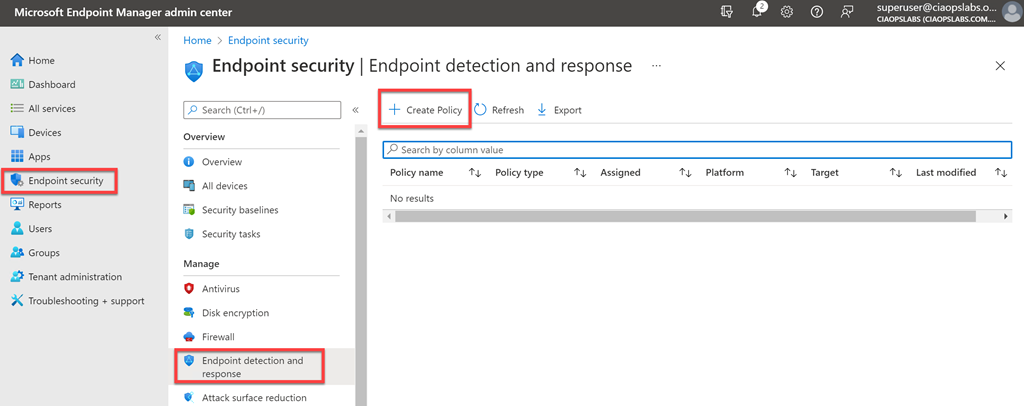
and select Endpoint security from the menu on the left. Then select Endpoint detection and response. Finally, select the option + Create policy as shown above on the right.

image

Select the Platform as Windows 10 and later and for Profile, Endpoint detection and response as shown above.

image

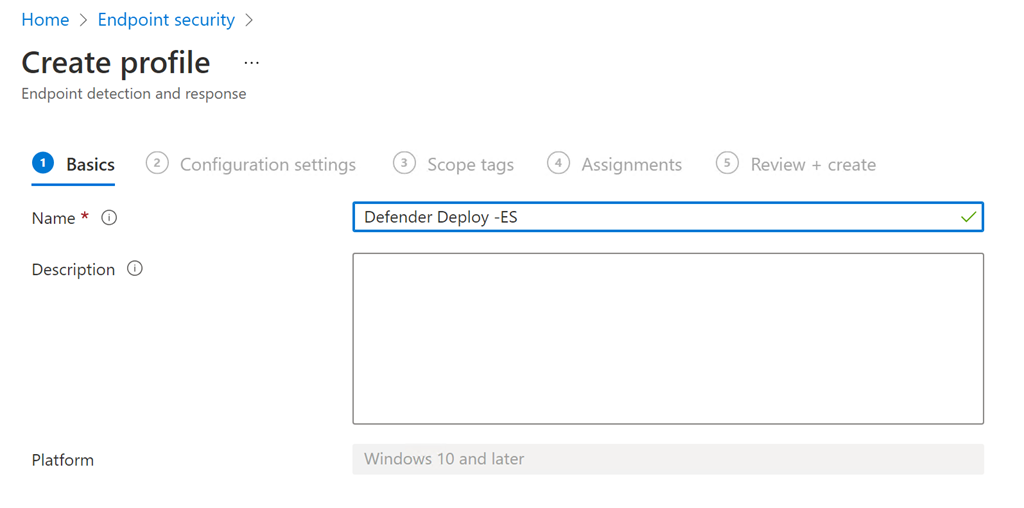
In the next dialog, give the policy a suitable Name and Description.

image

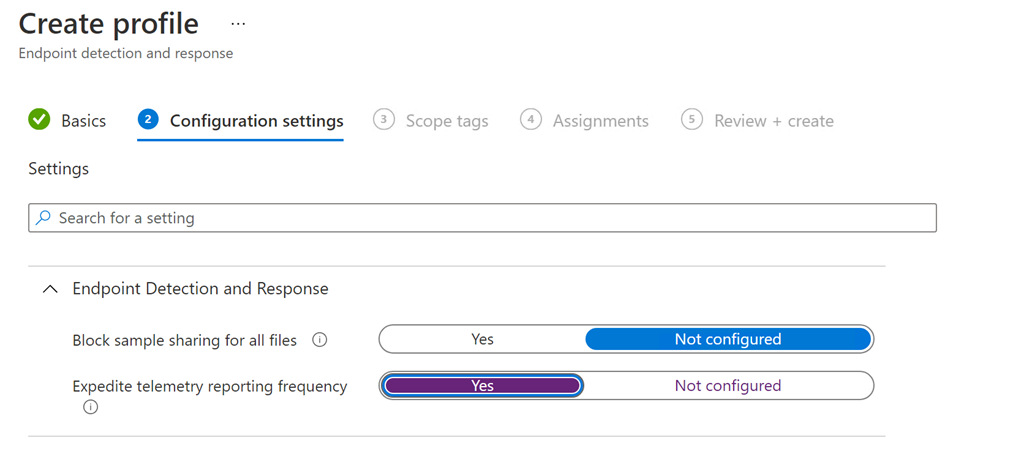
As with the article on the onboarding process using Intune, I’d recommend setting the Expedite telemetry reporting frequency to Yes as shown above before proceeding.

image

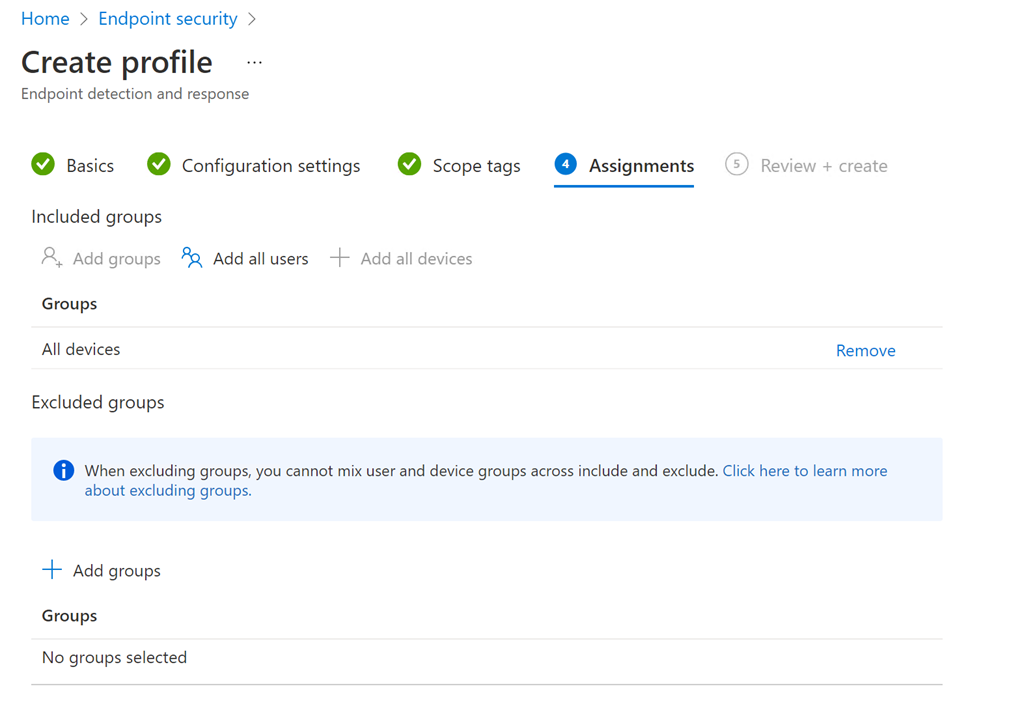
As with any Endpoint policy, select the devices and/or users this policy will apply to. Generally, it is recommended that you apply these types of policies to device groups.

image

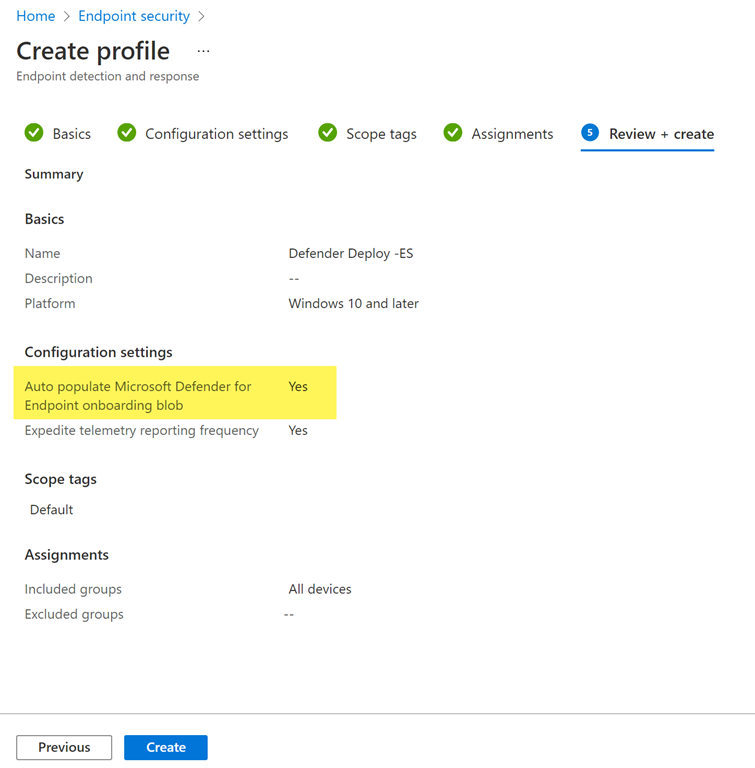
Proceed through the remaining screens until you end up on the Review + create as shown above. As with the Intune device configuration profile policy, if you look closely you will an option displayed which wasn’t shown during the policy creation process, Auto populate Microsoft Defender for Endpoint onboarding blob set to Yes. This is what will actually configure the targeted devices to connect to the Defender for Endpoint cloud service.

Press the Create button to complete the policy creation process.

image

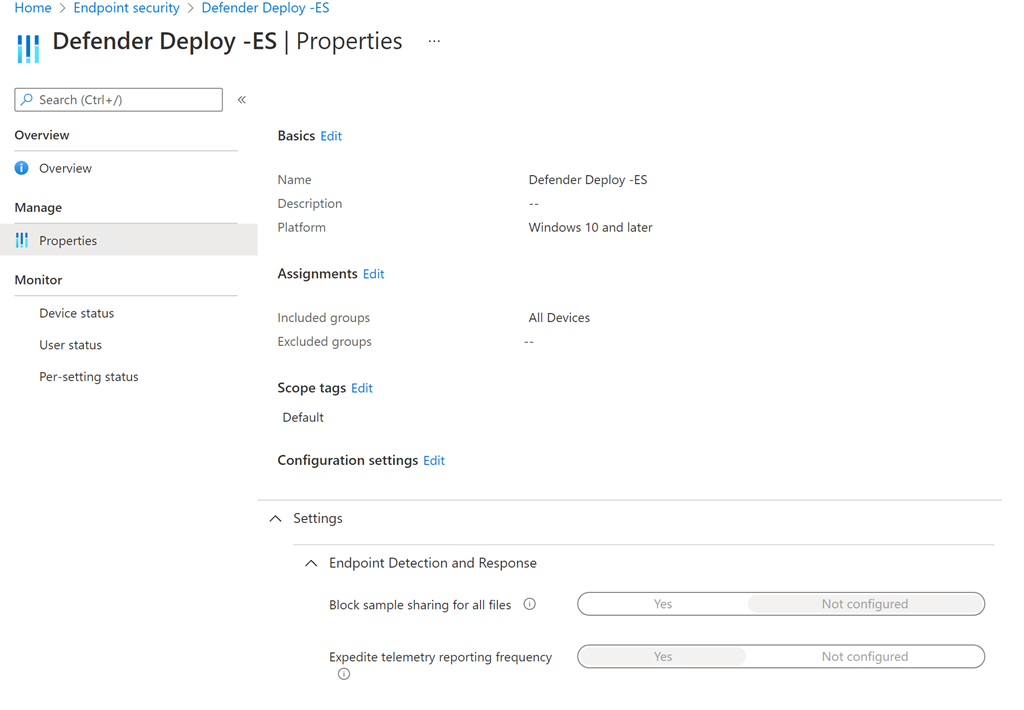
If you now view the newly created policy, and unlike the Intune device configuration profile policy, you don’t see any mention of the Auto populate setting mentioned above. Makes it somewhat hard to troubleshoot for the uninitiated.

image

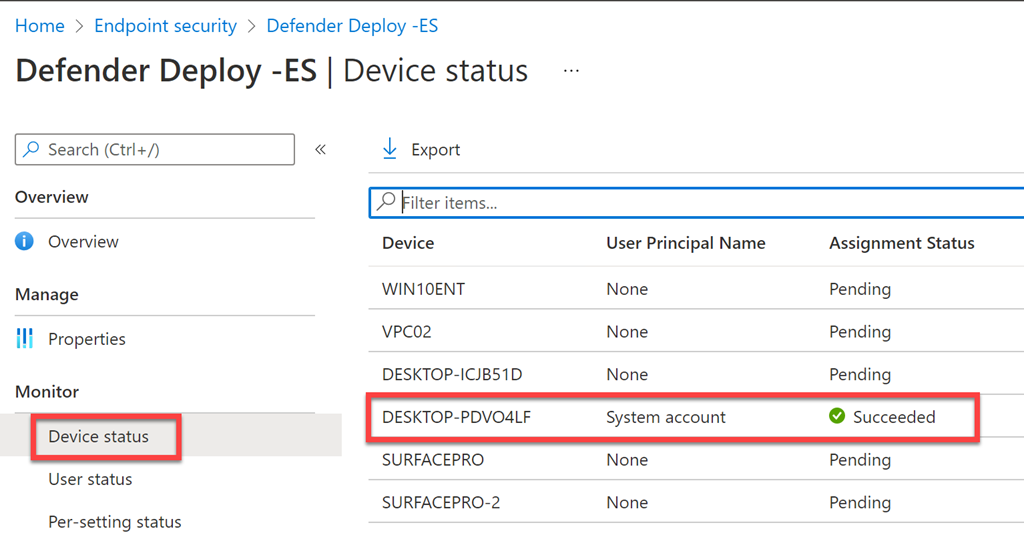
We can now monitor the deployment of the policy to devices via the Device status option in the policy options, as shown above. After a short wait, we see the policy has successfully been deployed to the machine in question.

image

Looking the Device inventory in the Microsoft 365 security center we now see the devices in question has been onboarded to Defender for Endpoint.

Both the Intune and Endpoint security approach are easy to implement with an almost identical policy, so which is better? There doesn’t appear to be any guidance from Microsoft on which policy to use, however Microsoft’s own wizards for Defender for Business implement onboarding via the Endpoint security approach shown here. In my brief experience, the Endpoint security approach also seems to be deployed faster to devices. I would also point out that Endpoint security is the more modern approach to device management and what Microsoft seems to be investing in currently. The only major draw back I can see is that Endpoint security policies currently only apply to the Windows platform.

Intune and Endpoint security approach are an indication of one of things Microsoft needs to fix I believe, because having two ways of doing the same thing in the same portal, without any warning of a potential clash makes things hard for those who have to maintain these environments. Given that the Endpoint security approach is the more modern, I expect it to be the winner in the long and suggest you only implement that policy for onboarding your Windows 10 devices for Microsoft Defender for Endpoint.

Two easy methods of onboarding Windows 10 devices to defender for Business

I recently detailed a way to use Endpoint Manager and Intune to onboard Windows 10 devices to Microsoft Defender for Business:

Onboarding Windows 10 devices to Microsoft Defender for Business

I’ve now extended that to include this video:

https://www.youtube.com/watch?v=UM-WZjHgy88

that shows that method plus using a local script. Using a local script is a good backup method to use if you are in a hurry or have issues with a device in your environment not receiving the policy.