Defender for Office 365 Anti-phishing policies can protect externals as well!

image

My experience with most Microsoft 365 environments I see is that they fail to make use of all the features that are provided. None more so when it comes to security. For example, most people don’t seem to appreciate that the Defender for Office 365 (which is part of Business Premium) provides impersonation protection for internal AND external email addresses!  It just needs to be configured. The details are here:

Impersonation settings in anti-phishing policies in Microsoft Defender for Office 365

and as it says there:

You can use protected users to add internal and external sender email addresses to protect from impersonation.

but it is important to note:

User impersonation protection does not work if the sender and recipient have previously communicated via email. If the sender and recipient have never communicated via email, the message can be identified as an impersonation attempt.

This means, you want to get the configuration of important external email addresses in place as soon as possible so any impersonation against those users can be evaluated. It is too late to do after an internal user is communicating with a scam (impersonated) domain.

You will also see that you can also configure protection for external domains, rather than just specific email addresses, for impersonation evaluation.This means that if the users inside the tenant deal with an important business that has its own email email, that is NOT part of that tenant, you can enter that domain in here. Makes a lot sense when you are working with a business regularly that is doing stuff like invoicing, e-commerce or the like (honestly anything at all really).

Let’s say that I work with a business who’s domain is ciaops.com. By enabling this impersonation protection early, if users in the tenant receive email from c1aops.com then it is far more likely to be detected because the system is looking of for spoofing of that custom external domain I entered in the policy.

Thus, if you have Microsoft Defender for Office 365 in your environment (and you do if you have Microsoft 365 Business Premium), then you can provide an extra level of protection by configuring the Anti-Phishing policy for impersonation settings for both your important internal AND external usera and domains (i.e. people and businesses you work with regularly). You should do that as early as possible to provide the maximum protection the policy can provide. They key is that someone has to add in the unique email addresses or domains into the policy, they are not added automatically, even internal email address. They ALL have to be added to the policy.
image

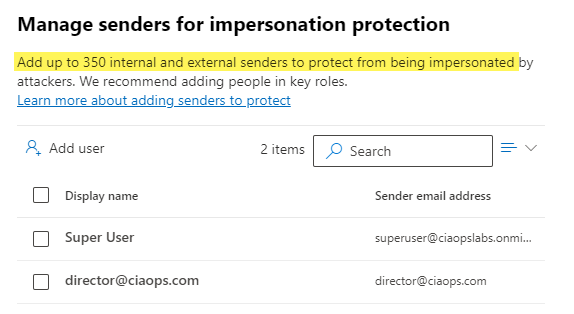
You can protect up to 350 unique email addresses and 50 unique domains, which is probably more that enough to cover everything a smaller business would need for internal and external users. Unfortunately, I rarely see this great capability enabled. It’s available if you have Microsoft Defender for Office 365 so go configure it and reduce the risk to the users in the tenant. Easy!

CIAOPS Need to Know Microsoft 365 Webinar – May

laptop-eyes-technology-computer

Join me for the free monthly CIAOPS Need to Know webinar. Along with all the Microsoft Cloud news we’ll be taking a look at Exchange Online protection.

Shortly after registering you should receive an automated email from Microsoft Teams confirming your registration, including all the event details as well as a calendar invite.

You can register for the regular monthly webinar here:

May Webinar Registrations

(If you are having issues with the above link copy and paste – https://bit.ly/n2k2305

The details are:

CIAOPS Need to Know Webinar – May 2023
Friday 26th of May 2023
11.00am – 12.00am Sydney Time

All sessions are recorded and posted to the CIAOPS Academy.

The CIAOPS Need to Know Webinars are free to attend but if you want to receive the recording of the session you need to sign up as a CIAOPS patron which you can do here:

http://www.ciaopspatron.com

or purchase them individually at:

http://www.ciaopsacademy.com/

Also feel free at any stage to email me directly via director@ciaops.com with your webinar topic suggestions.

I’d also appreciate you sharing information about this webinar with anyone you feel may benefit from the session and I look forward to seeing you there.

Exchange Online Spam Filters

This video provides an introduction to Exchange Online Spam policies. particularly Inbound and Outbound policies plus Connect Filter Policies. You’ll see how to view the existing policies, make changes to these policies as well as create new ones using the Microsoft 365 Security Administration console.

CIAOPS Need to Know Microsoft 365 Webinar – July

laptop-eyes-technology-computer

Last months attempt at using Microsoft Teams Webinars went well and I’ll be continuing to use this going forward. Registration for this month is here:

https://bit.ly/n2k2107

Shortly after this you should receive an automated email from Microsoft Teams confirming your registration, including all the event details as well as a calendar invite!

This month we’ll dive into email security with Microsoft 365, particularly the best practice configurations for Exchange Online. So please join us for this and all the latest news from the Microsoft Cloud.

You can register for the regular monthly webinar here:

July Webinar Registrations

The details are:

CIAOPS Need to Know Webinar – July 2021
Friday 30th of July 2021
11.00am – 12.00am Sydney Time

All sessions are recorded and posted to the CIAOPS Academy.

The CIAOPS Need to Know Webinars are free to attend but if you want to receive the recording of the session you need to sign up as a CIAOPS patron which you can do here:

http://www.ciaopspatron.com

or purchase them individually at:

http://www.ciaopsacademy.com/

Also feel free at any stage to email me directly via director@ciaops.com with your webinar topic suggestions.

I’d also appreciate you sharing information about this webinar with anyone you feel may benefit from the session and I look forward to seeing you there.

Exchange user best practices script

image

I’ve created a new Exchange user best practices summary script which you can find at:

https://github.com/directorcia/Office365/blob/master/o365-mx-usr-all.ps1

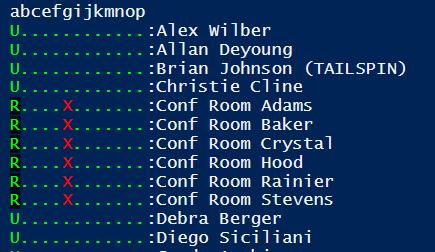
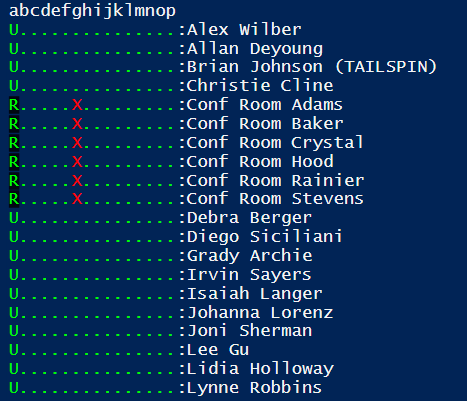
The idea with this script is to give you a quick visual summary of your user mailboxes to ensure they conform to best practices.

When you run the script without any command line options you will see the above output. Each row is a user with their name at the end of the line. The entries on the right provide you an indication of settings status. A green dot is for good and a red X is for bad. You will see this creates a matrix of settings for each mailbox. These settings are designated by a letter (currently a through p). These letters correspond to the following settings:

a = Mailbox type: S = Shared, R = Resource, U = User
b = Enabled
c = Inactive
d = Remote PowerShell Enabled
e = Retain Deleted Items for at least 30 days
f = Deliver to Mailbox and Forward
g = Litigation Hold Enabled
h = Archive Mailbox Status
i = Auto-expanding Archive Enabled
j = Hidden From Address Lists Enabled
k = POP Enabled
l = IMAP Enabled
m = EWS Enabled
n = EWS Allow Outlook
o = EWS Allow Mac Outlook
p = Mailbox Audit Enabled

image

If you use the –verbose command line option, you’ll get additional information about the script operation as you see above.

If you use the –debug command line option, a log file of the script process will be created in the parent directory.

If you use the –prompt command line option, the script will wait after each user for you to press ENTER.

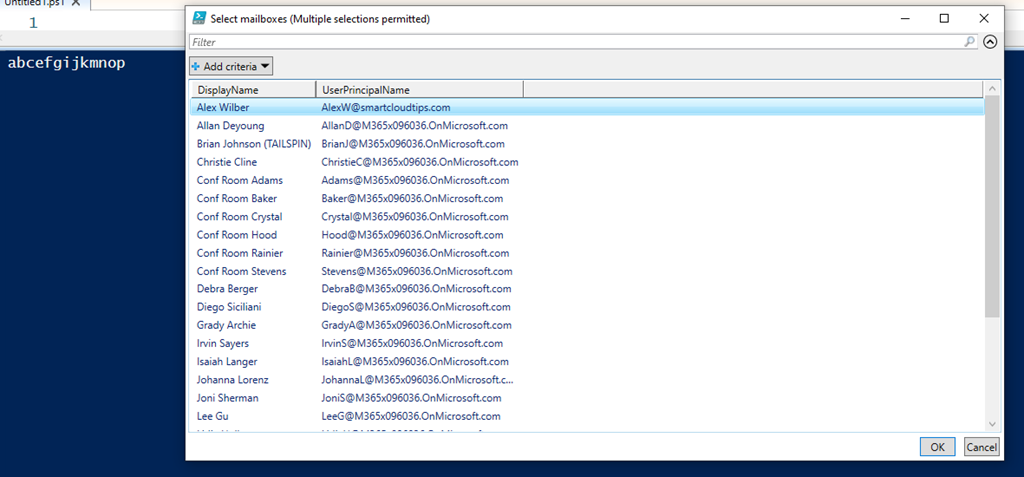
If you use the –select command line option, the script will prompt you to select the users you wish to display.

If you also specify any letter from, currently, a through p on the command line, those settings will not be checked by the script. Thus, specifying dhl on the command line will not check or display Remote PowerShell Enabled (setting = d), Archive Mailbox Status (setting = h) or IMAP enabled (setting = l).

Thus:

.\o365-mx-usr-all.ps1 dhl

will display:

image

(note: no d, h or l in the output)

and

.\o365-mx-usr-all.ps1 dhl –select

will display:

image

no d, h or l settings as well as prompting for selection of users to check and display.

The script requires that you are connected to Exchange Online first via PowerShell prior and this can be done using my script:

https://github.com/directorcia/Office365/blob/master/o365-connect-exo.ps1

In summary then, this script when run without any command line options is designed to give you a quick reference to your user mailboxes and whether they have best practice settings enabled. You can also run the script with number of different command line options to create a log, individually select users and settings to test as well as pause after each user if desired.

I’ll continue to update and improve this script over time so make sure you follow my Office 365 GitHub repository, which you can find here:.

https://github.com/directorcia/Office365/

Prevent alerts from DiscoverySearchMailbox

image

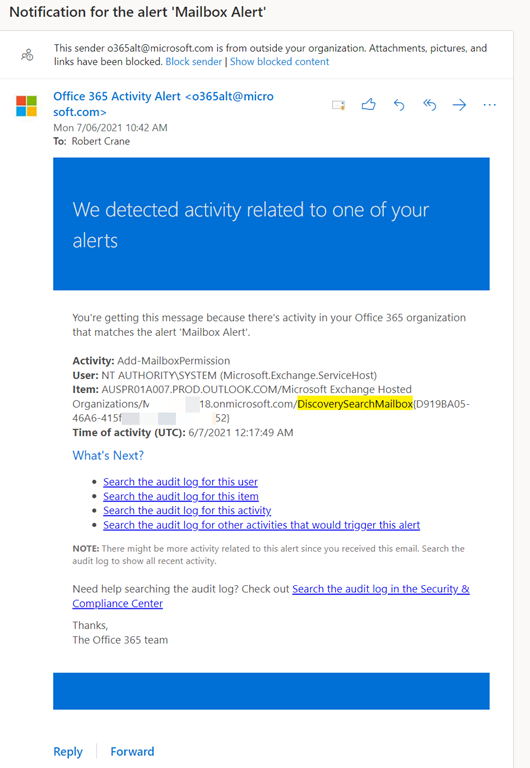
When you set up bulk alerting for mailboxes you may end up enabling alerts for system mailboxes like DiscoverySearchMailbox as shown above. This will mean receiving regular alerts about changes to that mailbox by the system. This basically means Exchange Online is performing some expected administrative process on a mailbox, which triggers a configured alert.

To reduce the noise caused by these alerts you can do the following to disable it:

image

Firstly connect to Exchange Online using PowerShell. My script for that is here:

https://github.com/directorcia/Office365/blob/master/o365-connect-exo.ps1

next run the command to find any DiscoverySearchMailbox

get-mailbox -ResultSize unlimited | Where-Object {$_.name -MATCH “Discovery”} | Select-Object alias, displayname, auditenabled

which should give you a result like shown above.

$dsm = get-mailbox -ResultSize unlimited | Where-Object {$_.name -MATCH “Discovery”}

Run the above command to save the mailbox details to a variable. Then run:

set-mailbox -identity $dsm.alias -AuditEnabled $false

to disable auditing for that mailbox.

image

if you now re-run

get-mailbox -ResultSize unlimited | Where-Object {$_.name -MATCH “Discovery”} | Select-Object alias, displayname, auditenabled

you should find that the auditing is now disabled for that mailbox as shown above.