Risk-based Conditional Access policies provide adaptive security that automatically adjusts authentication requirements based on the risk level of sign-ins and user behavior, helping you maintain an optimal balance between security and productivity.
Prerequisites and Licensing
Microsoft Entra ID P2 license required for risk-based policies (includes Identity Protection)
Microsoft 365 Business Premium includes Conditional Access features for small businesses
Users must be registered for Multi-Factor Authentication (MFA) before policy enforcement
Configure trusted network locations to reduce false positives
Step-by-Step Implementation Guide
Phase 1: Foundation Setup (Week 1)
Create Emergency Access Accounts
Set up at least two break-glass accounts excluded from all policies
These prevent complete lockout if policies are misconfigured
Start with Report-Only Mode
Deploy all new policies in report-only mode first
Monitor for at least 7-14 days to understand impact
Review sign-in logs to identify potential issues
Phase 2: Sign-in Risk Policy Configuration
Navigate to Microsoft Entra admin center > Conditional Access
Create new policy: “Require MFA for risky sign-ins”
Configure settings:
Users: Include all users, exclude emergency accounts
Cloud apps: All cloud apps
Conditions > Sign-in risk: Select Medium and High
Grant: Require multi-factor authentication
Session: Sign-in frequency – Every time
Enable policy: Report-only (initially)
Phase 3: User Risk Policy Configuration
Create new policy: “Require password change for high-risk users”
Configure settings:
Users: Include all users, exclude emergency accounts
Cloud apps: All cloud apps
Conditions > User risk: Select High
Grant: Require password change + Require MFA
Enable policy: Report-only (initially)
Microsoft’s Recommended Risk Levels for Small Business
Sign-in Risk: Require MFA for Medium and High risk levels
Provides security without excessive user friction
Allows self-remediation through MFA completion
User Risk: Require secure password change for High risk only
Prevents account lockouts from overly aggressive policies
Users can self-remediate compromised credentials
Balancing Security and Productivity
Enable Self-Remediation
Sign-in risks: Users complete MFA to prove identity and continue working
User risks: Users perform secure password change without admin intervention
Reduces helpdesk tickets and minimizes productivity disruption
Another article generated by Copilot Research agent using Claude.
——————————————————–
Executive Summary
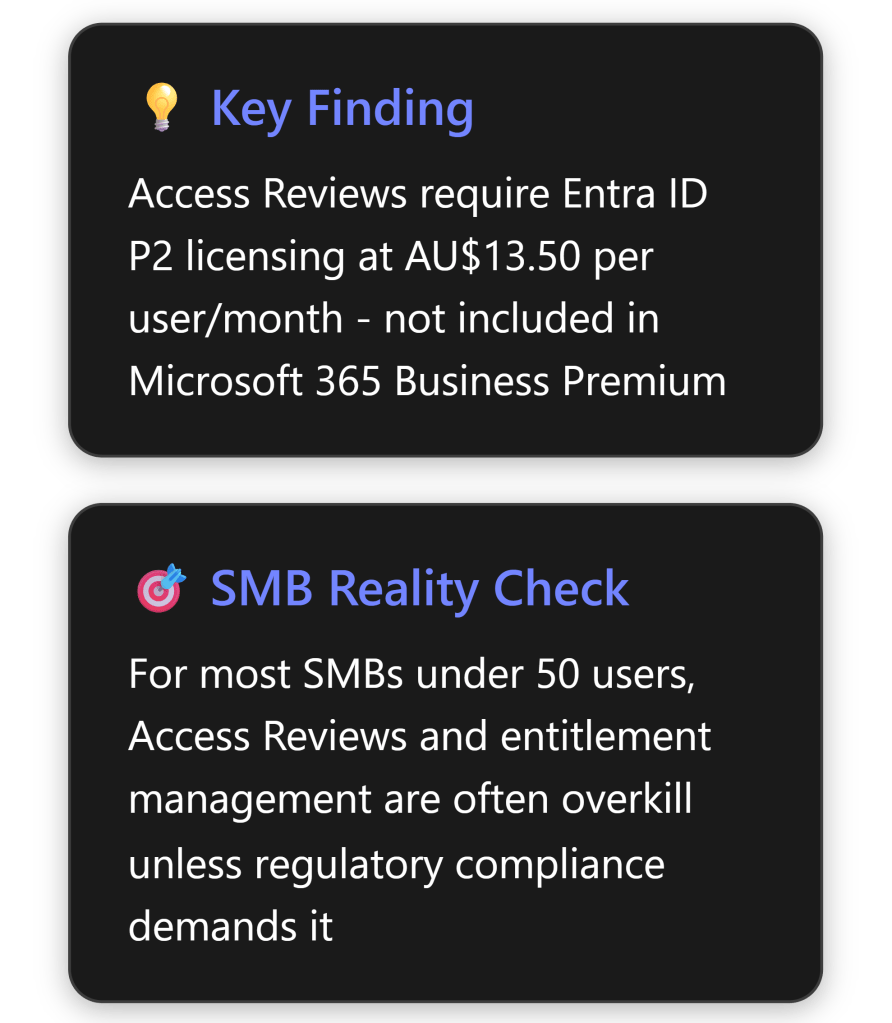
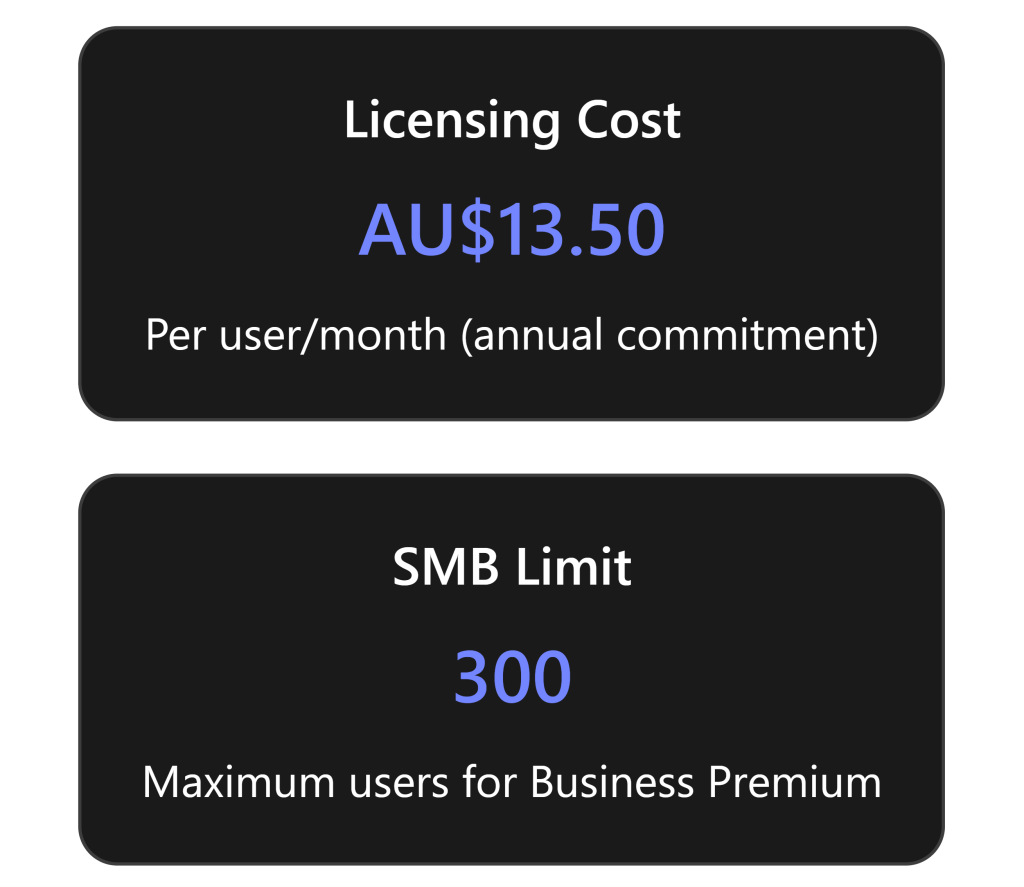
Microsoft Entra ID P2 Access Reviews are sophisticated identity governance tools designed primarily for enterprise scenarios. While they offer robust capabilities for managing user access at scale, their practical value for Australian SMBs is limited and often doesn’t justify the additional AU$13.50 per user per month cost beyond Microsoft 365 Business Premium. [1][2]
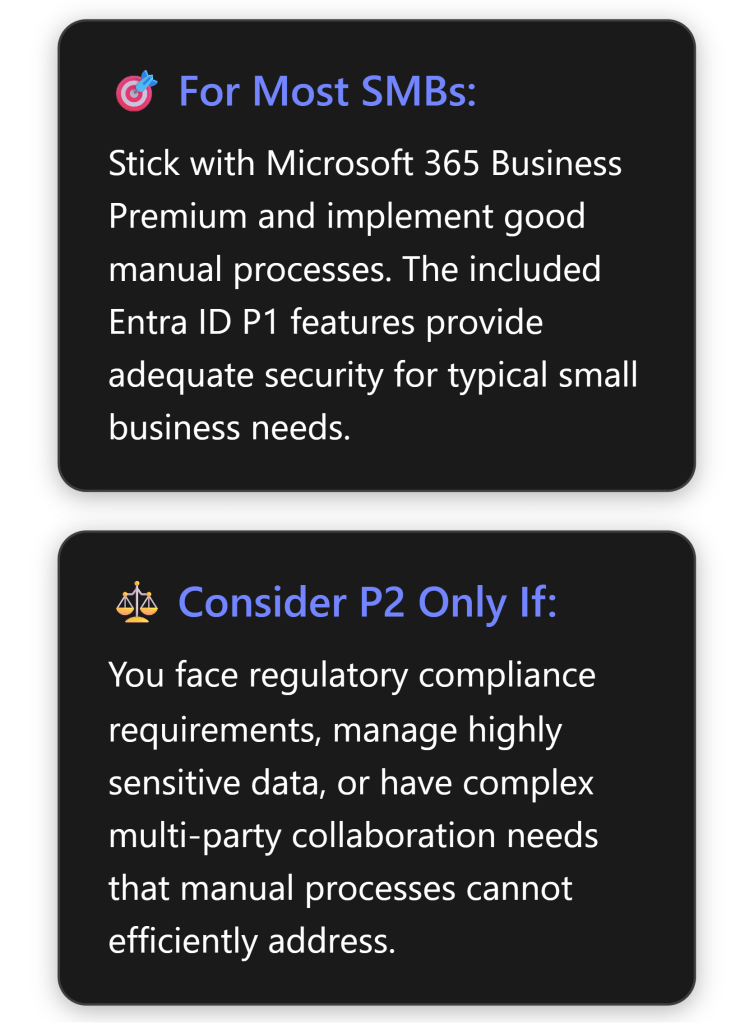
Most SMBs can achieve adequate security and governance through simpler, more cost-effective methods unless they face specific regulatory compliance requirements or manage highly sensitive data. The complexity and cost of implementation typically outweigh the benefits for businesses with fewer than 100 users.
What Are Entra ID P2 Access Reviews?
Core Functionality
Access Reviews in Microsoft Entra ID enable organisations to efficiently manage group memberships, access to enterprise applications, and role assignments through regular certification processes. [1] The feature allows businesses to:
Schedule regular reviews of who has access to specific resources
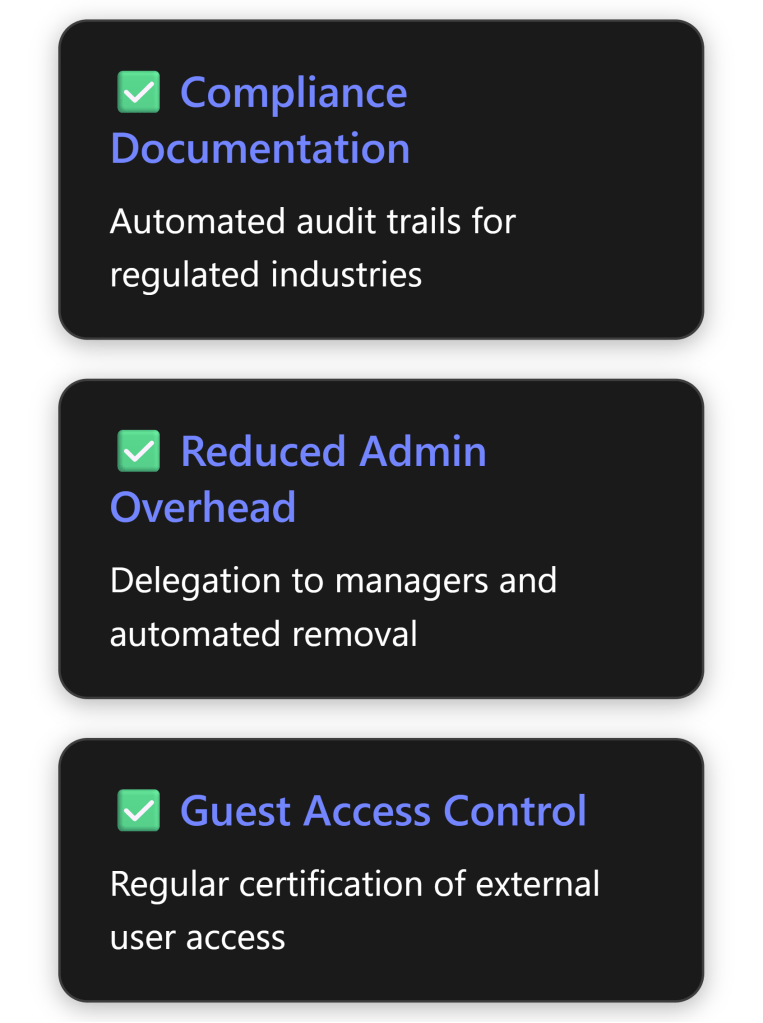
Delegate review responsibilities to appropriate stakeholders (managers, resource owners, or users themselves)
Automate access removal based on review outcomes
Generate compliance reports for audit purposes
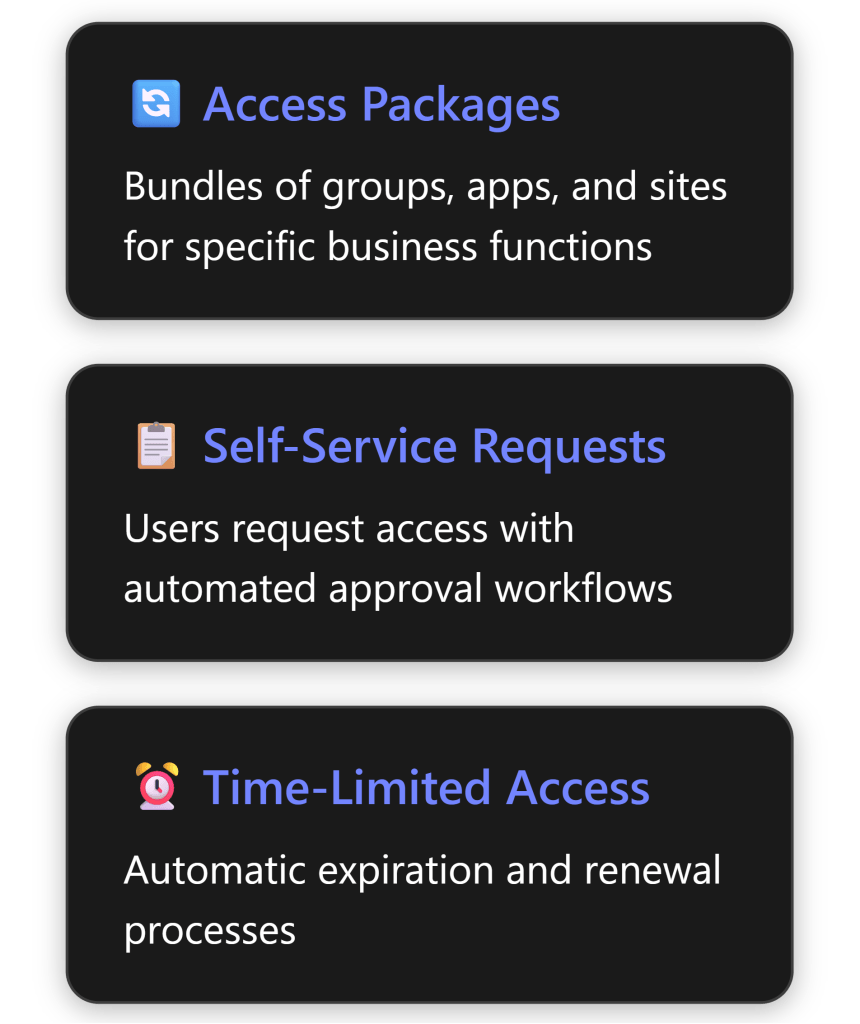
Implement time-limited access with automatic expiration
Key Components
Access Reviews operate through several integrated components:
Review Scope: Define which users and resources to review [3]
Reviewers: Designated individuals who approve or deny access
Review Frequency: Weekly, monthly, quarterly, or annual cycles
Automated Actions: Remove access for denied users automatically
Smart Recommendations: AI-driven suggestions based on user activity patterns
Step-by-Step Setup Guide for Small Businesses
Prerequisites
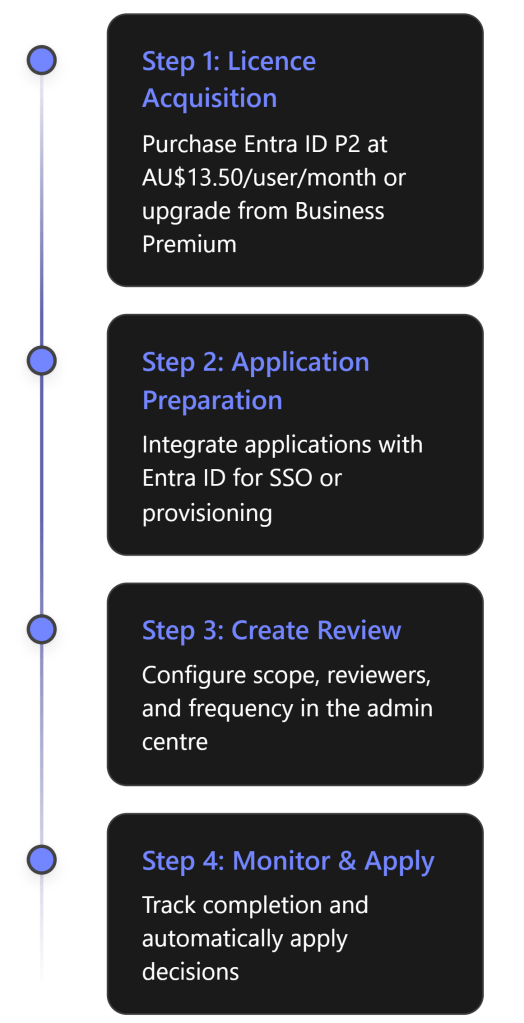
Before implementing Access Reviews, SMBs must ensure:
Licensing: Microsoft Entra ID P2 or Entra ID Governance licenses [4][5]
Administrative Access: Identity Governance Administrator role minimum
Application Integration: Resources must be integrated with Entra ID
Implementation Process
Detailed Setup Steps:
Sign in to Microsoft Entra admin centre as an Identity Governance Administrator [3]
Reviewers also need P2 licenses, not just administrators [5]
Entitlement Management: Overkill for Most SMBs?
What Is Entitlement Management?
Entitlement management enables organisations to manage identity and access lifecycle at scale through access packages – bundles of resources users need for specific roles or projects. [9]
The SMB Verdict on Entitlement Management
Entitlement management is almost certainly overkill for SMBs under 100 users. Here’s why: [9]
Designed for Scale: The feature addresses problems that emerge at enterprise scale – hundreds or thousands of users across multiple departments
Overhead vs Value:
Requires significant upfront design and configuration
Ongoing maintenance of access packages
Complex approval chains unnecessary in flat SMB structures
Manual onboarding/offboarding manageable at small scale
Real-World SMB Scenarios:
10-20 employees: Owner knows everyone; manual management works fine
20-50 employees: Simple group-based access with quarterly manual reviews
50-100 employees: Consider basic automation but full entitlement management rarely justified
Pricing Analysis for Australian SMBs
Cost Breakdown
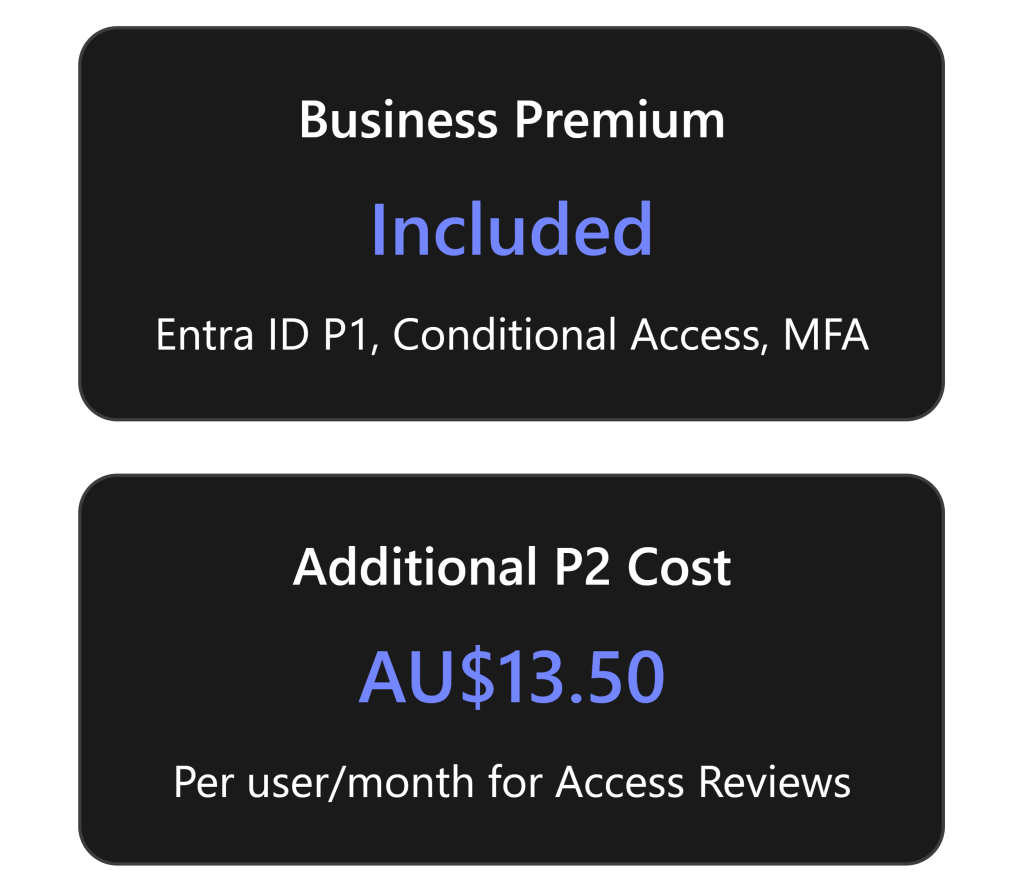
Microsoft 365 Business Premium (approximately AU$39.60/user/month) includes: [10]
Entra ID P1 (formerly Azure AD Premium P1)
Conditional Access
Multi-factor authentication
Self-service password reset
Basic identity protection
To get Access Reviews, you need Entra ID P2 at AU$13.50/user/month additional, which includes: [2]
Everything in P1
Access Reviews
Privileged Identity Management (PIM)
Identity Protection with risk-based policies
Entitlement management
Total Cost Comparison (Annual, excluding GST)
Users
Business Premium Only
Business Premium + P2
Additional Cost
10
AU$4,752
AU$6,372
AU$1,620
20
AU$9,504
AU$12,744
AU$3,240
50
AU$23,760
AU$31,860
AU$8,100
100
AU$47,520
AU$63,720
AU$16,200
Note: Prices shown do not include GST. Add 10% for GST-inclusive pricing.
Practical Recommendations for SMBs
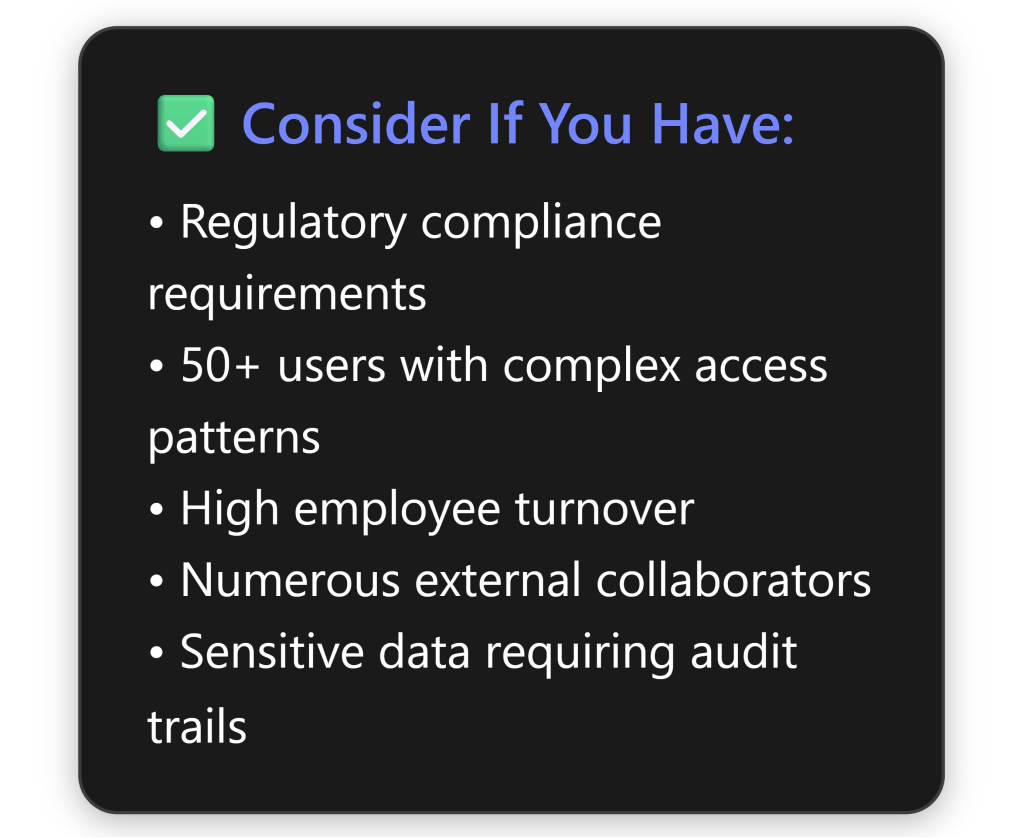
When Access Reviews Make Sense
Alternative Approaches for Most SMBs
Instead of Access Reviews, consider these more practical approaches: [8]
Quarterly Manual Reviews:
Export user lists from Microsoft 365 admin centre
Review with department heads
Document decisions in SharePoint/Excel
Cost: Staff time only
Leverage Business Premium Features:
Use Conditional Access for location/device-based controls
Implement MFA for all users
Configure automatic account disabling for inactive users
Monitor sign-in logs regularly
Simple Governance Process:
Standardise onboarding/offboarding checklists
Use Microsoft Forms for access requests
Power Automate for basic approval workflows
Regular security awareness training
Focus on Fundamentals:
Strong password policies
Least privilege principle
Regular security updates
Data loss prevention policies
Email security (already included in Business Premium)
The Bottom Line for Australian SMBs
Key Takeaways
Access Reviews and entitlement management are powerful enterprise features that rarely justify their cost and complexity for SMBs under 100 users. The additional AU$13.50 per user per month represents a 34% increase over Microsoft 365 Business Premium pricing, which already includes substantial security features.
Final Verdict
For the vast majority of Australian SMBs, Entra ID P2 Access Reviews represent an expensive solution to problems they don’t actually have. The features are well-designed and powerful, but they address enterprise-scale challenges around distributed governance, compliance automation, and managing thousands of access relationships.
Small businesses are better served by:
Maximising the value from Microsoft 365 Business Premium’s included features
Focusing security investments on user training and basic controls
Considering P2 only when specific compliance requirements demand it
The money saved by avoiding unnecessary P2 licensing could be better invested in security awareness training, backup solutions, or managed security services that provide more tangible benefits for small business risk profiles.
I used Claude with Copilot Researcher agent to generate this report. Provides an idea of the type and quality of the output.
———————————————
Executive Summary
Microsoft Entra ID P2 Entitlement Management is an advanced identity governance feature designed for managing identity and access lifecycle at scale[1]. Whilst powerful for large enterprises, the reality for SMBs is more nuanced. This report provides a candid assessment based on current market analysis and practical considerations for small businesses with 50-300 employees.
The bottom line: For most SMBs, the £32,400 annual investment (for 300 users) in Entra ID P2 solely for entitlement management features represents poor value when compared to alternatives like Microsoft 365 Business Premium (which includes Entra ID P1) or competing solutions from vendors like Okta and JumpCloud.
What is Entitlement Management?
Core Capabilities
Entitlement management introduces the concept of access packages – bundles of all resources with the access a user needs to work on a project or perform their task [1]. Key features include:
Multi-stage approval workflows for access requests [1]
Time-limited assignments that automatically expire [1]
Automatic user provisioning based on properties like department or cost centre [1]
External user management for partners and vendors [1]
Access reviews to ensure users don’t retain unnecessary access [1]
Delegated administration allowing non-IT staff to manage access for their departments [1]
Use Cases Microsoft Highlights
The platform addresses scenarios such as:
Users might not know what access they should have [1]
Users holding onto access longer than required for business purposes [1]
Managing external users from supply chain organisations or business partners [1]
Departments managing their own access policies without IT involvement [1]
Implementation complexity: Initial setup can require significant IT resources or consultant fees [3]
Training requirements: Staff need education on managing access packages and policies
Ongoing administration: Someone must regularly review and update access packages
Integration effort: Connecting all applications and resources to the system
Includes essential security: Defender for Business, Safe Links, Safe Attachments
Provides device management: Intune for policy enforcement across all devices
Offers data protection: Azure Information Protection for sensitive files
Simplifies licensing: One license for all users eliminates confusion
Enables cloud-first operations: Critical for businesses without on-premises servers [4]The reality: The cost of Microsoft Entra ID can escalate significantly, especially with the need for advanced features or for companies managing a large user base [3][3].
Implementation Guide for SMBs
Phase 1: Prerequisites (Week 1-2)
Ensure Entra ID P2 licensing and admin access
Phase 2: Catalog Creation (Week 3)
Set up resource catalogs and define owners
Phase 3: Access Packages (Week 4-5)
Create packages bundling resources for common roles
Phase 4: Policy Definition (Week 6-7)
Configure approval workflows and time limits
Phase 5: Testing & Rollout (Week 8-10)
Pilot with select departments before full deployment
Project-based businesses with frequently changing team compositions [1]
Compliance requirements demanding regular access reviews and certifications
Where It’s Unnecessary Complexity
For most SMBs, entitlement management is overkill because:
Microsoft 365 Business Premium is sufficient: At £22/user/month, it includes Entra ID P1 with Conditional Access, MFA, and basic identity management – enough for most SMBs[4][4]
Simpler alternatives exist: Solutions like JumpCloud offer all-in-one platforms for SSO, directory services, and device management at more SMB-friendly price points [5][5]
Limited IT resources: Small businesses often lack dedicated identity governance teams. The initial setup learning curve can be steep [3]
Manual processes work fine: For organisations under 150 users, manual access management with good documentation often suffices
Business Premium provides essential security: Including Safe Links, Safe Attachments, Azure Information Protection, and Intune device management [4]
Real-World Perspective
According to recent market analysis, mid-sized companies (100-750 employees) with hybrid workforces often find better value in unified platforms like JumpCloud that combine identity and device management [5]. Even Okta, whilst potentially expensive at scale, offers 7,000+ pre-built app integrations with faster deployment than complex governance systems [5][5].
The harsh reality: Microsoft Entra ID documentation can occasionally lag behind the rapid pace of feature updates, making implementation challenging for resource-constrained IT teams [3].
Alternative Solutions Comparison
Detailed Comparison Table
Solution
Best For
Monthly Cost (100 users)
Key Advantages
Main Limitations
M365 Business Premium
Microsoft-centric SMBs
£2,200
Integrated suite, includes productivity tools, Defender for Business
For SMBs already in the Microsoft ecosystem, Business Premium at £22/user/month delivers better value than standalone Entra P2 because [4]:
Recommendations by Business Size
Decision Framework
Ask these questions before investing in Entra P2:
Do you have dedicated IT staff for identity governance? If no, the complexity isn’t worth it.
Are you in a heavily regulated industry? If yes, the audit and compliance features may justify the cost.
Do you frequently onboard/offboard contractors or partners? If yes, automation could save significant time.
Is your organisation structure simple and stable? If yes, manual processes with Business Premium suffice.
Are you already struggling with your current identity management? If no, don’t add complexity for complexity’s sake.
Final Verdict
The Bottom Line
Microsoft Entra ID P2 Entitlement Management is a powerful tool solving real problems – just not problems most SMBs actually have. The complexity, cost, and administrative overhead rarely justify the investment for organisations under 300 users.
For 95% of SMBs, the path forward is clear:
Start with Microsoft 365 Business Premium (£22/user/month) for integrated security and productivity
Implement the basics well: MFA, Conditional Access, device management via Intune
Use simple processes: Document access procedures, regular reviews, clear onboarding/offboarding
Reassess at growth milestones: Consider advanced governance only when complexity genuinely demands it
Remember: Adding complexity doesn’t automatically mean adding security. A well-implemented, simple identity management system beats a poorly maintained complex one every time. For most SMBs, Business Premium provides the right balance of security, usability, and value [4].
When to Reconsider
Revisit the Entra P2 decision when:
Your organisation exceeds 300 users
You enter heavily regulated markets
External collaboration becomes core to your business
Manual processes consume more than 20 hours monthly
Audit failures highlight governance gaps
Until then, invest in getting the basics right rather than adding advanced features you won’t fully utilise. Your budget, IT team, and users will thank you.
Microsoft Global Secure Access is Microsoft’s Security Service Edge (SSE) solution. Think of it as a modern, cloud-native security perimeter that helps organizations secure access to any application or resource, regardless of where the user or the resource is located. It’s part of the broader Microsoft Entra product family (which also includes Entra ID, formerly Azure AD).
GSA converges networking and security capabilities, moving away from traditional perimeter-based security (like on-premises firewalls and VPNs) towards a model centered on identity and delivered from Microsoft’s global network edge.
It primarily consists of two core services:
Microsoft Entra Internet Access: Secures access to the public internet, SaaS applications, and Microsoft 365 apps. It acts like a cloud-based Secure Web Gateway (SWG), filtering traffic, applying security policies, and protecting users from web threats.
Microsoft Entra Private Access: Provides secure, Zero Trust Network Access (ZTNA) to private corporate resources (applications hosted on-premises or in IaaS environments) without needing traditional VPNs.
Benefits of Microsoft Global Secure Access:
GSA offers significant advantages, especially for organizations embracing hybrid work and cloud adoption:
Enhanced Security Posture (Zero Trust Alignment):
Granular Access Control: Moves beyond simple network access (like VPNs grant) to application-level access based on strong identity verification (user, device health, location) enforced by Microsoft Entra Conditional Access.
Reduced Attack Surface: Eliminates the need to expose private applications directly to the internet or grant broad network access via VPNs. Users only get access to the specific resources they are authorized for.
Consistent Policy Enforcement: Apply unified security policies (like requiring MFA, compliant devices, etc.) across M365 apps, SaaS apps, internet browsing, and private resources.
Threat Protection: Entra Internet Access provides security features like web content filtering, malicious site blocking, and integration with Microsoft’s threat intelligence to protect users browsing the web.
Improved User Experience:
Faster & More Direct Access: Leverages Microsoft’s vast global network. Traffic is routed optimally to the nearest Microsoft Point of Presence (PoP) and then directly to the resource (M365, SaaS, internet, or private app via connector), often resulting in lower latency than backhauling traffic through a central VPN concentrator.
Seamless Connectivity: Users connect automatically via the GSA client without the often clunky manual connection process of traditional VPNs.
Works Anywhere: Provides consistent security and access experience whether the user is in the office, at home, or traveling.
Simplified Management & Operations:
Unified Console: Managed directly within the Microsoft Entra admin center alongside identity and other security settings.
Reduced Infrastructure Complexity: Eliminates or reduces the need to manage complex on-premises VPN concentrators, firewalls, and web proxies.
Cloud-Native Scalability: Scales automatically with your needs without requiring hardware upgrades.
Integrated Logging & Reporting: Provides centralized visibility into access patterns and security events across different resource types.
Cost Savings (Potential):
Consolidation: Can potentially replace multiple point solutions (VPN, SWG, ZTNA products) with a single integrated platform.
Deep Conditional Access Integration: GSA network conditions (like “compliant network”) can be used as signals within Conditional Access policies for richer context-aware authorization.
Leverages Entra ID: Builds directly on your existing identity foundation in Microsoft Entra ID.
Enabling Global Secure Access with M365 Business Premium License:
This is where it gets a bit nuanced, as licensing for GSA features has evolved. Here’s the breakdown relevant to M365 Business Premium:
Prerequisite – Microsoft Entra ID P1: M365 Business Premium includes Microsoft Entra ID P1. This is the foundational requirement for using Global Secure Access features.
Included Functionality (as of recent updates):
Microsoft Entra Internet Access for Microsoft 365 Traffic: A significant update (announced around May 2024) is that the capability to secure Microsoft 365 traffic (SharePoint Online, Exchange Online, Teams) through GSA, and use the source IP restoration feature, is now included with all Microsoft Entra ID licenses (Free, P1, P2). This means your M365 Business Premium license covers securing your M365 traffic via GSA and applying Conditional Access policies based on GSA signals for M365 apps.
Functionality Requiring Additional Licenses:
Microsoft Entra Internet Access for All Internet Traffic: To secure all outbound internet and SaaS app traffic (beyond just M365), you generally need a specific Microsoft Entra Internet Access license (available as P1 or P2 standalone add-ons). This provides the full SWG capabilities like web content filtering across all sites.
Microsoft Entra Private Access: To secure access to your private, on-premises, or IaaS-hosted applications, you need a Microsoft Entra Private Access license (available as P1 or P2 standalone add-ons).
Bundles: These GSA licenses are often bundled within higher-tier licenses like Microsoft 365 E3 or E5, or available for purchase separately.
In summary for M365 Business Premium: You get the Entra ID P1 prerequisite and the ability to secure M365 traffic via GSA included. For full internet traffic protection or private app access, you typically need to purchase GSA-specific add-on licenses.
How to Enable and Configure (Assuming Necessary Licenses):
The enablement process happens within the Microsoft Entra admin center (entra.microsoft.com):
Prerequisites Check:
Ensure you have the necessary licenses (M365 Business Premium for the base + potentially GSA add-ons depending on your goals).
You need appropriate administrative roles (e.g., Global Administrator, Security Administrator, or the specific Global Secure Access Administrator roles).
Activate Global Secure Access:
Navigate to the Microsoft Entra admin center.
Go to Global Secure Access (Preview) in the left-hand navigation pane. (Note: It might still be labeled “Preview” even as features GA).
If it’s your first time, you might see an activation screen. Click Activate to enable the GSA features for your tenant.
Configure Traffic Forwarding Profiles:
Under Global Secure Access, go to Connect > Traffic forwarding.
Here you manage how client traffic gets sent to the GSA service. You’ll see profiles like:
Microsoft 365 profile: This is likely enabled by default if you have the appropriate license (like M365 BP). It directs M365 traffic through GSA.
Internet access profile: You need to explicitly enable this if you want all internet traffic forwarded (requires the Entra Internet Access license).
Private access profile: Enable this if you want to route traffic to private resources (requires the Entra Private Access license).
Deploy the Global Secure Access Client:
Under Global Secure Access, go to Connect > Client download.
Download the GSA client for Windows.
Deploy this client to your end-user devices (e.g., via Intune, included in M365 Business Premium). The client automatically captures traffic based on the enabled forwarding profiles and sends it to the GSA service edge.
Configure Internet Access Policies (If Licensed for Full Internet Access):
Navigate to Global Secure Access > Secure.
Web content filtering policies: Create policies to block specific categories of websites.
Security profiles: Link Conditional Access policies to enforce security requirements for internet access.
Configure Private Access (If Licensed):
This is more involved:
Install Connectors: Go to Connect > Connectors. Download and install the lightweight Entra Private Access Connector agent on a server(s) within your private network that has access to the target applications.
Configure Connector Groups: Organize your connectors.
Define Enterprise Applications: Go to Applications > Enterprise applications in Entra ID. Create/configure representations of your private apps.
Configure Quick Access or Global Secure Access Apps: Under Global Secure Access > Applications > Quick Access (for simple setup) or Global Secure Access Apps (for per-app configuration), define which private apps should be accessible via GSA and link them to the appropriate connector groups. Assign users/groups to these apps.
Integrate with Conditional Access:
Go to Protection > Conditional Access in the Entra admin center.
When creating or editing policies, under Conditions > Locations, you can now configure it to include “All Compliant Network locations“. This represents traffic coming through GSA.
You can create policies like “Require MFA if accessing App X unless connecting from a Compliant Network (GSA)”.
Monitor and Report:
Use the Monitor section within Global Secure Access to view traffic logs, connectivity health, and reports.
Important Considerations:
Licensing is Key: Double-check the latest Microsoft licensing documentation or consult with a Microsoft partner/representative. Licensing details, especially for newer services like GSA, can change. What’s included in M365 Business Premium today regarding GSA might evolve.
Preview Status: Some GSA components might still be in public preview, meaning they are subject to change and might not have full support SLAs yet.
Client Deployment: Plan your rollout of the GSA client to end-user devices.
Network Configuration: Ensure firewalls allow outbound traffic from the GSA client (port 443) and from the Private Access connectors (outbound 443).
By leveraging Global Secure Access, even with just the M365 traffic protection included in Business Premium, you start aligning with Zero Trust principles and enhance security for your Microsoft 365 environment. Adding the full Internet and Private Access capabilities provides a comprehensive SSE solution.
At their core, Passkeys are a modern, highly secure, and user-friendly replacement for passwords. They are built upon the WebAuthn (Web Authentication) standard and the FIDO Alliance’s Client to Authenticator Protocol (CTAP).
Think of them as the next evolution of FIDO2 security keys, but designed for broader usability and syncing across devices.
Instead of a user remembering a secret (password), a Passkey relies on public-key cryptography:
Key Pair Generation:
Private Key: Stored securely on your device within a secure element. The private key never leaves your device.
Public Key: Sent to and stored by the service (Entra ID) and associated with your user account.
Authentication:
Entra ID sends a challenge to your browser/OS.
Your browser/OS prompts you to use your Passkey.
You unlock the private key using your device’s screen lock method (e.g., Face ID, Windows Hello).
The device signs the challenge.
The signed challenge is sent to Entra ID, which verifies it using the stored public key.
How Passkeys Work Specifically in Entra ID
Enablement (Admin Task):
Admins must enable FIDO2 security keys / Passkeys in the Entra ID portal (Authentication Methods Policy).
Choose “Add sign-in method” and select “Passkey (preview)” or “Security key”
Choose where to save the Passkey:
Synced Passkey: Uses phone/laptop and syncs via iCloud, Google, etc.
Device-Bound Passkey: Uses a physical hardware key like a YubiKey.
Authenticate to your device to generate the key pair and register with Entra ID.
User Authentication:
Visit a Microsoft sign-in page.
Enter username and choose “Sign in with a passkey”.
Authenticate with your Passkey using biometrics or PIN.
Entra ID sends a challenge; your device signs it and sends it back.
Entra ID verifies the signature and grants access.
Benefits of Passkeys Over Traditional Passwordless Methods
Feature
Passkeys (Synced/Discoverable)
Traditional FIDO2 Keys (Device-Bound)
Windows Hello for Business (WHfB)
Authenticator App (Passwordless Phone Sign-in)
Phishing Resistance
Highest
Highest
High
High
Usability/Convenience
Very High
Moderate
Very High
High
Cross-Device Sync
Yes
No
No
Yes
Cross-Platform
Yes
Yes
No
Yes
Need Separate Item?
No
Yes
No
No
Backup/Recovery
Managed by Platform
Difficult
Difficult
Good
Standardization
High
High
Moderate
Lower
Attack Surface
Relies on device/platform security
Isolated
TPM-backed
Phone/app security
Key Advantages Summarized:
Ultimate Phishing Resistance: Passkeys are tied to the website’s origin, blocking phishing attacks.
Superior User Experience: Device unlock methods are faster than typing passwords or using codes.
Cross-Device Availability: Passkeys sync across devices via platforms like iCloud or Google.
No Shared Secret: No password or hash is stored server-side — only the public key.
Reduced Friction: No more password resets, complexity rules, or rotation policies.
Strong Standardization: Based on open standards for broad compatibility.
In essence: Passkeys combine FIDO2-level security with a streamlined user experience, cross-device syncing, and deep platform integration — making them ideal for secure, passwordless authentication in Entra ID and beyond.



 CIAOPS