
One of the exciting features of the new Intune Suite is Enterprise App Management. This makes deploying and managing applications on devices via Intune a breeze.

You’ll firstly need to go and add the Intune Suite (or a stand alone version of the Enterprise App Management option) to your environment. You can do this via a number of different methods but I’d suggest you go via the Intune management portal to see all your options.
Inside the Intune Management portal select Tenant administration, then Intune add-ons, then Microsoft Intune suit and finally the View details link as shown above.
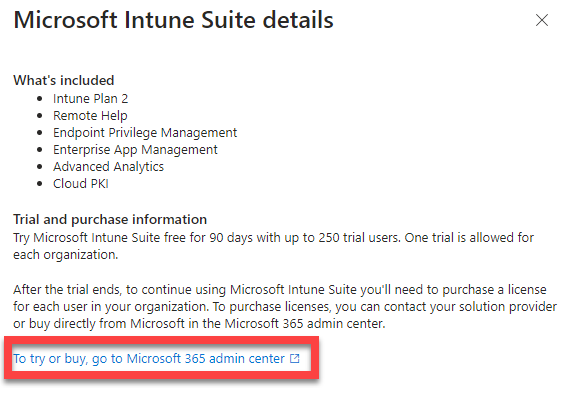
From the dialog that appears select the link at the bottom, as shown above, that will navigate you to the Microsoft 365 Administration portal where you can purchase (or sign up for a trial) of the Intune Suite.
After you have purchased the Intune Suite, don’t forget to assign Intune Suite licenses to you users!

With licenses assigned, head back to the Intune Management portal and select Apps, then All apps and finally Add as shown above.

From the App type list select Enterprise App Catalog app, as shown above, and press Select at the bottom of the dialog.

At the next screen select the hyperlink Search the Enterprise App Catalog. A dialog will appear on the right that allows you to select an app from a list.
You can only select one app at a time and more items will be added to this list over time.
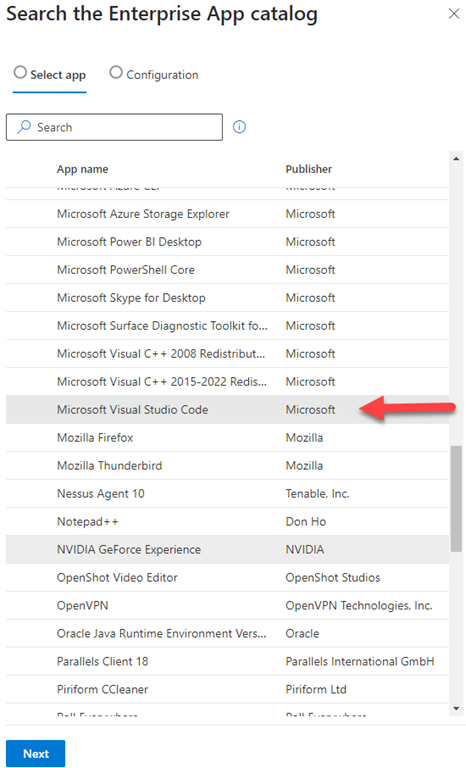
Here I’ve select Microsoft Visual Studio Code as shown above.
Select the Next button at the bottom of the dialog to continue.
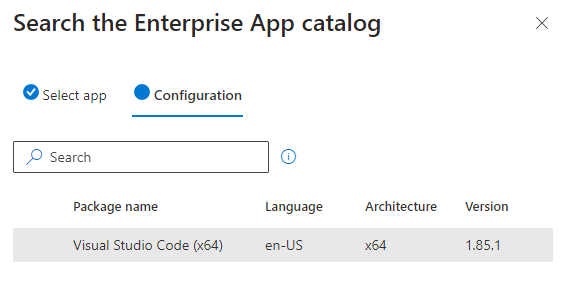
Select the app to configure and press the Select button at the bottom of the dialog.

At the next screen, you find most of the application details already complete as shown above. You can edit or add to these if desired. Press Next to continue.

You should now see all the details for installing the application as shown above on the Program page. You can again edit or add to these if desired. Select Next to continue.

You should now see the Requirements page as shown above. Here you can set any minimum specifications for the application if required. Select Next to continue.
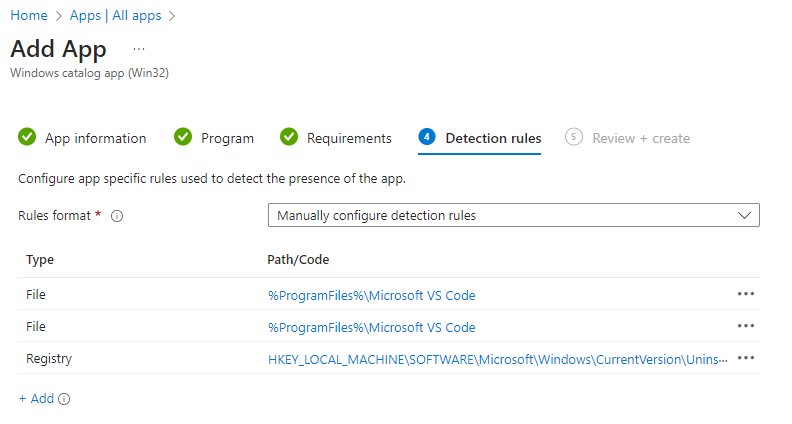
You should now see the Detection rules screen as shown above. These are the parameters to determine if, and when, the application is installed on the device. You’ll note that all these settings are already configured for you, but you can make changes if you want. Select Next to continue.

The final screen provides a summary of your settings. Select Add app at the bottom of the screen to complete the process.
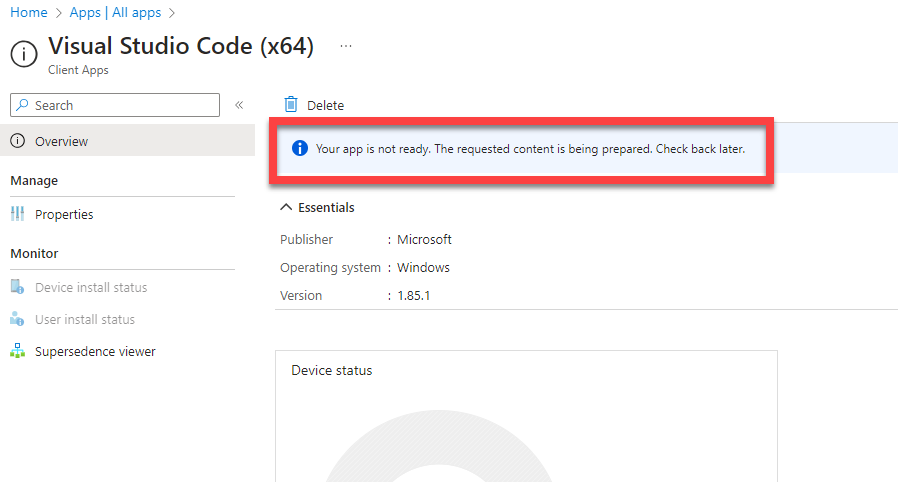
You’ll now see the configuration page for the app as shown above, but you will note that it is still being prepared as shown. You need to wait a few minutes for this process to complete before you can actually assign the app to devices and/or users.
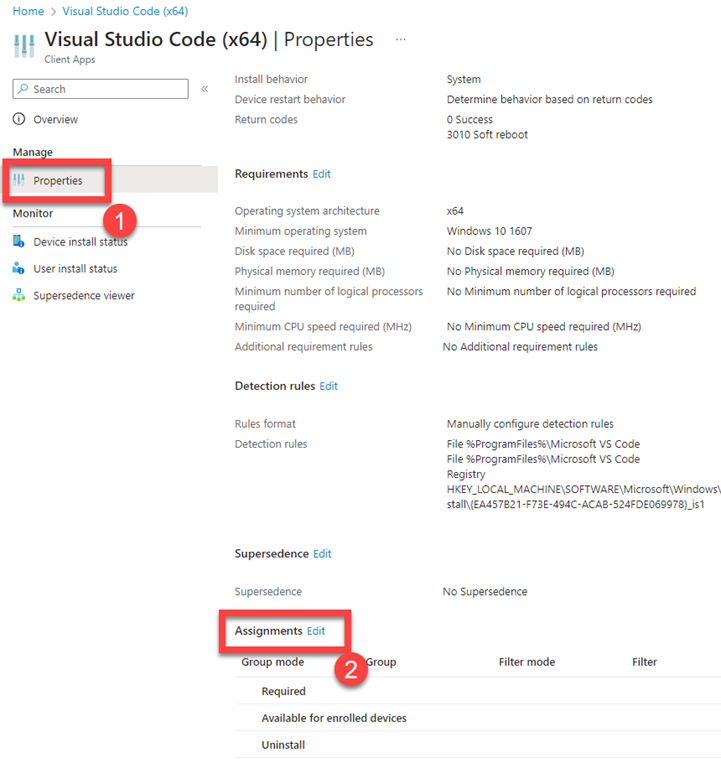
When the app is ready, select Properties, scroll down to Assignments and select the Edit link as shown above.
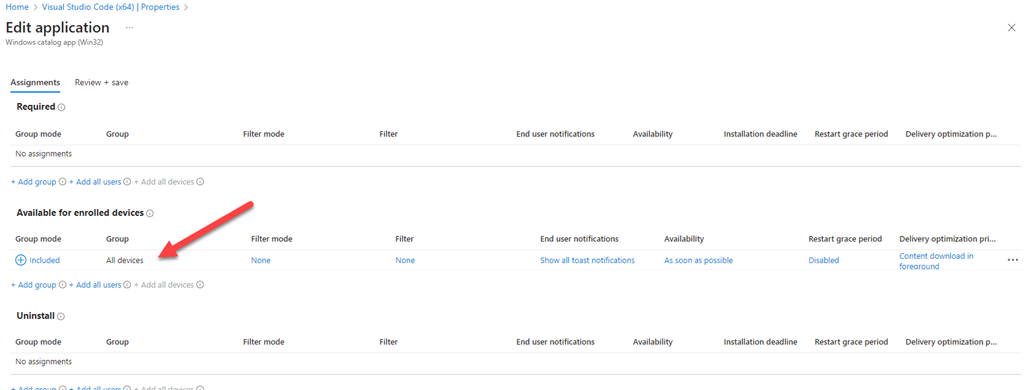
You can now select how you wish to assign this app. In this case I have elected to just make it available to all devices rather than making required or uninstalling it. Select Review + save to continue.
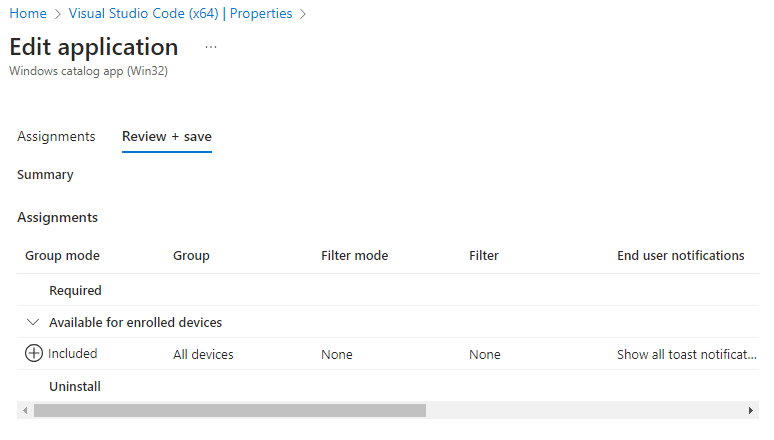
On the summary page, review your configuration and then select Save to complete the assignment process.
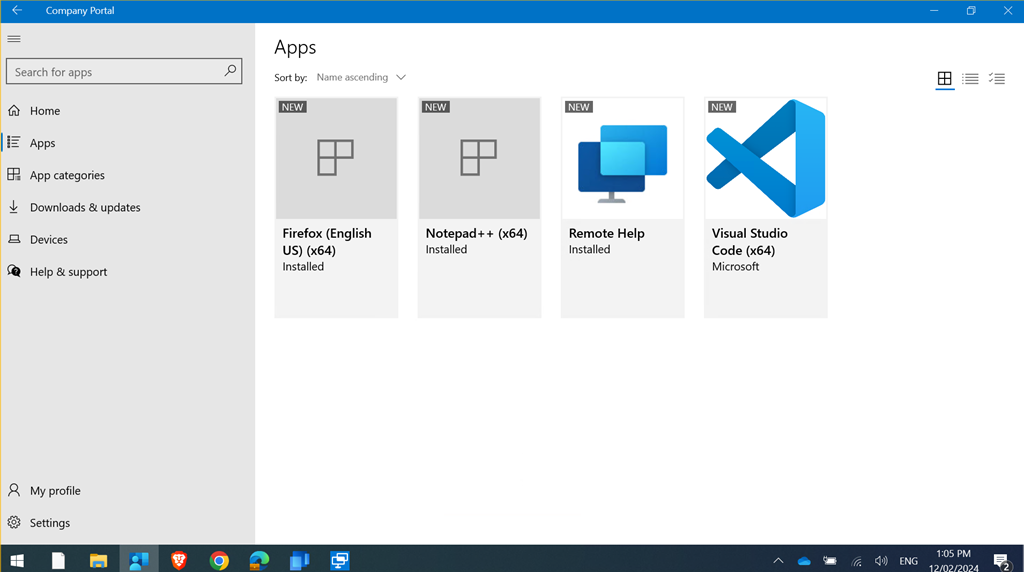
In this case, if the user navigates to the Company Portal App on their device they will see the newly deployed application as shown above in the Apps area.
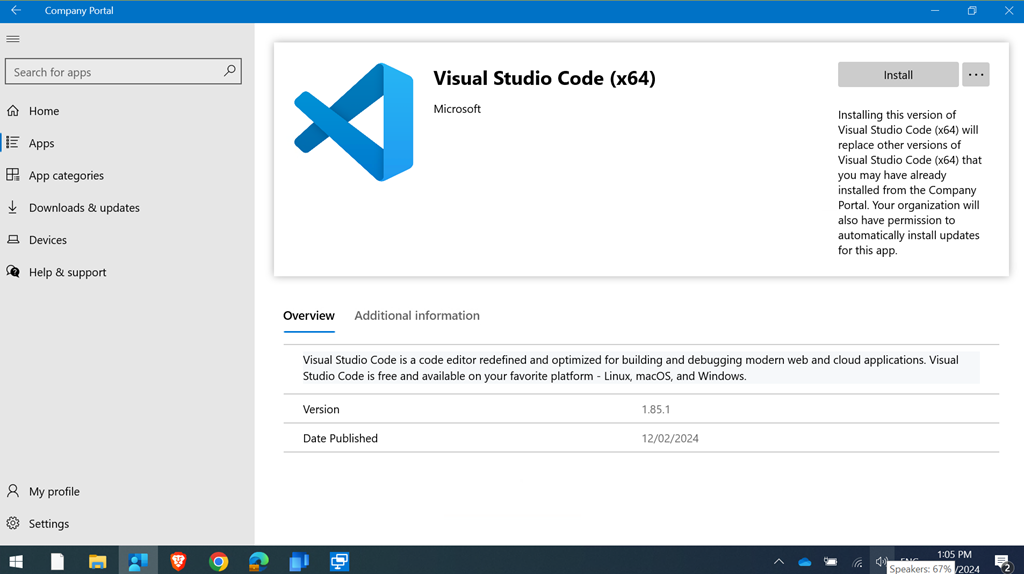
They simply need to select the desired app to install and then select the Install button in the top right to deploy.
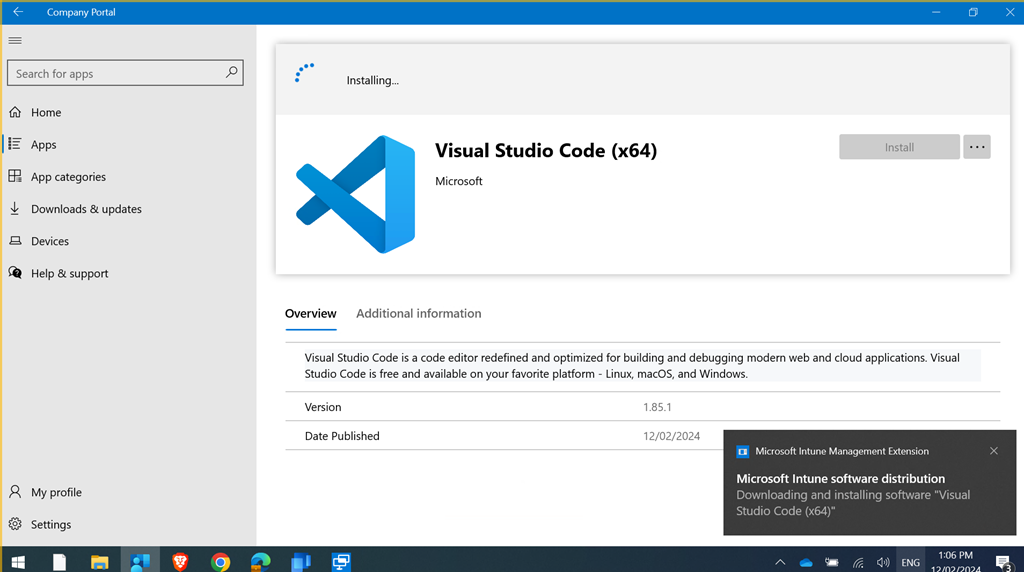
The app will deployed as shown and if a notification was selected in the app deployment, that too will be displayed as seen above.
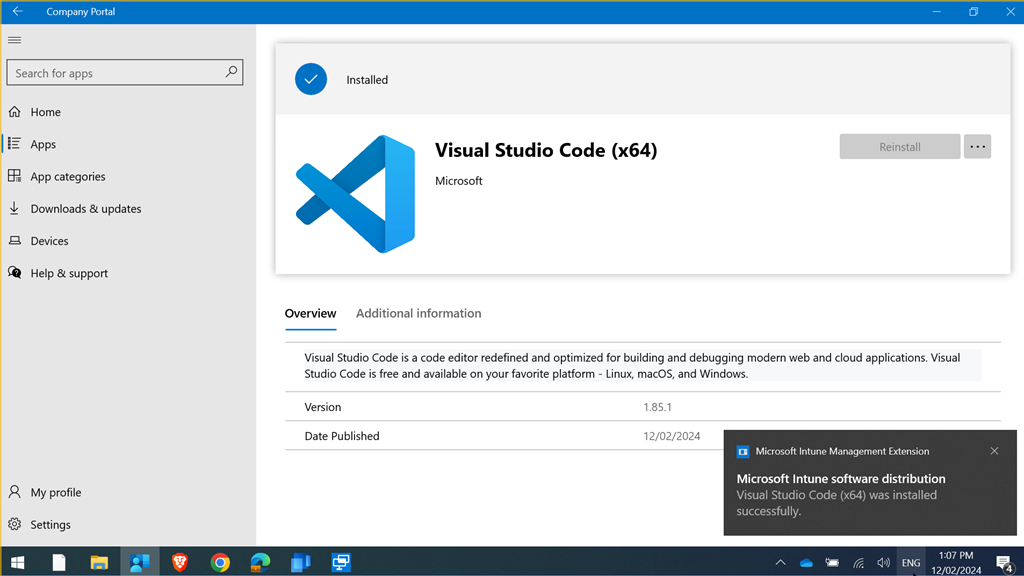
Notification will also be received when the app deployment has completed as shown above.
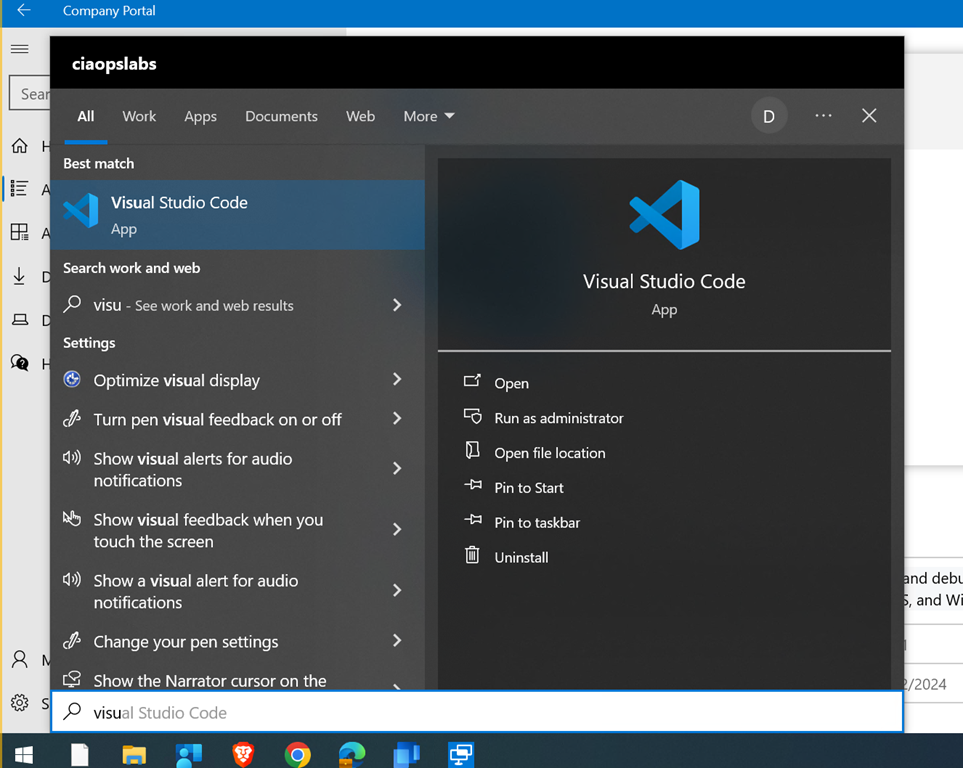
The app will then be on the device

and can be run as shown. Overall a very straight forward deployment without the need to enter custom settings. That’s the big benefit of using the app catalog. All that work is already done for you.
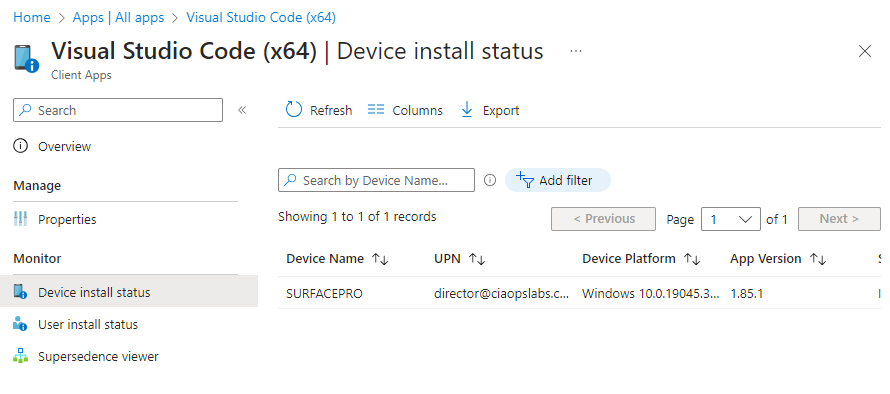
If you then look back at the Intune management console for that app it reports as installed on the device in question, as shown above.
Overall, the Intune Suite Enterprise App Management feature is pretty slick. Simple and straight forward to use. At the moment the catalog doesn’t have a whole lot of apps but I know many, many more are coming so stay tuned but if you want to manage applications on Windows devices (and Mac I believe, with others coming soon), then this is certainly the way to do it.
More on the Intune Suite coming soon.

 CIAOPS