Configuring DLP with Microsoft 365 Copilot

Here is a video that takes you through the process of setting up a Data Loss Prevention Policy (DLP) that protects content when used in Microsoft 365 Copilot.

To achieve this you need to set up Data Labelling in your Microsoft 365 environment which is not covered in this video. Documentation from Microsoft on DLP with Microsoft 365 Copilot can be found here:

Learn about the Microsoft 365 Copilot policy location (preview)

Copilot pages missing

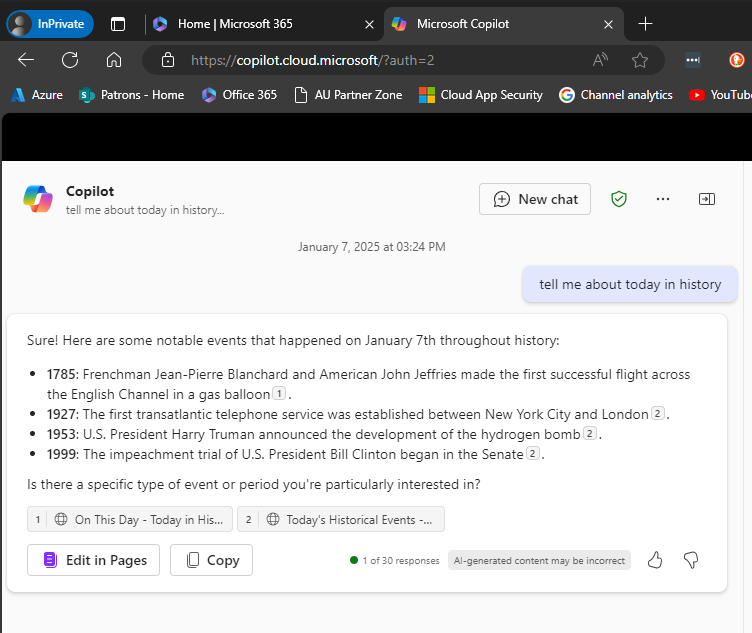
Recently, I discovered that Copilot pages were not appearing in Edge inprivate.

image

You can see the example above: Edge, inprivate and no Copilot pages.

image

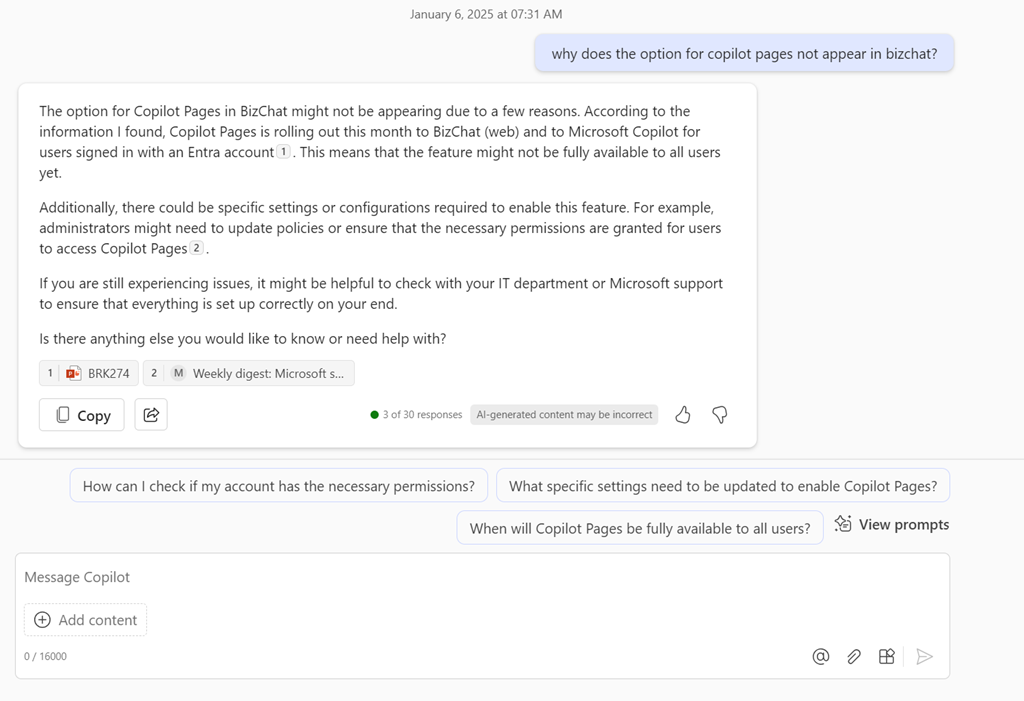
It seems that a control in the Microsoft 365 administration portal (Copilot | Settings | Pin Copilot) plays a role somehow. Initially mine was set to Do not pin Microsoft Copilot to the navigation bar.
image

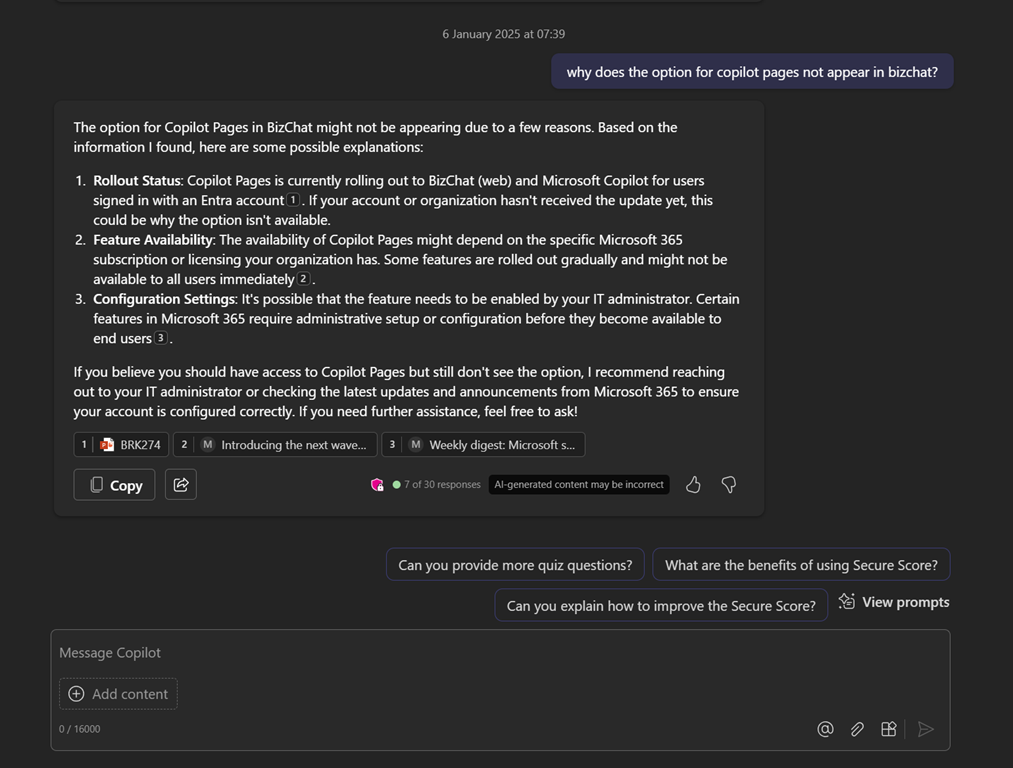
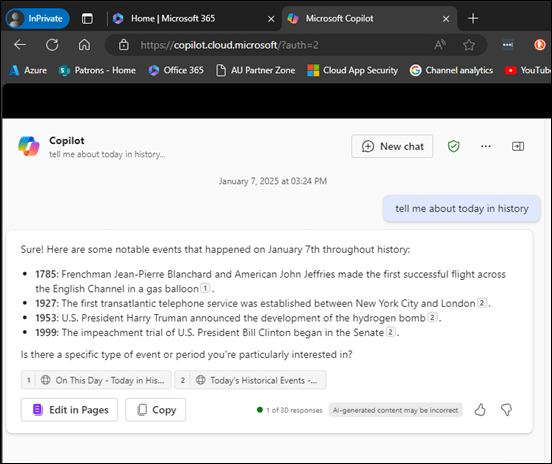
However, when I changed the setting to Pin Copilot to the navigation bar (recommended) and after a browser refresh or two (or close down/reopen browser), the Edit in Pages now appears within Edge inprivate as shown above.

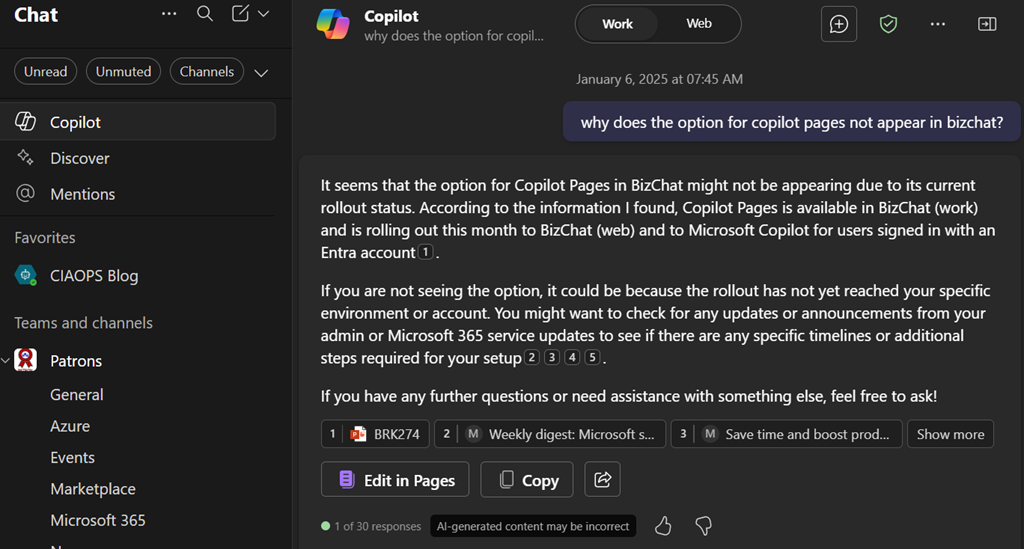
What I also didn’t appreciate is that if you don’t have a paid version of Copilot for Microsoft 365 and simply use the free version of Copilot with your Microsoft 365 environment you can also get access to the Edit in Pages capabilities, which I thought required a fully paid Copilot for Microsoft 365. However, that doesn’t appear to be the case as the above screen shot came from a tenant with no paid Copilot for Microsoft 365 and the Edit in Pages is available, PROVIDED it seems, you turn on the pin Copilot option!

Of course, I can’t find this documented anywhere and only stumbled across it playing around. I have found the Edit in Pages button appearance to be somewhat unreliable when it did appear, but I have been turning the setting on and off to test, which have contributed to that unreliability.

After all this testing, my advice would be, based on the tests I’ve run, that even if you don’t have a pad version of Copilot for Microsoft 365 in your environment you want the option to Pin Copilot to the navigation bar enabled as I detailed above. That should allow the Edit in Pages to always appear regardless of a paid version of Copilot being in the tenant or not and regardless of browser or browser session you use.

Another observation is that with the pinned option set, the free version of Copilot returns more information as you can see when you compare the screen shots. With the pinned option enabled you get citations and hyperlinsk to the citation. Interesting.

It would be nice to know for sure if this setting does what I have found but for now you’ll have to take my word for it based on what I have found in my testing.

Copilot pages not appearing in Edge inprivate

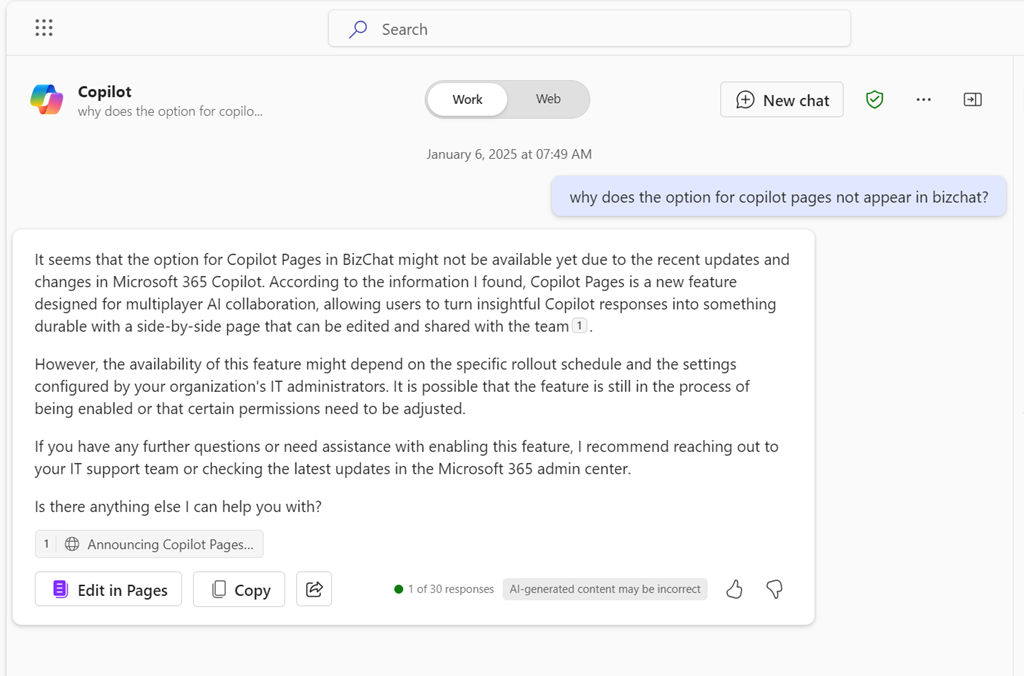
Here’s something weird. If I use Copilot with Edge inprivate I don’t see Copilot pages likes so:

Screenshot 2025-01-06 074334

and if I try again but this time in Teams, also within an Edge inprivate session:

Screenshot 2025-01-06 074453

but if I use the Teams desktop client I see Copilot pages:

Screenshot 2025-01-06 074632

I also see Copilot pages if I’m with a private session in another browser (here Brave):

Screenshot 2025-01-06 074835

and yet Edge in normal mode is fine:

Screenshot 2025-01-06 075045

I wonder what Edge is doing differently inprivate? For some reason, it seems that when I’m using Edge with inprivate I don’t see Copilot pages?

I’ll have to try a device that maybe isn’t locked down with Intuen to see if I get the same result.

December Microsoft 365 Webinar resources

image

The slides from this month’s webinar are available at:

https://github.com/directorcia/general/blob/master/Presentations/Need%20to%20Know%20Webinars/202412.pdf

If you are not a CIAOPS patron you want to view or download a full copy of the video from the session you can do so here:

http://www.ciaopsacademy.com.au/p/need-to-know-webinars

Watch out for next month’s webinar.

Key Topics:
  • Introduction and Webinar Details: Robert welcomed participants to the December 2024 need-to-know webinar, acknowledged the holiday season, and provided information on accessing the recording and shared resources. He also mentioned the creation of a Teams shared channel for updates. 0:06

  • Microsoft 365 Updates: Robert discussed updates and new features coming to Microsoft 365, including enhancements to Copilot, the ability to add images from Copilot in Word and PowerPoint, and the importance of AI in various Microsoft services. 2:04

  • Intune and Security Updates: Robert highlighted improvements in Intune, including the deprecation of older admin templates in favor of the settings catalog, and the integration of AI in security features. 3:48

  • GitHub Copilot for VS Code: Robert announced that GitHub Copilot is now available for free for VS Code users, allowing them to write and understand code using AI. He recommended the commercial version for IT professionals. 4:31

  • Book Recommendation: Robert recommended the book “The Coming Wave” by Mustafa Suleyman, which provides a realistic overview of AI, including its challenges and threats. He also suggested watching Mustafa’s TED talk. 6:18

  • Copilot Overview: Robert provided an overview of Microsoft Copilot, explaining its integration with Microsoft 365 applications, its reliance on the Microsoft Graph, and its ability to assist with tasks such as meeting summaries, data analysis, and content creation. 7:43

  • Copilot Licensing and Dependencies: Robert explained the licensing requirements for Copilot, including the need for an annual commitment, and emphasized the importance of having underlying services like identity and security in place for Copilot to function effectively. 10:32

  • Copilot Studio: Robert introduced Copilot Studio, which allows organizations to customize Copilot for their specific needs, and demonstrated how to create and use custom agents within the Microsoft environment. 14:09

  • Copilot in Action: Robert demonstrated the use of Copilot in various applications, including Word and Teams, showing how it can generate content, summarize information, and assist with technical queries. 20:04

  • Admin and Security Considerations: Robert discussed the importance of having security and compliance measures in place before implementing Copilot, and highlighted tools like the Purview portal for managing data security posture. 35:54

  • Copilot Adoption and Usage: Robert emphasized the need for training and understanding how to use Copilot effectively, and provided insights into driving adoption and monitoring usage within an organization. 51:22

  • Conclusion and Q&A: Robert concluded the webinar by thanking participants, encouraging feedback, and wishing everyone a happy new year. He also mentioned the availability of the webinar recording and additional resources. 54:09

Shortcuts in OneDrive for Business get the benefits of Copilot for Microsoft 365

image

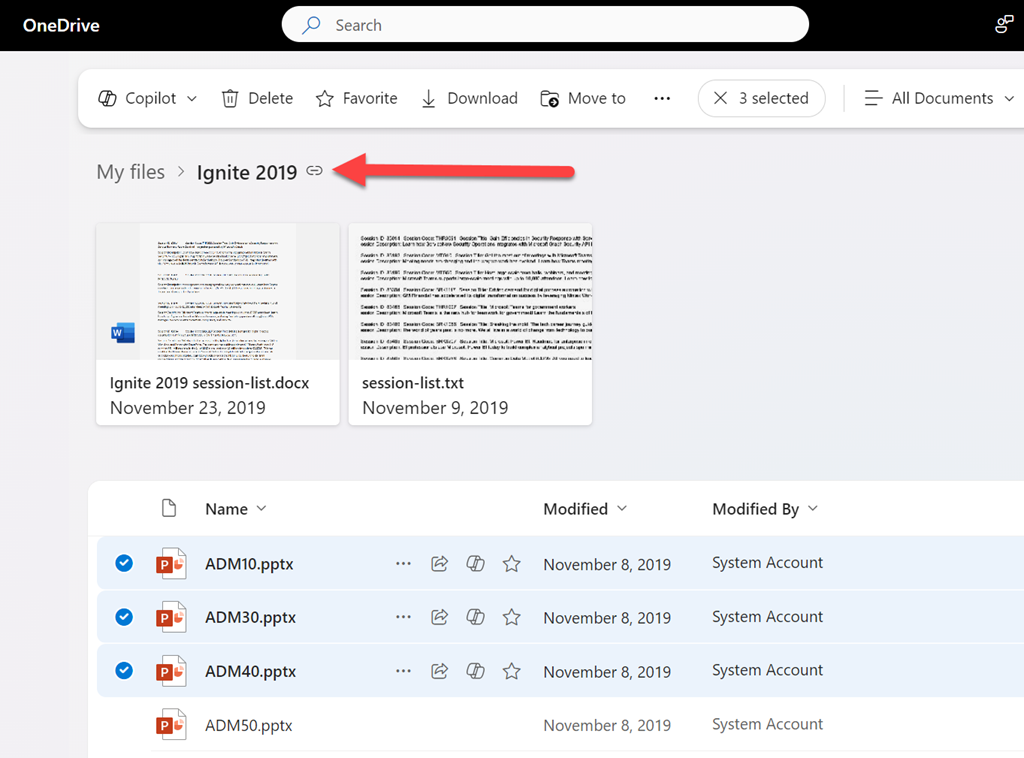
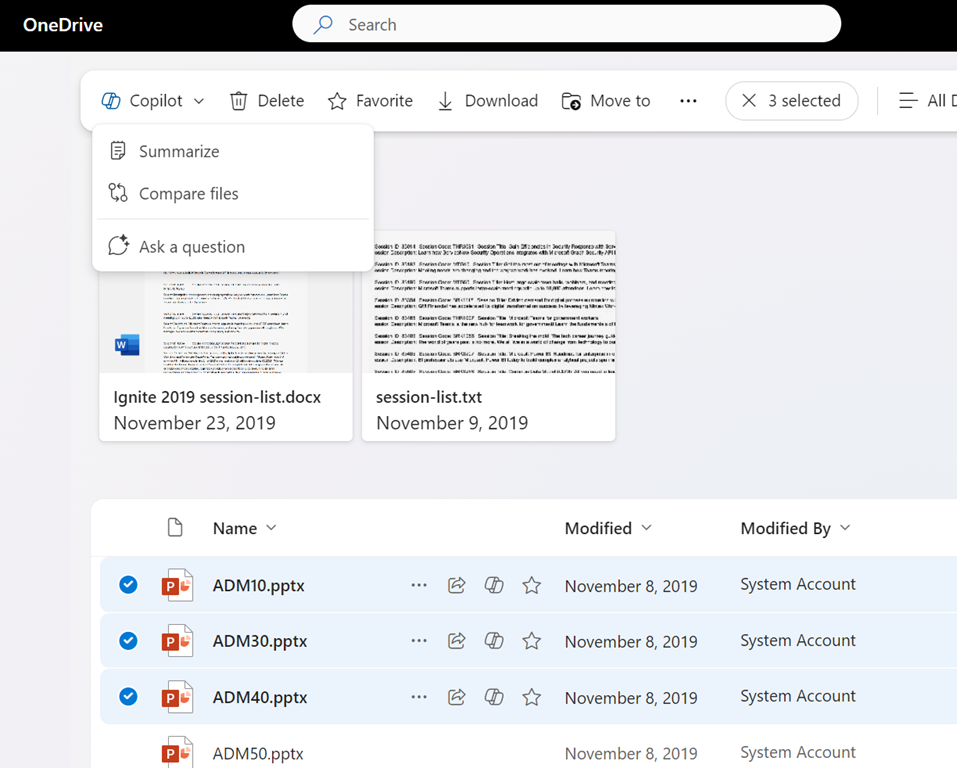
If you have Copilot for Microsoft 365 you will find you have a number of Copilot abilities surfaced in your OneDrive for Business as shown above, such as Summarize, Compare files, etc.

image

What you may not be aware of, is when you add a Shortcut to OneDrive as shown above, from your SharePoint document libraries or Teams channels,

image

that shortcut then appears in the list of folders in OneDrive as shown above

image

and the contents of this shortcut, in your OneDrive, also now have the ability to be used with Copilot themselves just like any normal file in OneDrive for Business. Thus, if you ‘link’ your SharePoint and Teams documents to your OneDrive for Business you can now use them direct with Copilot for Microsoft 365 to do things such as create FAQs, comparisons, summaries, etc.

Copilot plugins make all the difference

image

If you are using the Copilot for Microsoft 365 chat interface as shown above

image

and you ask it to reference something on the web, such as asking for a summary of a piece of legislation, you’ll probably find that it doesn’t deliver on the results expected as shown above.

image

This is because, if you want Copilot for Microsoft 365 to use content from the web you’ll need to enable a Plugin. You find these in the lower right of the screen, on the input line as shown above.

image

When you select the Plugin icon you’ll see the above dialog box appear where you can enable web content.

image

If you now run the same prompt, you’ll get a much better result as shown above.

Unfortunately, at this stage you have to enable the web content plugin each time you use Copilot for Microsoft 365. I’m still search for a way to have this enabled by default. If you do know how to do that, please let me.

New CIAOPS Copilot for M365 course

mountains

I just completed a new “Getting Started with Copilot for Microsoft 365” online course that you can find here:

https://www.ciaopsacademy.com/p/getting-started-with-copilot-for-micrsoft-365

The course is designed for the end user who wants to better understand how Copilot for Microsoft 365 can help improve their productivity across the suite of applications that Microsoft 365 provides access to, including Word, Excel, Outlook, Teams and more. This course is not aimed at administrators but those using Microsoft 365 in their business.

This new course is also available to CIAOPS Patrons as part of their benefits, so they too can get up to speed with Copilot in Microsoft 365.

Look out for more courses coming soon from CIAOPS.