Having set up Copilot for Security yesterday,
A day with Copilot for Security
and having an initial look around I decided to de-provision it after I was done for the day.
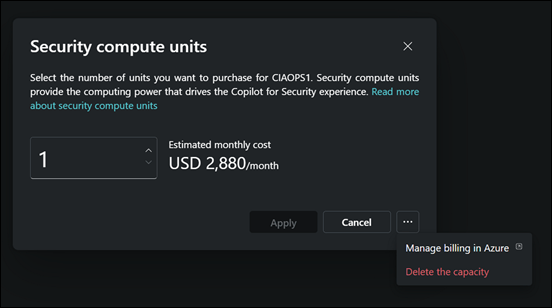
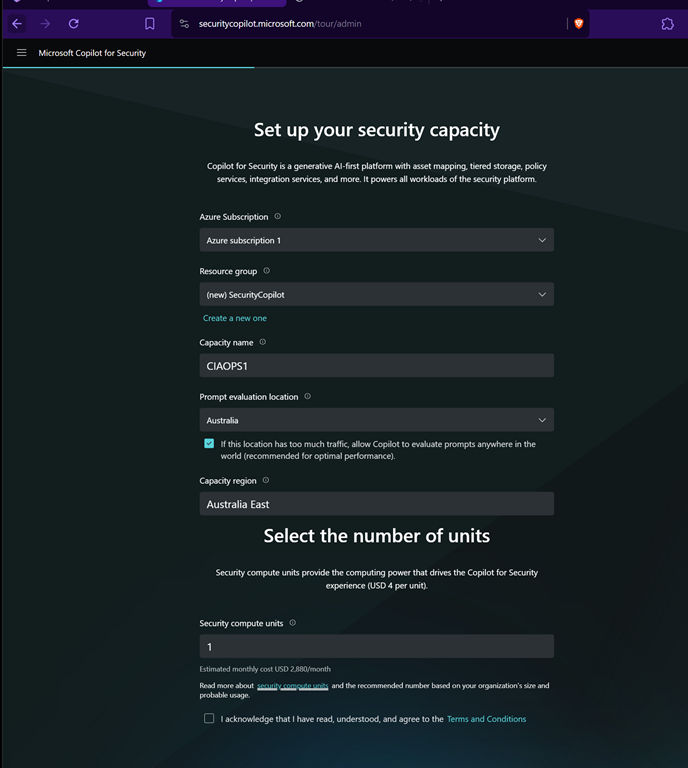
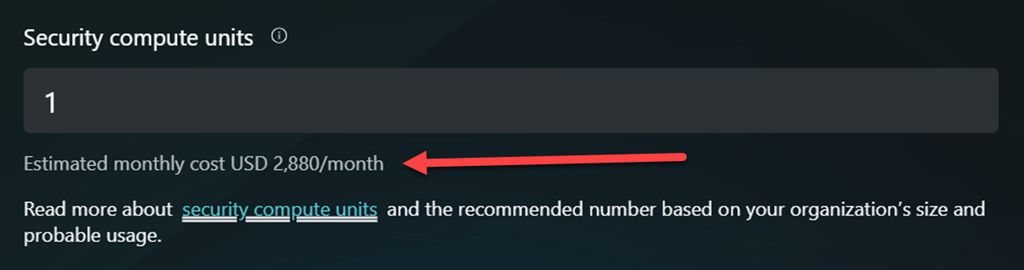
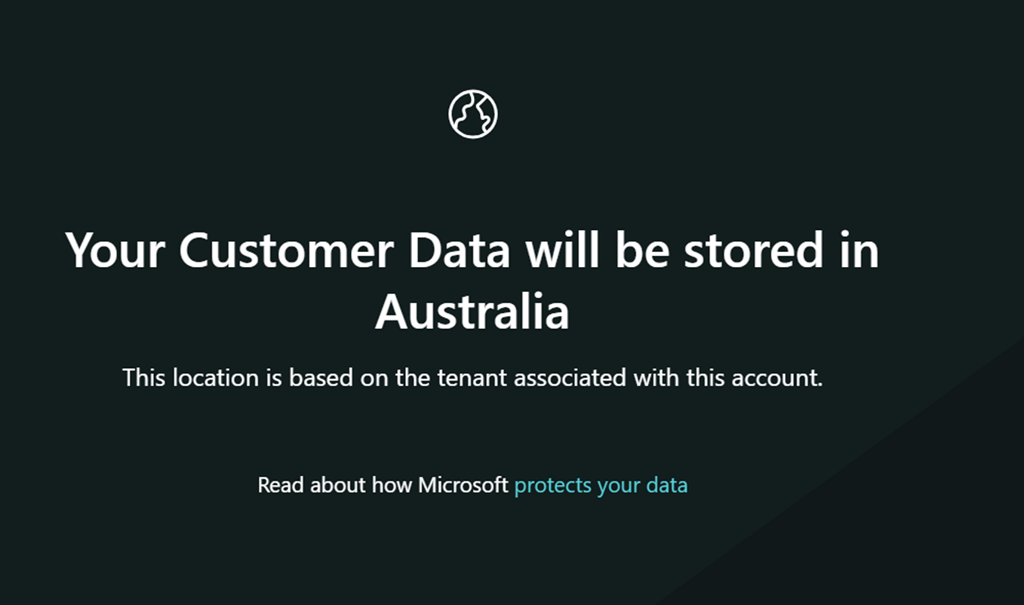
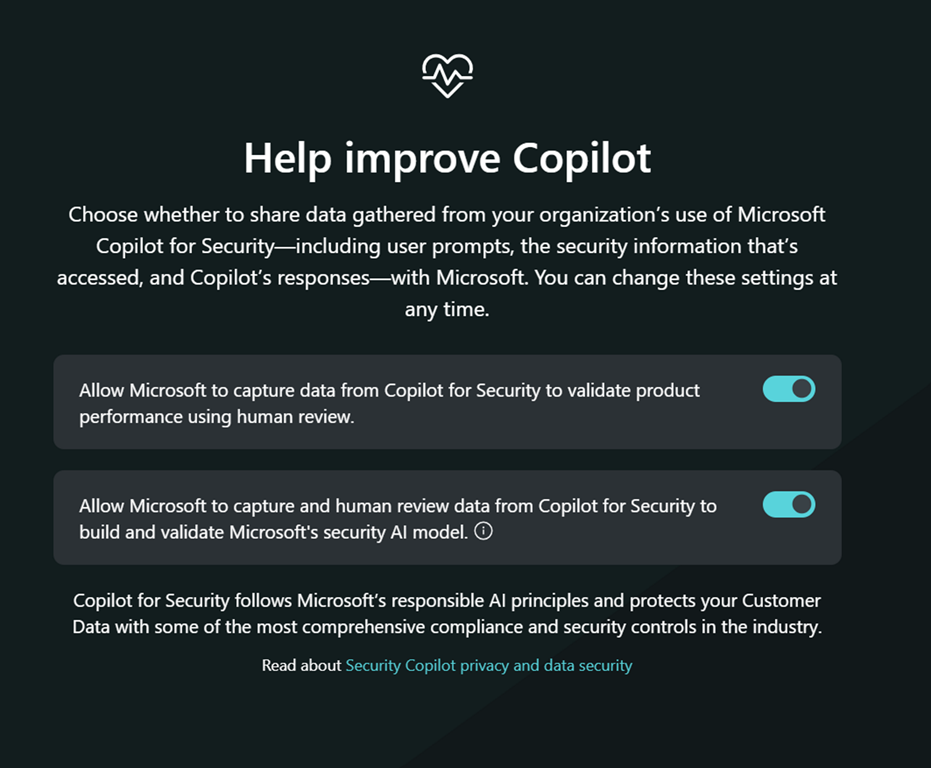
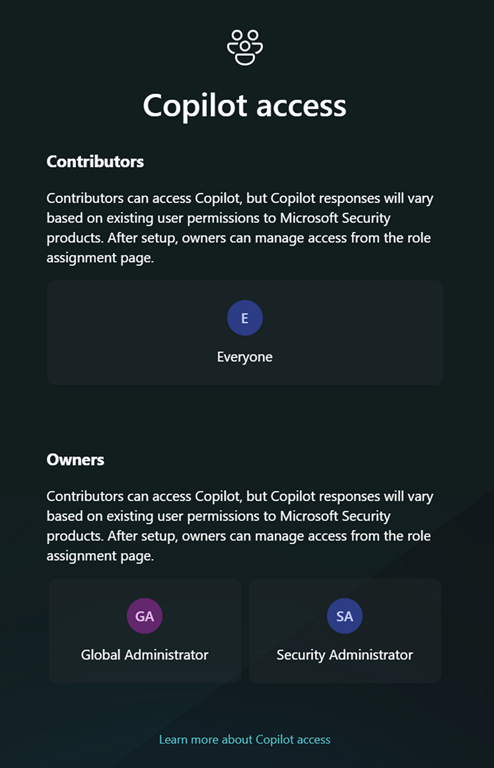
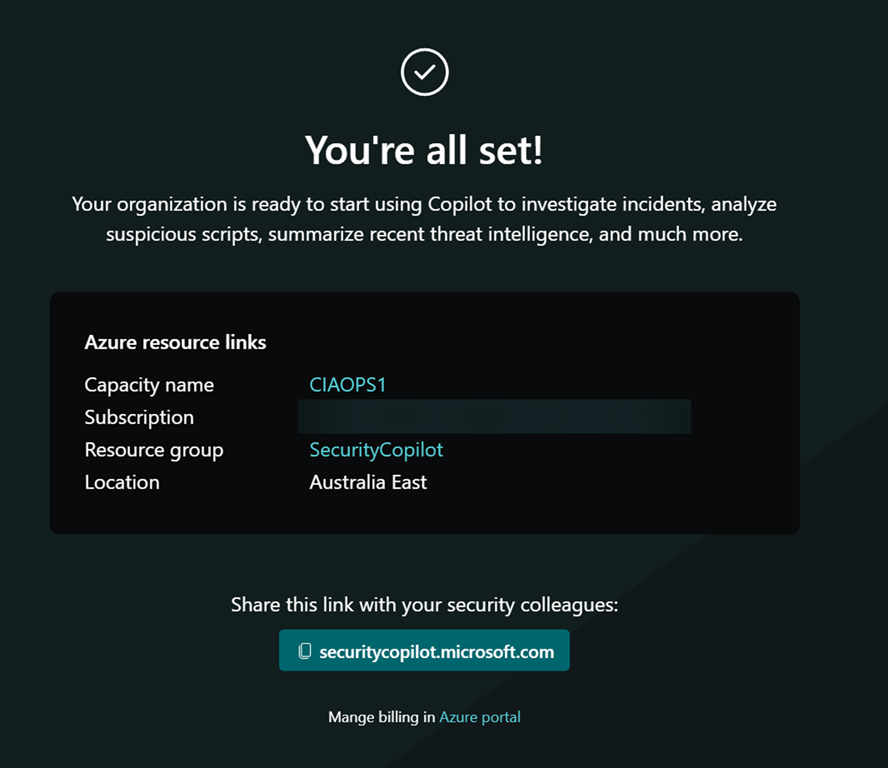
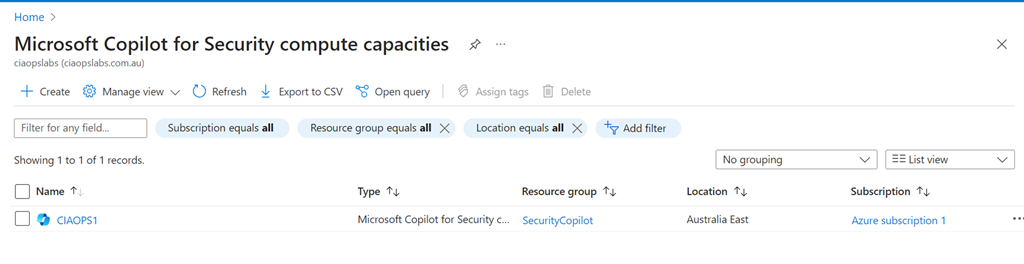
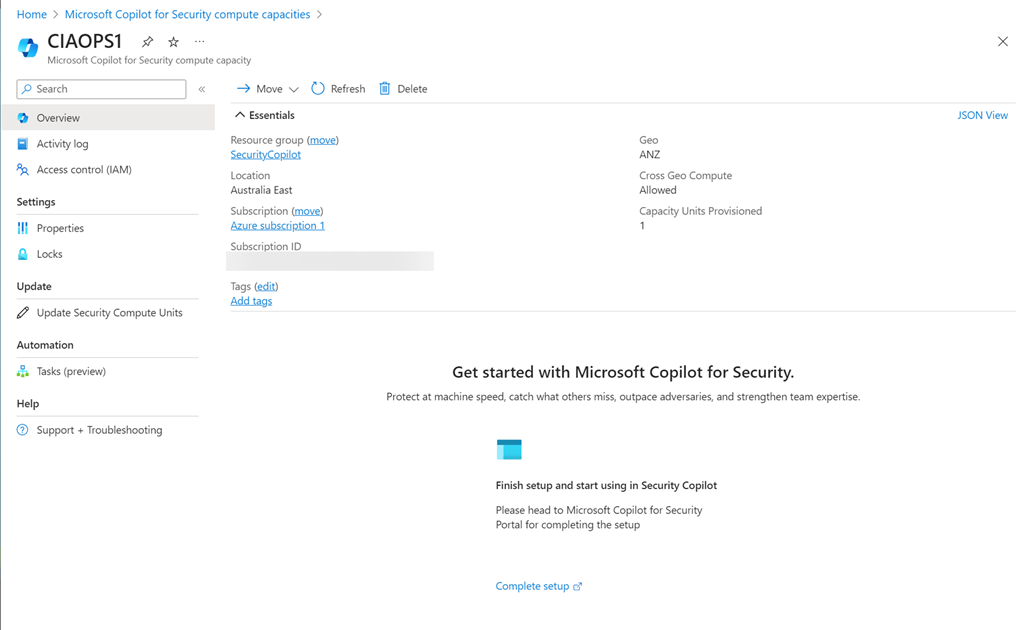
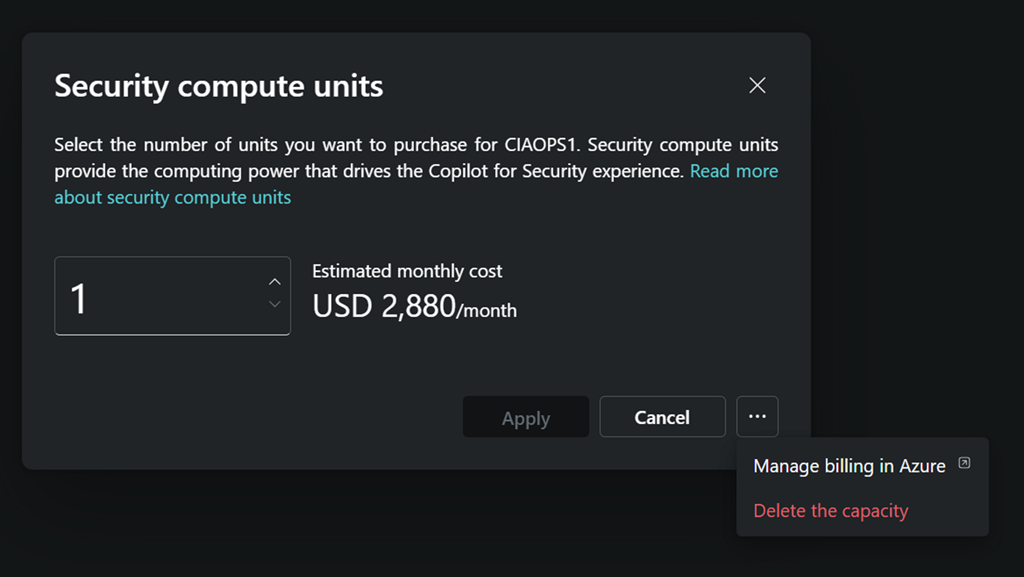
I returned the following day and set it all back up again using the same process as before. No issues.
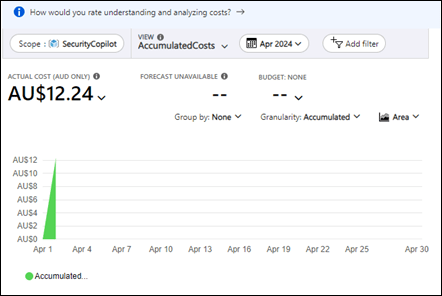
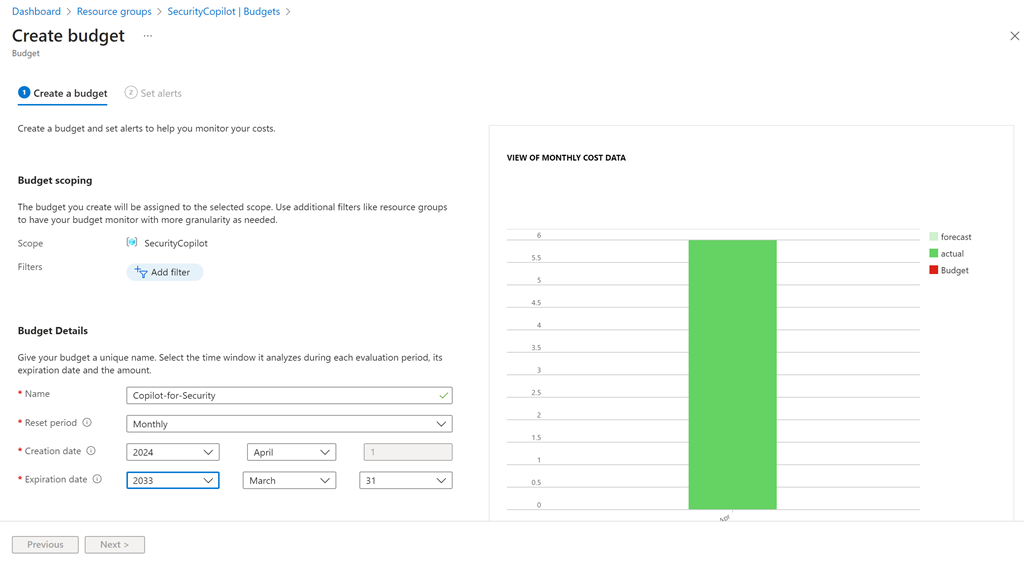
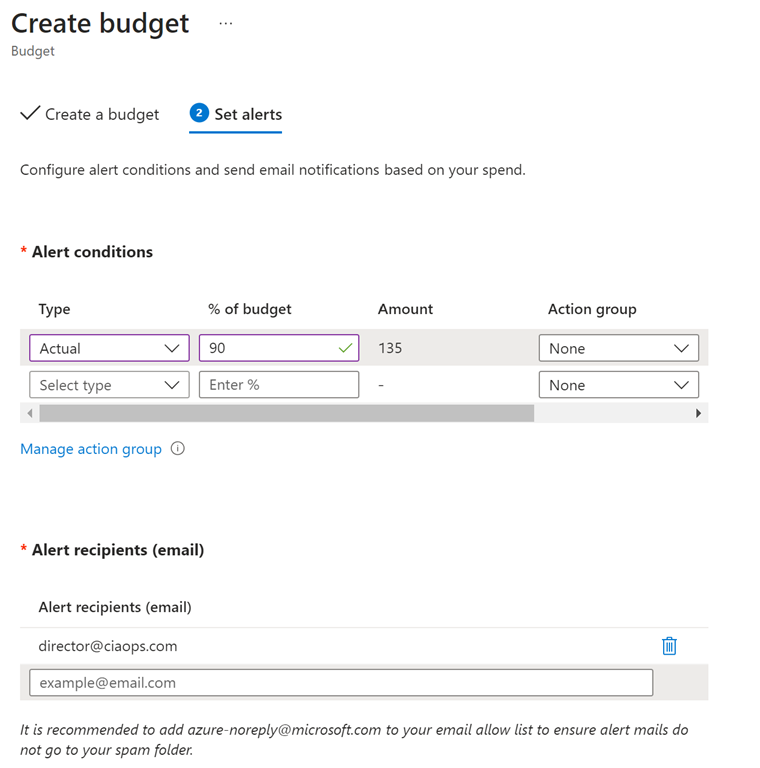
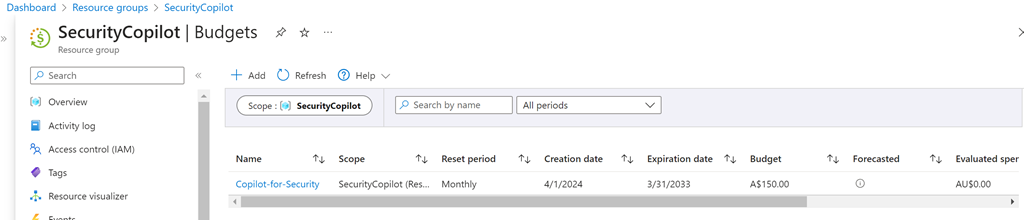
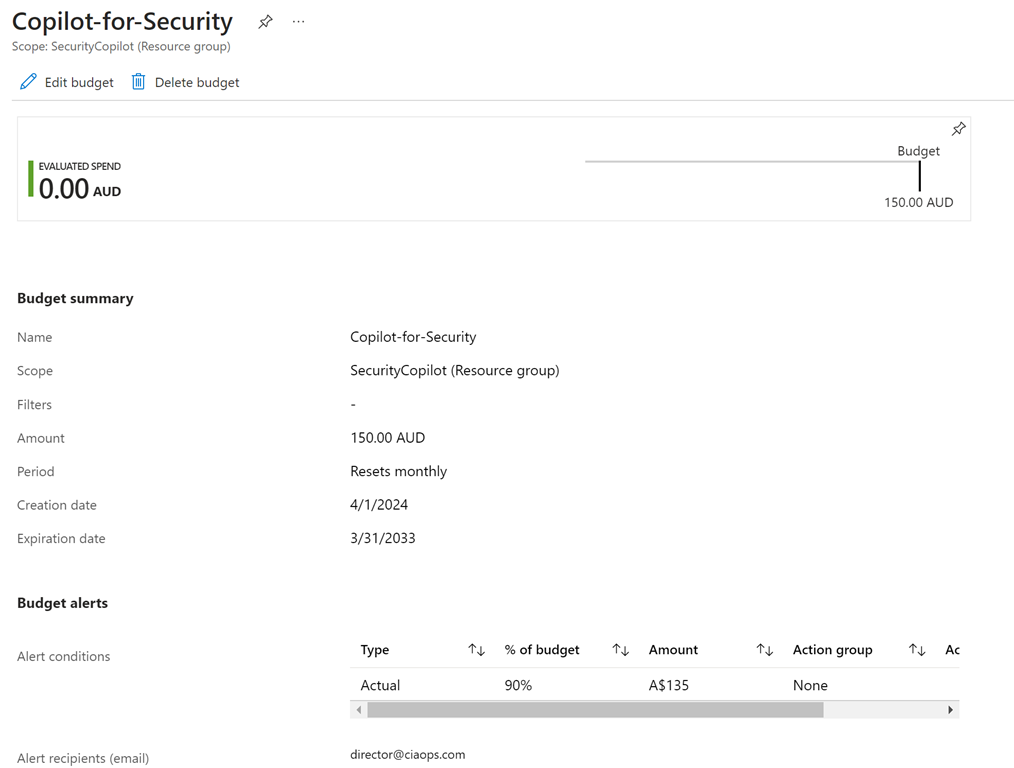
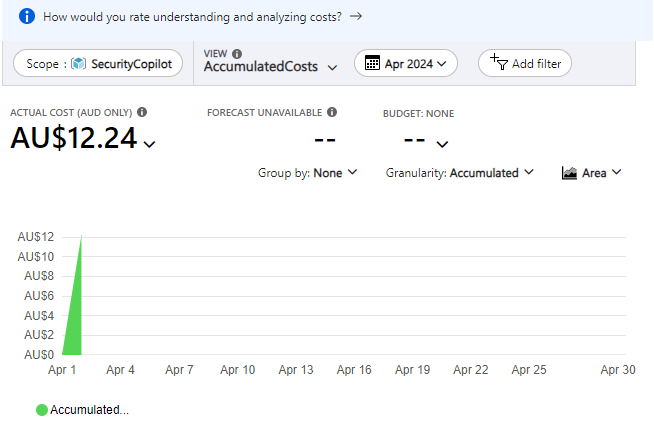
I had a quick look at the billing in my Azure portal and noticed that some charges had appeared as shown above. They seem to however lag actual usage by at least 24 hours or more, so keep that in mind if you are trying to track costs closely
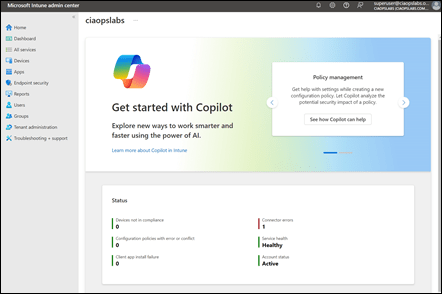
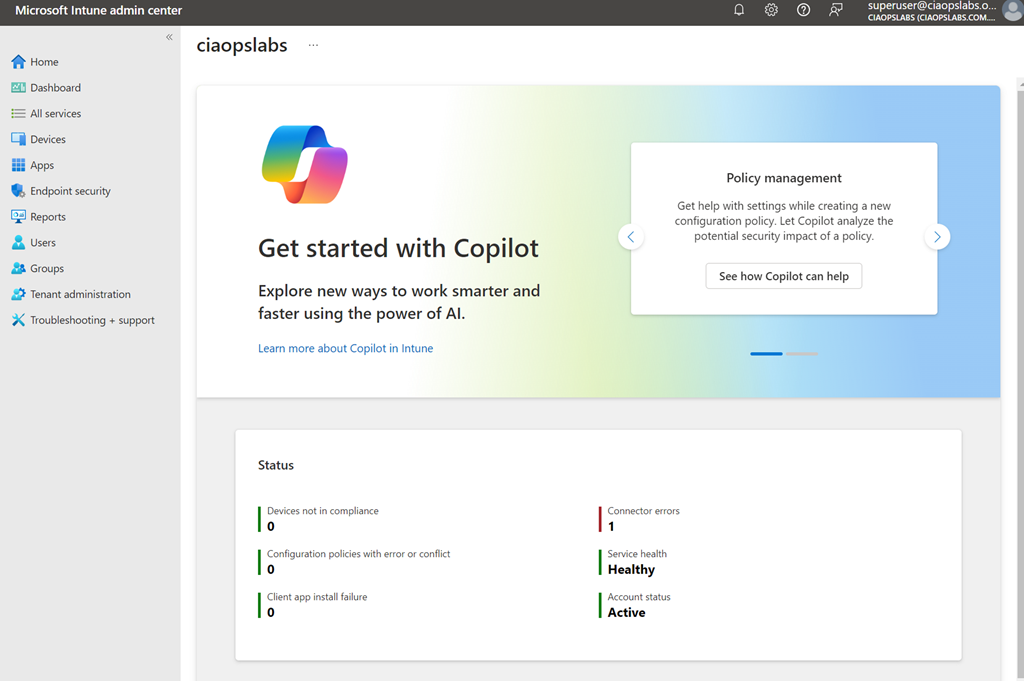
Because I also have Intune in the environment I took a look at where Copilot for Security is surfaced there. As you can see you get a big message in the homepage of the Intune portal when you navigate there reminding you that Copilot for Intune is available to you as part of Copilot for Security.
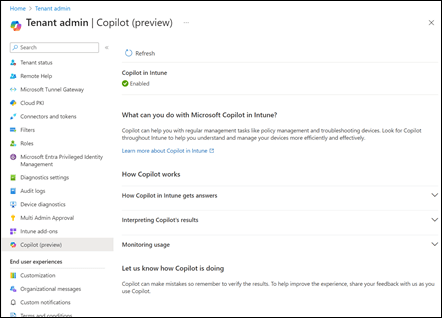
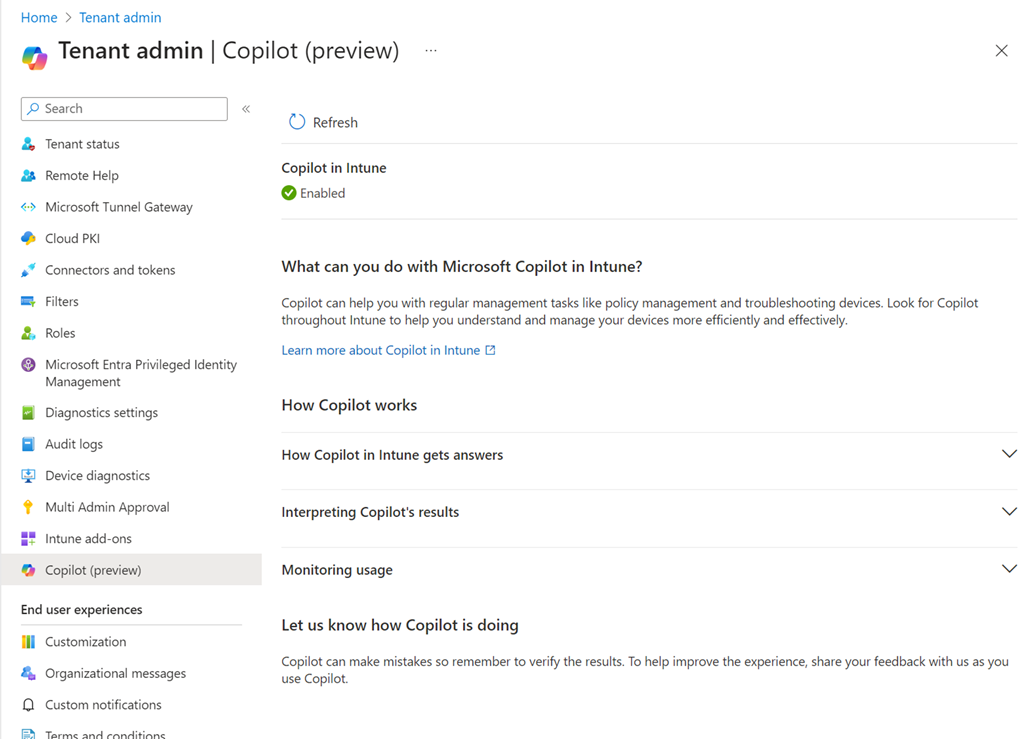
If you visit the Intune Tenant Admin area you’ll find a Copilot area as shown above. My check icon was green so I knew everything was working as expected.
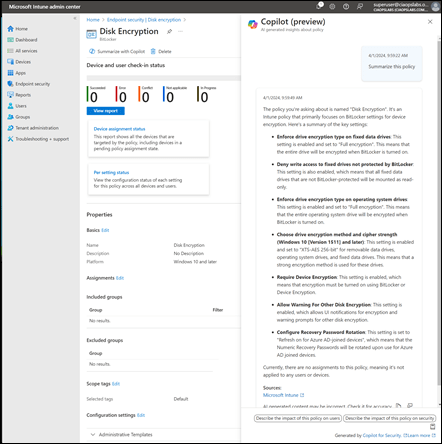
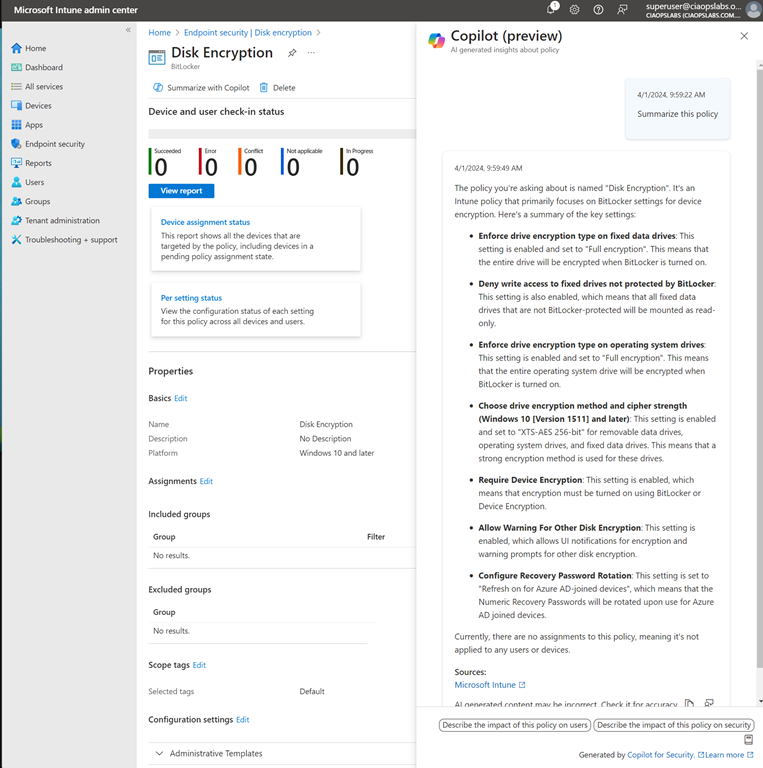
I then opened a policy and found a Summarize with Copilot button which I used to generate the summary you see on the right hand side of the policy. Very handy.
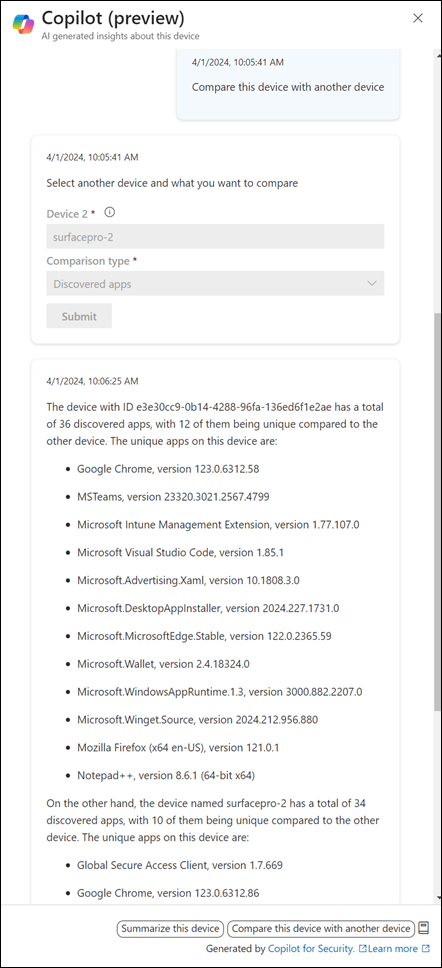
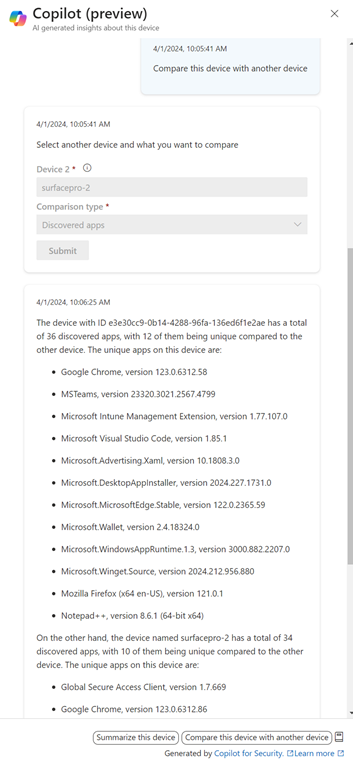
I also found a Copilot button when I looked at individual devices. As you can see above, I can use Copilot to give me a comparison between the apps installed on devices. Nice.
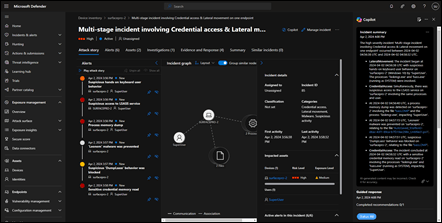
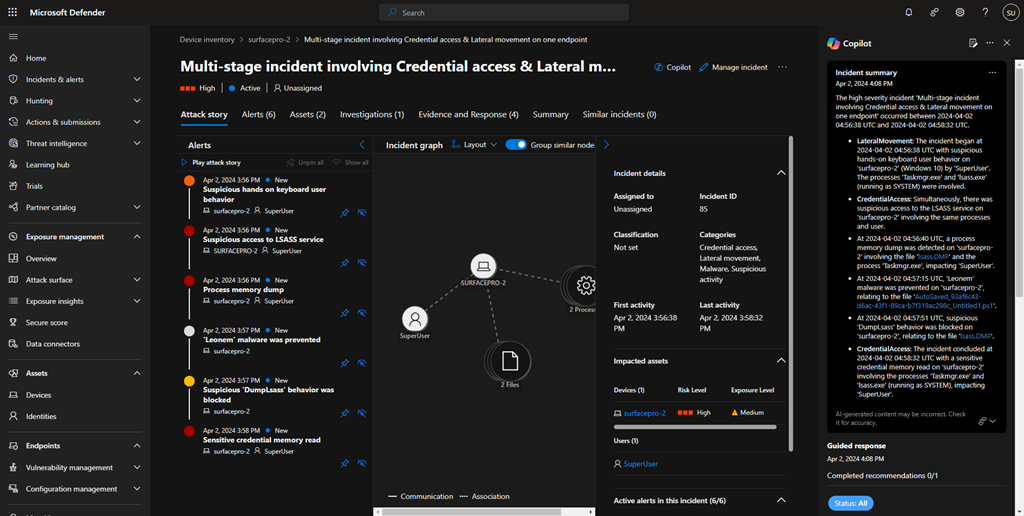
I then generated some security ‘incidents’ on a device and checked the device in the Microsoft Security portal to see how Copilot would be surfaced. You’ll see it appears as a pane on the right, as shown above.
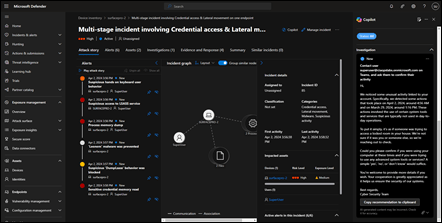
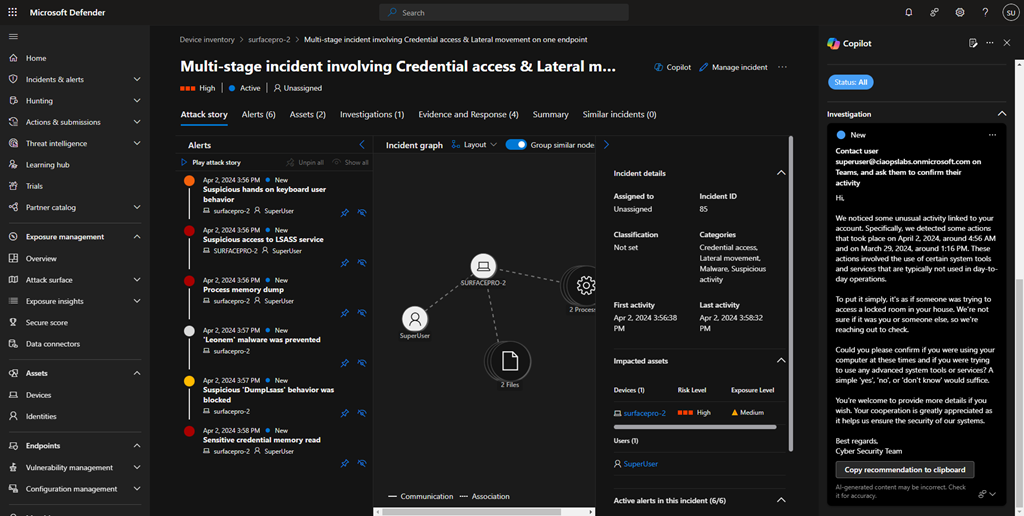
You’ll see in the above screen shot, I got Copilot to draft and email to send to the user of the problem machine. Very handy.
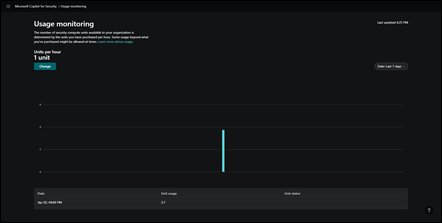
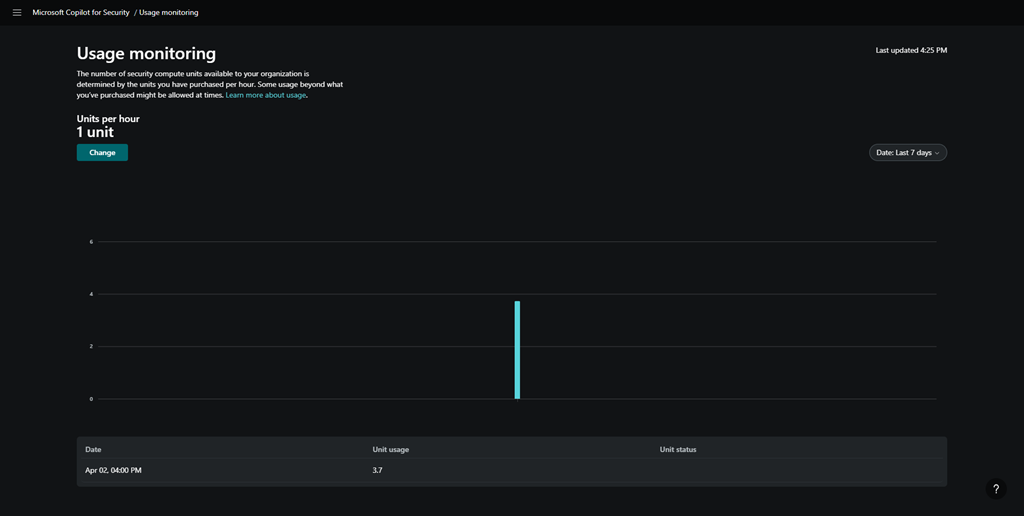
After playing around some more I went and looked at the Copilot for Security usage and you can see above, my unit usage was significantly higher than I initially provisioned. I assume I will be billed for those 3.7 units at US$4ph x the time I was actually playing around (about 1 hour). Let’s see when the costing make their way into the Azure portal.
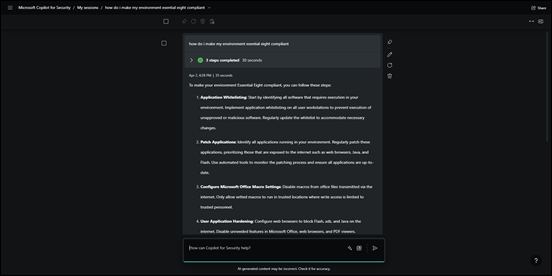
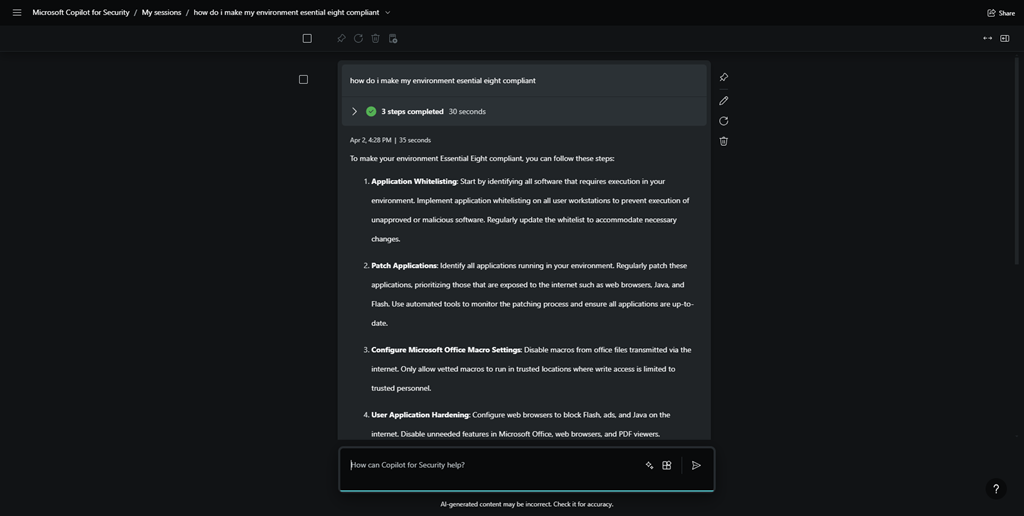
I then went off and asked Copilot for Security about how to make my environment Essential 8 compliant, and you can see the response above.

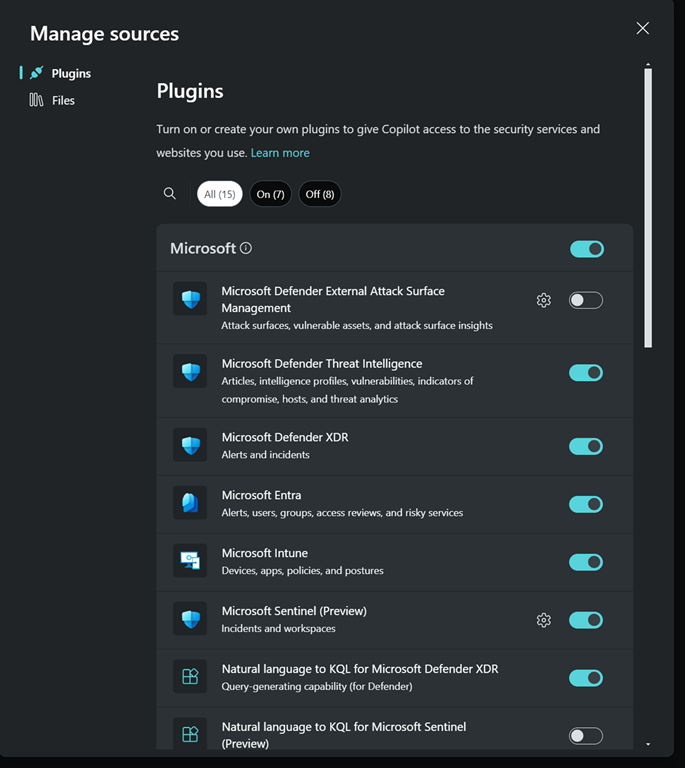
I also found where you can upload you own company files to the environment to give it even more information you can use in your investigations.
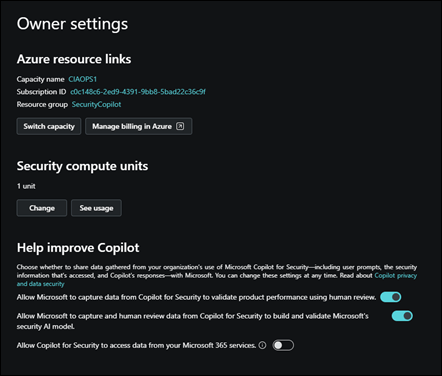
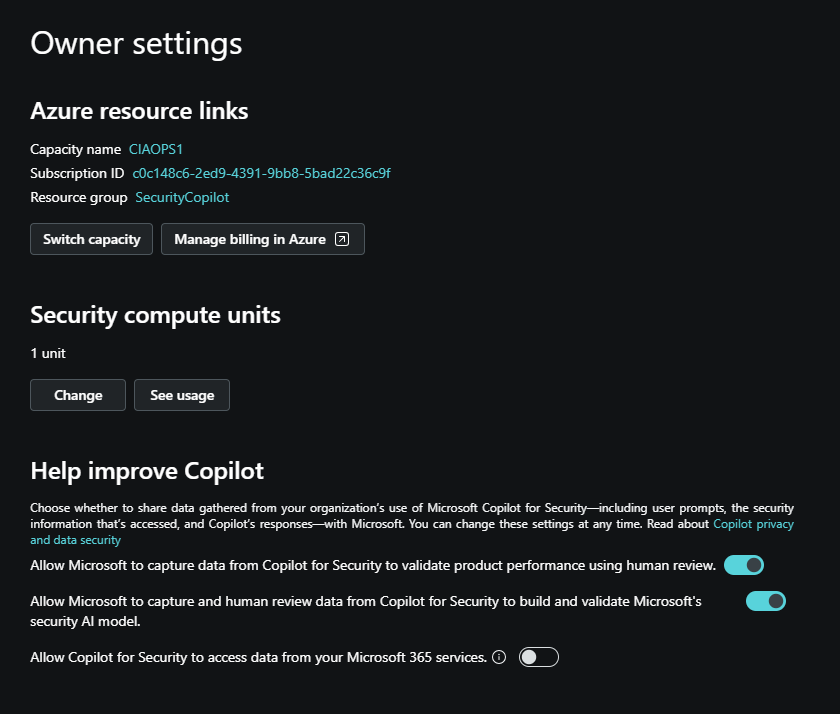
I found an area where there was an option to allow Copilot for Security to access my Microsoft 365 data, shown above.

However, for whatever reason, it did not allow me enable this option as you can see from the error above. I’ll try that again during my next session.
So today’s session has shown me that you can de-commission and re-commission Copilot for Security on demand. At the moment that is a manual process via the GUI, but I expect that I’ll be able to script that with something PowerShell soon enough.
Without Copilot for Security being re-enabled I found that most Copilot menu items in places like Intune remained but failed to operate, not unexpectantly. However, when I re-provisioned Copilot for Security again on the second day, all those options worked again. Some took and little while to ‘refresh’, but they all started working again as on the first day.
I also noticed that all my previous chat sessions where all still available and accessible. This is thanks to retention that is part of Copilot for Security. I just need to find out how long that retention is.
So the main thing I learnt from day 2 with Copilot for Security is that you can utilise it on demand. It doesn’t seem that you actually need to have it running 24/7, which is great new for smaller businesses on a budget. I’m sure you get more out of it if you do indeed leave an SCU running 24/7 but seems to me, so far, that you don’t lose much just enabling it as you need.
I also learned that the cost reporting seems to take at least 24 hours to start appearing which can make budgeting a little butt clenching until the actual cost figure appear in the Azure portal. I also learned that after you enable Copilot for Security the menu option remain in the various portals, even after your de-provision the service. Now, these may indeed disappear after a period time if you don’t re-provision but I’d find any of the disable menu items presented any errors, they just didn’t do anything any more. Which is understandable.
In short, I think Copilot for Security will work in an SMB environment but currently, you’ll need to a bit of manual labour to enable and disable the service but I expect that can be improved with automation down the track.
I’ll be playing with Copilot for Security for another day and I’ll then share my overall thoughts and feedback on what I’ve seen and the ROI it provides. However, I will certainly be implementing this, in an on demand capacity, in my production environment.
More updates soon from day 3.







 CIAOPS